Vue Carousel - free examples & tutorial (original) (raw)
Vue Bootstrap 5 Carousel component
Responsive Vue carousel built with the latest Bootstrap 5. Carousel is a slideshow cycling through different elements such as photos, videos, or text. Many examples and easy tutorials.
A slideshow component for cycling through elements—images or slides of text—like a carousel.
Note: Read the API tab to find all available options and advanced customization
Basic example
.webp)
First slide label
Nulla vitae elit libero, a pharetra augue mollis interdum.
.webp)
Second slide label
Lorem ipsum dolor sit amet, consectetur adipiscing elit.
.webp)
Third slide label
Praesent commodo cursus magna, vel scelerisque nisl consectetur.
How it works
The carousel is a slideshow for cycling through a series of content, built with CSS 3D transforms and a bit of JavaScript. It works with a series of images, text, or custom markup. It also includes support for previous/next controls and indicators.
In browsers where thePage Visibility API is supported, the carousel will avoid sliding when the webpage is not visible to the user (such as when the browser tab is inactive, the browser window is minimized, etc.).
Note: Please be aware that nested carousels are not supported, and carousels are generally not compliant with accessibility standards.
Carousels don’t automatically normalize slide dimensions. As such, you may need to use additional utilities or custom styles to appropriately size content. While carousels support previous/next controls and indicators, they’re not explicitly required. Add and customize as you see fit.
Variations
Slides only
Here’s a carousel with slides only. By default itemsClass property contains.d-block and .w-100 to prevent browser default image alignment.
With controls
Previous and next controls are added by default. Change the controls property to turn arrows on or off.
With indicators
You can also add the indicators to the carousel, alongside the controls. Change the indicators<> property to enable or disable them.
With captions
Add captions to your slides easily with thelabel and caption keys in items array. They can be easily hidden on smaller viewports, as shown below, with optionaldisplay utilities. We hide them initially with .d-none and bring them back on medium-sized devices with.d-md-block. Edit captionsClass property to change default classes.

First slide label
Nulla vitae elit libero, a pharetra augue mollis interdum.
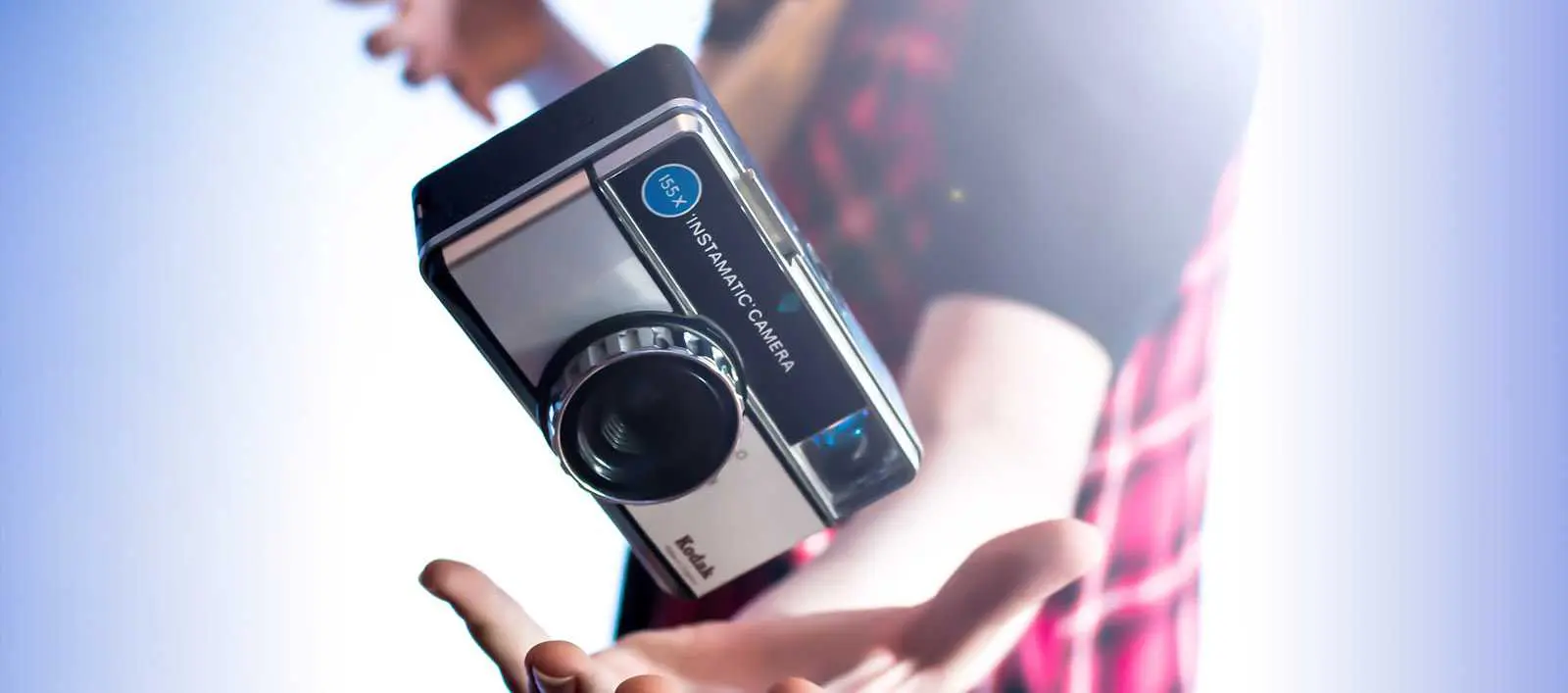
Second slide label
Lorem ipsum dolor sit amet, consectetur adipiscing elit.

Third slide label
Praesent commodo cursus magna, vel scelerisque nisl consectetur.
Animation
Add fade property to your MDBCarousel to animate slides with a fade transition instead of a slide.
Crossfade
Use fade transition on your slides easily by adding thefade prop.
Individual .carousel-item interval
Add interval key to any image object to change the amount of time to delay between automatically cycling to the next item. If the interval is not set, it takes the default value (5000 ms).
Add interval property to the component to change the default amount of time to delay between automatically cycling items (5000 ms).
Disable touch swiping
Swiping left/right on touchscreen devices can be disabled by setting thetouch prop to false.
First slide label
Nulla vitae elit libero, a pharetra augue mollis interdum.
Second slide label
Lorem ipsum dolor sit amet, consectetur adipiscing elit.
Third slide label
Praesent commodo cursus magna, vel scelerisque nisl consectetur.
Material style
If you want to make your carousel look more "material" use the rounded-* and shadow-* classes to add rounded corners and a shadows.
.webp)
First slide label
Nulla vitae elit libero, a pharetra augue mollis interdum.
.webp)
Second slide label
Lorem ipsum dolor sit amet, consectetur adipiscing elit.
.webp)
Third slide label
Praesent commodo cursus magna, vel scelerisque nisl consectetur.
Dark variant
Add dark property to the MDBCarousel for darker controls, indicators, and captions.
.webp)
First slide label
Nulla vitae elit libero, a pharetra augue mollis interdum.
.webp)
Second slide label
Lorem ipsum dolor sit amet, consectetur adipiscing elit.
.webp)
Third slide label
Praesent commodo cursus magna, vel scelerisque nisl consectetur.
Multi-item carousel
A basic example of a multi carousel with the most common use case with 3 active items (default version).
If you need more advanced options and examples of multi-item carousel have a look atMulti-item Carousel Docs