Interactive TUI (original) (raw)
Launch
The TUI automatically builds or updates the Parquet analytics cache on launch when new messages are detected.
Remote Mode
When your config.toml has a [remote] section configured, the TUI connects to the remote server automatically. All views, drill-downs, search, and filtering work the same as in local mode. Use --local to force a local database connection when remote is configured.
# Connects to remote server if [remote] is configured

msgvault tui

# Force local database

msgvault tui --local
Deletion staging and attachment export are not available in remote mode.
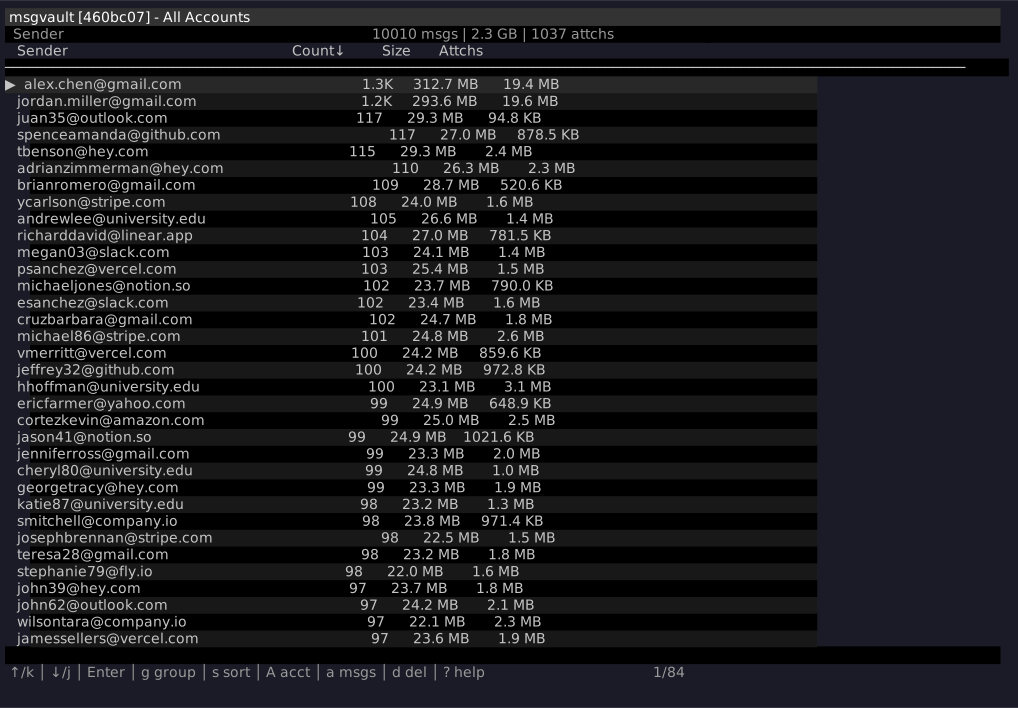
Press a from any aggregate view to show all individual messages in that view. Press Enter on a message to view its full detail, including headers and body.
View Modes
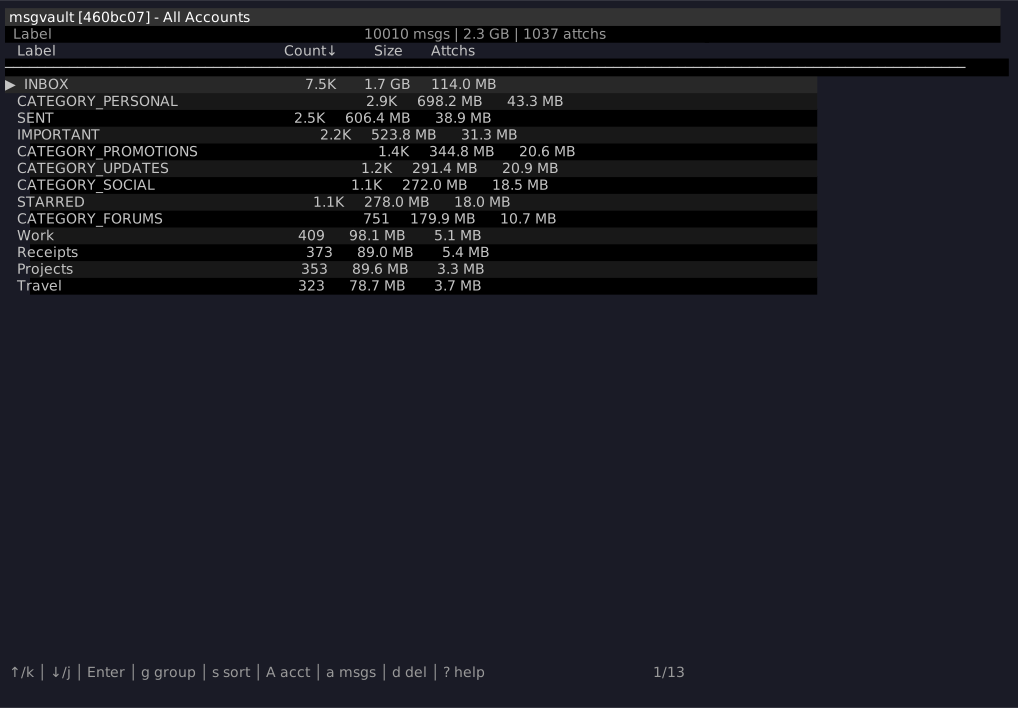
The TUI provides seven aggregate view modes. Press g to cycle through them:
| View | Description |
|---|---|
| Senders | Aggregate by sender email address |
| Sender Names | Aggregate by sender display name (falls back to email when no name is set) |
| Recipients | Aggregate by recipient email address |
| Recipient Names | Aggregate by recipient display name (falls back to email when no name is set) |
| Domains | Aggregate by sender domain |
| Labels | Aggregate by Gmail label |
| Time | Aggregate by time period (year/month/day) |
Time View
Press t from any view to jump directly to the Time view. The Time view aggregates messages by time period. When already in Time view, pressing t cycles between monthly, daily, and yearly granularity:
Text Messages
Press m to toggle between Email and Texts mode. This mode is only available when text data has been imported. See Text Messages for details on importing WhatsApp, iMessage, and Google Voice conversations.
Text mode provides the following view types. Press g to cycle through them:
| View | Description |
|---|---|
| Conversations | Aggregate by individual conversation |
| Contacts | Aggregate by contact phone number or identifier |
| Contact Names | Aggregate by contact display name (falls back to phone/ID when unavailable) |
| Sources | Aggregate by text service provider (WhatsApp, iMessage, Google Voice) |
| Labels | Aggregate by custom labels or categories |
| Time | Aggregate by time period (year/month/day) |
Navigation and interaction in Text mode work the same as Email mode. Press Enter to drill into a conversation and view individual messages. Press Esc or Backspace to go back. Use g to re-aggregate from a drill-down view, / to search, and f to filter. The stats display shows message count and total size for text conversations.
Drill-down and Sub-grouping
Press Enter to drill into any row. For example, selecting a sender shows their individual messages. Press Esc or Backspace to go back.
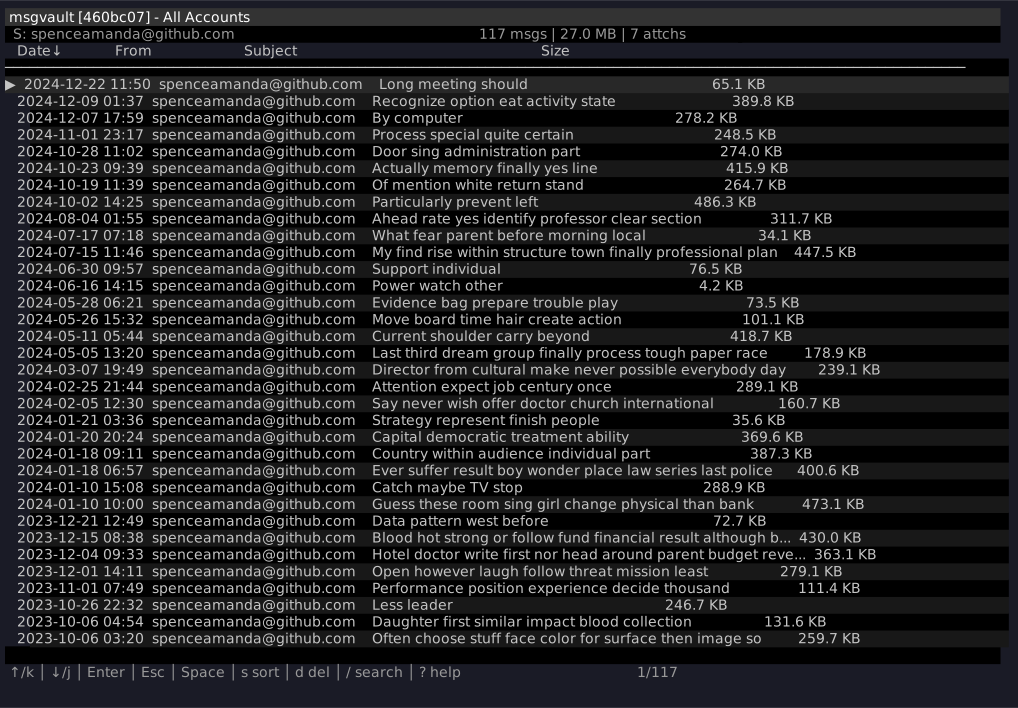
From a drill-down view, press g to re-aggregate the filtered messages by a different dimension. You can think of this like an interactive pivot table. The cycle skips the dimension you drilled into — and when drilling from an email address view (Senders or Recipients), it also skips the corresponding name view since it would be redundant. For example, drilling into a sender and pressing g cycles through Recipients, Recipient Names, Domains, Labels, and Time.
Searching
Press / to open a search bar that filters the current view in real time. Matching text is highlighted in the results. At the aggregate level (Senders, Domains, etc.), search runs fast DuckDB queries over Parquet, so results appear instantly even on large archives.
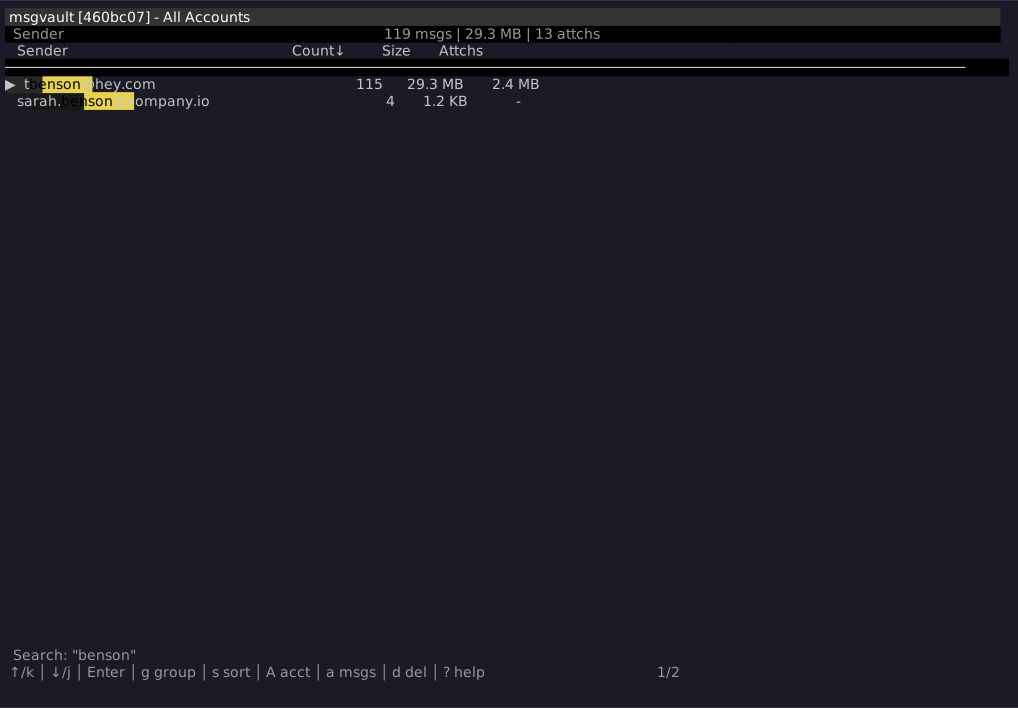
Search also works after drill-down. Drill into a result, then press / again to search within that context. This second-level search uses deep FTS5 full-text search over message subjects and bodies. You can progressively narrow results: find a sender, drill in, then search for a specific subject or keyword.
Filtering
Press f to open the filter modal. The modal presents two independent toggles that you can combine:
| Filter | Effect |
|---|---|
| Only with attachments | Show only messages that have attachments |
| Hide deleted from source | Exclude messages that have been deleted from Gmail |

Use ↑/↓ to navigate, Space or x to toggle a filter, and Enter or Esc to apply and close. Active filters are shown in the title bar (e.g. [Attachments], [Hide Deleted]). Filters apply to all views: aggregates, drill-downs, sub-aggregates, search results, and stats.
Viewing Email Threads
From any message list (after drilling into a sender, label, domain, etc.), press T to open the full email thread for the highlighted message. This renders the complete conversation inline in the terminal, including sender, date, and body text for each message in the thread.
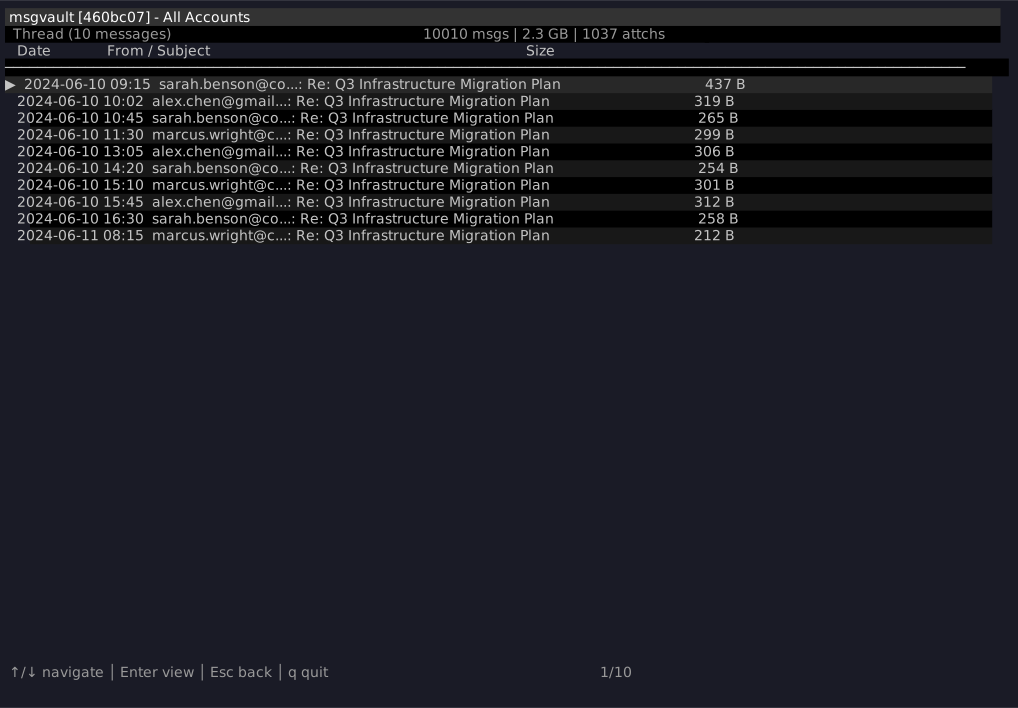
Press Esc to return to the message list.
Keyboard Shortcuts
| Key | Action |
|---|---|
| j / k or ↑ / ↓ | Navigate rows |
| Enter | Drill down into selection |
| T | View full email thread |
| Esc / Backspace | Go back |
| m | Toggle between Email and Texts mode |
| g | Cycle view mode |
| s | Cycle sort field (Name / Count / Size) |
| v | Reverse sort direction |
| t | Jump to Time view (cycle granularity when already in Time) |
| a | Show all individual messages in current view |
| A | Filter by account |
| f | Open filter modal |
| Space | Toggle selection |
| d | Stage selected for deletion |
| D | Stage all matching current filter |
| / | Search |
| ? | Help |
| q | Quit |
Marking Emails for Deletion
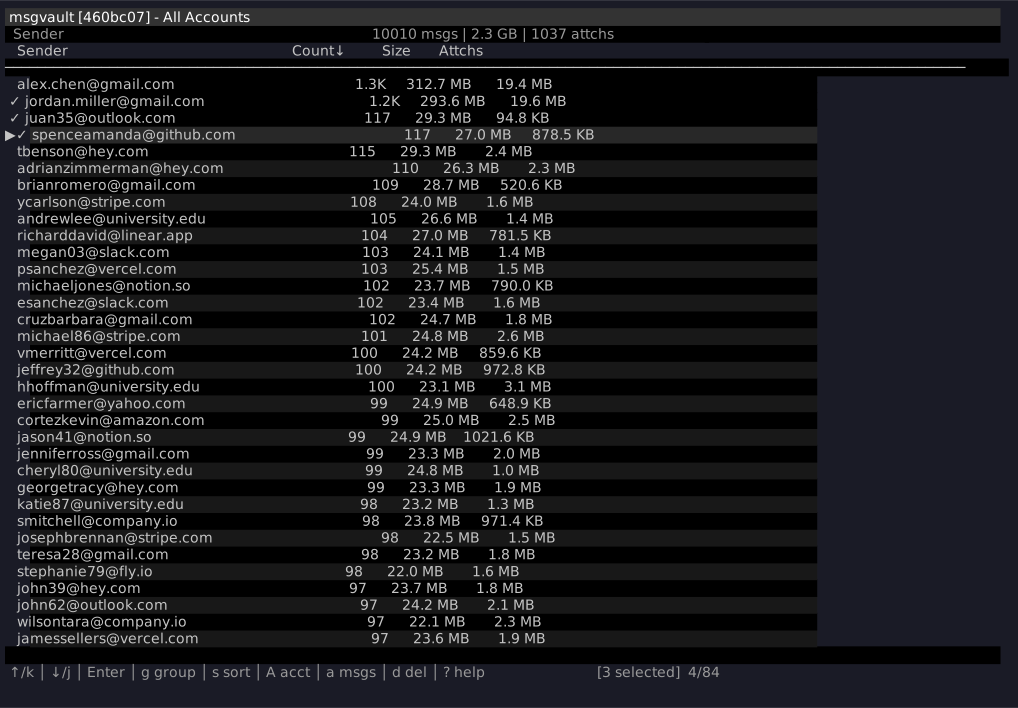
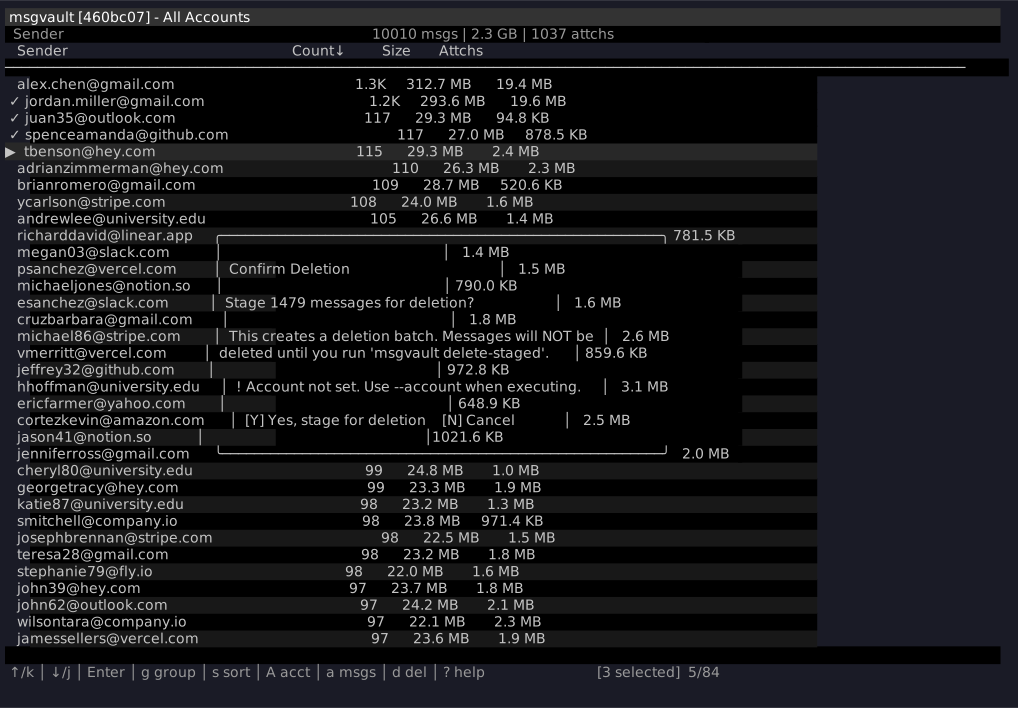
You can stage individual messages or bulk-delete entire aggregate groups (e.g. all emails from a sender, all messages with a given label) at once. Use Space to select one or more rows, then press d to stage them. From any aggregate view, press D to stage every message in the current group without selecting individual rows.
A confirmation dialog shows exactly how many messages will be staged before anything happens. Messages are not deleted immediately; they are placed in a deletion batch that you review and execute separately with msgvault delete-staged.
See Deleting Email for the full deletion workflow.
Performance
The TUI is built on DuckDB querying Parquet metadata exports, not the raw SQLite database. This architecture delivers aggregate queries (top senders, domains, labels, time series) hundreds of times faster than equivalent SQLite JOINs. The Parquet analytics layer has a small footprint, so drill-down and re-aggregation feel instant even on very large archives.
See Data Storage for details on how this works.