How to Update PHP Version in WordPress » Rank Math (original) (raw)
If your WordPress site feels slow, runs into compatibility issues, or shows warnings about outdated software, chances are it’s time to update the PHP version of your site.
PHP is the programming language that powers WordPress, and running the latest version ensures your site is faster, more secure, and compatible with modern themes and plugins.
In this post, you’ll learn how to update PHP version in WordPress step by step, so you can keep your website running smoothly without unnecessary risks.
Table Of Contents
- Why You Should Update Your PHP Version?
- How to Update the PHP Version
- Best Practices to Update the PHP Version
- Frequently Asked Questions
- Wrapping Up the PHP Version Update
1 Why You Should Update Your PHP Version?
Updating your PHP version is one of the best things you can do to keep your WordPress site healthy and reliable. Here’s why it matters for you:
- Better Security: Every PHP update includes important security patches that protect your site from hackers and vulnerabilities. By updating, you reduce the chances of your site being compromised.
- Improved Performance: Newer versions of PHP are faster and more efficient. This means quicker page loads and a smoother experience for your visitors.
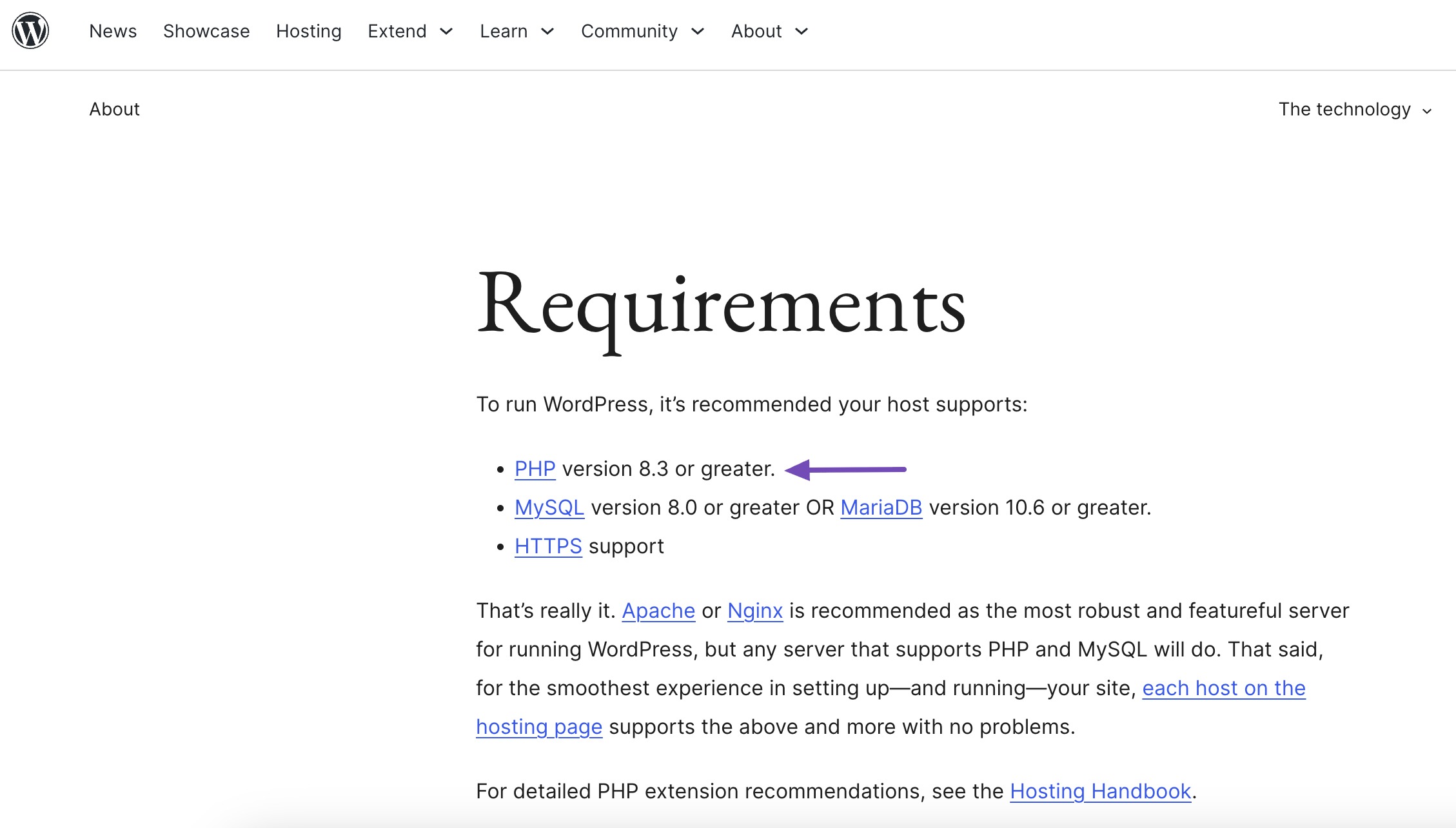
- WordPress Recommendation: WordPress itself recommends running PHP 8.3 or higher, so updating keeps you aligned with best practices.
- Fewer Compatibility Issues: Updating ensures your site works seamlessly with the latest WordPress updates, plugins, and themes, helping you avoid errors and downtime.
- Access to New Features: Each PHP update comes with enhancements that help you build a stronger, more future-ready website.
Now let’s walk through the steps you need to follow to safely update the PHP version of your website.
2.1 Check Your Current PHP Version
Before updating, you should know which PHP version your site is currently running.
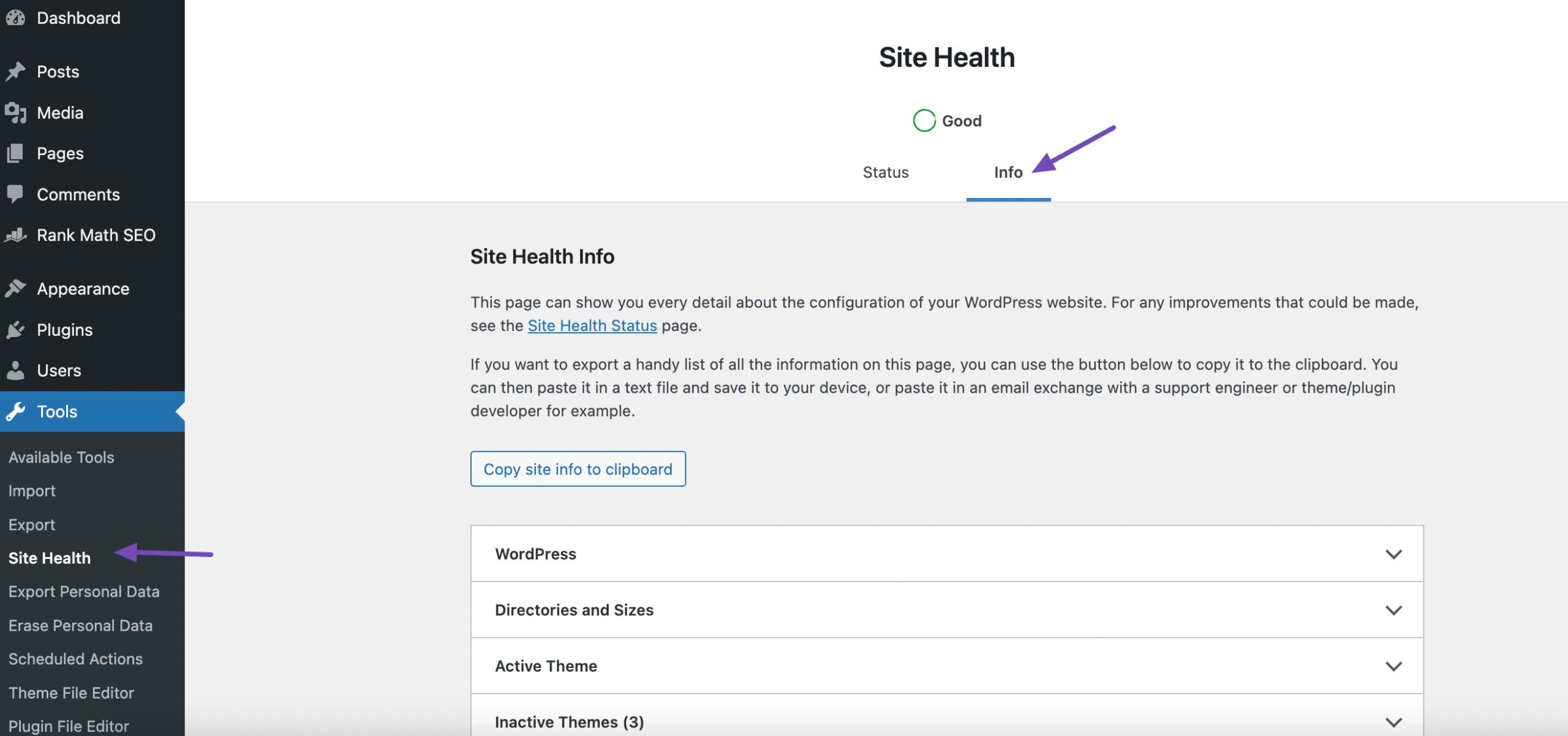
To do so, navigate to your WordPress dashboard’s Tools → Site Health page and go to the Info tab, as shown below.
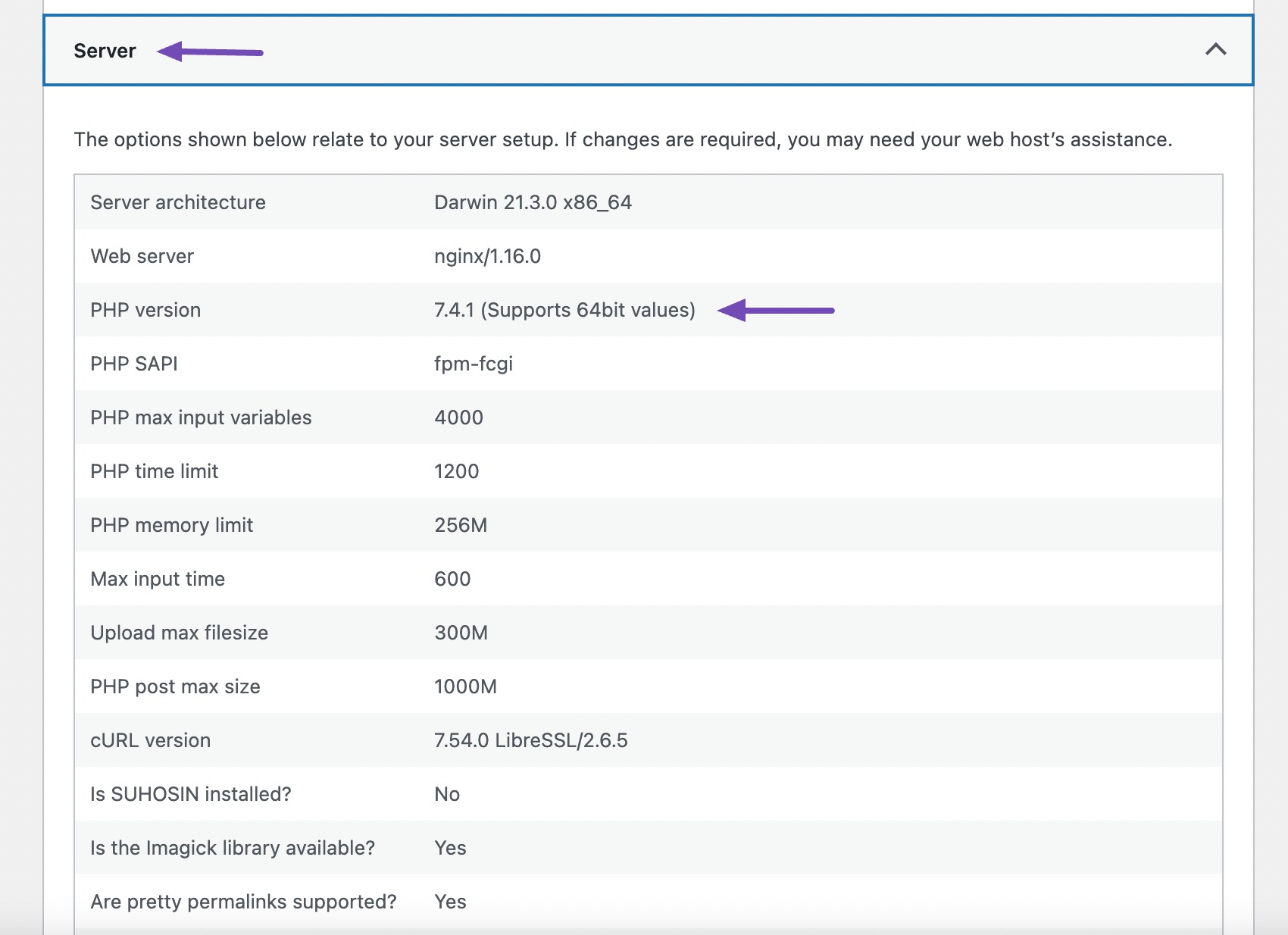
Next, scroll down a little and click to expand the Server tab. This section shows server information, including the PHP version used by your server.
You can also check or change the PHP version directly from your hosting control panel. Most major WordPress hosting providers make this quick and simple.
2.2 Back Up Your Website
I always recommend that you should always back up your site before making big changes, including updating the PHP version of your site.
Even though switching PHP versions usually goes smoothly, having a backup gives you peace of mind. If something doesn’t work as expected, you can restore your site in just a few clicks.
Refer to our dedicated tutorial on backing up the WordPress site.
2.3 Update the WordPress Core, Themes, and Plugins
Before updating PHP, you should make sure everything else on your site is up to date. This includes the WordPress core, themes, and plugins. Doing so keeps your site secure, stable, and ready for the latest web standards.
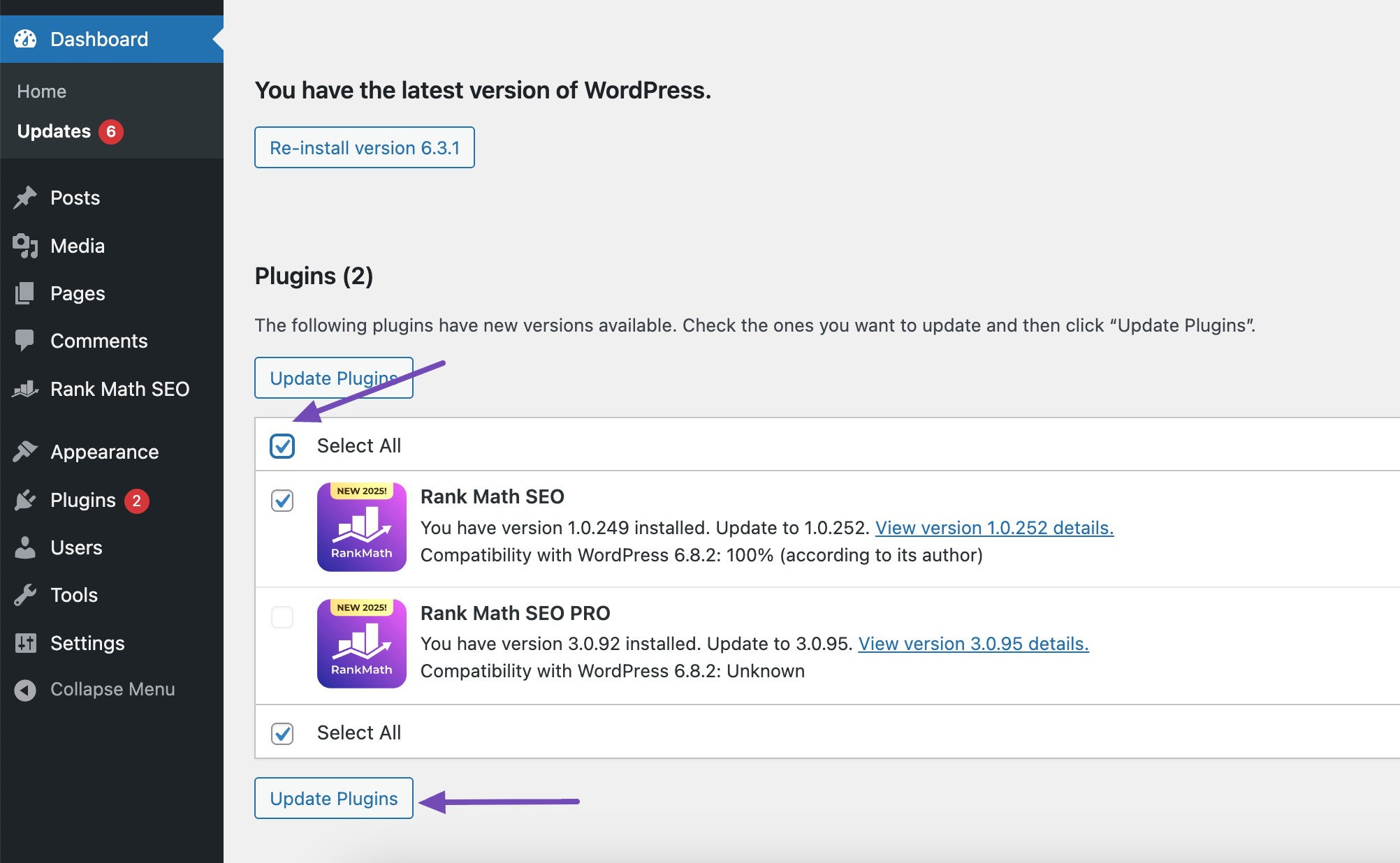
To do so, navigate to the Updates page from your WordPress dashboard. Here, you can find out if there are any updates available for your website.
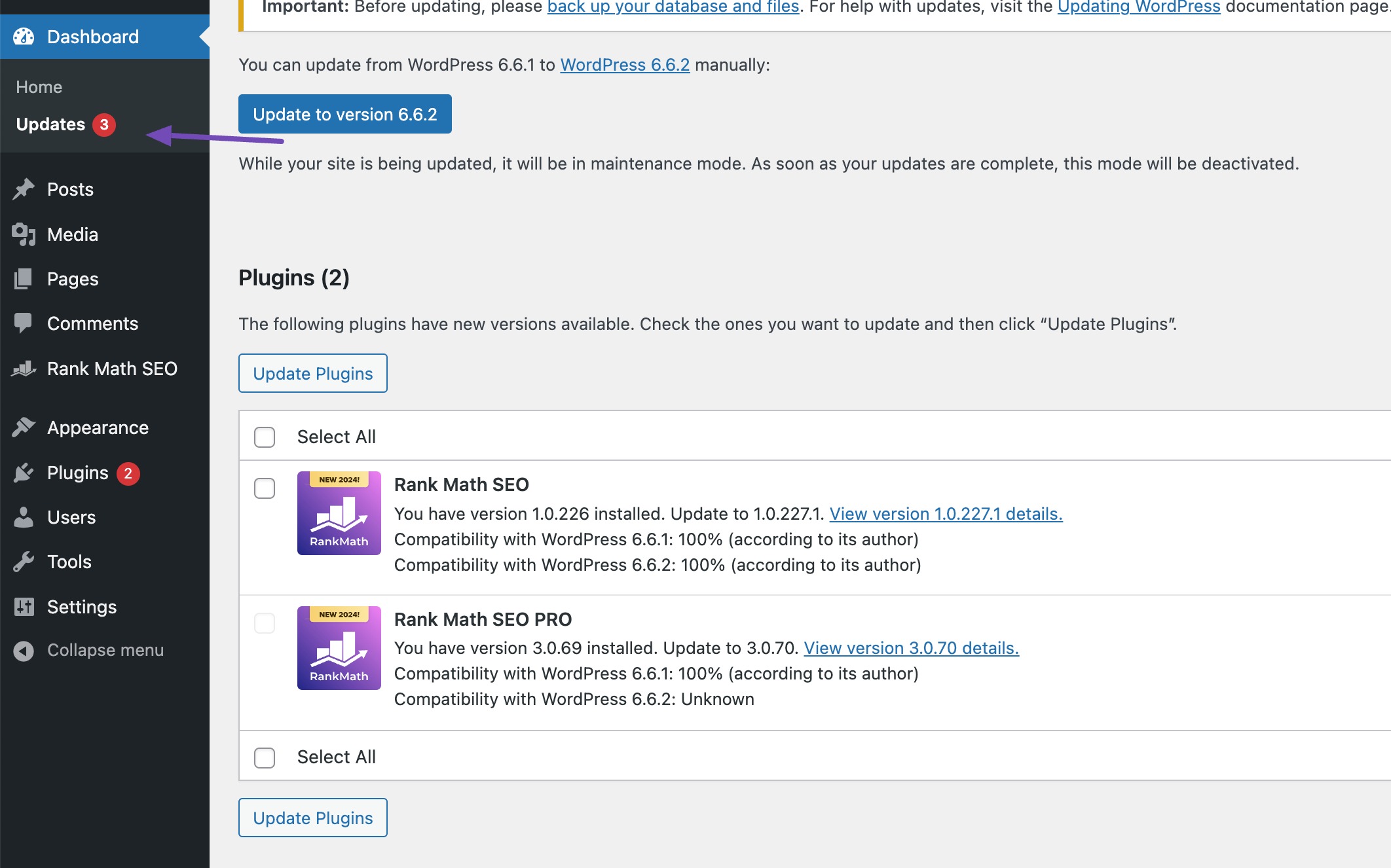
To update the plugins, tick the Select All checkbox and click Update Plugins.
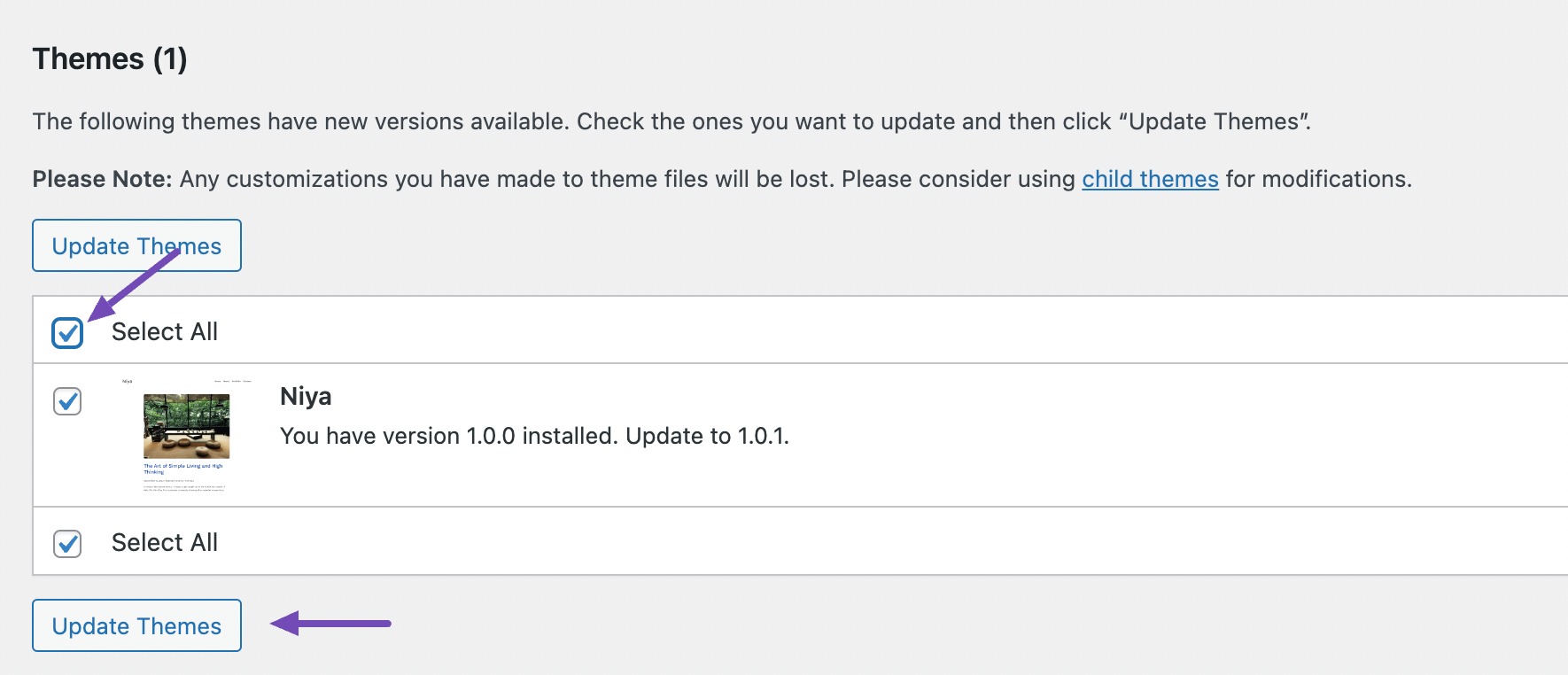
Follow the same steps mentioned above to update your WordPress themes.
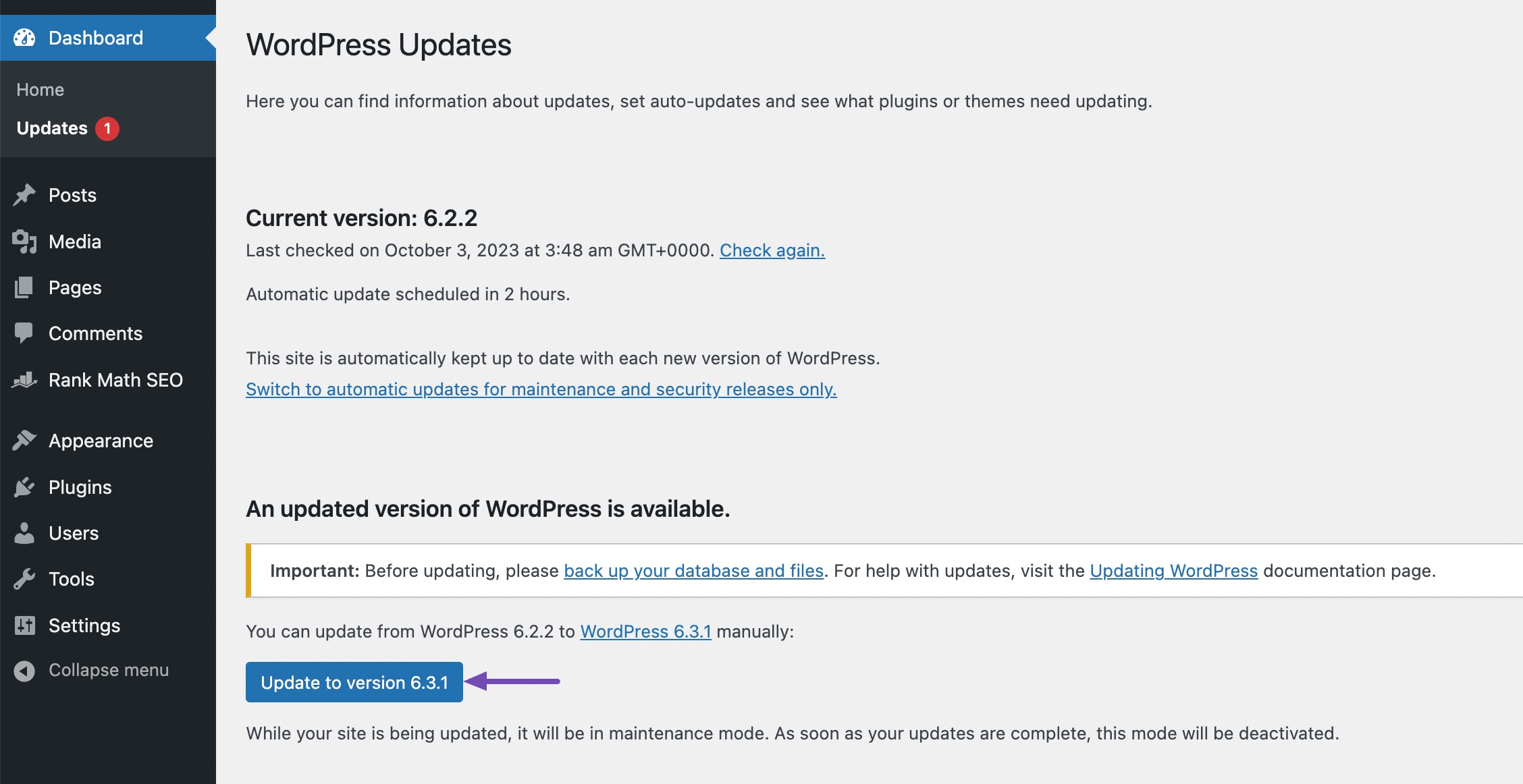
To update the WordPress version, click the Update to version button, as shown below.
2.4 Update the PHP Version of Your WordPress Site
Now that you’ve backed up your site and updated WordPress, themes, and plugins, it’s time to update your PHP version.
The easiest way to do this is through your hosting control panel. Most top hosting providers make it simple, but the exact steps may look slightly different depending on your host.
For this tutorial, let’s walk through the process in Hostinger.
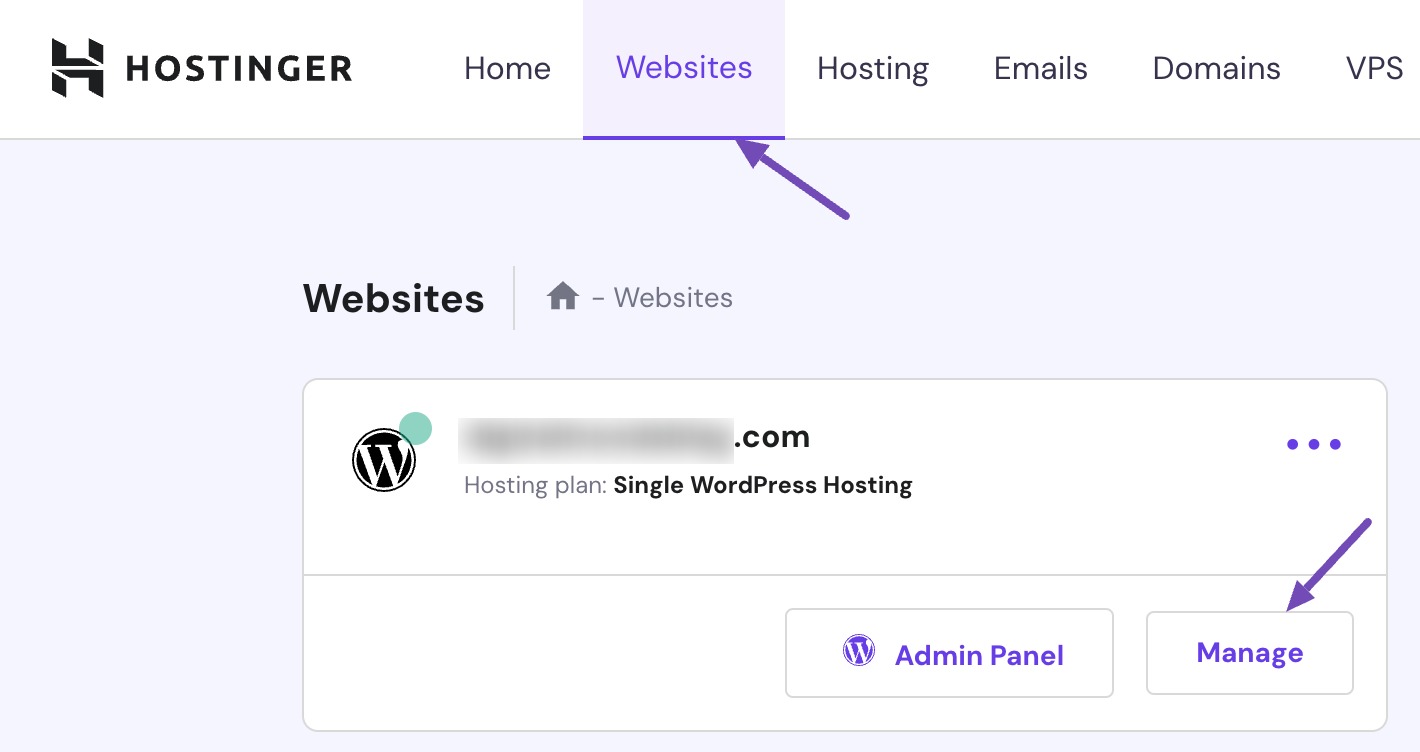
First, log in to your Hostinger account dashboard. After login, navigate to the Websites tab.
Next, navigate to the Advanced → PHP Configuration menu from the left sidebar, as shown below.
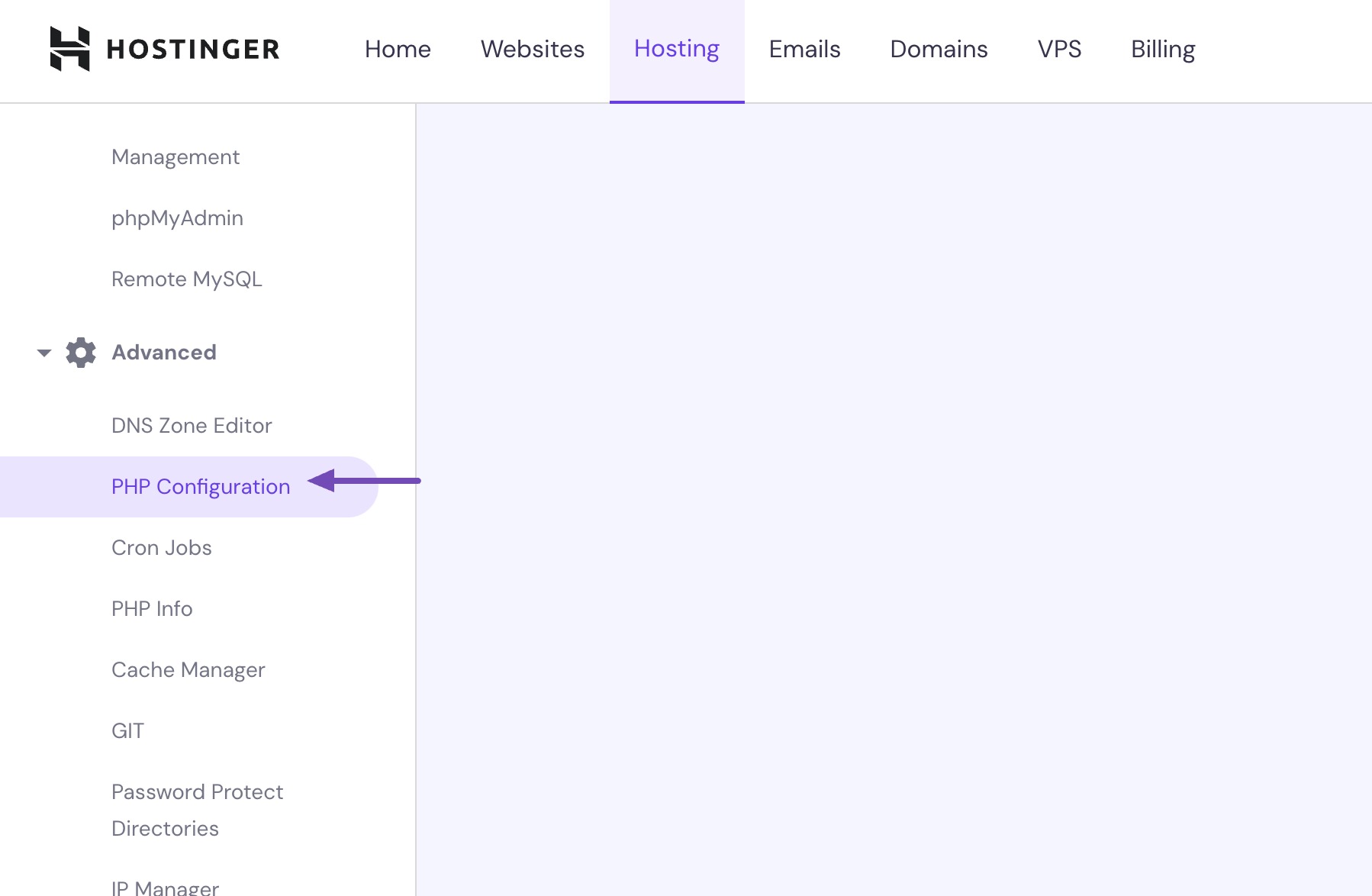
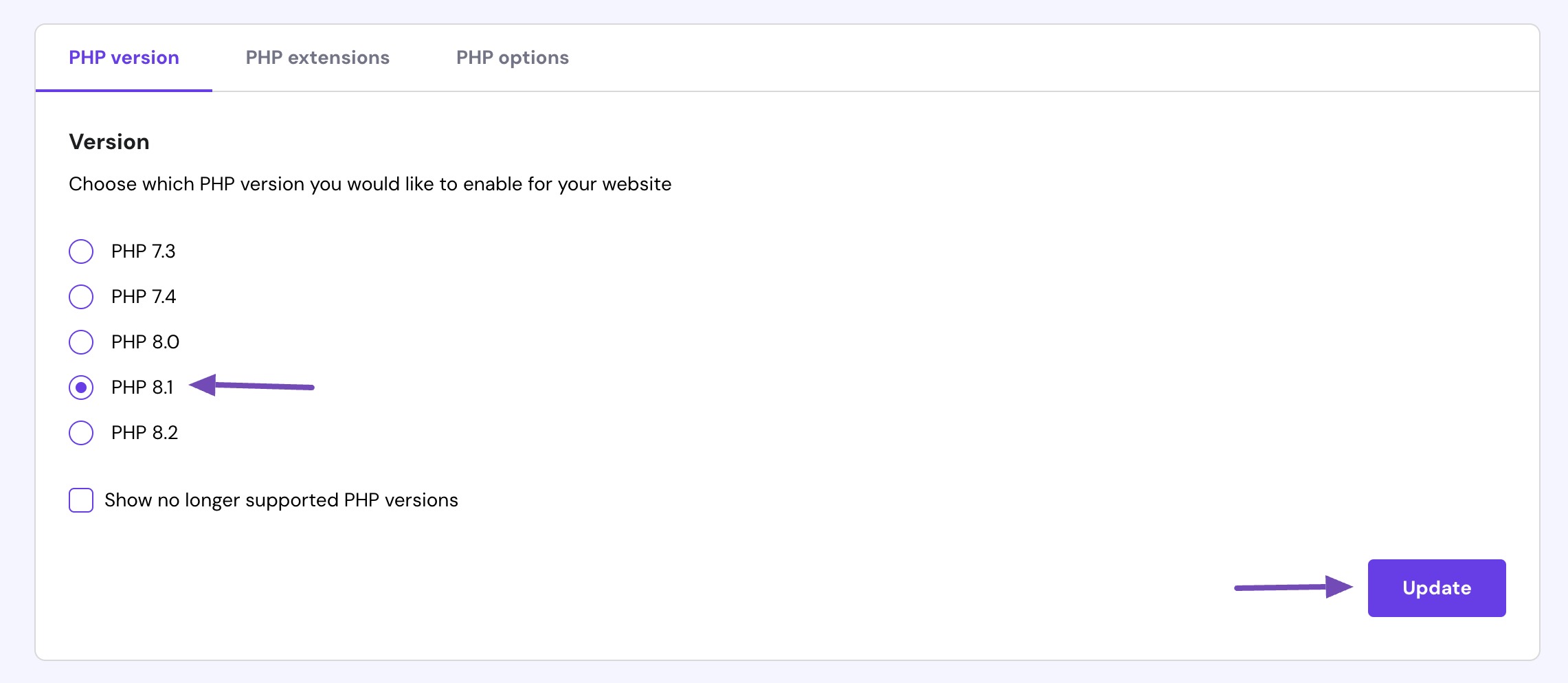
Now, Hostinger will present you with a list of supported and available PHP versions.
Select the PHP version and click the Update button to save your settings.
You’ll receive a confirmation message on your screen. Click on the Confirm button to update the PHP version.
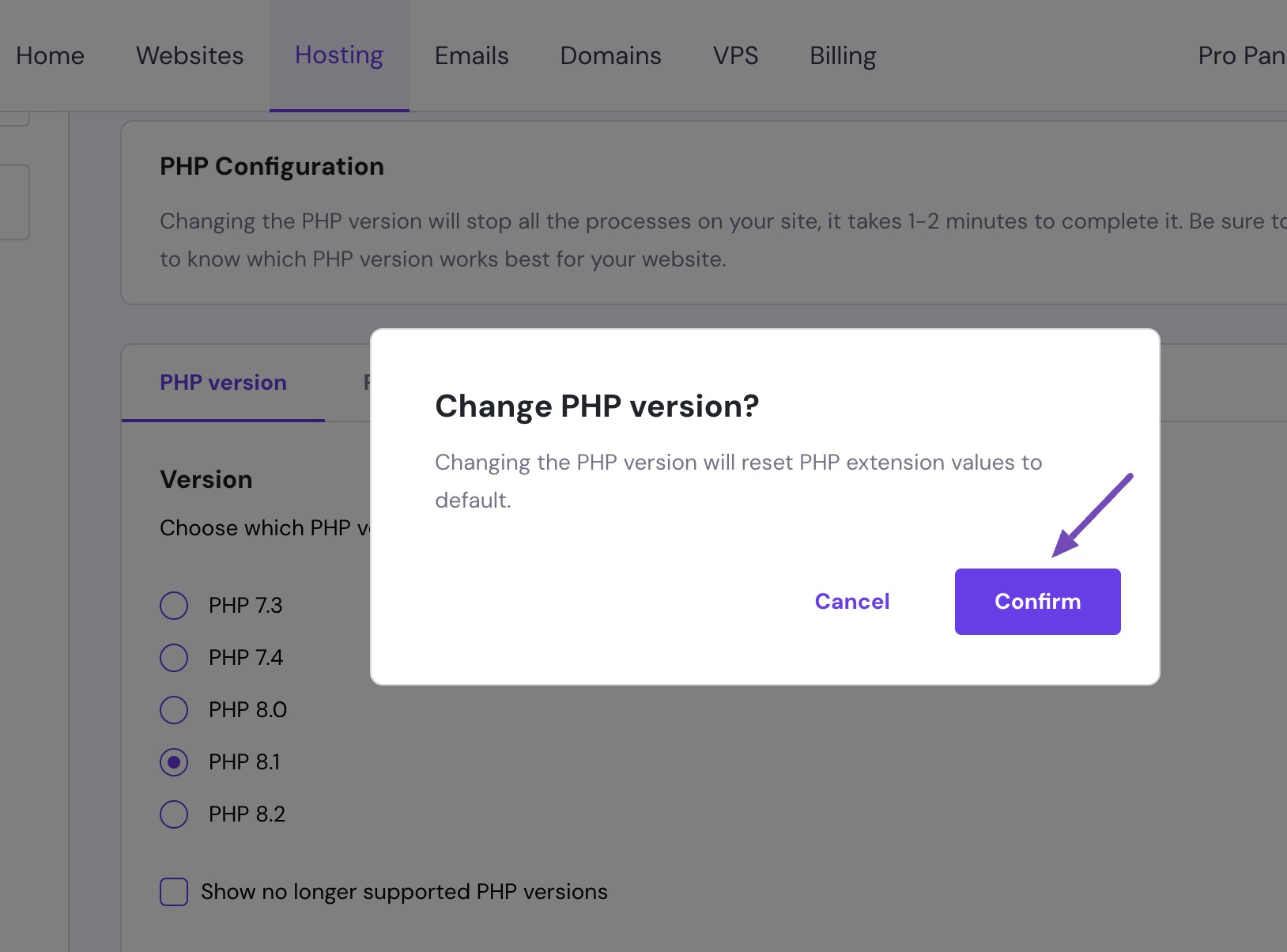
The PHP version will be updated within a few seconds.
Note: If your hosting panel looks different or you can’t find the PHP settings, don’t worry. Most hosting dashboards follow a similar structure, and you can always reach out to your hosting provider’s support team for help.
3 Best Practices to Update the PHP Version
Updating your PHP version is easy if you follow these best practices:
- Always Back Up Your Site: Before making any changes, create a full backup of your website, including the database. This ensures you can restore your site if anything goes wrong.
- Test on a Staging Site: If possible, create a staging copy of your website and update PHP there first. This helps you find and fix any issues before updating your live site.
- Check Hosting Support: Make sure your hosting provider supports the PHP version you want and provides an easy update process without downtime.
- Monitor Your Site After Updating: Keep an eye on your site’s performance and error logs after updating PHP. This allows you to identify any problems early and address them quickly.
- Schedule Regular PHP Checks: Periodically review your PHP version’s compatibility with WordPress, themes, and plugins. This keeps your site up to date and secure.
- Get Help if Needed: If you’re unsure about updating PHP or run into problems, consult a WordPress developer or specialist for guidance.
4 Frequently Asked Questions
What PHP version should I update to?
It’s advisable to update to the latest stable PHP version supported by your hosting provider.
Will updating PHP break my site or plugins?
Sometimes, updating PHP can cause compatibility issues with older themes or plugins. However, most well-maintained themes and plugins are updated to work with newer PHP versions. Always take a backup of your site before you begin with the update.
Can I revert to the old PHP version if I encounter issues?
Depending on your hosting provider, you can switch to the previous PHP version if problems arise. You can further check with your hosting support for guidance.
Is it necessary to update PHP if my site works fine with the current version?
While your site may function properly with an older PHP version, updating for security reasons is essential. Older PHP versions can become vulnerable to attacks. Regular updates help to protect your site.
How often should I update PHP in WordPress?
PHP updates are released periodically. You should aim to update PHP whenever a new stable version becomes available. Staying up to date ensures ongoing security and performance benefits.
5 Wrapping Up the PHP Version Update
Updating your PHP version helps your WordPress site run better, stay secure, and work smoothly.
With each update, you get faster page load times, fewer compatibility issues, and improved protection against security problems. Running the latest PHP version also helps your site follow good technical practices for SEO.
Take a moment to check your PHP version and update it if needed. Have you updated your site’s PHP version? Share your experience by tweeting @rankmathseo.