Desktop, WebAssembly and Mobile Development using RingQt — Ring 1.16 documentation (original) (raw)
In this chapter we will learn how to use the Qt framework classes in our Ring applications to create Desktop, WebAssembly and Mobile Applications.
The First GUI Application
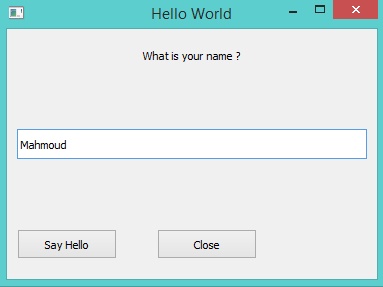
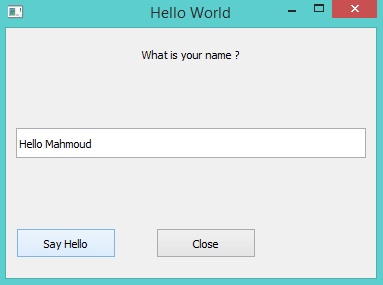
In this example we will create an application to ask the user about his/her name. When the user type the name in the textbox then click on “Say Hello” button, the textbox value will be updated by adding “Hello ” to the name.
load "guilib.ring"
oApp = new qApp {
    win1 = new qWidget() {

            setwindowtitle("Hello World")
            setGeometry(100,100,370,250)

            label1 = new qLabel(win1) {
                    settext("What is your name ?")
                    setGeometry(10,20,350,30)
                    setalignment(Qt_AlignHCenter)
            }

            btn1 = new qPushButton(win1) {
                    setGeometry(10,200,100,30)
                    settext("Say Hello")
                    setclickevent("pHello()")
            }

            btn2 = new qPushButton(win1) {
                    setGeometry(150,200,100,30)
                    settext("Close")
                    setclickevent("pClose()")
            }

            lineedit1 = new qLineEdit(win1) {
                    setGeometry(10,100,350,30)
            }

            show()
    }

    exec()
}
Func pHello lineedit1.settext( "Hello " + lineedit1.text())
Func pClose oApp.quit()
Program Output:
At first we type the name in the textbox
Then we click on the say hello button
The Events Loop
Qt uses Event-Driven and the events loop get the control when we call the exec() method from the qApp class.
Once we call exec(), The events loop starts, and the Widgets starts responding to the different events (Mouse, Keyboard, Timers, etc).
You get the control back again when an event is fired and your callback function is called.
Once the execution of your callback function is done, the control go back again to the events loop.
Useful things to remember
- We can do most of the work using normal events (Events provided directly by each widget).
- We can add more events to any widget using the Events Filter.
- Using Timers we can easily get the control back and check for more things to do.
Also when our callback function is busy with doing time consuming operations, we can call the ProcessEvents() method from the qApp class to avoid stopping the GUI.
We can avoid calling the exec() method, and create our main loop
It’s not recommended to do that, It’s just an option.
Instead of calling the exec() method
    while true
            oApp.processevents()    # Respond to GUI Events
            # More Thing to do, We have the control!
            # .....
    end
Using Layout
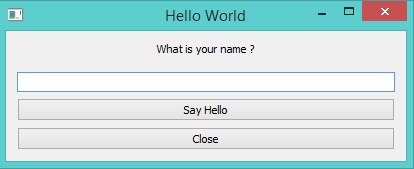
The next example is just an upgrade to the previous application to use the vertical layout.
Load "guilib.ring"
MyApp = New qApp {
    win1 = new qWidget() {

            setwindowtitle("Hello World")
            setGeometry(100,100,400,130)
            label1 = new qLabel(win1) {
                    settext("What is your name ?")
                    setGeometry(10,20,350,30)
                    setalignment(Qt_AlignHCenter)
            }
            btn1 = new qpushbutton(win1) {
                    setGeometry(10,200,100,30)
                    settext("Say Hello")
                    setclickevent("pHello()")
            }
            btn2 = new qpushbutton(win1) {
                    setGeometry(150,200,100,30)
                    settext("Close")
                    setclickevent("pClose()")
            }
            lineedit1 = new qlineedit(win1) {
                    setGeometry(10,100,350,30)
            }
            layout1 = new qVBoxLayout() {
                    addwidget(label1)
                    addwidget(lineedit1)
                    addwidget(btn1)
                    addwidget(btn2)
            }
            win1.setlayout(layout1)
            show()
    }

    exec()
}
Func pHello lineedit1.settext( "Hello " + lineedit1.text())
Func pClose MyApp.quit()
The application during the runtime!
Using the QTextEdit Class
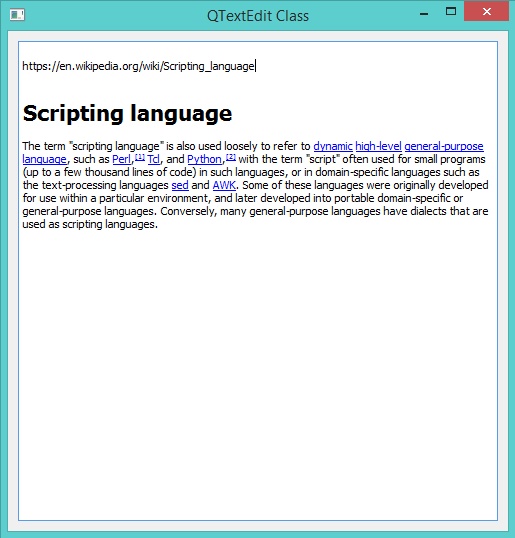
In this example we will use the QTextEdit Class
Load "guilib.ring"
New qApp {
    win1 = new qWidget() {

            setwindowtitle("QTextEdit Class")
            setGeometry(100,100,500,500)

            new qtextedit(win1) {
                    setGeometry(10,10,480,480)

            }

            show()
    }

    exec()
}
During the runtime we can paste rich text in the qtextedit widget
Using QTreeView and QFileSystemModel
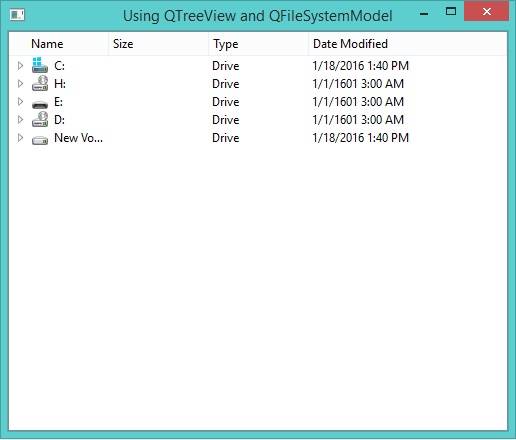
In this example we will learn how to use the QTreeView widget to represent the File System
Load "guilib.ring"
New qApp {
    win1 = New qWidget() {

            setwindowtitle("Using QTreeView and QFileSystemModel")
            setGeometry(100,100,500,400)

            New qtreeview(win1) {
                    setGeometry(00,00,500,400)
                    oDir = new QDir()
                    ofile = new QFileSystemModel()
                    ofile.setrootpath(oDir.currentpath())
                    setmodel(ofile)
            }

            show()
    }

    exec()
}
The application during the runtime
Using QComboBox Class
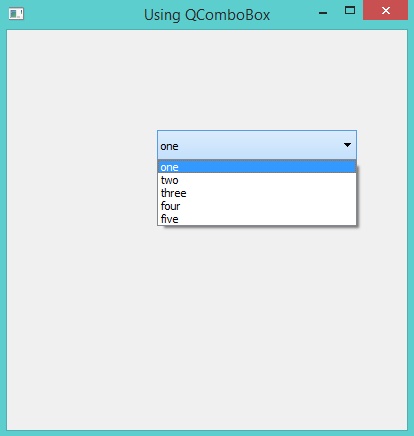
In this example we will learn about using the QComboBox class
Load "guilib.ring"
New qApp {
    win1 = new qWidget() {

            setwindowtitle("Using QComboBox")
            setGeometry(100,100,400,400)

            New QComboBox(win1) {
                    setGeometry(150,100,200,30)
                    alist = ["one","two","three","four","five"]
                    for x in aList additem(x,0) next
            }

            show()
    }

    exec()
}
The application during the runtime
Creating StatusBar
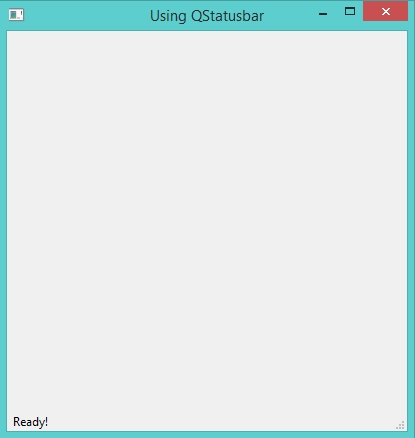
In this example we will learn about using the QStatusBar class
Load "guilib.ring"
New qApp {
    win1 = new qMainWindow() {

            setwindowtitle("Using QStatusbar")
            setGeometry(100,100,400,400)

            status1 = new qstatusbar(win1) {
                    showmessage("Ready!",0)
            }

            setstatusbar(status1)
            show()
    }

    exec()
}
The application during the runtime
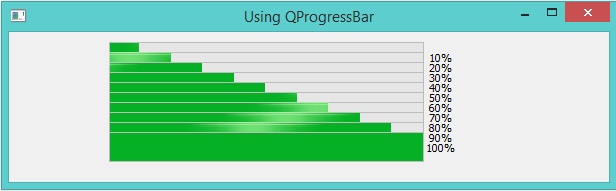
Using QProgressBar
In this example we will learn about using the QProgressBar class
Load "guilib.ring"
New qApp { win1 = new qMainWindow() {
            setGeometry(100,100,600,150)
            setwindowtitle("Using QProgressBar")

            for x = 10 to 100 step 10
                    new qprogressbar(win1) {
                            setGeometry(100,x,350,30)
                            setvalue(x)
                    }
            next

            show()
    }
    exec()
}
The application during the runtime
Using QSpinBox
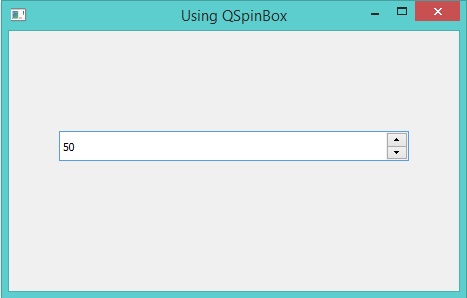
In this example we will learn about using the QSpinBox class
Load "guilib.ring"
New qApp { win1 = new qMainWindow() { setGeometry(100,100,450,260) setwindowtitle("Using QSpinBox") new qspinbox(win1) { setGeometry(50,100,350,30) setvalue(50) } show() } exec() }
The application during the runtime
Using QSlider
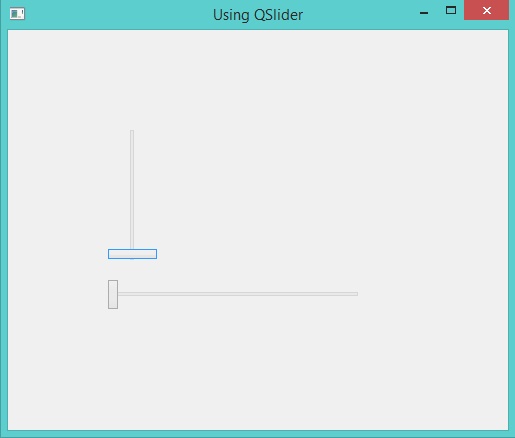
In this example we will learn about using the QSlider class
Load "guilib.ring"
New qApp {
    win1 = new qMainWindow() {

            setGeometry(100,100,500,400)
            setwindowtitle("Using QSlider")

            new qslider(win1) {
                    setGeometry(100,100,50,130)
                    settickinterval(50)
            }

            new qslider(win1) {
                    setGeometry(100,250,250,30)
                    settickinterval(50)
                    setorientation(Qt_Horizontal)
            }

            show()

    }

    exec()
}
The application during the runtime
Using QDateEdit
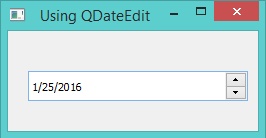
In this example we will learn about using the QDateEdit class
Load "guilib.ring"
New qApp { win1 = new qMainWindow() { setwindowtitle("Using QDateEdit") setGeometry(100,100,250,100) new qdateedit(win1) { setGeometry(20,40,220,30) } show() } exec() }
The application during the runtime
Using QDial
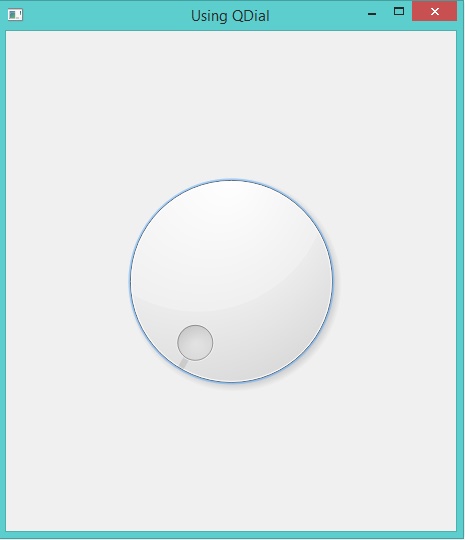
In this example we will learn about using the QDial class
Load "guilib.ring"
New qApp { win1 = new qMainWindow() { setGeometry(100,100,450,500) setwindowtitle("Using QDial") new qdial(win1) { setGeometry(100,100,250,300) } show() } exec() }
The application during the runtime
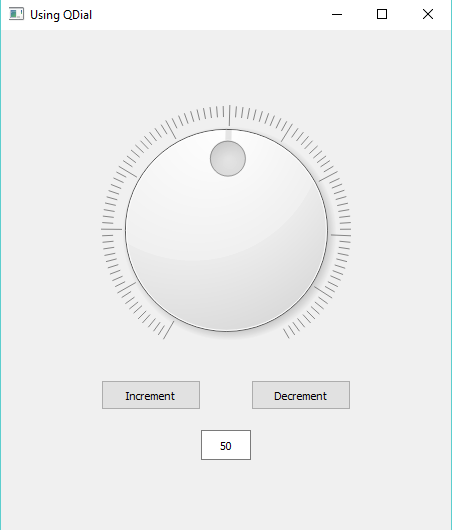
Another Example
Load "guilib.ring"
New qApp { win1 = new qMainWindow() { setGeometry(100,100,450,500) setwindowtitle("Using QDial") button1 = new QPushButton(win1){ setGeometry(100,350,100,30) settext("Increment") setClickEvent("pIncrement()") }
                    button2 = new QPushButton(win1){
                            setGeometry(250,350,100,30)
                            settext("Decrement")
                            setClickEvent("pDecrement()")
                    }
                    pdial = new qdial(win1) {
                            setGeometry(100,50,250,300)
                            setNotchesVisible(true)
                            setValue(50)
                            SetValueChangedEvent("pDialMove()")
                    }
                    lineedit1 = new qlineedit(win1) {
                            setGeometry(200,400,50,30)
                            setalignment(Qt_AlignHCenter)
                            settext(string(pdial.value()))
                            setreturnPressedEvent("pPress()")
                    }
                    show()
              }
    exec()
}
func pIncrement pdial{val=value()} pdial.setvalue(val+1) lineedit1{settext(string(val+1))}
func pDecrement pdial{val=value()} pdial.setvalue(val-1) lineedit1{settext(string(val-1))}
func pPress lineedit1{val=text()} pdial.setvalue(number(val))
func pDialMove lineedit1.settext(""+pdial.value())
Using QWebView
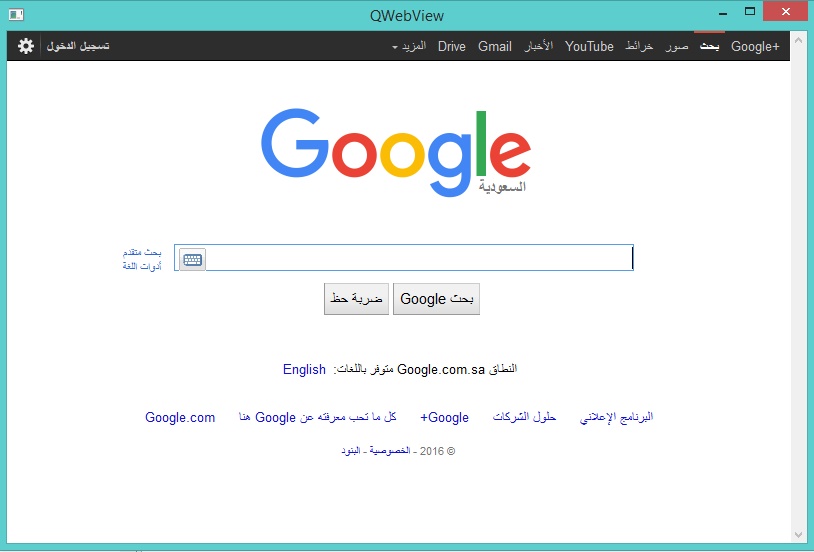
In this example we will learn about using the QWebView class
Load "guilib.ring"
New qApp { win1 = new qMainWindow() { setwindowtitle("QWebView") myweb = new qwebview(win1) { setGeometry(10,10,600,600) loadpage(new qurl("http://google.com")) } setcentralwidget(myweb) showMaximized() } exec() }
The application during the runtime
Using QCheckBox
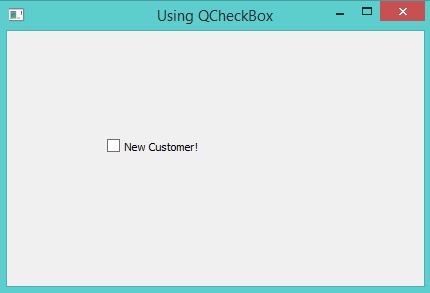
In this example we will learn about using the QCheckBox class
Load "guilib.ring"
New qApp { win1 = new qMainWindow() { setwindowtitle("Using QCheckBox") new qcheckbox(win1) { setGeometry(100,100,100,30) settext("New Customer!") } showMaximized() } exec() }
The application during the runtime
Another Example:
Load "guilib.ring"
New qApp { win1 = new qMainWindow() { setGeometry(100,100,400,300) setwindowtitle("Using QCheckBox")
            ### 0-Unchecked  1-Checked

            CheckBox = new qcheckbox(win1) {
                    setGeometry(100,100,160,30)
                    settext("New Customer!")
                    setclickedEvent("HandleClickEvent()")
            }

            show()
    }
    exec()
}
Func HandleClickEvent
if CheckBox.isChecked() = 1
    CheckBox.settext("New Customer. Check 1-ON")
else
    CheckBox.settext("New Customer. Check 0-OFF")
ok
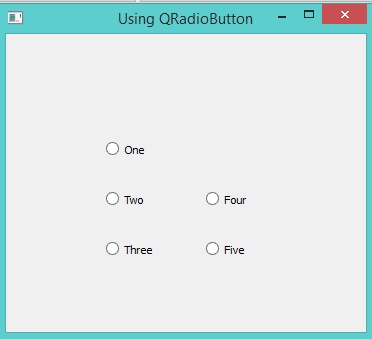
Using QRadioButton and QButtonGroup
In this example we will learn about using the QRadioButton and QButtonGroup classes
Load "guilib.ring"
New qApp {
    win1 = new qMainWindow() {

            setwindowtitle("Using QRadioButton")

            new qradiobutton(win1) {
                    setGeometry(100,100,100,30)
                    settext("One")
            }
            new qradiobutton(win1) {
                    setGeometry(100,150,100,30)
                    settext("Two")
            }
            new qradiobutton(win1) {
                    setGeometry(100,200,100,30)
                    settext("Three")
            }


            group2  = new qbuttongroup(win1) {
                    btn4 = new qradiobutton(win1) {
                            setGeometry(200,150,100,30)
                            settext("Four")
                    }
                    btn5 = new qradiobutton(win1) {
                            setGeometry(200,200,100,30)
                            settext("Five")
                    }
                    addbutton(btn4,0)
                    addbutton(btn5,0)

            }

            showMaximized()

    }
    exec()
}
The application during the runtime
Adding Hyperlink to QLabel
In this example we will learn about creating Hyperlink using the QLabel class
Load "guilib.ring"
New qApp { win1 = new qMainWindow() { setwindowtitle("QLabel - Hyperlink") new qlabel(win1) { setGeometry(100,100,100,30) setopenexternallinks(true) settext('Google') } showMaximized() } exec() }
The application during the runtime
Using QFrame
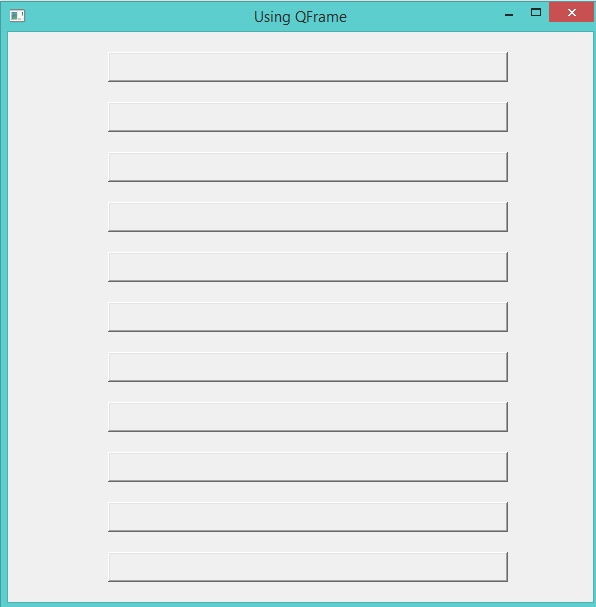
In this example we will learn about using the QFrame class
Load "guilib.ring"
New qApp { win1 = new qMainWindow() { setwindowtitle("Using QFrame") for x = 0 to 10 frame1 = new qframe(win1,0) { setGeometry(100,20+50*x,400,30) setframestyle(QFrame_Raised | QFrame_WinPanel) } next showMaximized() } exec() }
The application during the runtime
Display Image using QLabel
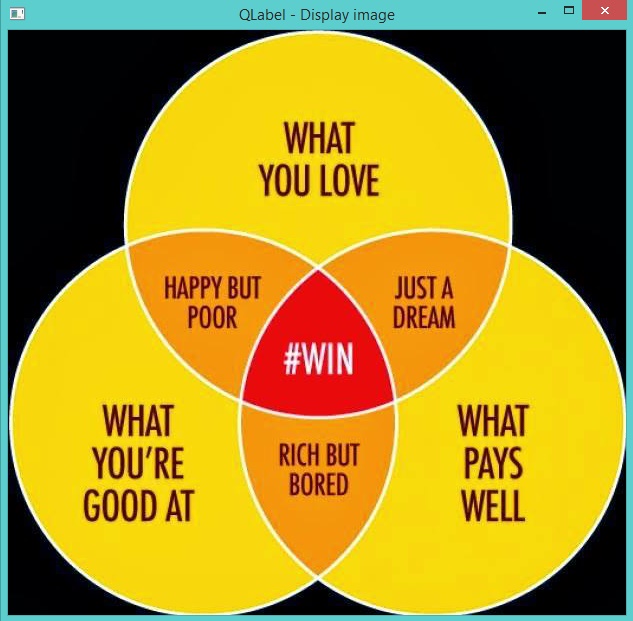
In this example we will learn about displaying an image using the QLabel widget
Load "guilib.ring"
New qApp { win1 = new qMainWindow() { setwindowtitle("QLabel - Display image") new qlabel(win1) { image = new qpixmap("b:/mahmoud/photo/advice.jpg") setpixmap(image) setGeometry(0,0,image.width(),image.height()) } showMaximized() } exec() }
The application during the runtime
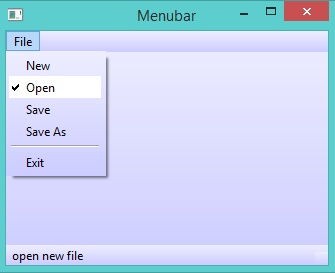
Menubar and StyleSheet Example
In this example we will learn about creating menubar and setting the window stylesheet
Load "guilib.ring"
New qApp {
    win1 = new qMainWindow() {

            setwindowtitle("Menubar")

            menu1 = new qmenubar(win1) {
                    sub1 = addmenu("File")
                    sub1 {
                            oAction = new qAction(win1) {
                                    settext("New")
                                    setenabled(false)
                            }
                            addaction(oAction)
                            oAction = new qAction(win1) {
                                    settext("Open")
                                    setcheckable(true)
                                    setchecked(true)
                                    setstatustip("open new file")
                            }
                            addaction(oAction)
                            oAction = new qAction(win1) {
                                    settext("Save")
                            }
                            addaction(oAction)
                            oAction = new qAction(win1) {
                                    settext("Save As")
                            }
                            addaction(oAction)

                            addseparator()
                            oAction = new qaction(win1)
                            oAction.settext("Exit")
                            oAction.setclickevent("myapp.quit()")
                            addaction(oAction)
                    }

            }
            status1 = new qstatusbar(win1) {
                    showmessage("Ready!",0)
            }
            setmenubar(menu1)
            setmousetracking(true)
            setstatusbar(status1)
            setStyleSheet("color: black; selection-color: black;
            selection-background-color:white ;
            background: QLinearGradient(x1: 0, y1: 0, x2: 0, y2: 1,
            stop: 0 #eef, stop: 1 #ccf);")
            showmaximized()
    }
    exec()
}
The application during the runtime
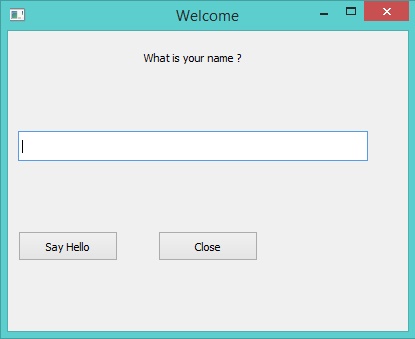
QLineEdit Events and QMessageBox
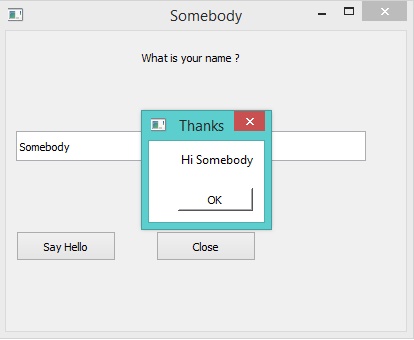
In this example we will learn about using QLineEdit Events and displaying a Messagebox
Load "guilib.ring"
MyApp = New qApp {
    win1 = new qWidget() {

            setwindowtitle("Welcome")
            setGeometry(100,100,400,300)


            label1 = new qLabel(win1) {
                    settext("What is your name ?")
                    setGeometry(10,20,350,30)
                    setalignment(Qt_AlignHCenter)
            }

            btn1 = new qpushbutton(win1) {
                    setGeometry(10,200,100,30)
                    settext("Say Hello")
                    setclickevent("pHello()")
            }

            btn1 = new qpushbutton(win1) {
                    setGeometry(150,200,100,30)
                    settext("Close")
                    setclickevent("pClose()")
            }

            lineedit1 = new qlineedit(win1) {
                    setGeometry(10,100,350,30)
                    settextchangedevent("pChange()")
                    setreturnpressedevent("penter()")
            }

            show()
    }

    exec()
}
Func pHello lineedit1.settext( "Hello " + lineedit1.text())
Func pClose MyApp.quit()
Func pChange win1 { setwindowtitle( lineedit1.text() ) }
Func pEnter new qmessagebox(win1) { setwindowtitle("Thanks") settext("Hi " + lineedit1.text() ) setstylesheet("background-color : white") show() }
The application during the runtime
Using the QTimer Class
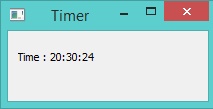
In this example we will learn about using the QTimer class
Load "guilib.ring"
new qApp { win1 = new qwidget() { setgeometry(100,100,200,70) setwindowtitle("Timer") label1 = new qlabel(win1) { setgeometry(10,10,200,30) settext(thetime()) } new qtimer(win1) { setinterval(1000) settimeoutevent("pTime()") start() } show() } exec() }
func ptime label1.settext(thetime())
Func thetime return "Time : " + Time()
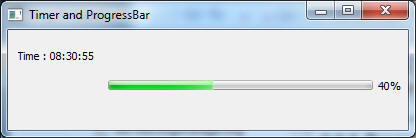
The application during the runtime
Using QProgressBar and Timer
In this example we will learn about using the “animated” QProgressBar class and Timer
###------------------------------------
ProgressBar and Timer Example
Load "guilib.ring"
new qApp { win1 = new qwidget() { setgeometry(100,100,400,100) setwindowtitle("Timer and ProgressBar")
    LabelMan = new qlabel(win1)
    {
        setgeometry(10,10,200,30)
        settext(theTime())          ### ==>> func
    }

    TimerMan = new qtimer(win1)
    {
        setinterval(1000)
        settimeoutevent("pTime()")  ### ==>> func
        start()
    }

    BarMan = new qprogressbar(win1)
    {
        setGeometry(100,50,300,10)  ###  Position X y, Length, Thickness
        setvalue(0)                 ###  Percent filled
    }

    show()
}
exec()
}
func pTime LabelMan.settext(theTime()) ### ==>> func
    Increment = 10
    if BarMan.value() >= 100        ### ProgressBar start over.
        BarMan.setvalue(0)
    ok
    BarMan{ setvalue(value() + Increment) }
Func theTime return "Time : " + Time()
Display Scaled Image using QLabel
In this example we will learn about displaying and scaling an image so that it looks “animated” using the QLabel widget
Load "guilib.ring"
#----------------------------------------------------
REQUIRES: image = "C:\RING\bin\stock.jpg"
imageStock: start dimensions for growing image
imageW = 200 ; imageH = 200 ; GrowBy = 4
###----------------------------------------------------
Window and Box Size dimensions
WinWidth = 1280 ; WinHeight = 960 BoxWidth = WinWidth -80 ; BoxHeight = WinHeight -80
###----------------------------------------------------
New qapp {
    win1 = new qwidget() {

            setgeometry(50,50, WinWidth,WinHeight)
            setwindowtitle("Animated Image - Display Image Scaled and Resized")

            imageStock = new qlabel(win1) {

                    image = new qpixmap("C:\RING\bin\stock.jpg")
                    AspectRatio = image.width() / image.height()

                    imageW = 200
                    imageH = imageH / AspectRatio

                    ### Size-H, Size-V, Aspect, Transform
                    setpixmap(image.scaled(imageW , imageH ,0,0))

                    PosLeft = (BoxWidth  - imageW ) / 2
                    PosTop  = (BoxHeight - imageH ) / 2
                    setGeometry(PosLeft,PosTop,imageW,imageH)

            }

            TimerMan = new qtimer(win1) {
                    setinterval(100)            ### interval 100 millisecs.
                    settimeoutevent("pTime()")  ### ==>> func
                    start()
            }

            show()
    }
exec() }
###------------------------------------------------------
Function TimerMan: calling interval 100 milliseconds
func pTime
    ### Stop Timer when image is size of Window area
    if imageW > BoxWidth
            TimerMan.stop()
            imageStock.clear()      ### Will clear the image
    ok

    ### Grow image
    imageW += GrowBy
    imageH  = imageW / AspectRatio

    ### Scaled Image: Size-H, Size-V, Aspect, Transform
    imageStock.setpixmap(image.scaled(imageW , imageH ,0,0))

    ### Center the image
    PosLeft = (WinWidth  - imageW ) / 2
    PosTop  = (WinHeight - imageH ) / 2
    imageStock.setGeometry(PosLeft,PosTop,imageW,imageH)
Using the QFileDialog Class
Example
Load "guilib.ring"
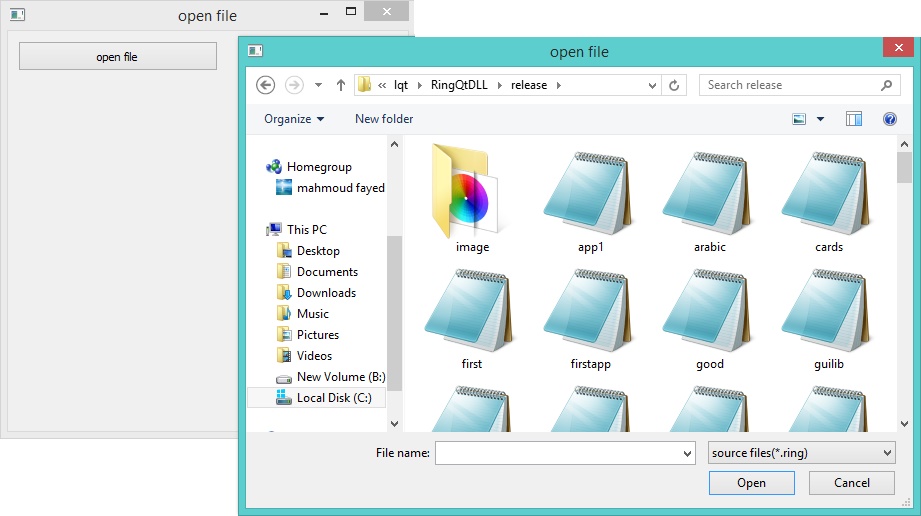
New qapp { win1 = new qwidget() { setwindowtitle("open file") setgeometry(100,100,400,400) new qpushbutton(win1) { setgeometry(10,10,200,30) settext("open file") setclickevent("pOpen()") } show() } exec() }
Func pOpen new qfiledialog(win1) { cName = getopenfilename(win1,"open file","c:","source files(*.ring)") win1.setwindowtitle(cName) }
The application during the runtime
Drawing using QPainter
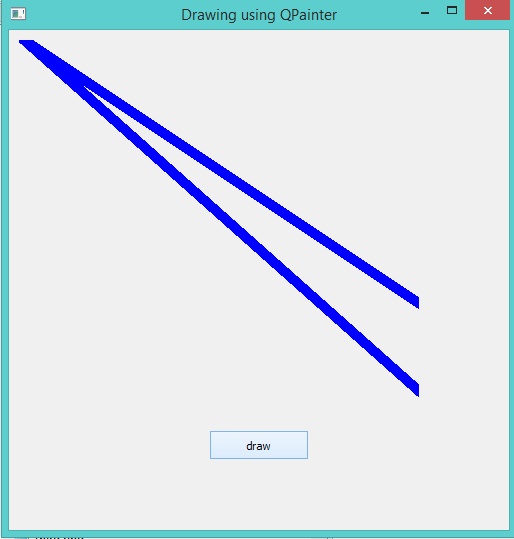
In this example we will learn about drawing using the QPainter class
Load "guilib.ring" New qapp { win1 = new qwidget() { setwindowtitle("Drawing using QPainter") setgeometry(100,100,500,500) label1 = new qlabel(win1) { setgeometry(10,10,400,400) settext("") } new qpushbutton(win1) { setgeometry(200,400,100,30) settext("draw") setclickevent("draw()") }
            show()
    }
    exec()
}
Func draw p1 = new qpicture() color = new qcolor() { setrgb(0,0,255,255) } pen = new qpen() { setcolor(color) setwidth(10) } new qpainter() { begin(p1) setpen(pen) drawline(500,150,950,450) drawline(950,550,500,150) endpaint() } label1 { setpicture(p1) show() }
The application during the runtime
Printing using QPrinter
In this example we will learn how to print to PDF file using QPrinter
Load "guilib.ring" new qApp { win1 = new qwidget() { setwindowtitle("Printer") setgeometry(100,100,500,500) myweb = new qwebview(win1) { setgeometry(100,100,1000,500) loadpage(new qurl("http://google.com")) } new qpushbutton(win1) { setGeometry(20,20,100,30) settext("Print") setclickevent("print()") } showmaximized() } exec() }
func print printer1 = new qPrinter(0) { setoutputformat(1) # 1 = pdf setoutputfilename("test.pdf") painter = new qpainter() { begin(printer1) myfont = new qfont("Times",50,-1,0) setfont(myfont) drawtext(100,100,"test") printer1.newpage() drawtext(100,100,"test2") endpaint() } }
    printer1 = new qPrinter(0) {
            setoutputformat(1)
            setoutputfilename("test2.pdf")
            myweb.print(printer1,' system("test2.pdf") ')
            myweb.show()
    }

    system ("test.pdf")
Using QPrintPreviewDialog
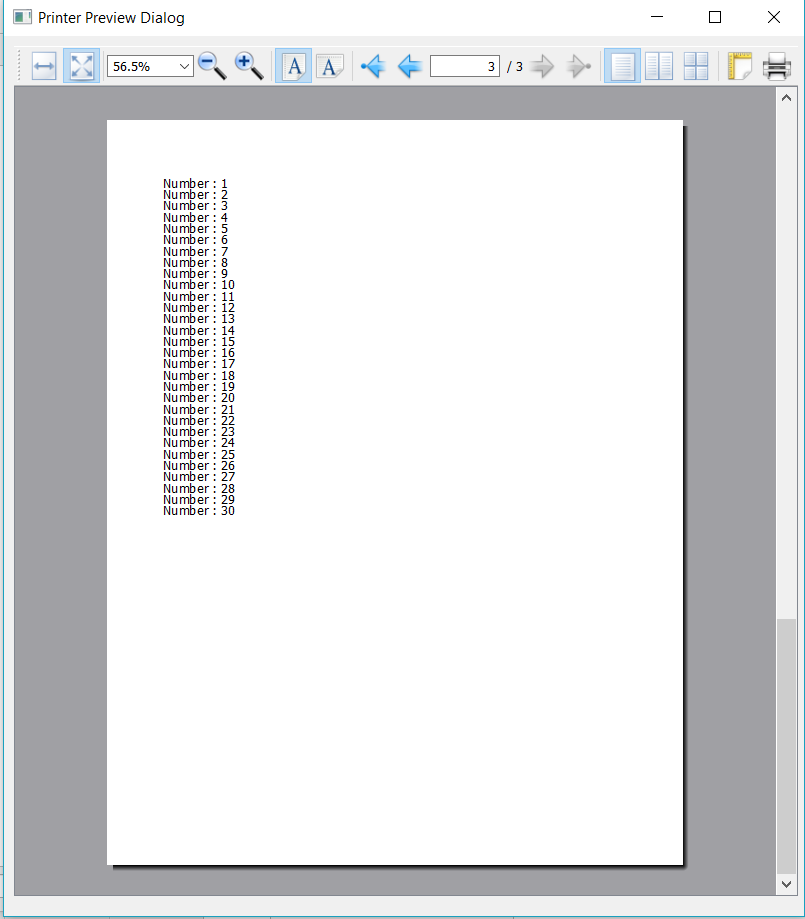
In this example we will learn how to use the QPrintPreviewDialog class.
Example:
load "guilib.ring"
new qApp { win1 = new qwidget() { setwindowtitle("Printer Preview Dialog") setgeometry(100,100,800,880) printer1 = new qPrinter(0) show() oPreview = new qPrintPreviewDialog(printer1) { setParent(win1) move(10,10) setPaintrequestedevent("printPreview()") exec() } } exec() }
func printPreview printer1 { painter = new qpainter() { begin(printer1) myfont = new qfont("Times",50,-1,0) setfont(myfont) drawtext(100,100,"Test - Page (1)") printer1.newpage() drawtext(100,100,"Test - Page (2)") printer1.newpage() myfont2 = new qfont("Times",14,-1,0) setfont(myfont2) for x = 1 to 30 drawtext(100,100+(20*x),"Number : " + x) next endpaint() } }
Screen Shot:
Creating More than one Window
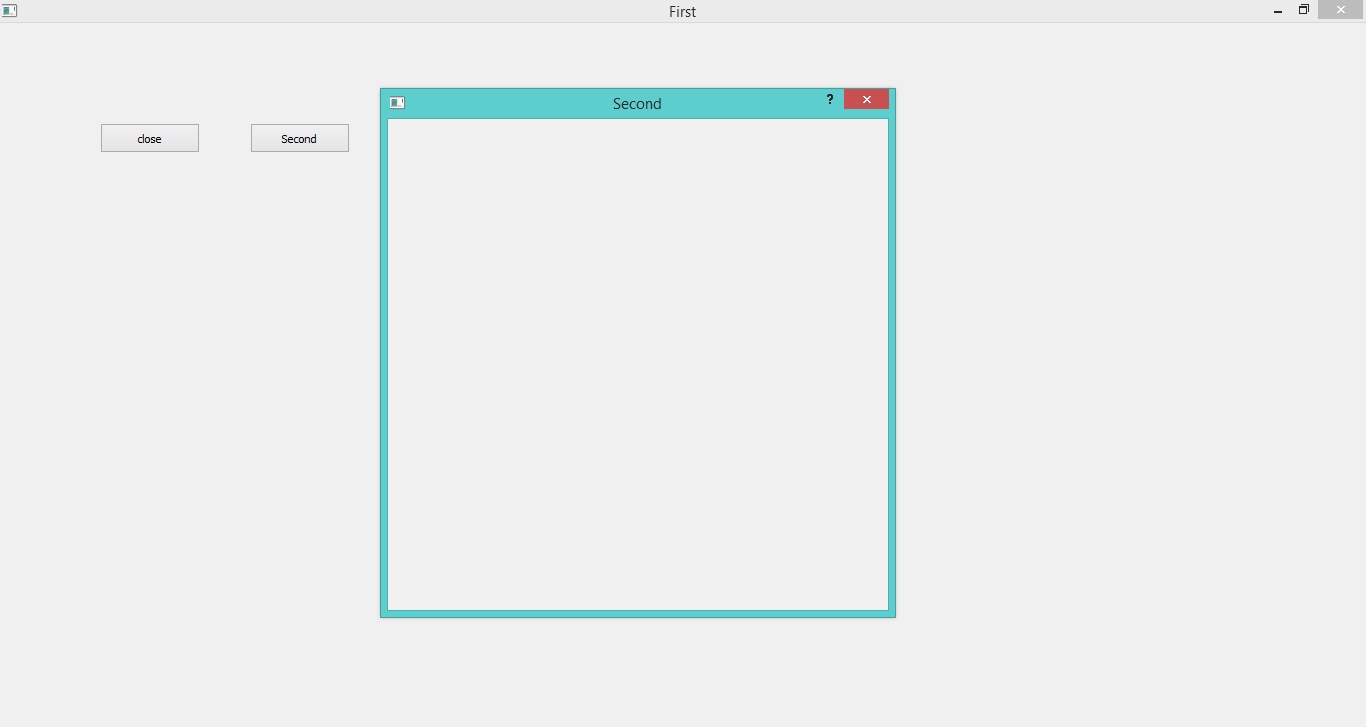
The next example demonstrates how to create more than one window
Load "guilib.ring" app1 = new qapp { win1 = new qwidget() { setwindowtitle("First") setgeometry(100,100,500,500)
            new qpushbutton(win1) {
                    setgeometry(100,100,100,30)
                    settext("close")
                    setclickevent("app1.quit()")
            }

            new qpushbutton(win1) {
                    setgeometry(250,100,100,30)
                    settext("Second")
                    setclickevent("second()")
            }

            showmaximized()
    }
    exec()
}
func second win2 = new qwidget() { setwindowtitle("Second") setgeometry(100,100,500,500) setwindowflags(Qt_dialog) show() }
The application during the runtime
Playing Sound
Example:
Load "guilib.ring" new qapp { win1 = new qwidget() { setwindowtitle("play sound!") show() } new qmediaplayer() { setmedia(new qurl("footstep.wav")) setvolume(50) play() } exec() }
Using the QColorDialog Class
Example:
Load "guilib.ring"
oApp = new myapp { start() }
Class MyApp
    oColor  win1

    Func start

            myapp = new qapp

            win1 = new qMainWindow() {
                    setwindowtitle("Color Dialog")
                    setgeometry(100,100,400,400)
            }

            new qpushbutton(win1) {
                    setgeometry(10,10,100,30)
                    settext("Get Color")
                    setclickevent("oApp.pColor()")
            }

            win1.show()
            myapp.exec()


    Func pColor
            myobj = new qcolordialog()
            aColor = myobj.GetColor()
            r=acolor[1] g=acolor[2] b=acolor[3]
            win1.setstylesheet("background-color: rgb("+r+", " + g+ "," + b + ")")
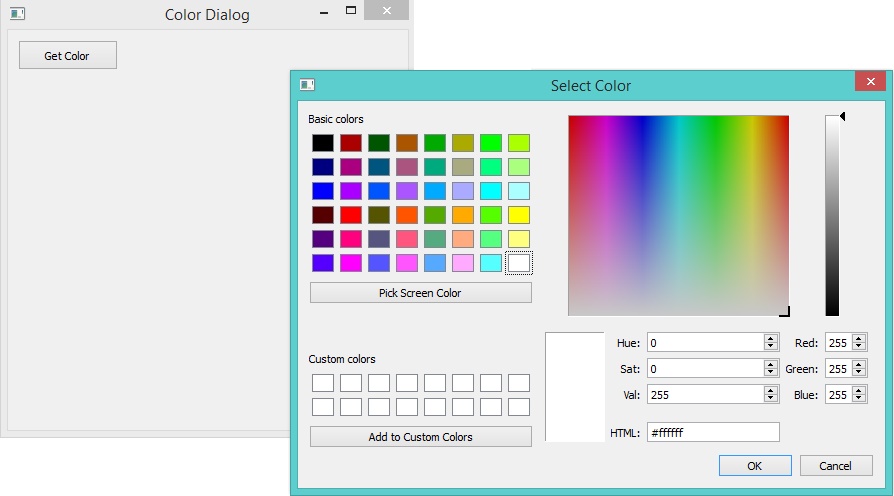
The application during the runtime
Using qLCDNumber Class
In this example we will learn about using the qLCDNumber class
Load "guilib.ring"
New qApp { win1 = new qWidget() { setwindowtitle("LCD Number") setgeometry(100,100,250,120)
            new qLCDNumber(win1)
            {
                    setgeometry(10,10,100,40)
                    display(100)

            }

            new qLCDNumber(win1)
            {
                    setgeometry(10,60,100,40)
                    display(80)

            }

            show()
    }

    exec()
}
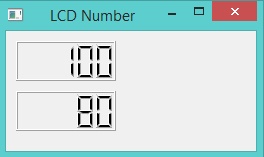
The application during the runtime
Movable Label Example
Load "guilib.ring"
new qApp {
    win1 = new qWidget()
    {

            label1 = new qLabel(win1)
            {
                    setText("Welcome")
                    setgeometry(10,10,200,50)
                    setstylesheet("color: purple ; font-size: 30pt;")
            }

            new qTimer(win1)
            {
                    setInterVal(10)
                    setTimeOutEvent("pMove()")
                    start()
            }

            setWindowTitle("Movable Label")
            setgeometry(100,100,600,80)
            setStyleSheet("background-color: white;")
            show()

    }

    exec()
}
Func pMove label1 { move(x()+1,y()) if x() > 600 move(10,y()) ok }
The application during the runtime

QMessagebox Example
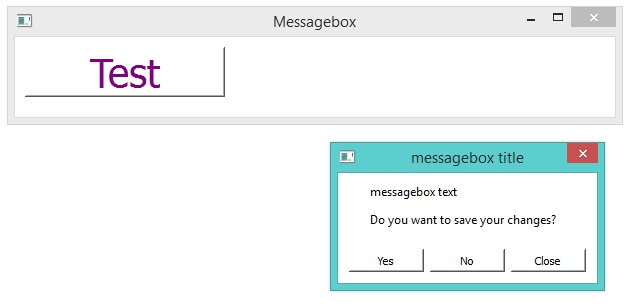
In this section we will learn how to check the output of the Message box
Load "guilib.ring"
new qApp { win1 = new qWidget() { label1 = new qpushbutton(win1) { setText("Test") setgeometry(10,10,200,50) setstylesheet("color: purple ; font-size: 30pt;") setclickevent("pWork()") } setWindowTitle("Messagebox") setgeometry(100,100,600,80) setStyleSheet("background-color: white;") show() } exec() }
func pWork new qmessagebox(win1) { setwindowtitle("messagebox title") settext("messagebox text") setInformativeText("Do you want to save your changes?") setstandardbuttons(QMessageBox_Yes | QMessageBox_No | QMessageBox_Close) result = exec() win1 { if result = QMessageBox_Yes setwindowtitle("Yes") but result = QMessageBox_No setwindowtitle("No") but result = QMessageBox_Close setwindowtitle("Close") ok } }
The application during the runtime
Using QInputDialog Class
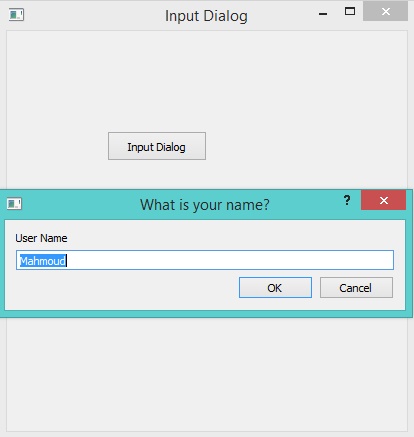
In the next example we will learn about using the QInputDialog class
Load "guilib.ring"
New QApp {
    Win1 = New QWidget () {

            SetGeometry(100,100,400,400)
            SetWindowTitle("Input Dialog")

            New QPushButton(win1)
            {

                    SetText ("Input Dialog")
                    SetGeometry(100,100,100,30)
                    SetClickEvent("pWork()")
            }

            Show()
    }

    exec()
}
Func pWork oInput = New QInputDialog(win1) { setwindowtitle("What is your name?") setgeometry(100,100,400,50) setlabeltext("User Name") settextvalue("Mahmoud") lcheck = exec() if lCheck win1.setwindowtitle(oInput.textvalue()) ok }
The application during the runtime
Dialog Functions
We have the next functions
SetDialogIcon(cIconFile) MsgInfo(cTitle,cMessage) ConfirmMsg(cTitle,cMessage) --> lResult InputBox(cTitle,cMessage) --> cValue InputBoxInt(cTitle,cMessage) --> nValue InputBoxNum(cTitle,cMessage) --> nValue InputBoxPass(cTitle,cMessage) --> cValue
Example
load "guilib.ring"
new qApp { SetDialogIcon("notepad.png") msginfo(:Ring,:Welcome) see confirmMsg(:Ring,"Are you sure?") + nl see InputBoxNum(:Ring,"Enter Number(double) :") + nl see InputBox(:Ring,"Enter Value :") + nl see InputBoxInt(:Ring,"Enter Number(int)") + nl see InputBoxPass(:Ring,"Enter Password") +nl }
KeyPress and Mouse Move Events
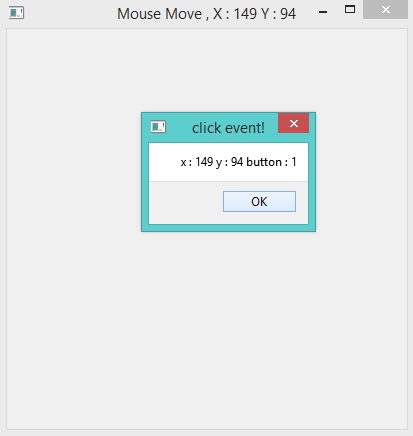
In this example we will learn how to use the Events Filter to know about KeyPress and Mouse Move Events
Load "guilib.ring"
new qApp {
    win1 = new qWidget()
    {
            setWindowTitle("Test using Event Filter!")
            setGeometry(100,100,400,400)
            setmousetracking(true)
            myfilter = new qallevents(win1)
            myfilter.setKeyPressEvent("pWork()")
            myfilter.setMouseButtonPressevent("pClick()")
            myfilter.setmousemoveevent("pMove()")

            installeventfilter(myfilter)

            show()
    }

    exec()
}
func pWork win1.setwindowtitle('KeyPress! : ' + myfilter.getkeycode())
func pClick new qmessagebox(win1) { setgeometry(100,100,400,100) setwindowtitle("click event!") settext("x : " + myfilter.getx() + " y : " + myfilter.gety() + " button : " + myfilter.getbutton() ) show() }
func pMove win1.setwindowtitle("Mouse Move , X : " + myfilter.getx() + " Y : " + myfilter.gety() )
The application during the runtime
Moving Objects using the Mouse
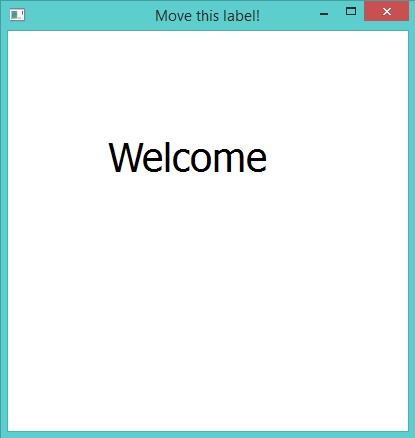
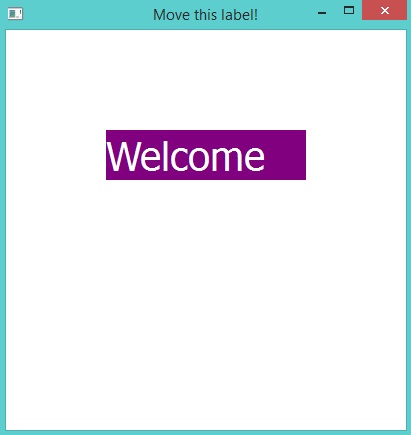
In the next example we will learn how to program movable objects where the user can move a label
Load "guilib.ring"
lPress = false nX = 0 nY = 0
new qApp {
    win1 = new qWidget()
    {

            setWindowTitle("Move this label!")
            setGeometry(100,100,400,400)
            setstylesheet("background-color:white;")

            Label1 = new qLabel(Win1){
                    setGeometry(100,100,200,50)
                    setText("Welcome")
                    setstylesheet("font-size: 30pt")
                    myfilter = new qallevents(label1)
                    myfilter.setEnterevent("pEnter()")
                    myfilter.setLeaveevent("pLeave()")
                    myfilter.setMouseButtonPressEvent("pPress()")
                    myfilter.setMouseButtonReleaseEvent("pRelease()")
                    myfilter.setMouseMoveEvent("pMove()")
                    installeventfilter(myfilter)
            }

            show()
    }

    exec()
}
Func pEnter Label1.setStyleSheet("background-color: purple; color:white;font-size: 30pt;")
Func pLeave Label1.setStyleSheet("background-color: white; color:black;font-size: 30pt;")
Func pPress lPress = True nX = myfilter.getglobalx() ny = myfilter.getglobaly()
Func pRelease lPress = False pEnter()
Func pMove nX2 = myfilter.getglobalx() ny2 = myfilter.getglobaly() ndiffx = nX2 - nX ndiffy = nY2 - nY if lPress Label1 { move(x()+ndiffx,y()+ndiffy) setStyleSheet("background-color: Green; color:white;font-size: 30pt;") nX = nX2 ny = nY2 }
okThe application during the runtime
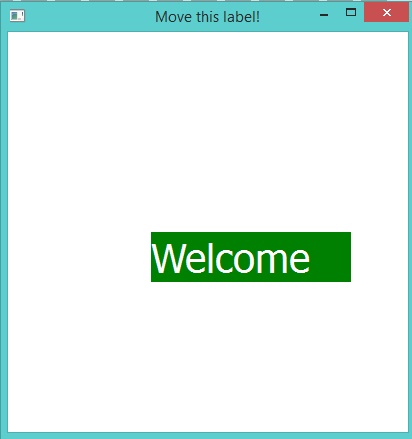
Inheritance from GUI Classes
Example :
Load "guilib.ring"
New MyWindow()
new qApp { exec() }
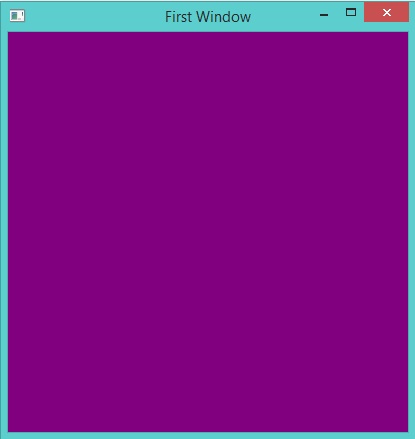
class mywindow from qwidget Func init super.init() setwindowtitle("First Window") setgeometry(100,100,400,400) setstylesheet("background-color: purple;") settooltip("my first window!") show()
The application during the runtime
Rotate Text
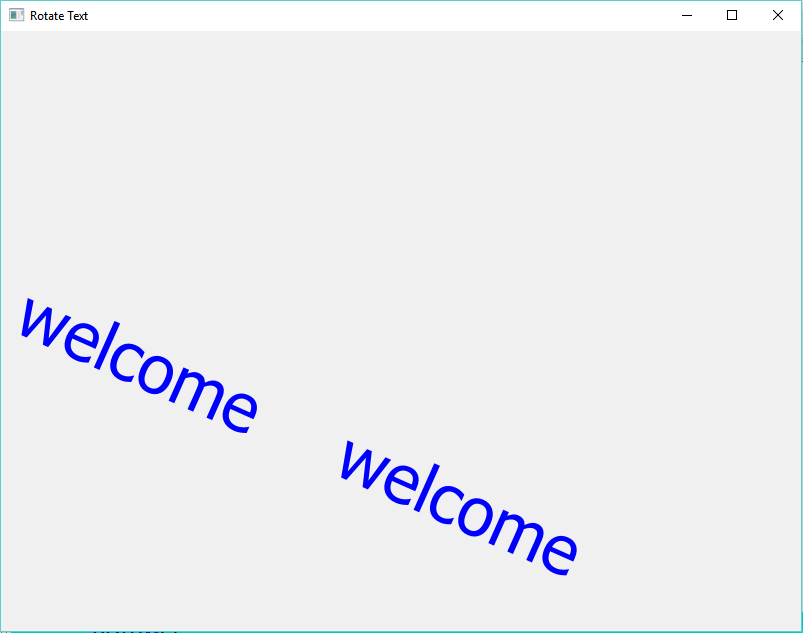
The next example rotate text using a Timer.
Load "guilib.ring"
nAngle = 0
New qapp { win1 = new qwidget() { setwindowtitle("Rotate Text") resize(800,600) label1 = new qlabel(win1) { settext("") myfilter = new qallevents(win1) myfilter.setMouseButtonPressevent("pClick()") installeventfilter(myfilter) } new qtimer(win1) { setinterval(50) settimeoutevent("pTime()") start() } pDraw() L1 = new qVBoxLayout() { AddWidget(Label1) } SetLayout(L1) showMaximized() } exec() }
Func pDraw p1 = new qpicture() color = new qcolor() { setrgb(0,0,255,255) } pen = new qpen() { setcolor(color) setwidth(50) } painter = new qpainter() { begin(p1) setpen(pen) myfont = font() myfont.setpointsize(50) setfont(myfont) rotate(nAngle) drawtext(350,0nAngle,"welcome") drawtext(0,0nAngle,"welcome") endpaint() } label1 { setpicture(p1) show() }
Func pClick win1 { setwindowtitle("Click Event") }
Func pTime nAngle++ if nAngle = 90 nAngle = 10 ok pDraw()
The application during the runtime
Change Focus
The next example change the focus using the ENTER key.
load "guilib.ring"
new qApp { win = new qWidget() { resize(600,600) SetWindowTitle("Change Focus") text1 = new qLineEdit(win) text2 = new qLineEdit(win) text3 = new qLineEdit(win) text4 = new qLineEdit(win) layout1 = new qVBoxLayout() { AddWidget(text1) AddWidget(text2) AddWidget(text3) AddWidget(text4)
            }
            setLayout(Layout1)
            aList = [text1,text2,text3,text4]
            oFilter = new qallevents(win)
            oFilter.setKeyPressEvent("pWork()")
            installeventfilter(oFilter)
            show()
    }
    exec()
}
func pWork nCode = oFilter.getkeycode() if nCode = 16777220 # ENTER Key for x=1 to len(aList) if aList[x].HasFocus() t = x+1 if t > len(aList) t=1 ok aList[t].SetFocus(0) exit ok next ok
Regular Expressions
The next example uses the Regular Expressions classes.
load "guilib.ring"
new qApp { see "Using Regular Expressions" + nl
    exp = new qregularexpression() {
            setPattern("\d\d \w+")
            see pattern() + nl
            match = match("33 one",0,0,0)
            see match.hasmatch() + nl
            match = match("3 one",0,0,0)
            see match.hasmatch() + nl
            match = match("welcome 11 one",0,0,0)
            see match.hasmatch() + nl
            matched = match.captured(0)
            see matched + nl
    }
    exp = new qregularexpression() {
            setPattern("^(\d\d)/(\d\d)/(\d\d\d\d)$")
            see pattern() + nl
            match = match("08/12/1985",0,0,0)
            see match.hasmatch() + nl
            day = match.captured(1)
            month = match.captured(2)
            year = match.captured(3)
            see day + nl + month + nl + year + nl
            see  "(" + match.capturedStart(1) + "," + match.capturedEnd(1)+ ")" + nl
            see  "(" + match.capturedStart(2) + "," + match.capturedEnd(2)+ ")" + nl
            see  "(" + match.capturedStart(3) + "," + match.capturedEnd(3)+ ")" + nl
    }
}
Output
Using Regular Expressions \d\d \w+ 1 0 1 11 one ^(\d\d)/(\d\d)/(\d\d\d\d)$ 1 08 12 1985 (0,2) (3,5) (6,10)
Simple Client and Server Example
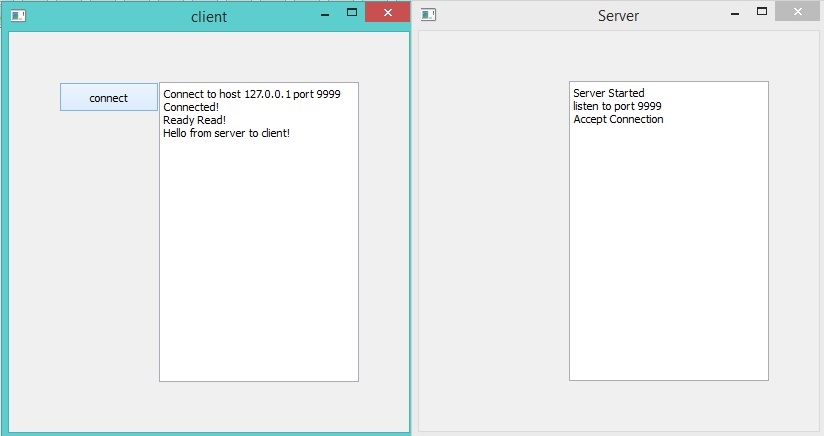
In this section we will learn about creating simple Client and Server Application
Load "guilib.ring"
new qApp { oClient = new Client { client() } oServer = new Server { server() } exec() }
Class Client
    win1 lineedit1  cOutput=""
    oTcpSocket

    func client

            win1 = new qwidget()

            new qpushbutton(win1) {
                    setgeometry(50,50,100,30)
                    settext("connect")
                    setclickevent("oClient.Connect()")
            }

            lineedit1 = new qtextedit(win1) {
                    setGeometry(150,50,200,300)
            }

            win1 {
                    setwindowtitle("client")
                    setgeometry(10,100,400,400)
                    show()
            }

    func connect
            cOutput = "Connect to host 127.0.0.1 port 9999" + nl
            lineedit1.settext(cOutput)
            oTcpSocket = new qTcpSocket(win1) {
                    setconnectedevent("oClient.pConnected()")
                    setreadyreadevent("oClient.pRead()")
                    connecttohost("127.0.0.1",9999,3,0)
                    waitforconnected(5000)
            }

    func pConnected

            cOutput += "Connected!" + nl
            lineedit1.settext(cOutput)

    func pRead

            cOutput += "Ready Read!" + nl
            lineedit1.settext(cOutput)
            cOutput += oTcpSocket.readall().data() + nl
            lineedit1.settext(cOutput)
Class Server
    win1 lineedit1
    oTcpServer oTcpClient
    cOutput = ""

    func server

            win1 = new qwidget()

            lineedit1 = new qtextedit(win1) {
                    setGeometry(150,50,200,300)
            }

            win1 {
                    setwindowtitle("Server")
                    setgeometry(450,100,400,400)
                    show()
            }

            oTcpServer = new qTcpServer(win1) {
                    setNewConnectionEvent("oServer.pNewConnection()")
                    oHostAddress = new qHostAddress()
                    oHostAddress.SetAddress("127.0.0.1")
                    listen(oHostAddress,9999)
            }
            cOutput = "Server Started" + nl +
                       "listen to port 9999" + nl

            lineedit1.settext(cOutput)

    Func pNewConnection

            oTcpClient = oTcpServer.nextPendingConnection()
            cOutput += "Accept Connection" + nl
            lineedit1.settext(cOutput)
            oTcpClient {
                    cStr ="Hello from server to client!"+char(13)+char(10)
                    write(cStr,len(cStr))
                    flush()
                    waitforbyteswritten(300000)
                    close()
            }
The application during the runtime
Dynamic Objects
We may create objects in the runtime and add them to windows.
Example:
load "guilib.ring"
oFormDesigner = new FormDesigner { start("oFormDesigner") }
Class FormDesigner
    winToolBox  winForm

    aObjects = []

    func start cObjectName

            oApp = new qApp

            winToolBox = new qWidget()
            winToolBox.setWindowTitle("ToolBox")
            winToolBox.move(10,10)
            winToolBox.resize(300,600)

            btn = new qPushButton(winToolBox)
            btn.resize(300,30)
            btn.setText("Create Button")
            btn.setClickEvent(cObjectName+".pCreateButton()")
            btn.show()

            winToolBox.show()

            winForm = new qWidget() {
                    move(400,50)
                    setWindowTitle("Form Designer")
                    resize(600,600)
                    show()
            }

            oApp.exec()


    func pCreateButton

            nCount = len(aObjects)

            aObjects + new MyButton(winForm)
            {
                    nIndex = nCount + 1
                    setText("Button"+ nIndex)
                    Move(30*nIndex,30*nIndex)
                    resize(100,30)
                    show()
            }
Class MyButton from qPushButton nIndex = 0
Weight History Application
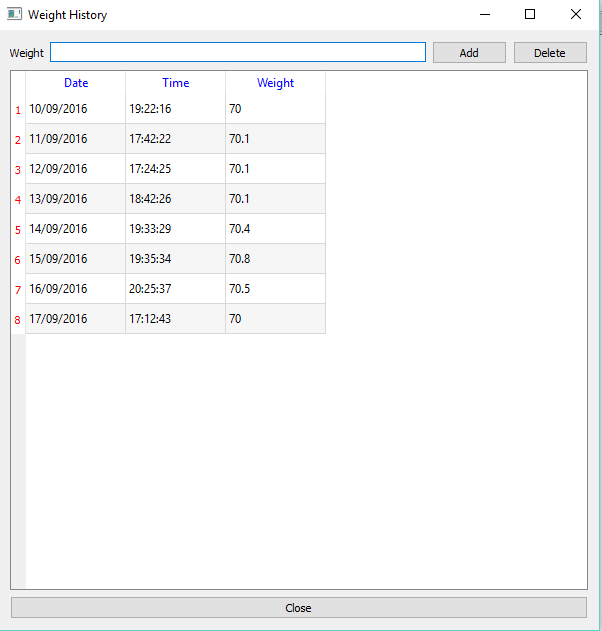
The next sample help in recording (Date, Time and Weight).
Load "guilib.ring"
MyApp = new qApp { $ApplicationObject = "oApp" # To be used when calling events oApp = new App exec() oApp.CloseDatabase() }
class App
cDir = currentdir() + "/" oCon aIDs = []
win1 = new qWidget() { setWindowTitle("Weight History") resize(600,600) layoutButtons = new qhboxlayout() { label1 = new qLabel(win1) { setText("Weight") } text1 = new qlineedit(win1) btnAdd = new qpushbutton(win1) { setText("Add") setClickEvent($ApplicationObject+".AddWeight()") } btnDelete = new qpushbutton(win1) { setText("Delete") setClickEvent($ApplicationObject+".Deleteweight()") } addwidget(label1) addwidget(text1) addwidget(btnAdd) addwidget(btnDelete) } layoutData = new qhboxlayout() { Table1 = new qTableWidget(win1) { setrowcount(0) setcolumncount(3) setselectionbehavior(QAbstractItemView_SelectRows) setHorizontalHeaderItem(0, new QTableWidgetItem("Date")) setHorizontalHeaderItem(1, new QTableWidgetItem("Time")) setHorizontalHeaderItem(2, new QTableWidgetItem("Weight")) setitemChangedEvent($ApplicationObject+".ItemChanged()") setAlternatingRowColors(true) horizontalHeader().setStyleSheet("color: blue") verticalHeader().setStyleSheet("color: red") } addWidget(Table1) } layoutClose = new qhboxlayout() { btnclose = new qpushbutton(win1) { setText("Close") setClickEvent("MyApp.Quit()") } addwidget(btnClose) } layoutMain = new qvboxlayout() { addlayout(layoutButtons) addLayout(LayoutData) addLayout(layoutClose) } setlayout(layoutMain) self.OpenDatabase() self.ShowRecords() show() }
Func OpenDatabase lCreate = False if not fexists(cDir + "weighthistory.db") lCreate = True ok new QSqlDatabase() { this.oCon = addDatabase("QSQLITE") { setDatabaseName("weighthistory.db") Open() } } if lCreate new QSqlQuery( ) { exec("create table weighthistory (id integer primary key,"+ " f_date varchar(10),"+ " f_time varchar(8), f_weight varchar(8) );") delete() } ok
Func CloseDatabase oCon.Close()
Func AddWeight cWeight = text1.text() AddRecord(cWeight)
Func DeleteWeight Table1 { nRow = CurrentRow() if nRow >= 0 nID = this.aIDs[nROW+1] new QSqlQuery( ) { exec("delete from weighthistory where id = " + nID ) } Del(this.aIDs,nRow+1) removerow(nRow) selectrow(nRow) ok }
Func AddRecord cWeight new QSqlQuery( ) { cStr = "insert into weighthistory (f_date,f_time,f_weight) values"+ " ('%f1','%f2','%f3')" cDate = Date() cTime = Time() cStr = substr(cStr,"%f1",cDate) cStr = substr(cStr,"%f2",cTime) cStr = substr(cStr,"%f3",cWeight) exec(cStr) delete() } ShowRecords() Table1.selectrow(table1.rowcount()-1)
Func ShowRecords table1.setitemChangedEvent("") aIDs = [] query = new QSqlQuery() { exec("select * from weighthistory") nRows = 0 this.Table1.setrowcount(0) while movenext() this.table1 { insertRow(nRows) this.aIDs + query.value(0).tostring() for x = 1 to 3 cStr = query.value(x).tostring() item = new qTableWidgetItem(cStr) setItem(nRows,x-1,item) next } nRows++ end delete() } table1.setitemChangedEvent($ApplicationObject+".ItemChanged()")
Func ItemChanged nRow = table1.currentrow() if nRow >= 0 myitem = Table1.item(table1.currentrow(),0) cDate = myitem.text() myitem = Table1.item(table1.currentrow(),1) cTime = myitem.text() myitem = Table1.item(table1.currentrow(),2) cWeight = myitem.text() new QSqlQuery( ) { cStr = "update weighthistory set f_date ='%f1' , f_time = '%f2' , "+ "f_weight ='%f3' where id = " + this.aIDs[nROW+1] cStr = substr(cStr,"%f1",cDate) cStr = substr(cStr,"%f2",cTime) cStr = substr(cStr,"%f3",cWeight) exec(cStr) delete() } ok
The next screen shot for the application during the runtime
Notepad Application
In the next example we will see simple Notepad developed using the RingQt
Load "guilib.ring"
cActiveFileName = "" aTextColor = [0,0,0] aBackColor = [255,255,255] cFont = "MS Shell Dlg 2,14,-1,5,50,0,0,0,0,0" cWebsite = "http://www.google.com"
oSearch = NULL oSearchValue = NULL oSearchCase = NULL oSearchFilter = NULL oReplaceValue = NULL
lAskToSave = false
MyApp = New qApp { win1 = new qMainWindow() {
setwindowtitle("Ring Notepad")
setGeometry(100,100,400,400)
aBtns = [
new qpushbutton(win1) {
setbtnimage(self,"image/new.png")
setclickevent("pNew()")
settooltip("New File")
} ,
new qpushbutton(win1) {
setbtnimage(self,"image/open.png")
setclickevent("pOpen()")
settooltip("Open File")
} ,
new qpushbutton(win1) {
setbtnimage(self,"image/save.png")
setclickevent("pSave()")
settooltip("Save")
} ,
new qpushbutton(win1) {
setbtnimage(self,"image/saveas.png")
setclickevent("pSaveAs()")
settooltip("Save As")
} ,
new qpushbutton(win1) {
setbtnimage(self,"image/cut.png")
setclickevent("pCut()")
settooltip("Cut")
} ,
new qpushbutton(win1) {
setbtnimage(self,"image/copy.png")
setclickevent("pCopy()")
settooltip("Copy")
} ,
new qpushbutton(win1) {
setbtnimage(self,"image/paste.png")
setclickevent("pPaste()")
settooltip("Paste")
} ,
new qpushbutton(win1) {
setbtnimage(self,"image/font.png")
setclickevent("pFont()")
settooltip("Font")
} ,
new qpushbutton(win1) {
setbtnimage(self,"image/colors.jpg")
setclickevent("pColor()")
settooltip("Text Color")
} ,
new qpushbutton(win1) {
setbtnimage(self,"image/search.png")
setclickevent("pFind()")
settooltip("Find and Replace")
} ,
new qpushbutton(win1) {
setbtnimage(self,"image/print.png")
setclickevent("pPrint()")
settooltip("Print")
} ,
new qpushbutton(win1) {
setbtnimage(self,"image/debug.png")
setclickevent("pDebug()")
settooltip("Debug (Run then wait!)")
} ,
new qpushbutton(win1) {
setbtnimage(self,"image/run.png")
setclickevent("pRun()")
settooltip("Run the program")
} ,
new qpushbutton(win1) {
setbtnimage(self,"image/close.png")
setclickevent("pQuit()")
settooltip("Quit")
}
]
tool1 = addtoolbar("files") {
for x in aBtns addwidget(x) addseparator() next
}
menu1 = new qmenubar(win1) {
sub1 = addmenu("File")
sub2 = addmenu("Edit")
sub3 = addmenu("View")
sub4 = addmenu("Help")
sub1 {
oAction = new qAction(win1) {
setShortcut(new QKeySequence("Ctrl+n"))
setbtnimage(self,"image/new.png")
settext("New")
setclickevent("pNew()")
}
addaction(oAction)
oAction = new qAction(win1) {
setShortcut(new QKeySequence("Ctrl+o"))
setbtnimage(self,"image/open.png")
settext("Open")
setclickevent("pOpen()")
}
addaction(oAction)
addseparator()
oAction = new qAction(win1) {
setShortcut(new QKeySequence("Ctrl+s"))
setbtnimage(self,"image/save.png")
settext("Save")
setclickevent("pSave()")
}
addaction(oAction)
addseparator()
oAction = new qAction(win1) {
setShortcut(new QKeySequence("Ctrl+e"))
setbtnimage(self,"image/saveas.png")
settext("Save As")
setclickevent("pSaveAs()")
}
addaction(oAction)
addseparator()
oAction = new qAction(win1) {
setShortcut(new QKeySequence("Ctrl+p"))
setbtnimage(self,"image/print.png")
settext("Print to PDF")
setclickevent("pPrint()")
}
addaction(oAction)
addseparator()
oAction = new qAction(win1) {
setShortcut(new QKeySequence("Ctrl+d"))
setbtnimage(self,"image/debug.png")
settext("Debug (Run then wait!)")
setclickevent("pDebug()")
}
addaction(oAction)
addseparator()
oAction = new qAction(win1) {
setShortcut(new QKeySequence("Ctrl+r"))
setbtnimage(self,"image/run.png")
settext("Run")
setclickevent("pRun()")
}
addaction(oAction)
addseparator()
oAction = new qAction(win1) {
setShortcut(new QKeySequence("Ctrl+F5"))
setbtnimage(self,"image/run.png")
settext("Run GUI Application (No Console)")
setclickevent("pRunNoConsole()")
}
addaction(oAction)
addseparator()
oAction = new qaction(win1) {
setShortcut(new QKeySequence("Ctrl+q"))
setbtnimage(self,"image/close.png")
settext("Exit")
setstatustip("Exit")
setclickevent("pQuit()")
}
addaction(oAction)
}
sub2 {
oAction = new qAction(win1) {
setShortcut(new QKeySequence("Ctrl+x"))
setbtnimage(self,"image/cut.png")
settext("Cut")
setclickevent("pCut()")
}
addaction(oAction)
oAction = new qAction(win1) {
setShortcut(new QKeySequence("Ctrl+c"))
setbtnimage(self,"image/copy.png")
settext("Copy")
setclickevent("pCopy()")
}
addaction(oAction)
oAction = new qAction(win1) {
setShortcut(new QKeySequence("Ctrl+v"))
setbtnimage(self,"image/paste.png")
settext("Paste")
setclickevent("pPaste()")
}
addaction(oAction)
addseparator()
oAction = new qAction(win1) {
setShortcut(new QKeySequence("Ctrl+i"))
setbtnimage(self,"image/font.png")
settext("Font")
setclickevent("pFont()")
}
addseparator()
addaction(oAction)
oAction = new qAction(win1) {
setShortcut(new QKeySequence("Ctrl+t"))
setbtnimage(self,"image/colors.jpg")
settext("Text Color")
setclickevent("pColor()")
}
addaction(oAction)
oAction = new qAction(win1) {
setShortcut(new QKeySequence("Ctrl+b"))
setbtnimage(self,"image/colors.jpg")
settext("Back Color")
setclickevent("pColor2()")
}
addaction(oAction)
addseparator()
oAction = new qAction(win1) {
setShortcut(new QKeySequence("Ctrl+g"))
settext("Go to line")
setclickevent("pGoto()")
}
addaction(oAction)
oAction = new qAction(win1) {
setShortcut(new QKeySequence("Ctrl+f"))
setbtnimage(self,"image/search.png")
settext("Find and Replace")
setclickevent("pFind()")
}
addaction(oAction)
}
sub3 {
oAction = new qAction(win1) {
setShortcut(new QKeySequence("Ctrl+p"))
setbtnimage(self,"image/project.png")
settext("Project Files")
setclickevent("pProject()")
}
addaction(oAction)
oAction = new qAction(win1) {
setShortcut(new QKeySequence("Ctrl+u"))
setbtnimage(self,"image/source.png")
setclickevent("pSourceCode()")
settext("Source Code")
}
addaction(oAction)
oAction = new qAction(win1) {
setShortcut(new QKeySequence("Ctrl+w"))
setbtnimage(self,"image/richtext.png")
setclickevent("pWebBrowser()")
settext("Web Browser")
}
addaction(oAction)
}
sub4 {
sub5 = addmenu("Development Tools")
sub5 {
oAction = new qAction(win1) {
settext("Programming Language")
setclickevent("pLang()")
}
addaction(oAction)
oAction = new qAction(win1) {
settext("GUI Library")
setclickevent("pGUI()")
}
addaction(oAction)
}
addseparator()
oAction = new qAction(win1) {
settext("About")
setclickevent("pAbout()")
}
addaction(oAction)
}
}
setmenubar(menu1)
status1 = new qstatusbar(win1) {
showmessage("Ready!",0)
}
setstatusbar(status1)
tree1 = new qtreeview(win1) {
setclickedevent("pChangeFile()")
setGeometry(00,00,200,400)
oDir = new QDir()
ofile = new QFileSystemModel() {
setrootpath(oDir.currentpath())
myfiles = new qstringlist()
myfiles.append("*.ring")
myfiles.append("*.rh")
setnamefilters(myfiles)
setNameFilterDisables(false)
}
setmodel(ofile)
myindex = ofile.index(oDir.currentpath(),0)
for x = 1 to ofile.columncount()
hidecolumn(x)
next
setcurrentindex(myindex)
setexpanded(myindex,true)
header().hide()
}
oDock1 = new qdockwidget(win1,0) {
setGeometry(00,00,200,200)
setwindowtitle("Project Files")
setwidget(tree1)
}
textedit1 = new qtextedit(win1) {
setCursorPositionChangedevent("pCursorPositionChanged()")
setLineWrapMode(QTextEdit_NoWrap)
setAcceptRichText(false)
setTextChangedEvent("lAskToSave = true")
}
oDock2 = new qdockwidget(win1,0) {
setwidget(textedit1)
setwindowtitle("Source Code")
}
oWebBrowser = new qWidget() {
setWindowFlags(Qt_SubWindow)
oWBLabel = new qLabel(win1) {
setText("Website: ")
}
oWBText = new qLineEdit(win1) {
setText(cWebSite)
setReturnPressedEvent("pWebGo()")
}
oWBGo = new qPushButton(win1) {
setText("Go")
setClickEvent("pWebGo()")
}
oWBBack = new qPushButton(win1) {
setText("Back")
setClickEvent("pWebBack()")
}
oWBLayout1 = new qHBoxLayout() {
addWidget(oWBLabel)
addWidget(oWBText)
addWidget(oWBGo)
addWidget(oWBBack)
}
oWebView = new qWebView(win1) {
loadpage(new qurl(cWebSite))
}
oWBlayout2 = new qVBoxLayout() {
addLayout(oWBLayout1)
addWidget(oWebView)
}
setLayout(oWBLayout2)
}
oDock3 = new qdockwidget(win1,0) {
setwidget(oWebBrowser)
setwindowtitle("Web Browser")
setFeatures(QDockWidget_DocWidgetClosable)
}
adddockwidget(1,oDock1,1)
adddockwidget(2,oDock2,2)
adddockwidget(2,oDock3,1)
setwinicon(self,"image/notepad.png")
showmaximized()
}
RestoreSettings()
exec()}
func pWebGo cWebsite = oWBText.text() oWebView.LoadPage( new qurl( cWebSite ) )
func pWebBack oWebView.Back()
func pProject oDock1.Show()
func pSourceCode oDock2.Show()
func pWebBrowser oDock3.Show()
func pChangeFile myitem = tree1.currentindex() if ofile.isdir(myitem) return ok cActiveFileName = ofile.filepath(myitem) textedit1.settext(read(cActiveFileName)) textedit1.setfocus(0) pCursorPositionChanged() pSetActiveFileName()
func pSetActiveFileName oDock2.setWindowTitle("Source Code : " + cActiveFileName)
func pCursorPositionChanged status1.showmessage(" Line : "+(textedit1.textcursor().blocknumber()+1)+ " Column : " +(textedit1.textcursor().columnnumber()+1) + " Total Lines : " + textedit1.document().linecount() ,0)
func pGoto oInput = New QInputDialog(win1) { setwindowtitle("Enter the line number?") setgeometry(100,100,400,50) setlabeltext("Line") settextvalue("1") exec() nLine = 0 + oInput.textvalue() oBlock = textedit1.document().findBlockByLineNumber(nLine-1) oCursor = textedit1.textcursor() oCursor.setposition(oBlock.position(),0) textedit1.settextcursor(oCursor) }
func pFind if isobject(oSearch) oSearch.activatewindow() return ok oSearch = new qWidget() { new qLabel(oSearch) { setText("Find What : ") setgeometry(10,10,50,30) } oSearchValue = new qlineedit(oSearch) { setgeometry(80,10,460,30) setReturnPressedEvent("pFindValue()") } new qLabel(oSearch) { setText("Replace with ") setgeometry(10,45,80,30) } oReplaceValue = new qlineedit(oSearch) { setgeometry(80,45,460,30) } oSearchCase = new qCheckbox(oSearch) { setText("Case Sensitive") setgeometry(80,85,100,30) } new qPushButton(oSearch) { setText("Find/Find Next") setgeometry(80,120,100,30) setclickevent("pFindValue()") } new qPushButton(oSearch) { setText("Replace") setgeometry(200,120,100,30) setclickevent("pReplace()") } new qPushButton(oSearch) { setText("Replace All") setgeometry(320,120,100,30) setclickevent("pReplaceAll()") } new qPushButton(oSearch) { setText("Close") setgeometry(440,120,100,30) setclickevent("pSearchClose()") }
            setwinicon(oSearch,"image/notepad.png")
            setWindowTitle("Find/Replace")
            setStyleSheet("background-color:white;")
            setFixedsize(550,160)
            setwindowflags( Qt_CustomizeWindowHint |
                            Qt_WindowTitleHint | Qt_WindowStaysOnTopHint)

            oSearchFilter = new qallevents(oSearch)
            oSearchFilter.setKeyPressEvent("pSearchKeyPress()")
            installeventfilter(oSearchFilter)

            show()
    }
Func pReplace oCursor = textedit1.textCursor() if oCursor.HasSelection() = false new qMessagebox(oSearch) { SetWindowTitle("Replace") SetText("No Selection") show() } return false ok cValue = oSearchValue.text() cSelected = oCursor.SelectedText() if oSearchCase.checkState() = Qt_Unchecked cValue = lower(cValue) cSelected = lower(cSelected) ok if cSelected != cValue new qMessagebox(oSearch) { SetWindowTitle("Replace") SetText("No Match") show() } return false ok cValue = oReplaceValue.text() nStart = oCursor.SelectionStart() nEnd = oCursor.SelectionEnd() cStr = textedit1.toPlainText() cStr = left(cStr,nStart)+cValue+substr(cStr,nEnd+1) textedit1.setText(cStr) return pFindValue()
Func pReplaceAll cStr = textedit1.toPlainText() cOldValue = oSearchValue.text() cNewValue = oReplaceValue.text() if oSearchCase.checkState() = Qt_Unchecked # Not Case Sensitive cStr = SubStr(cStr,cOldValue,cNewValue,true) else # Case Sensitive cStr = SubStr(cStr,cOldValue,cNewValue) ok textedit1.setText(cStr) new qMessagebox(oSearch) { SetWindowTitle("Replace All") SetText("Operation Done") show() }
Func pSearchClose oSearch.close() oSearch = NULL
func pSearchKeyPress if oSearchFilter.getKeyCode() = Qt_Key_Escape pSearchClose() ok
func pFindValue oCursor = textedit1.textcursor() nPosStart = oCursor.Position() + 1 cValue = oSearchValue.text() cStr = textedit1.toplaintext() cStr = substr(cStr,nPosStart) if oSearchCase.checkState() = Qt_Unchecked cStr = lower(cStr) cValue = lower(cValue) ok nPos = substr(cStr,cValue) if nPos > 0 nPos += nPosStart - 2 oCursor = textedit1.textcursor() oCursor.setposition(nPos,0) textedit1.settextcursor(oCursor) oCursor = textedit1.textcursor() oCursor.setposition(nPos+len(cValue),1) textedit1.settextcursor(oCursor) return true else new qMessagebox(oSearch) { SetWindowTitle("Search") SetText("Cannot find :" + cValue) show() } return false ok
func pNofileopened New qMessageBox(win1) { setWindowTitle("Sorry") setText("Save the file first!") show() }
func pDebug if cActiveFileName = Null return pNofileopened() ok cCode = "start run " + cActiveFileName + nl system(cCode)
func pRun if cActiveFileName = Null return pNofileopened() ok cCode = "start ring " + cActiveFileName + nl system(cCode)
func pRunNoConsole if cActiveFileName = Null return pNofileopened() ok cCode = "start /b ring " + cActiveFileName + nl system(cCode)
func pSave if cActiveFileName = NULL return pSaveAs() ok writefile(cActiveFileName,textedit1.toplaintext()) status1.showmessage("File : " + cActiveFileName + " saved!",0) lAskToSave = false
func pSaveAs new qfiledialog(win1) { cName = getsavefilename(win1,"Save As","","source files(*.ring)") if cName != NULL cActiveFileName = cName writefile(cActiveFileName,textedit1.toplaintext()) status1.showmessage("File : " + cActiveFileName + " saved!",0) pSetActiveFileName() lAskToSave = false ok }
func pPrint status1.showmessage("Printing to File : RingDoc.pdf",0) printer1 = new qPrinter(0) { setoutputformat(1) # 1 = pdf setoutputfilename("RingDoc.pdf") textedit1.print(printer1) } status1.showmessage("Done!",0) system("RingDoc.pdf")
func pCut textedit1.cut() status1.showmessage("Cut!",0)
func pCopy textedit1.copy() status1.showmessage("Copy!",0)
func pPaste textedit1.paste() status1.showmessage("Paste!",0)
func pFont oFontDialog = new qfontdialog() { aFont = getfont() } textedit1.selectall() cFont = aFont[1] pSetFont()
Func pSetFont myfont = new qfont("",0,0,0) myfont.fromstring(cFont) textedit1.setcurrentfont(myfont)
Func pColor new qcolordialog() { aTextColor = GetColor() } pSetColors()
Func pColor2 new qcolordialog() { aBackColor = GetColor() } pSetColors()
Func pSetColors textedit1.setstylesheet("color: rgb(" + aTextColor[1] + "," + aTextColor[2] + "," + aTextColor[3] + ");" + "background-color: rgb(" + aBackColor[1] + "," + aBackColor[2] + "," + aBackColor[3] + ")")
func pOpen new qfiledialog(win1) { cName = getopenfilename(win1,"open file","c:","source files(*.ring)") if cName != NULL cActiveFileName = cName textedit1.settext(read(cActiveFileName)) ok }
func pNew new qfiledialog(win1) { cName = getsavefilename(win1,"New file","","source files(*.ring)") if cName != NULL write(cName,"") cActiveFileName = cName textedit1.settext(read(cActiveFileName))
            ok
    }
Func WriteFile cFileName,cCode aCode = str2list(cCode) fp = fopen(cFileName,"wb") for cLine in aCode fwrite(fp,cLine+char(13)+char(10)) next fclose(fp)
Func MsgBox cTitle,cMessage new qMessagebox(win1) { setwindowtitle(cTitle) setText(cMessage) show() }
Func pLang MsgBox("Programming Language", "This application developed using the Ring programming language")
Func pGUI MsgBox("GUI Library", "This application uses the Qt GUI Library through RingQt")
Func pAbout MsgBox("About", "2016, Mahmoud Fayed msfclipper@yahoo.com")
Func pSaveSettings cSettings = "aTextColor = ["+aTextColor[1]+","+aTextColor[2]+ ","+aTextColor[3]+"]" + nl + "aBackColor = ["+aBackColor[1]+","+aBackColor[2]+ ","+aBackColor[3]+"]" + nl + "cFont = '" + cFont + "'" + nl + "cWebSite = '" + cWebsite + "'" + nl cSettings = substr(cSettings,nl,char(13)+char(10)) write("ringnotepad.ini",cSettings) if lAsktoSave new qmessagebox(win1) { setwindowtitle("Save Changes?") settext("Some changes are not saved!") setInformativeText("Do you want to save your changes?") setstandardbuttons(QMessageBox_Yes | QMessageBox_No | QMessageBox_Cancel) result = exec() win1 { if result = QMessageBox_Yes pSave() but result = QMessageBox_Cancel return false ok } } ok return true
Func pSetWebsite oWebView { loadpage(new qurl(cWebSite)) } oWBText { setText(cWebSite) }
Func RestoreSettings eval(read("ringnotepad.ini")) pSetColors() pSetFont() pSetWebsite()
Func pQuit if pSaveSettings() myapp.quit() ok
The application during the runtime
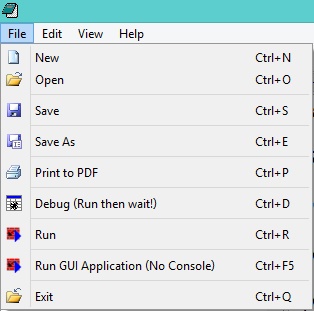
The next screen shot demonstrates the “File” menu
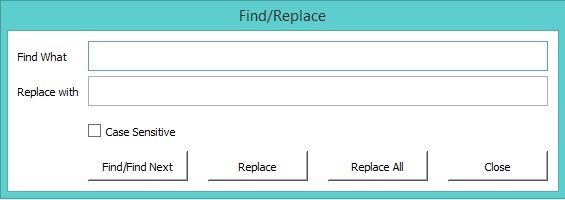
The next window for “search and replace”
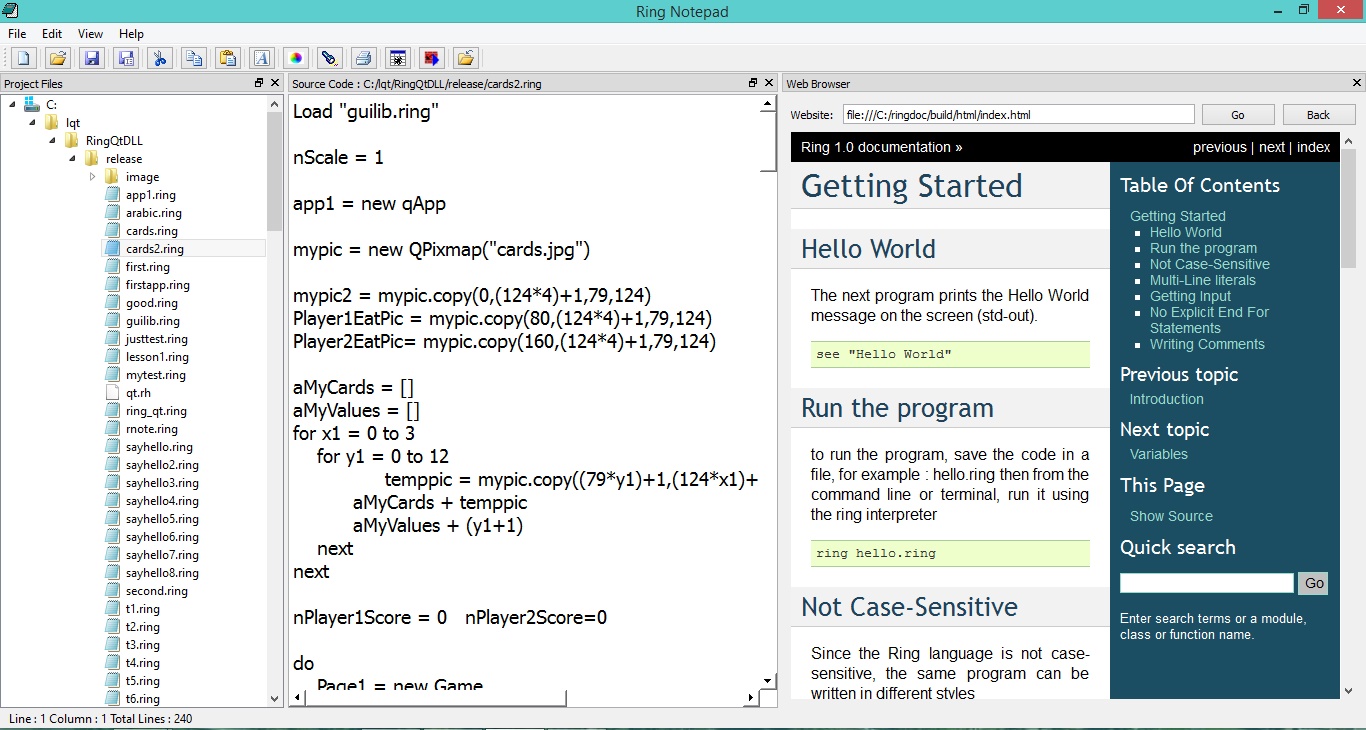
The next screen shot demonstrates the application main window
Note
the functions pDebug(), pRun() and pRunNoConsole() in the previous sample are not portable! They are written in this sample for MS-Windows and we can update them for other operating systems.
The Cards Game
In the next example we will see a simple Cards game developed using RingQt
Each player get 5 cards, the cards are unknown to any one. each time one player click on one card to see it. if the card is identical to another card the play get point for each card. if the card value is “5” the player get points for all visible cards.
Load "guilib.ring"
nScale = 1
app1 = new qApp
mypic = new QPixmap("cards.jpg")
mypic2 = mypic.copy(0,(1244)+1,79,124) Player1EatPic = mypic.copy(80,(1244)+1,79,124) Player2EatPic= mypic.copy(160,(124*4)+1,79,124)
aMyCards = [] aMyValues = [] for x1 = 0 to 3 for y1 = 0 to 12 temppic = mypic.copy((79y1)+1,(124x1)+1,79,124) aMyCards + temppic aMyValues + (y1+1) next next
nPlayer1Score = 0 nPlayer2Score=0
do Page1 = new Game Page1.Start() again Page1.lnewgame
mypic.delete() mypic2.delete() Player1EatPic.delete() Player2EatPic.delete()
for t in aMyCards t.delete() next
func gui_setbtnpixmap pBtn,pPixmap pBtn { setIcon(new qicon(pPixmap.scaled(width(),height(),0,0))) setIconSize(new QSize(width(),height())) }
Class Game
    nCardsCount = 10
    win1 layout1 label1 label2 layout2 layout3 aBtns aBtns2
    aCards nRole=1 aStatus = list(nCardsCount) aStatus2 = aStatus
    aValues        aStatusValues = aStatus  aStatusValues2 = aStatus
    Player1EatPic   Player2EatPic
    lnewgame = false
    nDelayEat = 0.5
    nDelayNewGame = 1

    func start

            win1 = new qWidget() {
                    setwindowtitle("Five")
                    setstylesheet("background-color: White")
                    showfullscreen()
            }

            layout1 = new qvboxlayout()

            label1 = new qlabel(win1) {
                    settext("Player (1) - Score : " + nPlayer1Score)
                    setalignment(Qt_AlignHCenter | Qt_AlignVCenter)
                    setstylesheet("color: White; background-color: Purple;
                                     font-size:20pt")
                    setfixedheight(200)
            }

            closebtn = new qpushbutton(win1)  {
                    settext("Close Application")
                    setstylesheet("font-size: 18px ; color : white ;
                                     background-color: black ;")
                    setclickevent("Page1.win1.close()")
            }

            aCards = aMyCards
            aValues = aMyValues

            layout2 = new qhboxlayout()

            aBtns = []

            for x = 1 to nCardsCount
                    aBtns + new qpushbutton(win1)
                    aBtns[x].setfixedwidth(79*nScale)
                    aBtns[x].setfixedheight(124*nScale)
                    gui_setbtnpixmap(aBtns[x],mypic2)
                    layout2.addwidget(aBtns[x])
                    aBtns[x].setclickevent("Page1.Player1click("+x+")")
            next

            layout1.addwidget(label1)
            layout1.addlayout(layout2)

            label2 = new qlabel(win1) {
                    settext("Player (2) - Score : " + nPlayer2Score)
                    setalignment(Qt_AlignHCenter | Qt_AlignVCenter)
                    setstylesheet("color: white; background-color: red;
                                     font-size:20pt")
                    setfixedheight(200)
            }

            layout3 = new qhboxlayout()

            aBtns2 = []
            for x = 1 to nCardsCount
                    aBtns2 + new qpushbutton(win1)
                    aBtns2[x].setfixedwidth(79*nScale)
                    aBtns2[x].setfixedheight(124*nScale)
                    gui_setbtnpixmap(aBtns2[x],mypic2)
                    layout3.addwidget(aBtns2[x])
                    aBtns2[x].setclickevent("Page1.Player2click("+x+")")
            next

            layout1.addwidget(label2)
            layout1.addlayout(layout3)
            layout1.addwidget(closebtn)

            win1.setlayout(layout1)

            app1.exec()

    Func Player1Click x
            if nRole = 1 and aStatus[x] = 0
                    nPos = ((random(100)+clock())%(len(aCards)-1)) + 1
                    gui_setbtnpixmap(aBtns[x],aCards[nPos])
                    del(aCards,nPos)
                    nRole = 2
                    aStatus[x] = 1
                    aStatusValues[x] = aValues[nPos]
                    del(aValues,nPos)
                    Player1Eat(x,aStatusValues[x])
                    checknewgame()
            ok

    Func Player2Click x
            if nRole = 2 and aStatus2[x] = 0
                    nPos = ((random(100)+clock())%(len(aCards)-1)) + 1
                    gui_setbtnpixmap(aBtns2[x],aCards[nPos])
                    del(aCards,nPos)
                    nRole = 1
                    aStatus2[x] = 1
                    aStatusValues2[x] = aValues[nPos]
                    del(aValues,nPos)
                    Player2Eat(x,aStatusValues2[x])
                    checknewgame()
            ok

    Func Player1Eat nPos,nValue

             app1.processEvents()

             delay(nDelayEat)
             lEat = false
             for x = 1 to nCardsCount
                     if aStatus2[x] = 1 and (aStatusValues2[x] = nValue or nValue=5)
                            aStatus2[x] = 2
                            gui_setbtnpixmap(aBtns2[x],Player1EatPic)
                            lEat = True
                            nPlayer1Score++
                     ok
                     if (x != nPos) and (aStatus[x] = 1) and
                            (aStatusValues[x] = nValue or nValue=5)
                            aStatus[x] = 2
                            gui_setbtnpixmap(aBtns[x],Player1EatPic)
                            lEat = True
                            nPlayer1Score++
                     ok
             next
             if lEat
                            nPlayer1Score++
                            gui_setbtnpixmap(aBtns[nPos],Player1EatPic)
                            aStatus[nPos] = 2
                            label1.settext("Player (1) - Score : " + nPlayer1Score)
             ok

    Func Player2Eat nPos,nValue

             app1.processEvents()

             delay(nDelayEat)
             lEat = false
             for x = 1 to  nCardsCount
                     if aStatus[x] = 1 and (aStatusValues[x] = nValue or nValue = 5)
                            aStatus[x] = 2
                            gui_setbtnpixmap(aBtns[x],Player2EatPic)
                            lEat = True
                            nPlayer2Score++
                     ok

                     if (x != nPos) and (aStatus2[x] = 1) and
                            (aStatusValues2[x] = nValue or nValue=5 )
                            aStatus2[x] = 2
                            gui_setbtnpixmap(aBtns2[x],Player2EatPic)
                            lEat = True
                            nPlayer2Score++
                     ok
             next
             if lEat
                            nPlayer2Score++
                            gui_setbtnpixmap(aBtns2[nPos],Player2EatPic)
                            aStatus2[nPos] = 2
                            label2.settext("Player (2) - Score : " + nPlayer2Score)
             ok

    Func checknewgame
            if isnewgame()
                              lnewgame = true

                              if nPlayer1Score > nPlayer2Score
                                     label1.settext("Player (1) Wins!!!")
                              ok
                              if nPlayer2Score > nPlayer1Score
                                     label2.settext("Player (2) Wins!!!")
                              ok

                              app1.processEvents()
                              delay(nDelayNewGame)

                              win1.delete()
                              app1.quit()
            ok

    Func isnewgame
            for t in aStatus
                    if t = 0
                            return false
                    ok
            next
            for t in aStatus2
                    if t = 0
                            return false
                    ok
            next
            return true

    Func delay x
    nTime = x * 1000
    oTest = new qTest
    oTest.qsleep(nTime)
The application during the runtime
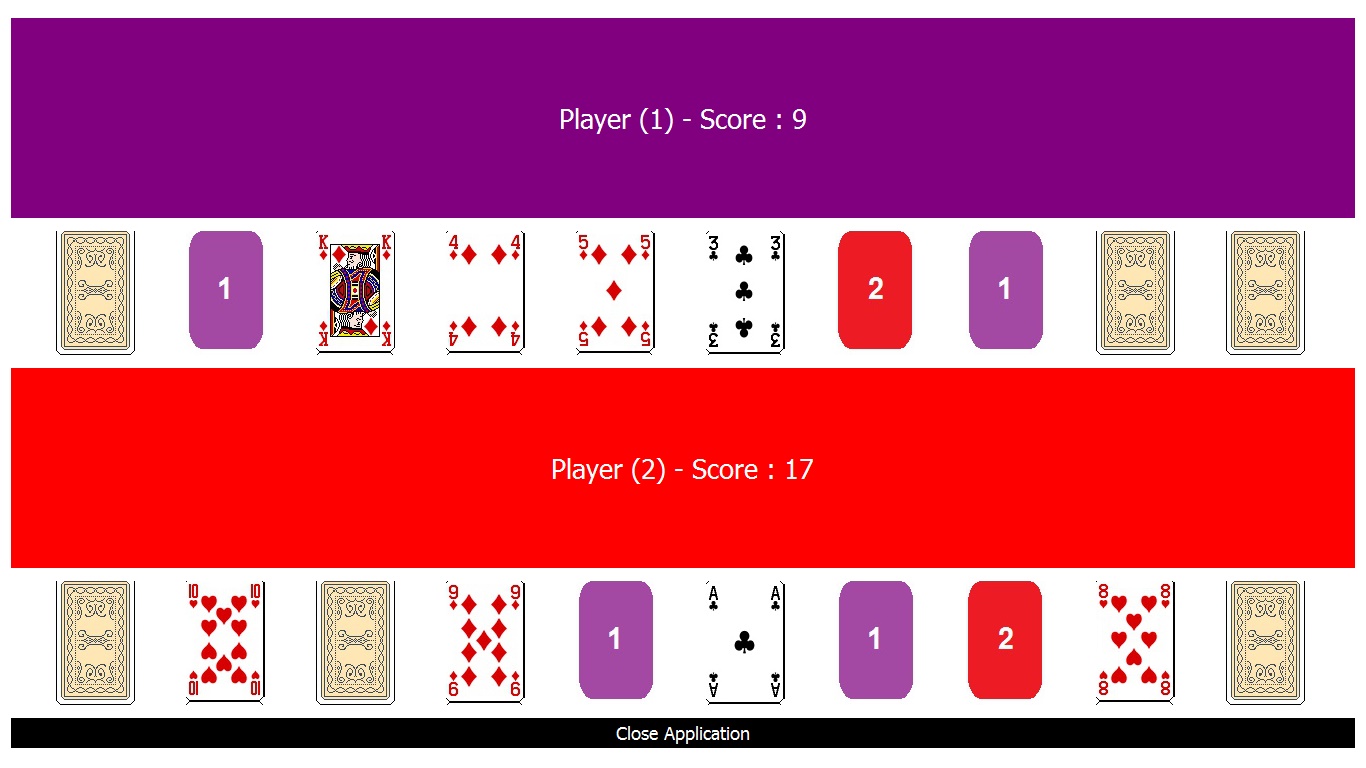
Note
in the previous screen shot the player get the card number ‘5’ but his score is not increased because he opened this card while no other cards are visible!
The next screen shot while running the game using a Mobile (Android)
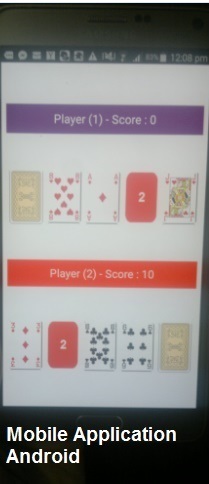
Note
using Qt we can run the same application on other Mobile systems
Classes and their Methods to use the default events
The next table present the class name and the methods that we have to use the default events.
| Class Name | Methods to use the default Events |
|---|---|
| QPushButton | SetClickEvent() |
| QAction | SetClickEvent() |
| QLineEdit | SetTextChangedEvent() |
| SetCursorPositionChangedEvent() | |
| SetEditingFinishedEvent() | |
| SetReturnPressedEvent() | |
| SetSelectionChangedEvent() | |
| SetTextEditedEvent() | |
| QTextEdit | SetCopyAvailableEvent() |
| SetCurrentCharFormatChangedEvent() | |
| SetCursorPositionChangedEvent() | |
| SetRedoAvailableEvent() | |
| SetSelectionChangedEvent() | |
| SetTextChangedEvent() | |
| SetUndoAvailableEvent() | |
| QListWidget | SetCurrentItemChangedEvent() |
| SetCurrentRowChangedEvent() | |
| SetCurrentTextChangedEvent() | |
| SetItemActivatedEvent() | |
| SetItemChangedEvent() | |
| SetItemClickedEvent() | |
| SetItemDoubleClickedEvent() | |
| SetItemEnteredEvent() | |
| SetItemPressedEvent() | |
| SetItemSelectionChangedEvent() | |
| QTreeView | SetCollapseEvent() |
| SetExpandedEvent() | |
| SetActivatedEvent() | |
| SetClickedEvent() | |
| SetDoubleClickedEvent() | |
| SetEnteredEvent() | |
| SetPressedEvent() | |
| SetViewportEnteredEvent() | |
| QTreeWidget | SetCollapsedEvent() |
| SetExpandedEvent() | |
| SetActivatedEvent() | |
| SetClickedEvent() | |
| SetDoubleClickedEvent() | |
| SetEnteredEvent() | |
| SetPressedEvent() | |
| SetViewportEnteredEvent() | |
| SetCurrentItemChangedEvent() | |
| SetItemActivatedEvent() | |
| SetItemChangedEvent() | |
| SetItemClickedEvent() | |
| SetItemCollapsedEvent() | |
| SetItemDoubleClickedEvent() | |
| SetItemEnteredEvent() | |
| SetItemExpandedEvent() | |
| SetItemPressedEvent() | |
| SetItemSelectionChangedEvent() | |
| QComboBox | SetActivatedEvent() |
| SetCurrentIndexChangedEvent() | |
| SetEditTextChangedEvent() | |
| SetHighlightedEvent() | |
| QTabWidget | SetCurrentChangedEvent() |
| SetTabCloseRequestedEvent() | |
| QTableWidget | SetCellActivatedEvent() |
| SetCellChangedEvent() | |
| SetCellClickedEvent() | |
| SetCellDoubleClickedEvent() | |
| SetCellEnteredEvent() | |
| SetCellPressedEvent() | |
| SetCurrentCellChangedEvent() | |
| SetCurrentItemChangedEvent() | |
| SetItemActivatedEvent() | |
| SetItemChangedEvent() | |
| SetItemClickedEvent() | |
| SetItemDoubleClickedEvent() | |
| SetItemEnteredEvent() | |
| SetItemPressedEvent() | |
| SetItemSelectionChangedEvent() | |
| QProgressBar | SetValueChangedEvent() |
| QSpinBox | SetValueChangedEvent() |
| QSlider | SetActionTriggeredEvent() |
| SetRangeChangedEvent() | |
| SetSliderMovedEvent() | |
| SetSliderPressedEvent() | |
| SetSliderReleasedEvent() | |
| SetValueChangedEvent() | |
| QDial | SetActionTriggeredEvent() |
| SetRangeChangedEvent() | |
| SetSliderMovedEvent() | |
| SetSliderPressedEvent() | |
| SetSliderReleasedEvent() | |
| SetValueChangedEvent() | |
| QWebView | SetLoadFinishedEvent() |
| SetLoadProgressEvent() | |
| SetLoadStartedEvent() | |
| SetSelectionChangedEvent() | |
| SetTitleChangedEvent() | |
| SetUrlChangedEvent() | |
| QCheckBox | SetStateChangedEvent() |
| SetClickedEvent() | |
| SetPressedEvent() | |
| SetReleasedEvent() | |
| SetToggledEvent() | |
| QRadioButton | SetClickedEvent() |
| SetPressedEvent() | |
| SetReleasedEvent() | |
| SetToggledEvent() | |
| QButtonGroup | SetButtonClickedEvent() |
| SetButtonPressedEvent() | |
| SetButtonReleasedEvent() | |
| QVideoWidget | SetBrightnessChangedEvent() |
| SetContrastChangedEvent() | |
| SetFullScreenChangedEvent() | |
| SetHueChangedEvent() | |
| SetSaturationChangedEvent() | |
| QTimer | SetTimeoutEvent() |
| QTcpServer | SetAcceptErrorEvent() |
| SetNewConnectionEvent() | |
| QIODevice | SetAboutToCloseEvent() |
| SetBytesWrittenEvent() | |
| SetReadChannelFinishedEvent() | |
| SetReadyReadEvent() | |
| QAbstractSocket | SetConnectedEvent() |
| SetDisconnectedEvent() | |
| SetErrorEvent() | |
| SetHostFoundEvent() | |
| SetProxyAuthenticationRequiredEvent() | |
| SetStateChangedEvent() | |
| QTcpSocket | SetConnectedEvent() |
| SetDisconnectedEvent() | |
| SetErrorEvent() | |
| SetHostFoundEvent() | |
| SetProxyAuthenticationRequiredEvent() | |
| SetStateChangedEvent() | |
| SetAboutToCloseEvent() | |
| SetBytesWrittenEvent() | |
| SetReadChannelFinishedEvent() | |
| SetReadyReadEvent() | |
| QColorDialog | SetColorSelectedEvent() |
| SetCurrentColorChangedEvent() | |
| QNetworkAccessManager | SetFinishedEvent() |
| QThread | SetStartedEvent() |
| SetFinishedEvent() |
Methods to use Events with Events Filter
RingQt define a new class called QAllEvents that help you in using Events Filter
The next table presents the methods that we have
| Methods to get parameters | Class Name |
|---|---|
| getKeyCode() –> Number | QAllEvents |
| getx() –> Number | |
| gety() –> Number | |
| getglobalx() –> Number | |
| getglobaly() –> Number | |
| getbutton() –> Number | |
| getbuttons() –> Number |
The next table presents the methods that we have to use events.
| Method Name | Class Name |
|---|---|
| setKeyPressEvent(cEvent) | QAllEvents |
| setMouseButtonPressEvent(cEvent) | |
| setMouseButtonReleaseEvent(cEvent) | |
| setMouseButtonDblClickEvent(cEvent) | |
| setMouseMoveEvent(cEvent) | |
| setCloseEvent(cEvent) | |
| setContextMenuEvent(cEvent) | |
| setDragEnterEvent(cEvent) | |
| setDragLeaveEvent(cEvent) | |
| setDragMoveEvent(cEvent) | |
| setDropEvent(cEvent) | |
| setEnterEvent(cEvent) | |
| setFocusInEvent(cEvent) | |
| setFocusOutEvent(cEvent) | |
| setKeyReleaseEvent(cEvent) | |
| setLeaveEvent(cEvent) | |
| setNonClientAreaMouseButtonDblClickEvent(cEvent) | |
| setNonClientAreaMouseButtonPressEvent(cEvent) | |
| setNonClientAreaMouseButtonReleaseEvent(cEvent) | |
| setNonClientAreaMouseMoveEvent(cEvent) | |
| setMoveEvent(cEvent) | |
| setResizeEvent(cEvent) | |
| setWindowActivateEvent(cEvent) | |
| setWindowBlockedEvent(cEvent) | |
| setWindowDeactivateEvent(cEvent) | |
| setWindowStateChangeEvent(cEvent) | |
| setWindowUnblockedEvent(cEvent) |
The Difference between Qt and RingQt
- RingQt use simple methods to set the code that will be executed for events.
Syntax:
SetEvent(cEventCode)
- RingQt change the name of some methods to avoid conflict with Ring Keywords.
The next table present these little changes
| Class Name | Qt Method Name | RingQt Method Name |
|---|---|---|
| QWebView | load | loadpage |
| QMediaPlaylist | load | loadfile |
| QMediaPlaylist | next | movenext |
| QPainter | end | endpaint |
| QPicture | load | loadfile |
| QLineEdit | end | endtext |
| QDialog | done | donedialog |
| QTextDocument | end | enddoc |
| QTextBlock | next | nextblock |
| QSqlQuery | next | movenext |
| QImage | load | loadimage |
| QNetworkAccessManager | get | getvalue |
| QNetworkAccessManager | put | putvalue |
| QThread | exit | exitfromthread |
| QRegularExpressionMatchIterator | next | nextitem |
| QCamera | load | loadcamera |
RingQt Classes and their Qt Documentation
Qt Documentation : http://doc.qt.io/qt-5/classes.html
See the “RingQt Classes and Methods Reference” chapter for supported classes and methods.
Creating Reports using the WebLib and the GUILib
The WebLib comes with a class called HtmlPage
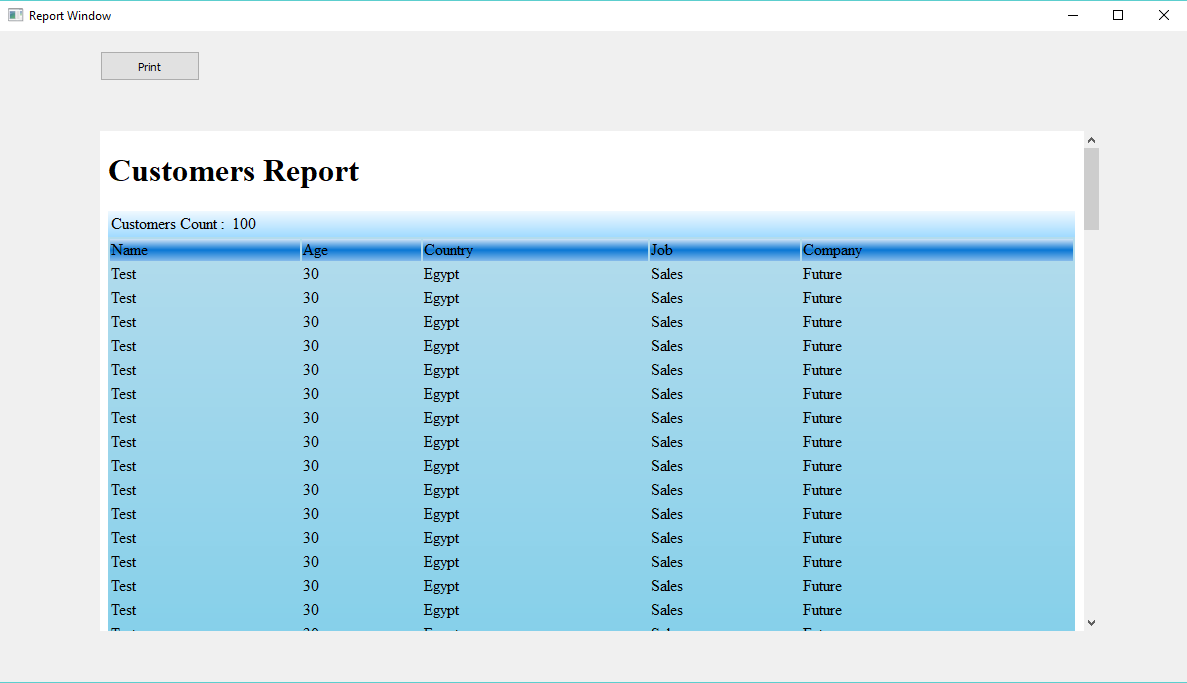
Using this class we can create reports quickly using WebLib & GUILib together
Example:
load "stdlib.ring" load "weblib.ring" load "guilib.ring"
import System.Web import System.GUI
new qApp { open_window(:CustomersReportController) exec() }
class CustomersReportController from WindowsControllerParent
    oView = new CustomersReportView

    func Start
            CreateReport()

    func CreateReport
            mypage = new HtmlPage {
                    h1 { text("Customers Report") }
                    Table
                    {
                            style = stylewidth("100%") + stylegradient(4)
                            TR
                            {
                                    TD { WIDTH="10%"
                                            text("Customers Count : " )  }
                                    TD { text (100) }
                            }
                    }
                    Table
                    {
                            style = stylewidth("100%") + stylegradient(26)
                            TR
                            {
                                    style = stylewidth("100%") +
                                            stylegradient(24)
                                    TD { text("Name " )  }
                                    TD { text("Age" ) }
                                    TD { text("Country" ) }
                                    TD { text("Job" ) }
                                    TD { text("Company" ) }
                            }
                            for x =  1 to 100
                                    TR
                                    {
                                            TD { text("Test" )  }
                                            TD { text("30" ) }
                                            TD { text("Egypt" ) }
                                            TD { text("Sales" ) }
                                            TD { text("Future" ) }
                                    }
                            next
                    }
            }
            write("report.html",mypage.output())

    func PrintEvent
            printer1 = new qPrinter(0) {
                    setoutputformat(1)
                    setoutputfilename("report.pdf")
            }
            oView {
                    web.print(printer1, Method( :OpenPDF ) )
                    web.show()
            }

    func OpenPDF
            new QDesktopServices {
                    OpenURL(new qURL("report.pdf") )
            }
class CustomersReportView
            win = new window() {
                            setwindowtitle("Report Window")
                            setgeometry(100,100,500,500)
                            web = new webview(win) {
                                    setgeometry(100,100,1000,500)
                                    loadpage(new qurl("file:///"+
                                    currentdir()+"/report.html"))
                            }
                            new pushbutton(win) {
                                            setGeometry(100,20,100,30)
                                            settext("Print")
                                            setclickevent(Method(:PrintEvent))
                            }
                            showMaximized()
                    }
Screen Shot: