Exploring Your Code Visually with Enhanced Graphs Options (original) (raw)
Understand 7.1 brings a significantly enhanced graphing experience, designed to make exploring and understanding your codebase more intuitive and efficient. This article will walk you through the exciting new features: Interactive Node Previews with AI Summaries and the Enhanced Graph Customization Panel.
Interactive Node Previews with AI Summaries: Get Instant Insights
Gone are the days of having to jump back and forth between your code graph and individual files to understand what a specific entity represents. With our new Interactive Node Previews, you can now get a quick glimpse into the code and a concise AI-powered summary directly within the graph view.
How to Use It:
- Generate a Graph: Begin by generating any graph in SciTools Understand (e.g., Dependency Graph, Call Graph, Include Graph).
- Select a Node: Simply click on any node within the generated graph.
- **View the Preview:**A panel will appear (typically on the lower portion of your screen) displaying:
- Code Snippet: A relevant snippet of the code associated with the selected node. This allows you to quickly see the context and structure of the entity.
- AI Summary: A brief, intelligent summary generated by our AI, explaining the purpose and functionality of the code represented by the node.
- Information Browser : Alongside the code snippet and AI summary, you'll find key information from the Understand Information Browser relevant to the selected node. This can include:
* Location: The file and line number where the entity is defined.
* Metrics: Relevant code metrics associated with the entity (e.g., lines of code, complexity).
* References: A quick overview of where this entity is used in the codebase.
* Callers/Callees: For functions, a summary of what calls this function and what functions it calls.
* And more: The specific information displayed will depend on the type of entity selected.
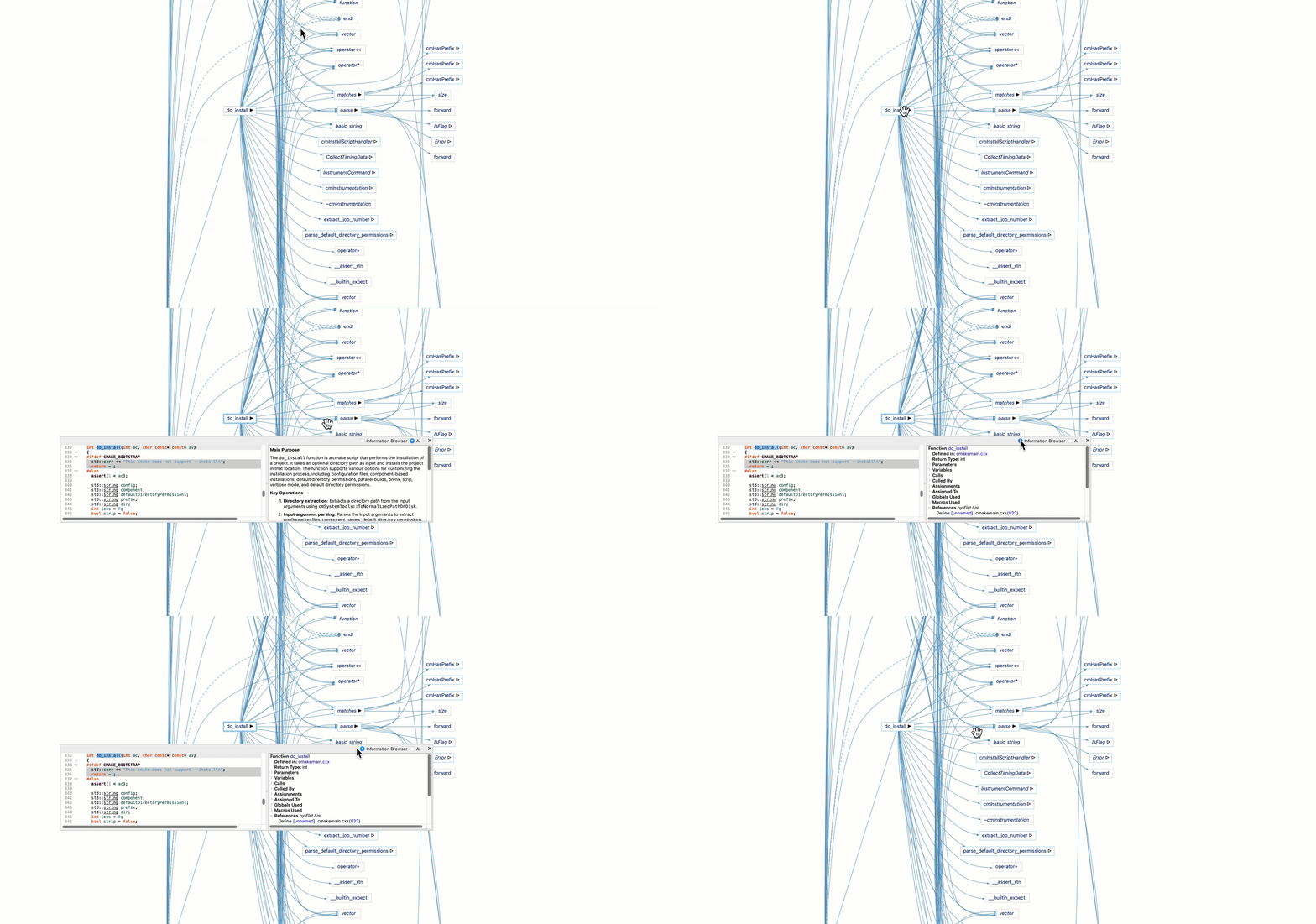
Example Scenario:
Imagine you've generated a Call Graph and are looking at a function node named calculate_average. Clicking on this node will instantly show you a preview that might include the function's signature, a few key lines of code within the function, and an AI summary like: "This function calculates the average of a list of numerical inputs, handling potential empty list scenarios."
Benefits:
- Faster Understanding: Quickly grasp the functionality of code elements without navigating away from your visual analysis.
- Efficient Code Exploration: Navigate complex graphs more effectively by instantly understanding the nodes you're examining.
- Improved Onboarding: New team members can leverage these previews to quickly familiarize themselves with the codebase's structure and components.
Enhanced Graph Customization Panel: Tailor Your Visualizations
The upgraded Graph Customization Panel, located on the right side of your graph view, offers powerful controls to tailor the graph display to your specific analysis needs. Instead of primarily focusing on styling based on metrics, this panel allows you to strategically select, filter, and configure the elements of your graph for clearer insights.

Key Customization Options
The options available in the Enhanced Graph Customization Panel adapt to the type of graph you are viewing, offering context-specific controls such as:
- Node and Edge Selection & Highlighting:
- Select by Criteria: Choose nodes and edges based on various properties and filters available in the panel, allowing you to target specific elements for highlighting or further analysis.
- Highlight Selected: Emphasize specific nodes and their connections to draw attention to areas of interest.
- Node and Edge Visibility (Hiding):
- Hide by Criteria: Temporarily remove nodes and edges from the view based on specific criteria to declutter the graph and focus on relevant parts.
- Isolate Subgraphs: Hide elements not directly connected to a selected set of nodes.
- Node Content Configuration:
- Display Information: Control what information is displayed within the nodes themselves, such as entity names, short descriptions, or custom properties.
- Display Style: Adjust how this information is presented within the node (e.g., plain text or code styled).
- Entity Kind Filtering:
- Show/Hide Kinds: Choose which types of entities (e.g., classes, functions, variables, files) are displayed in the graph. This allows you to focus on specific architectural layers or code elements.
- Edge Data Display:
- Show Edge Labels: Display relevant information on the edges, such as the type of dependency or the nature of the relationship between entities.
- Customize Edge Content: Select what data points are shown on the edges, if applicable to the graph type.
- Graph Level Control:
- Display Levels: For certain graph types (like call trees or dependency hierarchies), control how many levels of connected entities are displayed, allowing you to zoom in on immediate relationships or explore deeper connections.
Example Use Cases:
- Focusing on a Specific Module: You could select all entities within a particular directory and highlight them, while hiding others to analyze its internal structure and external dependencies.
- Analyzing Function Calls: In a Call Graph, you might choose to only display function entities and the "calls" relationships, hiding variables and other entity types for a cleaner view.
- Understanding Deep Inheritance: In an Inheritance Graph, you could set the display level to 3 to see the immediate parent, grandparent, and great-grandparent classes of a selected class.
- Tracing Data Flow: In a Data Flow graph, you could display the type of data being passed along the edges to understand how information moves through the system.
How to Use the Panel:
- Generate a Graph: Begin by generating a graph in SciTools Understand.
- Access the Customization Panel: The panel is located on the right side of your Understand window when a graph is active.
- Explore and Adjust: Navigate through the different sections of the panel (e.g., "Nodes," "Edges," "Visibility," "Highlighting") and use the available controls (checkboxes, dropdown menus, text input fields) to configure your graph display.
- Observe Changes: The graph will update in real-time as you modify the settings, allowing you to iteratively refine your visualization. If the changes require more processing time, a popup notification will inform you when the updated graph is ready, so you can continue exploring in the meantime.
By providing granular control over the selection, visibility, and information displayed within your graphs, the Enhanced Graph Customization Panel empowers you to create focused and insightful visualizations tailored to your specific analytical goals.
More of a visual learner? Watch the graph enhancements in action: