Find information about your Windows device (original) (raw)
Applies To
Windows 11 Windows 10
Support for Windows 10 has ended on October 14, 2025
After October 14, 2025, Microsoft will no longer provide free software updates from Windows Update, technical assistance, or security fixes for Windows 10. Your PC will still work, but we recommend moving to Windows 11.
Learn more
This article shows how to find basic information about your Windows device, including your device name and model, the version of Windows you’re running, your device specifications, and available storage.
Expand each section to learn more:
To find your device name and model, you can use one of the following methods:
- Right-click Start and choose Windows Settings, select System and pick About.
- Use the following link to quickly open settings:
Open About Settings
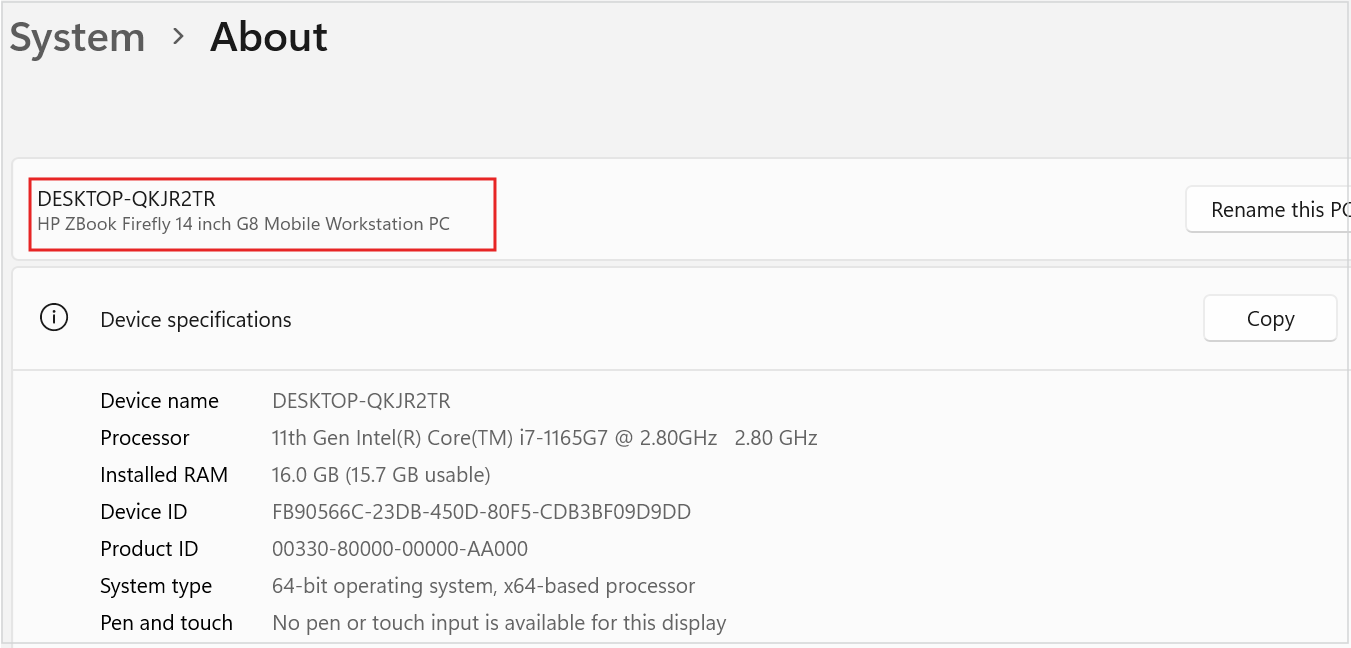
The device name appears on the page, with the model name displayed just below it.
To find your Windows version and edition, you can use one of the following methods:
- Right-click Start and choose Windows Settings, select System and pick About.
- Use the following link to quickly open settings:
Open About Settings
Under Windows specifications, check which edition and version of Windows your device is running.
To find your Windows version and edition, you can use one of the following methods:
- Right-click Start and choose Windows Settings, select System and pick About.
- Use the following link:
Open About Settings
Under Device specifications, check details about your device including:
- Processor type.
- Amount of RAM installed.
- If the device is running a 32-bit or 64-bit version of Windows.
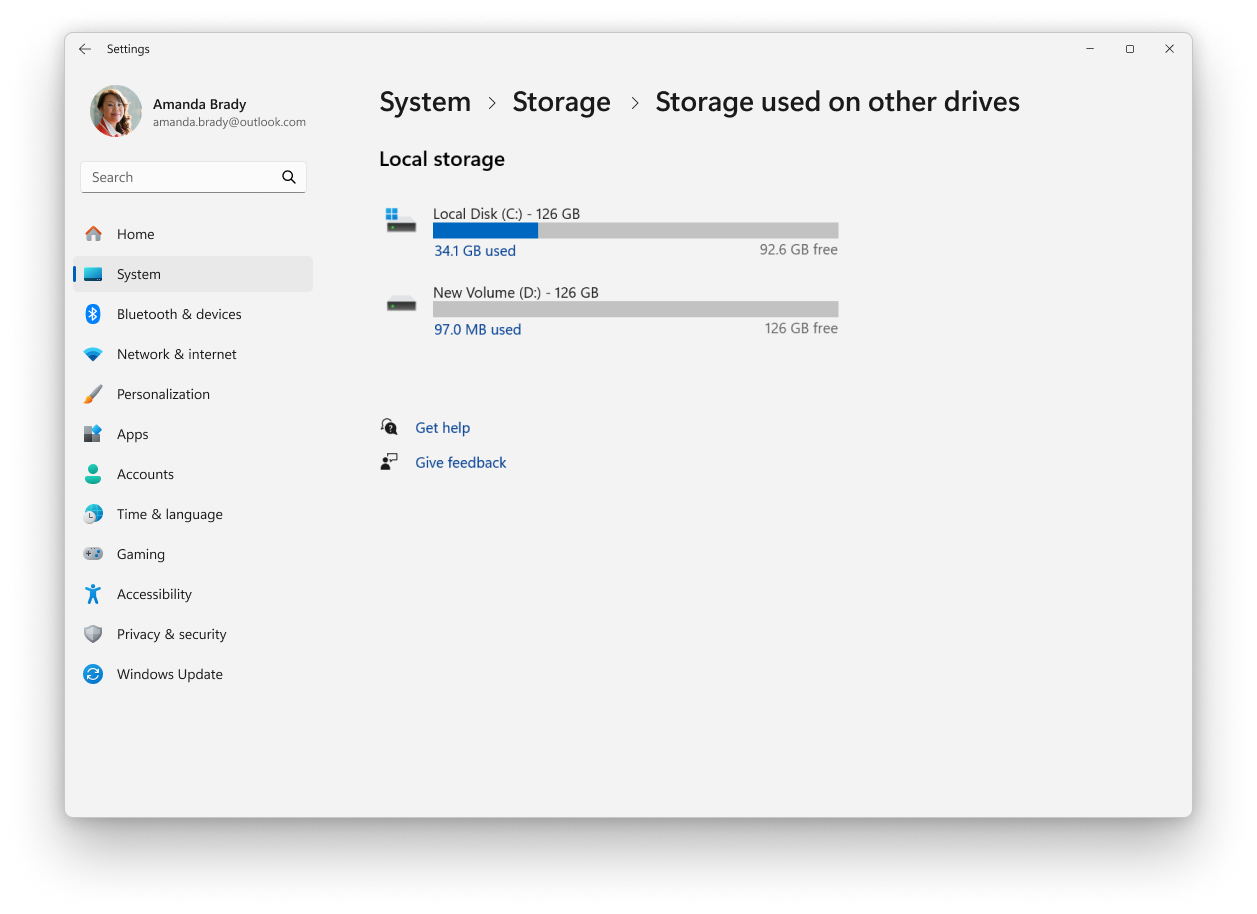
To find how much disk space you have, you can use one of the following methods:
- Right-click Start and choose Windows Settings, select System and pick Storage.
- Use the following link:
Storage
Tip: If you have multiple drives, select Advanced storage settings > Storage used on other drives to see the available storage on all drives at once.
If you're looking for more detailed information, see the article System configuration tools in Windows.
Need more help?
Want more options?
Explore subscription benefits, browse training courses, learn how to secure your device, and more.