Tab groups in Firefox | Firefox Help (original) (raw)

FirefoxFirefox  Last updated: 11/12/25
  71% of users voted this helpful
Tab groups in Firefox let you organize your tabs into separate, labeled groups. This makes it easy to keep work, personal, or research browsing organized without opening extra windows. You don’t need an add-on as the feature is built in for all users, starting with Firefox 141 on desktop.
Table of Contents
- 1 Create a tab group
- 2 Add a tab to a tab group
- 3 Remove a tab from a group
- 4 Move a tab from one group to another
- 5 Preview a tab group on hover
- 6 Keep an active tab visible in a collapsed tab group
- 7 Drag a tab into a collapsed group
- 8 Manage a tab group
- 9 Troubleshooting tab issues
Create a tab group

- Select a tab from your tab bar (either vertical or horizontal).
- Drag the tab onto another tab, wait until you see a highlighted area and then release the tab.
- You will then have the option to name the group and choose a color. These can be changed at any time.
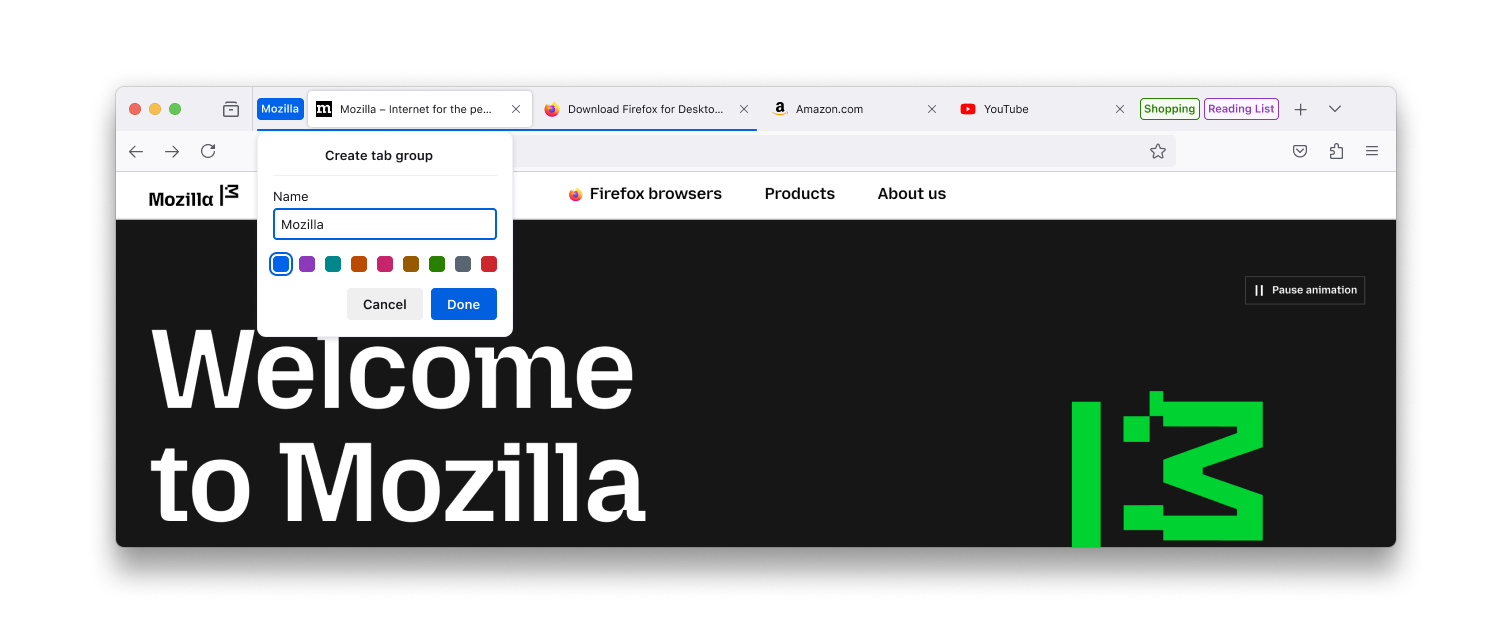
The tab bar will show the group with its label and tabs together, underlined by the group color, or edged with a color line if you use vertical tabs. You can select the group label to collapse the tabs into the tab group, or select it again to expand the group to see the tabs within it.
Add a tab to a tab group
If you have no tab groups yet: Right-clickRight-click (or hold down the Control key while you click) a tab and select . You will see a panel where you can name the group and choose a color. For now, the group will have that tab only.
If you already have groups: Right-clickRight-click (or hold down the Control key while you click) a tab and select to see the options. Select either to create a new group or choose an existing group. You can also just drag a tab into an expanded group on the tab bar.
Remove a tab from a group
Right-clickRight-click (or hold down the Control key while you click) a tab in a group and select . You can also select the tab you want to remove from the group and drag it out from the group to a different position on the tab bar.
When you remove all tabs from a group, the tab group is deleted.
Move a tab from one group to another
Right-clickRight-click (or hold down the Control key while you click) a tab, select and select another existing group. You can also just drag a tab into another expanded group on the tab bar.
Preview a tab group on hover
When you hover over the label of a collapsed tab group, Firefox shows a small panel with a list of the tabs inside that group.
- You can see what tabs are inside without expanding the group
- Click on any tab in the preview panel to make it the active tab
- This helps you quickly navigate without cluttering your tab bar
Tip: Hovering only previews, but does not expand the group.
Keep an active tab visible in a collapsed tab group
When collapsing a tab group that contains your currently active tab, Firefox will continue to display that tab in the tab bar.
- Create a tab group.
- Open several tabs inside the group.
- Select one of those tabs.
- Collapse the tab group.
The selected tab will remain visible, even though the group is collapsed. Firefox also displays a visual indicator to show which group the active tab belongs to.
Drag a tab into a collapsed group
You can drag a tab into a collapsed tab group without expanding it. This allows you to stay organized with minimal screen clutter.
- Click and hold the tab you want to move
- Drag it over a collapsed group label
- Drop the tab — it will be added to the group, but the group stays collapsed
Tip: Great for moving tabs quickly without expanding everything.
Manage a tab group
Right-clickRight-click (or hold down the Control key while you click) a group label to see the options for that tab group:
Troubleshooting tab issues
- Tab groups created when using Private Browsing will be deleted when you close the Private Browsing window.
- If your tabs become unexpectedly grouped or ungrouped, it may be due to a compatibility issue with a tab extension.
- Don’t see tab groups? Make sure you’re using Firefox version 141 or later. Find what version of Firefox you are using and update if needed.
- Tab groups are local only and don’t sync with Firefox Sync.
- If you close a tab group, all tabs in that group will close, but you can reopen them from your browsing history.
These fine people helped write this article:

Volunteer
Grow and share your expertise with others. Answer questions and improve our knowledge base.