VPN for smart TV — simple app or router setup (original) (raw)
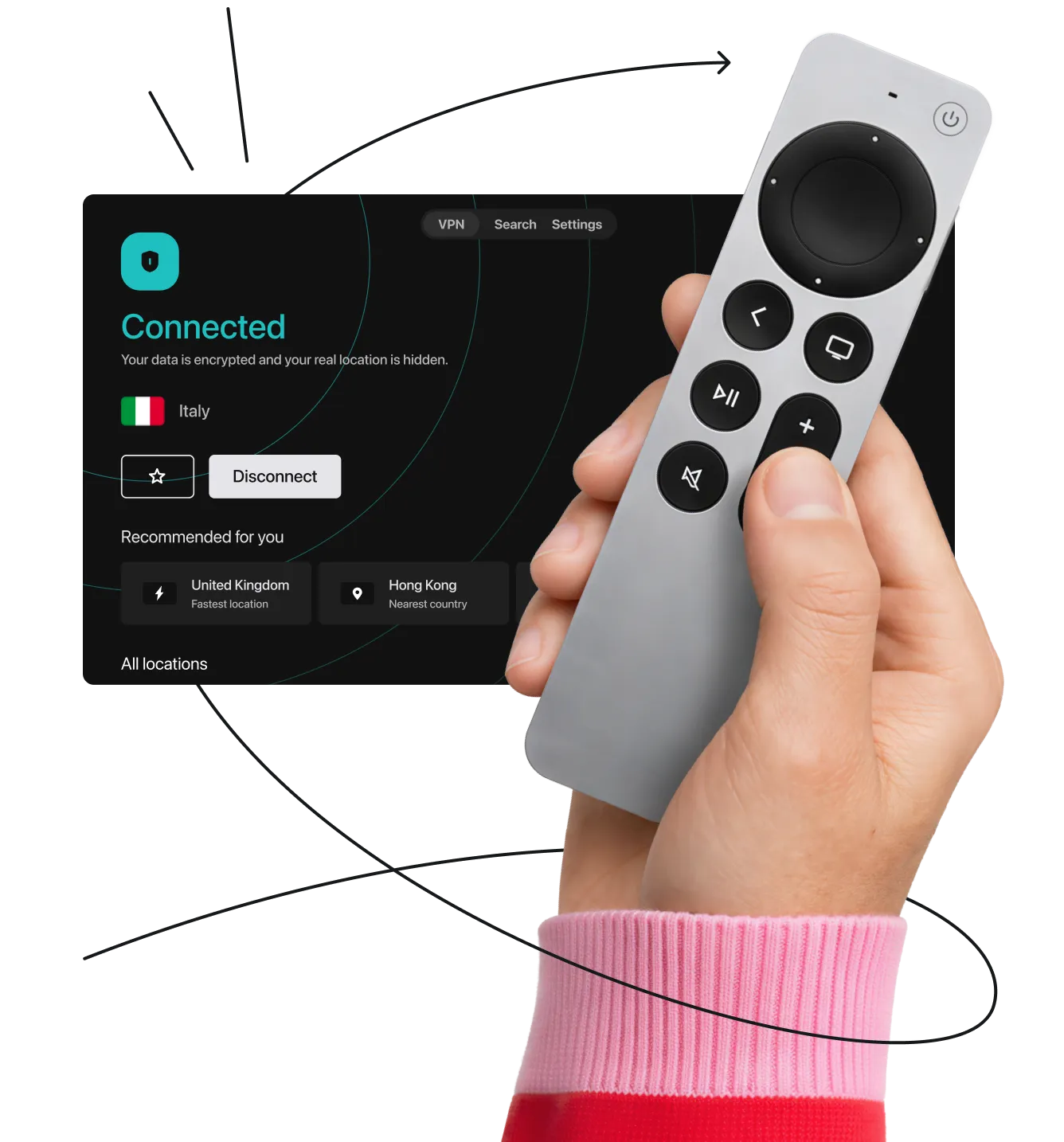
Best VPN for smart TV: fast, secure, & easy to set up
Seamless VPN protection for Apple TV, Fire TV, Android TV, and more with simple apps or router setup.
- Stop ISP throttling for buffer-free 4K
- Keep your viewing habits private
- Secure your Smart TV from network snoops
Set up the fastest VPN on any smart TV
Need help setting up? We have VPN smart TV setup guides that cover almost any option you can think of:
How to install a VPN on a smart TV
1. Go to the App Store or Play Store
2. Download your VPN provider’s app
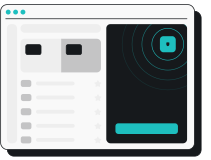
3. Log in and connect to a VPN server location
Note: Remember to follow these steps before launching other apps or visiting platforms on your smart TV.
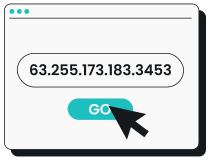
1. Type your IP address in your browser’s URL bar to access your router’s control panel.
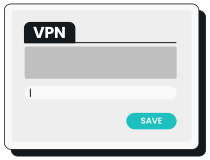
2. Find the VPN tab on the router’s interface and enter your VPN provider’s details.
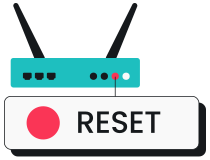
3. Save the changes and restart your router.
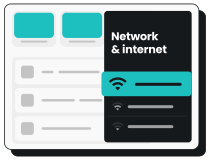
4. Connect your smart TV to the router’s network.
Note: Before subscribing to a service, check if your router can run a VPN.
Need a more detailed guide on how to set up a VPN on smart TV? We have one.
How can I benefit from a VPN on my smart TV?
Enjoy safe, high-speed streaming with these VPN benefits:
Avoid activity-based ISP throttling
With a VPN, your ISP can’t see your internet traffic and therefore can’t slow down your streaming speeds.

Keep your habits private
A VPN encrypts your streaming activities, stopping third parties, advertisers, and data brokers from tracking what you and your family watch.
Protect your smart home
Smart TVs can be the most vulnerable devices on a home network. A VPN secures your connection and helps keep hackers out.

Defend from malicious attacks
Stay protected from malicious ads and invasive trackers across all your TV’s streaming apps and browsers.
Disclaimer: Please note that using Surfshark services for any illegal activities is strictly forbidden and violates our Terms of Service. Make sure that any use of Surfshark services for your particular activities conforms to all relevant laws and regulations, including those of any service providers and websites you access using Surfshark.
How to choose the best smart TV VPN
To find the best VPN for your smart TV, look for a service that offers the following features:
Wide server network
The more VPN servers a provider offers, the bigger the chance one is near you, which means better speeds. Surfshark operates 4,500+ servers in 100 countries, making it easy to find one close by.

Device compatibility
Check for VPN app compatibility with your smart TV’s operating system, or ensure it supports router setup. Surfshark supports all major platforms and allows unlimited simultaneous connections with a single account.

Trusted security and privacy
Go for a provider that uses industry-leading VPN encryption and protocols, and has an independently verified no-logs policy to ensure your data or browsing history isn’t stored and shared.
Customer support and satisfaction
Look for a VPN service that provides 24/7 live support and offers a risk-free trial period and/or a money-back guarantee.
Should I use a free VPN for smart TVs?
Free VPNs often compromise on privacy and performance. A reliable VPN like Surfshark offers a more secure and stable browsing experience.
How to stream securely on a
non-smart TV
If your TV doesn’t have built-in apps, you can still get VPN protection. All you need is a streaming device (a small adapter that plugs right into your TV’s HDMI port).
If you are using a device like an Amazon Fire TV Stick, follow these quick steps to set up a VPN on it:
- Plug in the device and turn on your TV.
- Open the app store and search for Surfshark.
- Download the VPN app and log in to your account.
- Connect to a server for instant privacy and smooth HD streaming.

FAQ
Most modern smart platforms support smart TV VPN apps directly, including Amazon Fire TV, Amazon’s new Vega OS, Google TV, Android TV, and Apple TVs running tvOS 17 or later. For operating systems that don’t have native apps (like Samsung TV Tizen or LG TV webOS), you can easily connect them by setting up the VPN on your router.
Yes. For many TVs, it is as simple as downloading the VPN app directly from your TV’s built-in app store. If your specific smart TV doesn’t support native VPN apps (like Roku or older models), you can easily protect it by setting up the VPN connection on your home Wi-Fi router instead.
It depends on your device, but it usually takes just a few minutes. If your TV has an app store, simply search for Surfshark, download the app, and log in. If your TV doesn’t support direct installation, you can configure the VPN on your Wi-Fi router. This method instantly protects your TV and every other device connected to your home network.
Because a VPN routes your internet connection through a secure server, it can theoretically cause a slight dip in base speed. However, with a high-speed VPN like Surfshark, the difference is usually unnoticeable. In fact, if your internet provider is secretly throttling your video traffic, using a VPN can actually improve your streaming speeds and stop buffering.
Yes. With Surfshark, you get unlimited simultaneous connections. That means you can install the app and protect every smart TV, streaming stick, smartphone, and laptop in your household using just a single account.
Not at all. Downloading a native VPN app on a smart TV is exactly like installing Netflix or YouTube. Even if you need to use the router setup method for devices like Roku or Samsung, we provide simple, step-by-step guides and 24/7 live customer support to help you get connected in minutes.
While general free VPNs exist, we strongly advise against using them for your TV (or any other device). Free VPNs are known to have strict data caps, slow speeds, and limited servers, which leads to constant buffering. More importantly, many free providers compromise the privacy you are trying to protect by tracking and selling your viewing habits to third parties.