Prerequisites (original) (raw)
In order to get started building your project with Tauri you’ll first need to install a few dependencies:
- System Dependencies
- Rust
- Configure for Mobile Targets (only required if developing for mobile)
Follow the link to get started for your respective operating system:
- Linux (see below for specific distributions)
- macOS Catalina (10.15) and later
- Windows 7 and later
Tauri requires various system dependencies for development on Linux. These may be different depending on your distribution but we’ve included some popular distributions below to help you get setup.
sudo apt update

sudo apt install libwebkit2gtk-4.1-dev \

  build-essential \

  curl \

  wget \

  file \

  libxdo-dev \

  libssl-dev \

  libayatana-appindicator3-dev \

  librsvg2-dev
If your distribution isn’t included above then you may want to check Awesome Tauri on GitHub to see if a guide has been created.
Next: Install Rust
Tauri uses Xcode and various macOS and iOS development dependencies.
Download and install Xcode from one of the following places:
Be sure to launch Xcode after installing so that it can finish setting up.
Only developing for desktop targets?If you’re only planning to develop desktop apps and not targeting iOS then you can install Xcode Command Line Tools instead:
Next: Install Rust
Tauri uses the Microsoft C++ Build Tools for development as well as Microsoft Edge WebView2. These are both required for development on Windows.
Follow the steps below to install the required dependencies.
- Download the Microsoft C++ Build Tools installer and open it to begin installation.
- During installation check the “Desktop development with C++” option.
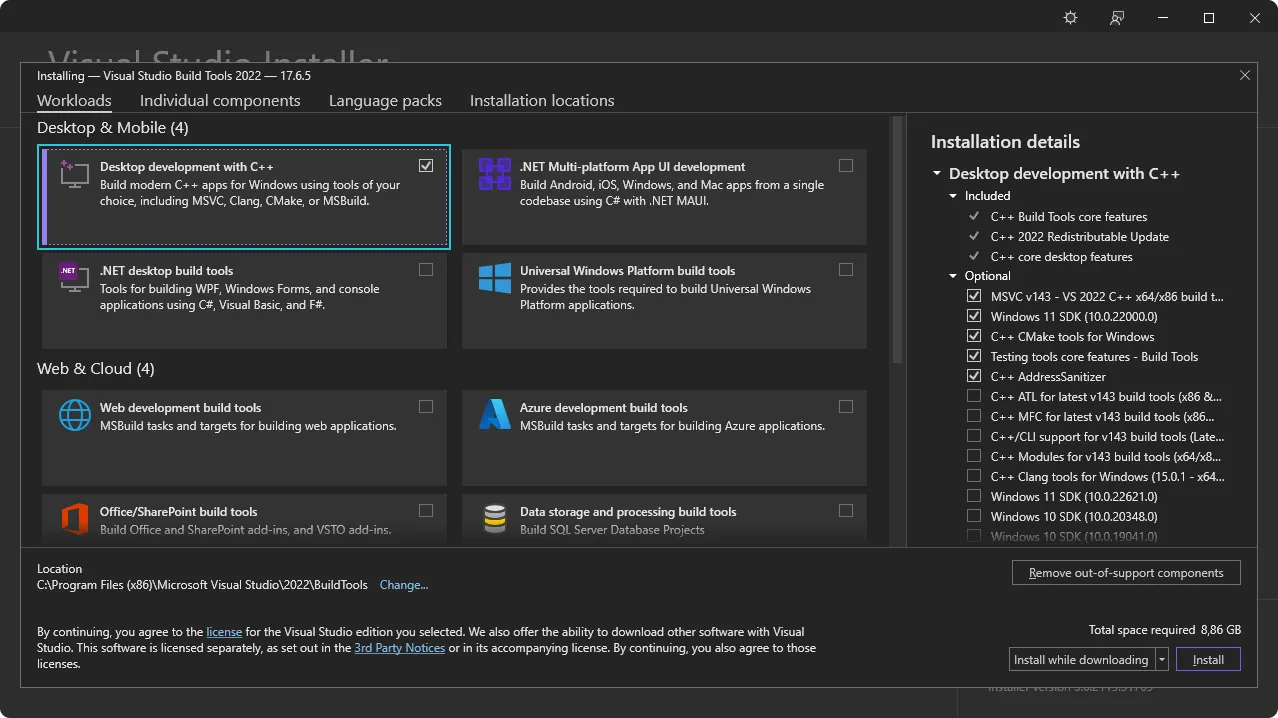
Next: Install WebView2.
Tauri uses Microsoft Edge WebView2 to render content on Windows.
Install WebView2 by visiting the WebView2 Runtime download section. Download the “Evergreen Bootstrapper” and install it.
Next: Check VBSCRIPT
Building MSI packages on Windows requires the VBSCRIPT optional feature to be enabled. This feature is enabled by default on most Windows installations, but may have been disabled on some systems.
If you encounter errors like failed to run light.exe when building MSI packages, you may need to enable the VBSCRIPT feature:
- Open Settings → Apps → Optional features → More Windows features
- Locate VBSCRIPT in the list and ensure it’s checked
- Click Next and restart your computer if prompted
Note: VBSCRIPT is currently enabled by default on most Windows installations, but is being deprecated and may be disabled in future Windows versions.
Next: Install Rust
Tauri is built with Rust and requires it for development. Install Rust using one of following methods. You can view more installation methods at https://www.rust-lang.org/tools/install.
Install via rustup using the following command:
curl --proto '=https' --tlsv1.2 https://sh.rustup.rs -sSf | sh
Be sure to restart your Terminal (and in some cases your system) for the changes to take effect.
Next: Configure for Mobile Targets if you’d like to build for Android and iOS, or, if you’d like to use a JavaScript framework, install Node. Otherwise Create a Project.
- Go to the Node.js website, download the Long Term Support (LTS) version and install it.
- Check if Node was successfully installed by running:
node -v

# v20.10.0

npm -v

# 10.2.3
It’s important to restart your Terminal to ensure it recognizes the new installation. In some cases, you might need to restart your computer.
While npm is the default package manager for Node.js, you can also use others like pnpm or yarn. To enable these, run corepack enable in your Terminal. This step is optional and only needed if you prefer using a package manager other than npm.
Next: Configure for Mobile Targets or Create a project.
If you’d like to target your app for Android or iOS then there are a few additional dependencies that you need to install:
- Download and install Android Studio from the Android Developers website
- Set the
JAVA_HOMEenvironment variable:
export JAVA_HOME=/opt/android-studio/jbr
- Use the SDK Manager in Android Studio to install the following:
- Android SDK Platform
- Android SDK Platform-Tools
- NDK (Side by side)
- Android SDK Build-Tools
- Android SDK Command-line Tools
Selecting “Show Package Details” in the SDK Manager enables the installation of older package versions. Only install older versions if necessary, as they may introduce compatibility issues or security risks.
- Set
ANDROID_HOMEandNDK_HOMEenvironment variables.
export ANDROID_HOME="$HOME/Android/Sdk"

export NDK_HOME="$ANDROID_HOME/ndk/$(ls -1 $ANDROID_HOME/ndk)"
- Add the Android targets with
rustup:
rustup target add aarch64-linux-android armv7-linux-androideabi i686-linux-android x86_64-linux-android
Next: Setup for iOS or Create a project.
- Add the iOS targets with
rustupin Terminal:
rustup target add aarch64-apple-ios x86_64-apple-ios aarch64-apple-ios-sim
- Install Homebrew:
/bin/bash -c "$(curl -fsSL https://raw.githubusercontent.com/Homebrew/install/HEAD/install.sh)"
- Install Cocoapods using Homebrew:
Next: Create a project.
If you run into any issues during installation be sure to check the Troubleshooting Guide or reach out on the Tauri Discord.
Next Steps
Now that you’ve installed all of the prerequisites you’re ready to create your first Tauri project!
© 2026 Tauri Contributors. CC-BY / MIT