Contextual Related Posts Blocks (original) (raw)
Contextual Related Posts includes a basic Gutenberg block that can replace the widget or shortcode for displaying related posts. This block can be used in your posts, pages, or any other custom post type. You can also use it within the Site Editor using a block theme.
Contextual Related Posts Pro brings an advanced Query Loop block, which allows you to display related posts based on specified parameters. You can use the pre-built block patterns or create your own within posts or the site editor.
Table of Contents
- Adding the Blocks
- Configuring the basic Gutenberg Block
- Using the Contextual Related Posts Query Loop Block
- Contextual Related Posts Featured Image Block (Pro version)
Adding the Blocks
To add the Contextual Related Posts blocks, click the plus (+) icon in the block editor. Search for “Related Posts” and see the “Contextual Related Posts” block appear. Click on it to insert the block into your content area.
If you’re using the pro version, you will also see the “Contextual Related Posts Query Loop” in the list.
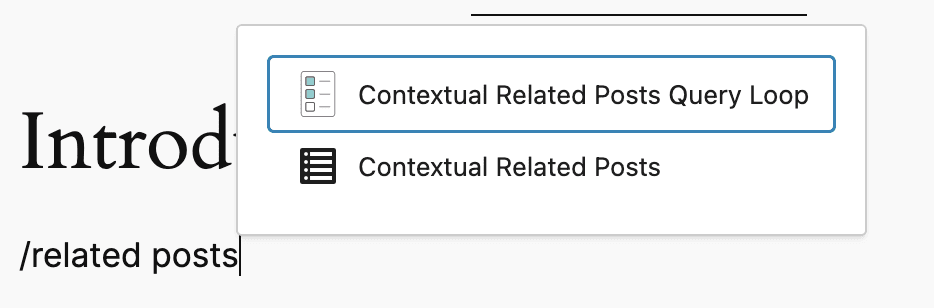
Insert a Contextual Related Posts block
Configuring the basic Gutenberg Block
The Related Posts block lets you preview the related posts directly in the block editor. You can customise various aspects of the block using the sidebar as follows:
| Setting | Type | Description |
|---|---|---|
| Show Heading | Toggle (ON/OFF) | This displays a heading before the Related Posts. If you toggle this on, you can then modify the text of the heading. Default is Related Posts. |
| Number of Posts | Number | The maximum number of related posts that will be displayed by the plugin. |
| Offset | Number | Number of posts to skip from the top. |
| Show excerpt | Toggle (ON/OFF) | Displays the excerpt of each related post. By default, Contextual Related Posts will use the post excerpt that is manually created. If no post excerpt is found, the plugin will generate the excerpt from the post content based on the excerpt length set in the global Output settings panel. |
| Show author | Toggle (ON/OFF) | Displays the author for each related post. The author’s name is preceded with the text “by”. e.g. by Doctor Watson. |
| Show date | Toggle (ON/OFF) | Displays the published date of each related post. |
| Thumbnail option | Dropdown | This provides four self-explanatory options. “Before title”, “After title”, “Only thumbnail, “Only text”. |
| Order posts | Radio selector | Choose between ordering the posts by relevance, randomly or by date. This option directly modifies the related posts SQL query. Selecting random above will randomise the posts that are fetched from the database. This option will not take effect if you Cache the HTML output on the settings page. |
| Randomize posts | Toggle (ON/OFF) | Shuffle the related posts on each page load. This option will not take effect if you Cache the HTML output on the settings page. |
| Other attributes | Textarea field | Enter other attributes in a URL-style string-query. It supports any of the plugin’s global settings, e.g. post_types=post,page&link_nofollow=1&exclude_post_ids=5,6. |
Pro Settings
Contextual Related Posts Pro users will see an additional section in the block settings sidebar that allows them to save the existing block settings as default or clear the defaults.
Using the Contextual Related Posts Query Loop Block
This guide will familiarise you with the Core Query Loop Block included in WordPress. If not, the guide below should get you started using this block.
The Contextual Related Posts Query Loop block allows you to modify the output and layout of the block flexibly. You have a few ready-made patterns currently included, with more coming in future versions. Here is a short guide on how to use it:
1. Configuring the Query Loop Block
The Query Loop block allows you to customise the query that will be used to retrieve the related posts. You can configure the following settings:
- Number of Posts: Enter the number of posts to display per page.
- Post Types: Select one or multiple post types to include in the related posts.
- Offset: Set the number of posts to skip from the beginning of the results.
- Order By: Choose how the results should be sorted (e.g., relevance, date, title, author, etc.).
- Order: Toggle between Ascending and Descending.
- Filters – Taxonomy: Filter the results by specific taxonomies (e.g., category, tag).
- Filters – Authors: Filter the results by specific authors.
2. Customise the Layout
When inserting the Query Loop block, the plugin selects a default grid layout with the post’s featured image and title.
The Query Loop block provides several layout options (patterns) to choose from, including:
- List: Display the posts or pages in a vertical list.
- Grid: Text, Excerpt and Date grid.
- Left Thumbnail: As the name suggests, the thumbnail is displayed in the left column, and the title, date, and excerpt are in the right column.
- Rounded Thumbs: This aims to replicate the display of the Rounded Thumbnails of the basic Gutenberg block.
To select a pattern, you can select the block using the navigation bar at the bottom left of the editor or the Parent block in the top/hover toolbar.

Block Editor Toolbar with the Replace button
Once you do so, you’ll see the “Replace” button, allowing you to select from the different patterns.
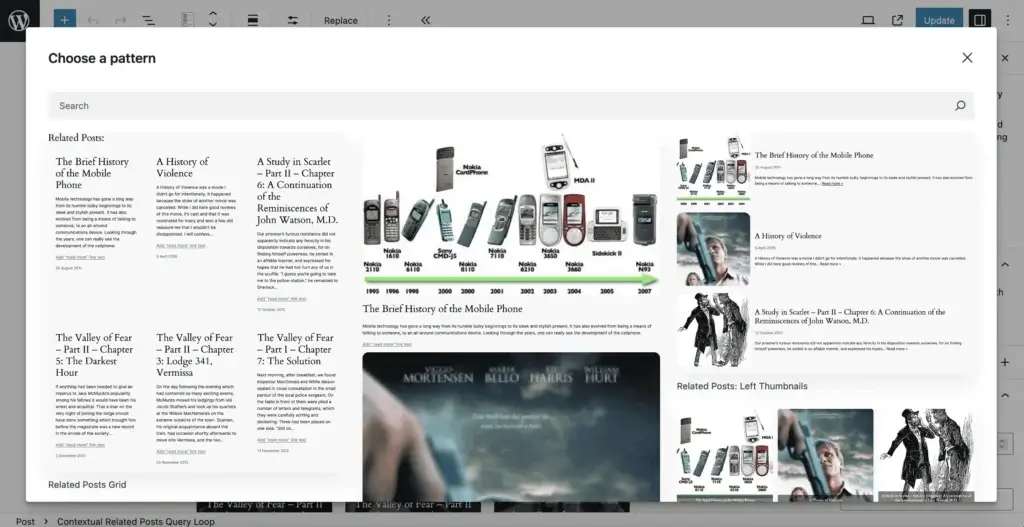
Choose a Related Posts Pattern
4. Add Additional Blocks
Within the Core Query Loop block, you can add additional blocks to display specific content for each post or page, such as:
- Post Title: Show the title of the post or page.
- Post Content: Display the full content of the post or page.
- Post Date: Show the date the post or page was published.
- Post Featured Image: Display the featured image of the post or page.
You can arrange and style these blocks to create a visually appealing and informative layout for your content.
Contextual Related Posts Featured Image Block (Pro version)
Contextual Related Posts Pro offers enhanced flexibility and reliability for displaying featured images in your posts. This can be used for the related posts list and across your WordPress site that uses the Block or the Site editor.
If a featured image is not explicitly set for a post, the plugin will automatically fall back to the following configurable options:
- Custom Image: Select an image from the Media Library as the default featured image.
- First Image in the Post Content: If the post contains images, the first image encountered will be used as the featured image.
- Meta Key: If a specific meta key is defined, the value associated with that key will be used as the featured image URL. The meta key needs to contain the full URL of the image to be used.
- Default Image: The default image can be specified if no image is found using the above methods.
- Site Icon: Use the site icon configured in Settings > General.
This feature ensures that your popular posts always have visually appealing featured images, even if a featured image hasn’t been set.