WooCommerce Google Analytics Pro (original) (raw)
Google Analytics is a free web analytics tool that tracks visitors and pageviews on your site. WooCommerce Google Analytics Pro integrates with your Google Analytics account to track eCommerce events in your store, including advanced event tracking such as purchases, product reviews, coupon usage, full order refunds, and more.
Google Analytics Pro now supports GA4 properties! Learn about migrating to our GA4 implementation, or setting up for the first time.
Not sure if you need the free plugin or this Pro version? Check out our comparison here.
As of WooCommerce 8.3, Cart and Checkout blocks are available as the default experience. WooCommerce Google Analytics Pro is now compatible with those blocks!
To start using a product from WooCommerce.com, you can use the “Add to store” functionality on the order confirmation page or the My Subscriptions section in your account.
- Navigate to My Subscriptions.
- Find the Add to store button next to the product you’re planning to install.
- Follow the instructions on the screen, and the product will be automatically added to your store.
Alternative options and more information at Managing WooCommerce.com subscriptions.
Note: You’ll need to go through the setup/migration process in your Google account before configuring the plugin.
For the plugin to connect to Google Analytics, you’ll first need to set up a GA4 property with a Data Stream for receiving tracking data from your site. Depending on your existing configuration, you will start from one of the three following options (you do not need to complete all three):
Option 1: Using an existing GA4 property
If you already have a GA4 property that you’d like to use and just need to connect it to the plugin, you can skip to the Data Stream & API Secret steps below to make sure your property is ready for connection.
Option 2: Migrating from a UA property
If you’re currently using a Universal Analyics property and want to start tracking via GA4, we recommend checking these help articles for guidance on how to complete the migration in your Google Analytics Dashboard. Please note you can skip the tag installation instructions that pop up automatically after you’ve created your GA4 property as this isn’t required for use with the plugin.
Once you’ve completed the migration to GA4, you can get started on the Data Stream & API Secret steps below to configure your new property for connection to the plugin.
Option 3: New account setup
If you’re getting started with Google Analytics and setting up an account for the first time, you can follow this guide for setting up a new Analytics account with a GA4 property and Data Stream for tracking.
Once you’ve created a GA4 property, you’ll also need to ensure that a Data Stream and a Measurement Protocol API secret are created so the plugin can send tracking data to Google.
To setup a Data Stream you can:
- Go to your Google Analytics dashboard and ensure you’re connected to the GA4 property you want to change. You can check that on the top of the page under the All accounts > [username] dropdown.
- Then, click on the Admin button (cog icon) at the lower left side of the screen.
- Click on Data Streams option under the Property column.
- Click Add Stream and select Web from the dropdown options.
- Enter your site’s address into the Website URL field.
- For Stream Name, enter “WooCommerce Google Analytics Pro”. NOTE: The Stream Name must match this text exactly in order for the plugin to connect correctly.
- Ensure Enhanced measurement is enabled if you’d like to track these additional features, and click Create stream.
Note you can skip the tag installation instructions that pop up automatically after you’ve created your Data Stream as this isn’t required for use with the plugin.
With your Data Stream created, you can now configure the Measurement Protocol API secret:
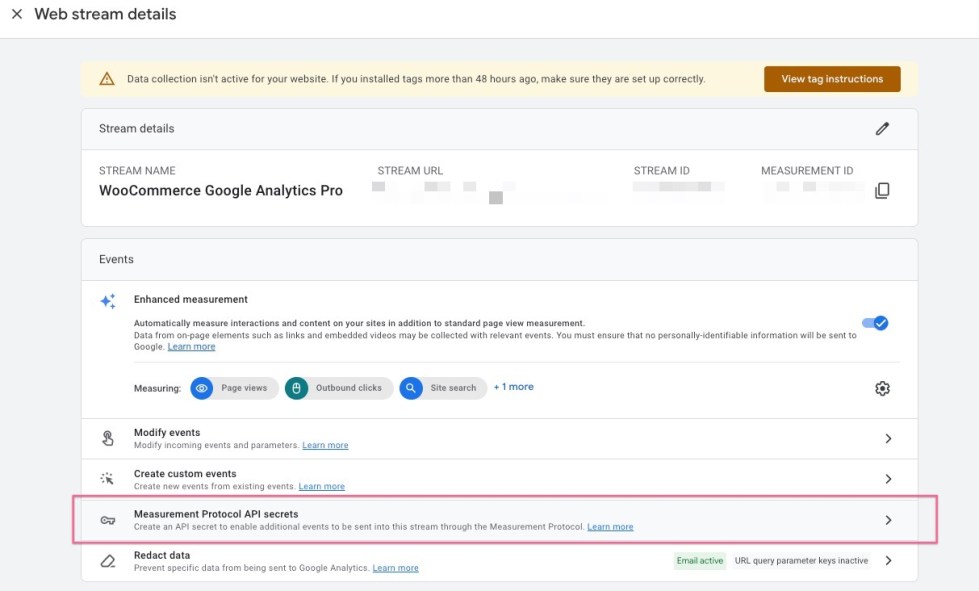
- Starting from the Data Stream that you just created*, find the Measurements Protocol API secrets section and click on it.
- Click on the Review terms button on the top of the page and click on I acknowledge when you’re ready.
- Click on the Create button that can be found in the upper right corner, next to the search field.
- Enter “WooCommerce Google Analytics Pro” as the nickname. Just like with the Data Stream above, it’s required that the nickname match this text exactly in order for the plugin to connect correctly.
- Click on the Create button again.
*If you aren’t already on the Data Streams page, you can go back and follow the first three steps of our Data Stream setup above and then select the data stream you’ve created for the plugin.
As soon as you’ve created your new GA4 property and configured the Data Stream and the Measurement Protocol API secret, you can move to the next section to start configuring the plugin settings.
Configure the plugin by going to WooCommerce > Settings > Integrations. You will see ‘Google Analytics Pro’ listed as an option. Click this to see the settings.
- Authenticate/Re-authenticate with your Google Account – In this step you’ll need to authenticate using the Google account where your properties were created. After authenticating with Google, you’ll notice two fields:
- Google Analytics 4 Property (GA4) – After authenticating your Google account, you can click here to get a dropdown of all the GA4 properties connected to your account. Our plugin will automatically list your properties in the dropdown, however, new properties that are created after authenticating may take a few minutes to appear. Once you’ve selected a property and clicked Save Changes, the plugin will automatically setup a Data Stream and API connection to begin tracking via GA4. If you want to stop tracking data with the selected property, you can clear the field and select Save changes to stop the plugin from sending data to that property.
- Revoke authorization – If you want to revoke the authorization to your current account, you can click on this button and our plugin will automatically clear the connection and stop the tracking. You can then authorize a new account or re-authorize your old account to continue tracking later.
- Enable Google Analytics Tracking – Enable / check this to enable Google Analytics tracking. Disable this to disable tracking completely.
- Debug Mode – Turn on to add debugging information to the PHP error log. Be careful when enabling this on a busy site, as it can quickly flood the PHP error log. For best performance, leave logging disabled unless you experience issues with the plugin.
- Track Administrators? – Enable this to track actions by administrators and shop administrators. Leave disabled to exclude events from these users.
- Tracking Options – Determine if you want to enable Display Advertising, Use Enhanced Link Attribution, Anonymize IP address (may be required by your country), and / or Track User IDs. We recommend anonymizing IP addresses and tracking user IDs, as this allows you to track all events for a logged in user to the same user ID, even across multiple devices, making your user count more accurate. Kindly note that all options that include the (UA only) text at the end of their name will not be available after UA stops working and will not be visible if a UA property isn’t connected.
- Enable Google Optimize – Select to integrate Google Optimize with Google Analytics.
- Track product list views (impressions) on – Determine when product impressions should be tracked: on single product pages, and / or archive pages (ie the shop). If you encounter “No HTTP response detected” errors, chances are you’re tracking more impressions than Google Analytics allows; please remove “Archive pages” from this setting if so.

Plugin Settings
Since our plugin will temporarily support tracking using both the UA and GA4 properties, some events listed below may not be visible until certain criteria are met (e.g. a GA4 property is connected).
With the introduction of the simultaneous tracking of both UA and GA4 properties, the plugin shows the different events split into sections. More specifically:
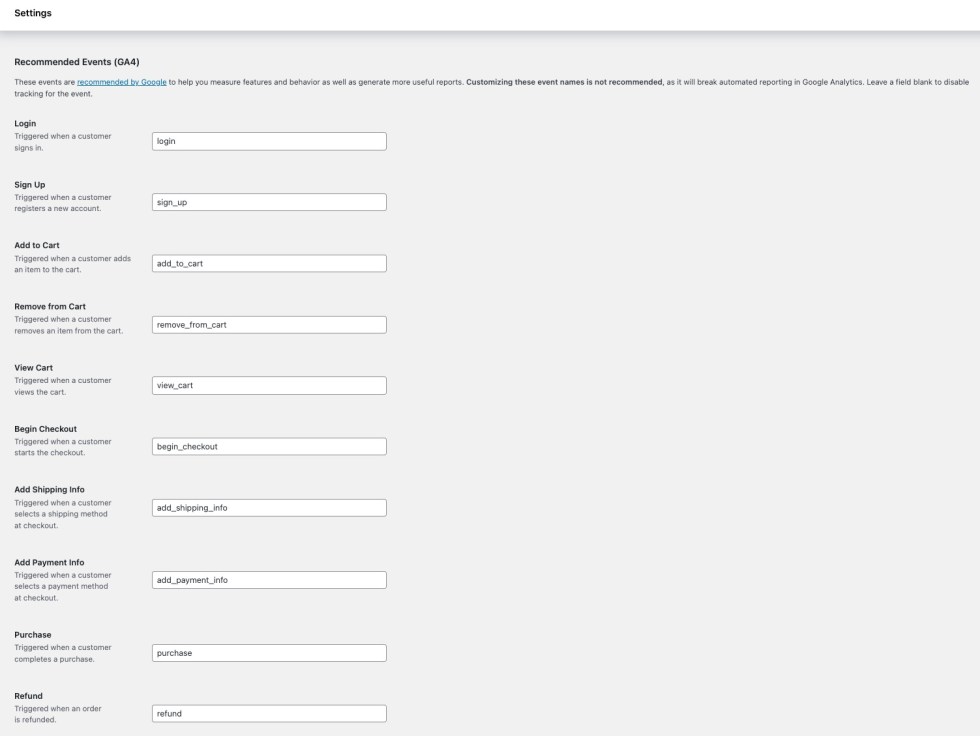
Recommended Events (GA4)
These events are used in Google’s automated reporting in your Google Analytics dashboard. We recommended that you do not customize these events as it can cause this automated reporting to not work as expected. That said, if you’d like to stop tracking for a specific event, you can leave that field blank.
- Login – Triggered when a customer signs in. The sign in can occur anywhere (wp-login.php, my account page, sign in widget, etc) and it will be tracked. Users are identified as soon as they login and are tracked as that identity until they logout (if you enable user ID tracking).
- Sign up – Triggered when a visitor registers an account. Hooks into the WordPress registration system and will track registrations anywhere the WordPress registration form is used.
- Add to Cart – Triggered when a visitor adds an item to their cart, either on a single product page or via an AJAX link on category pages. Hooks into the ‘woocommerce_add_to_cart’ action, so custom add-to-cart links will track as well if they are connected to that hook.
- Remove from Cart – Triggered when a visitor removes an item from their cart.
- View Cart – Triggered when a visitor views the cart. This will track even if the cart is empty.
- Begin Checkout – Triggered when a visitor begins the checkout process, specifically when the ‘woocommerce_after_checkout_form’ action fires.
- Add Shipping Info – Triggered when a customer selects a shipping method at checkout.
- Add Payment Info – Triggered when a customer selects a payment method at checkout.
- Purchase – Triggered when a customer’s purchase has been submitted or paid for. This will track for gateways that immediately complete payment, such as credit cards, or those that place the order for a later payment, such as a “Check Payment” order.
- Refund – Triggered when an order has been fully refunded.
Custom Events (GA4)
Custom events are tracked using our plugin, however, these are not tied to Google’s automated reporting so you may need to adjust your reporting tables in Google Analytics to view this data. You can find more information here. You can leave a field blank if you want to stop tracking a specific event.
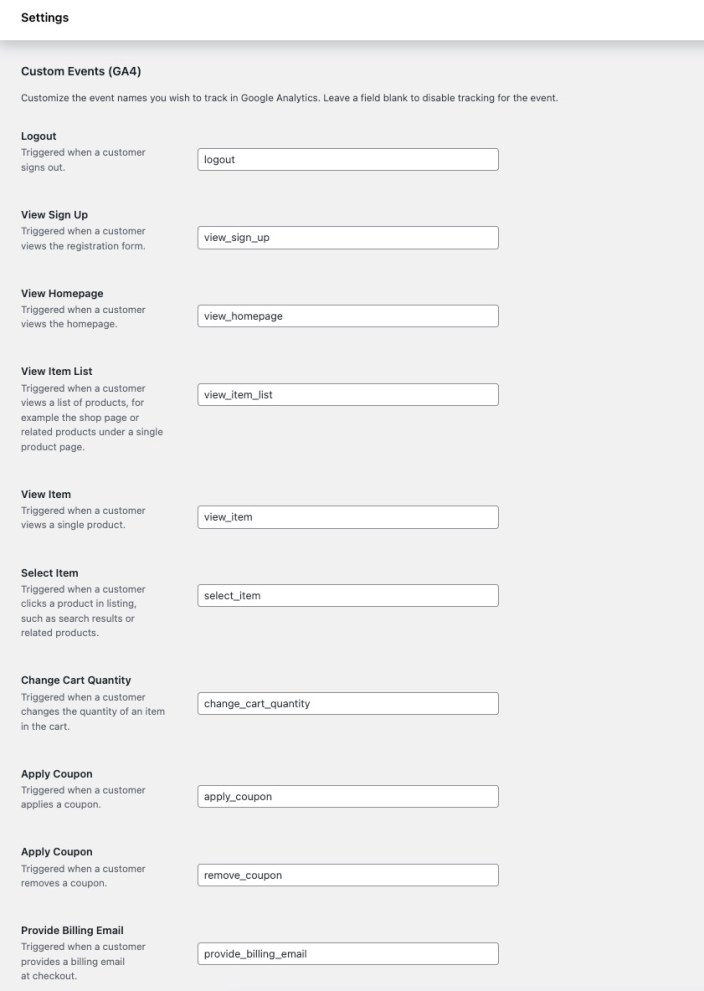
To disable tracking of a particular event, clear the text field associated the event.
There are two ways to connect the plugin to your Google Analytics account: by authenticating or by manually entering your tracking ID. We strongly recommend authenticating rather than manual entering. This is more reliable and will ensure that any future feature additions will be supported without further action from you.
Authenticating
To authenticate the plugin with your Google Analytics account, click the “Authenticate” button in the plugin settings. This will begin the authentication process.
- Google will ask you to allow the requested plugin permissions. Click “Allow”.
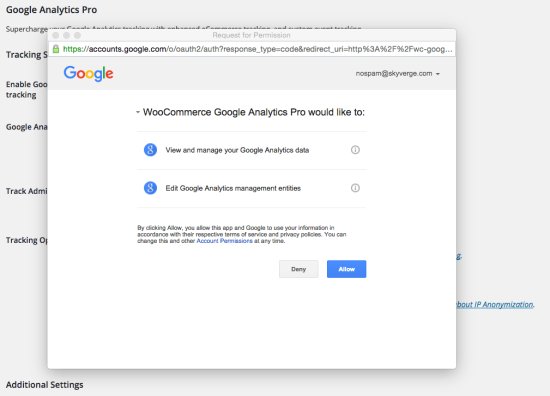
- This will populate the profile dropdown with your Google Analytics properties.
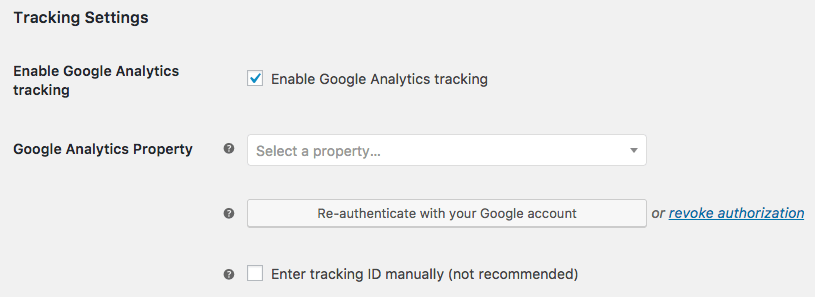
- Select the correct property from the list and save your settings.
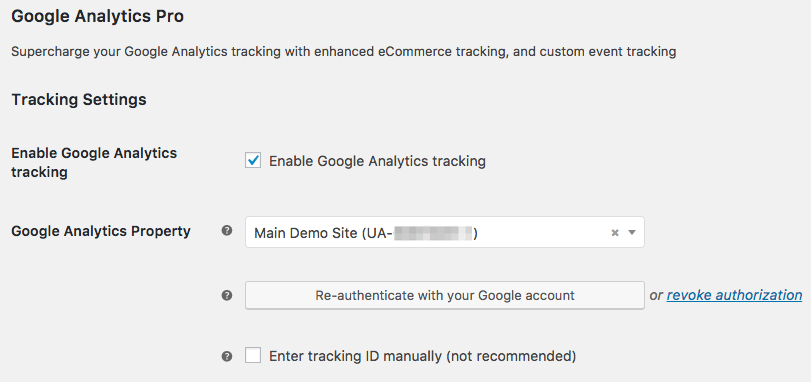


Once you’ve connected your Google Analytics account and set up event names, you can save the plugin settings, and eCommerce tracking data will begin to show up in your Google Analytics account within 24 hours.
Once you’ve saved the plugin events settings, the plugin will add all of the events you’ve configured as events in your GA Home and Reports pages.
You can also view event categories (such as “Product”) for a more detailed view.
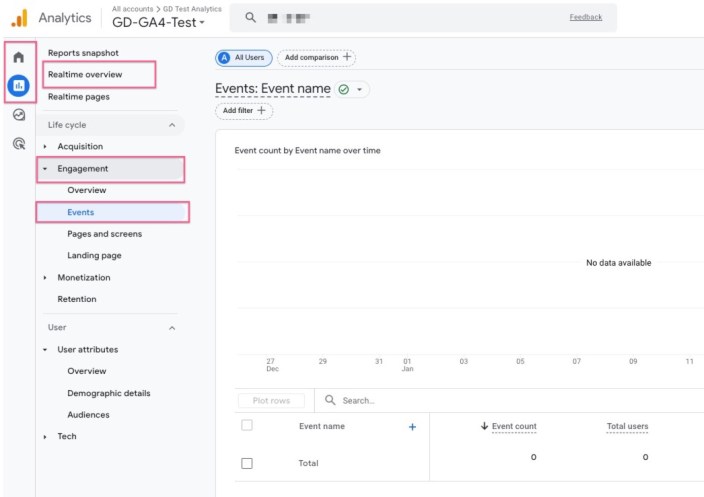
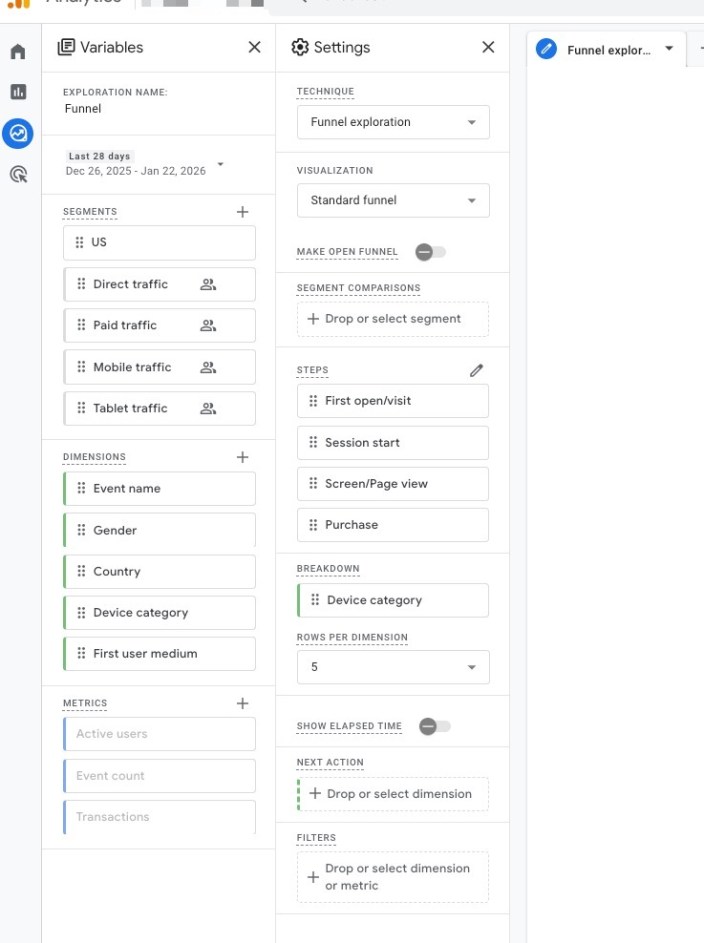
The plugin sends all events for the Shopping Behavior Analysis and Checkout Behavior Analysis reports, so you’ll see these funnels within your GA account.
- From the left menu select Explorations.
- Click on the Funnel Exploration module and a new report will be created:
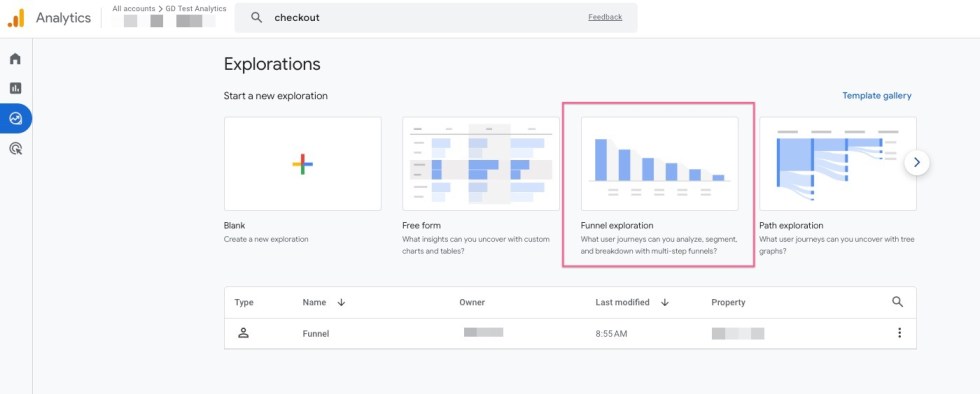
- Your Funnel Exploration will be listed in the table below the module tiles. Click on that row to view the data.
There are no settings required for this funnel; it will automatically be populated based on pageview, add to cart, checkout, and transaction events.
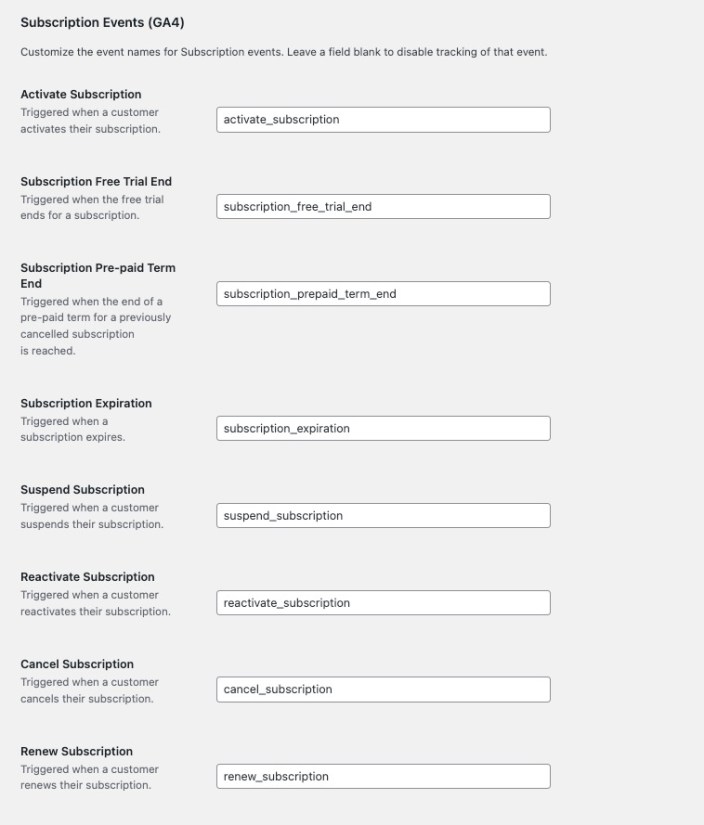
If you have installed and activated the WooCommerce Subscriptions plugin, then you are already tracking subscriptions! There’s no need to change anything unless you want to modify the event / property names that are sent.
- Activated Subscription – Recorded when a customer’s subscription is activated. Note that subscriptions are typically only activated after successful payment. Includes properties: Subscription Name, Total Initial Payment, Initial Sign up Fee (if applicable), Subscription Period, Subscription Interval, Subscription Length, Subscription Trial Period, Subscription Trial Length
- Subscription Trial Ended – Recorded when the free trial for a subscription ends. Includes properties: Subscription Name
- Subscription Expired – Recorded when a customer’s subscription expires. Includes properties: Subscription Name
- Suspended Subscription – Recorded when a customer’s subscription is suspended. Includes properties: Subscription Name
- Reactivated Subscription – Recorded when a customer’s subscription is reactivated. Includes properties: Subscription Name
- Cancelled Subscription – Recorded when a customer’s subscription is cancelled. Includes properties: Subscription Name
- Renewed Subscription – Recorded when a customer’s subscription is renewed. This can happen for both automatic renewals and manual renewals. Includes properties: Billing Amount and Billing Description.
Google Analytics Pro includes basic site tracking, such as pageviews and customer sessions, so no other Google Analytics plugin is needed to get complete analytics for your store.
As such, if you’ve already used the free WooCommerce Google Analytics plugin for basic or eCommerce tracking, Google Analytics Pro will deactivate this plugin upon installation.
When upgrading to version 1.3.0 of the plugin, you’ll notice that the global javascript function has been renamed from the legacy __gaTracker to ga. This will not affect most sites, and you can adjust the plugin settings to use ga accordingly.
However, if you have custom javascript implemented for your site, you may want to ensure that these customizations are updated to use the ga global function before changing this within the plugin settings.
You should also be aware that the completed payment event is no longer necessary. Instead, completed purchase tracks purchases for all orders, both off-site and on-site gateways. If you’ve created custom analytics goals, these should be updated accordingly.
Google Analytics uses cookies as a service to track user behavior. As such, depending on your business location, you may be required to inform users that your site places these cookies. A plugin for cookie consent may be useful for this.
As a data controller, it is your responsibility to ensure your site and data processors you use are GDPR-compliant, abide by the PECRs, and that you have a lawful basis for data processing. So long as no personal customer data is used in your site analytics (data is anonymized), this data is not subject to the GPDR, so you should ensure that your Google Analytics account is configured accordingly.
Moz has a good overview of GDPR compliance with Google Analytics here.
Q: Can I connect Google Analytics Pro to new GA4 properties?
A: Yes! We added support for GA4 in v2.0.0 and you can learn how to get started above.
Q: Does this plugin support Shopping Behavior Analysis and Checkout Behavior Analysis reports?
A: Absolutely! Check out our details on Funnels Exploration above for more info on this Universal Analytics feature.
Q: Will this plugin let me get my conversion rate?
A: Both the free plugin and this pro version will give Google Analytics the data it needs to calculate your site’s conversion rate. The Pro version includes more accurate conversion rate tracking since it doesn’t require purchases to end up on the “thank you” page in order to be tracked, so orders via any payment method are tracked as conversions.
Q: Does this support WooCommerce Bookings?
A: Yes, but please be aware of the workflows in Bookings and this plugin. Orders are tracked for completion, not the booking itself. Therefore, to ensure a booking shows as a completed purchase, please adjust the order status for a booking order, which will also change the booking, rather than changing the booking status directly. This is most relevant when requiring approval or confirmation for bookings, as changing a booking doesn’t update the related order.
Q: Does this plugin track order currency?
A: Yep! Both the free and pro Google Analytics plugins for WooCommerce will track order currency. Please note that Google Analytics does not allow displaying totals in multiple currencies; it will convert each transaction to your global currency (from your account settings) each day when a different currency code is sent.
Q: Why does “paypal.com” show up as a referring source for my site? This is messing up my tracking for where orders come from!
A: This is because Google Analytics tracks the most recent site someone visited for conversions, so if a customer went to PayPal to complete a purchase and is directed back, this is tracked as the referrer.
To avoid this, please follow this guide to set paypal.com as a referrer exclusion for your account.
Q: When is a purchase considered “completed”?
A: To ensure all purchases are tracked, regardless of whether the payment takes place offsite, on-site, the gateway calls “payment completed” on the order, etc., Google Analytics Pro has to rely on the order status to indicate the financial status. As such, any order that’s marked as “processing” or “completed” will have the “completed purchase” event tracked in Google Analytics.
Q: I’m using Google Tag Manager and it looks like all my reporting is doubled! What should I do?
A: You’ll need to remove the Google Analytics portion of the code from your Tag Manager implementation.
Q: Can I use Google Tag Manager (GTM) with Google Analytics Pro?
A: You can certainly use Google Analytics Pro with Google Tag Manager. However, Google Analytics Pro will track all of the regular page impressions as well as the eCommerce related impressions (“viewed product”, “started checkout” etc.) automatically. In order to avoid duplicated tracking, it will be necessary to remove the other implementation of Google Analytics (by either removing that tag manager script, or removing the Google Analytics tag from your Tag Manager implementation).
Q: I prefer to keep my Google Analytics implementation and pageview tracking in Google Tag Manager. Can I still do that with Google Analytics Pro?
A: With a little bit of custom code, you can remove the Google Analytics tracking code and remove the pageview tracking from Google Analytics Pro.
Note: since customization is not covered in our support policy, we cannot further modify these or implement them directly for you.
- Admin / Shop Manager users are still tracked as “Visited Site” when visiting the website to login. There is no way to prevent this, since we don’t know they’re admin users until they login.
- Only full refunds for orders are tracked, partial refunds are not supported because Google does not accept the product identifier when sending a partial refund.
- If approving / confirming bookings via WooCommerce Bookings, please see this FAQ to ensure purchases are tracked — order statuses are what track purchases, not booking statuses.
- Checkout Behavior Analysis reports will not use a custom set of steps. While you can name these steps whatever you’d like in your GA account, the report will consist of the pre-defined steps the plugin sends, which can be viewed on the settings page.
- If you have orders that are pending or on hold that move to a “paid” status a day later, please note that there’s no way to tie this back to the original session for conversion tracking. GA resets these each day, so orders paid the next day or later will not have the conversion tied to the original customer session.
- If a customer is a little click-happy and double / triple clicks an AJAX add to cart link, the “added to cart” event may be recorded multiple times. Multiple items will be added to the cart, so you may also see cart quantity changes reflected.
Not seeing tracking data in Google Analytics? It can take up to 24 hours for data to populate, so please keep this in mind.
If it’s been longer than 24 hours, please follow these steps to make sure everything is setup correctly before posting a support request:
- Check that your tracking ID is correct or that you are authenticated with Google Analytics.
- Double-check that your tracking ID is correct. 😉
- View the source of your homepage to make sure the Google Analytics javascript code exists. If you’ve added this javascript manually, it needs to be removed, as it will override the data the plugin sends to Google Analytics.
- If you see “No HTTP Response detected” errors, please disable product impression tracking on archive pages.
- If Google Analytics still isn’t working, please enable logging and submit a help request detailing what happened while following these steps and describing the issue so we can help you quickly! Add the log as an attachment is also helpful.
Tracking Custom Events
You can track custom events by using:
wc_google_analytics_pro()->get_tracking_instance()->get_event_tracking_instance()->custom_event( eventname,event_name, eventname,properties );
Event name can be set as a string, while properties are passed as an array with property name => value.
You can modify this sample snippet according to your needs with the help of a developer:
if ( ! function_exists( 'my_custom_event_function' ) ) { function my_custom_event_function() {
    // check if Google Analytics Pro is active
    if ( ! function_exists( 'wc_google_analytics_pro' ) ) {
        return;
    }

    wc_google_analytics_pro()->get_tracking_instance()->get_event_tracking_instance()->custom_event( 'Event name', array( 'Property name' => 'value' ) );
}

add_action( 'hook_to_trigger_event_on', 'my_custom_event_function' );
}
The custom_event() can also be called without properties by omitting the second parameter.
Have a question before you buy? Please fill out this pre-sales form.
Already purchased and need some assistance? Get in touch with support via the help desk.