AIS eSIM: New Number or Switch Existing Number | Easy & Instant Use (original) (raw)
eSIM Service
The eSIM service is a new form of SIM card that is embedded into the device or equipment, rather than being in the form of a traditional physical card with a chip. It allows making calls, receiving calls, and using the internet just like a traditional SIM card. Additionally, it can be used on current networks, both for postpaid and prepaid packages.

eSIM Benefits

No need to hassle with opening trays to insert SIM cards
or swapping SIM cards if you want to use another number.

No worries about losing SIM cards
because they are embedded in the device.

Multiple eSIMs can be used in a single device,
supporting up to 8 phone numbers.

It's convenient to use abroad without changing
SIM cards by using eSIM SIM2Fly. Click
Start using the eSIM
Check the model details of your mobile phone and device by clicking here!
Activating new numbers
to get an eSIM

AIS Online Store
Get an eSIM online Convenience, Buy Easy,
Easily Activate.
Convert current number
to get an eSIM
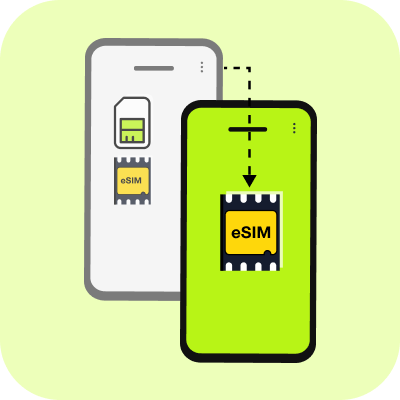
Transfer SIM card to eSIM by yourself.
From the old device to the new device, both iOS and Android.
Activating an eSIM
How to download eSIM on your mobile or device
The QR code for scanning to load the eSIM to mobile or device from the service channel.
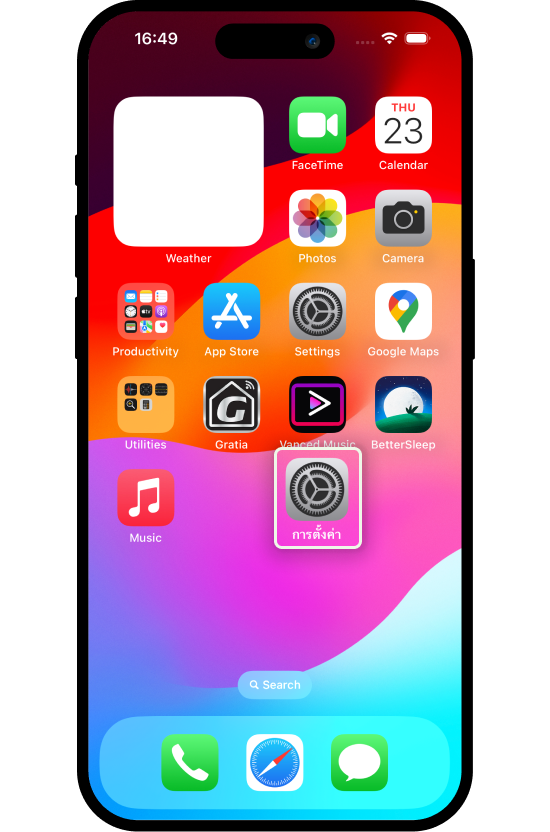
Step 1
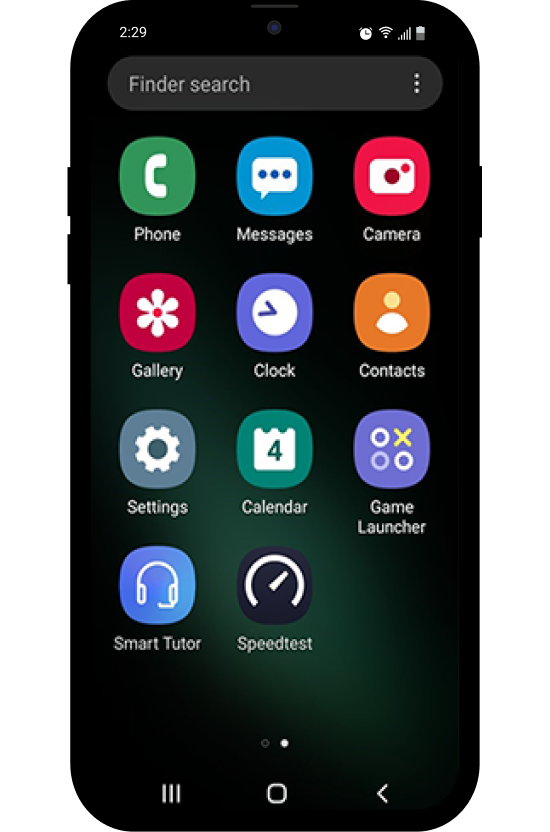
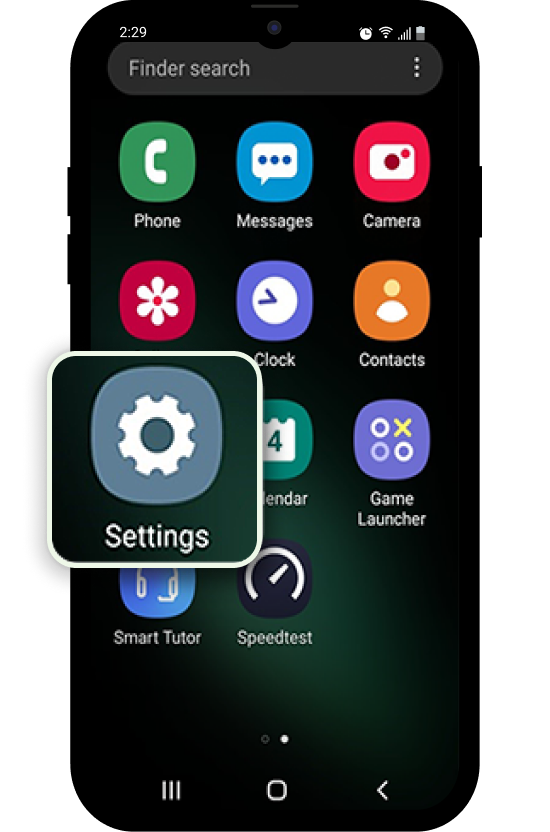
Go to Menu “Settings”
for internet connection
through cellular or Wi-Fi.
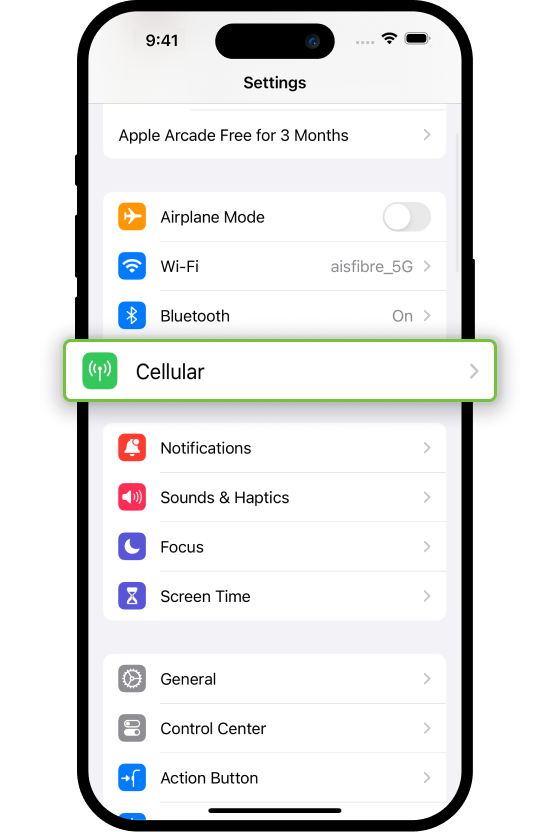
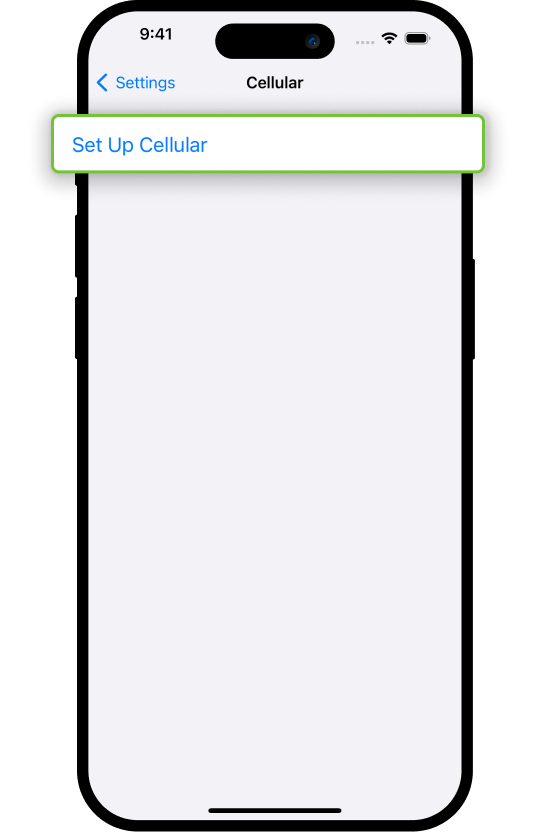
Step 3
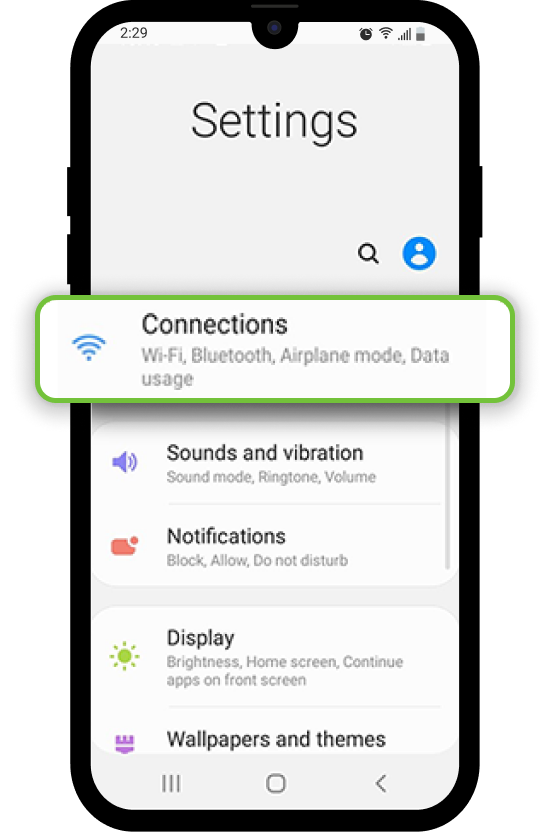
Tap Cellular Setting
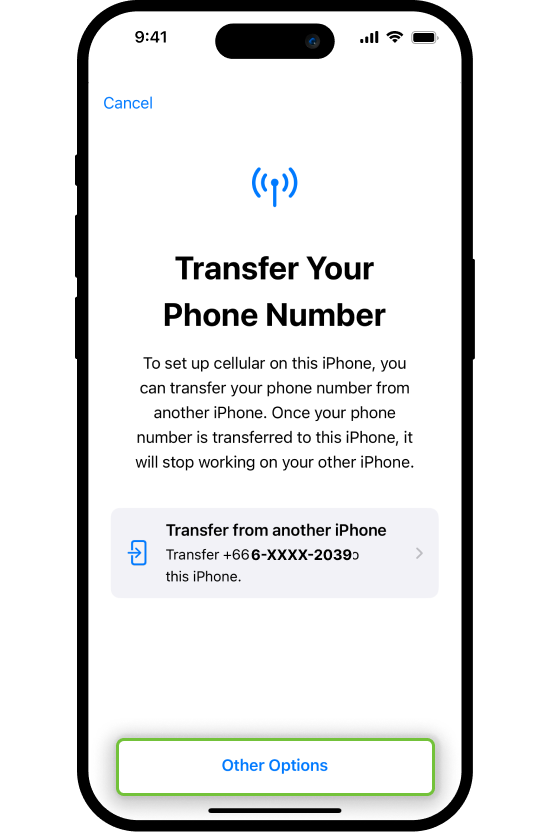
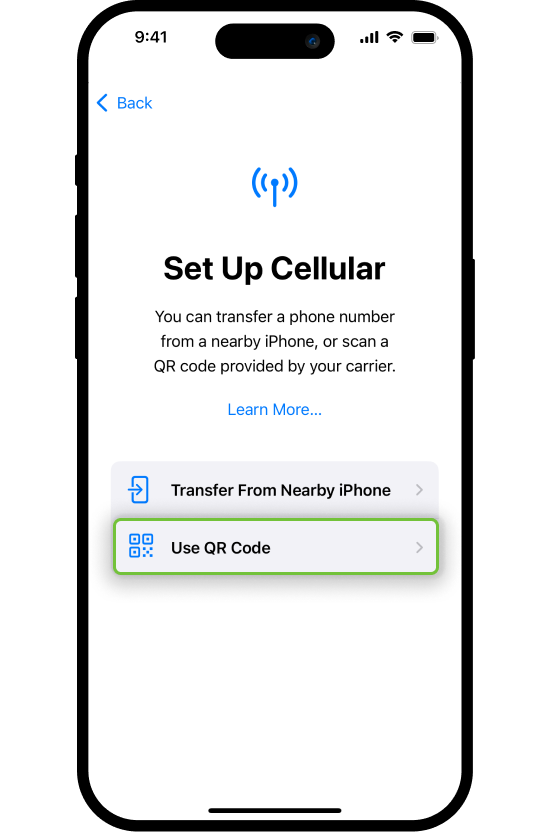
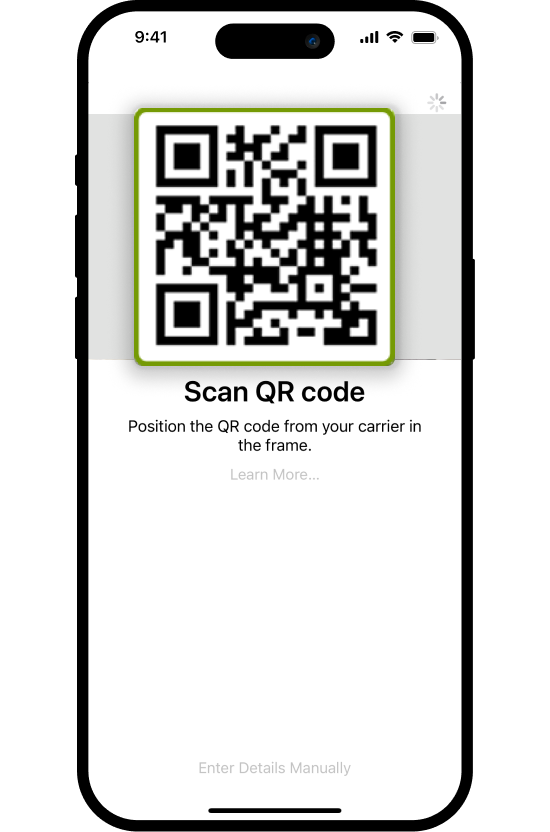
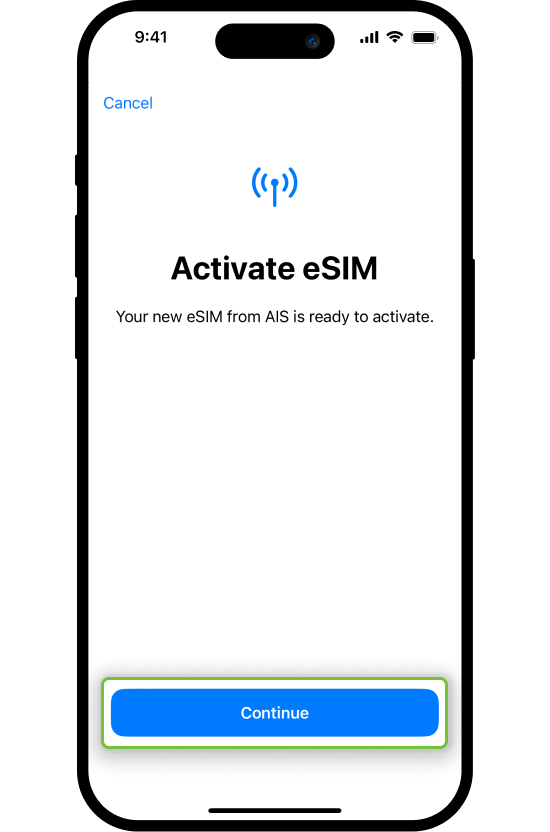
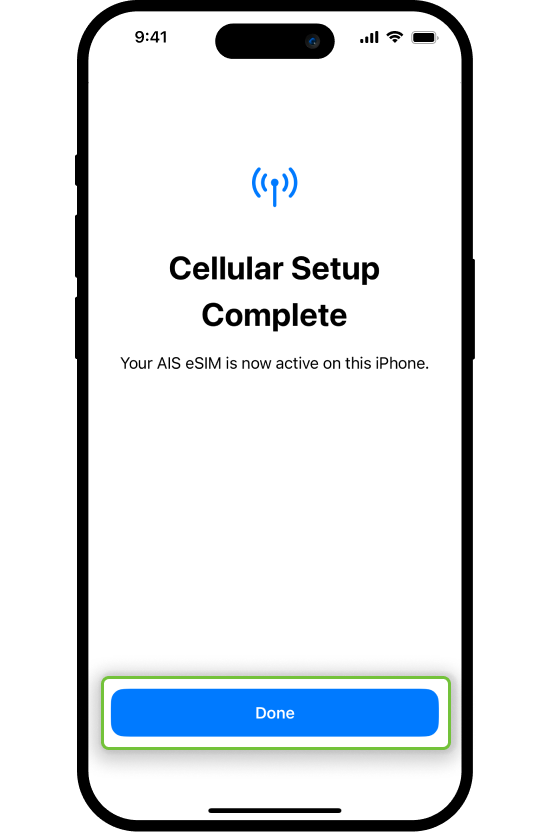
Step 9
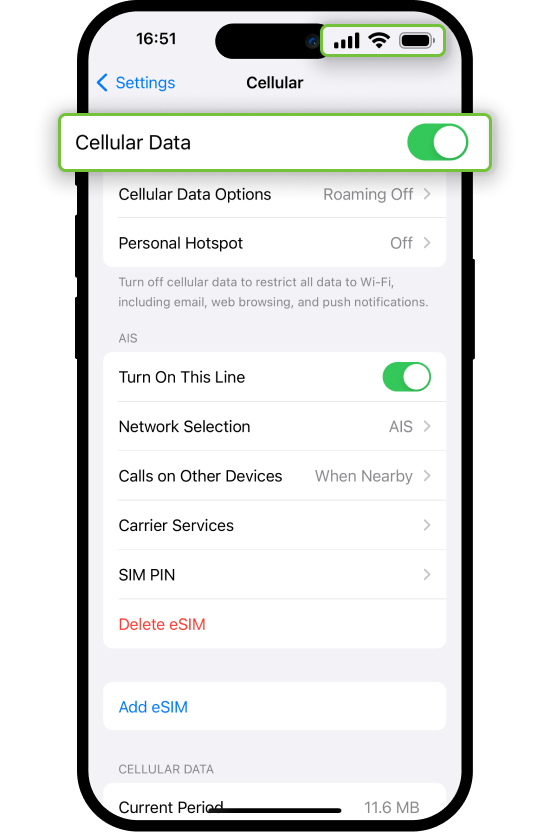
Tap Cellular Data > On
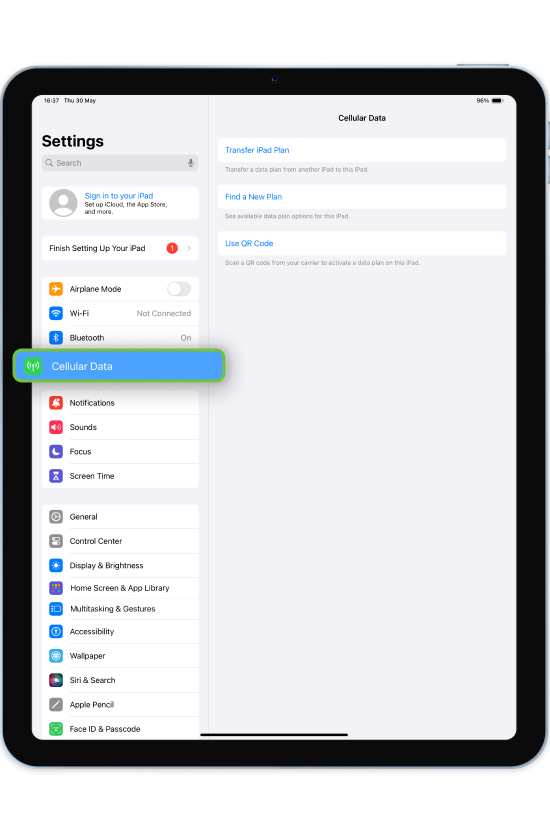
Step 1
Go to Setting menu for
internet connection
through Cellular or Wi-Fi
**iPad Air M2 and iPad Pro M4
Or newer can be operated without
an internet connection.
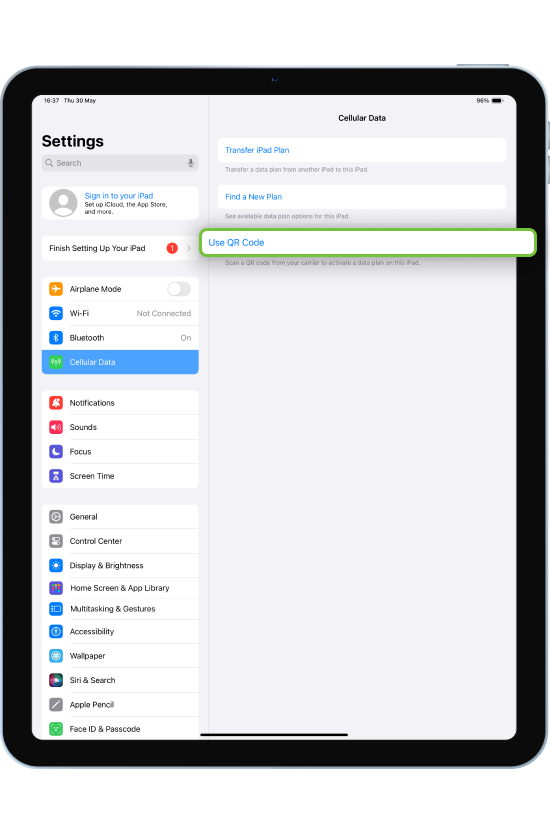
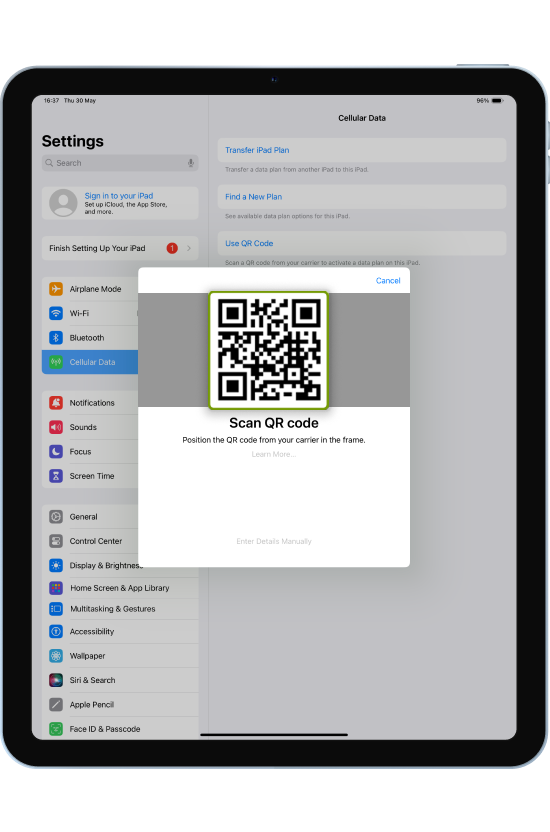
Step 3
Scan QR Code
**The QR Code must be scanned
in its entirety. Because the system
will not be able to add Cellular
services possible. If the
QR Code scan is incomplete.
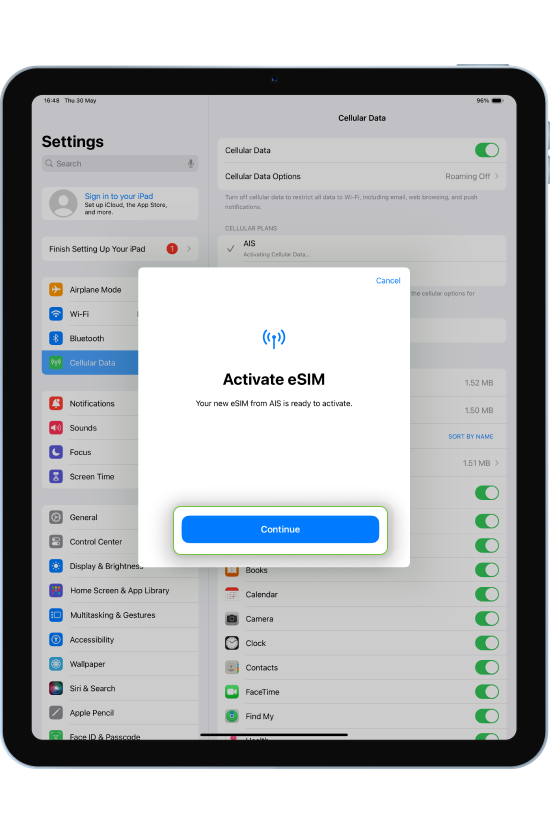
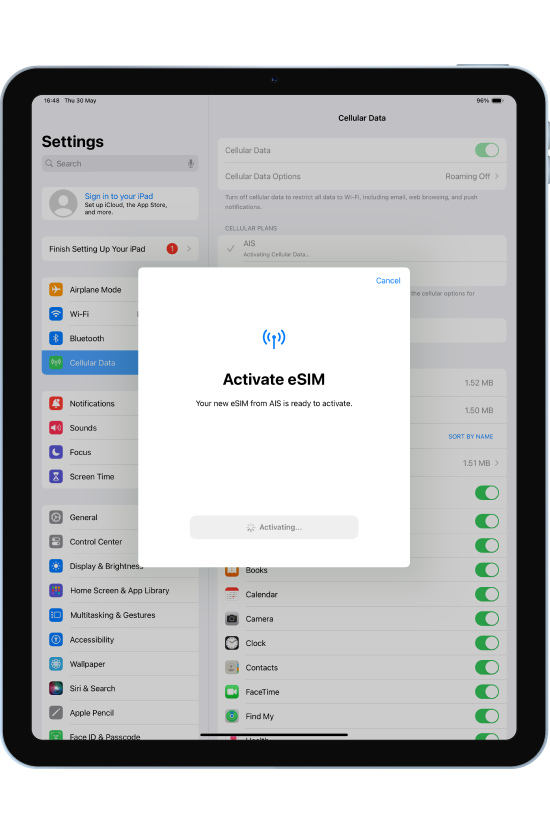
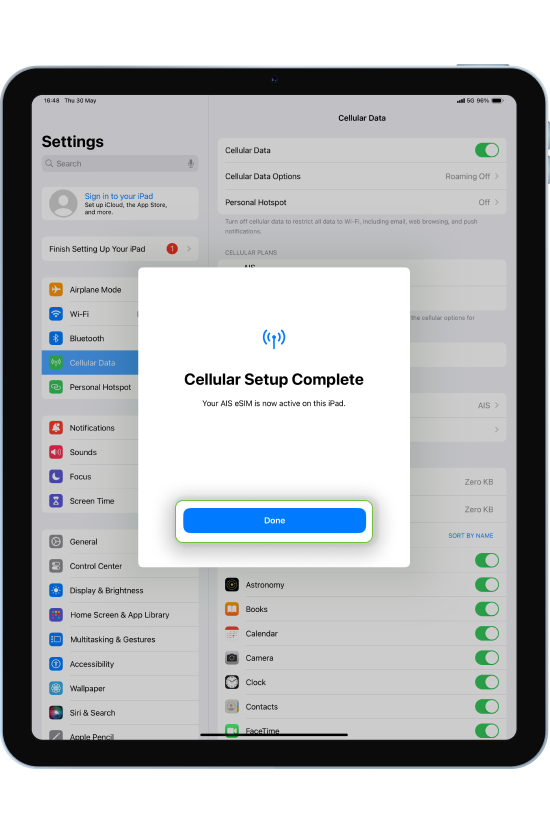

Step 7
Tap Cellular Data > On
Step 1
Internet connection through
Cellular or Wi-Fi
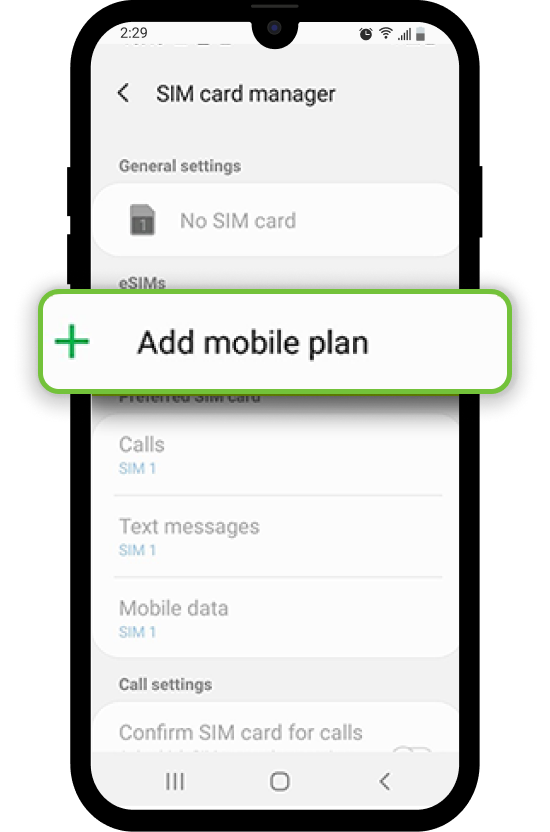
Step 3
Tap Cellular Setting
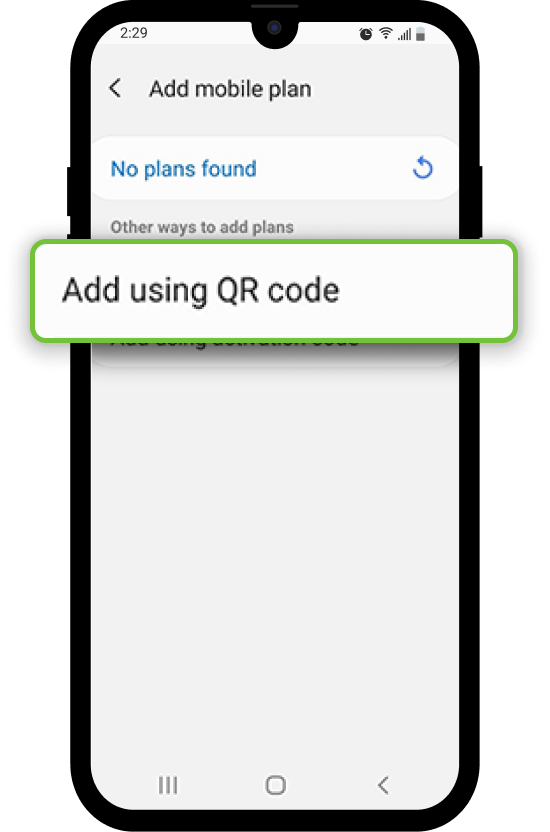
Step 7
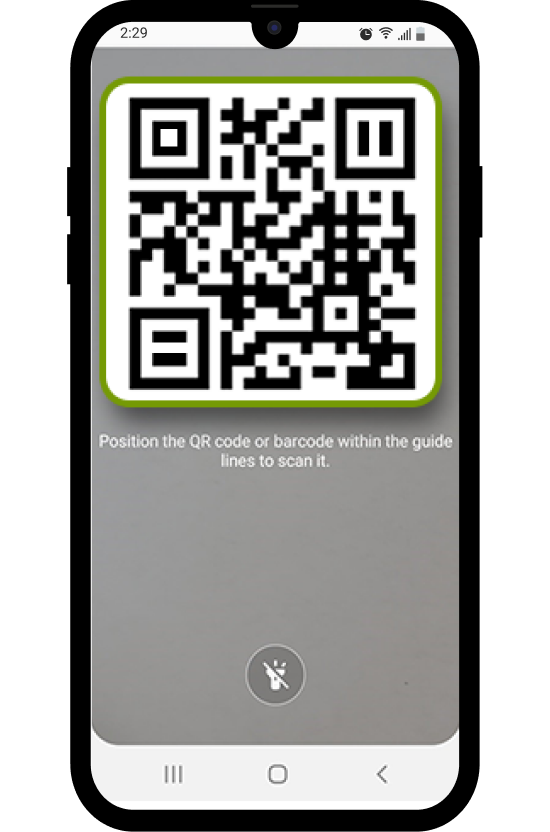
Scan QR Code
**The QR Code must be scanned
in its entirety. Because the system
will not be able to add Cellular
services possible.
If the QR Code scan
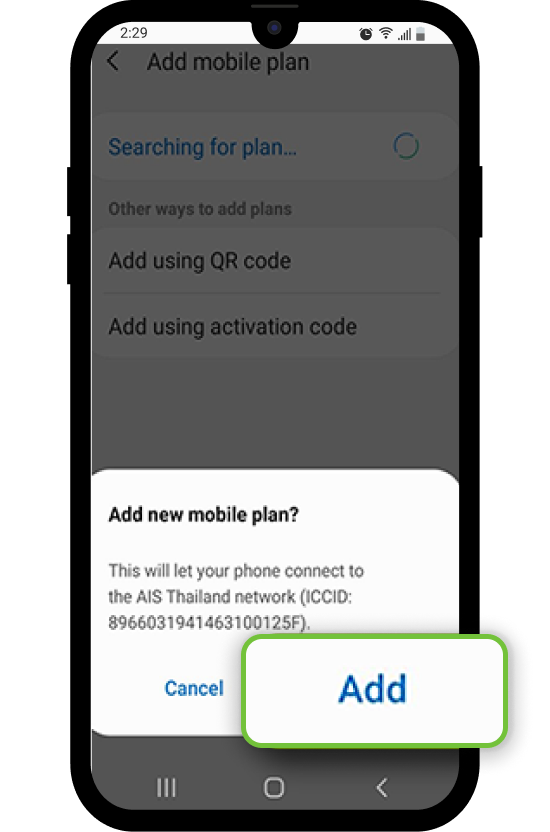
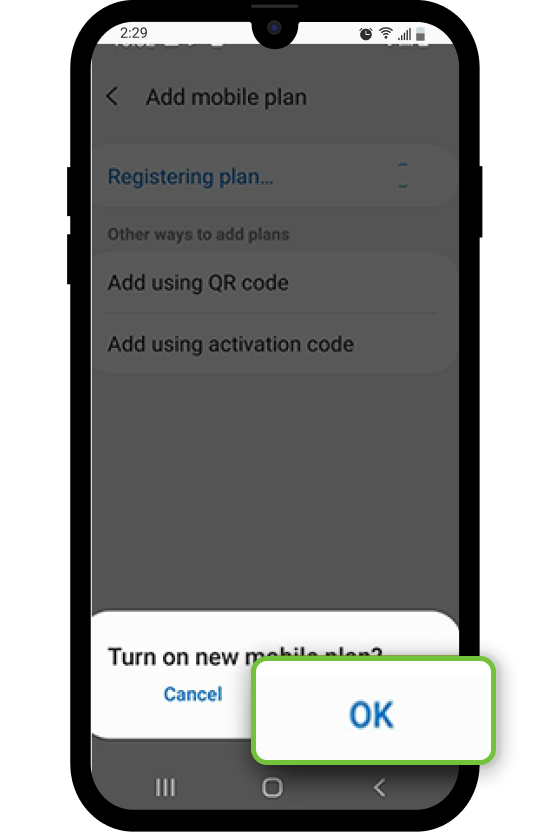
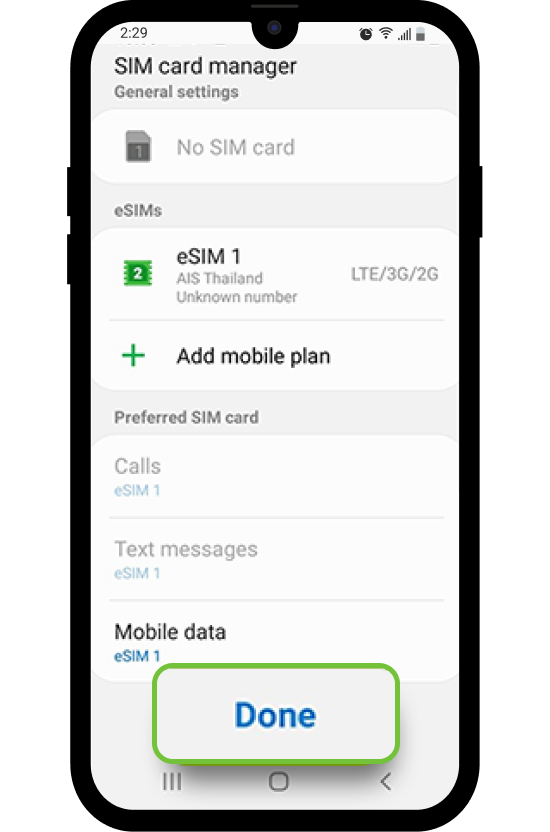
Step 10
Start using eSIM
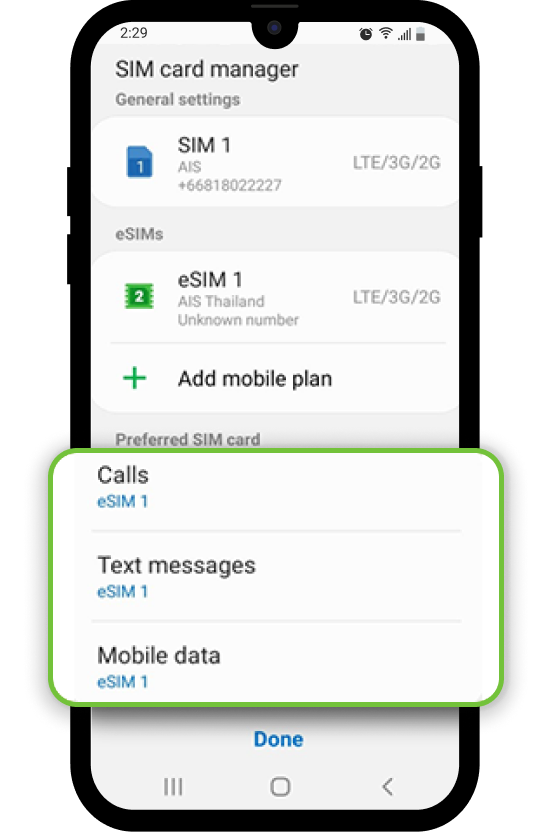
**In case of an empty device,
there is no SIM inserted
into the normal SIM tray.
The device will automatically
set the eSIM as the default
call and Internet.
Step 11
Example of internet
connection signal displayed
**In case where the SIM is inserted
into the normal SIM tray [SIM1]
mobile device The eSIM
will be set as the tray and
the eSIM settings can be
changed to the default call
and Internet according to the menu.
SIM Card purchase page on AIS Online Store
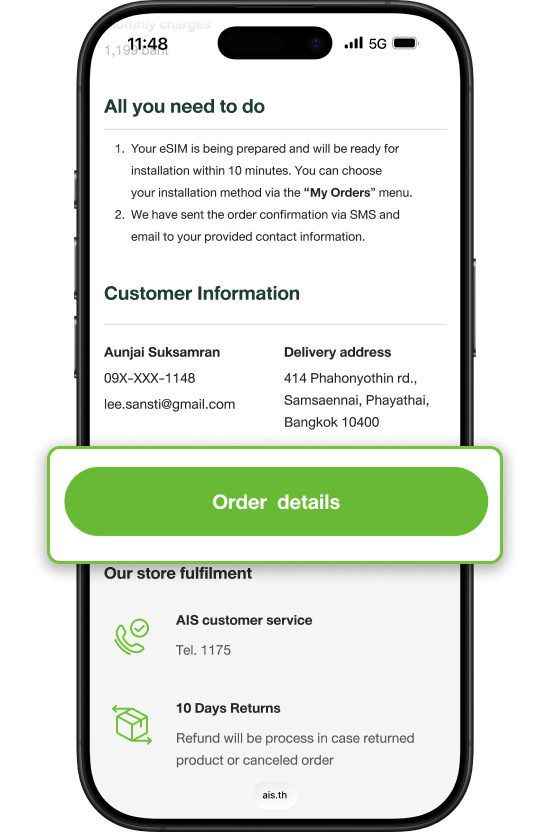
Step 1
In the case of selecting
the SIM type as “eSIM”
Click“Order details”
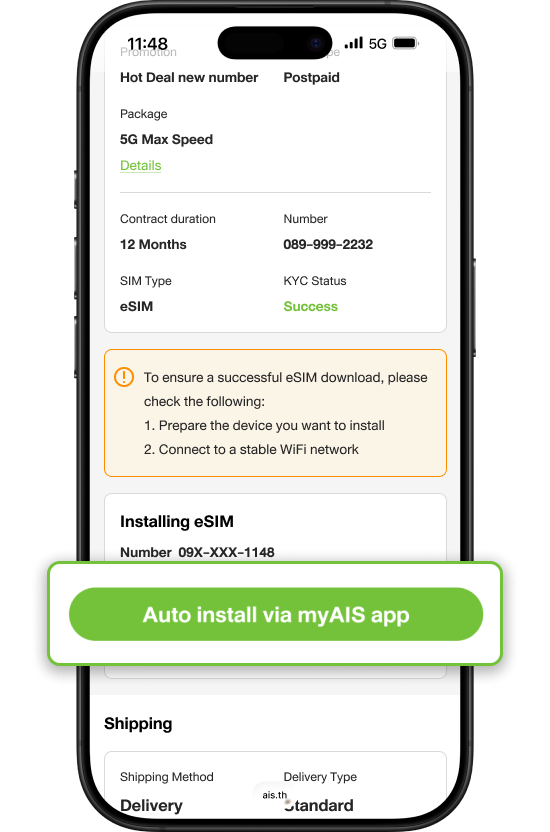
Step 2
Select
Auto install via myAIS app
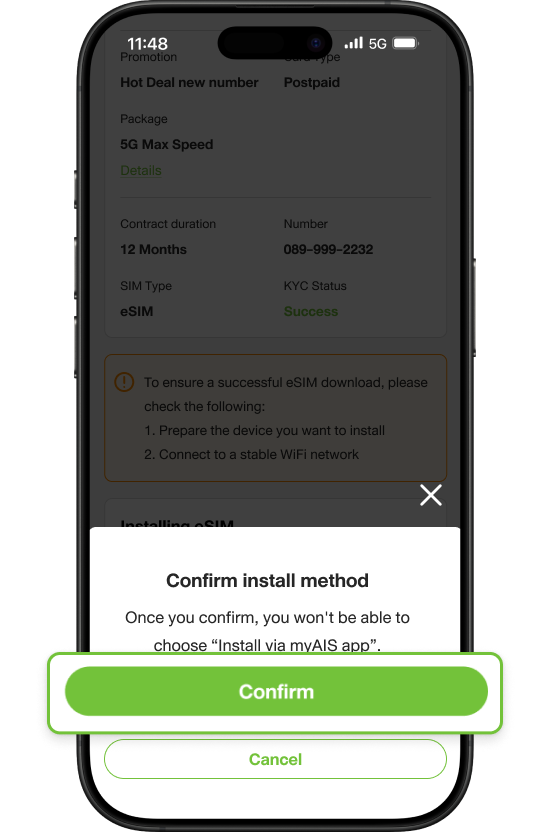
Step 3
Select “Confirm”
*Once confirmed, you will not be able to return to the QR Code installation option.
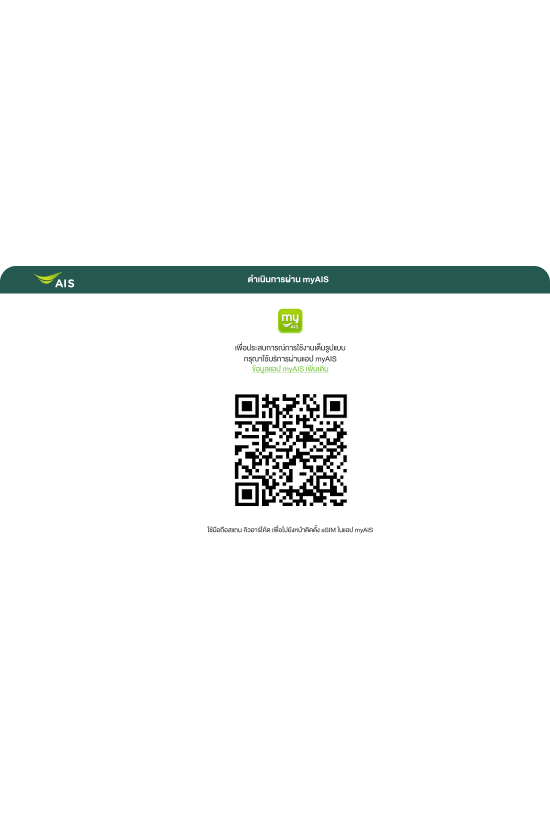
Step 4
In the case of ordering
via PC or Notebook :
Use your mobile phone to scan
the QR code to go to the eSIM
installation page in the myAIS app.
In the case of ordering
via mobile phone :
The system will take you to the eSIM
installation page in the myAIS app.
On your mobile screen
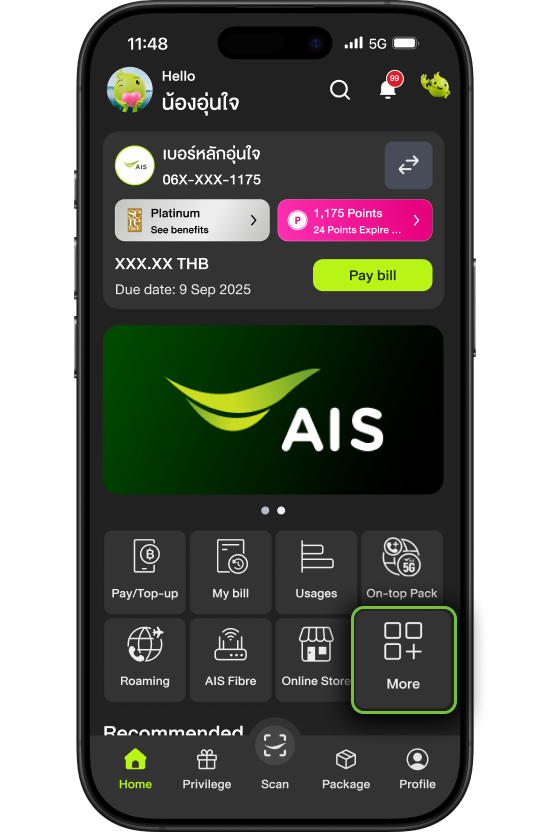
Step 1
Log in My AIS App
Select“More”
**Log-in MyID same
with AIS Online Store
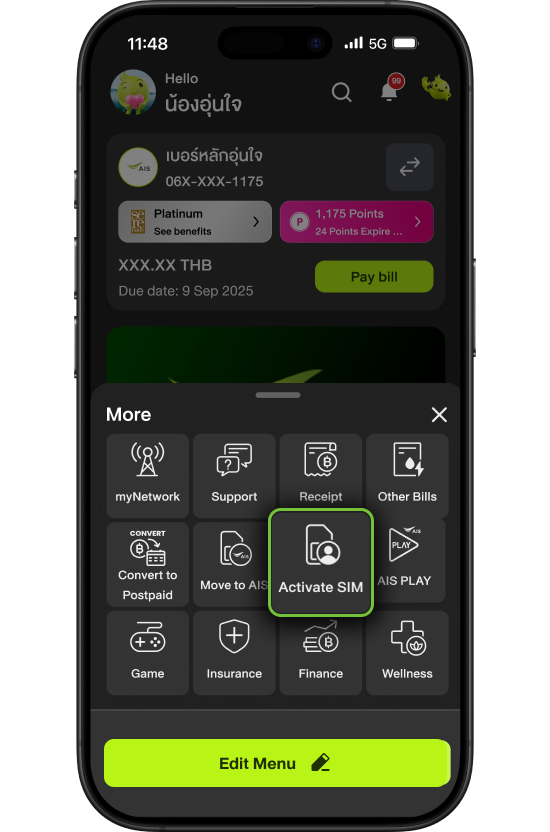
Step 2
Select “Activate SIM”
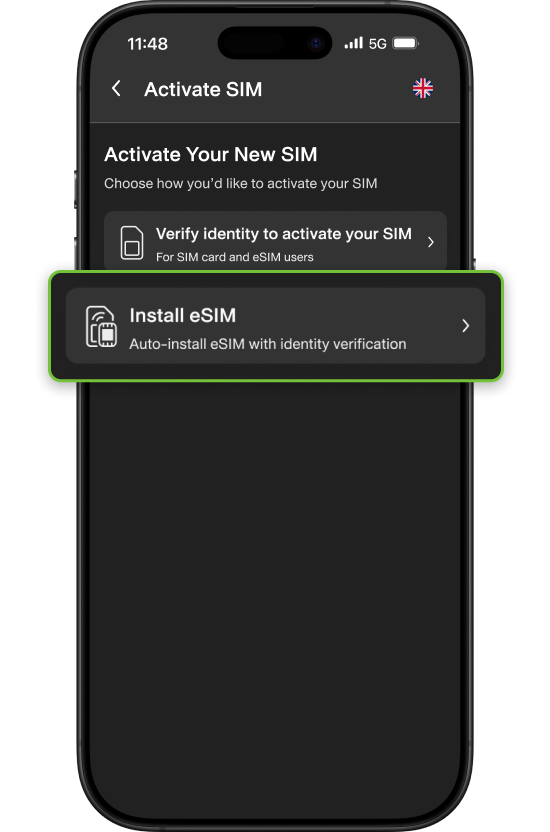
Step 3
Select “Install eSIM”
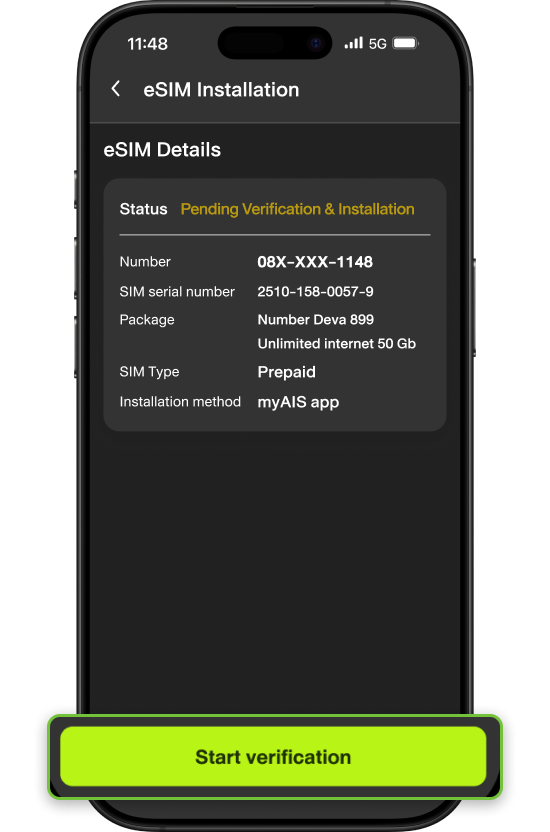
Step 4
Select “Start verification”
*Please prepare your ID card to complete
the identity verification process
Complete the identity verification process
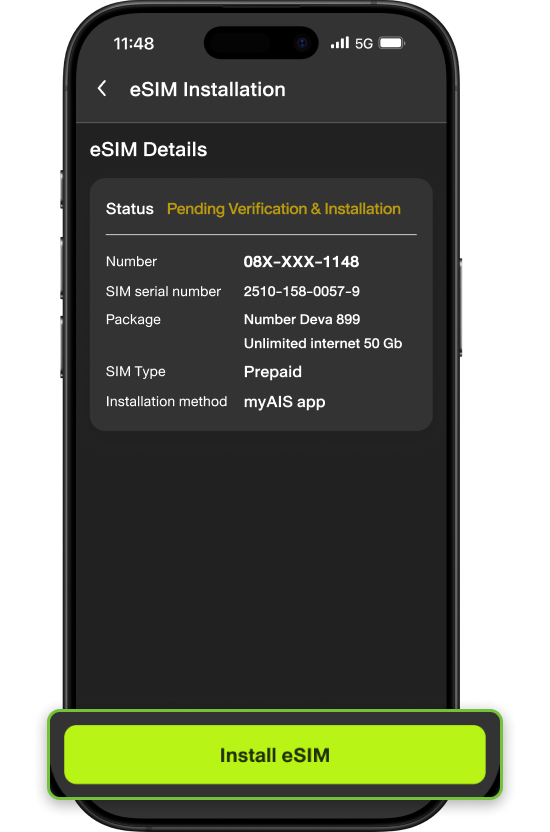
For Prepaid SIM eKYC success
via Web AIS online Store
Click “Install eSIM”
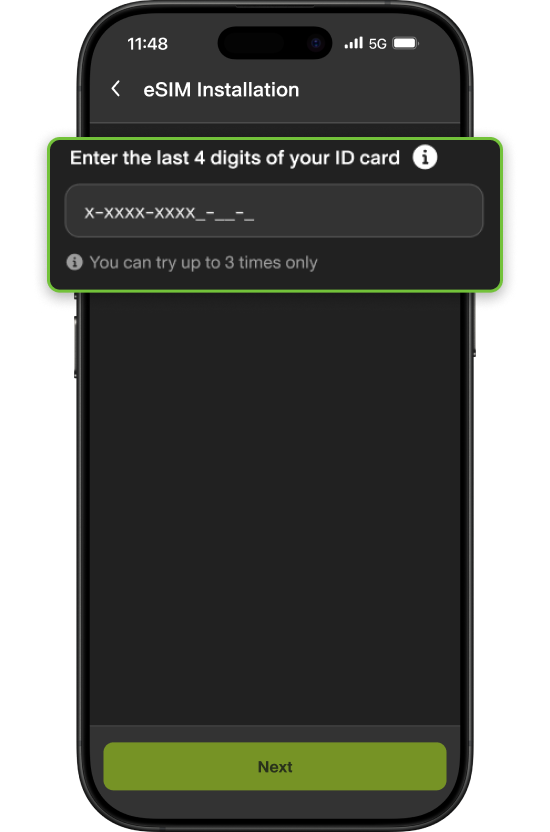
Fill Citizen ID Last 4 digits
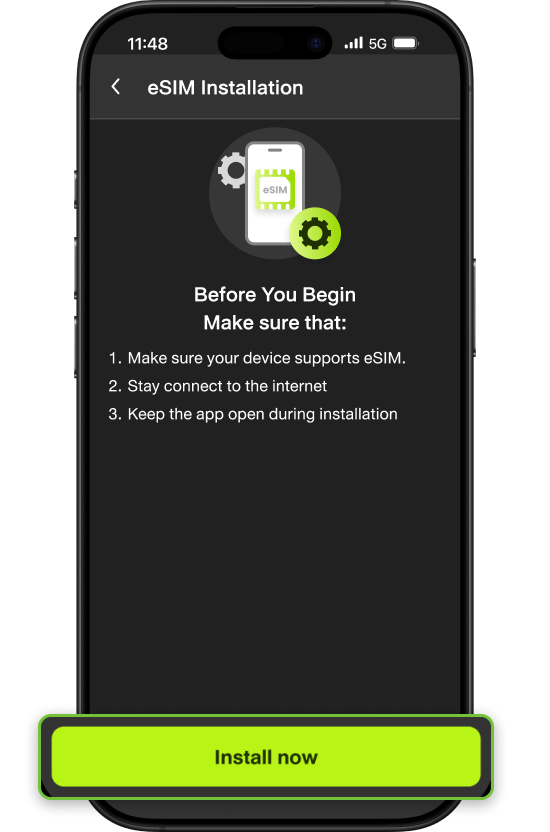
Step 5
Select “Install now”
The system will automatically install
the eSIM on the device.
**For complete eSIM installation,
please connect to a stable WiFi.
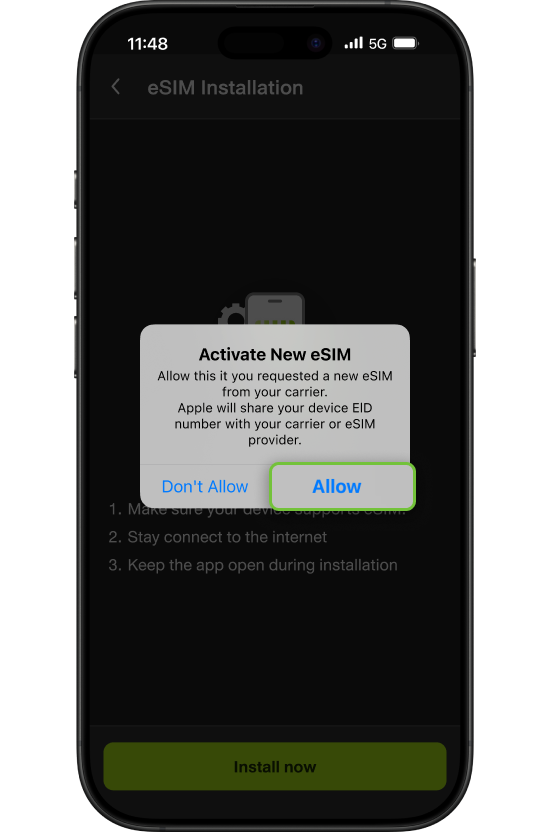
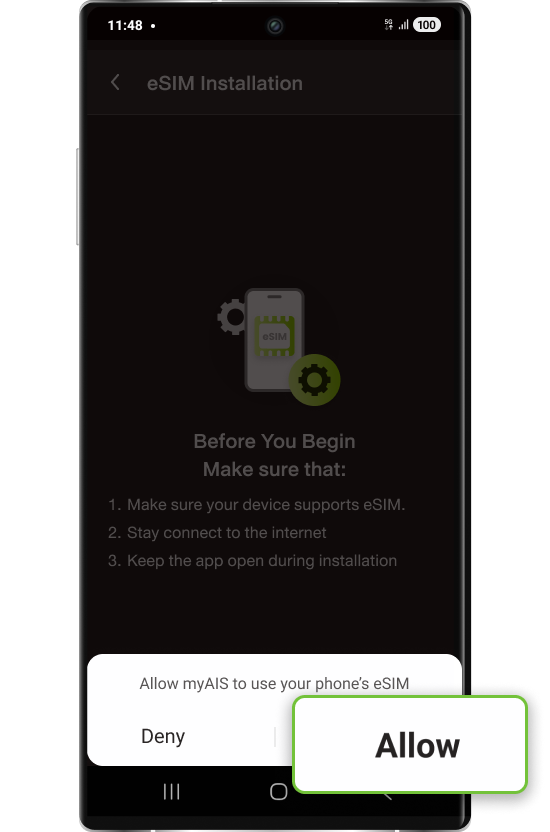
Step 6
Select “Allow”
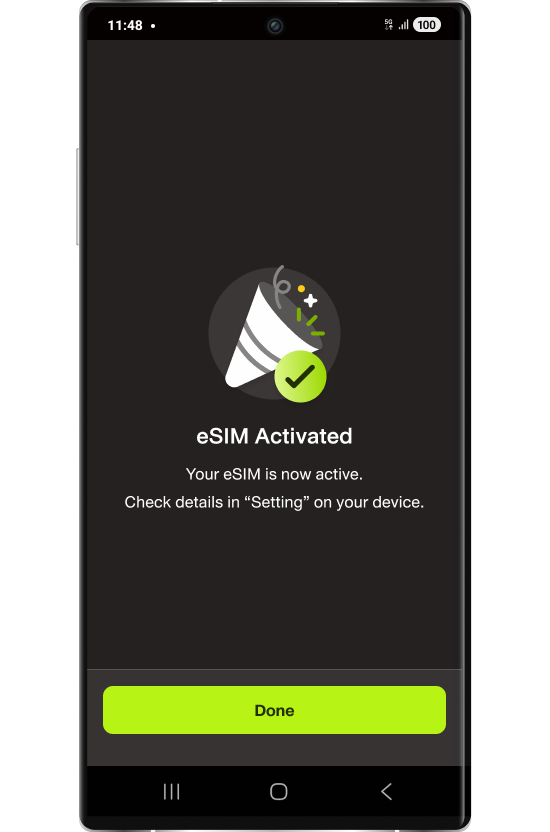
Follow the steps to activate eSIM on your device.
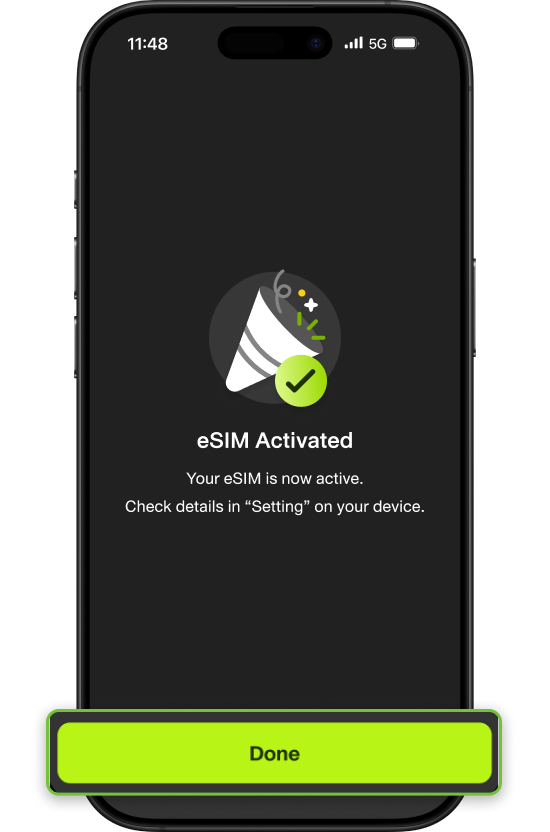
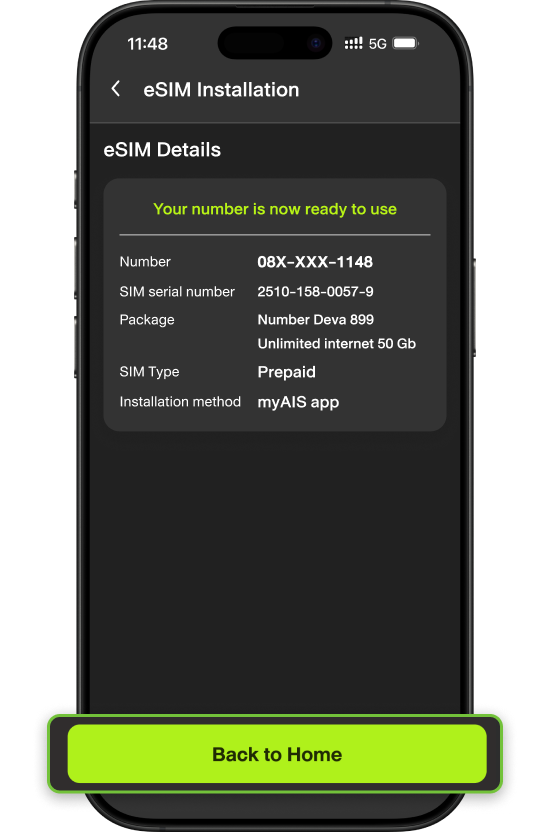
Step 8
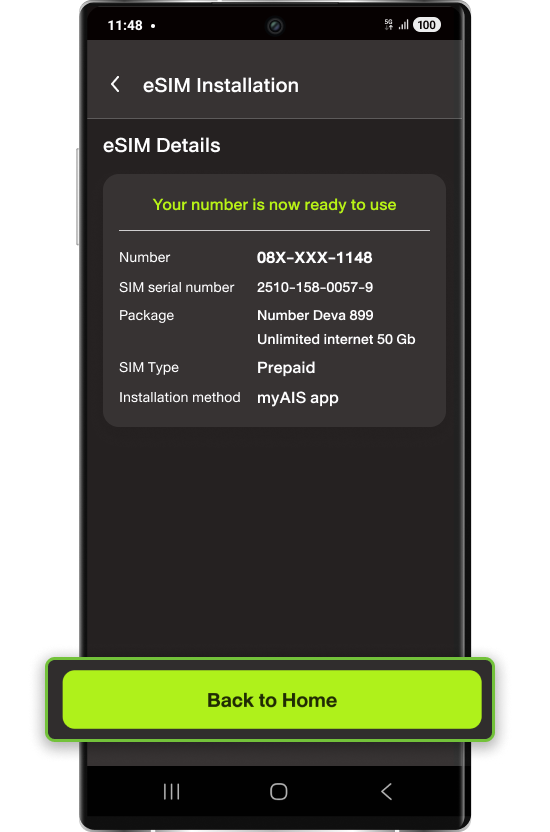
Check Status Download eSIM
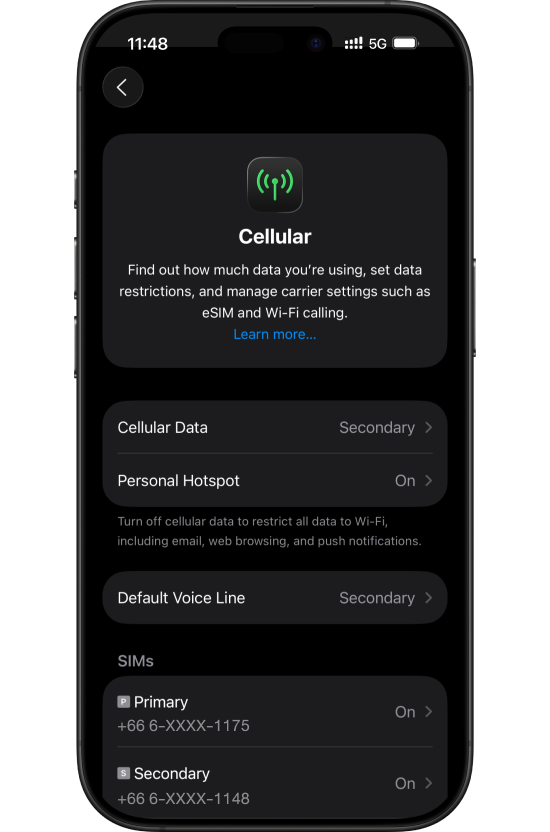
Step 9
Download success:
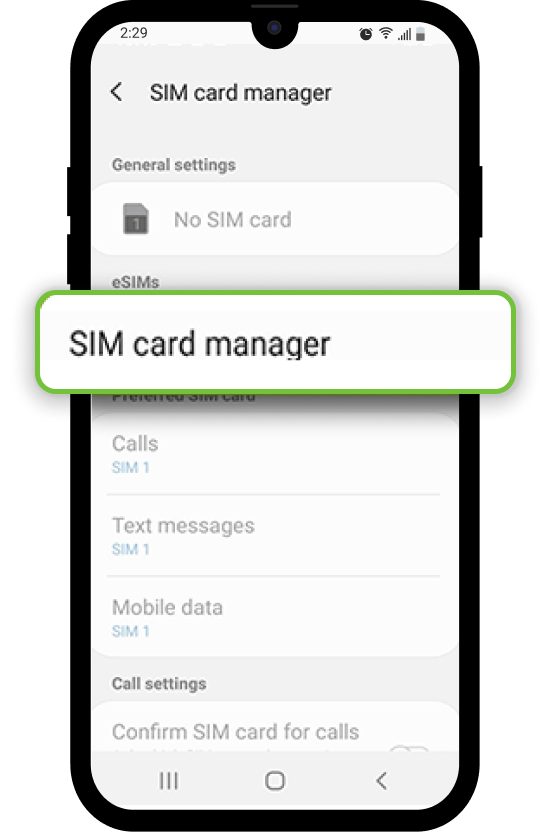
check status from Tab SIM card manager
SIM Card purchase page on AIS Online Store
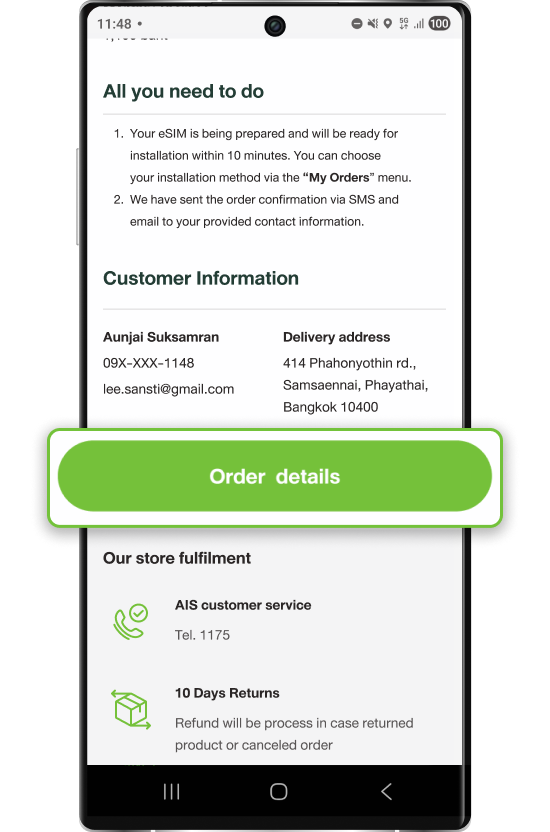
Step 1
In the case of selecting
the SIM type as “eSIM”
Click“Order details”
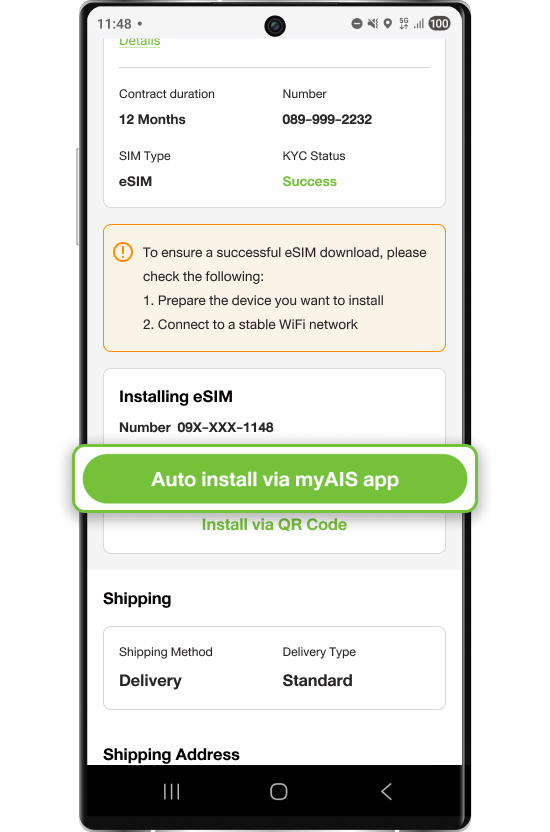
Step 2
Select
Auto install via myAIS app
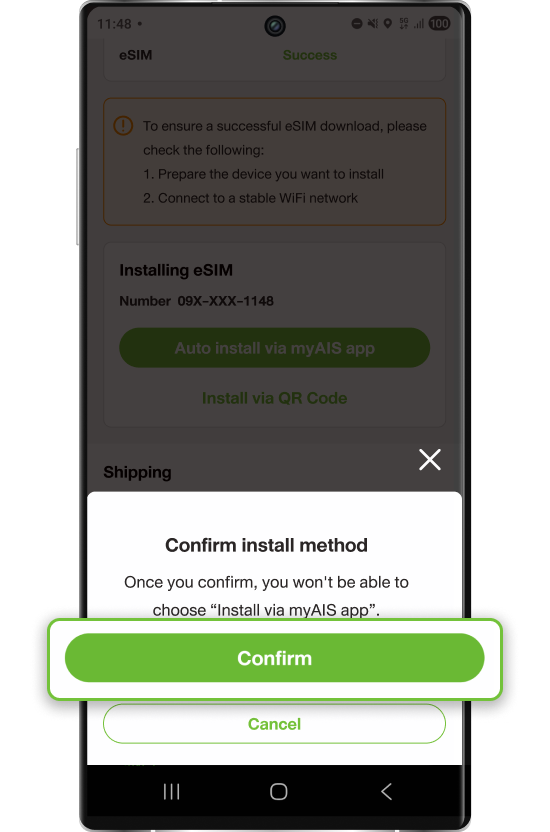
Step 3
Select “Confirm”
*Once confirmed, you will not be able to return to the QR Code installation option.
Step 4
In the case of ordering
via PC or Notebook :
Use your mobile phone to scan
the QR code to go to the eSIM
installation page in the myAIS app.
In the case of ordering
via mobile phone :
The system will take you to the eSIM
installation page in the myAIS app.
On your mobile screen
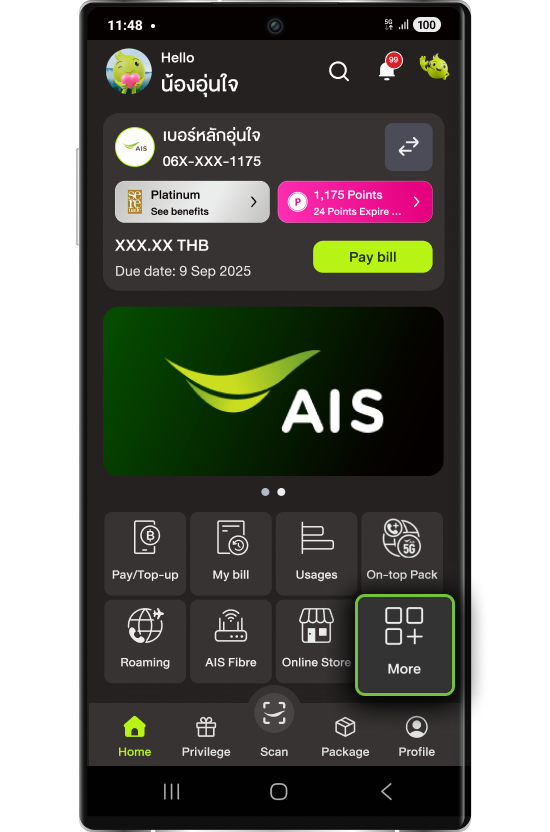
Step 1
Log in My AIS App
Select“More”
**Log-in MyID same
with AIS Online Store
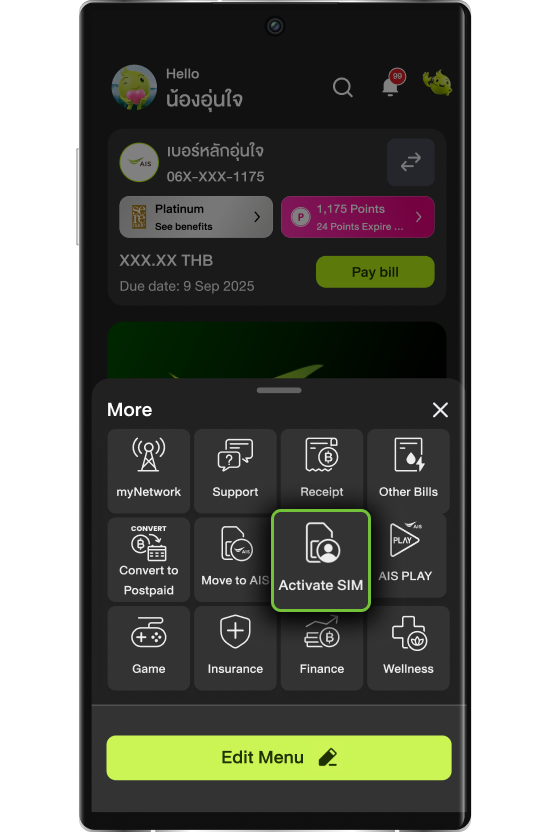
Step 2
Select “Activate SIM”
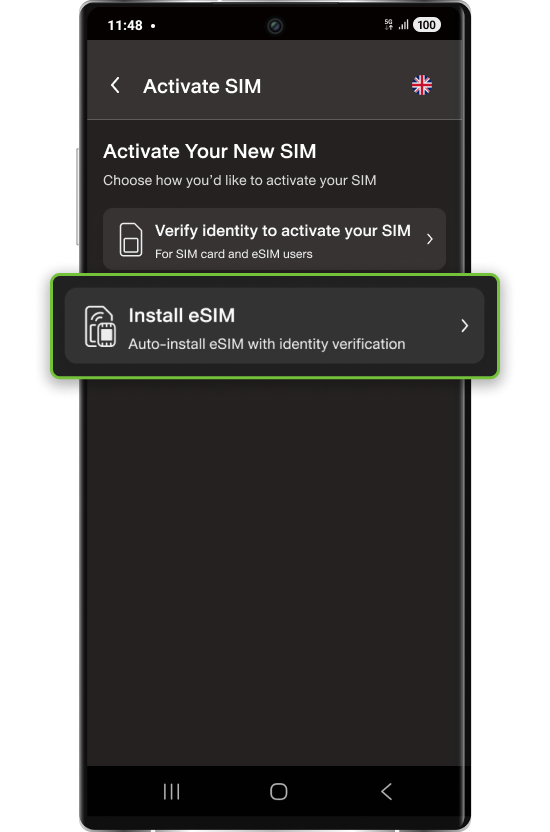
Step 3
Select “Install eSIM”
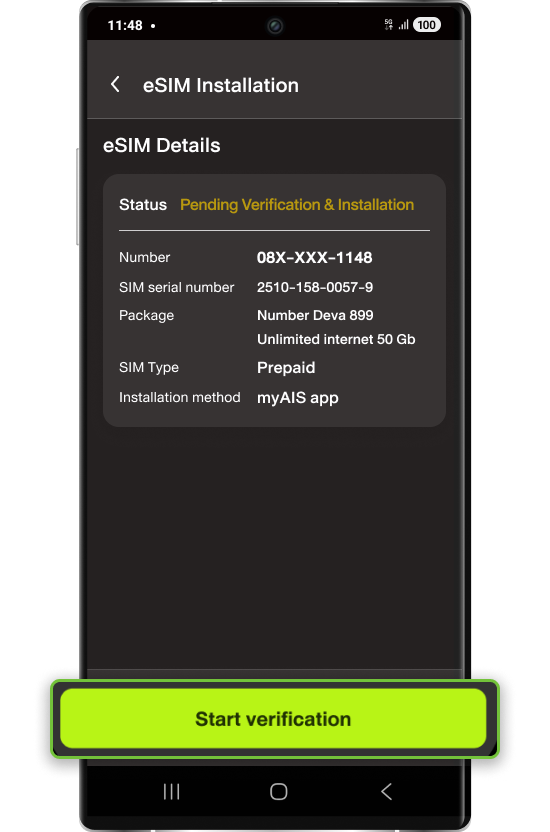
Step 4
Select “Start verification”
*Please prepare your ID card to complete
the identity verification process
Complete the identity verification process
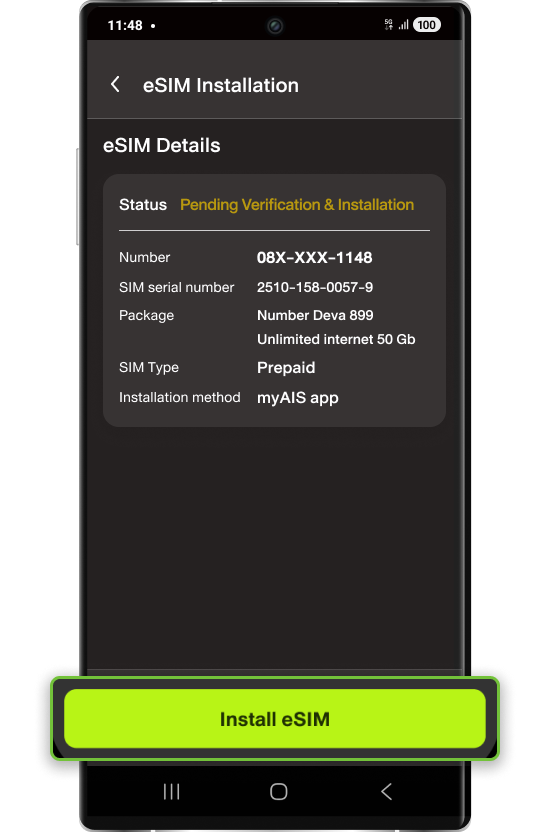
For Prepaid SIM eKYC success
via Web AIS online Store
Click “Install eSIM”
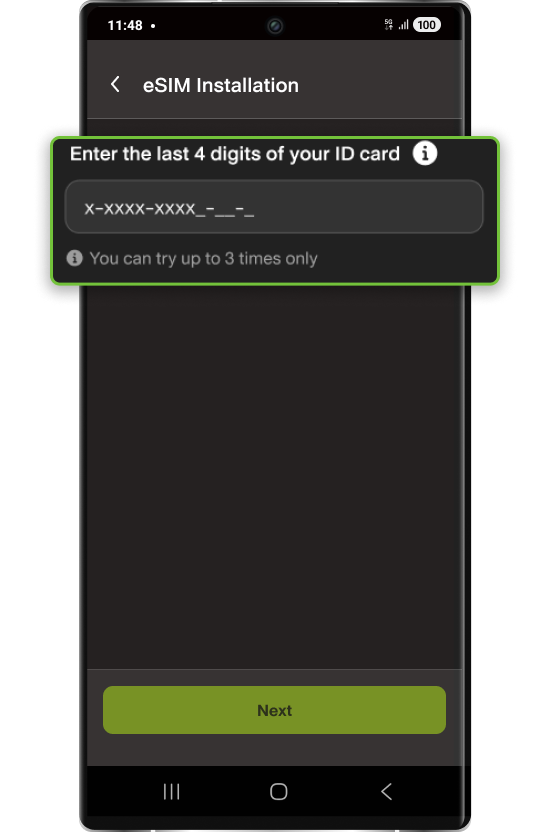
Fill Citizen ID Last 4 digits
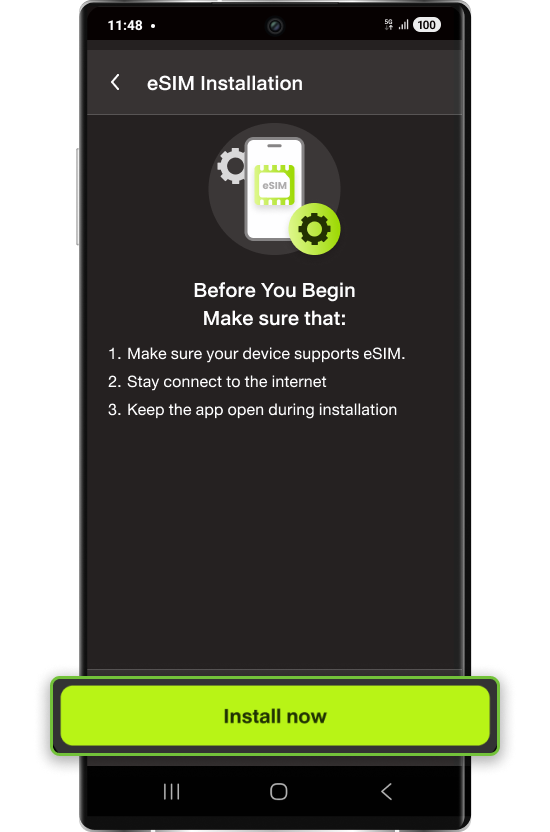
Step 5
Select “Install now”
The system will automatically install
the eSIM on the device.
**For complete eSIM installation,
please connect to a stable WiFi.
Step 8
Check Status Download eSIM
Step 9
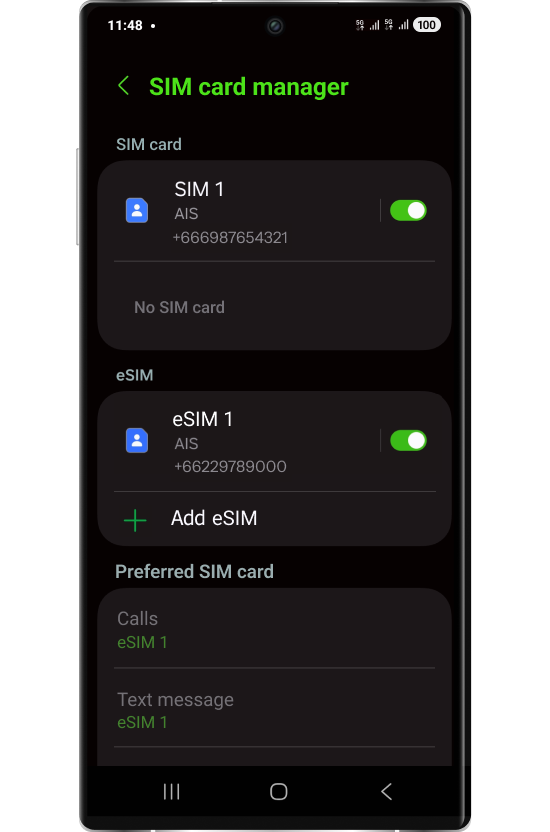
Download success:
check status from Tab SIM card manager

Using eSIM at abroadbroad
How to using eSIM for SIM2FLY
FAQ

An eSIM is a SIM card that is embedded in a mobile device. Without the traditional chip, eSIM can be used to make/receive a call, or access the internet.
- Current customers using a SIM with a pre-paid or post-paid service
- Customers using a new SIM with a pre-paid or post-paid service under any package
- Customers who have moved from a network, using a pre-paid or post-paid service under any package
- Multi SIM and MultiSIM PLUS users [primary SIM only]
- Spare SIM users
Yes. However, the customer is required to move from the previous network completely.
Yes, but for the primary SIM only.
Up to eight numbers but you can choose to use eSIM with one or two numbers at a time, depending on the model of device you are using.
*For Apple iPhone 13 or later, can choose to use eSIM two numbers.
** iPhone models that do not support a physical SIM cards will support to use eSIM two numbers.
At any branch of AIS shops nationwide and you can purchase a new eSIM and activate it on your device yourself through the AIS online store Click
It is free of service fee.
Check the model details of your mobile phone and device click
No. You can still use the QR code as usual.
The device will ask you to choose Default Line to make/receive a call and access the internet.
The latest eSIM that has been downloaded will automatically be set as Default Line to make/receive a call and access the internet.
Go to the Settings menu to check all the numbers you have in your device.
The physical SIM will be used for internet access.
You can see the primary SIM or secondary SIM is used from the call screen.
Go to Settings. >> Remove Cellular Plan.
No. You are required to choose to use one SIM at a time.
If you delete your eSIM, your mobile package has not been cancelled. But the eSIM in your device will be gone and you need to contact any AIS Shop and AIS Telewiz branch nationwide to request a new eSIM with the same number.
You can use your AIS eSIM by activating roaming mode or subscribing to Ready2Fly or purchasing eSIM: SIM2Fly 399 Baht, SIM2Fly 899 Baht, SIM2Fly 1599 Baht, SIM2Fly 2799 Baht. For more details, Click
Yes. You can purchase eSIM online yourself. Convenient, easy to buy, and can be used immediate. Click Or Convert current number to eSIM, Click
When you convert to an eSIM, you're simply transitioning from a physical SIM card to an eSIM on your current device. On the other hand, transferring an eSIM involves moving either your physical SIM card or existing eSIM to an eSIM on a new device.
All individual customers, both prepaid and postpaid, using devices that support eSIM can take advantage of this service.
No, corporate customers looking to utilize eSIM services should visit an AIS Shop for assistance.
Yes, they can. When filling out the information on the AIS service webpage, they should provide the passport number registered with AIS.
Here are the devices that are compatible:
Apple:
- iPhone models: iPhone XS, iPhone XS Max, iPhone XR and newer models, operating on iOS 15.4 or above.
- iPad: Specific models running on iOS 16.1 or above (refer to the provided table for supported models).
- For transferring between iPhones, the current device must be operating on iOS 15.4 or above. For iPads, it should be on iOS 16.1 or above (based on the supported models table).
Samsung:
Only supports Samsung devices operating on Android 13 and above with OneUI 5.1.1 or higher.
For converting to eSIM internally and transferring SIMs between devices (either from a SIM card or from an eSIM in the old device to an eSIM in the new one), both outgoing and incoming transfers are supported for:
- Galaxy series S22, S23 or newer
- Galaxy series Z Fold4, Z Flip4, Z Fold5, Z Flip5 or newerz
- Only supports converting to eSIM internally and transferring to a new device (from a SIM card or eSIM in the old device to an eSIM in the new one) with only outgoing transfers. Incoming transfers are not supported for:
- Galaxy series S20 or S21
- Galaxy Note 10 Lite or Note 20 Series
- Galaxy series Z Fold, Z Flip, Z Fold2, Z Flip2, Z Fold3, or Z Flip3
Only supports transferring from a SIM card in the old device to an eSIM in the new device with only outgoing transfers. Incoming transfers are not supported for:
- Galaxy X cover 6 Pro
- Selected Galaxy A Series models: A22, A33 5G, A34 5G, A52, A52 5G, A52s 5G, A53 5G, or A54 5G.
Unfortunately, no. Transfers must be made between devices of the same brand, for instance, from an iPhone to another iPhone or from a Samsung to another Samsung.
The phone number you wish to process must have both VoLTE and VoWiFi services activated. Additionally, all security features on the device should be enabled. Follow these steps:
- Log into iCloud on the iPhone (for both devices involved in the process).
- Activate Apple ID's Two-Factor Authentication.
- Enable Face ID or passcode lock.
- Register for iMessage.
The phone number in question needs to have both VoLTE and VoWiFi services activated before the process. To sign up for these services:
- For AIS VoLTE (Voice over LTE) or AIS HD Voice, dial *412*1#.
- For AIS VoWiFi (Voice over WiFi), dial *399*1#.
The phone number you want to process needs to have both VoLTE and VoWiFi services activated before starting. To register for these services:
- For AIS VoLTE (Voice over LTE) or AIS HD Voice, dial USSD *412*1#.
- For AIS VoWiFi (Voice over WiFi), dial USSD *399*1#.
Yes, for a complete transaction, once you've successfully connected to a strong and stable Wi-Fi network, your original phone should remain close to the new phone throughout the transfer process (no more than 1 meter away).
If customers are not the ones performing the SIM transfer transaction, they should press "Cancel". However, if they accidentally press "Transfer", it won't have any consequences. This is because the next step would require entering a Verification Code. Without the correct information, the SIM transfer process cannot proceed.
No, you can't turn this off as this service originates from the Samsung device itself.
No, it can't be used. The system will deactivate the original SIM immediately. It is recommended to remove and destroy it.
The data will not be transferred. It's advisable to import the contacts from the SIM card to the phone's Phonebook and back up the data on iCloud or Samsung Cloud before proceeding.
Reversion can only be done for eSIM-to-eSIM transfers between devices. If you want to revert back to a Physical SIM card, you will need to contact an AIS Shop.
Restart your device and try the activation again.
Important: Before restarting, make sure you remember your device passcode, as you’ll need it to unlock your phone after the restart.
On devices running iOS 26 or later, you can transfer multiple eSIM numbers at once. The system will display and process each selected number one by one until all are transferred.
On your new device, select “Keep eSIMs and Erase Data” before transferring the data. This ensures your eSIM remains active and usable.
Only eSIMs purchased via the AIS Online Store website can be automatically activated through the myAIS app. Click
Yes, it supports automatic activation for both postpaid and prepaid eSIMs.
Postpaid eSIM verification is available only in Thai. If your myAIS app is set to English, you’ll be asked to switch to Thai before you can continue with eSIM activation.
(On iOS, see example screen below.)
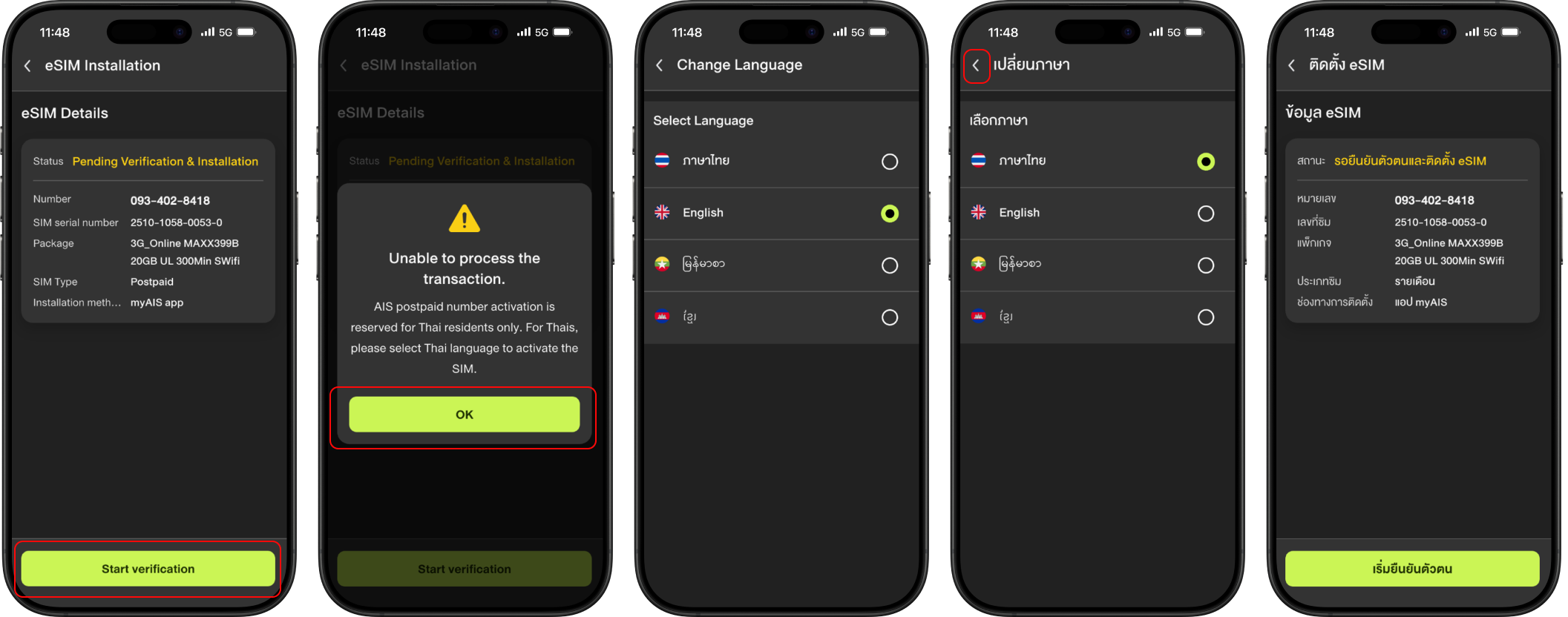
(On Android, see example screen below.)
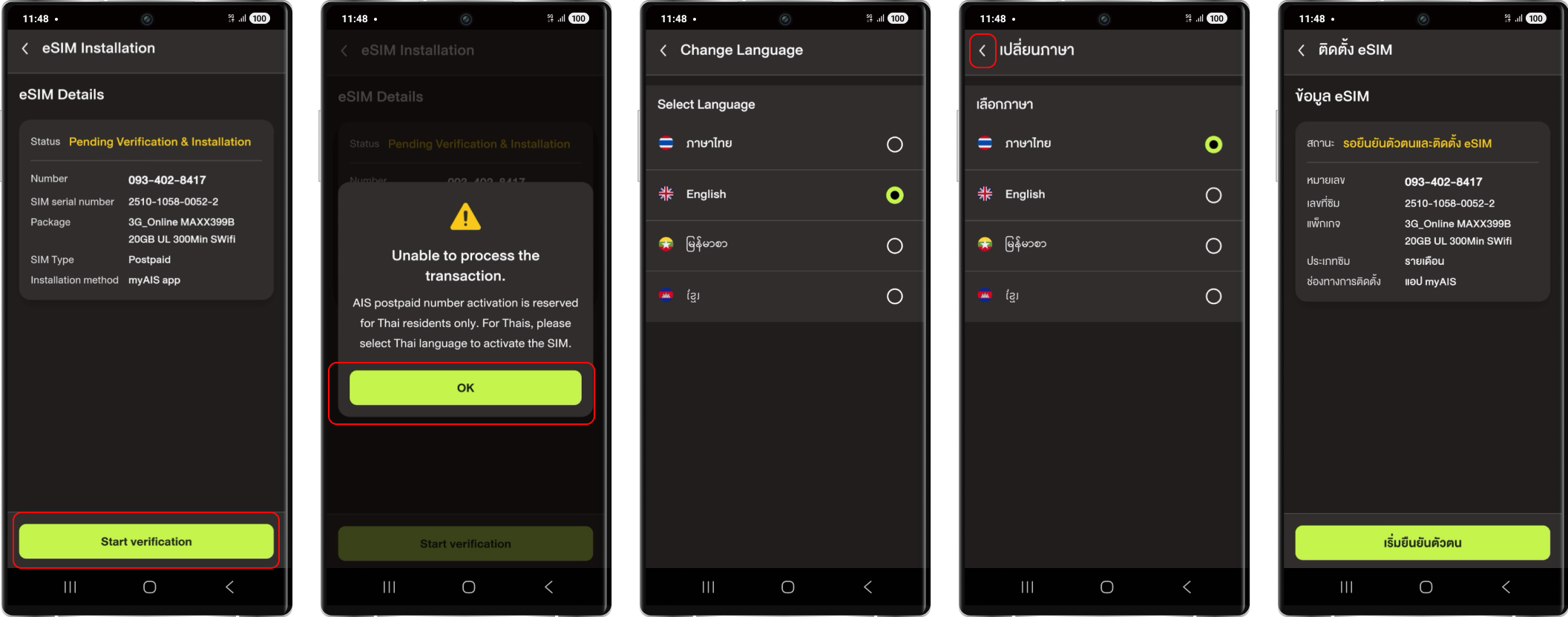
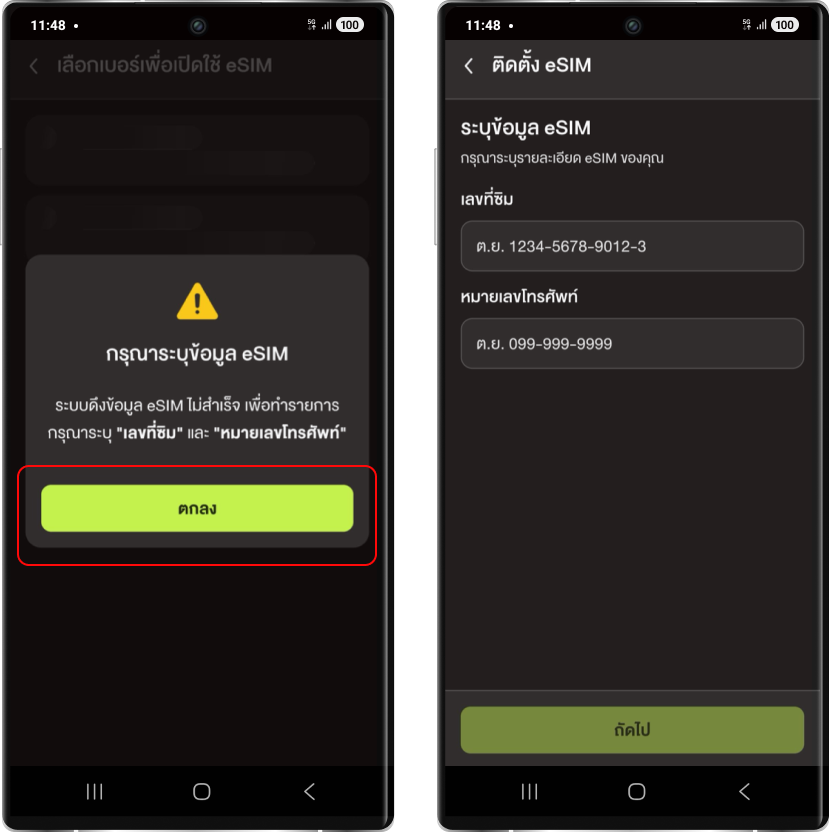
This happens when the myAIS account you’re logged in with is different from the one used to purchase the eSIM on the AIS Online Store.
If the accounts don’t match, you’ll need to enter your SIM number and phone number manually.If they do match, the system will retrieve your eSIM information automatically.
(See example screen below.)
(See example screen below.)
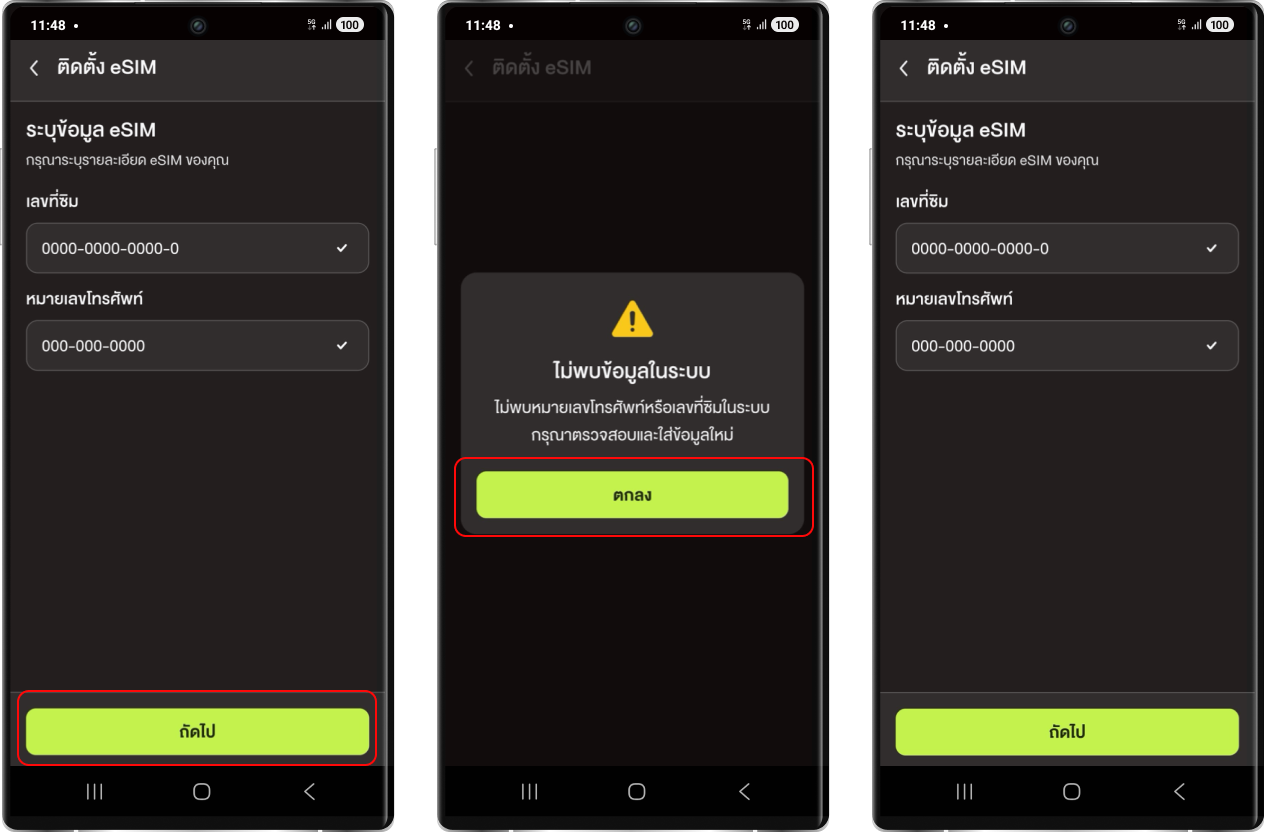
The system allows up to 3 incorrect attempts. If exceeded, please visit any AIS Shop nationwide to complete your eSIM activation.
*This cannot be done via the Call Center, as in-person ID verification is required.
This may occur for two reasons :
- Your device has more than 8 eSIM numbers. → Please delete any unused eSIMs and try again.
- Your Wi-Fi connection was unstable during activation. → Please visit any AIS Shop to get a replacement eSIM and reactivate it.
eSIM activation via the myAIS app is automatic and cannot be switched to QR code once selected.
The new iPad Pro (M4) and iPad Air (M2) models support eSIM for cellular activation. They do not have a physical SIM tray.
And eSIM is supported on all Wi-Fi + Cellular models of
- iPad Pro (M4)
- iPad Pro 11‑inch (1st, 2nd, 3rd, and 4th generation)
- iPad Pro 12.9‑inch (3rd, 4th, 5th, and 6th generation)
- iPad Air (M2), iPad Air (3rd, 4th, and 5th generation)
- iPad (7th generation or later)
- iPad mini (5th generation or later)
Activating an eSIM on iPad is easy.
AIS also supports eSIM Quick Transfer, where you can transfer your cellular plan from your previous iPad to your new iPad. You can even convert your physical SIM to an eSIM when you transfer your plan , learn more about AIS eSIM Transfer, Click
You can contact or purchase an eSIM at all AIS shops and Telewiz branches nationwide. Alternatively, you can purchase an eSIM online with ease, and the SIM can be used immediately. Click
You can learn more about setting up eSIM on iPad here, Click
If you purchased the new iPad Pro Wi-Fi + Cellular (M4), or iPad Air Wi-Fi + Cellular (M2), and you don’t have a Wi-Fi network, Apple has a solution to activate your eSIM. During the Set Up process, you can choose to continue without Wi-Fi. This allows you to setup your new eSIM without Wi-Fi —at no cost to you. Click
- Existing customers both prepaid or postpaid
- New Customers both prepaid or postpaid
- Mobile number port customers both prepaid or postpaid
You can contact or purchase eSIM at all AIS Shops and AIS Telewiz branches nationwide or purchase eSIM online yourself with ease and it can be used immediately. Click