How to Create Your First View in Spring MVC? (original) (raw)
Last Updated : 23 Apr, 2026
**Spring MVCis a Web MVC Framework for building web applications. Creating your first view in Spring MVC involves setting up a controller to handle requests and returning a view name that maps to a template (like JSP or Thymeleaf). The framework uses a View Resolver to connect the controller’s response with the actual UI page.
- A controller method returns a view name, which is resolved to a UI template (JSP/Thymeleaf)
- View Resolver configuration determines how view names map to actual files
Prerequisites
- Eclipse (EE version)/STS IDE
- Spring JAR Files
- Tomcat Apache's latest version
**Note: Views are nothing, they are just web pages.
Step-by-Step Implementation
Follow these steps to create and render your first view in Spring MVC by configuring a controller, view resolver, and template page.
**Step 1: Create a Dynamic Web Project
- Create a new Dynamic Web Project in STS/Eclipse
- Configure project structure properly
**Step 2: Adding Dependencies
- Add
spring-webmvcandjakarta.servlet-api - Use Maven/Gradle for dependency management
**pom.xml:
XML `
org.springframework spring-webmvc 5.3.23 jakarta.servlet jakarta.servlet-api 5.0.0 provided`
**3. Configure Apache Tomcat Server
- Add and configure Tomcat server in IDE
- Deploy the project on the server
**4. Configure DispatcherServlet (web.xml)
- Define DispatcherServlet in web.xml
- Map it to / to handle all incoming requests
web.xml:
XML `
<servlet>
    <servlet-name>dispatcher</servlet-name>
    <servlet-class>org.springframework.web.servlet.DispatcherServlet</servlet-class>
    <load-on-startup>1</load-on-startup>
</servlet>

<servlet-mapping>
    <servlet-name>dispatcher</servlet-name>
    <url-pattern>/</url-pattern>
</servlet-mapping>
`
**Explanation: The DispatcherServlet is the entry point of the application. We can think of a DispatcherServlet as the gatekepper, it handles all the incoming requests. When a request comes, it passes to the DispatcherServlet and then it decides which controller should handle it.
5. Create Spring Configuration File
- Create dispatcher-servlet.xml inside WEB-INF
- Enable component scanning for controllers
- Configure InternalResourceViewResolver
dispatcher-servlet.xml:
XML `
<!-- Scans for @Controller annotations -->
<context:component-scan base-package="com.demo.controllers" />

<!-- Configures JSP ViewResolver -->
<bean class="org.springframework.web.servlet.view.InternalResourceViewResolver">
    <property name="prefix" value="/WEB-INF/views/" />
    <property name="suffix" value=".jsp" />
</bean>
`
**Explanation: The context:component-scan tells the spring to look through the com.demo.controllers package for any classes marked with @Controller. The classes will handle the requests. The helps Spring find the right JSP file when a view name like "demo" is returned by a controller.
6. Create Controller Class
- Create a class annotated with @Controller
- Define request mapping using @RequestMapping or @GetMapping
- Return view name (e.g., "demo")
Now let us create a simple method inside the Controller class and use @GetMapping annotation before the method something like this.
// Annotation
@GetMapping("/hello")
// Method
public String helloWorld()
{
return "demo";
}
Now in the return statement, we have to return some views (web pages), so whenever the endpoint '/hello' is invoked we can see our result on the web page. So let's create our first View.
7. Create View (JSP Page)
- Create views folder inside WEB-INF
- Add JSP file (e.g., demo.jsp)
- Write basic HTML content
**demo.jsp:
HTML `
Hello GeeksforGeeks!
`
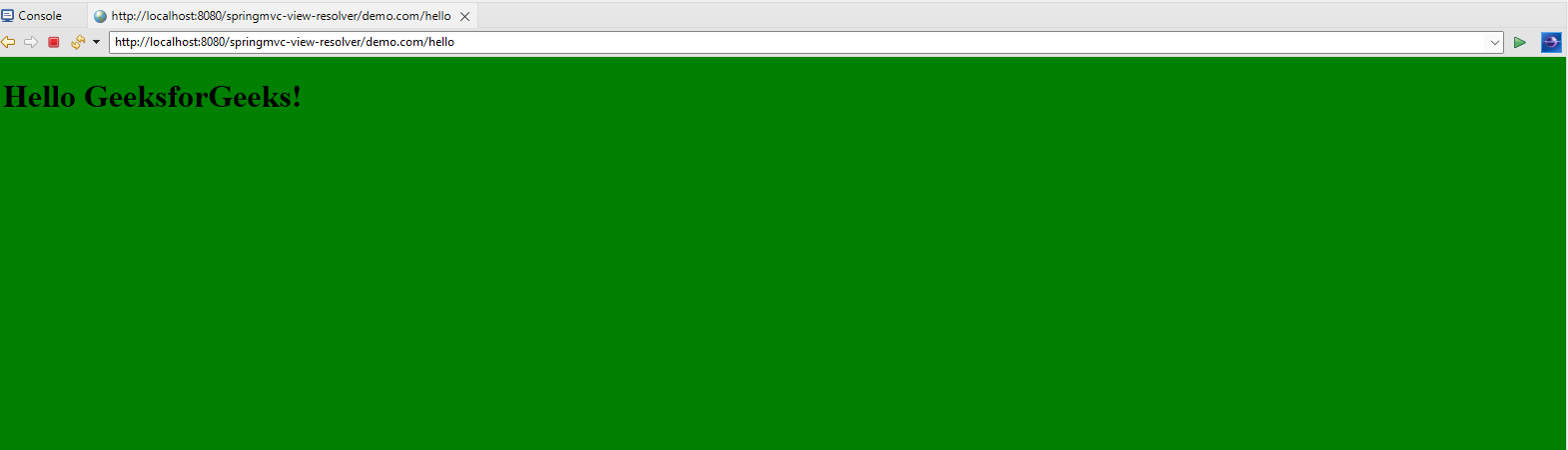
**Explanation: Here, we have created a jsp file, which contains a basic html code and outputs "Hello GeeksforGeeks" in the body with the green background.
Now go to the DemoController class and inside the helloWorld() method we have to return a value something like this and we are done.
return "demo";
**DemoController.java:
Java `
package com.demo.controllers;
import org.springframework.stereotype.Controller; import org.springframework.web.bind.annotation.RequestMapping;
@Controller public class DemoController {
@RequestMapping("/hello")
public String helloWorld() {
    return "demo";
}
}
`
Step 8: Run Spring MVC Application
To run your Spring MVC Application right-click on your project > Run As > Run on Server and run your application as shown in the below image.

After that use the following URL to run your controller:
**Output: