Spring REST Controller (original) (raw)
Last Updated : 9 Mar, 2026
A REST Controller in Spring Boot is a class annotated with @RestController that processes incoming HTTP requests and returns data objects rather than views.
- It combines the functionality of @Controller and @ResponseBody.
- It is primarily used for building RESTful APIs.
- The response is automatically converted to JSON or XML using message converters.
@RestController Annotation
The @RestController annotation is used to define a class as a RESTful web controller in Spring.
- It marks the class as a controller where every method returns data instead of a view.
- It is a combination of @Controller and @ResponseBody.
- It automatically converts Java objects returned from methods into JSON or XML responses.
**Example:
Java `
@RestController public class HelloController {
@GetMapping("/hello")
public String sayHello() {
    return "Hello, Welcome to REST API!";
}
}
`
Explanation
- @RestController tells Spring that this class will handle REST API requests.
- @GetMapping("/hello") maps the HTTP GET request to the method.
- The method returns a String, which Spring sends directly to the client as the response.
@Controller vs @ResponseBody.
| Feature | @Controller | @ResponseBody |
|---|---|---|
| Purpose | Handles web requests and returns views | Sends data directly in response |
| Return Type | View name (HTML/JSP) | Raw data (JSON/XML/String) |
| View Resolver | Used | Not used |
| Usage | Web MVC applications | REST APIs |
Step-by-Step Implementation
Step 1: Create a Spring Boot Project
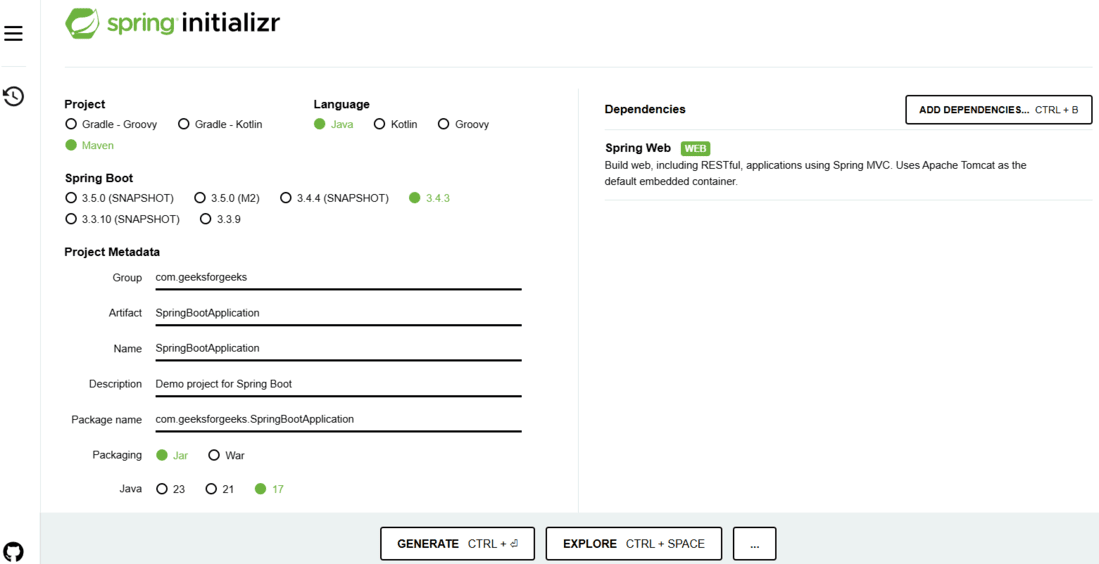
Use Spring Initializr to generate a new Spring Boot project.
**Project Configuration:
- **Project Type: Maven
- **Language: Java
- **Spring Boot Version: 3.x (Latest Version)
- **Dependencies: Spring Web
- **Java Version: 17+
Click on Generate, which will download the starter project.
Step 2: Import the Project in IDE
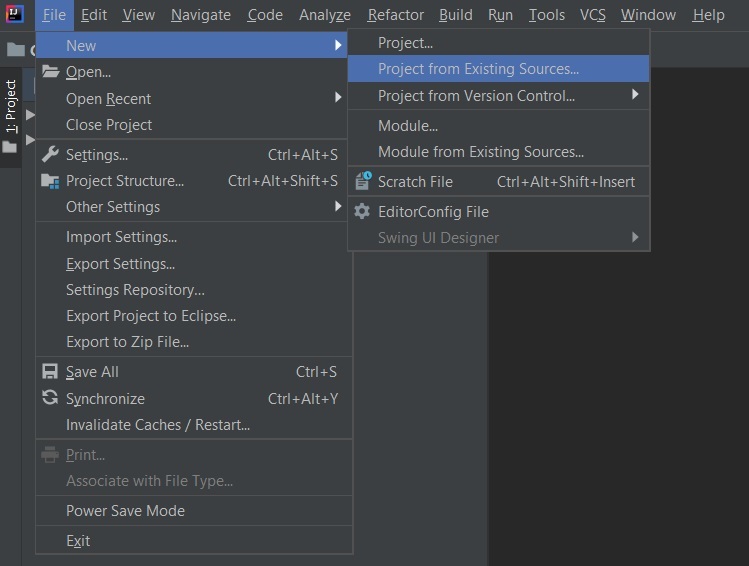
- Open IntelliJ IDEA (or Eclipse/STS).
- Go to File -> New -> Project from Existing Sources and select pom.xml.
- Wait for Maven to download dependencies.
**Note:
In the Import Project for Maven window, make sure you choose the same version of JDK which you selected while creating the project.
Step 3: Create the Model Class
Go to src -> main -> java, create a java class with the name Details.
**Details.java:
Java `
public class Details {
private int id;
private String name;

// Constructor
public Details(int id, String name) {
    this.id = id;
    this.name = name;
}

// Getters and Setters
public int getId() {
    return id;
}
public void setId(int id) {
    this.id = id;
}
public String getName() {
    return name;
}
public void setName(String name) {
    this.name = name;
}
}
`
Step 4: Create a REST Controller
Now create another Java class with the name Controller and add the annotation @RestController.
**Controller.java:
Java `
import org.springframework.web.bind.annotation.; import java.util.;
@RestController @RequestMapping("/api") public class Controller {
private List<Details> detailsList = new ArrayList<>();

// GET API → Fetch all details
@GetMapping("/details")
public List<Details> getAllDetails() {
    return detailsList;
}

// POST API → Add new detail
@PostMapping("/details")
public String addDetails(@RequestBody Details details) {
    detailsList.add(details);
    return "Data Inserted Successfully";
}

// PUT API → Update detail by ID
@PutMapping("/details/{id}")
public String updateDetails(@PathVariable int id, @RequestBody Details updatedDetails) {
    for (Details details : detailsList) {
        if (details.getId() == id) {
            details.setName(updatedDetails.getName());
            return "Data Updated Successfully";
        }
    }
    return "Detail not found!";
}

// DELETE API → Remove detail by ID
@DeleteMapping("/details/{id}")
public String deleteDetails(@PathVariable int id) {
    detailsList.removeIf(details -> details.getId() == id);
    return "Data Deleted Successfully";
}
}
`
This application is now ready to run.
Step 5: Run the Application
Run the SpringBootApplication class to start the embedded Tomcat server.

output
**Note: The default port of the Tomcat server is 8080 and can be changed in the application.properties file.
Step 6: Test APIs using Postman
1. Add a New Detail (POST Request)
**Endpoint: POST http://localhost:8080/api/details
**Request Body:
{
"id": 1,
"name": "John Doe"
}
**Response:
"Data Inserted Successfully"
2. Fetch All Details (GET Request)
**Endpoint: GET http://localhost:8080/api/details
**Response:
[
{
"id": 1,
"name": "John Doe"
}
]
3. Delete a Detail (DELETE Request)
**Endpoint: DELETE http://localhost:8080/api/details/1
**Response:
"Data Deleted Successfully"
To know how to use Postman, refer: How to test Rest APIs in Postman