Augmented Faces with ARCore in Android (original) (raw)
Last Updated : 23 Jul, 2025
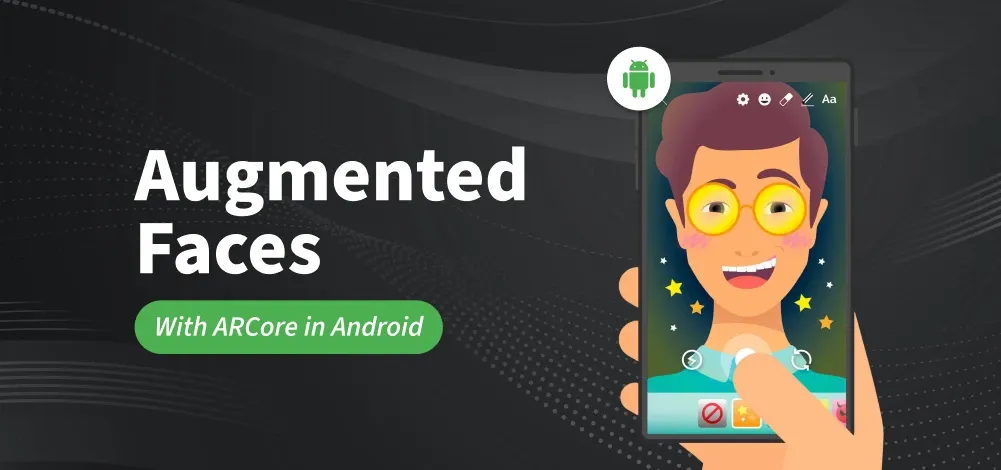
Augmented Faces permit the application to naturally distinguish various regions of an individual's face, and utilize those areas to overlay resources, for example, surfaces and models in a way that appropriately matches the contours and regions of an individual face. ARCore is a stage for building Augmented reality applications on Android. Augmented Face is a subsystem of ARCore that permits your application to:
- Naturally, recognize various areas of any individual's identified face, and utilize those regions to overlay resources, for example, surfaces and models in a way that appropriately matches the contours and regions of an individual face.
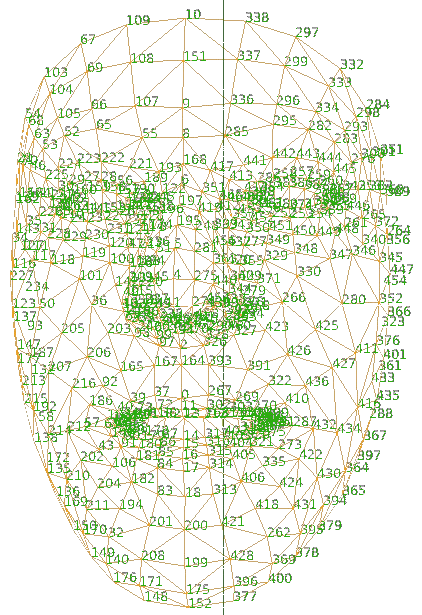
- Utilize the **468-point face mesh that is given by ARCore to apply a custom texture over a distinguished face.
For example, we can create effects like animated masks, glasses, virtual hats, perform skin retouching, or something like the Snapchat App.
How Does it All Work?
Augmented faces don't require uncommon or special hardware, such as a depth sensor. Rather, it uses the phone's camera and machine learning to provide three snippets of data:
- **Generates a Face Mesh: a 468 points dense 3D face mesh, which allows you to pan detailed textures that accurately follow facial moments.
- **Recognizes the Pose: points on a person’s face, anchored based on the generated Face Mesh, which is useful for placing effects on or close to the temple and nose.
- **Overlays and position textures and 3D models based on the face mesh generated and recognized regions.
How is ARCore Able to Provide a 3D face Mesh from a 2D Image without any Depth Hardware?
It uses machine learning models that are built on top of the TensorFlow Lite platform to achieve this and the crossing pipeline is optimized to run on the device in real-time. It uses a technique called **Transfer Learning wherein we train the neural network for two objectives, one, to **predict 3D vertices and to **predict 2D contours. To predict 3D vertices, we train it with a synthetic 3D data set and use this neural network as a starting point for the next stage of training.

In this next stage, it uses the annotated data set, annotated real-world data set to train the model for 2D contour prediction. The resulting network not only predicts 3D vertices from a synthetic data set but can also perform well from 2D images. To make sure the solution works for everyone ARCore developers train the network with geographically diverse data sets so that it works for all types of faces, wider faces, taller faces, and all types of skin colors.
And to enable these complex algorithms on mobile devices, we have multiple adaptive algorithms built into the ARCore. These algorithms sense dynamically how much time it has taken to process previous images and adjust accordingly various parameters of the pipeline. It uses multiple ML models, one optimized for higher quality and one optimized for higher performance when computing the resources is really challenging. It also adjusts pipeline parameters such as inference rates so that it skips a few images, and instead replace that with interpolation data. With all these techniques, what you get is a full-frame rate experience for your user. So it provides face mesh and region poses at full camera frame rate while handling all these techniques internal to the ARCore.
Identifying an Augmented Face Mesh
To appropriately overlay textures and 3D models on an identified face, ARCore provides detected regions and an augmented face mesh. This mesh is a virtual depiction of the face and comprises the vertices, facial regions, and the focal point of the user's head. At the point when a user's face is identified by the camera, ARCore performs the following steps to generate the augmented face mesh, as well as center and region poses:
**Step 1: It distinguishes the center pose and a face mesh.
- The center pose, situated behind the nose, is the actual center point of the user's head (in other words, inside the skull).
- The face mesh comprises of many vertices that make up the face and is characterized relative to the center pose.

**Step 2: The AugmentedFace class utilizes the face mesh and center pose to distinguish face regions present on the client's face.
These regions are:
- Right brow (**RIGHT_FOREHEAD)
- Left temple (**LEFT_FOREHEAD)
- Tip of the nose (**NOSE_TIP)
**Step 3: The Face mesh, center pose, and face region poses are utilized by AugmentedFace APIs as positioning points and regions to place the resources in your app.
Reference Terminologies
- **Trackable: A Trackable is an interface which can be followed by ARCore and something from which Anchors can be connected to.
- **Anchor: It describes a fixed location and orientation in the real world. To stay at a fixed location in physical space, the numerical description of this position will update as ARCore's understanding of the space improves. Anchors are hashable and may for example be used as keys in HashMaps.
- **Pose: At the point when you need to state wherein the scene you need to put the object and you need to specify the location in terms of the scene's coordinates. The Pose is the means by which you state this.
- **Session: Deals with the AR framework state and handles the session lifecycle. This class offers the primary passage to the ARCore API. This class permits the user to make a session, configure it, start or stop it and, above all, receive frames that allow access to the camera image and device pose.
- **Textures: Textures are especially helpful for Augmented Faces. This permits you to make a light overlay that lines up with the locales of the identified face(s) to add to your experience.
- **ArFragment: ARCore utilizes an ArFragment that provides a lot of features, for example, plane finding, permission handling, and camera set up. You can utilize the fragment legitimately in your activity, however at whatever point you need custom features, for example, Augmented Faces, you should extend the ArFragment and set the proper settings. This fragment is the layer that conceals all the compound stuff (like OpenGL, rendering models, etc) and gives high-level APIs to load and render 3D models.
- **ModelRenderable: ModelRenderablerenders a 3D Model by attaching it to a Node.
- **Sceneform SDK: Sceneform SDK is another library for Android that empowers the quick creation and mix of AR experiences in your application. It joins ARCore and an amazing physically-based 3D renderer.
Step by Step Implementation
We are going to **create Snapchat, Instagram, and TikTok like face filters. A sample GIF is given below to get an idea about what we are going to do in this article. Note that we are going to implement this project using the **Java language.
Step 1: Create a New Project
To create a new project in the Android Studio, please refer to How to Create/Start a New Project in Android Studio?
Step 2: Adding the model and texture file
Navigate to **app > res, right click on the folder and select **New > Android Resource Directory, set the name and file type as ****"raw"**. Now navigate to the **raw folder and paste the following model and texture.

Step 3: Adding dependencies
Navigate to **Gradle Scripts > **build.gradle.kts(Module :app) and add the following dependencies.
dependencies {
...
implementation ("com.gorisse.thomas.sceneform:sceneform:1.23.0")
}
Step 4: Working with the AndroidManifest.xml file
Navigate to **app > manifests > AndroidManifest.xml and add the following code snippets mentioned below.
Add the meta data for ARCore under the ****** tag.
XML `
`
Add the following permissions under the ****** tag
XML `
`
**AndroidManifest.xml: Entire code
AndroidManifest.xml `
<!-- Always needed for AR. -->
<uses-permission android:name="android.permission.CAMERA" />

<!-- Needed to load gltf from network. -->
<uses-permission android:name="android.permission.INTERNET" />

<!-- Sceneform requires OpenGLES 3.0 or later. -->
<uses-feature
    android:glEsVersion="0x00030000"
    android:required="true" />

<!-- Indicates that this app requires Google Play Services for AR ("AR Required") and results in
     the app only being visible in the Google Play Store on devices that support ARCore.
     For an "AR Optional" app, remove this tag. -->
<uses-feature
    android:name="android.hardware.camera.ar"
    android:required="true" />
<uses-feature
    android:name="android.hardware.camera"
    android:required="false" />


<application
    android:allowBackup="true"
    android:dataExtractionRules="@xml/data_extraction_rules"
    android:fullBackupContent="@xml/backup_rules"
    android:icon="@mipmap/ic_launcher"
    android:label="@string/app_name"
    android:roundIcon="@mipmap/ic_launcher_round"
    android:supportsRtl="true"
    android:theme="@style/Theme.Demo"
    tools:targetApi="31">
    <meta-data
        android:name="com.google.ar.core"
        android:value="required" />
    <activity
        android:name=".MainActivity"
        android:exported="true">
        <intent-filter>
            <action android:name="android.intent.action.MAIN" />
            <category android:name="android.intent.category.LAUNCHER" />
        </intent-filter>
    </activity>
</application>
`
Step 5: Working with activity_main.xml file
Navigate to **app > res > layout > activity_main.xml and add the following code. We have only added a framelayout to display the ARFragment.
**activity_main.xml:
activity_main.xml `
<FrameLayout
    android:id="@+id/arFragment"
    android:layout_width="match_parent"
    android:layout_height="match_parent" />
`
**Step 6: Working with **MainActivity file
Navigate to **app > java > {package-name} > MainActivity.kt/.java and add the following code.
MainActivity.java `
package org.geeksforgeeks.demo;
import android.os.Bundle; import android.widget.Toast;
import androidx.annotation.NonNull; import androidx.appcompat.app.AppCompatActivity; import androidx.fragment.app.Fragment; import androidx.fragment.app.FragmentManager;
// Required ARCore imports import com.google.ar.core.AugmentedFace; import com.google.ar.sceneform.ArSceneView; import com.google.ar.sceneform.Sceneform; import com.google.ar.sceneform.rendering.ModelRenderable; import com.google.ar.sceneform.rendering.Renderable; import com.google.ar.sceneform.rendering.RenderableInstance; import com.google.ar.sceneform.rendering.Texture; import com.google.ar.sceneform.ux.ArFrontFacingFragment; import com.google.ar.sceneform.ux.AugmentedFaceNode;
import java.util.HashMap; import java.util.HashSet; import java.util.Set; import java.util.concurrent.CompletableFuture;
public class MainActivity extends AppCompatActivity {
// Used to store asynchronous tasks (like model loading) so they can be canceled if needed
private final Set<CompletableFuture<?>> loaders = new HashSet<>();

private ArFrontFacingFragment arFragment; // Fragment that provides the front-facing camera for AR
private ArSceneView arSceneView;         // View that renders the AR scene

private Texture faceTexture;             // Texture (image) applied to the face
private ModelRenderable faceModel;       // 3D model applied to the face

// Maps each detected face to its corresponding face node in the scene
private final HashMap<AugmentedFace, AugmentedFaceNode> facesNodes = new HashMap<>();

@Override
protected void onCreate(Bundle savedInstanceState) {
    super.onCreate(savedInstanceState);

    // Set the layout file to use for this activity
    setContentView(R.layout.activity_main);

    // Listen for fragments being attached so we can get a reference to ArFrontFacingFragment
    getSupportFragmentManager().addFragmentOnAttachListener(this::onAttachFragment);

    // Only add the fragment if it's the first creation (not on screen rotation, etc.)
    if (savedInstanceState == null) {
        // Check if AR is supported on this device
        if (Sceneform.isSupported(this)) {
            // Add the AR fragment to the activity
            getSupportFragmentManager().beginTransaction()
                    .add(R.id.arFragment, ArFrontFacingFragment.class, null)
                    .commit();
        }
    }

    // Start loading models and textures asynchronously
    loadModels();
    loadTextures();
}

// Called when a fragment is attached to the activity
public void onAttachFragment(@NonNull FragmentManager fragmentManager, @NonNull Fragment fragment) {
    // Check if it's the AR fragment we are interested in
    if (fragment.getId() == R.id.arFragment) {
        arFragment = (ArFrontFacingFragment) fragment;

        // Set a callback to run when the AR view is created
        arFragment.setOnViewCreatedListener(this::onViewCreated);
    }
}

// Called when the AR Scene View is ready
public void onViewCreated(ArSceneView arSceneView) {
    this.arSceneView = arSceneView;

    // Make sure the camera feed renders before anything else (important for face occlusion)
    arSceneView.setCameraStreamRenderPriority(Renderable.RENDER_PRIORITY_FIRST);

    // Set a listener for face tracking updates
    arFragment.setOnAugmentedFaceUpdateListener(this::onAugmentedFaceTrackingUpdate);
}

@Override
protected void onDestroy() {
    super.onDestroy();

    // Cancel any unfinished loading tasks to prevent memory leaks
    for (CompletableFuture<?> loader : loaders) {
        if (!loader.isDone()) {
            loader.cancel(true);
        }
    }
}

// Loads the 3D model that will be applied to the user's face
private void loadModels() {
    loaders.add(ModelRenderable.builder()
            .setSource(this, R.raw.fox) // 3D model file in res/raw (e.g. fox.glb)
            .setIsFilamentGltf(true)    // Use the glTF format
            .build()
            .thenAccept(model -> faceModel = model) // Save model when ready
            .exceptionally(throwable -> {
                Toast.makeText(this, "Unable to load renderable", Toast.LENGTH_LONG).show();
                return null;
            }));
}

// Loads the texture (image) that will be applied to the face mesh
private void loadTextures() {
    loaders.add(Texture.builder()
            .setSource(this, R.raw.freckles)           // Image file in res/raw (e.g. freckles.png)
            .setUsage(Texture.Usage.COLOR_MAP)         // How the texture is used
            .build()
            .thenAccept(texture -> faceTexture = texture) // Save texture when ready
            .exceptionally(throwable -> {
                Toast.makeText(this, "Unable to load texture", Toast.LENGTH_LONG).show();
                return null;
            }));
}

// Called whenever a face is detected or updated by ARCore
public void onAugmentedFaceTrackingUpdate(AugmentedFace augmentedFace) {
    // Don't do anything until both the model and texture are ready
    if (faceModel == null || faceTexture == null) {
        return;
    }

    // Check if this face is already being tracked
    AugmentedFaceNode existingFaceNode = facesNodes.get(augmentedFace);

    switch (augmentedFace.getTrackingState()) {
        case TRACKING:
            // If it's a new face, add a new face node to the scene
            if (existingFaceNode == null) {
                AugmentedFaceNode faceNode = new AugmentedFaceNode(augmentedFace);

                // Attach the 3D model to the face
                RenderableInstance modelInstance = faceNode.setFaceRegionsRenderable(faceModel);
                modelInstance.setShadowCaster(false);  // No shadows cast
                modelInstance.setShadowReceiver(true); // Receives shadows from other models

                // Apply the texture to the face mesh
                faceNode.setFaceMeshTexture(faceTexture);

                // Add the face node to the scene
                arSceneView.getScene().addChild(faceNode);

                // Keep track of this face
                facesNodes.put(augmentedFace, faceNode);
            }
            break;

        case STOPPED:
            // If the face is no longer tracked, remove it from the scene
            if (existingFaceNode != null) {
                arSceneView.getScene().removeChild(existingFaceNode);
            }
            facesNodes.remove(augmentedFace);
            break;
    }
}
}
MainActivity.kt
package org.geeksforgeeks.demo
import android.os.Bundle import android.widget.Toast import androidx.appcompat.app.AppCompatActivity import androidx.fragment.app.Fragment import androidx.fragment.app.FragmentManager import com.google.ar.core.AugmentedFace import com.google.ar.core.TrackingState import com.google.ar.sceneform.ArSceneView import com.google.ar.sceneform.Sceneform import com.google.ar.sceneform.rendering.ModelRenderable import com.google.ar.sceneform.rendering.Renderable import com.google.ar.sceneform.rendering.Texture import com.google.ar.sceneform.ux.ArFrontFacingFragment import com.google.ar.sceneform.ux.AugmentedFaceNode import java.util.concurrent.CompletableFuture
class MainActivity : AppCompatActivity() { // A set to store the asynchronous model and texture loaders. private val loaders: MutableSet<CompletableFuture<*>> = HashSet()
// AR Fragment that handles face tracking.
private var arFragment: ArFrontFacingFragment? = null
private var arSceneView: ArSceneView? = null

// Variables for face texture and 3D model.
private var faceTexture: Texture? = null
private var faceModel: ModelRenderable? = null

// Map to track detected faces and their corresponding AugmentedFaceNode.
private val facesNodes = HashMap<AugmentedFace, AugmentedFaceNode>()

override fun onCreate(savedInstanceState: Bundle?) {
    super.onCreate(savedInstanceState)

    setContentView(R.layout.activity_main)

    // Listen for fragment attachment events
    supportFragmentManager.addFragmentOnAttachListener { fragmentManager: FragmentManager, fragment: Fragment ->
        this.onAttachFragment(fragmentManager, fragment)
    }

    // Check if this is a new instance of the activity
    if (savedInstanceState == null) {
        // Verify if the device supports Sceneform
        if (Sceneform.isSupported(this)) {
            // Add AR fragment dynamically
            supportFragmentManager.beginTransaction()
                .add(R.id.arFragment, ArFrontFacingFragment::class.java, null)
                .commit()
        }
    }

    // Load 3D model and textures
    loadModels()
    loadTextures()
}

// Called when a fragment is attached to the activity.
private fun onAttachFragment(fragmentManager: FragmentManager, fragment: Fragment) {
    if (fragment.id == R.id.arFragment) {
        arFragment = fragment as ArFrontFacingFragment
        // Set a listener for when the AR scene view is created.
        arFragment!!.setOnViewCreatedListener { arSceneView: ArSceneView ->
            this.onViewCreated(arSceneView)
        }
    }
}

// Called when the AR scene view is ready.
private fun onViewCreated(arSceneView: ArSceneView) {
    this.arSceneView = arSceneView

    // Set the camera stream to render first to ensure proper occlusion of 3D objects.
    arSceneView.setCameraStreamRenderPriority(Renderable.RENDER_PRIORITY_FIRST)

    // Listen for updates on detected faces.
    arFragment!!.setOnAugmentedFaceUpdateListener { augmentedFace: AugmentedFace ->
        this.onAugmentedFaceTrackingUpdate(augmentedFace)
    }
}

// Clean up resources when the activity is destroyed.
override fun onDestroy() {
    super.onDestroy()

    // Cancel all incomplete asynchronous tasks.
    for (loader in loaders) {
        if (!loader.isDone) {
            loader.cancel(true)
        }
    }
}

// Load 3D model asynchronously.
private fun loadModels() {
    loaders.add(ModelRenderable.builder()
        .setSource(this, R.raw.fox) // Load the 3D model file (fox.glb or fox.gltf)
        .setIsFilamentGltf(true) // Set the format as Filament GLTF
        .build()
        .thenAccept { model: ModelRenderable? -> faceModel = model } // Store the loaded model
        .exceptionally {
            // Show error message if loading fails
            Toast.makeText(this, "Unable to load render-able", Toast.LENGTH_LONG).show()
            null
        })
}

// Load texture asynchronously.
private fun loadTextures() {
    loaders.add(
        Texture.builder()
            .setSource(this, R.raw.freckles) // Load texture file (freckles.png)
            .setUsage(Texture.Usage.COLOR_MAP) // Define usage as color mapping
            .build()
            .thenAccept { texture: Texture? -> faceTexture = texture } // Store the loaded texture
            .exceptionally {
                // Show error message if loading fails
                Toast.makeText(this, "Unable to load texture", Toast.LENGTH_LONG).show()
                null
            })
}

// Handles face tracking updates.
private fun onAugmentedFaceTrackingUpdate(augmentedFace: AugmentedFace) {
    // If model or texture is not loaded yet, do nothing.
    if (faceModel == null || faceTexture == null) {
        return
    }

    // Check if the face is already being tracked.
    val existingFaceNode = facesNodes[augmentedFace]

    // Handle different tracking states of the face.
    when (augmentedFace.trackingState) {
        TrackingState.TRACKING ->
            if (existingFaceNode == null) { // If the face is newly detected
                val faceNode = AugmentedFaceNode(augmentedFace)

                // Attach the 3D model to the face.
                val modelInstance = faceNode.setFaceRegionsRenderable(faceModel)
                modelInstance.isShadowCaster = false // Prevent the model from casting shadows.
                modelInstance.isShadowReceiver = true // Allow the model to receive shadows.

                // Apply texture to the face mesh.
                faceNode.faceMeshTexture = faceTexture

                // Add face node to the scene.
                arSceneView!!.scene.addChild(faceNode)

                // Store the node in the map.
                facesNodes[augmentedFace] = faceNode
            }

        TrackingState.STOPPED -> {
            // If face tracking stopped, remove it from the scene.
            if (existingFaceNode != null) {
                arSceneView!!.scene.removeChild(existingFaceNode)
            }
            facesNodes.remove(augmentedFace)
        }

        TrackingState.PAUSED -> {
            // If face tracking is paused, remove it from the scene.
            if (existingFaceNode != null) {
                arSceneView!!.scene.removeChild(existingFaceNode)
            }
            facesNodes.remove(augmentedFace)
        }
    }
}
}
`
Output:
**Refer to the following github repo to get the entire code: Augmented_Faces_Android
Limitations of Ar Core
- Augmented Faces only works with the Front Camera.
- Not all devices support ARCore. There's still a small fraction of devices which doesn't come with AR Core support. You can check out the list of ARCore supported devices at https://developers.google.com/ar/devices.
- For AR OptionalApp minSdkVersion should be 14 and for AR Required App minSdkVersion should be 24.
- If your app falls in the category of AR Required app then the device using it should have AR Core installed on it.
**Notes:
- Prior to making a Session, it must be verified beforehand that ARCore is installed and up to date. If ARCore isn't installed, then session creation might fail and any later installation or upgrade of ARCore would require restarting of the app, and might cause the app to be killed.
- The orientation of the face mesh is different for Unreal, Android and Unity.
- Calling Trackable.createAnchor(Pose) would result in an IllegalStateException because Augmented Faces supports only front-facing (selfie) camera, and does not support attaching anchors.