Create an Expandable Notification Containing a Picture in Android (original) (raw)
Last Updated : 15 Jul, 2025
Notification is a type of message that is generated by any application present inside the mobile phone, suggesting to check the application and this could be anything from an update (Low priority notification) to something that's not going right in the application (High priority notification). A basic notification consists of a title, a line of text, and one or more actions the user can perform in response. To provide even more information, one can also create large, expandable notifications by applying one of several notification templates as described in this article. Some daily life examples could be the notifications appended by Whatsapp, Gmail, SMS, etc in the notification drawer, where the user can expand it and can find some details about the message received such as sender name, subject and some part of the text in case of Gmail. In this article let's create a notification inside an application that contains a picture.

Step By Step Implementation
**Step 1: Create a new project
To create a new project in android studio please refer to How to Create/Start a New Project in Android Studio.
Step 2: Add Permissions Android-Manifest File
Notification requires permission so we need to add few lines in Android Manifest file so that we get permission to send the notification in the Android.
**Step 3: Modify activity_main.xml file
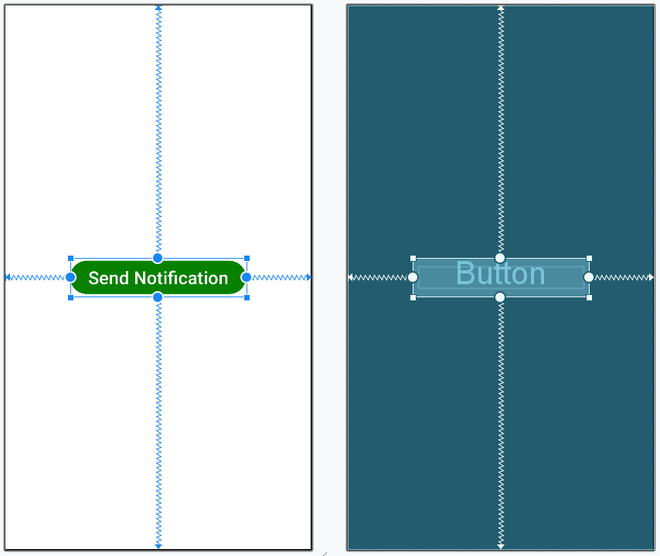
Inside the XML file just add a button, which on click would build an expandable notification. By expanding the notification from the notification drawer would display a picture.
activity_main.xml `
<androidx.constraintlayout.widget.ConstraintLayout xmlns:android="http://schemas.android.com/apk/res/android" xmlns:app="http://schemas.android.com/apk/res-auto" xmlns:tools="http://schemas.android.com/tools" android:id="@+id/main" android:layout_width="match_parent" android:layout_height="match_parent" android:background="@color/white" tools:context=".MainActivity">
<!-- Button for sending notification-->
<Button
    android:id="@+id/button"
    android:layout_width="wrap_content"
    android:layout_height="wrap_content"
    android:backgroundTint="@color/green"
    android:text="Send Notification"
    android:textSize="24sp"
    app:layout_constraintBottom_toBottomOf="parent"
    app:layout_constraintEnd_toEndOf="parent"
    app:layout_constraintStart_toStartOf="parent"
    app:layout_constraintTop_toTopOf="parent" />
</androidx.constraintlayout.widget.ConstraintLayout>
`
Layout:
**Step 4: Modify the **MainActivity file
Now, look at the code below which is in Kotlin. To start, build a notification with all the basic content as described in Create a Notification. Then, call **setStyle() with a style object and supply information corresponding to each template, as shown below.
**MainActivity File:
MainActivity.java `
package com.gfg.android_notification;
import android.Manifest; import android.annotation.SuppressLint; import android.app.NotificationChannel; import android.app.NotificationManager; import android.content.Context; import android.content.pm.PackageManager; import android.graphics.Bitmap; import android.graphics.BitmapFactory; import android.graphics.Color; import android.os.Build; import android.os.Bundle; import android.view.View; import android.widget.Button; import androidx.appcompat.app.AppCompatActivity; import androidx.core.app.ActivityCompat; import androidx.core.app.NotificationCompat; import androidx.core.app.NotificationManagerCompat;
public class MainActivity extends AppCompatActivity {
private Button button;
private static final String CHANNEL_ID = "i.apps.notifications";
private static final int NOTIFICATION_ID = 1234;
private static final String CHANNEL_NAME = "Test notification";
private static final int REQUEST_CODE_POST_NOTIFICATIONS = 101;

@Override
protected void onCreate(Bundle savedInstanceState) {
    super.onCreate(savedInstanceState);
    setContentView(R.layout.activity_main);

    button = findViewById(R.id.button);

    // Create a notification channel (required for Android 8.0 and higher)
    createNotificationChannel();

    button.setOnClickListener(new View.OnClickListener() {
        @Override
        public void onClick(View v) {
            // Request runtime permission for notifications on Android 13 and higher
            if (Build.VERSION.SDK_INT >= Build.VERSION_CODES.TIRAMISU) {
                if (ActivityCompat.checkSelfPermission(
                        MainActivity.this,
                        Manifest.permission.POST_NOTIFICATIONS
                ) != PackageManager.PERMISSION_GRANTED) {
                    ActivityCompat.requestPermissions(
                            MainActivity.this,
                            new String[]{Manifest.permission.POST_NOTIFICATIONS},
                            REQUEST_CODE_POST_NOTIFICATIONS
                    );
                    return;
                }
            }
            // Trigger the notification
            sendNotification();
        }
    });
}

/**
 * Create a notification channel for devices running Android 8.0 or higher.
 * A channel groups notifications with similar behavior.
 */
private void createNotificationChannel() {
    if (Build.VERSION.SDK_INT >= Build.VERSION_CODES.O) {
        NotificationChannel notificationChannel = new NotificationChannel(
                CHANNEL_ID,
                CHANNEL_NAME,
                NotificationManager.IMPORTANCE_HIGH
        );
        // Turn on notification light
        notificationChannel.enableLights(true);
        notificationChannel.setLightColor(Color.GREEN);
        // Allow vibration for notifications
        notificationChannel.enableVibration(true);

        NotificationManager notificationManager = (NotificationManager) getSystemService(Context.NOTIFICATION_SERVICE);
        notificationManager.createNotificationChannel(notificationChannel);
    }
}

/**
 * Build and send a notification with a custom layout and action.
 */
@SuppressLint("MissingPermission")
private void sendNotification() {
    Bitmap bitmap = BitmapFactory.decodeResource(getResources(), R.drawable.gfg_logo);

    // Build the notification
    NotificationCompat.Builder builder = new NotificationCompat.Builder(this, CHANNEL_ID)
            .setSmallIcon(R.drawable.gfg_logo) // Notification icon
            .setContentTitle("GeeksforGeeks") // Title displayed in the notification
            .setContentText("Expand to see image") // Text displayed in the notification
            .setAutoCancel(true) // Dismiss notification when tapped
            .setPriority(NotificationCompat.PRIORITY_DEFAULT) // Notification priority for better visibility
            .setStyle(new NotificationCompat.BigPictureStyle() // use BigPictureStyle() to add a large image
                    .bigPicture(bitmap)); // add a icon or a bitmap image

    // Display the notification
    NotificationManagerCompat notificationManager = NotificationManagerCompat.from(this);
    notificationManager.notify(NOTIFICATION_ID, builder.build());
}
}
MainActivity.kt
package org.geeksforgeeks.demo
import android.Manifest import android.annotation.SuppressLint import android.app.NotificationChannel import android.app.NotificationManager import android.content.Context import android.content.pm.PackageManager import android.graphics.Bitmap import android.graphics.BitmapFactory import android.graphics.Color import android.os.Build import android.os.Bundle import android.widget.Button import androidx.appcompat.app.AppCompatActivity import androidx.core.app.ActivityCompat import androidx.core.app.NotificationCompat import androidx.core.app.NotificationManagerCompat
class MainActivity : AppCompatActivity() { private lateinit var button: Button
  override fun onCreate(savedInstanceState: Bundle?) {
    super.onCreate(savedInstanceState)
    setContentView(R.layout.activity_main)

    button = findViewById(R.id.button)

    // Create a notification channel
      // (required for Android 8.0 and higher)
    createNotificationChannel()

    button.setOnClickListener {

        // Request runtime permission for notifications
          // on Android 13 and higher
        if (Build.VERSION.SDK_INT >= Build.VERSION_CODES.TIRAMISU) {
            if (ActivityCompat.checkSelfPermission(this,Manifest.permission.POST_NOTIFICATIONS)
                != PackageManager.PERMISSION_GRANTED)
              {
                ActivityCompat.requestPermissions(this,
                    arrayOf(Manifest.permission.POST_NOTIFICATIONS),
                    101)

                return@setOnClickListener
            }
        }

        // Trigger the notification
        sendNotification()
    }
}

/**
 * Create a notification channel for devices running Android 8.0 or higher.
 * A channel groups notifications with similar behavior.
 */
private fun createNotificationChannel() {
    if (Build.VERSION.SDK_INT >= Build.VERSION_CODES.O) {
        val notificationChannel = NotificationChannel(
            CHANNEL_ID,
            CHANNEL_NAME,
            NotificationManager.IMPORTANCE_HIGH
        ).apply {
              // Turn on notification light
            enableLights(true)

              lightColor = Color.GREEN

              // Allow vibration for notifications
            enableVibration(true)
        }

        val notificationManager = getSystemService(Context.NOTIFICATION_SERVICE) as NotificationManager
        notificationManager.createNotificationChannel(notificationChannel)
    }
}

/**
 * Build and send a notification with a custom layout and action.
 */
@SuppressLint("MissingPermission")
private fun sendNotification() {
    val bitmap: Bitmap = BitmapFactory.decodeResource(resources, R.drawable.gfg_logo)

    // Build the notification
    val builder = NotificationCompat.Builder(this, CHANNEL_ID)
        .setSmallIcon(R.drawable.gfg_logo) // Notification icon
        .setContentTitle("GeeksforGeeks") // Title displayed in the notification
        .setContentText("Expand to see image") // Text displayed in the notification
        .setAutoCancel(true) // Dismiss notification when tapped
        .setPriority(NotificationCompat.PRIORITY_DEFAULT) // Notification priority for better visibility
        .setStyle(
            NotificationCompat.BigPictureStyle() // use BigPictureStyle() to add a large image
                .bigPicture(bitmap) // add a icon or a bitmap image
        )

    // Display the notification
    with(NotificationManagerCompat.from(this)) {
        notify(NOTIFICATION_ID, builder.build())
    }
}

companion object
  {
      // Unique channel ID for notifications
    const val CHANNEL_ID = "i.apps.notifications"

      // Unique identifier for the notification
    const val NOTIFICATION_ID = 1234

      // Description for the notification channel
    const val CHANNEL_NAME = "Test notification"
}
}
`