Fresco Image Loading Library in Android with Example (original) (raw)
Last Updated : 4 Feb, 2025
Fresco is one of the famous image loading libraries from URLs in Android. It is a powerful library for displaying and managing images from URLs. This library can load images from Users' devices, servers, and other local sources. The most important feature of this library is to show a placeholder image when the image from the URL takes so much time to load. Along with this, we can use an Error image when the image is not being displayed due to any issue. To save data and CPU this library uses three levels of cache out of which two are in memory and one is in internal storage. You can check the official documentation of Fresco.
Step by Step Implementation
**Step 1: Create a New Project
To create a new project in Android Studio please refer to How to Create/Start a New Project in Android Studio.
Select **Java/Kotlin as the programming language.
**Step 2: Add dependency of Fresco Image library in build.gradle.kts file
Navigate to gradle scripts and then to **build.gradle.kts(Module) level. Add below line in build.gradle file in the dependencies section.
implementation ("com.facebook.fresco:fresco:3.6.0")
and, add the google repository in the **settings.gradle.kts file of the application project, if it is not there by default.
repositories {
google()
mavenCentral()
}
**Step 3: Add internet permission in the AndroidManifest.xml file
Navigate to the app > Manifest to open the Manifest file.
**Step 4: Create a new SimpleDraweeView in your activity_main.xml
Navigate to the **app > res > layout to open the activity_main.xml file. Below is the code for the **activity_main.xml file.
**activity_main.xml:
XML `
<androidx.constraintlayout.widget.ConstraintLayout xmlns:android="http://schemas.android.com/apk/res/android" xmlns:app="http://schemas.android.com/apk/res-auto" xmlns:tools="http://schemas.android.com/tools" android:layout_width="match_parent" android:layout_height="match_parent" android:background="@color/white" tools:context=".MainActivity">
<com.facebook.drawee.view.SimpleDraweeView
    android:id="@+id/imageView"
    android:layout_width="match_parent"
    android:layout_height="300dp"
    android:layout_margin="10dp"
    android:scaleType="centerCrop"
    app:layout_constraintBottom_toBottomOf="parent"
    app:layout_constraintLeft_toLeftOf="parent"
    app:layout_constraintRight_toRightOf="parent"
    app:layout_constraintTop_toTopOf="parent" />
</androidx.constraintlayout.widget.ConstraintLayout>
`
**Step 5: Initialize and use SimpleDraweeView in the MainActivity file
Navigate to the **app > java > {package name} > MainActivity.kt/MainActivity.java file. Below is the code for the **MainActivity file in both Java and Kotlin. Comments are added inside the code to understand the code in more detail.
**MainActivity File:
Java `
package org.geeksforgeeks.demo;
import android.net.Uri; import android.os.Bundle; import androidx.appcompat.app.AppCompatActivity; import com.facebook.drawee.backends.pipeline.Fresco; import com.facebook.drawee.view.SimpleDraweeView;
public class MainActivity extends AppCompatActivity {
@Override
protected void onCreate(Bundle savedInstanceState) {
    super.onCreate(savedInstanceState);

    // initialize fresco
    Fresco.initialize(this);
    setContentView(R.layout.activity_main);

    // parse url to uri
    Uri imageUri = Uri.parse("https://www.geeksforgeeks.org/wp-content/uploads/gfg_200X200-1.png");
    SimpleDraweeView draweeView = (SimpleDraweeView) findViewById(R.id.idSDimage);
    draweeView.setImageURI(imageUri);
}
}
Kotlin
package org.geeksforgeeks.demo
import android.net.Uri import android.os.Bundle import androidx.appcompat.app.AppCompatActivity import com.facebook.drawee.backends.pipeline.Fresco import com.facebook.drawee.view.SimpleDraweeView
class MainActivity : AppCompatActivity() {
override fun onCreate(savedInstanceState: Bundle?) {
    super.onCreate(savedInstanceState)

    // initialize fresco
    Fresco.initialize(this);
    setContentView(R.layout.activity_main)

    // parse url to uri
    val imageUri: Uri = Uri.parse("https://www.geeksforgeeks.org/wp-content/uploads/gfg_200X200-1.png")
    val draweeView: SimpleDraweeView = findViewById(R.id.imageView)
    draweeView.setImageURI(imageUri)
}
}
`
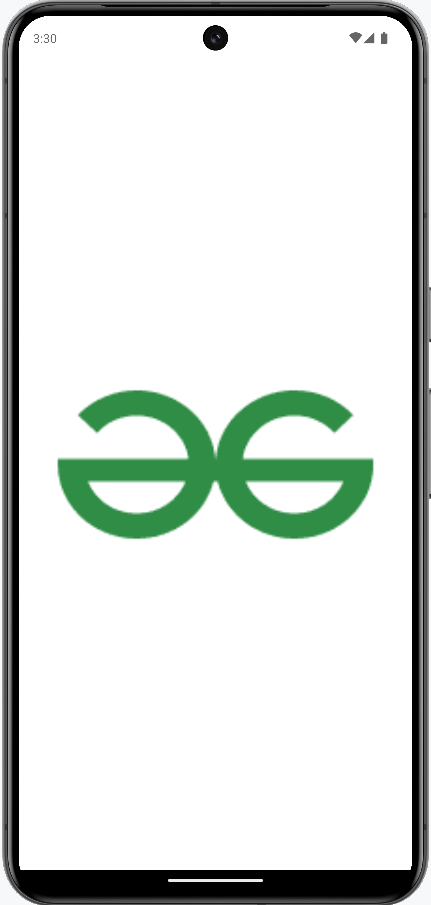
**Output:
**Note: In case you are using Android Studio 4 you may face this error (NDK at ~/Library/Android/sdk/ndk-bundle did not have a source.properties file) during building the project. Please refer to this for fixing the error.