How to Build a Weather App in Android? (original) (raw)
Last Updated : 23 Jul, 2025
In this project, we will be building a weather application. This application will show the temperature of a location. To fetch weather information we will need an **API. An API(Application Programming Interface) is a function that allows applications to interact and share data using various components and microservices. For this project, we will be using **WeatherBit API for fetching weather data. WeatherBit API provides a fast and elegant way to fetch weather data.
**Project Overview
In this project, we will build an app that will find the device's location coordinates(longitude and latitude). Then we will send this data to the API via an **API key(which we will see later). The API will send us aJSON from which we will extract the required data that is the temperature and city of the location.
Steps to Implement Weather Application
Step 1: Create a New Project
To create a new project in Android Studio please refer to How to Create/Start a New Project in Android Studio.
Step 2: Get the API key
To get the API key simply sign-in on **Open Weather****.**
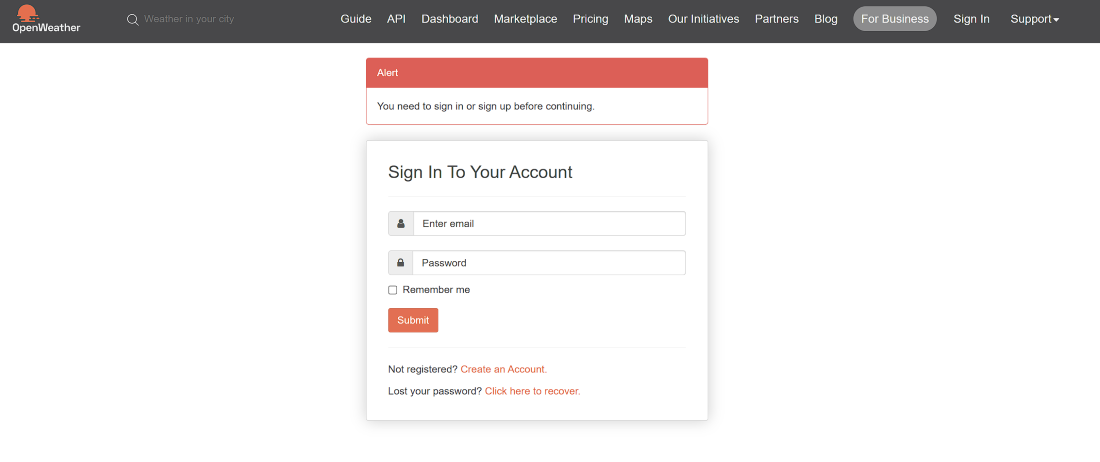
After signing in, you can find your API key.
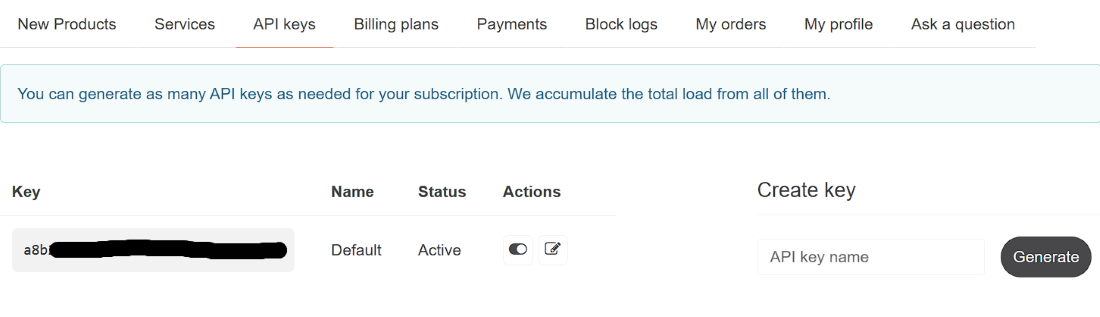
You can read OpenWeather Documentation here. It has all the information about how to call the API and what structure of response will we get.
Step 3: Permission Check
For this app to work we need to ask for three permissions from the system -
Step 4: Adding necessary dependencies
Add dependency in build.gradle.kts (Module: app) for location. To get JSON we need to use Volley Library to make an HTTP client request
dependencies {
...
implementation("com.android.volley:volley:1.2.1")
implementation("com.google.android.gms:play-services-location:21.3.0")
}
Remember to sync the gradle file before continuing.
Step 5: Working with activity_main.xml
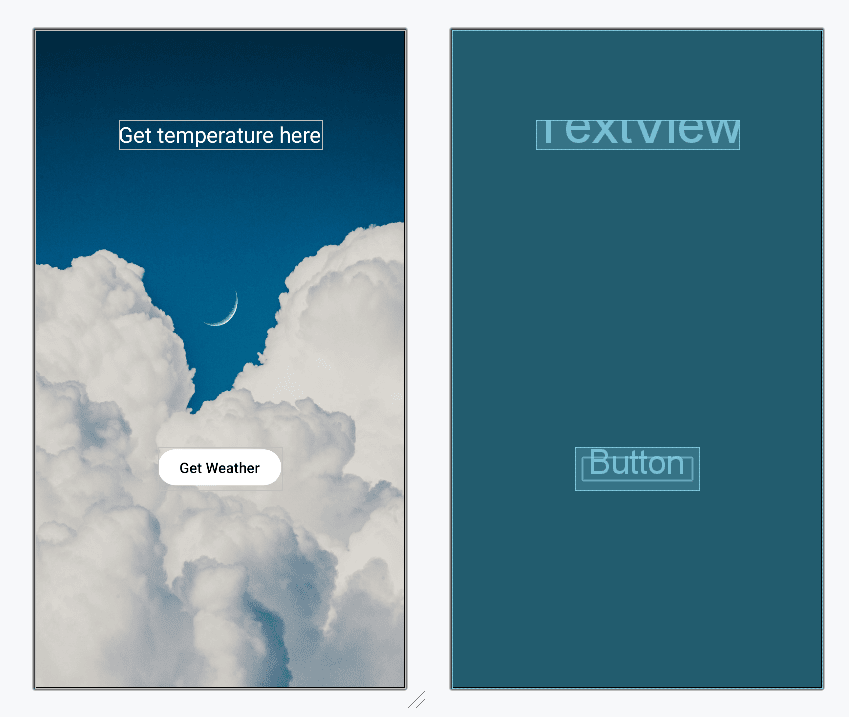
We will add a **Button and **TextView in the one and only screen/ activity of the application. When the user will click the Button the temperature and city of that location will be shown in the TextView.
**activity_main.xml:
activity_main.xml `
<androidx.constraintlayout.widget.ConstraintLayout xmlns:android="http://schemas.android.com/apk/res/android" xmlns:app="http://schemas.android.com/apk/res-auto" xmlns:tools="http://schemas.android.com/tools" android:layout_width="match_parent" android:layout_height="match_parent" android:background="@drawable/background" tools:context=".MainActivity">
<TextView
    android:id="@+id/textView"
    android:layout_width="wrap_content"
    android:layout_height="wrap_content"
    android:layout_marginTop="100dp"
    android:maxLines="3"
    android:text="Get temperature here"
    android:textAlignment="center"
    android:textColor="@color/white"
    android:textSize="24sp"
    app:layout_constraintEnd_toEndOf="parent"
    app:layout_constraintStart_toStartOf="parent"
    app:layout_constraintTop_toTopOf="parent" />

<Button
    android:id="@+id/button"
    android:layout_width="wrap_content"
    android:layout_height="wrap_content"
    android:backgroundTint="@color/white"
    android:text="Get Weather"
    android:textColor="@color/black"
    android:textSize="16sp"
    app:layout_constraintBottom_toBottomOf="parent"
    app:layout_constraintEnd_toEndOf="parent"
    app:layout_constraintStart_toStartOf="parent"
    app:layout_constraintTop_toBottomOf="@+id/textView"
    app:layout_constraintVertical_bias="0.6" />
</androidx.constraintlayout.widget.ConstraintLayout>
`
**Design UI:
Step 6: Working with the MainActivity file
Go to the **MainActivity file and refer to the following code. Below is the code for the **MainActivity file. Comments are added inside the code to understand the code in more detail.
**MainActivity File:
MainActivity.java `
package org.geeksforgeeks.demo;
import android.Manifest; import android.annotation.SuppressLint; import android.content.pm.PackageManager; import android.os.Bundle; import android.widget.Button; import android.widget.TextView; import android.widget.Toast; import androidx.activity.EdgeToEdge; import androidx.appcompat.app.AppCompatActivity; import androidx.core.app.ActivityCompat; import com.android.volley.Request; import com.android.volley.toolbox.StringRequest; import com.android.volley.toolbox.Volley; import com.google.android.gms.location.FusedLocationProviderClient; import com.google.android.gms.location.LocationServices; import org.json.JSONObject;
public class MainActivity extends AppCompatActivity { private Button button; private TextView textView; private FusedLocationProviderClient fusedLocationClient;
private static final int LOCATION_PERMISSION_REQUEST_CODE = 100;
private static final String API_KEY = "YOUR_API_KEY"; // Replace with your OpenWeatherMap API Key

@Override
protected void onCreate(Bundle savedInstanceState) {
    super.onCreate(savedInstanceState);
    EdgeToEdge.enable(this);
    setContentView(R.layout.activity_main);

    textView = findViewById(R.id.textView);
    button = findViewById(R.id.button);

    // Initialize location provider
    fusedLocationClient = LocationServices.getFusedLocationProviderClient(this);

    button.setOnClickListener(v -> checkLocationPermission());
}

private void checkLocationPermission() {
    if (ActivityCompat.checkSelfPermission(this, Manifest.permission.ACCESS_FINE_LOCATION) != PackageManager.PERMISSION_GRANTED &&
            ActivityCompat.checkSelfPermission(this, Manifest.permission.ACCESS_COARSE_LOCATION) != PackageManager.PERMISSION_GRANTED) {

        // Request location permissions
        ActivityCompat.requestPermissions(
                this,
                new String[]{Manifest.permission.ACCESS_FINE_LOCATION, Manifest.permission.ACCESS_COARSE_LOCATION},
                LOCATION_PERMISSION_REQUEST_CODE
        );
    } else {
        // Permissions already granted, fetch location
        fetchLocation();
    }
}

@Override
public void onRequestPermissionsResult(int requestCode, String[] permissions, int[] grantResults) {
    super.onRequestPermissionsResult(requestCode, permissions, grantResults);
    if (requestCode == LOCATION_PERMISSION_REQUEST_CODE) {
        if (grantResults.length > 0 && grantResults[0] == PackageManager.PERMISSION_GRANTED) {
            // Permission granted, fetch location
            fetchLocation();
        } else {
            // Permission denied, show message
            Toast.makeText(this, "Location permission denied!", Toast.LENGTH_SHORT).show();
        }
    }
}

@SuppressLint("MissingPermission")
private void fetchLocation() {
    fusedLocationClient.getLastLocation()
            .addOnSuccessListener(location -> {
                if (location != null) {
                    double latitude = location.getLatitude();
                    double longitude = location.getLongitude();
                    String weatherUrl = "https://api.openweathermap.org/data/2.5/weather?lat=" + latitude +
                            "&lon=" + longitude + "&units=metric&appid=" + API_KEY;

                    // Debugging: Log URL
                    System.out.println("Weather API URL: " + weatherUrl);

                    fetchWeatherData(weatherUrl);
                } else {
                    textView.setText("Could not get location.");
                }
            })
            .addOnFailureListener(e -> Toast.makeText(this, "Failed to get location", Toast.LENGTH_SHORT).show());
}

private void fetchWeatherData(String url) {
    StringRequest request = new StringRequest(Request.Method.GET, url,
            response -> {
                try {
                    JSONObject jsonResponse = new JSONObject(response);
                    JSONObject main = jsonResponse.getJSONObject("main");
                    String temperature = main.getString("temp");
                    String city = jsonResponse.getString("name");

                    // Update UI with fetched data
                    textView.setText(temperature + "°C in " + city);
                } catch (Exception e) {
                    textView.setText("Error parsing data!");
                    e.printStackTrace();
                }
            },
            error -> {
                textView.setText("Error fetching weather!");
                error.printStackTrace();
            });

    Volley.newRequestQueue(this).add(request);
}
}
MainActivity.kt
package org.geeksforgeeks.demo
import android.Manifest import android.annotation.SuppressLint import android.content.pm.PackageManager import android.location.Location import android.os.Bundle import android.widget.Button import android.widget.TextView import android.widget.Toast import androidx.activity.enableEdgeToEdge import androidx.appcompat.app.AppCompatActivity import androidx.core.app.ActivityCompat import com.android.volley.Request import com.android.volley.toolbox.StringRequest import com.android.volley.toolbox.Volley import com.google.android.gms.location.FusedLocationProviderClient import com.google.android.gms.location.LocationServices import org.json.JSONObject
class MainActivity : AppCompatActivity() { private lateinit var button: Button private lateinit var textView: TextView private lateinit var fusedLocationClient: FusedLocationProviderClient
override fun onCreate(savedInstanceState: Bundle?) {
    super.onCreate(savedInstanceState)
    enableEdgeToEdge()
    setContentView(R.layout.activity_main)

    textView = findViewById(R.id.textView)
    button = findViewById(R.id.button)

    // Initialize location provider
    fusedLocationClient = LocationServices.getFusedLocationProviderClient(this)

    button.setOnClickListener {
        checkLocationPermission()
    }
}

private fun checkLocationPermission() {
    if (ActivityCompat.checkSelfPermission(this, Manifest.permission.ACCESS_FINE_LOCATION) != PackageManager.PERMISSION_GRANTED &&
        ActivityCompat.checkSelfPermission(this, Manifest.permission.ACCESS_COARSE_LOCATION) != PackageManager.PERMISSION_GRANTED) {

        // Request location permissions
        ActivityCompat.requestPermissions(
            this,
            arrayOf(Manifest.permission.ACCESS_FINE_LOCATION, Manifest.permission.ACCESS_COARSE_LOCATION),
            LOCATION_PERMISSION_REQUEST_CODE
        )
    } else {
        // Permissions already granted, fetch location
        fetchLocation()
    }
}

override fun onRequestPermissionsResult(requestCode: Int, permissions: Array<out String>, grantResults: IntArray) {
    super.onRequestPermissionsResult(requestCode, permissions, grantResults)
    if (requestCode == LOCATION_PERMISSION_REQUEST_CODE) {
        if (grantResults.isNotEmpty() && grantResults[0] == PackageManager.PERMISSION_GRANTED) {
            // Permission granted, fetch location
            fetchLocation()
        } else {
            // Permission denied, show message
            Toast.makeText(this, "Location permission denied!", Toast.LENGTH_SHORT).show()
        }
    }
}

@SuppressLint("MissingPermission")
private fun fetchLocation() {
    fusedLocationClient.lastLocation
        .addOnSuccessListener { location: Location? ->
            if (location != null) {
                val latitude = location.latitude
                val longitude = location.longitude
                val weatherUrl = "https://api.openweathermap.org/data/2.5/weather?lat=$latitude&lon=$longitude&units=metric&appid=$API_KEY"

                // Debugging: Log URL
                println("Weather API URL: $weatherUrl")

                fetchWeatherData(weatherUrl)
            } else {
                textView.text = "Could not get location."
            }
        }
        .addOnFailureListener {
            Toast.makeText(this, "Failed to get location", Toast.LENGTH_SHORT).show()
        }
}

private fun fetchWeatherData(url: String) {
    val queue = Volley.newRequestQueue(this)

    val request = StringRequest(Request.Method.GET, url,
        { response ->
            try {
                val jsonResponse = JSONObject(response)
                val main = jsonResponse.getJSONObject("main")
                val temperature = main.getString("temp")
                val city = jsonResponse.getString("name")

                // Update UI with fetched data
                textView.text = "$temperature°C in $city"
            } catch (e: Exception) {
                textView.text = "Error parsing data!"
                e.printStackTrace()
            }
        },
        { error ->
            textView.text = "Error fetching weather!"
            error.printStackTrace()
        })

    queue.add(request)
}

companion object {
    const val API_KEY = "YOUR_API_KEY"
    const val LOCATION_PERMISSION_REQUEST_CODE = 100
}
}
`
Output:
Do It Yourself!
You have made the weather app successfully! It shows the temperature of the city you are currently in. But what else? This was just a demonstration about how you can use the API. There is so much more information the API gives us. Use that info and display more information about the current weather in your City!
Check your logcat when you get the weather, you can see the response the API gives. You can see its much more than just the temperature. Experiment and learn more!
**Note : _To access the full android application visit this repository: Weather Application Android