How to Create a New Project in Android Studio Canary Version with Jetpack Compose? (original) (raw)
Last Updated : 23 Jul, 2025
Jetpack Composeis a new toolkit provided by Google. This is useful for designing beautiful UI designs. After the successful installation of the Android Studio Canary version, we are moving towards the creation of a new Project. In this article, we will take a look at How to create a new project in the Android Studio Canary Version using Jetpack Compose.
Create a New Project in Android Studio with Jetpack Compose
After launching up your Android Studio Canary version for the first time you will get to see the below screen.
**Step 1: Click on the first option to start with New Project
- **Click on the Create New Project option after that you will get to see the below screen.
- **If the Application is already open then four lines button at the top left corner.
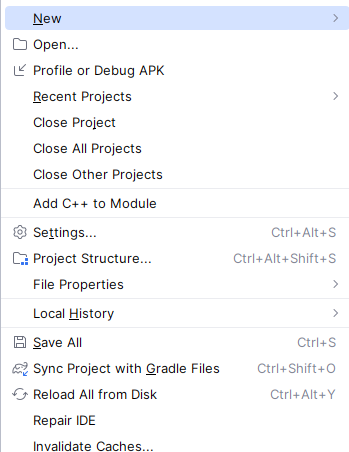
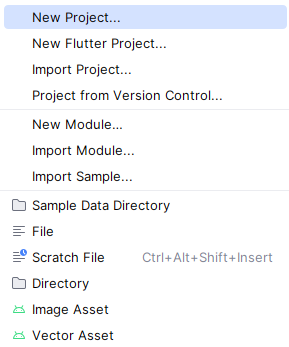
Then Click New Project to create a new android application Project.
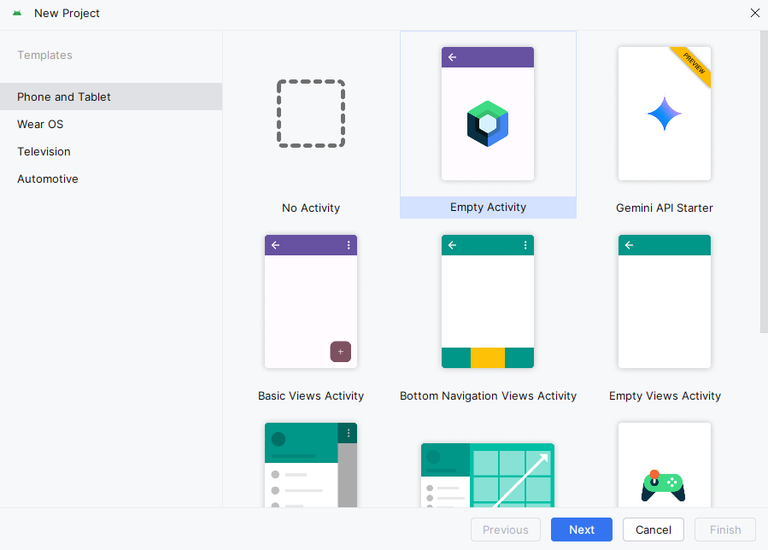
**Step 2: After clicking on Create New Project you will get to see the below screen.
On this screen make sure to select **Phone and Tablet as a default selection and then click on **Empty Compose Activity in the right section and then click on the Next option.
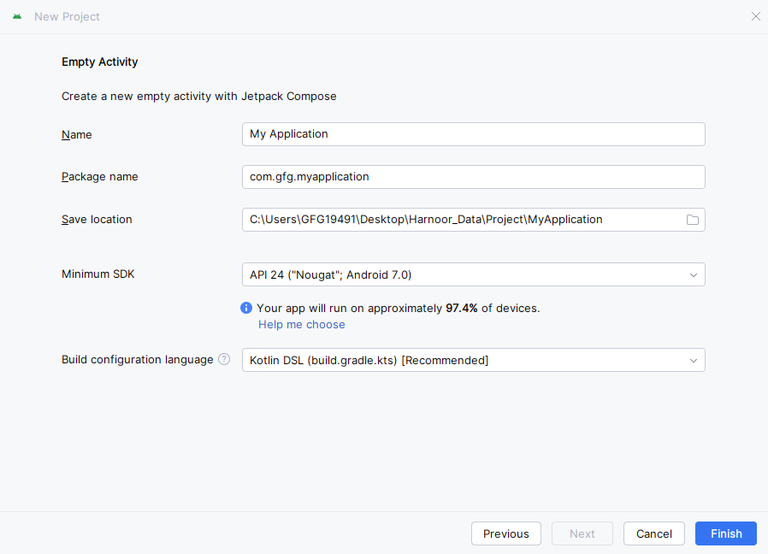
**Step 3: After selecting Empty Compose Activity you will get to see the below screen.
After click on next, you will get to see the below screen. On this screen give a name to your application in the first text box which represents the Name of the project. Select your minimum SDK for **Marshmallow (6.0). The 84.9% of devices indicates the % of devices on which our app will works. After giving the name and selecting the minimum SDK click on the Finish option to create a new project.
After clicking on Finish the default application will be created and now you can start writing your code.