How to Create an Alert Dialog Box in Android? (original) (raw)
Last Updated : 11 Jul, 2025
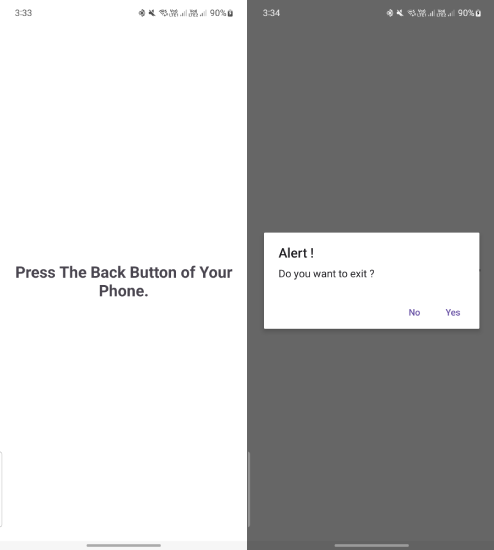
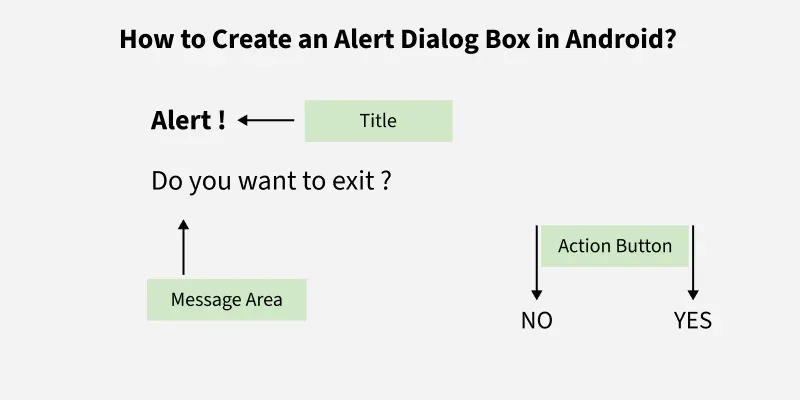
An **Android Alert Dialog is a UI element that displays a warning or notification message and asks the user to respond with options such as **Yes or **No. Based on the user's response, appropriate actions are executed. Android Alert Dialog is built with the use of three fields: Title, Message area, and Action Button.
Alert Dialog code has three **methods :
- setTitle(): method for displaying the Alert Dialog box Title
- setMessage(): method for displaying the message
- setIcon(): method is used to set the icon on the Alert dialog box.
Then we add the two Buttons, **setPositiveButton and **setNegativeButton to our Alert Dialog Box as shown below.
Example:
Step By Step Implementation
Step 1: Create a New Project in Android Studio
To create a new project in Android Studio please refer to How to Create/Start a New Project in Android Studio****.**
The code for that has been given in both Java and Kotlin Programming Language for Android.
**Step 2: Working with the XML Files
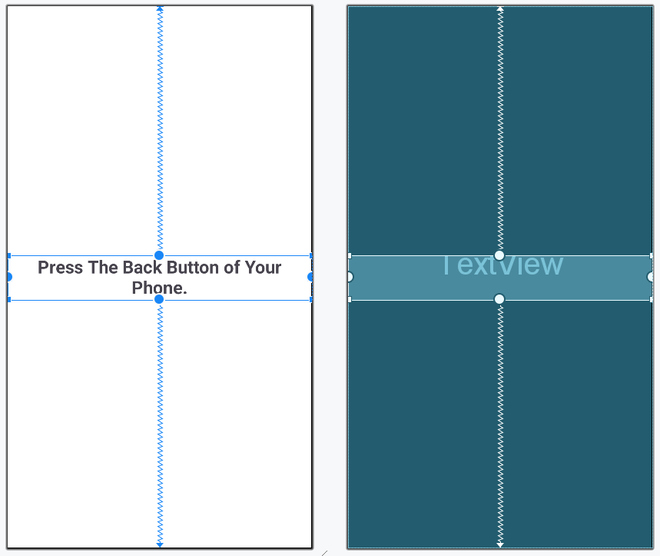
Next, go to the activity_main.xml file, which represents the UI of the project. Below is the code for the activity_main.xml file. Comments are added inside the code to understand the code in more detail.
activity_main.xml:
XML `
<androidx.constraintlayout.widget.ConstraintLayout xmlns:android="http://schemas.android.com/apk/res/android" xmlns:app="http://schemas.android.com/apk/res-auto" xmlns:tools="http://schemas.android.com/tools" android:layout_width="match_parent" android:layout_height="match_parent" android:background="@color/white" tools:context=".MainActivity">
<TextView
    android:layout_width="wrap_content"
    android:layout_height="wrap_content"
    android:text="Press The Back Button of Your Phone."
    android:textSize="24sp"
    android:textStyle="bold"
    android:textAlignment="center"
    app:layout_constraintBottom_toBottomOf="parent"
    app:layout_constraintEnd_toEndOf="parent"
    app:layout_constraintStart_toStartOf="parent"
    app:layout_constraintTop_toTopOf="parent" />
</androidx.constraintlayout.widget.ConstraintLayout>
`
Layout:
Step 3: Working with the MainActivity File
Go to the MainActivity File and refer to the following code. Below is the code for the MainActivity File. Comments are added inside the code to understand the code in more detail.
Java `
import android.content.DialogInterface; import android.os.Bundle; import androidx.appcompat.app.AlertDialog; import androidx.appcompat.app.AppCompatActivity;
public class MainActivity extends AppCompatActivity {
@Override
protected void onCreate(Bundle savedInstanceState) {
    super.onCreate(savedInstanceState);
    setContentView(R.layout.activity_main);
}

// Declare the onBackPressed method when the
// back button is pressed this method will call
@Override
public void onBackPressed() {

    // Create the object of AlertDialog Builder class
    AlertDialog.Builder builder = new AlertDialog.Builder(MainActivity.this);

    // Set the message show for the Alert time
    builder.setMessage("Do you want to exit ?");

    // Set Alert Title
    builder.setTitle("Alert !");

    // Set Cancelable false for when the user clicks
    // on the outside the Dialog Box then it will remain show
    builder.setCancelable(false);

    // Set the positive button with yes name Lambda
    // OnClickListener method is use of DialogInterface interface.
    builder.setPositiveButton("Yes", (DialogInterface.OnClickListener) (dialog, which) -> {

        // When the user click yes button then app will close
        finish();
    });

    // Set the Negative button with No name Lambda
    // OnClickListener method is use of DialogInterface interface.
    builder.setNegativeButton("No", (DialogInterface.OnClickListener) (dialog, which) -> {

        // If user click no then dialog box is canceled.
        dialog.cancel();
    });

    // Create the Alert dialog
    AlertDialog alertDialog = builder.create();

    // Show the Alert Dialog box
    alertDialog.show();
}
}
Kotlin
import android.os.Bundle import androidx.appcompat.app.AlertDialog import androidx.appcompat.app.AppCompatActivity
class MainActivity : AppCompatActivity() { override fun onCreate(savedInstanceState: Bundle?) { super.onCreate(savedInstanceState) setContentView(R.layout.activity_main) }
// Declare the onBackPressed method when the back
// button is pressed this method will call
override fun onBackPressed() {

    // Create the object of AlertDialog Builder class
    val builder = AlertDialog.Builder(this)

    // Set the message show for the Alert time
    builder.setMessage("Do you want to exit ?")

    // Set Alert Title
    builder.setTitle("Alert !")

    // Set Cancelable false for when the user clicks
    // on the outside the Dialog Box then it will remain show
    builder.setCancelable(false)

    // Set the positive button with yes name Lambda
    // OnClickListener method is use of DialogInterface interface.
    builder.setPositiveButton("Yes") {

        // When the user click yes button then app will close
            dialog, which -> finish()
    }

    // Set the Negative button with No name Lambda
    // OnClickListener method is use of DialogInterface interface.
    builder.setNegativeButton("No") {

        // If user click no then dialog box is canceled.
            dialog, which -> dialog.cancel()
    }

    // Create the Alert dialog
    val alertDialog = builder.create()

    // Show the Alert Dialog box
    alertDialog.show()
}
}
`
Output: