How to Create Google Lens Application in Android? (original) (raw)
Last Updated : 23 Jul, 2025
We have seen the new Google Lens application in which we can capture images of any product and from that image, we can get to see the search results of that product which we will display inside our application.
What are we going to build in this article?
We will be building a simple application in which we will be capturing an image from our device camera and after that, we will click on the Button to get the results for that product. A sample video is given below to get an idea about what we are going to do in this article. Note that we are going to implement this project using **Java programming language.
**Steps to Implement Google Lens in Android
**Step 1: Create a New Project
To create a new project in Android Studio please refer to How to Create/Start a New Project in Android Studio.
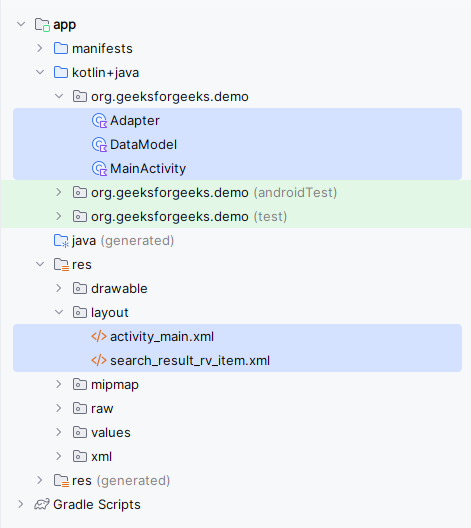
**Step 2: Adding dependency for language translation and View Binding
Navigate to the **app > Gradle Scripts > build.gradle.kts file and add the following dependencies. We have added the dependencies for **Firebase ML kit for image labelling, **Volley for API Calls and **Glide for image loading.
dependencies { ... implementation ("com.google.mlkit:image-labeling:17.0.9") implementation ("com.android.volley:volley:1.2.1") implementation ("com.github.bumptech.glide:glide:4.16.0") }
Add View Binding support by adding the following code anywhere under the android{} scope
buildFeatures { viewBinding = true }
**Step 3: Adding permissions to access the Internet in your Android Apps AndroidManifest file
Navigate to the **app > AndroidManifest.xml file and add the below code to it.
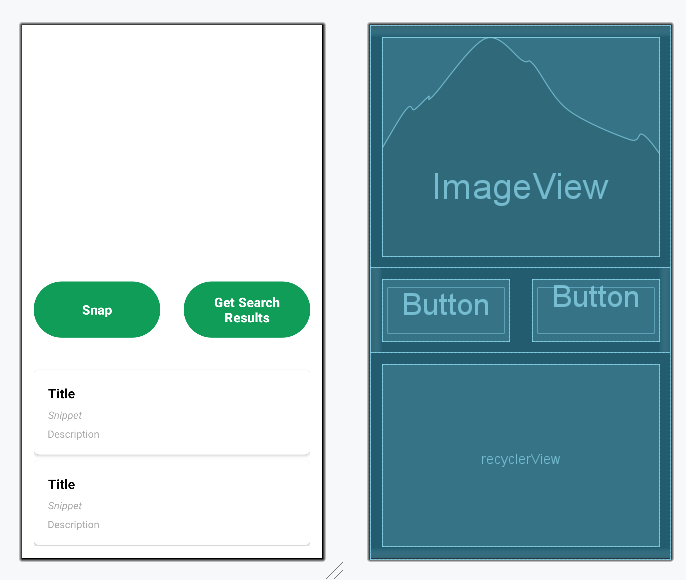
**Step 4: Working with activity_main.xml file
Navigate to the **app > res > layout > activity_main.xml and add the below code to that file. Below is the code for the **activity_main.xml file.
**activity_main.xml:
activity_main.xml `
<ImageView
    android:id="@+id/image"
    android:layout_width="match_parent"
    android:layout_height="300dp"
    android:layout_margin="16dp"
    android:scaleType="centerCrop" />

<LinearLayout
    android:id="@+id/layoutButtons"
    style="?android:attr/buttonBarStyle"
    android:layout_width="match_parent"
    android:layout_height="wrap_content"
    android:orientation="horizontal">

    <Button
        android:id="@+id/snap"
        android:layout_width="0dp"
        android:layout_height="wrap_content"
        android:layout_gravity="center"
        android:layout_margin="16dp"
        android:layout_weight="1"
        android:text="Snap"
        android:padding="16dp"
        android:lines="2"
        android:textSize="18sp"
        android:textStyle="bold" />

    <Button
        android:id="@+id/getSearchResults"
        android:layout_width="0dp"
        android:layout_height="wrap_content"
        android:layout_gravity="center"
        android:layout_margin="16dp"
        android:layout_weight="1"
        android:padding="16dp"
        android:lines="2"
        android:text="Get Search Results"
        android:textSize="18sp"
        android:textStyle="bold" />

</LinearLayout>

<androidx.recyclerview.widget.RecyclerView
    android:id="@+id/recyclerView"
    android:layout_width="match_parent"
    android:layout_height="wrap_content"
    tools:listitem="@layout/search_result_rv_item"
    android:layout_margin="16dp"/>
`
**Design UI:
**Step 5: Creating a model class for storing our data
Navigate to the **app > java > {package-name}, Right-click on it, New > Java/Kotlin class and name your class as **DataModel and add the below code to it. Comments are added inside the code to understand the code in more detail.
**DataModel File:
DataModel.java `
package org.geeksforgeeks.demo;
public class DataModel { private String title; private String link; private String displayedLink; private String snippet;
// Constructor
public DataModel(String title, String link, String displayedLink, String snippet) {
    this.title = title;
    this.link = link;
    this.displayedLink = displayedLink;
    this.snippet = snippet;
}

// Getters and Setters
public String getTitle() {
    return title;
}

public void setTitle(String title) {
    this.title = title;
}

public String getLink() {
    return link;
}

public void setLink(String link) {
    this.link = link;
}

public String getDisplayedLink() {
    return displayedLink;
}

public void setDisplayedLink(String displayedLink) {
    this.displayedLink = displayedLink;
}

public String getSnippet() {
    return snippet;
}

public void setSnippet(String snippet) {
    this.snippet = snippet;
}
}
DataModel.kt
package org.geeksforgeeks.demo
class DataModel ( var title: String?, var link: String?, var displayedLink: String?, var snippet: String? )
`
**Step 6: Creating a layout file for displaying our RecyclerView items
Navigate to the **app > res > layout, Right-click on it, New > Layout Resource File and name it as **search_result_rv_item and add the below code to it.
**search_result_rv_item:
search_result_rv_item.xml `
<androidx.cardview.widget.CardView xmlns:android="http://schemas.android.com/apk/res/android" xmlns:app="http://schemas.android.com/apk/res-auto" android:layout_width="match_parent" android:layout_height="wrap_content" android:background="@color/white" android:layout_marginTop="8dp" app:cardCornerRadius="8dp">
<LinearLayout
    android:layout_width="match_parent"
    android:layout_height="wrap_content"
    android:layout_margin="16dp"
    android:orientation="vertical">

    <!--text view for our title-->
    <TextView
        android:id="@+id/idTVTitle"
        android:layout_width="match_parent"
        android:layout_height="wrap_content"
        android:padding="4dp"
        android:text="Title"
        android:textStyle="bold"
        android:textColor="@color/black"
        android:textSize="18sp" />

    <!--text view for our snippet-->
    <TextView
        android:id="@+id/idTVSnippet"
        android:layout_width="match_parent"
        android:layout_height="wrap_content"
        android:padding="4dp"
        android:text="Snippet"
        android:textStyle="italic"
        android:textColor="@android:color/darker_gray" />

    <!--text view for our description-->
    <TextView
        android:id="@+id/idTVDescription"
        android:layout_width="match_parent"
        android:layout_height="wrap_content"
        android:padding="3dp"
        android:text="Description"
        android:textColor="@android:color/darker_gray" />

</LinearLayout>
</androidx.cardview.widget.CardView>
`
**Step 7: Creating an adapter class for our RecyclerView
Navigate to the **app > java > your app's package name > Right-click on it > New > Java class and name it as **Adapter and add the below code to it.
**Adapter File:
Adapter.java `
package org.geeksforgeeks.demo;
import android.content.Context; import android.content.Intent; import android.net.Uri; import android.view.LayoutInflater; import android.view.View; import android.view.ViewGroup; import android.widget.TextView; import androidx.annotation.NonNull; import androidx.recyclerview.widget.RecyclerView; import java.util.ArrayList;
public class Adapter extends RecyclerView.Adapter<Adapter.ViewHolder> {
private final ArrayList<DataModel> list;
private final Context context;

public Adapter(ArrayList<DataModel> list, Context context) {
    this.list = list;
    this.context = context;
}

@NonNull
@Override
public ViewHolder onCreateViewHolder(@NonNull ViewGroup parent, int viewType) {
    View view = LayoutInflater.from(parent.getContext())
            .inflate(R.layout.search_result_rv_item, parent, false);
    return new ViewHolder(view);
}

@Override
public void onBindViewHolder(@NonNull ViewHolder holder, int position) {
    DataModel modal = list.get(position);
    holder.titleTV.setText(modal.getTitle());
    holder.snippetTV.setText(modal.getDisplayedLink());
    holder.descTV.setText(modal.getSnippet());

    // Open link in browser when item is clicked
    holder.itemView.setOnClickListener(v -> {
        Intent intent = new Intent(Intent.ACTION_VIEW, Uri.parse(modal.getLink()));
        context.startActivity(intent);
    });
}

@Override
public int getItemCount() {
    return list.size();
}

// ViewHolder to hold item views
public static class ViewHolder extends RecyclerView.ViewHolder {
    TextView titleTV, descTV, snippetTV;

    public ViewHolder(@NonNull View itemView) {
        super(itemView);
        titleTV = itemView.findViewById(R.id.idTVTitle);
        descTV = itemView.findViewById(R.id.idTVDescription);
        snippetTV = itemView.findViewById(R.id.idTVSnippet);
    }
}
}
Adapter.kt
package org.geeksforgeeks.demo
import android.content.Context import android.content.Intent import android.net.Uri import android.view.LayoutInflater import android.view.View import android.view.ViewGroup import android.widget.TextView import androidx.recyclerview.widget.RecyclerView
class Adapter( private val list: ArrayList, private val context: Context ) : RecyclerView.Adapter<Adapter.ViewHolder>() {
override fun onCreateViewHolder(parent: ViewGroup, viewType: Int): ViewHolder {
    val view: View = LayoutInflater.from(parent.context)
        .inflate(R.layout.search_result_rv_item, parent, false)
    return ViewHolder(view)
}

override fun onBindViewHolder(holder: ViewHolder, position: Int) {
    val modal: DataModel = list[position]
    holder.titleTV.text = modal.title
    holder.snippetTV.text = modal.displayedLink
    holder.descTV.text = modal.snippet

    // Open link in browser when item is clicked
    holder.itemView.setOnClickListener {
        val intent = Intent(Intent.ACTION_VIEW, Uri.parse(modal.link))
        context.startActivity(intent)
    }
}

override fun getItemCount(): Int {
    return list.size
}

// ViewHolder to hold item views
inner class ViewHolder(itemView: View) : RecyclerView.ViewHolder(itemView) {
    val titleTV: TextView = itemView.findViewById(R.id.idTVTitle)
    val descTV: TextView = itemView.findViewById(R.id.idTVDescription)
    val snippetTV: TextView = itemView.findViewById(R.id.idTVSnippet)
}
}
`
**Step 8: Generating your API key
Go to the site https://serpapi.com/search-api and create your account with your Google account. This is a similar process as you signup on GeeksforGeeks. While generating your API key make sure to select the free trial option and proceed further. After going to the site shown above you will get to see the below screen. Simply sign in with your credentials and proceed further.

After proceeding further you have to simply Navigate to the **My Account > Dashboard option to open the below screen. On this screen, you will get to see your API key.

**Step 9: Working with the **MainActivity file
Go to the **MainActivity file and refer to the following code. Below is the code for the **MainActivity file. Comments are added inside the code to understand the code in more detail.
MainActivity.java `
package org.geeksforgeeks.demo;
import android.annotation.SuppressLint; import android.content.Intent; import android.graphics.Bitmap; import android.os.Bundle; import android.provider.MediaStore; import android.widget.Toast; import androidx.activity.result.ActivityResult; import androidx.activity.result.ActivityResultLauncher; import androidx.activity.result.contract.ActivityResultContracts; import androidx.annotation.Nullable; import androidx.appcompat.app.AppCompatActivity; import androidx.recyclerview.widget.LinearLayoutManager; import com.android.volley.Request; import com.android.volley.toolbox.JsonObjectRequest; import com.android.volley.toolbox.Volley; import com.bumptech.glide.Glide; import com.google.mlkit.vision.common.InputImage; import com.google.mlkit.vision.label.ImageLabel; import com.google.mlkit.vision.label.ImageLabeling; import com.google.mlkit.vision.label.defaults.ImageLabelerOptions; import org.geeksforgeeks.demo.databinding.ActivityMainBinding; import org.json.JSONArray; import org.json.JSONException; import org.json.JSONObject; import java.util.ArrayList;
public class MainActivity extends AppCompatActivity { private Bitmap imageBitmap; private Adapter adapter; private ArrayList dataModalArrayList = new ArrayList<>(); private String title, link, displayedLink, snippet; private ActivityResultLauncher takeImageLauncher;
private ActivityMainBinding binding;

@Override
protected void onCreate(@Nullable Bundle savedInstanceState) {
    super.onCreate(savedInstanceState);
    binding = ActivityMainBinding.inflate(getLayoutInflater());
    setContentView(binding.getRoot());

    // Set up RecyclerView
    binding.recyclerView.setLayoutManager(new LinearLayoutManager(this, LinearLayoutManager.VERTICAL, false));
    adapter = new Adapter(dataModalArrayList, this);

    // Button to capture an image
    binding.snap.setOnClickListener(v -> dispatchTakePictureIntent());

    // Button to process image and fetch search results
    binding.getSearchResults.setOnClickListener(v -> processImage());

    // Register image capture activity result launcher
    takeImageLauncher = registerForActivityResult(
            new ActivityResultContracts.StartActivityForResult(),
            this::handleImageCaptureResult
    );
}

// Handle image capture result
private void handleImageCaptureResult(ActivityResult result) {
    if (result.getResultCode() == RESULT_OK) {
        Intent data = result.getData();
        if (data != null && data.getExtras() != null) {
            imageBitmap = (Bitmap) data.getExtras().get("data");
            Glide.with(this).load(imageBitmap).into(binding.image); // Display captured image
        }
    }
}

// Process captured image and fetch search results
private void processImage() {
    dataModalArrayList.clear();

    if (imageBitmap == null) {
        Toast.makeText(this, "No image found. Please capture an image first.", Toast.LENGTH_SHORT).show();
        return;
    }

    InputImage image = InputImage.fromBitmap(imageBitmap, 0);
    ImageLabeling labeler = ImageLabeling.getClient(ImageLabelerOptions.DEFAULT_OPTIONS);

    // Perform image labeling
    labeler.process(image)
            .addOnSuccessListener(labels -> {
                if (!labels.isEmpty()) {
                    String searchQuery = labels.get(0).getText();
                    Toast.makeText(MainActivity.this, searchQuery, Toast.LENGTH_SHORT).show();
                    searchData(searchQuery);
                } else {
                    Toast.makeText(MainActivity.this, "No labels detected in the image.", Toast.LENGTH_SHORT).show();
                }
            })
            .addOnFailureListener(e -> Toast.makeText(MainActivity.this, "Failed to detect image.", Toast.LENGTH_SHORT).show());
}

// Perform search query using API
@SuppressLint("NotifyDataSetChanged")
private void searchData(String searchQuery) {
    String apiKey = "YOUR_API_KEY";
    String url = "https://serpapi.com/search.json?q=" + searchQuery.trim() +
            "&location=Delhi,India&hl=en&gl=us&google_domain=google.com&api_key=" + apiKey;

    JsonObjectRequest jsonObjectRequest = new JsonObjectRequest(
            Request.Method.GET, url, null,
            response -> {
                try {
                    JSONArray organicResultsArray = response.getJSONArray("organic_results");
                    for (int i = 0; i < organicResultsArray.length(); i++) {
                        JSONObject organicObj = organicResultsArray.getJSONObject(i);
                        title = organicObj.optString("title", "");
                        link = organicObj.optString("link", "");
                        displayedLink = organicObj.optString("displayed_link", "");
                        snippet = organicObj.optString("snippet", "");

                        dataModalArrayList.add(new DataModel(title, link, displayedLink, snippet));
                    }

                    adapter.notifyDataSetChanged();
                    binding.recyclerView.setAdapter(adapter);
                } catch (JSONException e) {
                    e.printStackTrace();
                }
            },
            error -> {
                error.printStackTrace();
                Toast.makeText(MainActivity.this, "No result found for the search query.", Toast.LENGTH_SHORT).show();
            });

    Volley.newRequestQueue(this).add(jsonObjectRequest);
}

// Launch camera to capture image
@SuppressLint("QueryPermissionsNeeded")
private void dispatchTakePictureIntent() {
    Intent takePictureIntent = new Intent(MediaStore.ACTION_IMAGE_CAPTURE);
    if (takePictureIntent.resolveActivity(getPackageManager()) != null) {
        takeImageLauncher.launch(takePictureIntent);
    }
}
}
MainActivity.kt
package org.geeksforgeeks.demo
import android.annotation.SuppressLint import android.content.Intent import android.graphics.Bitmap import android.os.Bundle import android.provider.MediaStore import android.widget.Toast import androidx.activity.result.ActivityResult import androidx.activity.result.ActivityResultLauncher import androidx.activity.result.contract.ActivityResultContracts import androidx.appcompat.app.AppCompatActivity import androidx.recyclerview.widget.LinearLayoutManager import com.android.volley.Request import com.android.volley.toolbox.JsonObjectRequest import com.android.volley.toolbox.Volley import com.bumptech.glide.Glide import com.google.mlkit.vision.common.InputImage import com.google.mlkit.vision.label.ImageLabel import com.google.mlkit.vision.label.ImageLabeling import com.google.mlkit.vision.label.defaults.ImageLabelerOptions import org.geeksforgeeks.demo.databinding.ActivityMainBinding import org.json.JSONException
class MainActivity : AppCompatActivity() { private var imageBitmap: Bitmap? = null private lateinit var adapter: Adapter private var dataModalArrayList: ArrayList = ArrayList() private lateinit var title: String private lateinit var link: String private lateinit var displayedLink: String private lateinit var snippet: String private var takeImageLauncher: ActivityResultLauncher? = null
private val binding: ActivityMainBinding by lazy {
    ActivityMainBinding.inflate(layoutInflater)
}

override fun onCreate(savedInstanceState: Bundle?) {
    super.onCreate(savedInstanceState)
    setContentView(binding.root)

    // Set up RecyclerView
    binding.recyclerView.layoutManager = LinearLayoutManager(this, LinearLayoutManager.VERTICAL, false)

    adapter = Adapter(dataModalArrayList, this@MainActivity)

    // Button to capture an image
    binding.snap.setOnClickListener {
        dispatchTakePictureIntent()
    }

    // Button to process image and fetch search results
    binding.getSearchResults.setOnClickListener {
        results
    }

    // Register image capture activity result launcher
    takeImageLauncher = registerForActivityResult(
        ActivityResultContracts.StartActivityForResult()
    ) { o: ActivityResult ->
        if (o.resultCode == RESULT_OK) {
            val data = o.data
            val extras = data!!.extras
            imageBitmap = extras!!["data"] as Bitmap?
            // Display captured image
            Glide.with(this).load(imageBitmap).into(binding.image)
        }
    }
}

// Process captured image and fetch search results
private val results: Unit
    get() {
        dataModalArrayList.clear()

        if (imageBitmap == null) {
            Toast.makeText(this, "No image found. Please capture an image first.", Toast.LENGTH_SHORT).show()
            return
        }

        val image = InputImage.fromBitmap(imageBitmap!!, 0)
        val labeler = ImageLabeling.getClient(ImageLabelerOptions.DEFAULT_OPTIONS)

        // Perform image labeling
        labeler.process(image)
            .addOnSuccessListener { labels: List<ImageLabel> ->
                if (labels.isNotEmpty()) {
                    val searchQuery = labels[0].text
                    Toast.makeText(this@MainActivity, searchQuery, Toast.LENGTH_SHORT).show()
                    searchData(searchQuery)
                } else {
                    Toast.makeText(this@MainActivity, "No labels detected in the image.", Toast.LENGTH_SHORT).show()
                }
            }
            .addOnFailureListener {
                Toast.makeText(this@MainActivity, "Failed to detect image.", Toast.LENGTH_SHORT).show()
            }
    }

// Perform search query using API
@SuppressLint("NotifyDataSetChanged")
private fun searchData(searchQuery: String) {
    val apiKey = "YOUR_API_KEY"
    val url =
        "https://serpapi.com/search.json?q=" + searchQuery.trim { it <= ' ' } +
        "&location=Delhi,India&hl=en&gl=us&google_domain=google.com&api_key=" + apiKey

    val queue = Volley.newRequestQueue(this@MainActivity)
    val jsonObjectRequest = JsonObjectRequest(
        Request.Method.GET, url, null,
        { response ->
            try {
                val organicResultsArray = response.getJSONArray("organic_results")
                for (i in 0 until organicResultsArray.length()) {
                    val organicObj = organicResultsArray.getJSONObject(i)
                    if (organicObj.has("title")) {
                        title = organicObj.getString("title")
                    }
                    if (organicObj.has("link")) {
                        link = organicObj.getString("link")
                    }
                    if (organicObj.has("displayed_link")) {
                        displayedLink = organicObj.getString("displayed_link")
                    }
                    if (organicObj.has("snippet")) {
                        snippet = organicObj.getString("snippet")
                    }
                    dataModalArrayList.add(DataModel(title, link, displayedLink, snippet))
                }

                adapter.notifyDataSetChanged()
                binding.recyclerView.adapter = adapter
            } catch (e: JSONException) {
                println(e)
            }
        },
        { error ->
            println(error.toString())
            Toast.makeText(this@MainActivity, "No Result found for the search query.", Toast.LENGTH_SHORT).show()
        })
    queue.add(jsonObjectRequest)
}

// Launch camera to capture image
@SuppressLint("QueryPermissionsNeeded")
private fun dispatchTakePictureIntent() {
    val takePictureIntent = Intent(MediaStore.ACTION_IMAGE_CAPTURE)
    if (takePictureIntent.resolveActivity(packageManager) != null) {
        takeImageLauncher!!.launch(takePictureIntent)
    }
}
}
`
Now run your app and see the output of the app. Make sure to change your **API key before running the app.
**Note: The search results might not be accurate upto an extent.**Note : _To access the full android application this repository: Google Lens Application in Android