How to Generate Signed Apk in Android Studio? (original) (raw)
Last Updated : 15 Jul, 2025
Signed Apk generates a key and this key can be used to release versions of the app, so it is important to save this key which will be used when the next version of the app is released. The Android system needs that all installed applications be digitally signed with a certificate whose private key is owned by the application's developer. The Android system applies the certificate as a means of recognizing the author of an application and establishing trust relations between applications. The essential points to understand about signing Android applications are:
- When developers are ready to publish the android application for end-users, they are required to sign it with a suitable private key. They can't publish an application that is signed with the debug key generated by the SDK tools.
- Applications can only be installed when they are signed. Android does not allow unsigned applications to get installed.
- Developers can apply self-signed certificates to sign the application. No certificate authority is required
- To test and debug the application, the build tools sign the application with a special debug key that is created by the Android SDK build tools.
- The system will test a signer certificate's expiration date only at install time. If an application's signer license expires after the application is installed, the application will continue to operate normally.
Importance of Signed Apk
- Application Modularity: The applications signed by the same process are recognized as a single application and are allowed to run on the same process. This allows the developers to make the application in modules and so users can update each module independently.
- Application Upgrade: To update the application, the updates must be signed with the same certificates. When the system is installing an update to an application, it relates the certificate in the new version with those in the actual version. If the certificates match correctly, including both the certificate data and order, then the system releases the update. If we sign the new version without using matching certificates, we need to attach a different package name to the application and in this case, the user installs the new version as a completely new application.
- Code/Data Sharing Through Permissions: To allow the applications to use different resources, Android system executes signature-based permissions enforcement so that the application can exhibit functionality to another application which is signed with a specified certificate. By signing various applications with the same certificate and working with signature-based permissions checks, your applications can yield code and data in a secure manner.
Generating Signed Apk in Android Studio
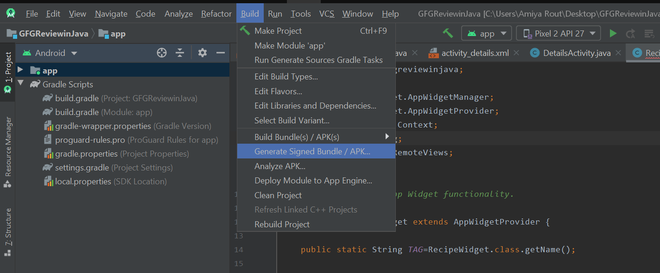
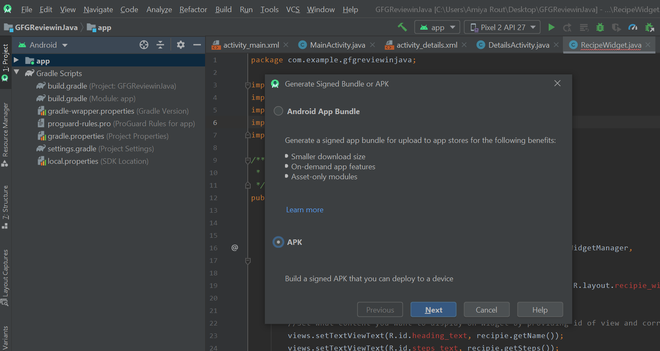
Step 1: Go to Build -> Generate Signed Bundle or APK, a pop up will arise. Choose APK in the pop-up and click on Next.
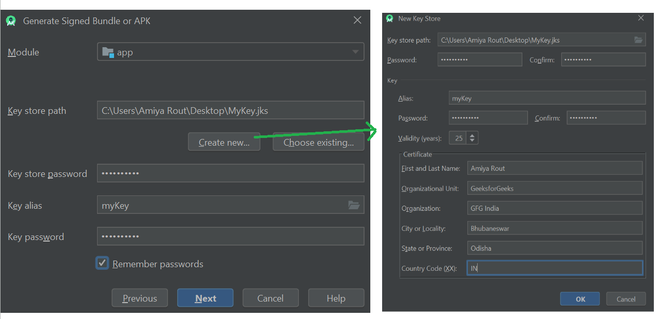
Step 2: After completing step 1, if you already have a key, make sure you just refer to that and you can release the version of that app but in case if it is the first time it is recommended to create a new key. After creating a new key click on OK and then click on Next.
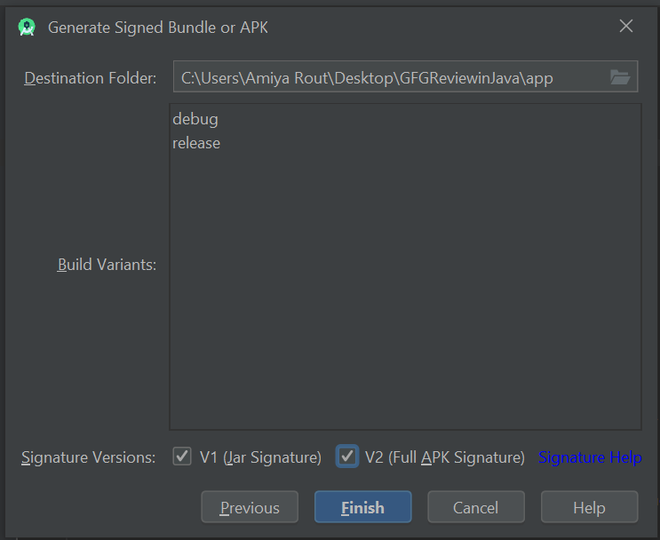
Step 3: After clicking Next in the next pop-up make sure to choose release as Build Variants and check the two Signature Versions as well. Then click on Finish.
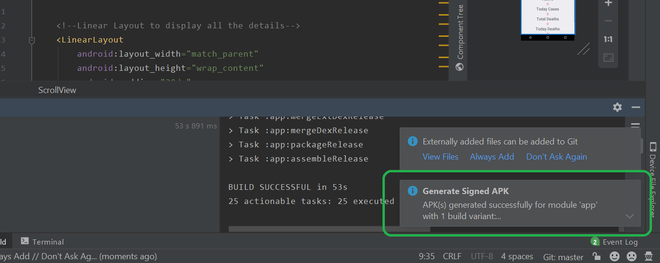
Step 4: After successfully completed these steps you can locate your signed apk at app -> release -> app-release as your apk file.