How to Make a Floating Window Application in Android? (original) (raw)
Last Updated : 23 Jul, 2025
Well, on our desktop computers we can easily restore down windows, do something in the background, and maximize the window whenever we want. But we don't see this feature in android apps that much. Nowadays we can see android is offering Split Screen, but that's a feature provided by OS, not the app's individual feature. Let's make an app that can minimize and maximize itself on just a button click. This feature can help users, in a lot of ways. Suppose you are reading some pdf document with some mathematical calculations and then a minimized calculator over the pdf viewer app will be very helpful. There are a lot of apps that use this feature like Clipboard, MI Calculator, and many more. Here's a demo of the final app of this article. Note that we are going to implement this project using the **Java & Kotlin language.
Step by Step Implementation
Step 1: Create a New Project
To create a new project in Android Studio please refer to How to Create/Start a New Project in Android Studio.
Step 2: Add permission in manifest file
Navigate to **app > manifests > AndroidManifest.xml and add the following permission
Step 3: Create an object class
Navigate to **app > java > {package-name}, right click on the folder and select, **New > Java/Kotlin Class/File and name it as **Common. Create two public String variables, one is **currentDesc and another is **savedDesc. Both are initiated with empty Strings.
Common.java `
package org.geeksforgeeks.demo;
public class Common { // The EditText String will be // stored in this variable // when MINIMIZE or MAXIMIZE // button is pressed public static String currentDesc = "";
// The EditText String will be
// stored in this variable
// when SAVE button is pressed
public static String savedDesc = "";
}
Common.kt
package org.geeksforgeeks.demo
object Common { // The EditText String will be // stored in this variable // when MINIMIZE or MAXIMIZE // button is pressed var currentDesc: String = ""
// The EditText String will be
// stored in this variable
// when SAVE button is pressed
var savedDesc: String = ""
}
`
Step 4: Working with layouts
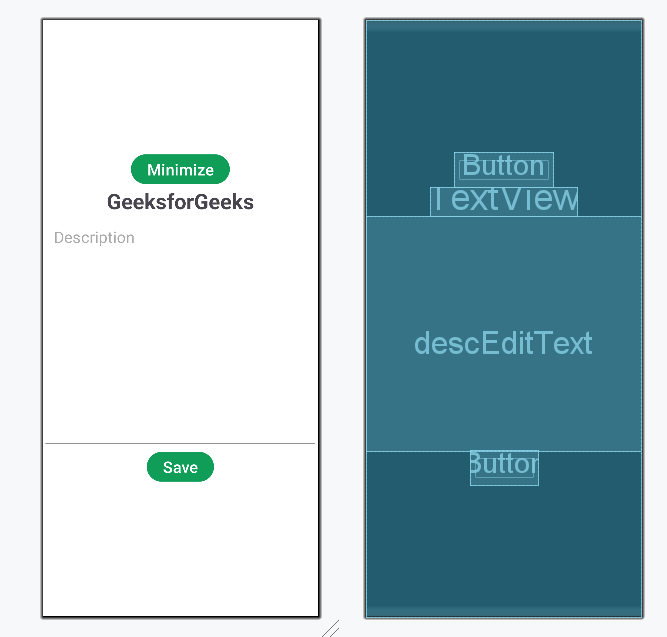
Create a new layout and name it as **floating_layout.xml and navigate to **activity_main.xml and add the following code in the two files.
activity_main.xml `
<Button
    android:id="@+id/buttonMinimize"
    android:layout_width="wrap_content"
    android:layout_height="wrap_content"
    android:text="Minimize"
    android:textSize="24sp" />

<TextView
    android:id="@+id/titleText"
    android:layout_width="wrap_content"
    android:layout_height="wrap_content"
    android:gravity="center"
    android:text="GeeksforGeeks"
    android:textSize="32sp"
    android:textStyle="bold" />

<EditText
    android:id="@+id/descEditText"
    android:layout_width="match_parent"
    android:layout_height="350dp"
    android:gravity="start"
    android:hint="Description"
    android:padding="16dp"
    android:textColor="@color/black"
    android:textSize="24sp" />

<Button
    android:id="@+id/saveBtn"
    android:layout_width="wrap_content"
    android:layout_height="wrap_content"
    android:text="Save"
    android:textColor="@android:color/white"
    android:textSize="24sp" />
floating\_layout.xml
<Button
    android:id="@+id/buttonMaximize"
    android:layout_width="wrap_content"
    android:layout_height="wrap_content"
    android:textAllCaps="false"
    android:text="Maximize" />

<TextView
    android:id="@+id/titleText"
    android:layout_width="wrap_content"
    android:layout_height="wrap_content"
    android:gravity="center"
    android:text="GeeksforGeeks"
    android:textSize="24sp"
    android:textStyle="bold" />

<EditText
    android:id="@+id/descEditText"
    android:layout_width="match_parent"
    android:layout_height="250dp"
    android:gravity="start"
    android:hint="Description"
    android:textColor="@color/black" />

<Button
    android:id="@+id/saveBtn"
    android:layout_width="wrap_content"
    android:layout_height="wrap_content"
    android:textAllCaps="false"
    android:text="Save" />
`
**Design UI:
Step 5: Create a new Service
Create a new **Java or **Kotlin class file with the name **FloatingWindowService and add the following code. Now as this class is inherited from the Service class, then this class can be used as a service in the Manifest file. So in the **AndroidManifest.xml add this line after the activity block and before the application block ends.
FloatingWindowService.java `
package org.geeksforgeeks.demo;
import android.annotation.SuppressLint; import android.app.Service; import android.content.Intent; import android.graphics.PixelFormat; import android.os.IBinder; import android.text.Editable; import android.text.TextWatcher; import android.view.Gravity; import android.view.LayoutInflater; import android.view.MotionEvent; import android.view.View; import android.view.ViewGroup; import android.view.WindowManager; import android.view.inputmethod.InputMethodManager; import android.widget.Button; import android.widget.EditText; import android.widget.Toast;
public class FloatingWindowService extends Service {
// Declare variables for views and WindowManager
private ViewGroup floatView;
private WindowManager.LayoutParams floatWindowLayoutParam;
private WindowManager windowManager;
private Button maximizeBtn;
private EditText descEditArea;
private Button saveBtn;

// This method is required but not used in this Service
@Override
public IBinder onBind(Intent intent) {
    return null;
}

// Service is created
@SuppressLint("ClickableViewAccessibility")
@Override
public void onCreate() {
    super.onCreate();

    // Get screen width and height in pixels
    float width = getResources().getDisplayMetrics().widthPixels;
    float height = getResources().getDisplayMetrics().heightPixels;

    // Get the WindowManager system service for handling windows on the screen
    windowManager = (WindowManager) getSystemService(WINDOW_SERVICE);

    // Inflate the floating window layout using the LayoutInflater system service
    LayoutInflater inflater = (LayoutInflater) getSystemService(LAYOUT_INFLATER_SERVICE);
    floatView = (ViewGroup) inflater.inflate(R.layout.floating_layout, null);

    // Initialize the views from the layout file
    maximizeBtn = floatView.findViewById(R.id.buttonMaximize);
    descEditArea = floatView.findViewById(R.id.descEditText);
    saveBtn = floatView.findViewById(R.id.saveBtn);

    // Set the initial text in the EditText and place the cursor at the end
    descEditArea.setText(Common.currentDesc);
    descEditArea.setSelection(descEditArea.getText().length());
    // Hide the cursor initially
    descEditArea.setCursorVisible(false);

    // Set up the parameters for the floating window (size, position, etc.)
    floatWindowLayoutParam = new WindowManager.LayoutParams(
            // Set width to 60% of screen width
            (int) (width * 0.6f),
            // Set height to 50% of screen height
            (int) (height * 0.5f),
            // Type for overlay window
            WindowManager.LayoutParams.TYPE_APPLICATION_OVERLAY,
            // Make it not focusable
            WindowManager.LayoutParams.FLAG_NOT_FOCUSABLE,
            // Set transparent background for the window
            PixelFormat.TRANSLUCENT
    );
    floatWindowLayoutParam.gravity = Gravity.CENTER;
    floatWindowLayoutParam.x = 0;
    floatWindowLayoutParam.y = 0;

    // Add the floating view to the window using the WindowManager
    windowManager.addView(floatView, floatWindowLayoutParam);

    // Set up a listener for the maximize button to stop the service and navigate to MainActivity
    maximizeBtn.setOnClickListener(view -> {
        stopSelf();  // Stop the service
        windowManager.removeView(floatView);  // Remove the floating window
        Intent backToHome = new Intent(this, MainActivity.class);
        backToHome.addFlags(Intent.FLAG_ACTIVITY_NEW_TASK | Intent.FLAG_ACTIVITY_CLEAR_TASK);
        startActivity(backToHome);
    });

    // Set up a TextWatcher to update the current description when the text changes
    descEditArea.addTextChangedListener(new TextWatcher() {
        @Override
        public void beforeTextChanged(CharSequence charSequence, int start, int count, int after) {}

        @Override
        public void onTextChanged(CharSequence s, int start, int before, int count) {
            // Update the current description with the text in the EditText
            Common.currentDesc = descEditArea.getText().toString();
        }

        @Override
        public void afterTextChanged(Editable editable) {}
    });

    // Set up the touch listener for the floating window to allow dragging it around
    setupFloatingWindowMovement();

    // Set up a listener for the EditText to make the cursor visible when clicked
    descEditArea.setOnTouchListener((v, event) -> {
        descEditArea.setCursorVisible(true);  // Make the cursor visible when touched
        floatWindowLayoutParam.flags = WindowManager.LayoutParams.FLAG_NOT_TOUCH_MODAL |
                WindowManager.LayoutParams.FLAG_LAYOUT_IN_SCREEN;
        windowManager.updateViewLayout(floatView, floatWindowLayoutParam);  // Update the layout
        return false;
    });

    // Set up a listener for the save button to save the text and hide the soft keyboard
    saveBtn.setOnClickListener(view -> {
        // Save the text in the EditText to the Common object
        Common.savedDesc = descEditArea.getText().toString();
        // Hide the cursor after saving
        descEditArea.setCursorVisible(false);
        // Make the window non-interactive
        floatWindowLayoutParam.flags = WindowManager.LayoutParams.FLAG_NOT_FOCUSABLE;
        windowManager.updateViewLayout(floatView, floatWindowLayoutParam);
        InputMethodManager inputMethodManager = (InputMethodManager) getSystemService(INPUT_METHOD_SERVICE);
        inputMethodManager.hideSoftInputFromWindow(floatView.getWindowToken(), 0);
        Toast.makeText(this, "Text Saved!", Toast.LENGTH_SHORT).show();
    });
}

// This method is responsible for handling the movement of the floating window
@SuppressLint("ClickableViewAccessibility")
private void setupFloatingWindowMovement() {
    double initialX = 0.0;
    double initialY = 0.0;
    double initialTouchX = 0.0;
    double initialTouchY = 0.0;

    // Set a touch listener to detect dragging
    floatView.setOnTouchListener((view, event) -> {
        switch (event.getAction()) {
            case MotionEvent.ACTION_DOWN:
                // Record the initial position and touch points when the touch starts
                initialX = floatWindowLayoutParam.x;
                initialY = floatWindowLayoutParam.y;
                initialTouchX = event.getRawX();
                initialTouchY = event.getRawY();
                break;
            case MotionEvent.ACTION_MOVE:
                // Calculate the new position of the window based on the movement of the touch
                floatWindowLayoutParam.x = (int) ((initialX + event.getRawX()) - initialTouchX);
                floatWindowLayoutParam.y = (int) ((initialY + event.getRawY()) - initialTouchY);
                // Update the layout
                windowManager.updateViewLayout(floatView, floatWindowLayoutParam);
                break;
        }
        return false;
    });
}

// This method is called when the service is destroyed
@Override
public void onDestroy() {
    super.onDestroy();
    try {
        // Remove the floating window from the screen
        windowManager.removeView(floatView);
    } catch (Exception e) {
        // Handle any potential errors
        e.printStackTrace();
    }
}
}
FloatingWindowService.kt
package org.geeksforgeeks.demo
import android.annotation.SuppressLint import android.app.Service import android.content.Intent import android.graphics.PixelFormat import android.os.IBinder import android.text.Editable import android.text.TextWatcher import android.view.* import android.view.inputmethod.InputMethodManager import android.widget.Button import android.widget.EditText import android.widget.Toast
class FloatingWindowService : Service() {
// Declare variables for views and WindowManager
private lateinit var floatView: ViewGroup
private lateinit var floatWindowLayoutParam: WindowManager.LayoutParams
private lateinit var windowManager: WindowManager
private lateinit var maximizeBtn: Button
private lateinit var descEditArea: EditText
private lateinit var saveBtn: Button

// This method is required but not used in this Service
override fun onBind(intent: Intent?): IBinder? = null

// Service is created
@SuppressLint("ClickableViewAccessibility")
override fun onCreate() {
    super.onCreate()

    // Get screen width and height in pixels
    val metrics = resources.displayMetrics
    val width = metrics.widthPixels
    val height = metrics.heightPixels

    // Get the WindowManager system service for handling windows on the screen
    windowManager = getSystemService(WINDOW_SERVICE) as WindowManager

    // Inflate the floating window layout using the LayoutInflater system service
    val inflater = getSystemService(LAYOUT_INFLATER_SERVICE) as LayoutInflater
    floatView = inflater.inflate(R.layout.floating_layout, null) as ViewGroup

    // Initialize the views from the layout file
    maximizeBtn = floatView.findViewById(R.id.buttonMaximize)
    descEditArea = floatView.findViewById(R.id.descEditText)
    saveBtn = floatView.findViewById(R.id.saveBtn)

    // Set the initial text in the EditText and place the cursor at the end
    descEditArea.apply {
        setText(Common.currentDesc)
        setSelection(text.length)
        // Hide the cursor initially
        isCursorVisible = false
    }

    // Set up the parameters for the floating window (size, position, etc.)
    floatWindowLayoutParam = WindowManager.LayoutParams(
        // Set width to 60% of screen width
        (width * 0.6f).toInt(),
        // Set height to 50% of screen height
        (height * 0.5f).toInt(),
        // Type for overlay window
        WindowManager.LayoutParams.TYPE_APPLICATION_OVERLAY,
        // Make it not focusable
        WindowManager.LayoutParams.FLAG_NOT_FOCUSABLE,
        // Set transparent background for the window
        PixelFormat.TRANSLUCENT
    ).apply {
        // Position the window at the center of the screen
        gravity = Gravity.CENTER
        x = 0
        y = 0
    }

    // Add the floating view to the window using the WindowManager
    windowManager.addView(floatView, floatWindowLayoutParam)

    // Set up a listener for the maximize button to stop the service and navigate to MainActivity
    maximizeBtn.setOnClickListener {
        stopSelf()  // Stop the service
        windowManager.removeView(floatView)  // Remove the floating window
        val backToHome = Intent(this, MainActivity::class.java).apply {
            addFlags(Intent.FLAG_ACTIVITY_NEW_TASK or Intent.FLAG_ACTIVITY_CLEAR_TASK)
        }
        startActivity(backToHome)
    }

    // Set up a TextWatcher to update the current description when the text changes
    descEditArea.addTextChangedListener(object : TextWatcher {
        override fun onTextChanged(s: CharSequence?, start: Int, before: Int, count: Int) {
            // Update the current description with the text in the EditText
            Common.currentDesc = descEditArea.text.toString()
        }
        override fun beforeTextChanged(s: CharSequence?, start: Int, count: Int, after: Int) {}
        override fun afterTextChanged(s: Editable?) {}
    })

    // Set up the touch listener for the floating window to allow dragging it around
    setupFloatingWindowMovement()

    // Set up a listener for the EditText to make the cursor visible when clicked
    descEditArea.setOnTouchListener { _, _ ->
        descEditArea.isCursorVisible = true  // Make the cursor visible when touched
        floatWindowLayoutParam.flags = WindowManager.LayoutParams.FLAG_NOT_TOUCH_MODAL or
                WindowManager.LayoutParams.FLAG_LAYOUT_IN_SCREEN
        windowManager.updateViewLayout(floatView, floatWindowLayoutParam)  // Update the layout
        false
    }

    // Set up a listener for the save button to save the text and hide the soft keyboard
    saveBtn.setOnClickListener {
        // Save the text in the EditText to the Common object
        Common.savedDesc = descEditArea.text.toString()
        // Hide the cursor after saving
        descEditArea.isCursorVisible = false
        // Make the window non-interactive
        floatWindowLayoutParam.flags = WindowManager.LayoutParams.FLAG_NOT_FOCUSABLE
        windowManager.updateViewLayout(floatView, floatWindowLayoutParam)
        val inputMethodManager = getSystemService(INPUT_METHOD_SERVICE) as InputMethodManager
        inputMethodManager.hideSoftInputFromWindow(floatView.windowToken, 0)
        Toast.makeText(this, "Text Saved!", Toast.LENGTH_SHORT).show()
    }
}

// This method is responsible for handling the movement of the floating window
@SuppressLint("ClickableViewAccessibility")
private fun setupFloatingWindowMovement() {
    var initialX = 0.0
    var initialY = 0.0
    var initialTouchX = 0.0
    var initialTouchY = 0.0

    // Set a touch listener to detect dragging
    floatView.setOnTouchListener { _, event ->
        when (event.action) {
            MotionEvent.ACTION_DOWN -> {
                // Record the initial position and touch points when the touch starts
                initialX = floatWindowLayoutParam.x.toDouble()
                initialY = floatWindowLayoutParam.y.toDouble()
                initialTouchX = event.rawX.toDouble()
                initialTouchY = event.rawY.toDouble()
            }
            MotionEvent.ACTION_MOVE -> {
                // Calculate the new position of the window based on the movement of the touch
                floatWindowLayoutParam.x = ((initialX + event.rawX) - initialTouchX).toInt()
                floatWindowLayoutParam.y = ((initialY + event.rawY) - initialTouchY).toInt()
                // Update the layout
                windowManager.updateViewLayout(floatView, floatWindowLayoutParam)
            }
        }
        false
    }
}

// This method is called when the service is destroyed
override fun onDestroy() {
    super.onDestroy()
    try {
        // Remove the floating window from the screen
        windowManager.removeView(floatView)
    } catch (e: Exception) {
        // Handle any potential errors
        e.printStackTrace()
    }
}
}
`
Step 6: Working with MainActivity file
Navigate to the **MainActivity file and make the following changes.
MainActivity.java `
package org.geeksforgeeks.demo;
import android.app.ActivityManager; import android.content.Intent; import android.net.Uri; import android.os.Build; import android.os.Bundle; import android.provider.Settings; import android.text.Editable; import android.text.TextWatcher; import android.widget.Button; import android.widget.EditText; import android.widget.Toast;
import androidx.activity.result.contract.ActivityResultContracts; import androidx.appcompat.app.AlertDialog; import androidx.appcompat.app.AppCompatActivity;
public class MainActivity extends AppCompatActivity {
// Declare the UI components (buttons and edit text)
private Button minimizeBtn;
private EditText descEditArea;
private Button save;

// Register for result to handle overlay permission
private final ActivityResultContracts.StartActivityForResult overlayPermissionLauncher =
        registerForActivityResult(new ActivityResultContracts.StartActivityForResult(), result -> {
            if (checkOverlayDisplayPermission()) {
                // If permission is granted, start the floating window service
                startService(new Intent(MainActivity.this, FloatingWindowService.class));
                finish(); // Close the current activity
            } else {
                // If permission is not granted, show a toast message
                Toast.makeText(MainActivity.this, "Permission not granted", Toast.LENGTH_SHORT).show();
            }
        });

@Override
protected void onCreate(Bundle savedInstanceState) {
    super.onCreate(savedInstanceState);
    setContentView(R.layout.activity_main);

    // Initialize the UI components
    minimizeBtn = findViewById(R.id.buttonMinimize);
    descEditArea = findViewById(R.id.descEditText);
    save = findViewById(R.id.saveBtn);

    // Check if the floating window service is already running, and stop it if it is
    if (isServiceRunning(FloatingWindowService.class)) {
        stopService(new Intent(this, FloatingWindowService.class));
    }

    // Set the text of the description edit text field from the Common.currentDesc variable
    descEditArea.setText(Common.currentDesc);
    // Move the cursor to the end of the text
    descEditArea.setSelection(descEditArea.getText().length());

    // Add a TextWatcher to update Common.currentDesc whenever the text in the edit area changes
    descEditArea.addTextChangedListener(new TextWatcher() {
        @Override
        public void onTextChanged(CharSequence s, int start, int before, int count) {
            Common.currentDesc = descEditArea.getText().toString(); // Update the currentDesc variable
        }

        @Override
        public void beforeTextChanged(CharSequence s, int start, int count, int after) {}

        @Override
        public void afterTextChanged(Editable s) {}
    });

    // Set an OnClickListener for the save button
    save.setOnClickListener(v -> {
        // Save the text from the edit area to the savedDesc variable
        Common.savedDesc = descEditArea.getText().toString();
        // Remove focus from the edit text field and hide the cursor
        descEditArea.clearFocus();
        descEditArea.setCursorVisible(false);
        // Show a toast message to notify the user that the text has been saved
        Toast.makeText(MainActivity.this, "Text Saved!", Toast.LENGTH_SHORT).show();
    });

    // Set an OnClickListener for the minimize button
    minimizeBtn.setOnClickListener(v -> {
        // Check if overlay permission is granted
        if (checkOverlayDisplayPermission()) {
            // If permission is granted, start the floating window service and finish the activity
            startService(new Intent(MainActivity.this, FloatingWindowService.class));
            finish();
        } else {
            // If permission is not granted, request overlay permission
            requestOverlayDisplayPermission();
        }
    });
}

// Check if a service is currently running
private boolean isServiceRunning(Class<?> serviceClass) {
    ActivityManager manager = (ActivityManager) getSystemService(ACTIVITY_SERVICE);
    // Check if the service is running using the deprecated method (for compatibility)
    @SuppressWarnings("deprecation")
    for (ActivityManager.RunningServiceInfo service : manager.getRunningServices(Integer.MAX_VALUE)) {
        if (service.service.getClassName().equals(serviceClass.getName())) {
            return true;
        }
    }
    return false;
}

// Request the user to enable the "Display over other apps" permission from system settings
private void requestOverlayDisplayPermission() {
    new AlertDialog.Builder(this)
            .setTitle("Screen Overlay Permission Needed") // Title of the dialog
            .setMessage("Enable 'Display over other apps' from System Settings.") // Message in the dialog
            .setCancelable(true) // Allow the dialog to be canceled
            .setPositiveButton("Open Settings", (dialog, which) -> {
                // If the user clicks "Open Settings", open the system settings for overlay permission
                Intent intent = new Intent(Settings.ACTION_MANAGE_OVERLAY_PERMISSION,
                        Uri.parse("package:" + getPackageName()));
                overlayPermissionLauncher.launch(intent); // Launch the settings activity
            })
            .show(); // Show the dialog
}

// Check if the app has the overlay permission
private boolean checkOverlayDisplayPermission() {
    // If the SDK version is below Marshmallow (API 23), overlay permission is not needed
    return Build.VERSION.SDK_INT < Build.VERSION_CODES.M || Settings.canDrawOverlays(this);
}
}
MainActivity.kt
package org.geeksforgeeks.demo
import android.app.ActivityManager import android.content.Intent import android.net.Uri import android.os.Build import android.os.Bundle import android.provider.Settings import android.text.Editable import android.text.TextWatcher import android.widget.Button import android.widget.EditText import android.widget.Toast import androidx.activity.result.contract.ActivityResultContracts import androidx.appcompat.app.AlertDialog import androidx.appcompat.app.AppCompatActivity
class MainActivity : AppCompatActivity() {
// Declare the UI components (buttons and edit text)
private lateinit var minimizeBtn: Button
private lateinit var descEditArea: EditText
private lateinit var save: Button

// Register for result to handle overlay permission
private val overlayPermissionLauncher = registerForActivityResult(
    ActivityResultContracts.StartActivityForResult()
) {
    if (checkOverlayDisplayPermission()) {
        // If permission is granted, start the floating window service
        startService(Intent(this, FloatingWindowService::class.java))
        finish() // Close the current activity
    } else {
        // If permission is not granted, show a toast message
        Toast.makeText(this, "Permission not granted", Toast.LENGTH_SHORT).show()
    }
}

override fun onCreate(savedInstanceState: Bundle?) {
    super.onCreate(savedInstanceState)
    setContentView(R.layout.activity_main)

    // Initialize the UI components
    minimizeBtn = findViewById(R.id.buttonMinimize)
    descEditArea = findViewById(R.id.descEditText)
    save = findViewById(R.id.saveBtn)

    // Check if the floating window service is already running, and stop it if it is
    if (isServiceRunning(FloatingWindowService::class.java)) {
        stopService(Intent(this, FloatingWindowService::class.java))
    }

    // Set the text of the description edit text field from the Common.currentDesc variable
    descEditArea.setText(Common.currentDesc)
    // Move the cursor to the end of the text
    descEditArea.setSelection(descEditArea.text.length)

    // Add a TextWatcher to update Common.currentDesc whenever the text in the edit area changes
    descEditArea.addTextChangedListener(object : TextWatcher {
        override fun onTextChanged(s: CharSequence?, start: Int, before: Int, count: Int) {
            Common.currentDesc = descEditArea.text.toString() // Update the currentDesc variable
        }
        override fun beforeTextChanged(s: CharSequence?, start: Int, count: Int, after: Int) {}
        override fun afterTextChanged(s: Editable?) {}
    })

    // Set an OnClickListener for the save button
    save.setOnClickListener {
        // Save the text from the edit area to the savedDesc variable
        Common.savedDesc = descEditArea.text.toString()
        // Remove focus from the edit text field and hide the cursor
        descEditArea.apply {
            clearFocus()
            isCursorVisible = false
        }
        // Show a toast message to notify the user that the text has been saved
        Toast.makeText(this, "Text Saved!", Toast.LENGTH_SHORT).show()
    }

    // Set an OnClickListener for the minimize button
    minimizeBtn.setOnClickListener {
        // Check if overlay permission is granted
        if (checkOverlayDisplayPermission()) {
            // If permission is granted, start the floating window service and finish the activity
            startService(Intent(this, FloatingWindowService::class.java))
            finish()
        } else {
            // If permission is not granted, request overlay permission
            requestOverlayDisplayPermission()
        }
    }
}

// Check if a service is currently running
private fun isServiceRunning(serviceClass: Class<*>): Boolean {
    val manager = getSystemService(ACTIVITY_SERVICE) as ActivityManager
    @Suppress("DEPRECATION")
    return manager.getRunningServices(Int.MAX_VALUE)
        .any { it.service.className == serviceClass.name }
}

// Request the user to enable the "Display over other apps" permission from system settings
private fun requestOverlayDisplayPermission() {
    AlertDialog.Builder(this)
        .setTitle("Screen Overlay Permission Needed") // Title of the dialog
        .setMessage("Enable 'Display over other apps' from System Settings.") // Message in the dialog
        .setCancelable(true) // Allow the dialog to be canceled
        .setPositiveButton("Open Settings") { _, _ ->
            // If the user clicks "Open Settings", open the system settings for overlay permission
            val intent = Intent(
                Settings.ACTION_MANAGE_OVERLAY_PERMISSION,
                Uri.parse("package:$packageName")
            )
            overlayPermissionLauncher.launch(intent) // Launch the settings activity
        }
        .show() // Show the dialog
}

// Check if the app has the overlay permission
private fun checkOverlayDisplayPermission(): Boolean {
    // If the SDK version is below Marshmallow (API 23), overlay permission is not needed
    return Build.VERSION.SDK_INT < Build.VERSION_CODES.M || Settings.canDrawOverlays(this)
}
}
`