How to Save Data to the Firebase Realtime Database in Android? (original) (raw)
Last Updated : 23 Jul, 2025
Firebase is one of the famous backend platforms which is used by so many developers to provide backend support to their applications and websites. It is the product of Google which provides services such as database, storage, user authentication, and many more. In this article, we will create a simple app in which we will be adding our Data to Firebase Realtime Database. Note that we are going to implement this project using the **Java and **Kotlin language.
What is Firebase Realtime Database?
**Firebase Realtime Database is a NoSQL cloud database that is used to store and sync the data. The data from the database can be synced at a time across all the clients such as android, web as well as IOS. The data in the database is stored in the JSON format and it updates in real-time with every connected client.
What are the Advantages of using the Firebase Realtime Database?
- The main advantage of using the Firebase Realtime database is that the data is updated in a real-time manner and you don't have to make any requests for the data updates or changes. The database uses data synchronization every time when data changes and these changes will reflect the connected user within milliseconds.
- While using Firebase Realtime Database your apps remain responsive even if the device loses its connectivity to the database. Once the user has established the connection he will receive the changes made in the data from the database.
- The data stored in the Firebase database can be easily accessible through the web portal of Firebase. You can manage your database from PC as well as mobile devices. You can manage the rules of the database which gives permissions to read and write operations to the database.
What We are Going to Build in This Article?
In this article, we are going to build a simple application in which we will be getting the data from the users with the help of some **TextFields and store that data in the **Firebase Realtime Database. Note that we are using Firebase Realtime Database and the app is written using **JAVA and **Kotlin language.
Step by Step Implementation:
**Step 1: Create a new project and Connect to Firebase app
Refer to **Adding firebase to android app and follow the steps to connect firebase to your project.
Step 2: Add Realtime Database to you app in Console
- Go to **Firebase console and navigate to your project, and on the left side of the screen, under **Build choose **Realtime Database. On the next screen, select **Create Database.
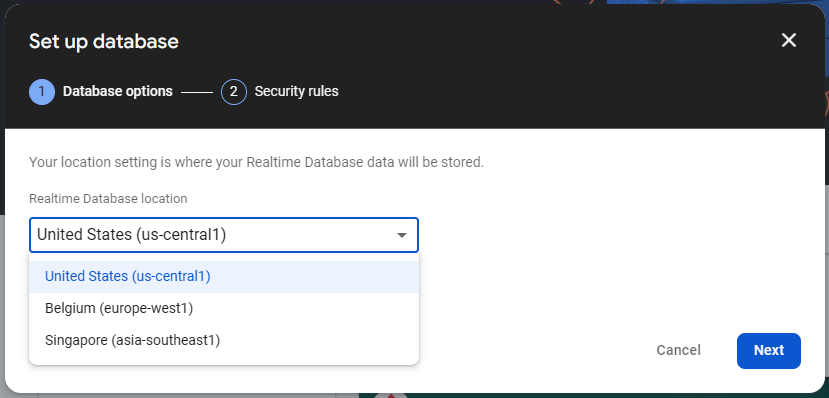
- On the dialog box that appears, choose a **Realtime Database Location and click on **Next. Then select **Start in locked mode and click on **Enable. You can't change the Realtime Database Location later, so be careful while choosing.
Now, in **Realtime Database, under **Rules make the following changes:

Step 3: Add Realtime Database to you app in Android Studio
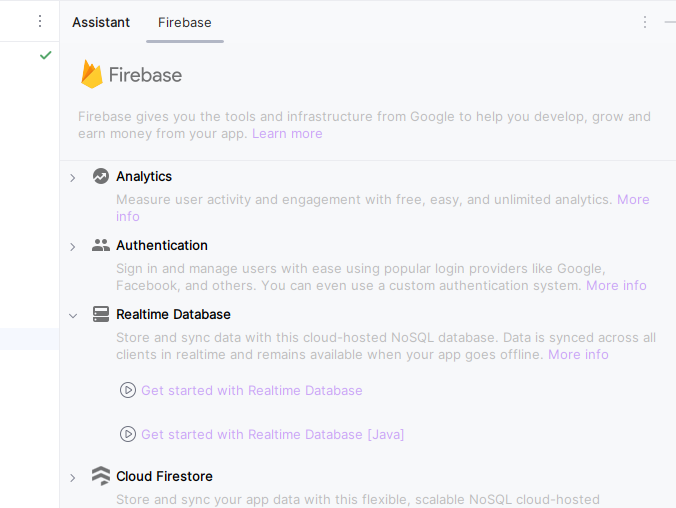
Navigate to **Tools > Firebase. This will open the Firebase Assistant tab. Now select **Realtime Database > Get started with Realtime Database.
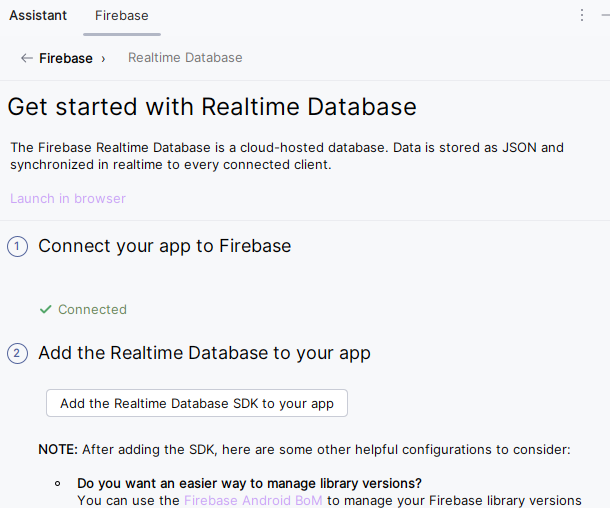
Now select Add the Realtime Database SDK to your app, then select **Accept Changes in the dialog box. This will add all the necessary dependencies for realtime database.
Step 4: Add necessary permissions
For adding data to Firebase we should have to give permissions for accessing the internet. For adding these permissions navigate to the **app > AndroidManifest.xml and inside that file add the below permissions to it.
Step 5: Create a model class for User Info
Right click on **app and select **New > Kotlin/Java class file and provide the name **Person to the file.
Add the following code to the file.
Person.java `
package org.geeksforgeeks.demo;
public class Person { private String name; private String number; private String address;
public Person() {
}

public Person(String name, String number, String address) {
    this.name = name;
    this.number = number;
    this.address = address;
}

public String getName() {
    return name;
}

public void setName(String name) {
    this.name = name;
}

public String getNumber() {
    return number;
}

public void setNumber(String number) {
    this.number = number;
}

public String getAddress() {
    return address;
}

public void setAddress(String address) {
    this.address = address;
}
}
Person.kt
package org.geeksforgeeks.demo
class Person ( var name: String? = null, var number: String? = null, var address: String? = null )
`
Step 6: Working with MainActivity and it's layout file
Navigate to **app > java > package name > MainActivity and **app > res > layout > activity_main.xml. Then add the following code to the **MainActivity file in **Java or **Koltin and the **xml code to the **activity_main.xml file.
MainActivity.java `
package org.geeksforgeeks.demo;
import android.os.Bundle; import android.widget.Button; import android.widget.EditText; import android.widget.Toast; import androidx.annotation.NonNull; import androidx.appcompat.app.AppCompatActivity;
import com.google.firebase.database.DatabaseReference; import com.google.firebase.database.FirebaseDatabase;
public class MainActivity extends AppCompatActivity {
private EditText nameEdt, phoneEdt, addressEdt;
private Button button;
private FirebaseDatabase firebaseDatabase;
private DatabaseReference databaseReference;
private Person person;

@Override
protected void onCreate(Bundle savedInstanceState) {
    super.onCreate(savedInstanceState);
    setContentView(R.layout.activity_main);

    nameEdt = findViewById(R.id.name);
    phoneEdt = findViewById(R.id.number);
    addressEdt = findViewById(R.id.address);
    button = findViewById(R.id.button);

    // Get instance of Firebase database
    firebaseDatabase = FirebaseDatabase.getInstance();

    // Get reference for the database
    databaseReference = firebaseDatabase.getReference("PersonData");

    // Initialize person object
    person = new Person();

    button.setOnClickListener(v -> {
        String name = nameEdt.getText().toString();
        String phone = phoneEdt.getText().toString();
        String address = addressEdt.getText().toString();

        if (name.isEmpty() && phone.isEmpty() && address.isEmpty()) {
            Toast.makeText(MainActivity.this, "Please add some data.", Toast.LENGTH_SHORT).show();
        } else {
            addDataToFirebase(name, phone, address);
        }
    });
}

private void addDataToFirebase(String name, String phone, String address) {
    person.setName(name);
    person.setNumber(phone);
    person.setAddress(address);

    // Use push() to create a unique key for each person
    databaseReference.push().setValue(person)
        .addOnSuccessListener(aVoid ->
            Toast.makeText(MainActivity.this, "Data added successfully!", Toast.LENGTH_SHORT).show()
        )
        .addOnFailureListener(error ->
            Toast.makeText(MainActivity.this, "Failed to add data: " + error.getMessage(), Toast.LENGTH_SHORT).show()
        );
}
}
MainActivity.kt
package org.geeksforgeeks.demo
import android.os.Bundle import android.widget.Button import android.widget.EditText import android.widget.Toast import androidx.appcompat.app.AppCompatActivity import com.google.firebase.database.DataSnapshot import com.google.firebase.database.DatabaseError import com.google.firebase.database.DatabaseReference import com.google.firebase.database.FirebaseDatabase import com.google.firebase.database.ValueEventListener
class MainActivity : AppCompatActivity() {
private lateinit var nameEdt: EditText
private lateinit var phoneEdt: EditText
private lateinit var addressEdt: EditText
private lateinit var button: Button
private lateinit var firebaseDatabase: FirebaseDatabase
private lateinit var databaseReference: DatabaseReference
private lateinit var person: Person

override fun onCreate(savedInstanceState: Bundle?) {
    super.onCreate(savedInstanceState)
    setContentView(R.layout.activity_main)


    nameEdt = findViewById(R.id.name)
    phoneEdt = findViewById(R.id.number)
    addressEdt = findViewById(R.id.address)
    button = findViewById(R.id.button)

    // below line is used to get the
    // instance of our Firebase database.
    firebaseDatabase = FirebaseDatabase.getInstance()

    // below line is used to get reference for our database.
    databaseReference = firebaseDatabase.getReference("PersonData")

    // initializing our object
    // class variable.
    person = Person()

    button.setOnClickListener {
        val name: String = nameEdt.getText().toString()
        val phone: String = phoneEdt.getText().toString()
        val address: String = addressEdt.getText().toString()

        if (name.isEmpty() && phone.isEmpty() && address.isEmpty()) {
            Toast.makeText(this@MainActivity, "Please add some data.", Toast.LENGTH_SHORT).show()
        } else {
            addDataToFirebase(name, phone, address)
        }
    }
}

private fun addDataToFirebase(name: String, phone: String, address: String) {
    person.name = name
    person.number = phone
    person.address = address


    // Use push() to create a unique key for each person
    databaseReference.push().setValue(person)
        .addOnSuccessListener {
            Toast.makeText(this@MainActivity, "Data added successfully!", Toast.LENGTH_SHORT).show()
        }
        .addOnFailureListener { error ->
            Toast.makeText(this@MainActivity, "Failed to add data: ${error.message}", Toast.LENGTH_SHORT).show()
        }
}
}
activity\_main.xml
<!--EditText for adding employee name-->
<EditText
    android:id="@+id/name"
    android:layout_width="match_parent"
    android:layout_height="wrap_content"
    android:hint="Name"
    android:inputType="textPersonName" />

<!--EditText for adding employee phone-->
<EditText
    android:id="@+id/number"
    android:layout_width="match_parent"
    android:layout_height="wrap_content"
    android:hint="phone number"
    android:inputType="phone" />

<!--EditText for adding employee address-->
<EditText
    android:id="@+id/address"
    android:layout_width="match_parent"
    android:layout_height="wrap_content"
    android:hint="address" />

<!--Button for adding data to Firebase-->
<Button
    android:id="@+id/button"
    android:layout_width="wrap_content"
    android:layout_height="wrap_content"
    android:text="Save" />
`
Output:
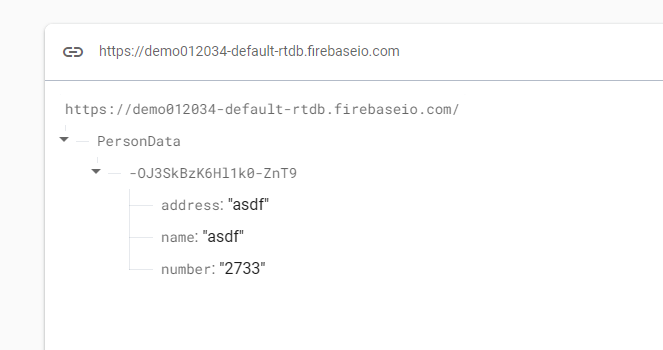
This is will create a person data with a **unique key in the realtime database.