LinearLayout and its Important Attributes with Examples in Android (original) (raw)
Last Updated : 23 Jul, 2025
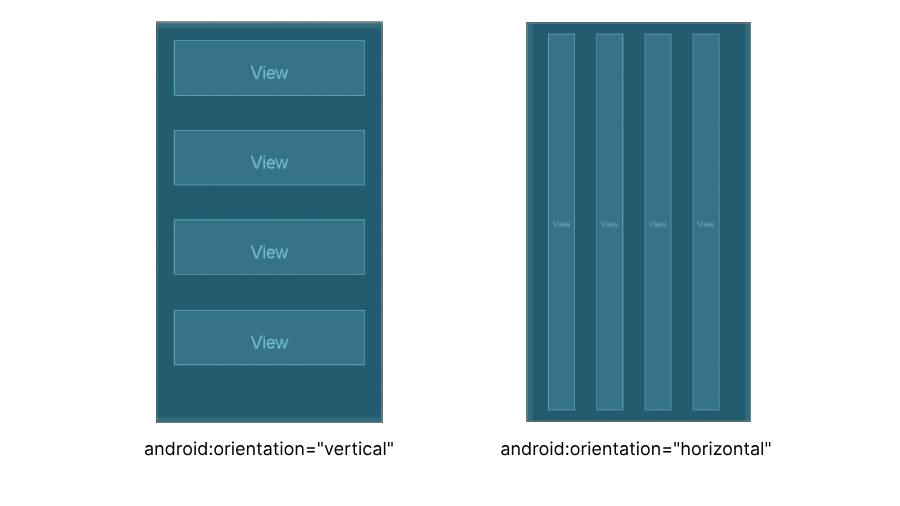
LinearLayout is one of the most basic layouts in android studio, that arranges multiple sub-views (UI elements) sequentially in a single direction i.e. horizontal or vertical manner by specifying the **android:orientation attribute. If one applies **android:orientation="vertical" then elements will be arranged one after another in a vertical manner (i.e. top to bottom) and If you apply **android:orientation="horizontal" then elements will be arranged one after another in a horizontal manner (i.e. left to right).
**Sample Code of LinearLayout:
XML `
<!--sub view 1-->
<View
    android:layout_width="wrap_content"
    android:layout_height="wrap_content" />

<!--sub view 2-->
<View
    android:layout_width="wrap_content"
    android:layout_height="wrap_content" />

<!--sub view 3-->
<View
    android:layout_width="wrap_content"
    android:layout_height="wrap_content" />
`
**Some Important Attributes of LinearLayout
| Attributes | Description |
|---|---|
| android:id | Assigns a unique id to the layout. |
| android:orientation | Defines the arrangements of sub-views in the layout. It is either "horizontal" or "vertical". |
| android:layout_width | Sets the width of the layout |
| android:layout_height | Sets the height of the layout |
| android:layout_weight | Assigned individually to the sub-views, it specifies how the parent layout divides the remaining space amongst the sub-views. |
| android:weightSum | Defined in the layout, it sets the total weight sum of all the sub-view inside the layout. |
| android:layout_gravity | Assigned to the sub-views, it sets the gravity of the view or layout relative to its parent. Possible values are - center, center_vertical, center_horizontal, fill, top, bottom, start, end, etc. |
| android:baselineAligned | Assigns a Boolean value, which prevents the layout from aligning its children's baselines. |
**Examples of LinearLayout
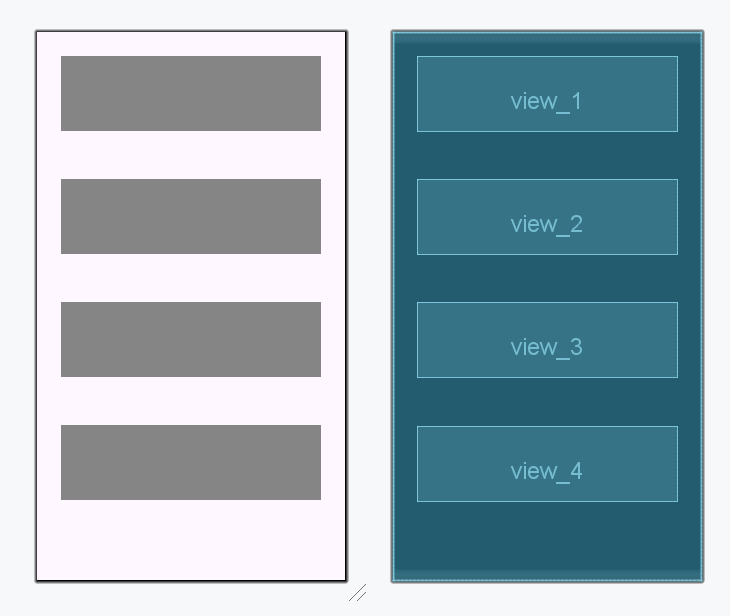
**1. How to arrange views in a vertical manner in LinearLayout
XML `
<!--sub view 1-->
<View
    android:id="@+id/view_1"
    android:background="@color/grey"
    android:layout_width="wrap_content"
    android:layout_margin="32dp"
    android:layout_height="100dp" />

<!--sub view 2-->
<View
    android:id="@+id/view_2"
    android:background="@color/grey"
    android:layout_width="wrap_content"
    android:layout_margin="32dp"
    android:layout_height="100dp" />

<!--sub view 3-->
<View
    android:id="@+id/view_3"
    android:background="@color/grey"
    android:layout_width="wrap_content"
    android:layout_margin="32dp"
    android:layout_height="100dp" />

<!--sub view 4-->
<View
    android:id="@+id/view_4"
    android:background="@color/grey"
    android:layout_width="wrap_content"
    android:layout_margin="32dp"
    android:layout_height="100dp" />
`
**Design UI:
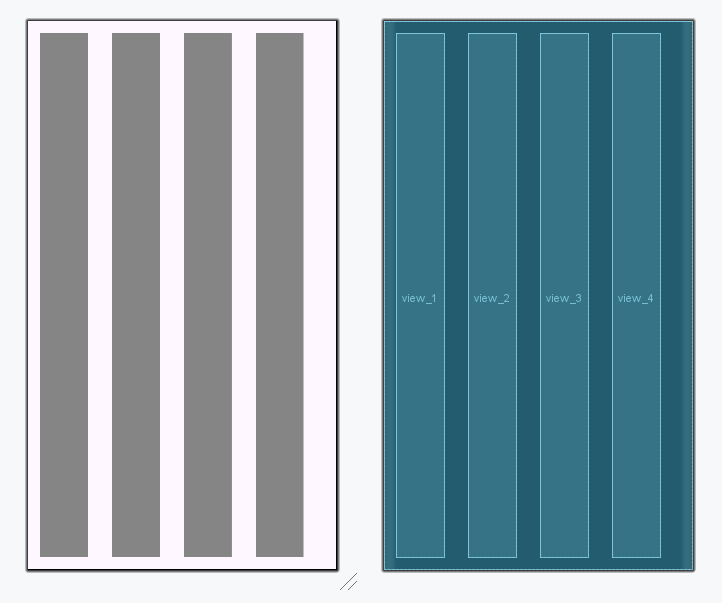
**2. How to arrange views in a horizontal manner in LinearLayout
XML `
<!--sub view 1-->
<View
    android:id="@+id/view_1"
    android:background="@color/grey"
    android:layout_width="64dp"
    android:layout_margin="16dp"
    android:layout_height="wrap_content" />

<!--sub view 2-->
<View
    android:id="@+id/view_2"
    android:background="@color/grey"
    android:layout_width="64dp"
    android:layout_margin="16dp"
    android:layout_height="wrap_content" />

<!--sub view 3-->
<View
    android:id="@+id/view_3"
    android:background="@color/grey"
    android:layout_width="64dp"
    android:layout_margin="16dp"
    android:layout_height="wrap_content" />

<!--sub view 4-->
<View
    android:id="@+id/view_4"
    android:background="@color/grey"
    android:layout_width="64dp"
    android:layout_margin="16dp"
    android:layout_height="wrap_content" />
`
**Design UI:
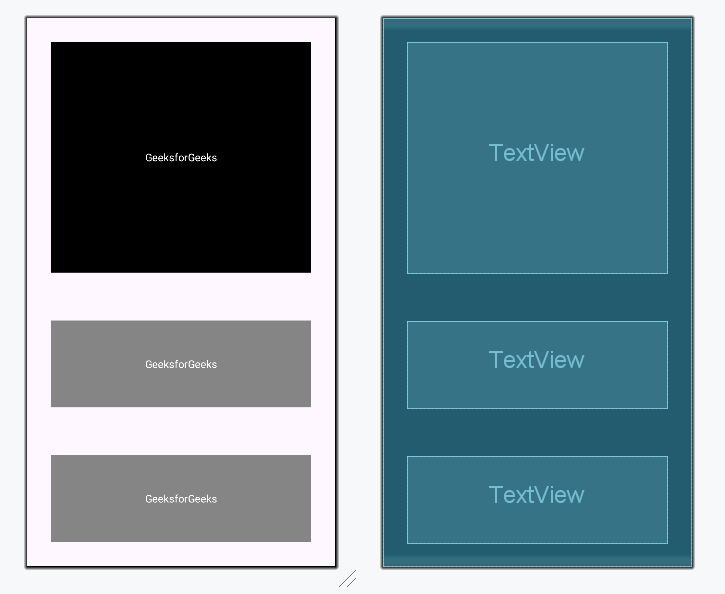
**3. How to use layout_weight and weightSum in LinearLayout
XML `
<!--sub view 1-->
<!--This view has more weight than others providing it with more space-->
<TextView
    android:id="@+id/view_1"
    android:text="GeeksforGeeks"
    android:background="@color/black"
    android:textColor="@color/white"
    android:gravity="center"
    android:layout_weight="3"
    android:layout_width="match_parent"
    android:layout_margin="32dp"
    android:layout_height="wrap_content" />

<!--sub view 2-->
<TextView
    android:id="@+id/view_2"
    android:text="GeeksforGeeks"
    android:background="@color/grey"
    android:textColor="@color/white"
    android:gravity="center"
    android:layout_weight="1"
    android:layout_width="match_parent"
    android:layout_margin="32dp"
    android:layout_height="wrap_content" />

<!--sub view 3-->
<TextView
    android:id="@+id/view_3"
    android:text="GeeksforGeeks"
    android:background="@color/grey"
    android:textColor="@color/white"
    android:gravity="center"
    android:layout_weight="1"
    android:layout_width="match_parent"
    android:layout_margin="32dp"
    android:layout_height="wrap_content" />
`
**Design UI:
**4. How to use layout_gravity in LinearLayout
XML `
<!--sub view 1-->
<!--Set the layout gravity as start-->
<TextView
    android:id="@+id/view_1"
    android:text="GeeksforGeeks"
    android:background="@color/grey"
    android:textColor="@color/white"
    android:gravity="center"
    android:layout_gravity="start"
    android:padding="32dp"
    android:layout_width="wrap_content"
    android:layout_margin="32dp"
    android:layout_height="wrap_content" />

<!--sub view 2-->
<!--Set the layout gravity as center-->
<TextView
    android:id="@+id/view_2"
    android:text="GeeksforGeeks"
    android:background="@color/grey"
    android:textColor="@color/white"
    android:gravity="center"
    android:layout_gravity="center"
    android:padding="32dp"
    android:layout_width="wrap_content"
    android:layout_margin="32dp"
    android:layout_height="wrap_content" />

<!--sub view 3-->
<!--Set the layout gravity as end-->
<TextView
    android:id="@+id/view_3"
    android:text="GeeksforGeeks"
    android:background="@color/grey"
    android:textColor="@color/white"
    android:gravity="center"
    android:layout_gravity="end"
    android:padding="32dp"
    android:layout_width="wrap_content"
    android:layout_margin="32dp"
    android:layout_height="wrap_content" />
`
**Design UI: