Navigation Drawer in Android (original) (raw)
Last Updated : 15 Jul, 2025
The navigation drawer is the most common feature offered by Android and the navigation drawer is a UI panel that shows your app's main navigation menu. It is also one of the important UI elements, which provides actions preferable to the users, for example changing the user profile, changing the settings of the application, etc. In this article, it has been discussed step by step to implement the navigation drawer in Android. The code has been given in both Java and Kotlin Programming Language for Android.
The navigation drawer slides in from the left and contains the navigation destinations for the app.
The user can view the navigation drawer when the user swipes a finger from the left edge of the activity. They can also find it from the home activity by tapping the app icon in the action bar. The drawer icon is displayed on all top-level destinations that use a DrawerLayout. Have a look at the following image to get an idea about the Navigation drawer.
**Steps to Implement Navigation Drawer in Android
**Step 1: Create a New Android Studio Project
Create an empty activity android studio project.
Refer to Android | How to Create/Start a New Project in Android Studio? on how to create an empty activity android studio project.
Directory Structure:
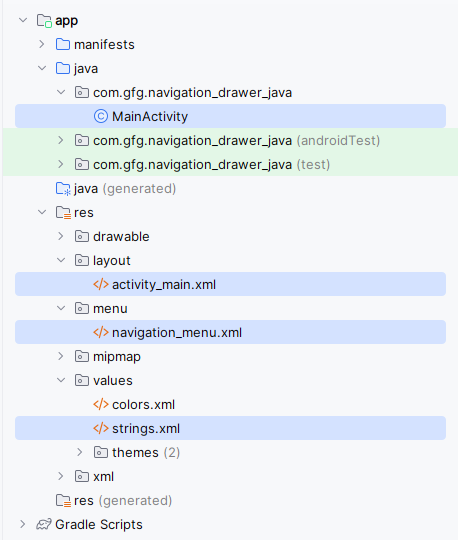
**Step 2: Adding a dependency to the project
In this discussion, we are going to use the Material Design Navigation drawer. So add the following Material design dependency to the app-level Gradle file.
implementation 'com.google.android.material:material:1.3.0-alpha03'
Refer to the following image if unable to locate the app-level Gradle file that invokes the dependency (under project hierarchy view). After invoking the dependency click on the ****"Sync Now "** button. Make sure the system is connected to the network so that Android Studio downloads the required files.
**Step 3: Creating a menu in the menu folder
Create the menu folder under the res folder. To implement the menu. Refer to the following video to create the layout to implement the menu.
**navigation_menu.xml:
XML `
<item
    android:id="@+id/nav_account"
    android:title="My Account" />

<item
    android:id="@+id/nav_settings"
    android:title="Settings" />

<item
    android:id="@+id/nav_logout"
    android:title="Logout" />
`
**Step 4: Working with the activity_main.xml File
Invoke the following code in the activity_main.xml to set up the basic things required for the Navigation Drawer.
activity_main:
XML `
<androidx.drawerlayout.widget.DrawerLayout xmlns:android="http://schemas.android.com/apk/res/android" xmlns:app="http://schemas.android.com/apk/res-auto" xmlns:tools="http://schemas.android.com/tools" android:id="@+id/drawer_layout" android:layout_width="match_parent" android:layout_height="match_parent" android:background="#168BC34A" tools:context=".MainActivity" tools:openDrawer="start">
<LinearLayout
    android:layout_width="match_parent"
    android:layout_height="match_parent"
    android:layout_marginTop="40sp"
    android:orientation="vertical">

    <androidx.appcompat.widget.Toolbar
        android:id="@+id/toolbar"
        android:layout_width="match_parent"
        android:layout_height="?attr/actionBarSize"
        android:background="?attr/colorPrimary"
        android:elevation="4dp"
        android:theme="@style/ThemeOverlay.AppCompat.ActionBar"
        app:popupTheme="@style/ThemeOverlay.AppCompat.Light"
        app:title="Navigation Drawer Example" />

    <FrameLayout
        android:id="@+id/fragment_container"
        android:layout_width="match_parent"
        android:layout_height="match_parent" />

</LinearLayout>

<com.google.android.material.navigation.NavigationView
    android:id="@+id/nav_view"
    android:layout_width="wrap_content"
    android:layout_height="match_parent"
    android:layout_gravity="start"
    app:menu="@menu/navigation_menu" />
</androidx.drawerlayout.widget.DrawerLayout>
`
**Layout:
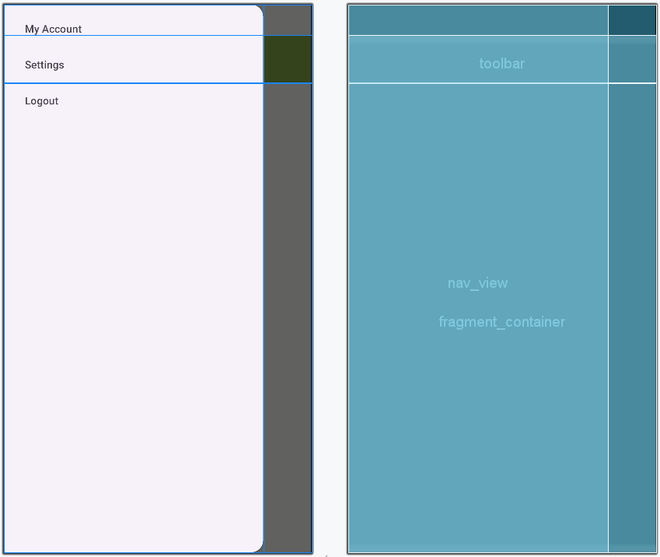
One thing to be noticed is that the menu drawer icon is still not appeared on the action bar. We need to set the icon and its open-close functionality programmatically.
**Step 5: Include the Open Close strings in the string.xml
Invoke the following code in the app/res/values/strings.xml file.
strings.xml:
XML `
Navigation Drawer Open Close`
**Step 6: Working with the MainActivity File
- Invoke the following code in the MainActivity file to show the menu icon on the action bar and implement the open-close functionality of the navigation drawer.
- Comments are added inside the code for better understanding.
Below is the implementation of MainActivity File:
Java `
package com.gfg.navigation_drawer_java;
import androidx.activity.OnBackPressedCallback; import androidx.annotation.NonNull; import androidx.appcompat.app.ActionBarDrawerToggle; import androidx.appcompat.app.AppCompatActivity; import androidx.core.view.GravityCompat; import androidx.drawerlayout.widget.DrawerLayout; import android.os.Bundle; import android.view.MenuItem; import android.widget.Toast; import androidx.appcompat.widget.Toolbar; import com.google.android.material.navigation.NavigationView;
public class MainActivity extends AppCompatActivity { // Declare the DrawerLayout, NavigationView, and Toolbar private DrawerLayout drawerLayout; private NavigationView navigationView; private Toolbar toolbar;
@Override
protected void onCreate(Bundle savedInstanceState) {
    super.onCreate(savedInstanceState);
    // Set the content view to the activity_main layout
    setContentView(R.layout.activity_main);

    // Initialize the DrawerLayout, Toolbar, and NavigationView
    drawerLayout = findViewById(R.id.drawer_layout);
    toolbar = findViewById(R.id.toolbar);
    navigationView = findViewById(R.id.nav_view);

    // Create an ActionBarDrawerToggle to handle
    // the drawer's open/close state
    ActionBarDrawerToggle toggle = new ActionBarDrawerToggle(
            this, drawerLayout, toolbar, R.string.nav_open, R.string.nav_close);

    // Add the toggle as a listener to the DrawerLayout
    drawerLayout.addDrawerListener(toggle);

    // Synchronize the toggle's state with the linked DrawerLayout
    toggle.syncState();

    // Set a listener for when an item in the NavigationView is selected
    navigationView.setNavigationItemSelectedListener(new NavigationView.OnNavigationItemSelectedListener() {

        // Called when an item in the NavigationView is selected.
        @Override
        public boolean onNavigationItemSelected(@NonNull MenuItem item) {
            // Handle the selected item based on its ID
            if (item.getItemId() == R.id.nav_account) {
                // Show a Toast message for the Account item
                Toast.makeText(MainActivity.this,
                        "Account Details", Toast.LENGTH_SHORT).show();
            }

            if (item.getItemId() == R.id.nav_settings) {
                // Show a Toast message for the Settings item
                Toast.makeText(MainActivity.this,
                        "Settings Opened", Toast.LENGTH_SHORT).show();
            }

            if (item.getItemId() == R.id.nav_logout) {
                // Show a Toast message for the Logout item
                Toast.makeText(MainActivity.this,
                        "You are Logged Out", Toast.LENGTH_SHORT).show();
            }

            // Close the drawer after selection
            drawerLayout.closeDrawers();
            // Indicate that the item selection has been handled
            return true;
        }
    });

    // Add a callback to handle the back button press
    getOnBackPressedDispatcher().addCallback(this, new OnBackPressedCallback(true) {
        // Called when the back button is pressed.
        @Override
        public void handleOnBackPressed() {
            // Check if the drawer is open
            if (drawerLayout.isDrawerOpen(GravityCompat.START)) {
                // Close the drawer if it's open
                drawerLayout.closeDrawer(GravityCompat.START);
            } else {
                // Finish the activity if the drawer is closed
                finish();
            }
        }
    });
}
}
Kotlin
package com.gfg.navigationdrawerkotlin
import android.os.Bundle import android.view.MenuItem import androidx.appcompat.app.ActionBarDrawerToggle import androidx.appcompat.app.AppCompatActivity import androidx.drawerlayout.widget.DrawerLayout
class MainActivity : AppCompatActivity() { lateinit var drawerLayout: DrawerLayout lateinit var actionBarDrawerToggle: ActionBarDrawerToggle
override fun onCreate(savedInstanceState: Bundle?) {
    super.onCreate(savedInstanceState)
    setContentView(R.layout.activity_main)

    // drawer layout instance to toggle the menu icon to open
    // drawer and back button to close drawer
    drawerLayout = findViewById(R.id.drawer_layout)
    actionBarDrawerToggle = ActionBarDrawerToggle(this, drawerLayout, R.string.nav_open, R.string.nav_close)

    // pass the Open and Close toggle for the drawer layout listener
    // to toggle the button
    drawerLayout.addDrawerListener(actionBarDrawerToggle)
    actionBarDrawerToggle.syncState()

    // to make the Navigation drawer icon always appear on the action bar
    supportActionBar?.setDisplayHomeAsUpEnabled(true)
}

// override the onOptionsItemSelected()
// function to implement
// the item click listener callback
// to open and close the navigation
// drawer when the icon is clicked
override fun onOptionsItemSelected(item: MenuItem): Boolean {
    return if (actionBarDrawerToggle.onOptionsItemSelected(item)) {
        true
    } else super.onOptionsItemSelected(item)
}
}
`