n8n (original) (raw)
Last Updated : 2 May, 2026
n8n an open-source workflow automation platform, enables users to visually create workflows with a node-based interface. Unlike typical no-code tools, it supports developers with JavaScript, API calls and self-hosting. With over 200 integrations like Google Sheets, Slack, GitHub, etc.
It offers cloud-based and self-hosted options, providing businesses flexibility in workflow management.
How to Use n8n
To use n8n we have two options:
- We can use their web interface on the website which requires an account and a paid subscription.
- Since it is open source, we can run it locally or host ourselves. This is free to use and gives access to almost all of the features.
**Local Setup of n8n
1. Download and install Node.js from the official website.
2. Open a terminal and run the command npx n8n. After running the command it will show:
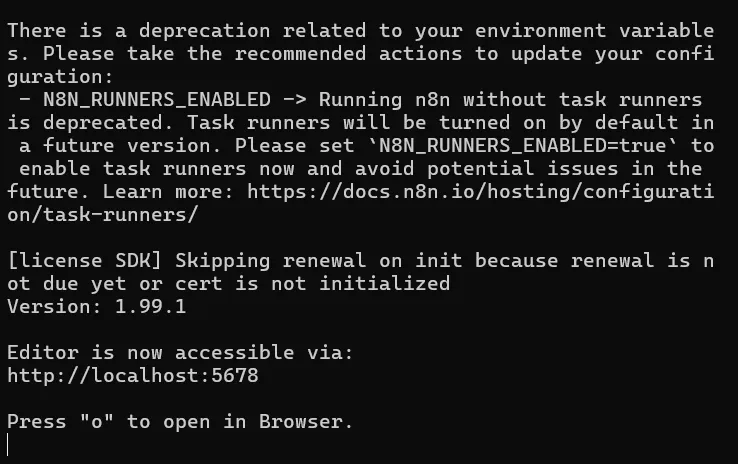
terminal Window
3. To open the interface, either press "o" on the keyboard or open the localhost URL shown in the terminal i.e http://localhost:5678 (can be different for different users). If the installation is done correctly then the interface on the browser will look similar to the one presented below.
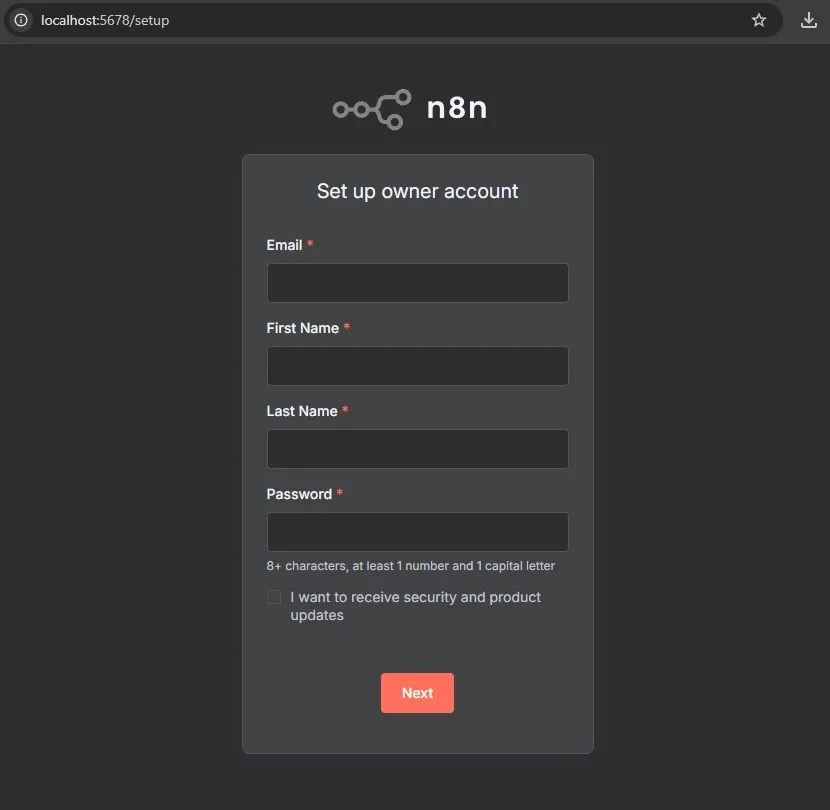
Local Terminal of n8n
4. The user can enter their credentials and then use the features of n8n on their local systems.
Self-Hosting n8n with Docker Desktop
An alternative to the Node.js method, self-hosting n8n with Docker Desktop offers a user-friendly, no-code solution for running n8n locally. Docker, a platform that packages applications and their dependencies into containers, simplifies setup by eliminating manual configuration. This method is ideal for beginners or those avoiding terminal commands while still providing the privacy, control and scalability benefits of self-hosting highlighted in the Key Features section.
**Why Use Docker for n8n
- **Simplicity: Docker bundles n8n’s dependencies (e.g., libraries, tools) into a single container, streamlining setup.
- **Portability: Containers run consistently across local machines or cloud providers.
- **Isolation: n8n operates independently, avoiding conflicts with other applications.
- **Scalability: Easily deploy multiple containers for complex workflows or increased workloads.
**Prerequisites
- A computer with Windows, macOS or Linux.
- An internet connection to download Docker Desktop and the n8n image.
- Optional: Existing n8n cloud workflows for migration.
**Step-by-Step Guide
**1. Install Docker Desktop:
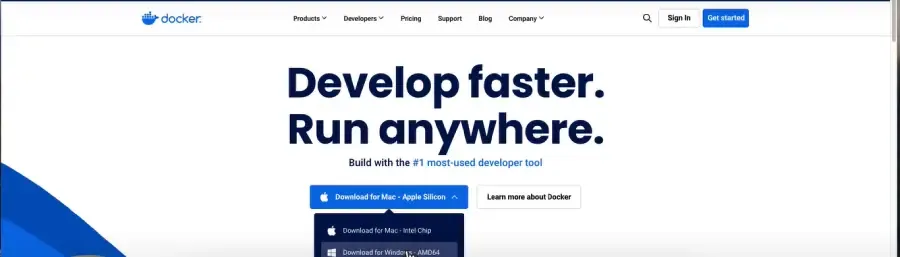
Installation of Docker Desktop
- Download Docker Desktop for your operating system.
- For macOS users with M1/M2/M3 chips, select the Apple Silicon version.
- Install and launch Docker Desktop.
**2. Create a Data Folder:
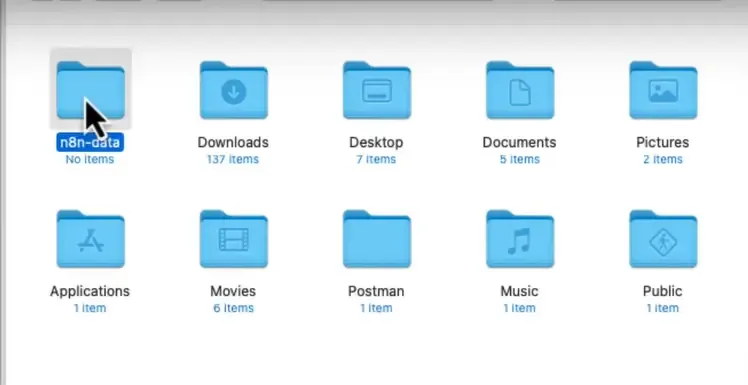
Create a folder named n8n-data in your home directory to store workflows, credentials and configurations for data persistence.
- **MacOS/Linux: Use your file explorer or run mkdir ~/n8n-data in a terminal.
- **Windows: Create the folder in C:\Users\YourUsername\n8n-data via File Explorer.
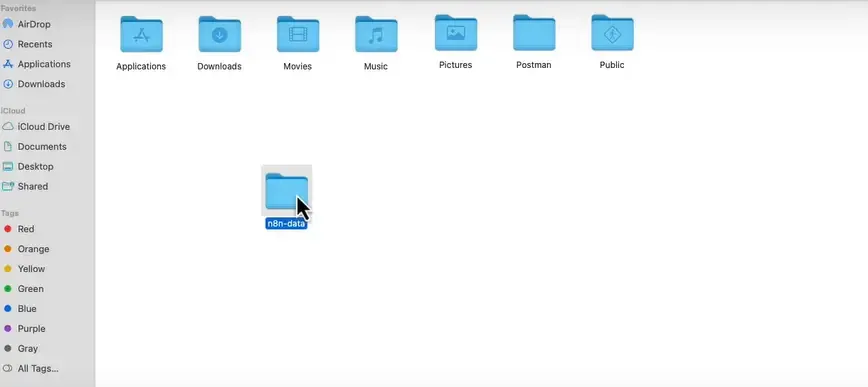
Create a new folder of n8n Data
**3. Pull the n8n Image:
- In Docker Desktop, go to the Images tab and search for n8n.io/n8n.
- Select the official image (100M+ downloads, high star rating) and click Pull.
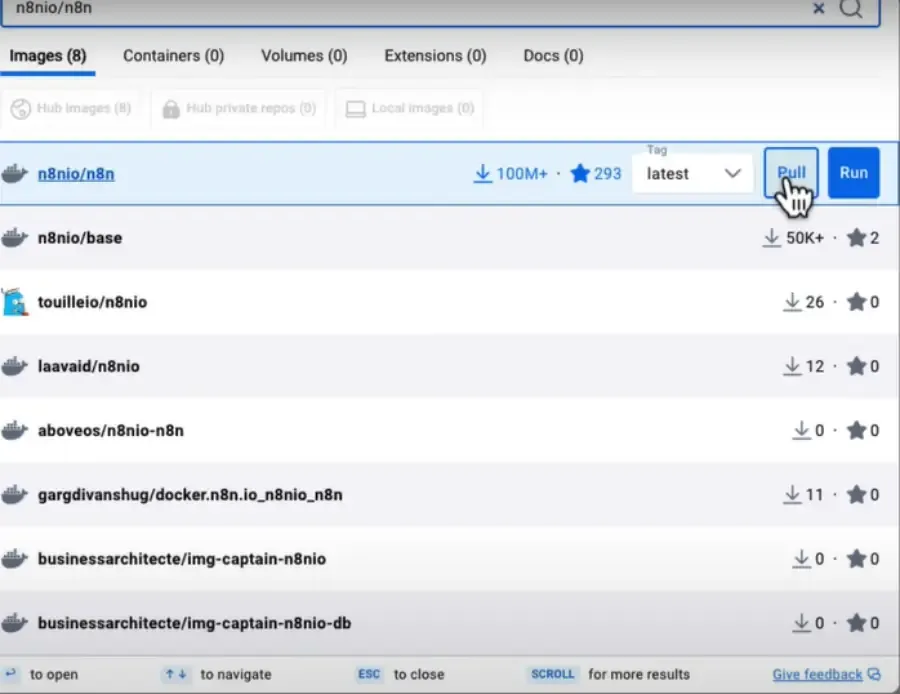
Pull the n8n Image
**4. Run the n8n Container:
- In the Images tab, locate n8n.io/n8n and click Run.
- Configure the container:
- **Container Name: Set to n8n-container.
- **Host Port: Enter 5678 to access n8n at http://localhost:5678.
- **Volume: Select the n8n-data folder and set the container path to /home/node/.n8n for data syncing.
- Click Run to start the container.
Run the n8n Container
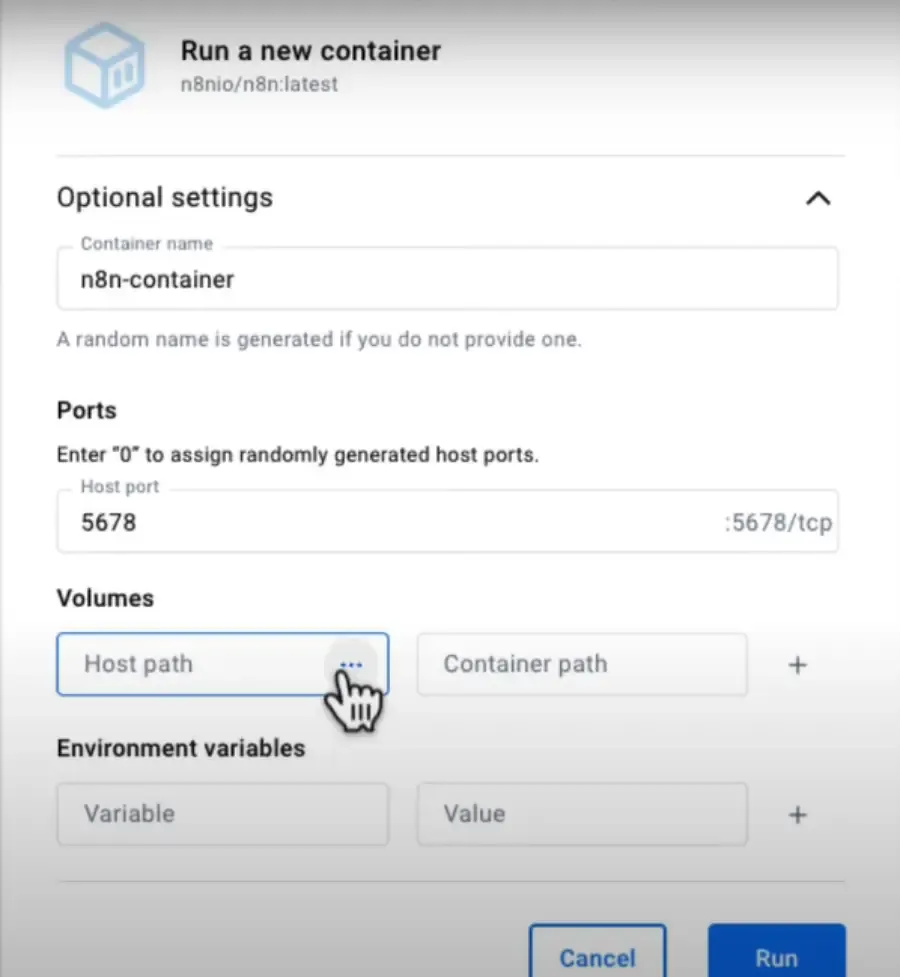
Run the n8n Container
**5. Access n8n:
- Open a browser and go tohttp://localhost:5678.
- Create an account with a username and password (independent of cloud accounts).
- Complete the onboarding prompts to customize your instance.
**6. Manage the Container:
- Stop the container in Docker Desktop’s Containers tab by clicking Stop (the interface will be inaccessible).
- Restart by clicking Start and refresh http://localhost:5678 to resume.
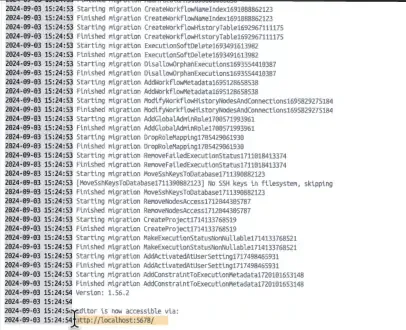
Paste into the browser of local host
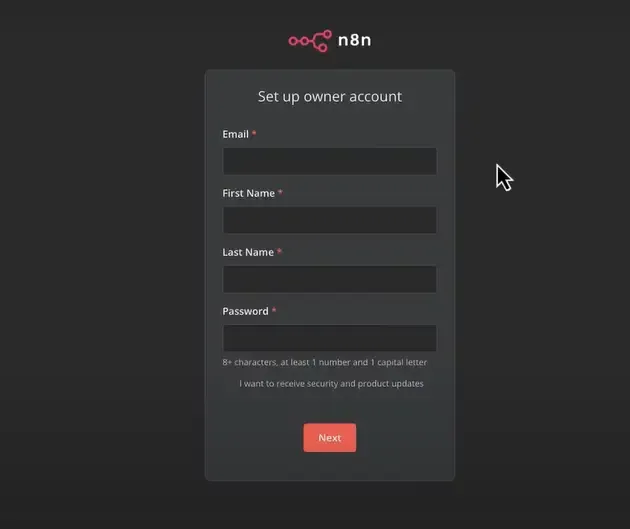
Successfully open in the browser
**Securing Your Instance
To prevent unauthorized access:
1. Add these environment variables in Docker Desktop’s container settings:
- N8N_BASIC_AUTH_ACTIVE=true
- N8N_BASIC_AUTH_USER=
- N8N_BASIC_AUTH_PASSWORD=
2. For production, use a reverse proxy (e.g., Nginx) with HTTPS. See the n8n documentation on the official website for more details.
**Migrating Cloud Workflows
To import workflows from a cloud n8n account:
- Export workflows as JSON files from the cloud interface (top-right menu > Download).
- In your self-hosted n8n, go to Workflows > Import from File and select the JSON file.
- Re-add credentials manually, as they don’t transfer. Check version compatibility to avoid errors.
**Example Workflow: Google Sheets to Slack To apply n8n’s use cases (e.g., data synchronization):
- Create a workflow in the n8n editor.
- Add a Google Sheets trigger node for new rows.
- Add a Slack node to send notifications.
- Configure credentials, save and activate the workflow.
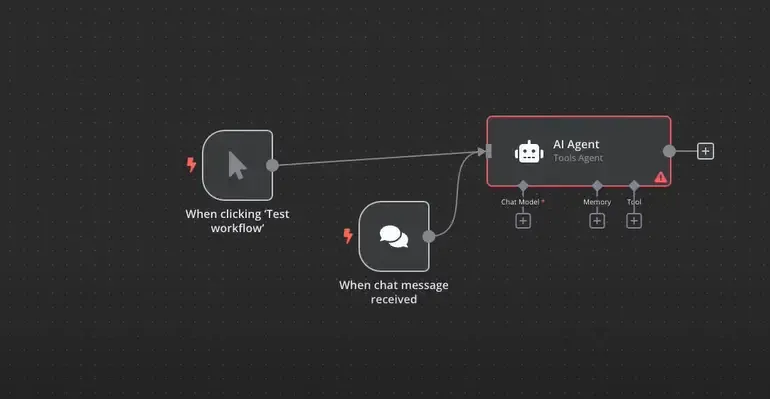
Migrating Cloud Workflows
**Troubleshooting
- **Port Conflict: If http://localhost:5678 fails, change the host port (e.g., to 5679) in Docker Desktop.
- **Docker Issues: Ensure Docker Desktop is running and you have sufficient disk space.
- **Data Loss: Verify the n8n-data folder is mapped to /home/node/.n8n.
This method empowers you to leverage n8n’s full potential locally, supporting AI automation, data syncing and more, as described in the use cases section.
Workflow
n8n works by enabling users to create workflows that consist of a series of nodes. These nodes are connected in a sequence to define the flow of the automation. Lets understand the steps with examples:
- **Trigger: A workflow starts with a trigger such as a new email in Gmail or a new entry in a Google Sheet.
- **Action: Based on the trigger the workflow can perform one or more actions like sending a Slack message, posting to a Twitter account or storing data in a database.
- **Conditions: We can include conditional logic in our workflow such as "if this condition is true, do that; otherwise else do something else".
- **Output: Finally, the workflow can generate an output such as sending an email or storing data.
Technical Use Cases
**1. AI Workflow Automation: Integrates AI tools like OpenAI's GPT-4o or Whisper to:
- Generate meeting summaries for Slack or Notion.
- Analyze sales data for dashboard reports.
- Build NLP pipelines for data-driven actions.
**2. Data Synchronization: Ensures real-time data syncing:
- Syncs customer records across PostgreSQL, Google Sheets and Airtable.
- Automates backups and ETL pipelines for analytics dashboards like Looker.
**3. AI Agent Creation: Builds AI agents to:
- Monitor emails and take actions based on context.
- Use decision nodes for lead scoring, messaging or issue escalation.
- Create autonomous workflows with APIs and logic.
**4. Sales and CRM Automation: Automates lead management:
- Captures leads from forms.
- Enriches data with Clearbit or Apollo.
- Assigns leads and triggers emails or Slack alerts.
**5. Customer Support Automation: Streamlines support:
- Drafts ticket responses using GPT-4o.
- Categorizes tickets by tone/keywords.
- Updates CRMs and escalates high-priority tickets.