DNS Cache Flushing (original) (raw)
Last Updated : 4 May, 2026
Sometimes websites fail to load or your internet feels slow due to outdated DNS cache entries. These stored records may contain incorrect information, causing connectivity issues. Flushing the DNS cache helps refresh these records and improves browsing performance.
- Clearing the DNS cache removes outdated or incorrect records, helping resolve errors like “site not found” or slow loading.
- It ensures fresh DNS lookups, reduces delays, and prevents potential issues caused by corrupted or malicious cache data.
**Example: When a website shows errors or loads an outdated version, it may be due to stale DNS cache data. Clearing the DNS cache forces your system to fetch the latest IP address. This helps the website load correctly and improves performance.
Benefits of Flushing DNS Cache
Flushing the DNS cache helps resolve connectivity issues, improve browsing performance, and ensure accurate domain resolution.
1. Fix Website Loading Issues
Clearing outdated DNS records helps your system connect to the correct server.
- Removes old IP mappings that cause errors like “site can’t be reached.”
- Forces the system to fetch the latest IP address for proper access.
2. Resolve Network Issues After Changes
Ensures your system reflects recent DNS or hosting updates correctly.
- Useful after changing DNS servers or migrating websites.
- Prevents conflicts caused by outdated cached data.
3. Improve Privacy and Security
Removes potentially unsafe or manipulated DNS entries.
- Protects against DNS spoofing or malicious cache modifications.
- Ensures connections are made to legitimate servers.
4. Restore Browsing Performance
Fixes delays caused by corrupted or outdated DNS entries.
- Clears incorrect cache data that slows domain resolution.
- Helps restore normal browsing speed and responsiveness.
5. Simplify Network Troubleshooting
Acts as a quick first step to fix common internet issues.
- Often resolves problems without resetting routers or systems.
- Fast and easy solution before trying complex fixes.
Flushing DNS Cache in Windows, Mac & Linux OS
Now if you are facing any issue which is mentioned above, then explore this section to Let's see how to clear the DNS cache for macOS, Windows, and Linux.
1. Flushing the DNS Cache in Windows
Flushing the DNS cache on Windows involves using the Command Prompt. So, explore the below steps for successful DNS clearing in Windows.
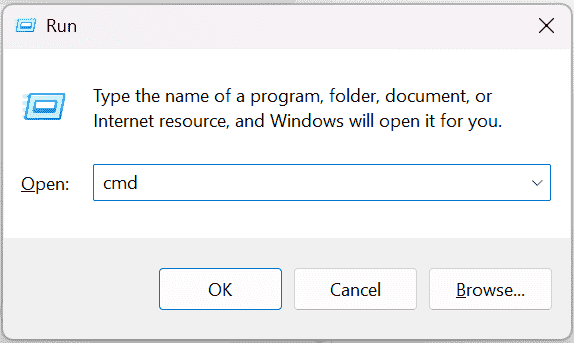
**Step 1: Open Command Prompt
- Press _Win + R to open the Command Prompt, type cmd, and hit Enter.
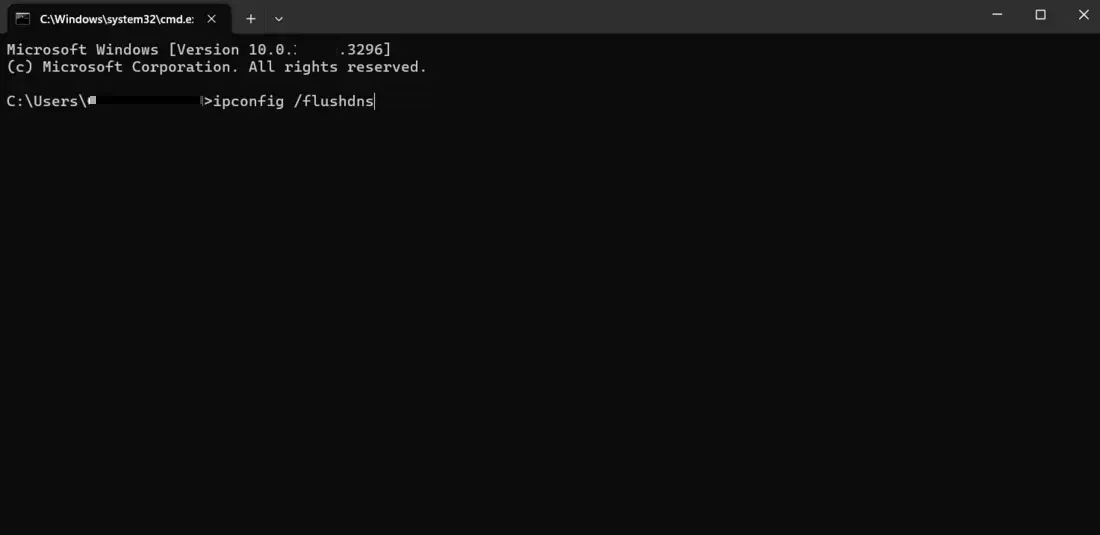
**Step 2: Use ipconfig
- In the opened Command Prompt window, type in this command and hit Enter:
ipconfig /flushdns
**Step 3: Flush DNS Cache
- If successful, you will see a message stating "Successfully flushed the DNS Resolver Cache."

2. Flushing the DNS Cache on Mac
Here's how to flush the DNS cache on your Mac:
- Press the F4 button to open Spotlight.
- A search bar will appear; type "Terminal" and click to open it.
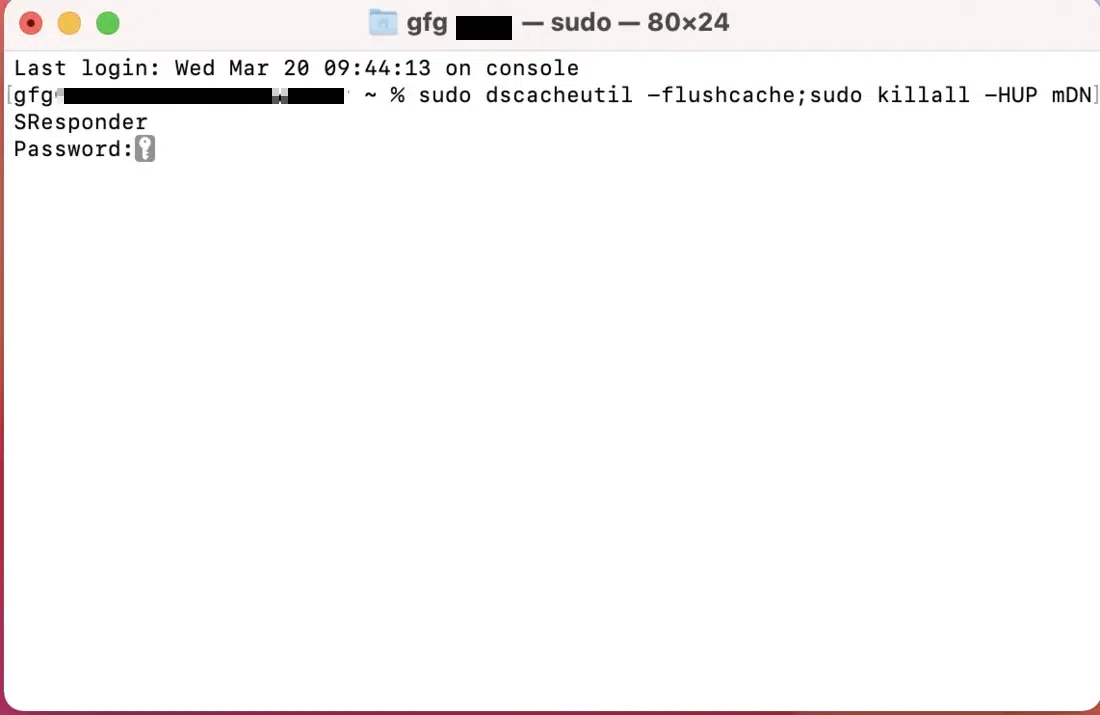
- **Enter the following command and press Enter:
sudo dscacheutil -flushcache; sudo killall -HUP mDNSResponder
- **Type your administrator password when prompted. This is required to run commands with administrative privileges.

- **Press Enter again. If successful, you won't see any confirmation message, but your DNS cache will be flushed.
3. Flushing the DNS Cache on Linux
The specific commands for flushing the DNS cache on Linux can vary depending on your distribution. Here are some common methods:
**For Ubuntu and Debian
- Open a terminal window. You can usually do this by pressing
- Type the following command and press Enter:
sudo systemd-resolve --flush-caches
**For newer versions of Ubuntu
You may need to use this command instead:
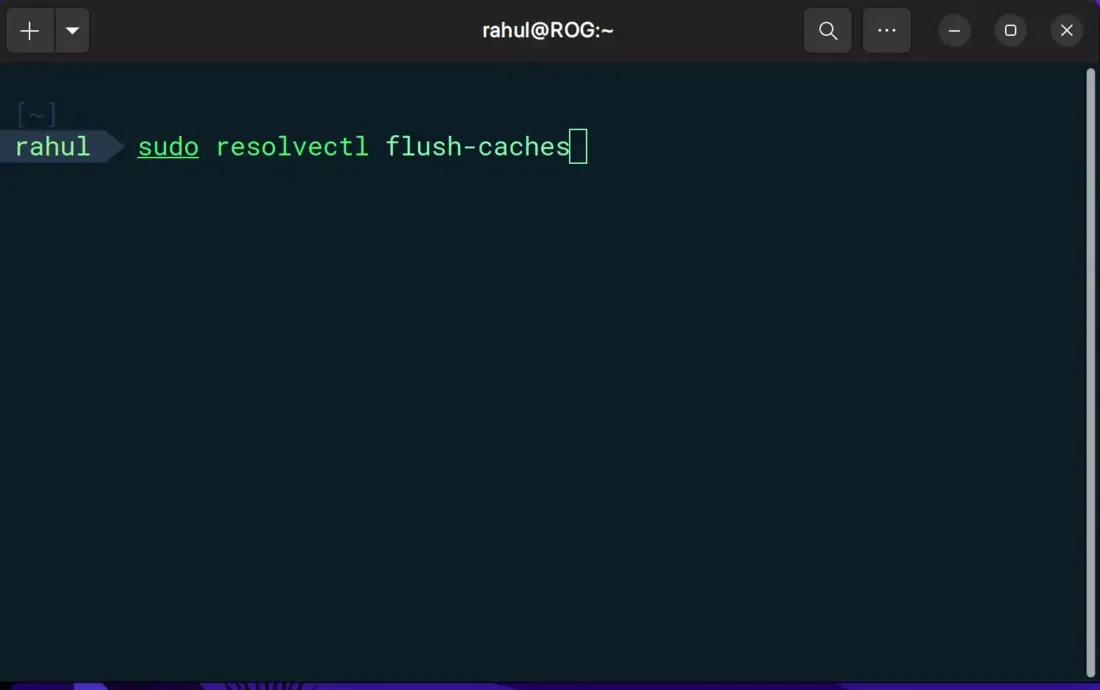
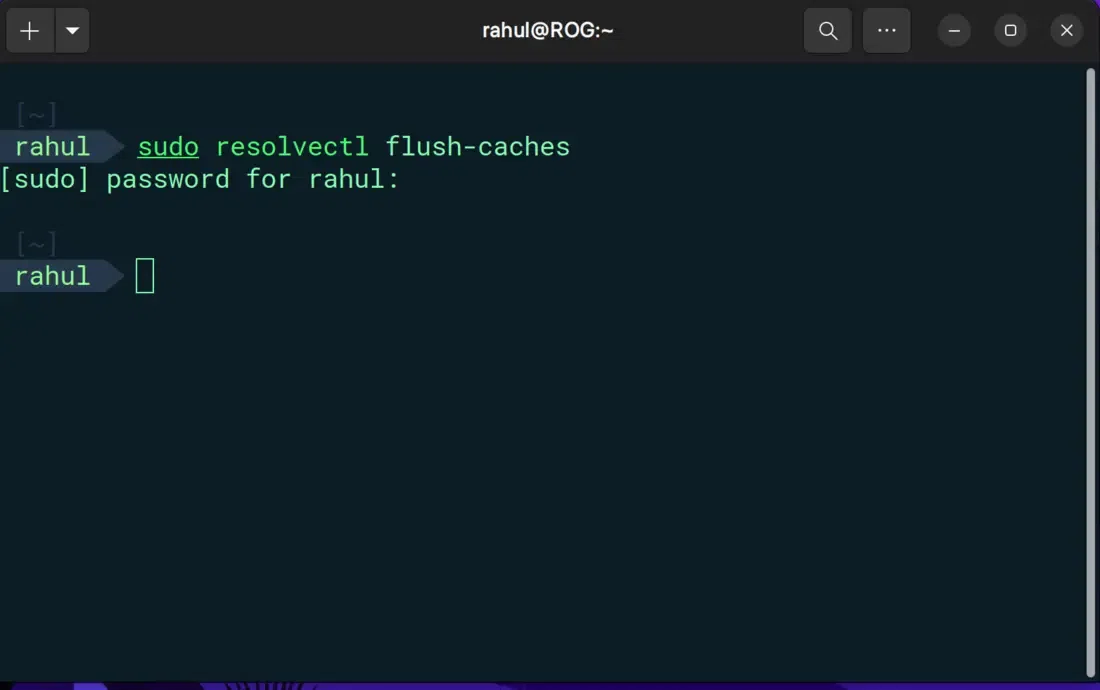
sudo resolvectl flush-caches
If successful, you won't see any confirmation message, but your DNS cache will be flushed.
**Other Distribution
Here are some examples of other Linux distributions:
- **Fedora/CentOS
sudo service nscd restart
- **Arch Linux
sudo systemd-resolve --flush-caches
Once you clear the DNS cache, there may be some slight latency when first visiting web pages. This is because your device has to obtain fresh IP addresses from the DNS server. This delay should be minimal, and subsequent visits to the same website should load at the usual speed.
Limitations of Flushing DNS Cache
This **DNS (Domain Name System) cache flushing is not a magic bullet for all internet connectivity problems that affect your computer. Here are some scenarios where it might not be the solution:
**1. Hardware or Software Issues
Problems related to devices or network setup cannot be fixed by clearing DNS cache.
- Issues like slow internet, frequent disconnections, or faulty routers require hardware or system-level fixes.
- Network drivers or system misconfigurations may also cause connectivity problems.
**2. Website Downtime
If the website itself is unavailable, DNS flushing will not help.
- Websites under maintenance or facing server issues cannot be accessed.
- The problem exists on the server side, not in your local system.
**3. Incorrect Network Configuration
Wrong network settings can prevent proper internet connectivity.
- Incorrect DNS server settings or IP configuration may block access.
- Ensure your network is properly configured according to your ISP.
**Related Articles