How to set the button alignment in Bootstrap ? (original) (raw)
Last Updated : 12 Sep, 2024
Bootstrap buttons are no different from any other DOM elements of an HTML document. Aligning them is more likely the same as aligning paragraphs, divs and sections. Here are some of the scenarios that one can encounter.
Here we are using some common methods:
Table of Content
**Buttons in a container class
To align buttons in Bootstrap using the .text-align classes, wrap the button group inside a
**Syntax:
class="text-left"|"text-center"|"text-right"
**Note: You can also use the HTML5 ****** tag to align buttons to the center.
**Example: In this example we aligns buttons using Bootstrap's text alignment classes: text-left, text-center, and text-right. Additionally, a tag centers buttons, showcasing various button alignments within a Bootstrap container.
html `
<link rel="stylesheet" href="https://maxcdn.bootstrapcdn.com/bootstrap/4.0.0/css/bootstrap.min.css" />
<title>Aligning Buttons</title>GeeksforGeeks
    <div class="text-center">
        <button type="button">Button 1</button>
        <button type="button">Button 2</button>
    </div>

    <div class="text-right">
        <button type="button">Button 1</button>
        <button type="button">Button 2</button>
    </div>

    <center>
        <button type="button">Button 1</button>
        <button type="button">Button 2</button>
    </center>
</div>

<script src="" title="undefined" rel="noopener noreferrer">https://code.jquery.com/jquery-3.2.1.slim.min.js">
`
**Output:

**Buttons inside FlexBox
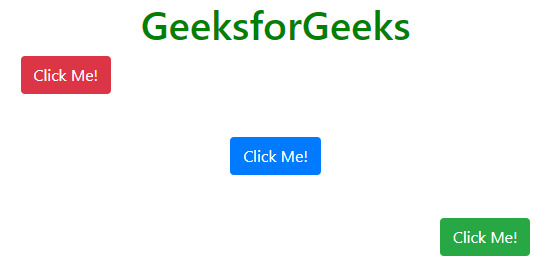
The Buttons inside FlexBox approach uses Bootstrap’s flex utilities by applying d-flex and justify-content classes to align buttons. You can align buttons left, center, right, or spaced evenly within a flex container using these classes.
**Example: In this example we aligns buttons using Bootstrap's flex utilities. Buttons are positioned at the top-left, center, and bottom-right within a flex container, demonstrating various alignments using align-self-* classes.
html `
<link rel="stylesheet" href="https://maxcdn.bootstrapcdn.com/bootstrap/4.0.0/css/bootstrap.min.css" />
<title>Aligning Buttons</title>

<style type="text/css">
    html,
    body {
        height: 200px;
    }
</style>
GeeksforGeeks
<script src="" title="undefined" rel="noopener noreferrer">https://code.jquery.com/jquery-3.2.1.slim.min.js">
`
**Output:
**Relative-Absolute method
This method is widely used online: the parent div is set to position: relative, and child divs are set to position: absolute. This allows precise alignment of elements, such as buttons, in any desired position.
**Example: In this example we use CSS with absolute positioning to align buttons at various positions within a container, including top, middle, and bottom placements, both centered and aligned to the left and right edges.
HTML `
<link rel="stylesheet" href="https://maxcdn.bootstrapcdn.com/bootstrap/4.0.0/css/bootstrap.min.css" />
<title>Aligning Buttons</title>

<style type="text/css">
    html,
    body {
        height: 300px;
    }

    .top-left {
        position: absolute;
        top: 0;
        left: 0;
    }

    .top-center {
        position: absolute;
        top: 0;
        left: 50%;
        transform: translateX(-50%);
    }

    .top-right {
        position: absolute;
        top: 0;
        right: 0;
    }

    .mid-left {
        position: absolute;
        top: 50%;
        left: 0;
        transform: translateY(-50%);
    }

    .mid-center {
        position: absolute;
        top: 50%;
        left: 50%;
        transform: translateX(-50%) translateY(-50%);
    }

    .mid-right {
        position: absolute;
        top: 50%;
        right: 0;
        transform: translateY(-50%);
    }

    .bottom-left {
        position: absolute;
        bottom: 0;
        left: 0;
    }

    .bottom-center {
        position: absolute;
        bottom: 0;
        left: 50%;
        transform: translateX(-50%);
    }

    .bottom-right {
        position: absolute;
        bottom: 0;
        right: 0;
    }
</style>
GeeksforGeeks
        <div class="position-absolute mid-left">
            <button type="button" class="btn btn-primary">
              Click Me!
            </button>
        </div>
        <div class="position-absolute mid-center">
            <button type="button" class="btn btn-primary">
              Click Me!
            </button>
        </div>
        <div class="position-absolute mid-right">
            <button type="button" class="btn btn-primary">
              Click Me!
            </button>
        </div>

        <div class="position-absolute bottom-left">
            <button type="button" class="btn btn-primary">
              Click Me!
            </button>
        </div>
        <div class="position-absolute bottom-center">
            <button type="button" class="btn btn-primary">
              Click Me!
            </button>
        </div>
        <div class="position-absolute bottom-right">
            <button type="button" class="btn btn-primary">
              Click Me!
            </button>
        </div>
    </div>
</div>

<script src="" title="undefined" rel="noopener noreferrer">https://code.jquery.com/jquery-3.2.1.slim.min.js">
`
**Output:
