Amazon S3 Lifecycle Management (original) (raw)
Last Updated : 11 Jun, 2026
Amazon S3 Lifecycle Management is an automated policy engine used to optimize storage costs by managing objects throughout their lifespan. As data ages, its access frequency typically declines, making high-performance storage unnecessarily expensive. An S3 Lifecycle configuration allows you to define rules that automatically transition objects to more cost-effective storage classes or delete them permanently.
- Lowers storage costs by automatically shifting inactive or "cold" data to budget-friendly archival tiers.
- Eliminates manual administrative overhead by executing predefined actions on data based on age.
- Automatically purges old log files, temp assets, and expired database backups to keep buckets clean.
- Enforces strict regulatory retention policies by ensuring data is preserved for a specific window and safely deleted afterward.
Retaining all data in the premium S3 Standard storage class indefinitely leads to high bills and inefficient resource allocation. Lifecycle management automates the transition of historical backups, compliance logs, or finished project deliverables to archival tiers. This reduces active cloud storage costs with zero manual intervention.
Types of S3 Lifecycle Actions
A lifecycle configuration rule is composed of two primary action types:
1. Transition Actions
These rules transition objects to another storage class after a set period, aligning cost with decreasing access frequency.
- **Standard to Standard-IA: Moves objects to Standard-Infrequent Access (Standard-IA) after a minimum of 30 days.
- **Standard-IA to Glacier: Shifts less active data to S3 Glacier Flexible Retrieval after a minimum of 60 total days.
- **Glacier to Deep Archive: Migrates archival data to S3 Glacier Deep Archive after 180 days for maximum cost savings.
2. Expiration Actions
These rules define when Amazon S3 should permanently delete objects from the bucket.
- **Data Pruning: Automatically deletes development logs, application cache files, or scratch datasets after their utility expires.
- **Compliance Deletion: Enforces secure, permanent deletion of sensitive records once their regulatory retention window closes.
Lifecycle Rules and Bucket Versioning
S3 Lifecycle Management works alongside Bucket Versioning to control costs for both active and legacy objects.
- **Current Versions: The active, live version of an object which you can transition through colder tiers but keep protected from expiration.
- **Non-current Versions: Historical, overwritten copies of an object that can be moved quickly to cheap archive storage or deleted after a brief period.
Example of Lifecycle Configuration
Below is a common lifecycle policy layout applied to an active logs/ directory:
Current Version Rules
- **First Transition: Shift current objects to S3 Standard-IA 30 days after creation.
- **Second Transition: Shift current objects to S3 Glacier Deep Archive 90 days after creation.
- **Final Expiration: Expire and permanently delete current objects 7 years (2555 days) after creation.
Non-current Version Rules
- **Storage Cleanup: Expire and permanently delete all non-current versions 30 days after they become non-current.
Implementing Amazon S3 Lifecycle Rules
Follow these steps to configure and implement lifecycle rules in your Amazon S3 bucket:
Step 1: Navigate to Amazon S3
- Log in to the AWS Management Console.
- Search for S3 in the search bar.
- Select Amazon S3 to open the S3 dashboard.
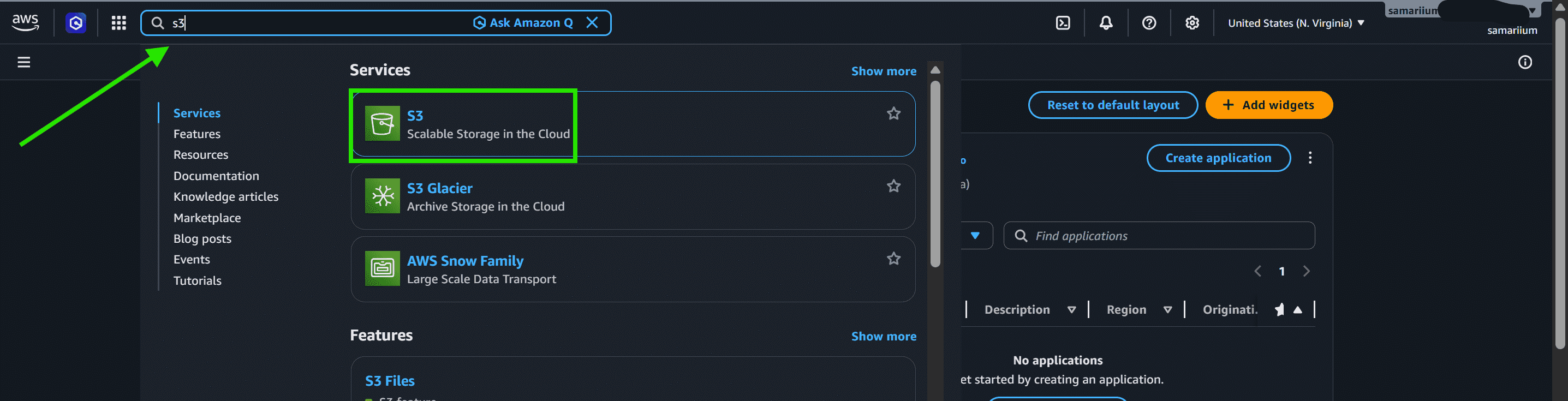
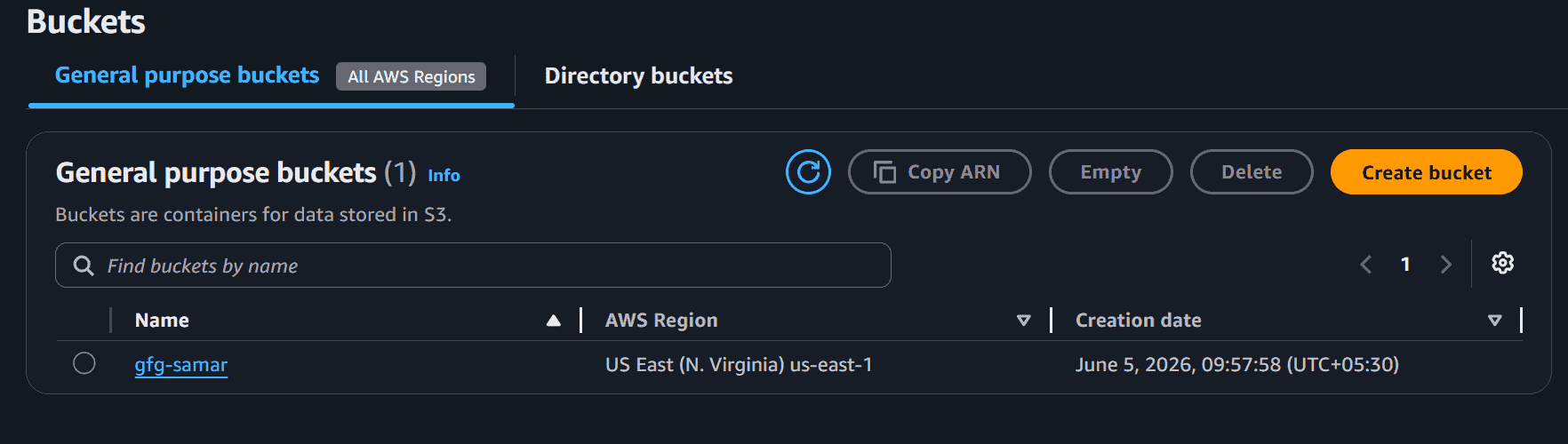
Step 2: Create or Select a Bucket
- Click Create bucket if you do not already have one.
- Enter a globally unique bucket name.
- Select the desired AWS Region.
- Configure the remaining settings and create the bucket.
**Note: To learn how to create and configure an Amazon S3 bucket step-by-step, refer to this article:Amazon S3 - Creating a S3 Bucket
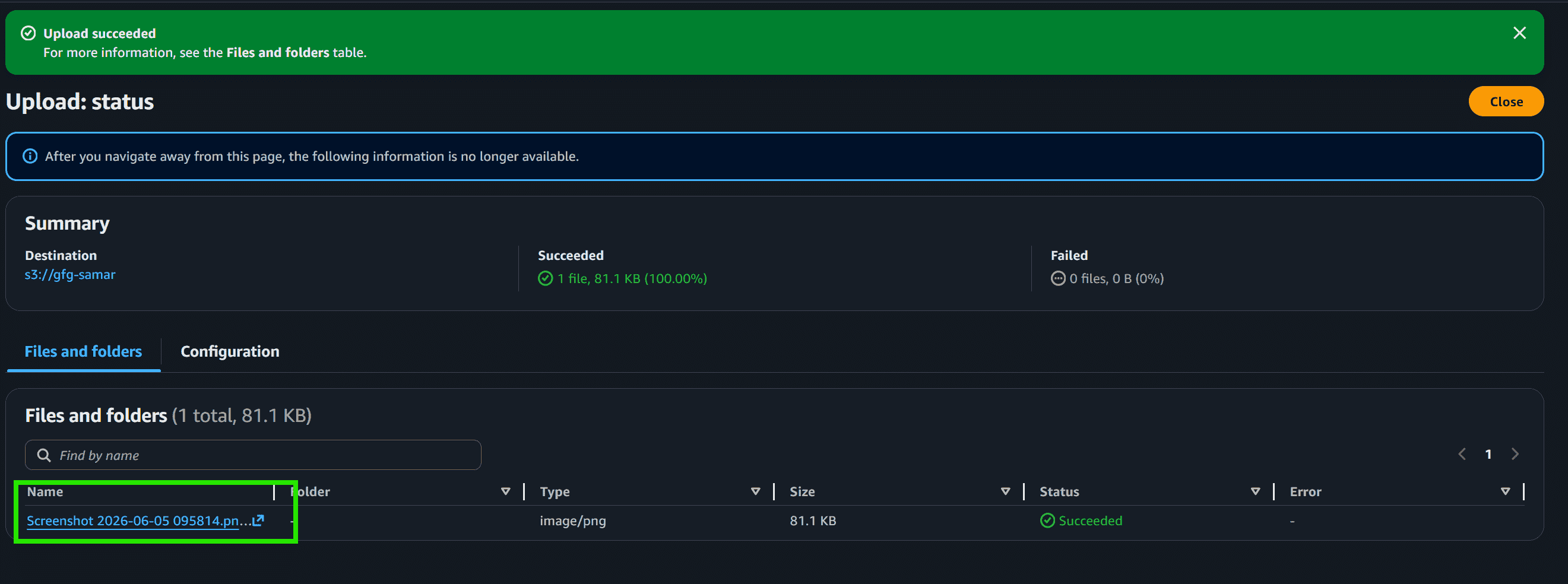
Step 3: Upload Sample Objects
- Open the bucket.
- Click Upload.
Add sample files or folders to the bucket for lifecycle testing.
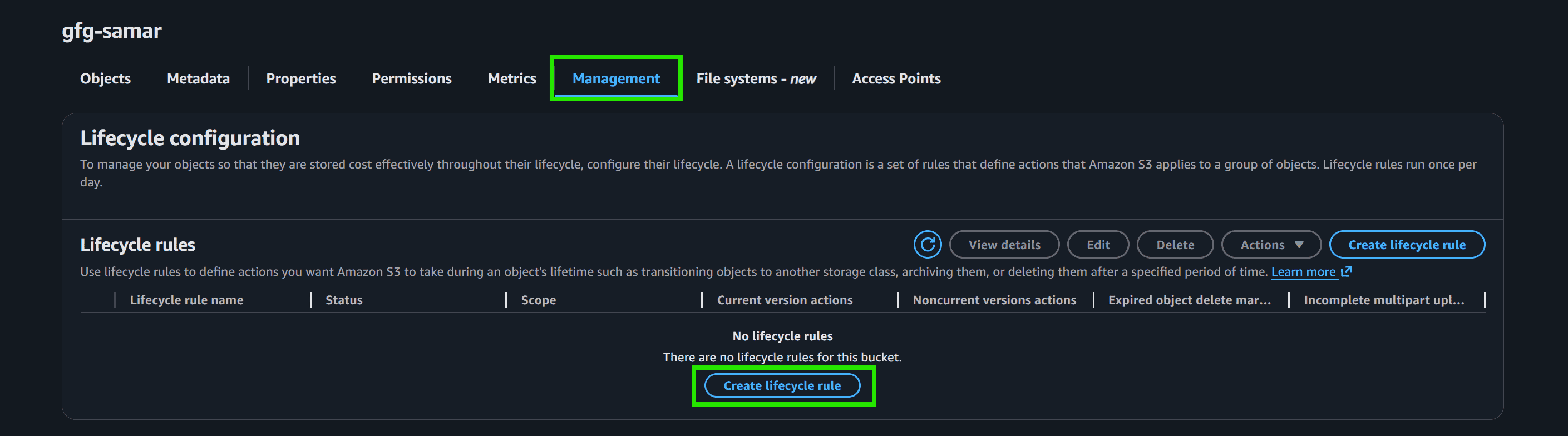
Step 4: Open the Management Tab
- Inside the selected bucket, navigate to the Management tab.
- Under Lifecycle rules, click Create lifecycle rule.
Step 5: Configure Lifecycle Rule Details
- Enter a lifecycle rule name such as
gfg-rule. - Choose the rule scope:
- Apply to all objects in the bucket
- Or limit the rule using prefixes or tags
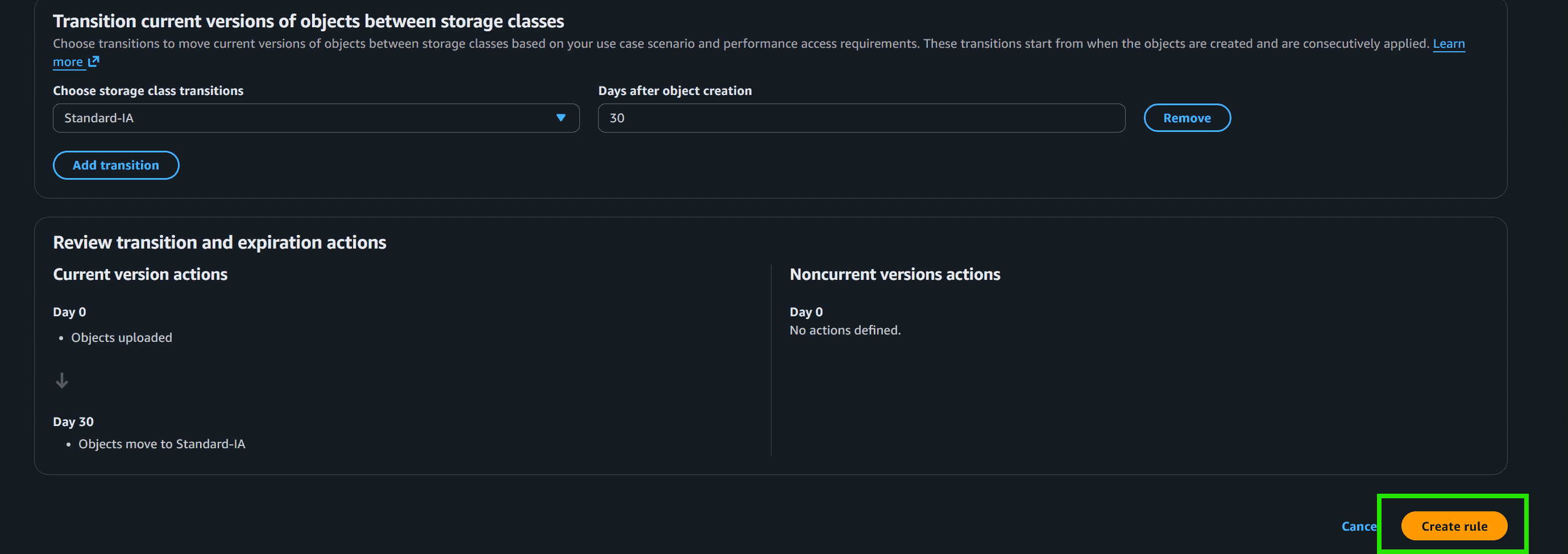
- Under Transition current versions of objects between storage classes:
- Choose
Standard-IA - Set
30days after object creation
- Choose
- Review the transition summary:
- Day 0: Objects uploaded
- Day 30: Objects move to Standard-IA
- Click Create rule
**Step 6: Verify Lifecycle Rule Activation
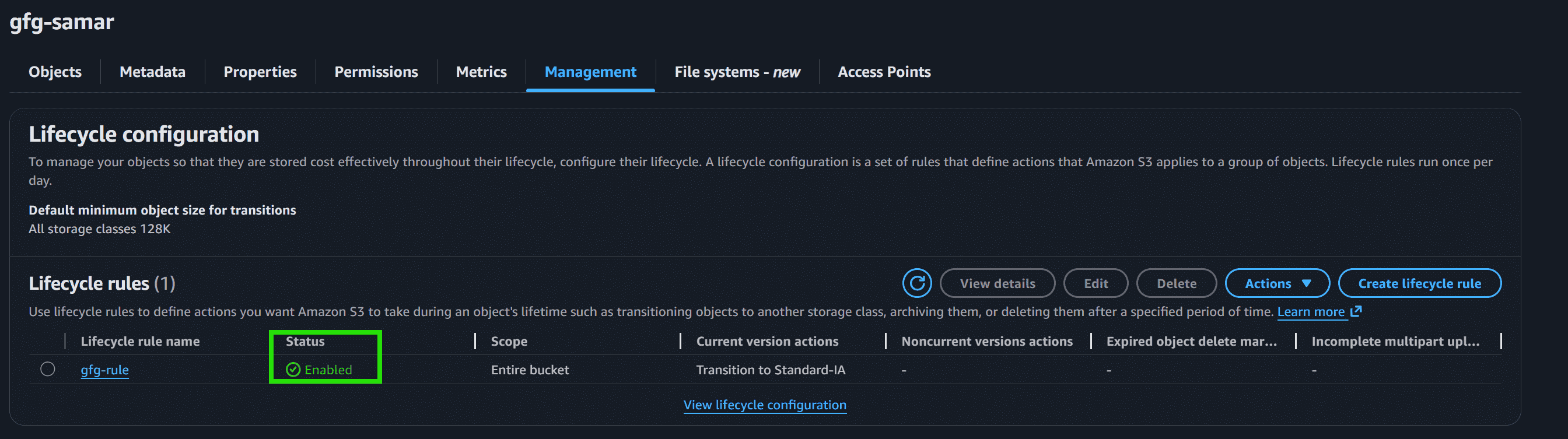
- Return to the bucket’s Management tab.
- Verify that the lifecycle rule status is set to Enabled.
**Note: Lifecycle configurations can take up to 24 to 48 hours to complete their initial run and start migrating older objects.