Creating and Attaching GCP Persistent Disks: StepbyStep (original) (raw)
Last Updated : 23 Jul, 2025
Creating and attaching Google Cloud Platform (GCP) Persistent Disks is an vital project whilst setting up virtual machines (VMs) and coping with storage within the GCP surroundings. Persistent Disks offer dependable, excessive-performance block storage that can be attached to VM instances. In this step-through-step manual, we will walk via the technique of making and attaching GCP Persistent Disks to a VM example.
Table of Content
- Introduction
- What is GCP Persistent Disks?
- What are the Uses of GCP Persistent Disks?
- Types of GCP Persistent Disks
- How to Create and Attach GCP Persistent Disks?
- Conclusion
- FAQs On Creating and Attaching GCP Persistent Disks
What are GCP Persistent Disks?
Google Cloud Platform (GCP) Persistent Disks are long-lasting and excessive-performance block storage devices designed to be used with virtual machine (VM) instances. They are an important element of GCP's storage infrastructure, providing various types and use cases to meet the storage needs of cloud-based packages and workloads. Here, we will define the makes use of and types of GCP Persistent Disks:
What are the Uses of GCP Persistent Disks?
- **Boot Disks: Persistent Disks may be used as boot disks for VM instances. These disks include the running system and vital device documents required for the VM to run. Boot disks are examine-handiest and generally use an photograph as their supply.
- **Data Storage: Persistent Disks are generally used for storing information, packages, databases, and user files associated with VM instances. They offer a reliable and scalable storage solution for a extensive variety of workloads.
- **Database Storage: Many companies use Persistent Disks to save databases, each relational and NoSQL. These disks offer constant and excessive-performance storage for database structures, ensuring records integrity and sturdiness.
- **Content Distribution: Persistent Disks are used to shop content for content transport networks (CDNs) and media streaming services. They provide low-latency to regularly accessed statistics.
- **Backup and Snapshots: Organizations use Persistent Disks to create backups and snapshots in their records. Snapshots allow users to seize point-in-time copies of disks, imparting statistics protection and recovery options.
- **Logging and Analytics: Logs, telemetry information, and analytics datasets can be stored on Persistent Disks. This guarantees dependable and high-throughput storage for analysis and monitoring purposes.
- **Data Warehousing: Data warehousing solutions frequently depend on Persistent Disks to store massive quantities of established information. These disks support the high I/O needs of data warehousing workloads.
Types of GCP Persistent Disks
1. Standard Persistent Disks (HDD)
- **Use Case: Standard disks are appropriate for most trendy-motive workloads that require value-effective storage.
- **Performance: They offer mild performance with spinning tough disk drives (HDDs).
2. SSD Persistent Disks (Solid-State Drive):
- **Use Case: SSD disks are designed for workloads that require excessive I/O overall performance, low latency, and rapid statistics get entry to.
- **Performance: They offer low-latency and high I/O overall performance the usage of stable-country drives (SSDs).
3. Local SSDs
- **Use Case: Local SSDs are connected bodily to the host gadget instead of being community-connected. They are best for workloads that demand extraordinarily high I/O overall performance however do not require facts staying power past the life of the VM instance.
- **Performance: Local SSDs offer very excessive I/O performance but are ephemeral, that means information is misplaced when the VM is deleted or restarted.
4. Zonal Persistent Disks
- **Use Case: Zonal disks are positioned in a particular availability area. They provide local redundancy inside a sector however do no longer mirror data across zones.
- **Redundancy: They are suitable for workloads where statistics replication to other zones is not essential.
5. Regional Persistent Disks
- **Use Case: Regional disks are replicated across more than one zones within a location, supplying higher availability and redundancy.
- **Redundancy: They are perfect for undertaking-vital workloads that require statistics resilience inside the event of a sector failure.
6. Snapshot-primarily based Persistent Disks:
- **Use Case: Snapshot-based totally disks are constituted of snapshots of present disks. They allow you to effectively clone disks, create backups, and release new instances from present snapshots.
- **Efficiency: They are useful for information management and developing a couple of copies of disks without incurring the overall storage value.
How to Create and Attach GCP Persistent Disks?
**Step 1: Navigate to the Google Cloud Console.Open a web browser and go to the Google Cloud Console.Select the project in which you need to create the Persistent Disk. You can do that via clicking on the project name on the top of the page.
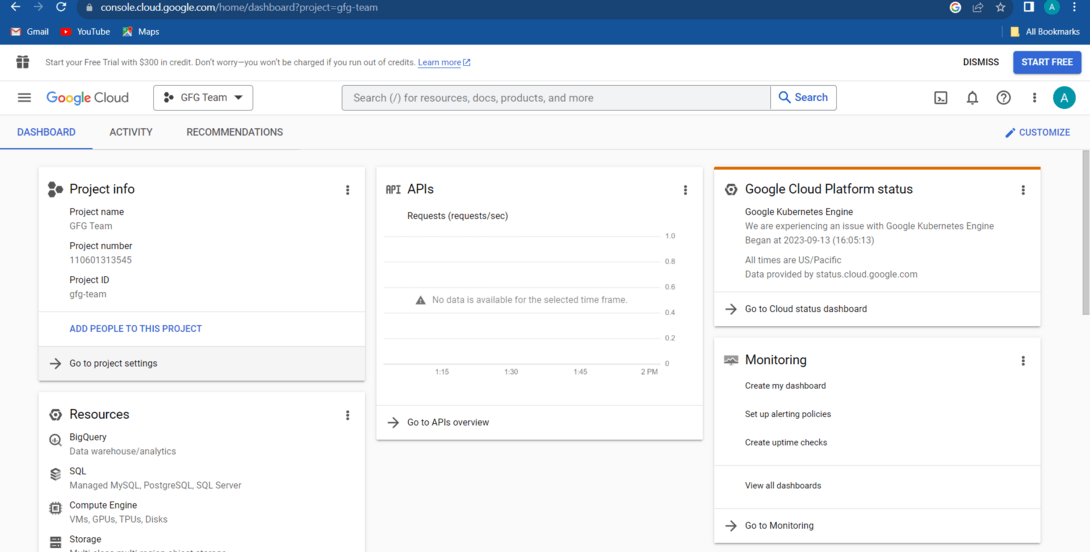
Select the project
**Step 2: Create a New Persistent Disk.In the left-hand navigation pane, click on Compute Engine below the Compute segment.Click on Disks in the Compute Engine section.
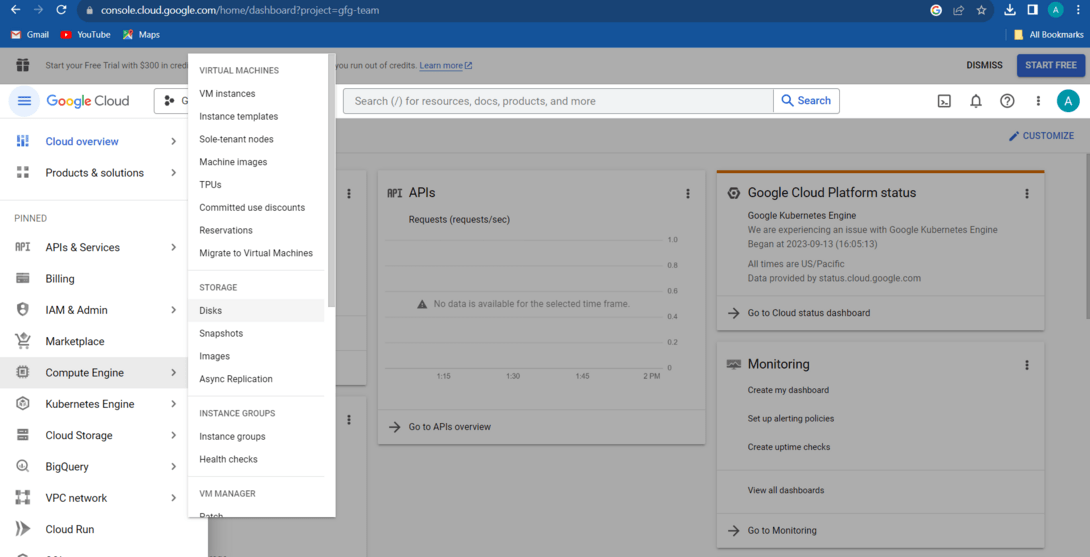
Click On the Disk
Click the Create Disk button at the top of the page.
.jpg) In the Name area, Give your new Persistent Disk a descriptive name.
In the Name area, Give your new Persistent Disk a descriptive name.

Choose the Region where you want to create the disk. Regional disks are replicated for high availability, while zonal disks are positioned in a specific region.
.jpg)
Specify the type of disk you want to choose
.jpg)
Specify the Size (GB) to your disk. This is the amount of storage you want to allocate for the disk.
.jpg)
Specify the Size (GB) to your disk
Optionally, you can upload labels and set different superior alternatives if wanted.Click the Create button to create the Persistent Disk.
.jpg)
**Step 3: Attach the Persistent Disk to a VM Instance.After developing the Persistent Disk, pass again to the Compute Engine phase in the left-hand navigation pane. Click on VM instances.Click on Create a VM instances
.jpg) Povide the Name to new VM Instances and and assign the same region as of your disk which was created earlier.
Povide the Name to new VM Instances and and assign the same region as of your disk which was created earlier.
.jpg)
Now, Click on attach the disk button
.jpg)
After Completing all the step you can create and attach GCP Persistent Disk
Conclusion
Creating and attaching Google Cloud Platform (GCP) Persistent Disks is a fundamental undertaking for managing storage in GCP, and it is critical for numerous programs and workloads. In this step-with the aid of-step guide, we included the procedure of creating a Persistent Disk, attaching it to a VM example, and verifying the attachment. By following these steps, you can effectively provision and manage garage resources in GCP to fulfill the requirements of your initiatives and applications.