Deploying a Web App on Azure App Service: StepbyStep Guide (original) (raw)
Last Updated : 23 Jul, 2025
**Azure is the Cloud computing platform and Suite of cloud services provided by **Microsoft. Azure provides various services including building and deploying web apps, logic apps, configuring databases, etc.
In this article, let us understand how to deploy a web app on Azure app service.
**Deploying a Web App on Azure App Service
**Step 1: Create and set up your Microsoft Azure account
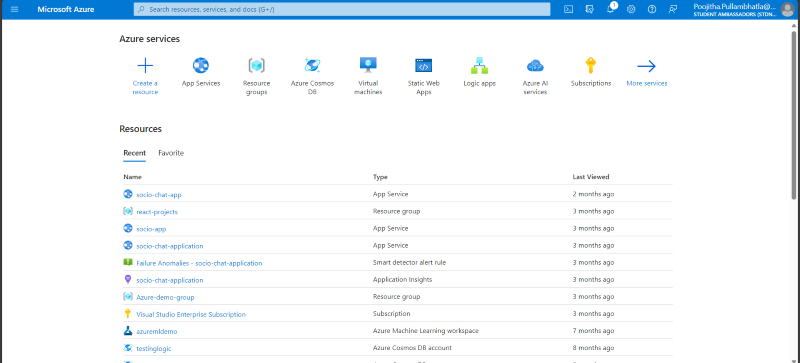
First, make sure that you have signed in to your **Azure portal. If you still figuring out how to sign in to the Azure portal follow this link: Microsoft-Azure portal. After signing in, you will preview this dashboard.
**Step 2: Build your Web Application
Create your web application in the tech stack you want. Microsoft Azure supports various technologies like C#, Java, Python, Ruby, Vue, React, Angular, etc. You can also push your code into GitHub or manage your code with any other Version Control System.
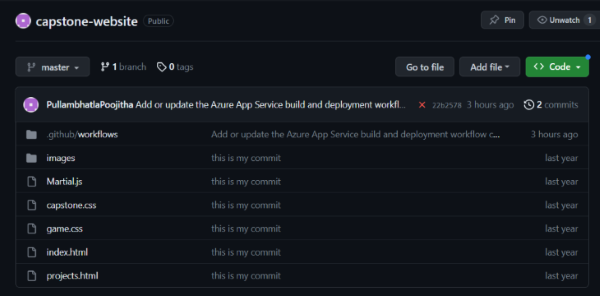
In my case, I created a sample application and pushed it to GitHub.
**Step 3: Create a Resource Group, for your Web App
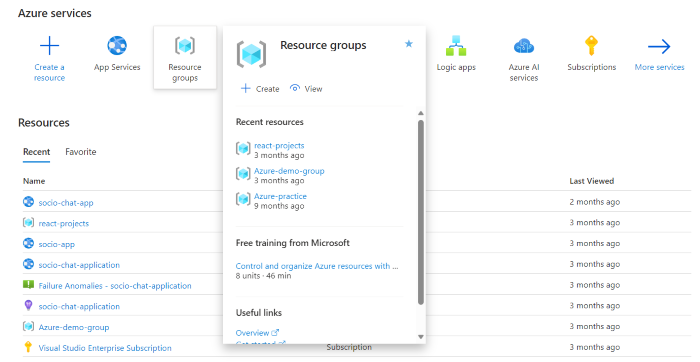
To manage and maintain our web application in terms of access control, resource allocation, etc. We need to have a Resource group. You can use any existing Resource group, if not let us create a new Resource group for our application. Navigate to the `****Resource groups**` option on the dashboard.
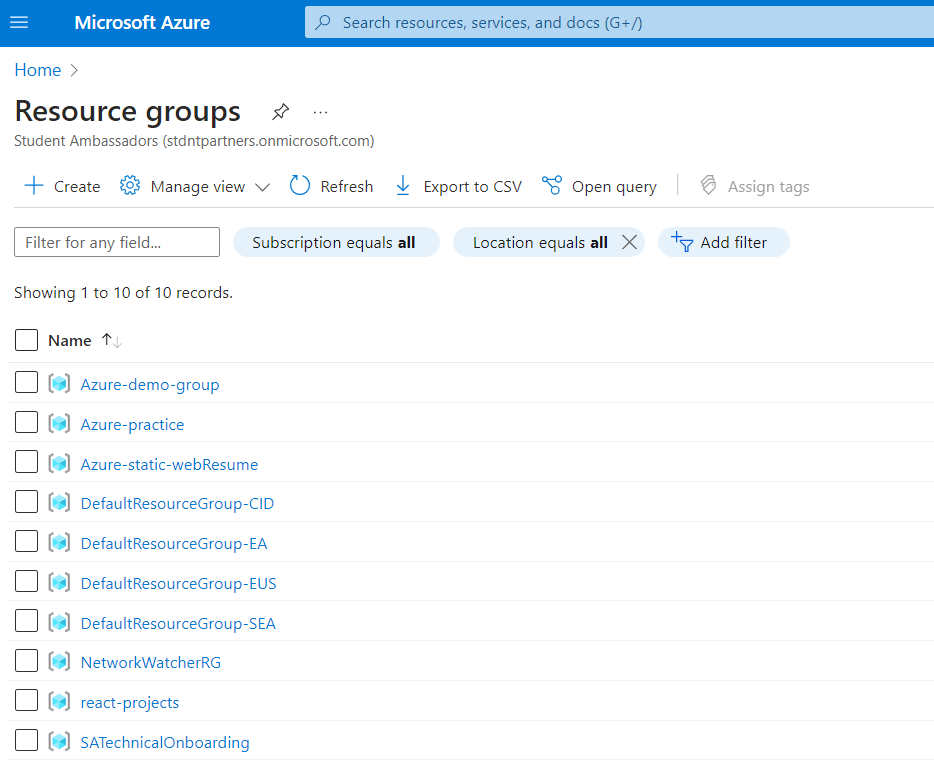
Customize the options as per your requirement and click `****Review+create**`. you will receive a confirmation message.
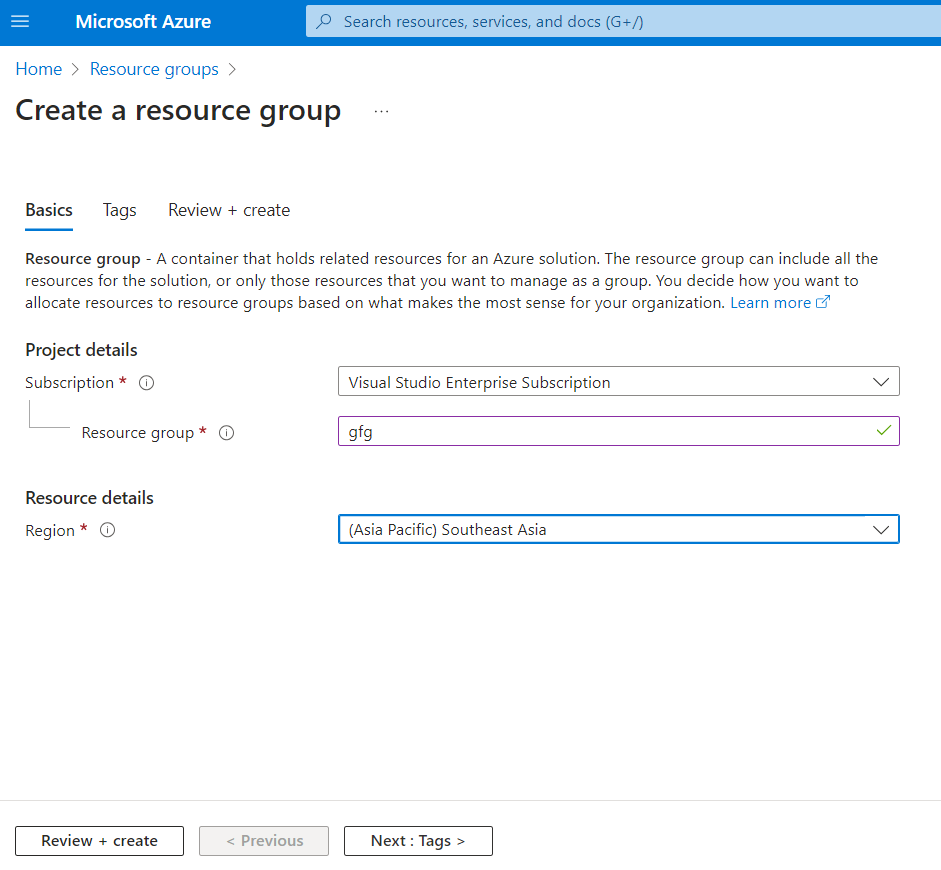
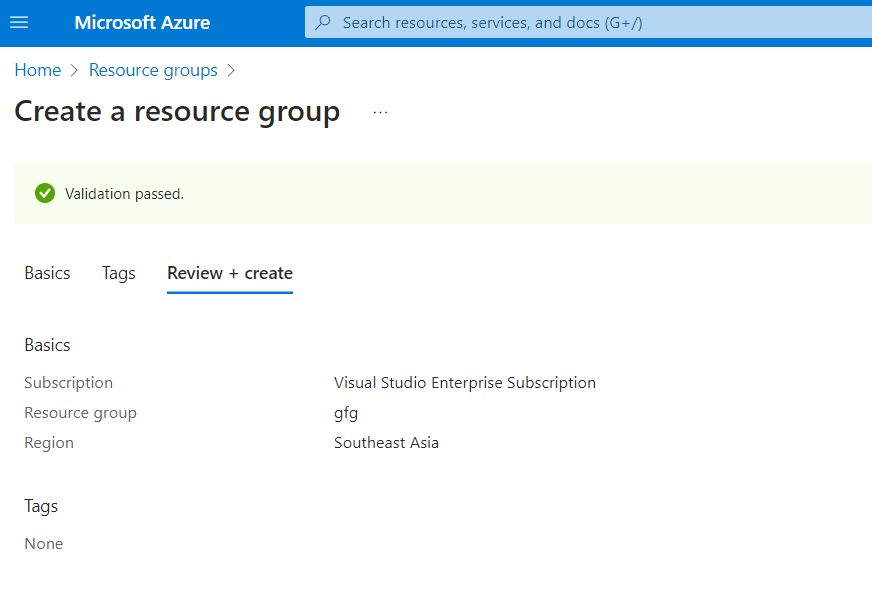
- To know more about Azure resource groups, refer this link: Resource-groups
**Step 4: Create your Web App Service using Azure Services
Now, Go back to the home page or dashboard, and you will find the `****App Services**` option.
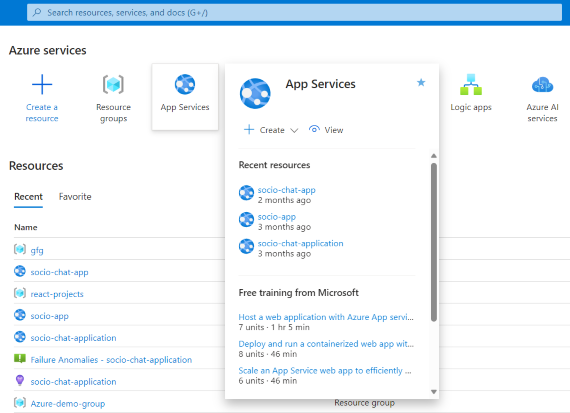
After clicking, you will preview your available web apps (if exist) and you will find an option '**create' which shows various options to create the web app. Choose an option based on your requirements.
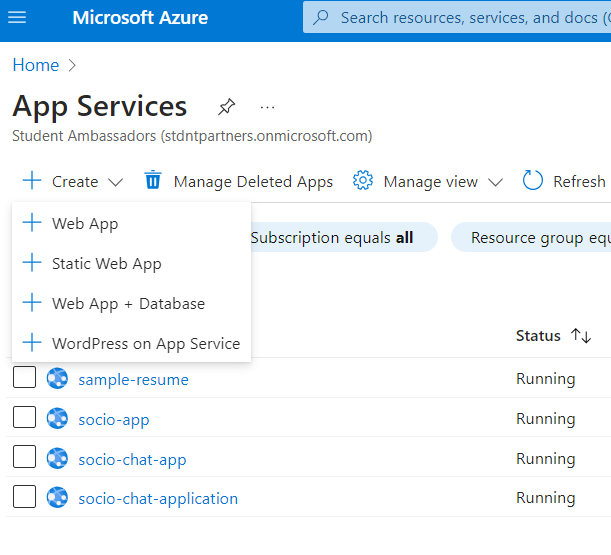
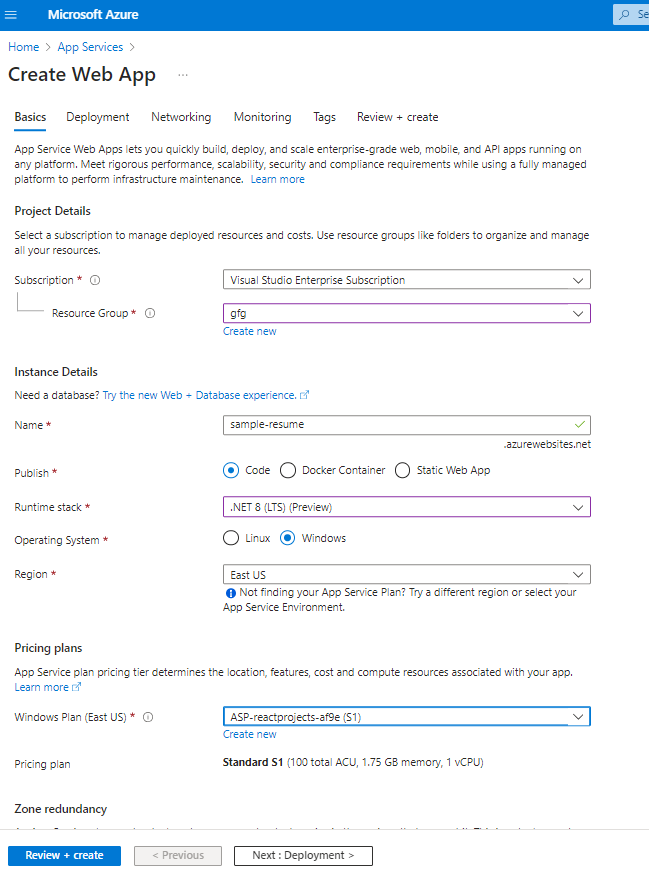
I have chosen a `****web app**` and there are various options to customize. Let me brief the important ones.In the `****Basics**` tab, we can see some basic options like choosing the Resource group, Name of the Web app, Region, Run-time stack (Run-time stack supports tech stack like Java, node.js, Python, .NET, Go, PHP)
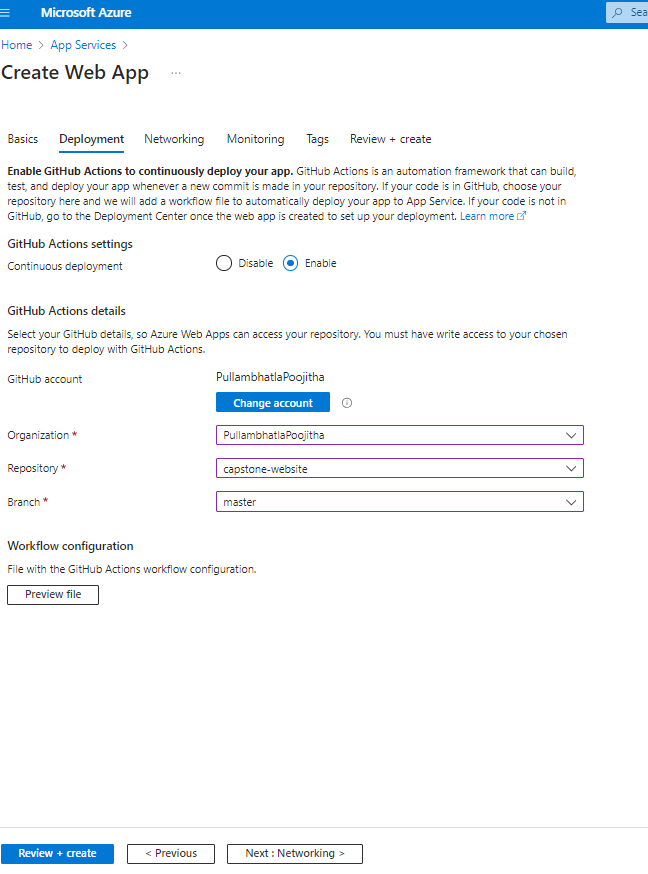
In the `**Deployment` tab, we can add and configure our GitHub account settings by enabling the '**continuous deployment' option and we can link our GitHub account, repository, and branch.
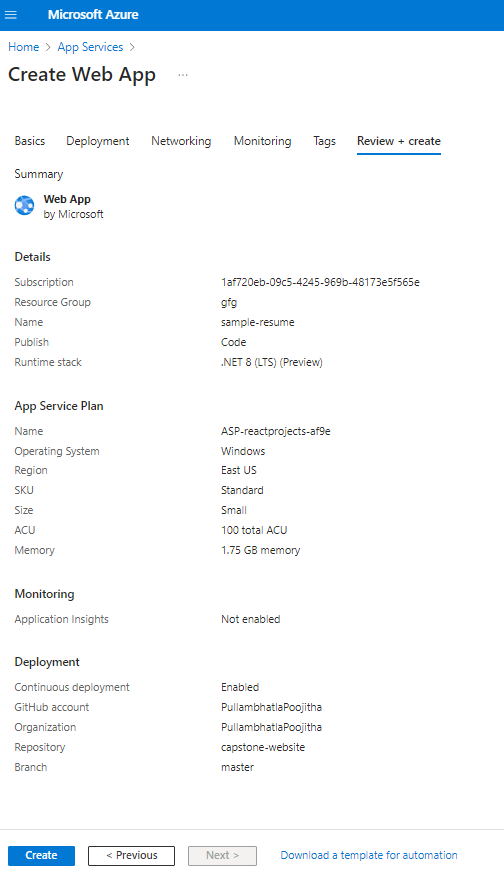
These are the important and basic configurable options. There are other tabs like '**networking', '**monitoring', and '**tags'. The last tab shows '**Review+create' where we can review the properties and create our web app.
**Step 5: Deploy your web app
Now, click on the name of your web app in the App Services.

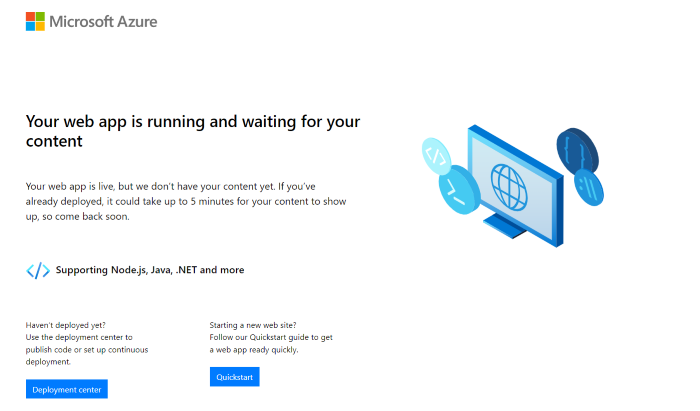
You will find various options listed down along with the 'D**efault domain' option which contains a link. This is the deployed link of your web app.when you click on that link for the first time, you will find a default web page displayed rather than your actual code. we need to modify this.
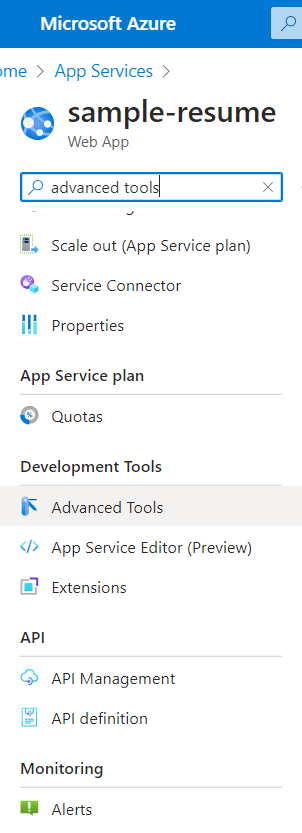
To modify this default code, go back to your web app, on the left sidebar, under the development tools section, you will find '**Advanced tools'. click on that.
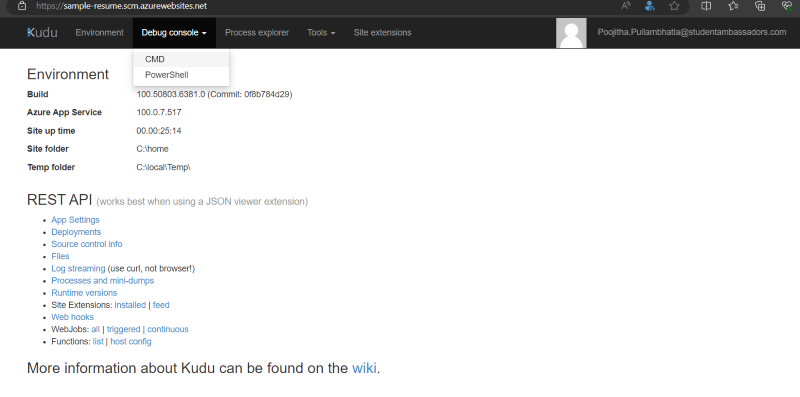
You will be navigating to a new tab that shows various options including debbugging console, which has two options: CMD and PowerShell. Lets go with **CMD, here the default code directory of the default web page displayed.
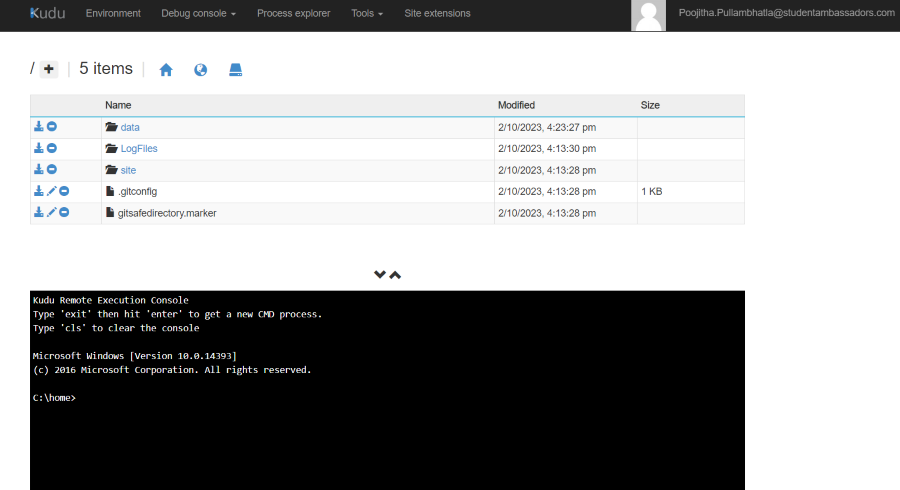
Go to the `****sites**` folder and `****wwwroot**`. you will find '**hostingstart.html' there. This contains the code of the default web page displayed.
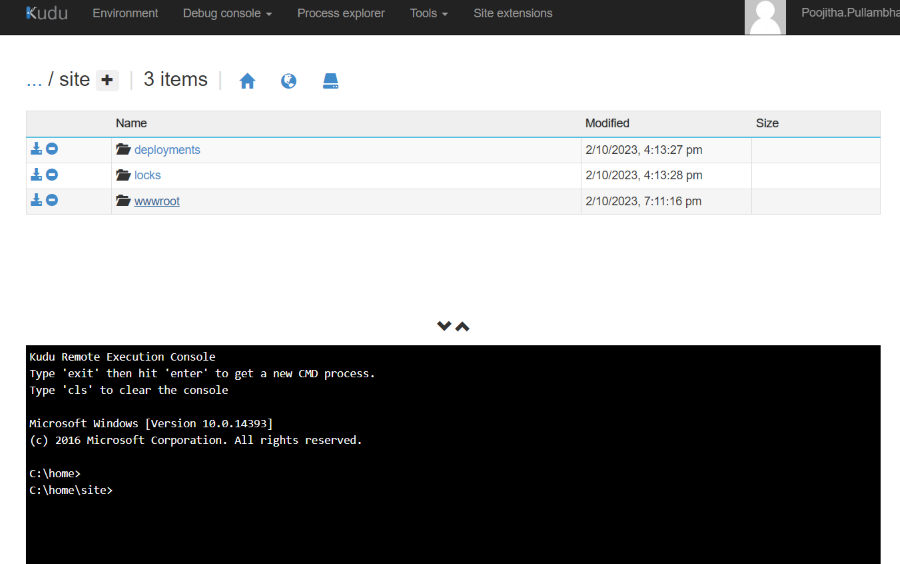
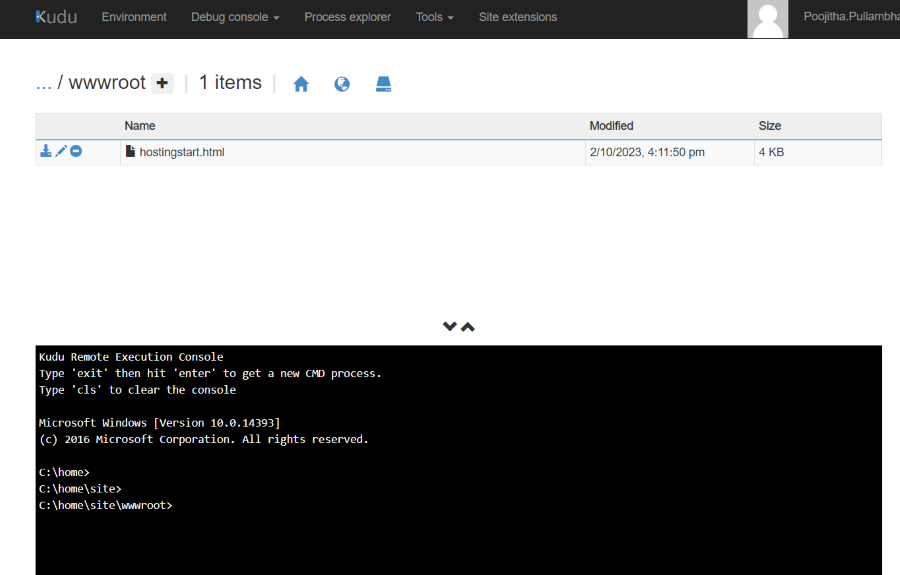
Go to your application directory on your computer, and drag and drop the required files here.
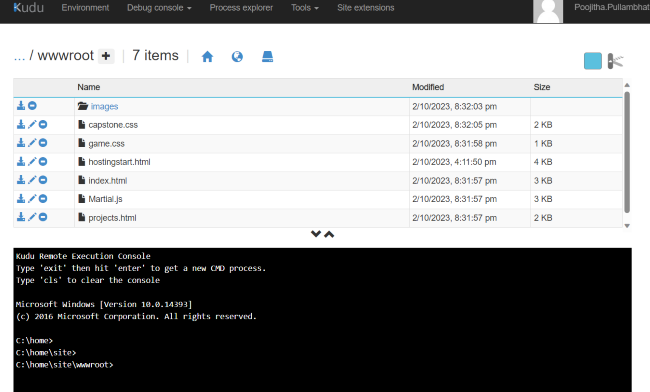
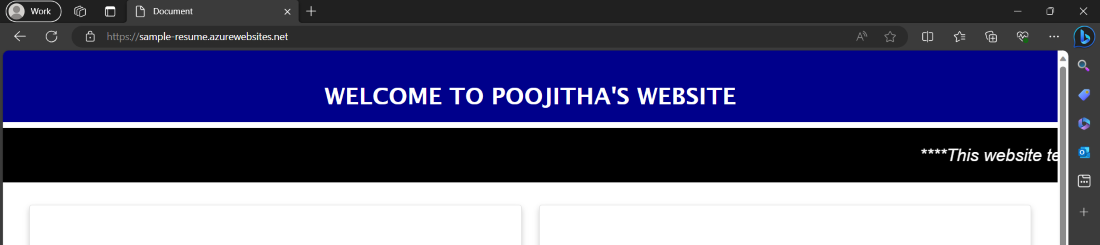
- Now, go back to the `****Default domain**` link or refresh the previously opened link. Now, you will find your web app successfully deployed.
**Points to be remembered:
- you can start or stop running your web app anytime, by clicking here, as the Azure web app charges your Azure credits.
- Make sure you give required Access controls to your application through your resource group.
- Now, you can access your web app anywhere with the default domain link.
- This is a sample demonstration of Deploying a web app through Azure App Services. There are many configurable options and many approaches to deploy your web app choose according to your requirement and the application's complexity.