Creating IAM Users and Assigning Permissions in AWS (original) (raw)
Last Updated : 21 Jan, 2026
When working with cloud services in a company environment, managing employee access to different resources is very important for maintaining **security and **smooth operations. Just like companies give employees different roles and access based on their job duties, cloud platforms like **Amazon Web Services (AWS) use a system called **Identity and Access Management (IAM) to do the same.
Step-by-Step Guide to Create an IAM User in AWS
Below is the step-by-step process you can follow to create an IAM user in AWS:
**Step 1: Sign in to the AWS Console
- Go to the Amazon Web Services Sign-In console.
- Create an AWS Free Tier Account.
**Step 2: Log in as Root User
- Sign in using your root username and password.
**Step 3: Search for IAM
- Search in the search box by entering "IAM user" as shown in the image.

**Step 4: Create a New IAM User
- After you enter the IAM user page, you can see the IAM dashboard then go to the "**users" option by clicking on it.

- In the user sections try creating a user by clicking on the "create user" button, now you will follow through with 3 phases for creating an IAM user.
i. Specifying the user details
- Provide the username that you would like to create as an IAM user

ii. **Set Permissions
- Select the **attach policies directly option, It is meant to assign the policies individually for the IAM user.
- In the Permissions **policiessection go to the search box and enter **EC2ReadOnly, you will see the policy named AmazonEC2ReadOnly select it to provide this policy access to creating IAM user.
- Similarly you can add on whatever permissions that you would like from the pre-created policies as per the requirement.
- They will be a case in which we can't find the require based policies in that moment , you have to create policies as your own.

iii. Review and Create
- In this step you have to review the information that you provided, once verified then go for the create option.
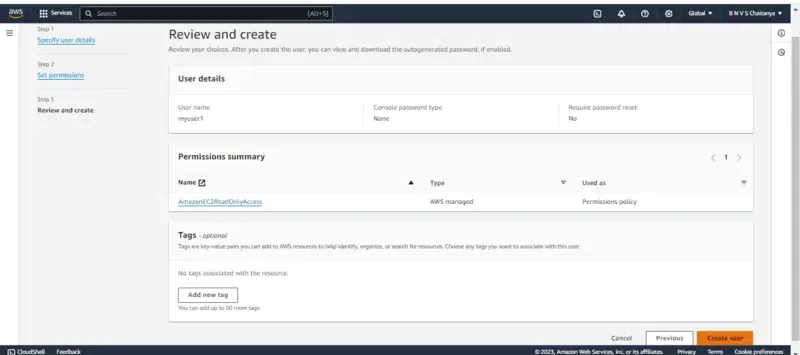
- Finally, the IAM user is been created and you can see it on the dashboard as shown in the below figure.
**Note: The user has now been created. The root user can later delete or modify its permissions if needed.

**Step 5: Creating the Password (Security)
- Now based on the mode of login we have to create a password or access Key as per the use case. If you need a **web console login then try on setting the password or else create the access key.
**Note: In this article, I will guide you through web console access.
**Step 6: Set Security Credentials
- Firstly Go to security credentials, In the console-sign-in section click on the enable console access button.**

By clicking on the Enable console button you will be redirected to manage console login as shown in figure:
- Choose the **Enable option
- Coming to the below password section we can set either the customized password that is directly set now or auto-generating and try on creating at the time of login.
- Set a password that includes uppercase letters, lowercase letters, numbers, and special characters, as per AWS requirements.

- Follow the instructions while setting the password once it is created click on '**Done' option.
**Step 7: Login as IAM User
- For logging in with the IAM user we need 3 things:
**1. AWS account ID: You can get the AWS account Id by clicking the root user account in the right corner similar to the figure highlighted below.
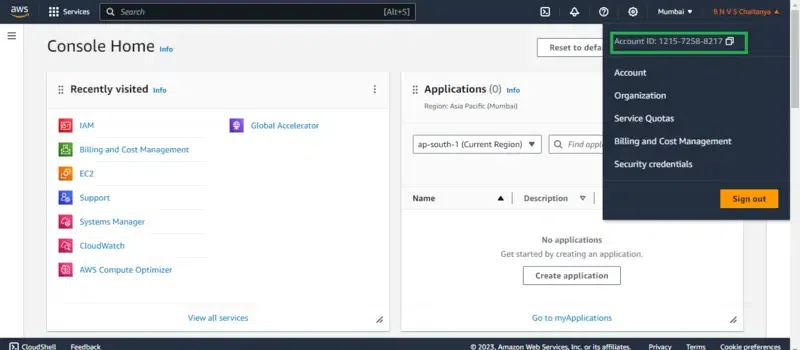
**2. IAM Username: The IAM user name that you created
**3. Password: The password that you set for this IAM user
Fill in the asking details such as AWS account ID, IAM user, and Password from the **sign-in portal going to the IAM user option :

Once you log in successfully you can view the page link like this as shown below figure, on top of the right corner you can we see the IAM username with account ID:

If you reached to this final interface then you performed the creation and login with the IAM user successfully.