PointtoSite VPN Connection in Azure (original) (raw)
Point-to-Site VPN Connection in Azure
Last Updated : 3 Apr, 2023
A Point-to-Site VPN connection allows individual clients to securely connect to the Azure virtual network. P2S connection can use one of the following protocols -
- OpenVPN Protocol
- Secure Socket Tunneling Protocol
- IKEv2 VPN
Azure offers 3 ways to authenticate a client trying to connect to the virtual network using a P2S VPN connection -
- Authenticate using native Azure certificate authentication
- Authenticate using native Azure active directory authentication
- Authenticate using active directory Domain Server
This article covers connecting using Azure certificate authentication.
Steps to establish P2S VPN Connection:-
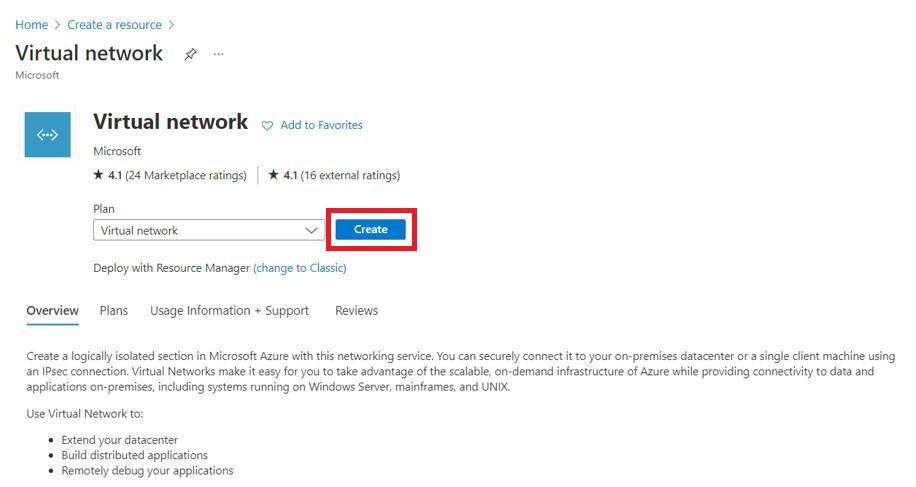
Step 1. Create a virtual network from the Azure portal with default configurations. On the Azure portal click on "Create a resource" and search for "Virtual Network" in the search bar. Select the resource shown below and click on Create.
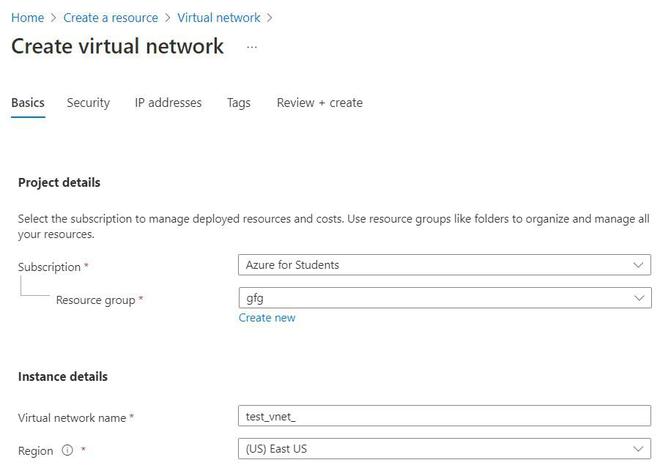
Step 2. Under the Basic category, select a subscription type, choose an existing resource group or create a new one, assign a name to the virtual network, and select a region where the VNET would be deployed.
Step 3. For our purpose no need to make any changes under the Security, IP addresses, and Tags categories. Finally, click on Review + create. A validation test will be run by Azure. Once validated successfully, click on the create button shown below.

- After a few seconds, we can see that the VNET has been deployed.
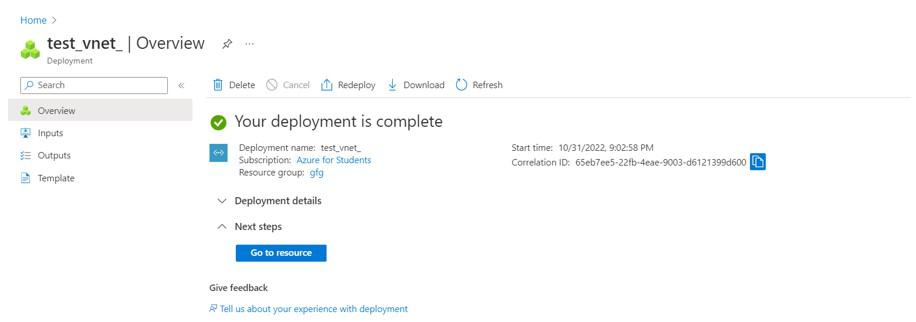
Step 4. Create a virtual network gateway in the VNET created in the above steps with the default configurations. Make sure the region for VNETT and VNET Gateway are the same.
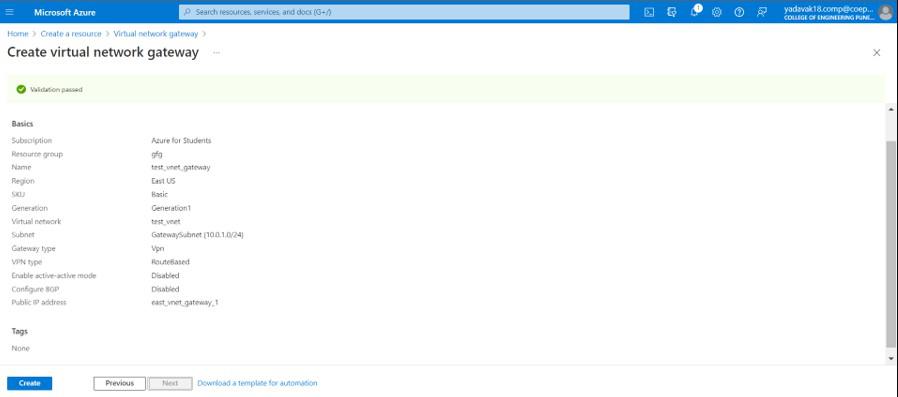
Step 5. Create a self-signed root certificate using Windows PowerShell on your local machine using the following command -

Step 6. Create a client certificate using Windows Powershell on your local machine.
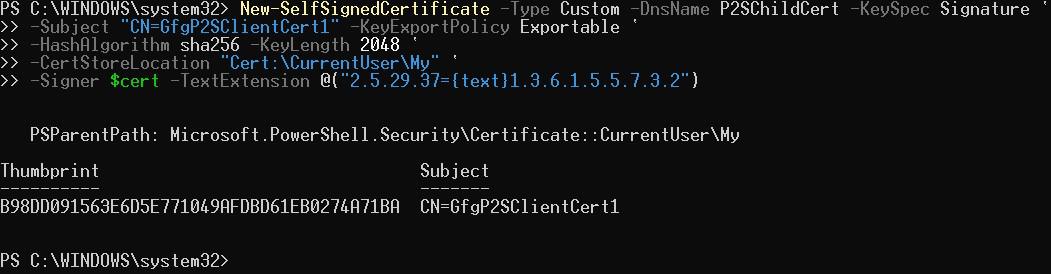
You can view the certificates in the certificate manager

- Right-click the certificates and select "All tasks" and then select Export. A certificate export wizard will pop up. Use the "Base-64 encoded X.509" file format for the root certificate and keep other details as default. For the client certificate, select the option "Yes, export the private key" and "Personal Information Exchange - PKCS" file format with the first and last option selected.
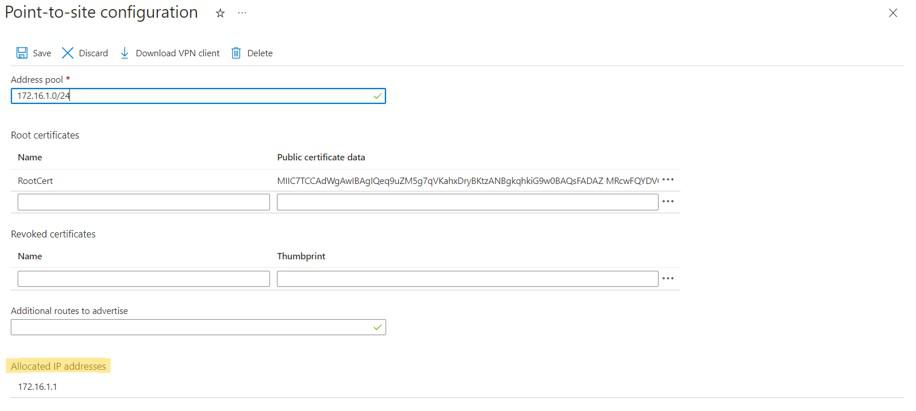
Step 7. Now we need to upload the root certificate to the Azure virtual network gateway under the Point-to-Site configuration. Azure will perform authentication based on this root certificate.
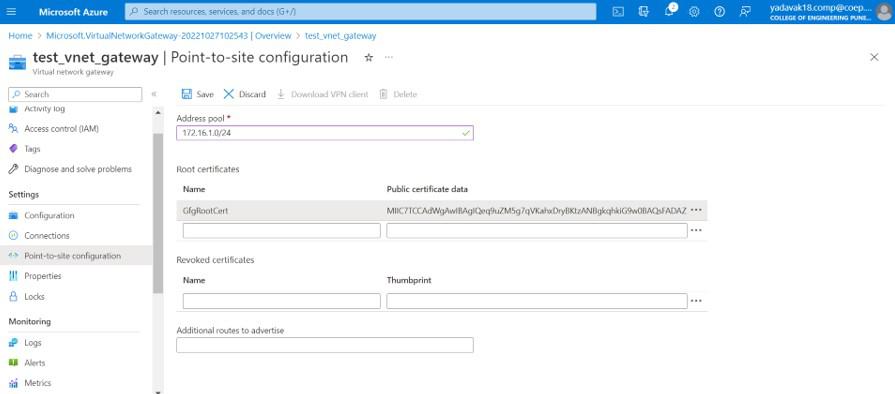
Here, we need to specify the IP address pool. The clients connecting to the VNET via the P2S VPN connection will be allocated IP addresses from this pool. Make sure this IP address pool does not overlap with the subnets defined under your vnet and the gateway subnet.
Then, we need to copy the root certificate data under the Public certificate data. Save the details and download the VPN client. Once downloaded, extract the contents. You can see the below contents -

You can either run Amd64 or X86 VPN client application.
Step 8. Connect to the VPN client from your local machine.

Now, we can verify the connection by checking the IP address allocated to the client from Azure.