Create your own secure Home Network using Pihole and Docker (original) (raw)
Last Updated : 12 Jul, 2025
Pi-hole is a Linux based web application, which is used as a shield from the unwanted advertisement in your network and also block the internet tracking system. This is very simple to use and best for home and small office networks. This is totally free and open-source. It also allows you to manage your accessibility and blocklist as well. It has a very decent graphical way of showing the network queries. Docker is a tool that works on containerization technology. This is used to launch containers for different requirements like a webserver, a DNS and many more. To know more about docker you check it out here on GeeksForGeeks and for launching your own web server on docker you could see it here.
Architecture
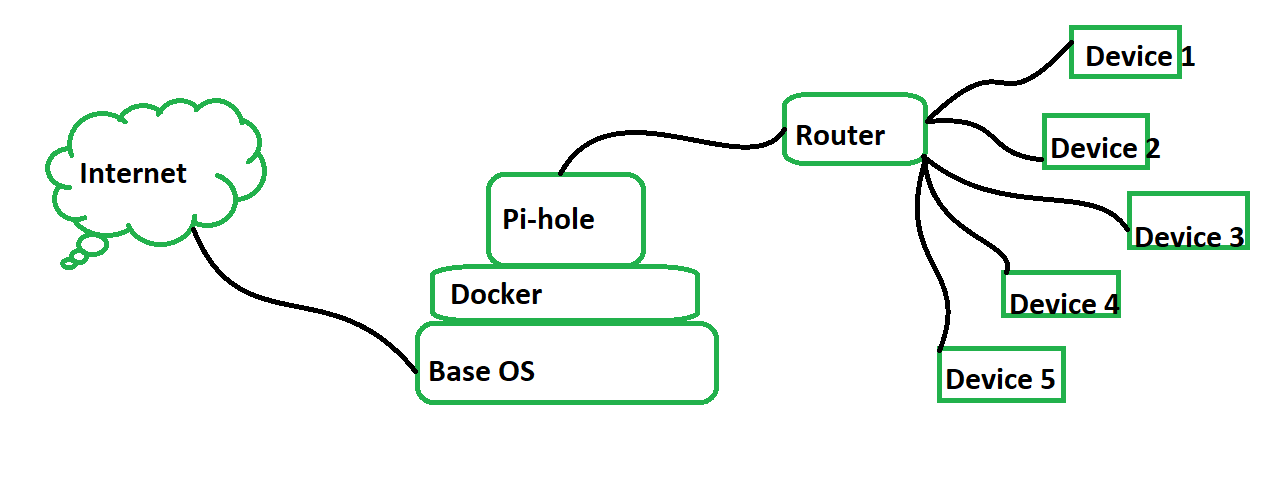
How to setup pi-hole and Docker?
Step 1
Open your terminal and Start docker
sudo systemctl start docker
Enter the command to download pinhole from docker hub
sudo docker pull pihole/pihole
Step 2: Skip this if you are not using Ubuntu
sudo systemctl stop systemd-resolved.service
sudo systemctl disable systemd-resolved.service
Step 3
Change the DNS to something else like google
sudo nano /etc/resolve.conf
set DNS 8.8.8.8 and save.
Step 4
Copy this code
version: "3"
services: pihole: container_name: pihole image: pihole/pihole:latest ports: - "53:53/tcp" - "53:53/udp" - "67:67/udp" - "80:80/tcp" - "443:443/tcp" environment: TZ: 'Asia/Kolkata' #this is the time zone volumes: - './etc-pihole/:/etc/pihole/' - './etc-dnsmasq.d/:/etc/dnsmasq.d/' dns: - 127.0.0.1 - 1.1.1.1 cap_add: - NET_ADMIN restart: unless-stopped
Open a File
sudo nano docker-compose.yml
copy paste the above code here and save the file.
Step4
Run the compose file to launch pihole
sudo docker-compose up -d
Step5
Move inside pihole container
sudo docker exec -it pihole bash
Change pihole password
pihole -a -p
exit
Step7
Go to browser and search
OR
Use IP and copy-paste the IP to browser
ifconfig

Ip in browser pihole
Step8
Login with the password
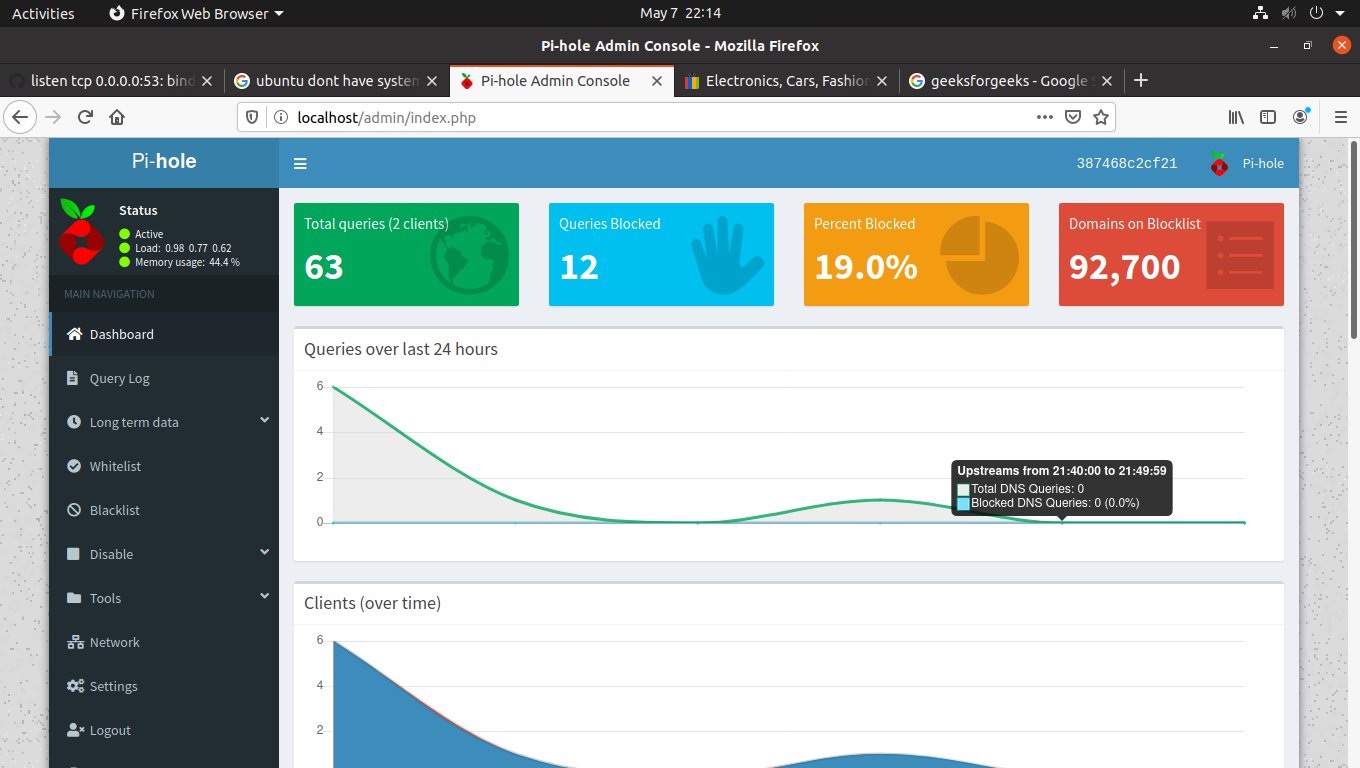
That's it all set.
Now use the pihole as your DNS instead of any other.
Go to dns setting in your windows...
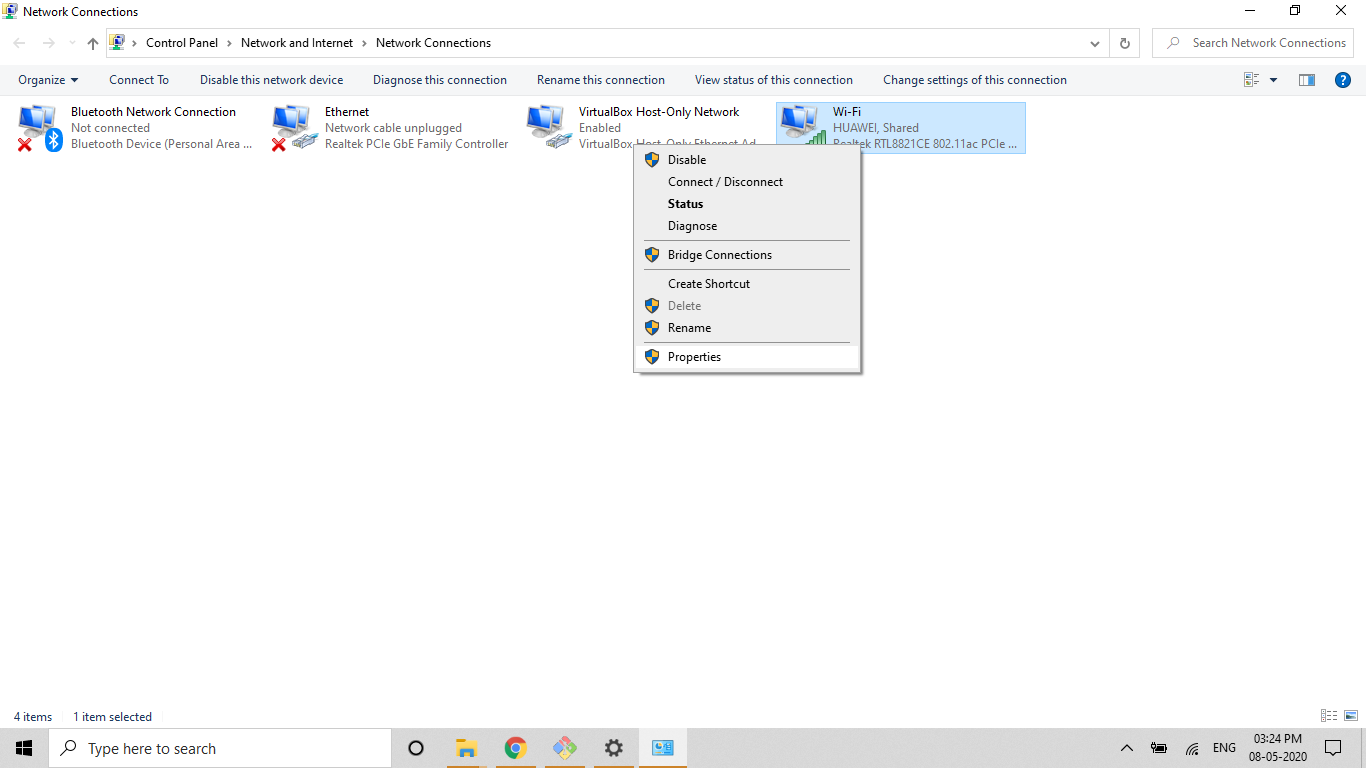
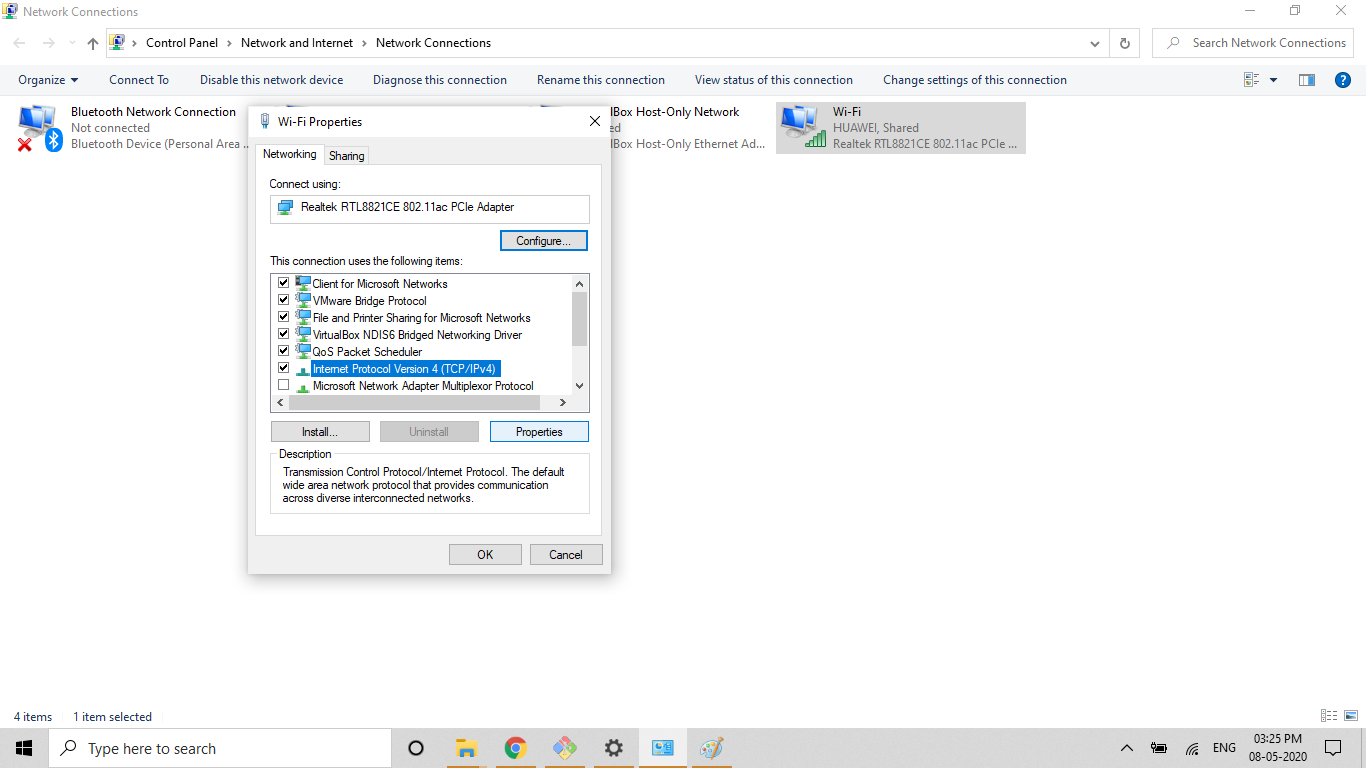
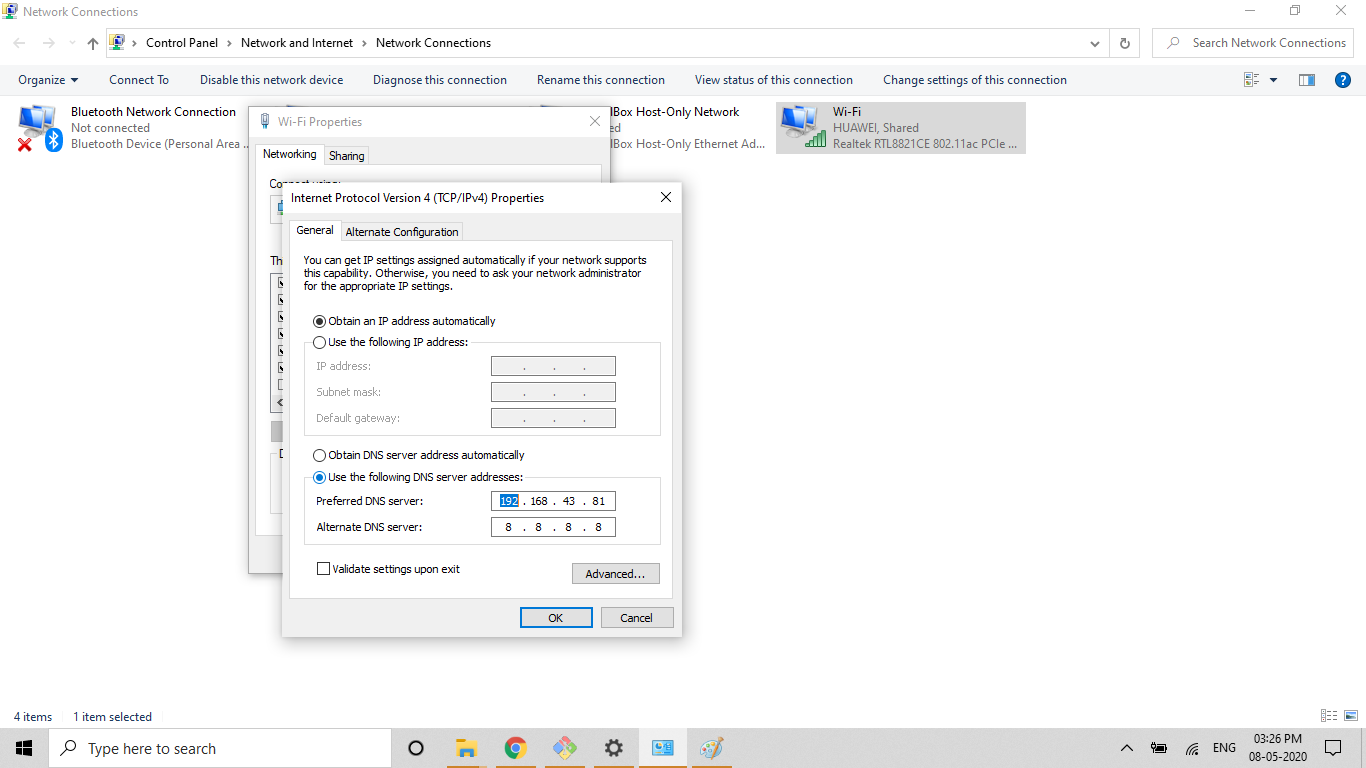
settings --> Network and Internet --> Ethernet (if you are connected to ethernet) or WiFi ( if your laptop connected to wifi) --> change adapter options -->right click on wifi or ethernet and go to properties --> select ipv4 --> properties --> change the DNS to the IP of pihole.
WIFI settings
Select IPv4
Change the DNS from obtain DNS automatically to Use following dns server and write the ip the box. In second you could write any dns like 8.8.8.8
Same Pi-hole IP can be used in the home router as DNS.