How to Open, View and Edit a PowerPoint (original) (raw)
Last Updated : 20 Nov, 2025
PowerPoint is an essential tool for creating visually impactful presentations, whether for work, school, or personal projects. Understanding how to open, view, and edit PowerPoint presentations is key to mastering this software and delivering polished, professional results.
In this guide, we will walk you through the basics of opening a PowerPoint file, navigating through the editing process, and saving your work effectively. Whether you're a beginner or just need a refresher, this tutorial will help you make the most out of PowerPoint's features.
**How to Open MS PowerPoint: Easy Steps
Learn how to open MS PowerPoint on various Windows versions. Get step-by-step instructions for both newer and older versions of Windows to easily launch PowerPoint.
**In Windows 8/Above:
**Step 1: Press "**Windows + C" to open the search bar.
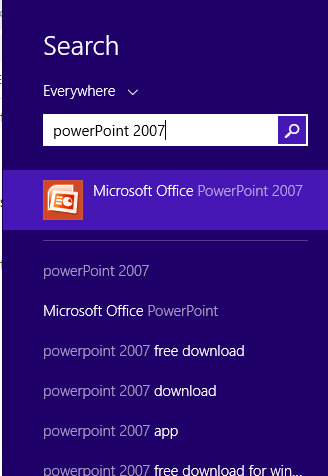
**Step 2: Type **PowerPoint and click on the MS Office version installed on your system. The PowerPoint window will appear.
Windows 7 or Below:
- Go to the **Start Menu and select **All Programs.
- Navigate to **MS Office and click on it. A dropdown list will appear.
- Select **Microsoft PowerPoint to open the application.
**How to Create a PowerPoint Presentation: Step by Step Guide
This section covers how to create your first PowerPoint presentation, including starting a new presentation and adding slides.
**Step 1: Click on the **Microsoft button on the top left.
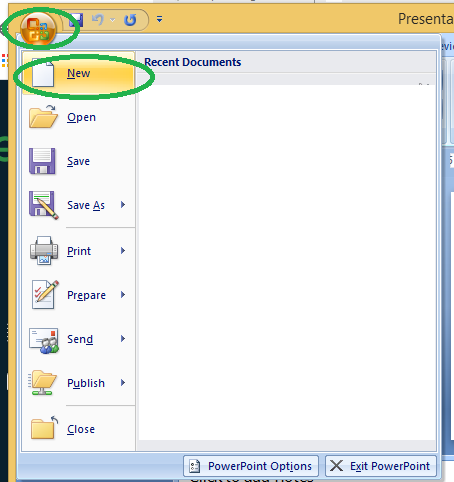
**Step 2: Click on **new, a new Presentation window will pop up.
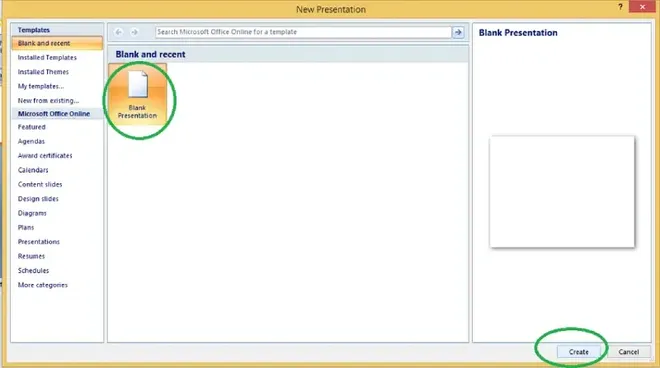
Go to New Button and Click on Create
**Step 3: Click on **Create & a new presentation will be created.
**Note: Shortcut for New: "**Ctrl +N"
**How to Save a PowerPoint Presentation
Once you have created a presentation, it can be easily saved with the help of following steps:
**Step 1: Click on the Microsoft icon in the top-left corner.
**Step 2: Select the "Save" option.
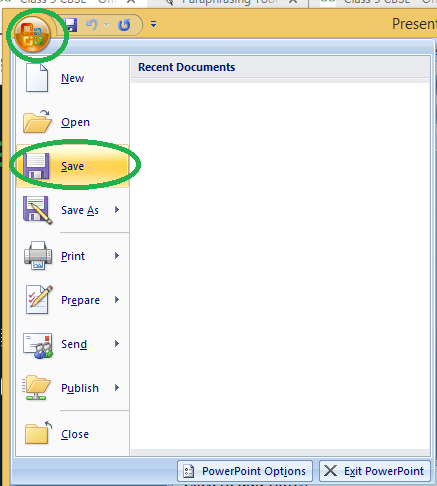
**Step 3: A "Save As" window will appear.
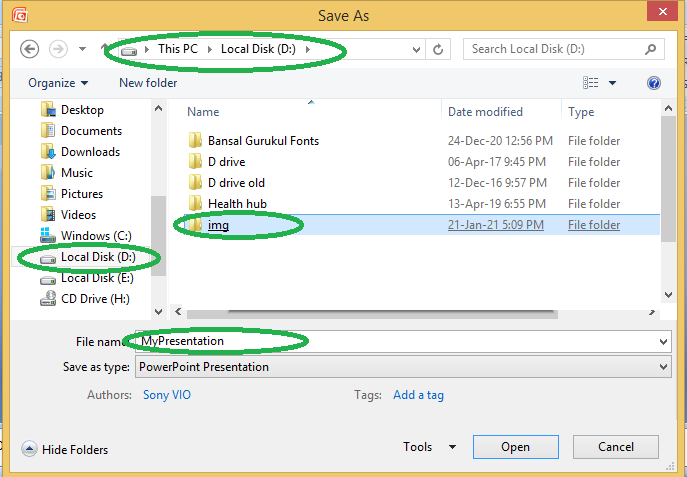
**Step 4: Choose the drive where you want to save your file (e.g., Local Drive (D)). Then, select the folder to save it in (e.g., "img folder"). Finally, give your presentation a name (e.g., "MyPresentation").
**Note: Shortcut for save: Ctrl + s
**Step 5: Your Presentation is now successfully saved
How to Edit a PowerPoint
Editing a PowerPoint presentation is a crucial skill for creating compelling and effective slideshows. Whether you're adding text, changing slide layouts, inserting images, or adjusting formatting, PowerPoint offers a range of tools to help you customize your presentation. Follow the below steps to edit a PowerPoint:
Step 1: **Open the PowerPoint Presentation
To start editing, first, open your presentation:
- Double-click the PowerPoint file on your computer to open it.
- Alternatively, open PowerPoint, click on **File > **Open, and select your presentation.
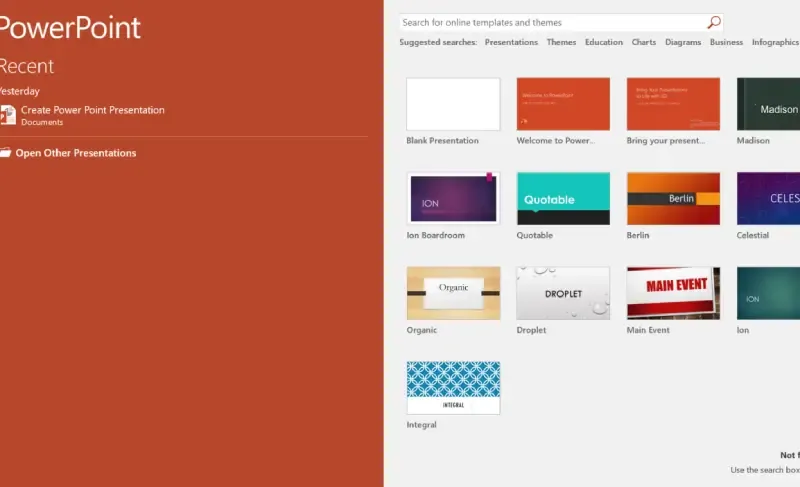
Open PowerPoint Presentation
Step 2: **Editing Text
To modify text on a slide:
- Click on the text box or placeholder where you want to edit the text.
- Type or delete text as needed.
- Use the **Home tab to change font styles, size, color, or alignment. You can also apply bold, italic, and underline effects for emphasis.
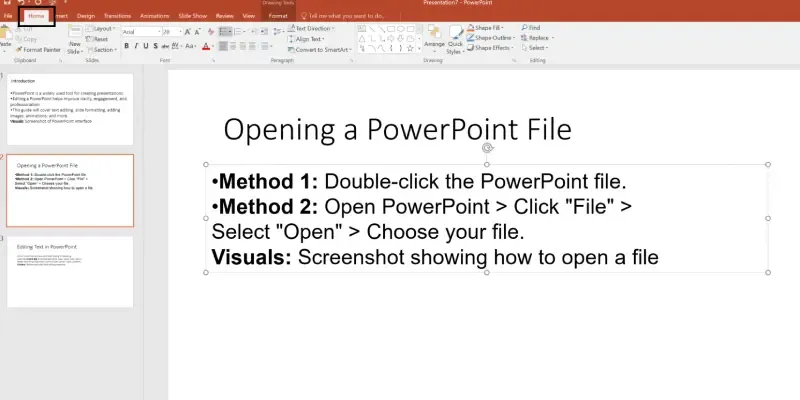
Place the cursor where you want to Edit the Text >> Go to Home Tab
Step 3: **Adding New Slides
To insert new slides into your presentation:
- Go to the **Home tab and click on **New Slide.
- Select the type of slide you want to add (e.g., Title Slide, Title and Content, Blank, etc.).
- You can also use **Ctrl + M as a shortcut to add a new slide.
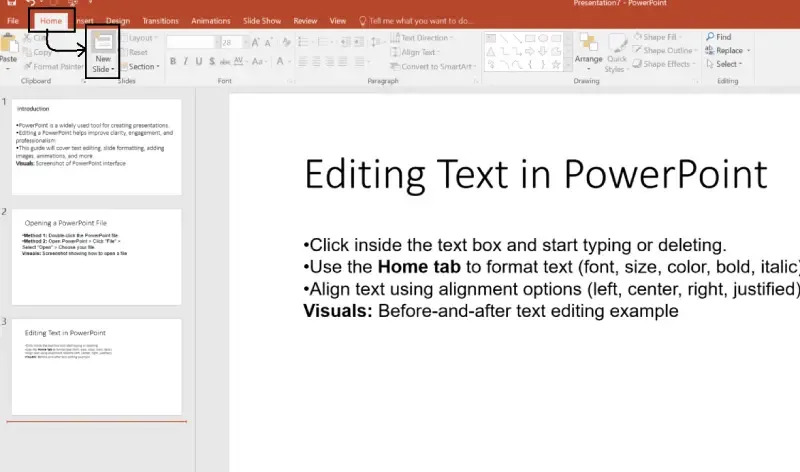
Click where you need to insert the new slide >> Go to Home Tab >> Click on "New Slide"
Step 4: **Rearranging Slides
To reorder slides:
- In the **Slide Sorter view (click **View > **Slide Sorter), simply drag and drop slides into the desired position.
- Alternatively, in **Normal View, select the slide thumbnail on the left panel and drag it to a new location.
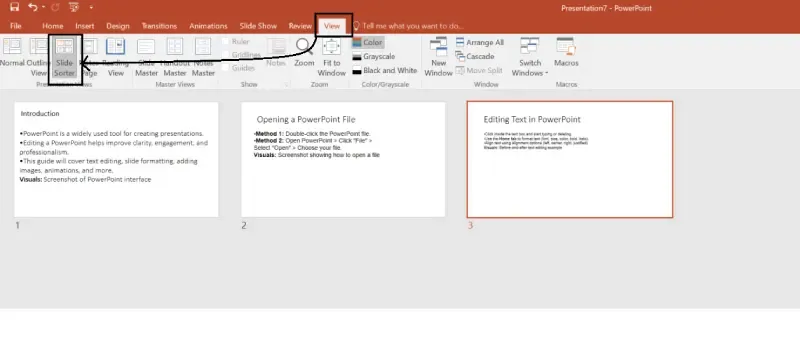
Go to View Tab >>Click on Slide Sorter
Step 5: **Inserting Images, Charts, and Shapes
To insert images, charts, or shapes into a slide:
- Go to the **Insert tab.
- Choose **Pictures to add an image, **Charts to insert data charts, or **Shapes to draw shapes (e.g., rectangles, circles, lines).
- Select the item you want and adjust its size or placement on the slide.
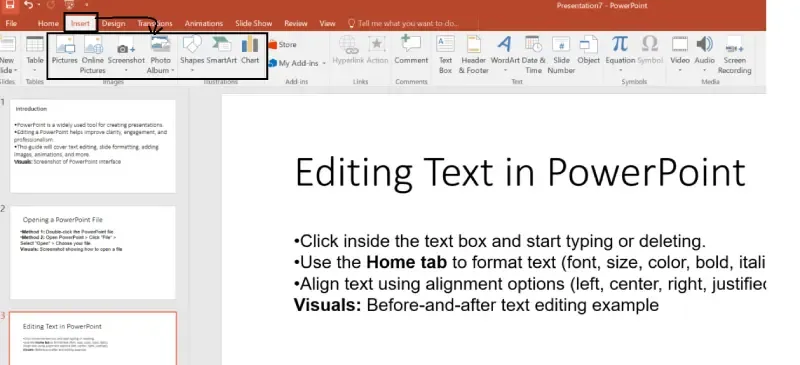
Go to Insert Tab >> Select "Pictures", "SmartArt", "Chart"
Step 6: **Changing Slide Layouts
To change the layout of a slide:
- Click on the slide you want to edit.
- Go to the **Home tab and click on **Layout.
- Choose a new layout from the options (e.g., Title Slide, Two Content, Blank, etc.).
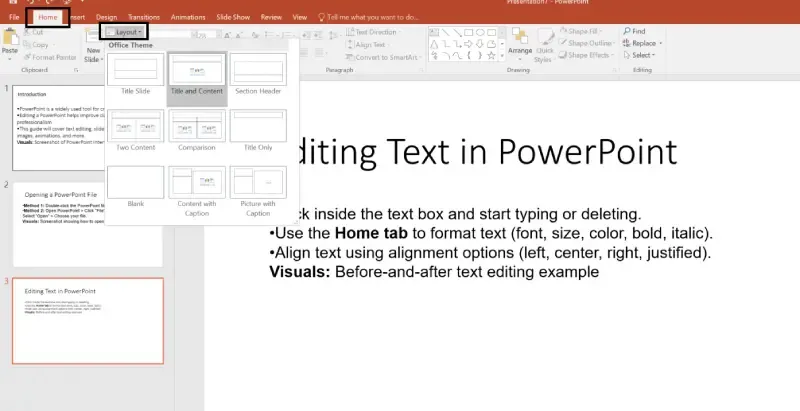
Go to Home Tab >>Click on "Layout"
Step 7: **Adding Animations and Transitions
To make your slides more engaging, you can add animations and transitions:
- Go to the **Animations tab to add animations to text, images, or other elements.
- For slide transitions, go to the **Transitions tab, select a transition effect (e.g., Fade, Wipe, Push), and set the duration.
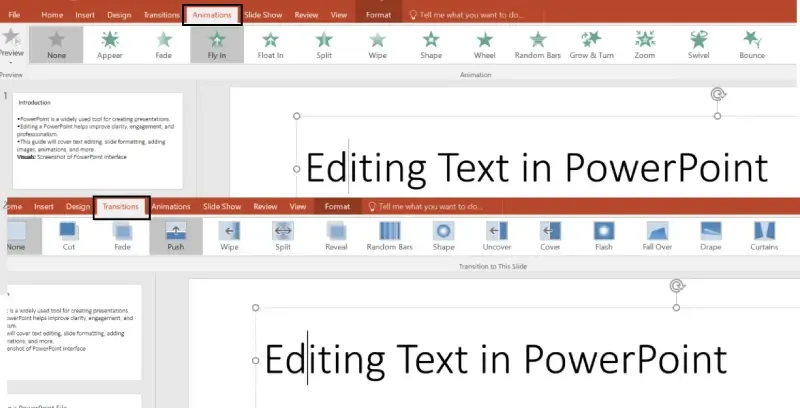
Select the Text and Go to "Animation" and "Transition"
Step 8: **Editing Slide Backgrounds
To change the background of a slide:
- Right-click on the slide background and select **Format Background.
- Choose a solid color, gradient, image, or texture for your background.
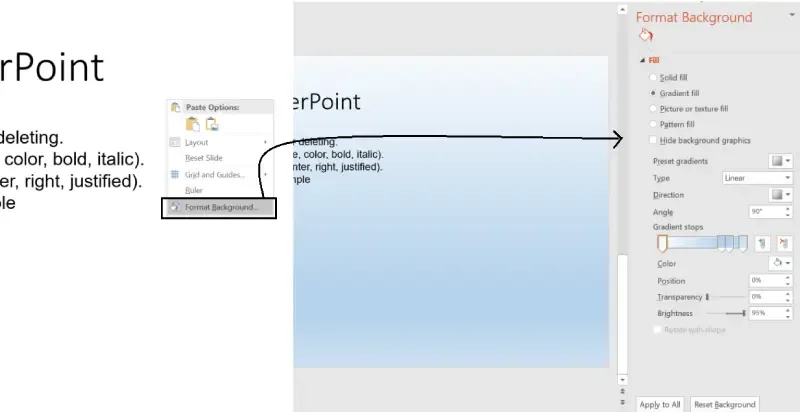
Editing Slide Backgrounds
Step 9: **Saving Your Edits
Once you've finished editing:
- Go to **File > **Save to save your changes.
- You can also use **Ctrl + S as a shortcut to save the presentation.
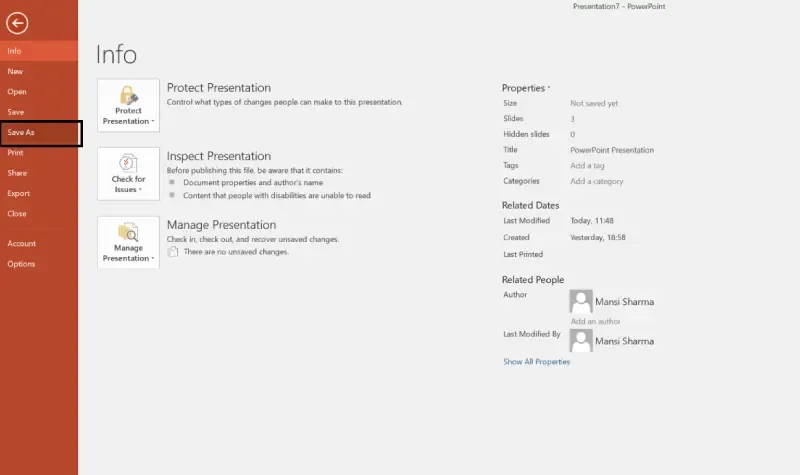
Go to File >> Select "Save As"
Step 10: **Exporting the Presentation
If you need to share the presentation in different formats:
- Go to **File > **Export.
- Choose to save your presentation as a **PDF, **video, or other formats.
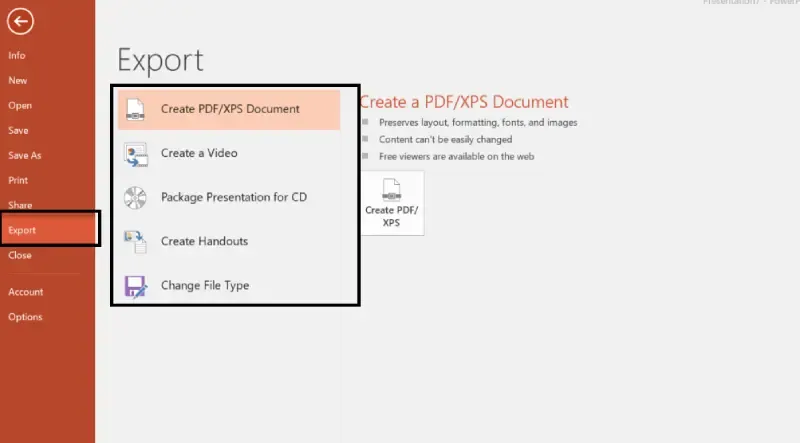
Go to File>> Click on "Export" >> Select the File Type
**Elements of a PowerPoint Window/Slide
You can see various bars in the presentation window. They are:
- **Title Bar: This shows the name/title given by you to the current presentation. If user do not save the presentation by any name, default name given by MS PowerPoint appears in this bar.
- **Menu Bar: Contains menu items like insert, views, design, animations, etc.
- **Office Button: MS Office button on the left-most top.
- **Formatting Toolbar: Have tools like Bold, Italic, Underline, Font shape & size etc. to format your data.
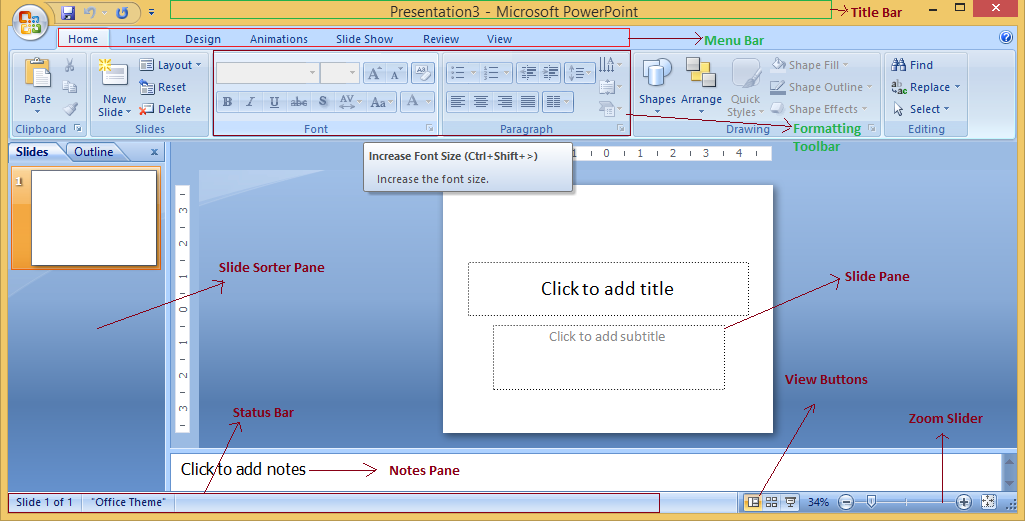
- **Zoom Slider: To zoom in or zoom out your presentation.
- **Slide Sorter Pane: This allows us to choose which slides will be shown in which sequence during the slide show.
- **Notes Pane: This allows us to type notes that we may require later when preparing for the presentation, but they will not be displayed during the slide show.
- **View Buttons: Provides different views of your presentation like : normal, slide show & slide sorter.
- **Slide Pane: This is where we type, format, and otherwise design the slide.