CSS Opacity / Transparency (original) (raw)
Last Updated : 22 May, 2026
The opacity property in CSS is used to control the transparency level of an element. It allows developers to make elements appear fully visible, partially transparent, or completely invisible.
- Opacity values range from 0 to 1, where 0 is fully transparent and 1 is fully visible.
- It affects the entire element, including text, images, and background.
- The property is commonly used for hover effects, overlays, and visual styling.
Try It:
Opacity: 0.5
Opacity: 0.2
Opacity: 0.8
Opacity: 1 (Fully Visible)
**Currently Active Property:
Opacity: 0.5
We can apply the opacity with different styling properties to the elements. A few of them are discussed below:
**Image Opacity
The opacity property is used in the image to describe the transparency of the image. The value of opacity lies between 0.0 to 1.0 where a low value represents high transparency and a high value represents low transparency. The percentage of opacity is calculated as Opacity% = Opacity * 100.
**Example: This describes the opacity property by applying it to the image.
HTML `
Opacity property<style>
.forest {
opacity: 0.5;
}
p {
font-size: 25px;
font-weight: bold;
margin-bottom: 5px;
}
.opacity {
text-align: center;
}
</style> <p>Image with 100% opacity (original image)</p>
<img src="https://media.geeksforgeeks.org/wp-content/uploads/geeksforgeeks-10.png"
class="forest1">
    <p>Image with 50% opacity</p>

<img src="https://media.geeksforgeeks.org/wp-content/uploads/geeksforgeeks-10.png" class="forest">
`
Image Hover Opacity
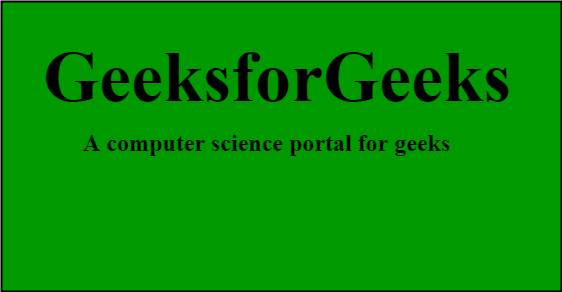
The hover opacity property is applied to the image when the mouse puts it over the image otherwise opacity property changes. The value of opacity can easily reverse the process by setting the opacity as a higher value at first and then lowering it when hovering over it like:
**Syntax:
.hightolow {
opacity: 1.0;
}
.hightolow: hover {
opacity: 0.5;
}
**Example: This describes the opacity property by applying it to the image to generate opacity by hovering over it.
HTML `
Image Hover Opacity<style>
.gfg_opacity {
opacity: 0.5;
}
.gfg_opacity:hover {
opacity: 1.0;
}
.main {
text-align: center;
}
</style>Image Hover Opacity:
`
**Transparency Box and Transparency using RGBA Values
In the transparency box, the child property inherit the property from the parent property but in the case of transparency using RGBA, only the opacity property is used or applied to add transparency to the background of an element.
**Example: This describes the opacity property by applying transparency using RGBA values.
HTML `
Transparent box<style>
.geeks {
background: rgb(0, 153, 0);
padding: 15px;
text-align: center;
width: 300px;
}
#geek {
padding: 15px;
text-align: center;
width: 300px;
}
.rgba1 {
background: rgba(0, 153, 0, 0.1);
}
.rgba2 {
background: rgba(0, 153, 0, 0.5);
}
.rgba3 {
background: rgba(0, 153, 0, 0.8);
}
.rgba4 {
background: rgba(0, 153, 0, 1.0);
}
.g1 {
float: left;
margin-left: 50px;
}
.g2 {
margin-top: -40px;
margin-left: 50px;
float: left;
}
</style>Transparent Box
    <div class="geeks" style="opacity:0.1;">

        <p>10% opacity</p>

    </div>
    <div class="geeks" style="opacity:0.5;">

        <p>50% opacity</p>

    </div>
    <div class="geeks" style="opacity:0.8;">

        <p>80% opacity</p>

    </div>
    <div class="geeks">

        <p>100% opacity</p>

    </div>
</div>
<br><br>

<div class="g2">
    <p style="font-size:24px;font-weight:bold;">
        RGBA color values
    </p>

    <div class="rgba1" id="geek">
        <p>10% opacity</p>

    </div>
    <div class="rgba2" id="geek">
        <p>50% opacity</p>

    </div>
    <div class="rgba3" id="geek">
        <p>80% opacity</p>

    </div>
    <div class="rgba4" id="geek">
        <p>100% opacity</p>

    </div>
</div>
`
**Text In Transparent Box
The "Text in Transparent Box" property is a concept where the background of a box is made transparent while keeping the text inside the box fully visible and opaque. This effect is achieved by adjusting the opacity or transparency of the background color while leaving the text unaffected.
**Example: This describes the opacity property by placing the text in a transparent box.
HTML `
<style>
div.bg {background:url("https://media.geeksforgeeks.org/wp-content/uploads/geeksforgeeks-10.png"); width: 550px; height: 300px; border: 1px solid; }
    div.box {
        margin: 50px 20px;
        text-align: center;
        width: 500px;
        height: 150px;
        background-color: rgba(0, 0, 0, 0.7); /* Transparent background color */
        border: 3px solid white;
    }

    div.box p {
        margin: 5%;
        font-family: Arial;
        color: #009900;
        font-weight: bold;
        font-size: 25px;
    }
</style>
GeeksforGeeks
`