Plotly for Data Visualization in Python (original) (raw)
Last Updated : 28 Apr, 2026
Plotly is a data visualization library that enables users to create interactive, publication ready charts and dashboards in Python, R and JavaScript. It is widely used for exploratory data analysis, business reporting and web‑based visualisations.
- Built on top of the Plotly JavaScript library (plotly.js).
- Creates interactive charts like line plots, bar charts, scatter plots and maps
- Works seamlessly with Python libraries such as NumPy and Pandas
**Installation and Setup
To get started with Plotly simply install it using the following command:
pip install plotly
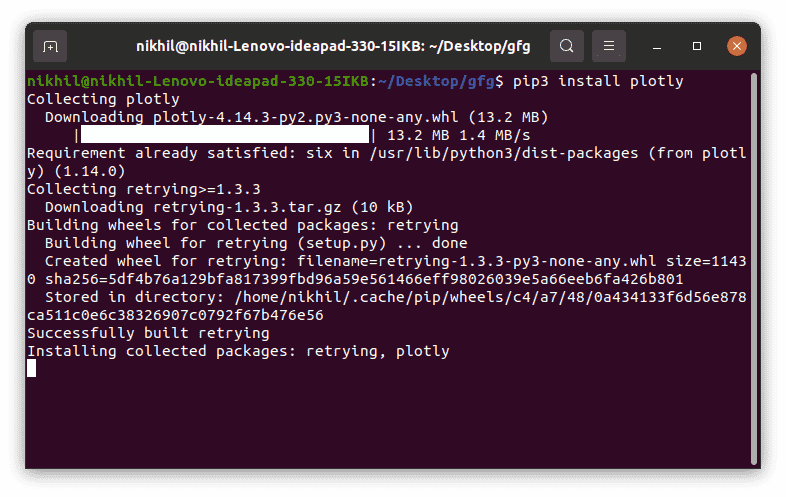
Installation
This may take some time as it will install all the dependencies required for it.
Understanding Plotly Modules
Plotly consists of two key modules:
- **plotly.graph_objects: Low-level API of Plotly that contains objects such as Figure, layout and data which are responsible for plotting.
- **plotly.express: This is a high-level interface that simplifies the process of creating complex visualizations and automatic styling.
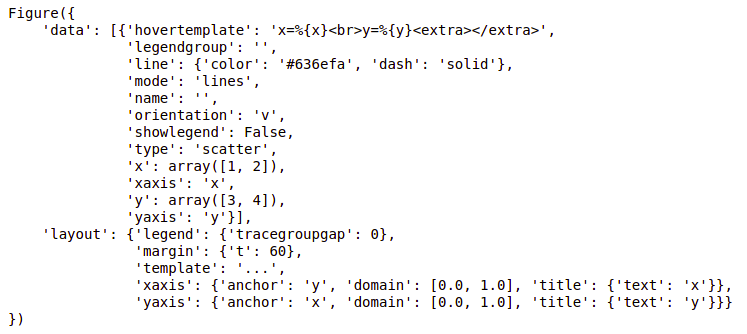
**Example:
Python `
import plotly.express as px
fig = px.line(x=[1, 2], y=[3, 4])
print(fig)
`
**Output:
Basic Charts in Plotly
Here we will see how to generate basic charts using Plotly and apply various customizations to enhance their appearance and functionality. We will learn how to visualize different graph like line charts, scatter plots, bar charts, histograms and pie charts. We will cover the following customizations:
- Adjusting chart layout
- Adding annotations
- Customizing markers and lines
1. Line chart
Plotly line chart is one of the simple plots where a line is drawn to show relation between the X-axis and Y-axis. It can be created using the px.line() method with each data position is represented as a vertex of a polyline mark in 2D space.
**Syntax:
plotly.express.line(data_frame=None, x=None, y=None, color=None, title=None)
**Parameters:
- **data_frame: Dataset to plot.
- **x: Column name for the X-axis.
- **y: Column name for the Y-axis.
- **color: Color the lines based on this column.
- **title: Title of the plot.
**Return: A plotly.express.Figure object.
**Example: We will be using Iris dataset and it is directly available as part of scikit-learn. df = px.data.iris() from the plotly.express library loads it into a Pandas DataFrame.
Python `
import plotly.express as px
df = px.data.iris()
fig = px.line(df, y="sepal_width",)
fig.show()
`
**Output:
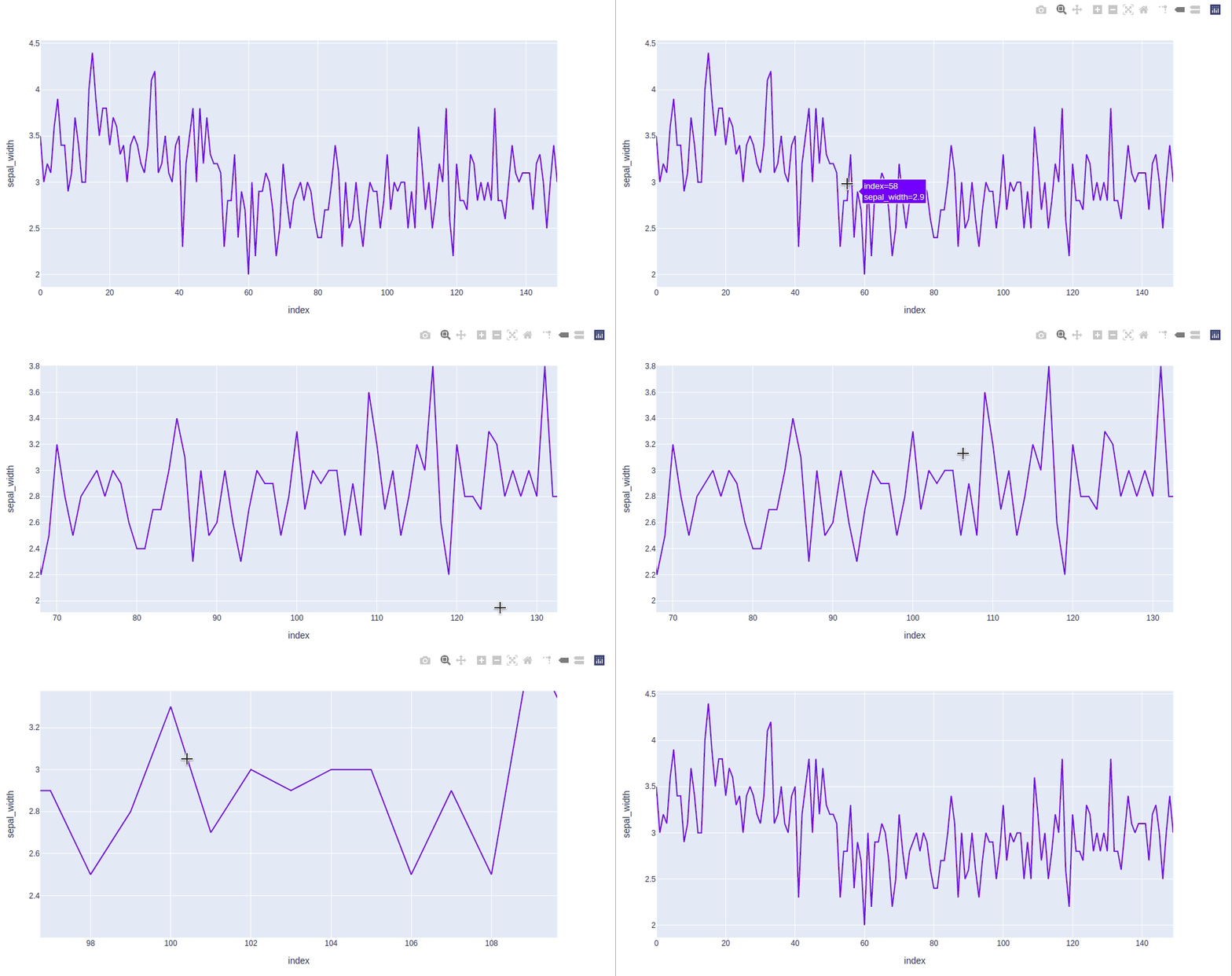
In the above example, we can see that:
- Plotly automatically assigns labels to the X and Y axes.
- The data points for both axes are displayed.
- We can zoom in, zoom out or select specific parts of the data.
- It provides interactive tools in the top-right corner for chart manipulation.
- We can also save the chart locally as a static image.
Now let's try to customize our graph a little.
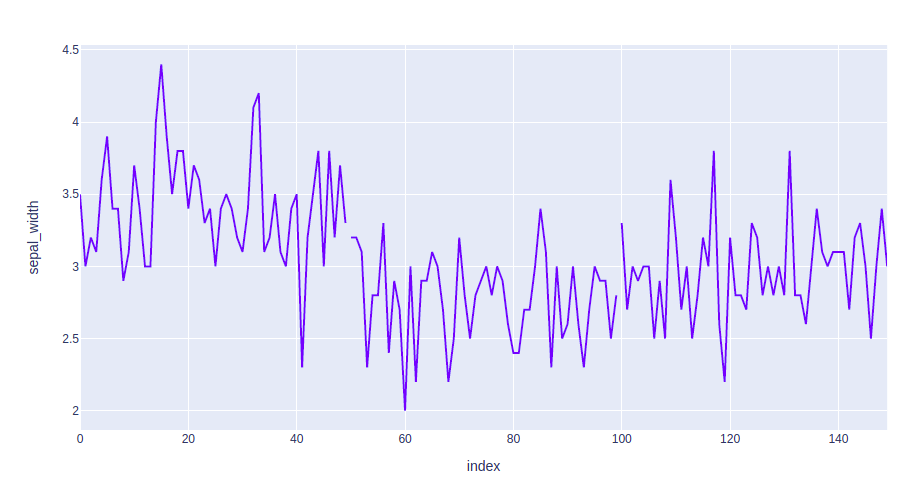
**Example 1: In this example we will use the line dash parameter which is used to group the lines according to the dataframe column passed.
Python `
import plotly.express as px
df = px.data.iris()
fig = px.line(df, y="sepal_width", line_group='species')
fig.show()
`
**Output:
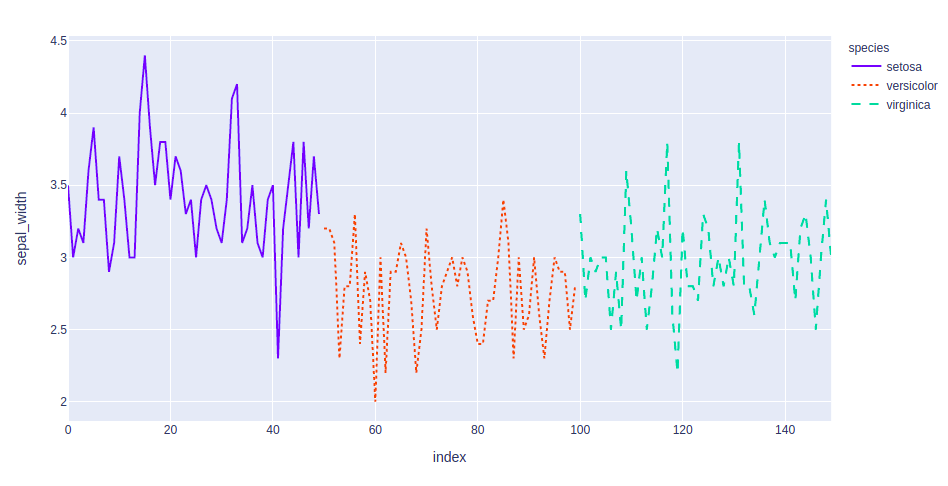
**Example 2: In this example, we will group and color the data according to the species. We will also change the line format. For this we will use two attributes such line_dash and color.
Python `
import plotly.express as px
df = px.data.iris()
fig = px.line(df, y="sepal_width", line_dash='species', color='species')
fig.show()
`
**Output:
2. Bar Chart
A bar chart is a pictorial representation of data that presents categorical data with rectangular bars with heights or lengths proportional to the values that they represent. These data sets contain the numerical values of variables that represent the length or height. It can be created using the px.bar() method.
**Syntax:
plotly.express.bar(data_frame=None, x=None, y=None, color=None, title=None)
**Parameters:
- **data_frame: Dataset to plot.
- **x: The column name for the X-axis.
- **y: The column name for the Y-axis.
- **color: Color the bars based on this column.
- **title: Title of the plot.
**Return: A plotly.express.Figure object.
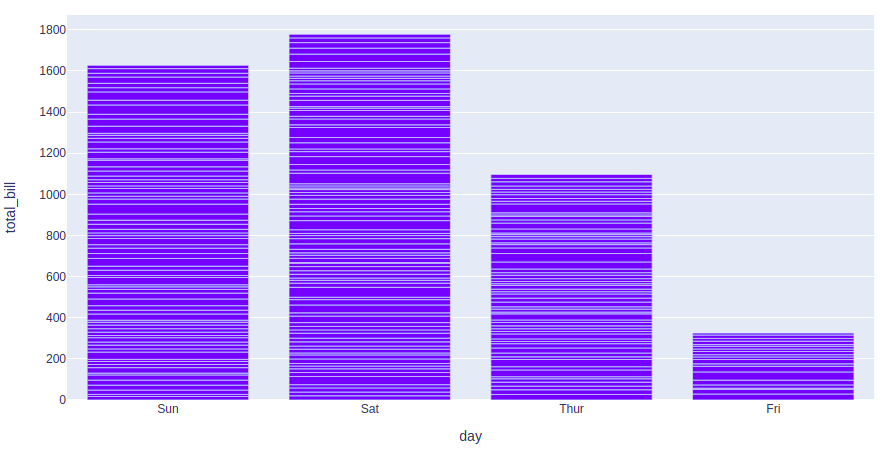
**Example: We will be using tips dataset and this dataset contains 244 rows and 7 columns with each row representing a single restaurant bill and associated information.
Python `
import plotly.express as px
df = px.data.tips()
fig = px.bar(df, x='day', y="total_bill")
fig.show()
`
**Output:
Let's try to customize this plot.
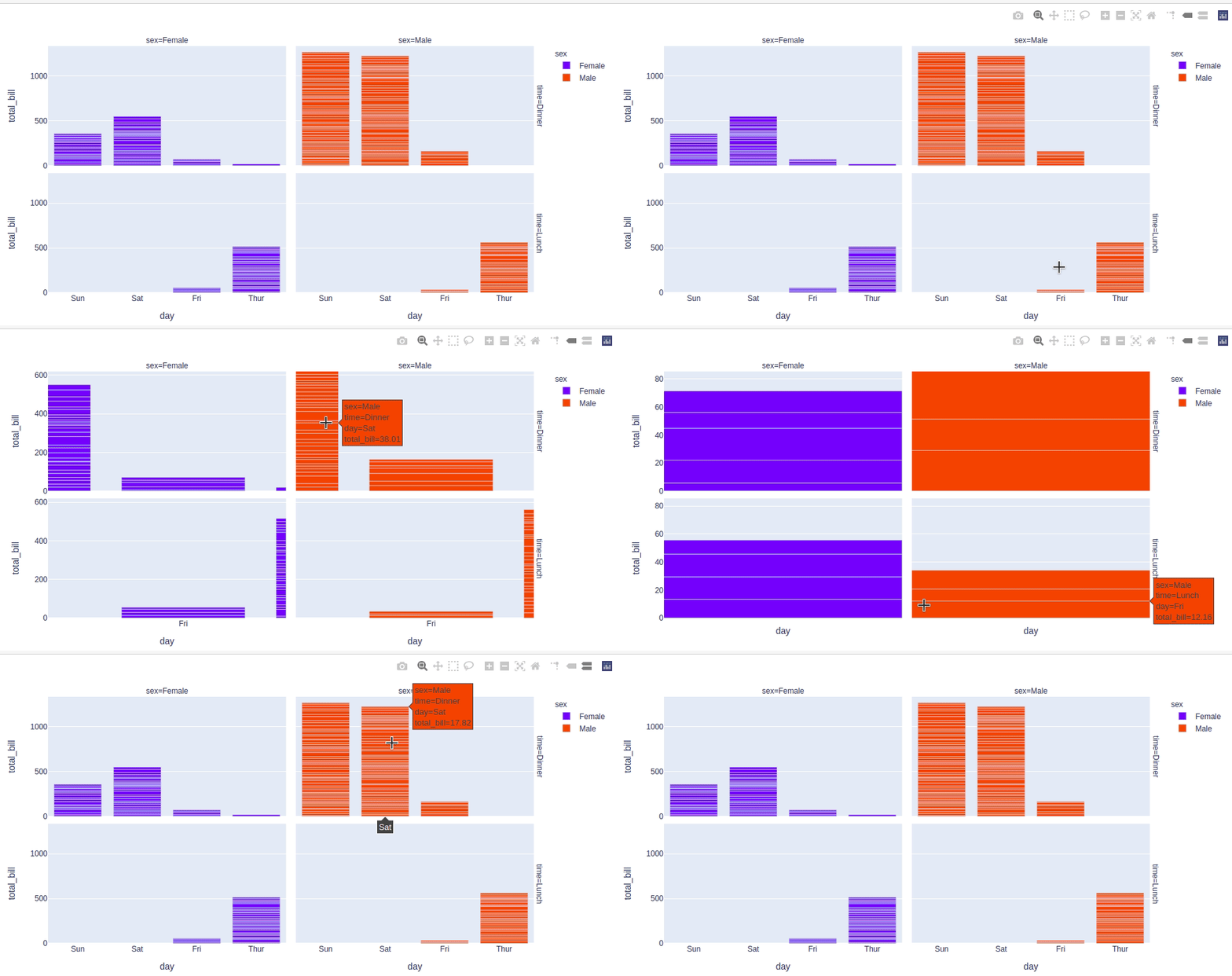
- **color: Used to color the bars.
- **facet_row: Divides the graph into rows according to the data passed
- **facet_col: Divides the graph into columns according to the data passed Python `
import plotly.express as px
df = px.data.tips()
fig = px.bar(df, x='day', y="total_bill", color='sex', facet_row='time', facet_col='sex')
fig.show()
`
**Output:
3. Scatter Plot
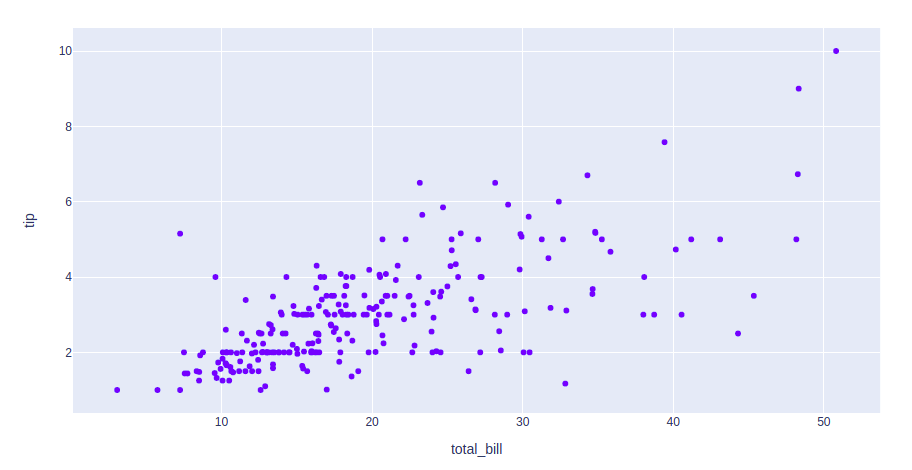
A scatter plot is a set of dotted points to represent individual pieces of data in the horizontal and vertical axis. A graph in which the values of two variables are plotted along X-axis and Y-axis, the pattern of the resulting points reveals a correlation between them and it can be created using the px.scatter() method.
**Syntax:
plotly.express.scatter(data_frame=None, x=None, y=None, color=None, title=None)
Parameters:
- **data_frame: Dataset to plot.
- **x: The column name for the X-axis.
- **y: The column name for the Y-axis.
- **color: Color the bars based on this column.
- **title: Title of the plot.
**Return: A plotly.express.Figure object.
**Example:
Python `
import plotly.express as px
df = px.data.tips()
fig = px.scatter(df, x='total_bill', y="tip")
fig.show()
`
**Output:
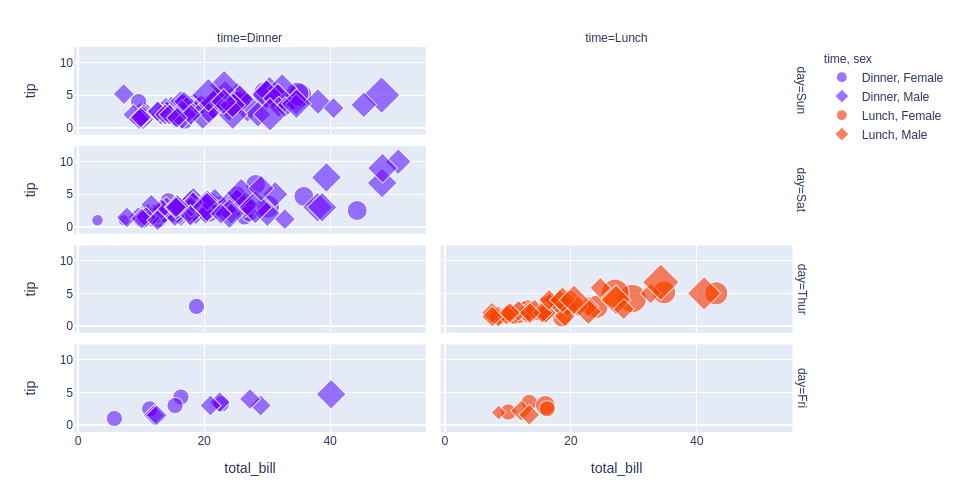
 Let's see various customizations available for this chart:
- **color: Color the points.
- **symbol: Gives a symbol to each point according to the data passed.
- **size: Size for each point. Python `
import plotly.express as px
df = px.data.tips()
fig = px.scatter(df, x='total_bill', y="tip", color='time', symbol='sex', size='size', facet_row='day', facet_col='time')
fig.show()
`
**Output:
4. Histogram
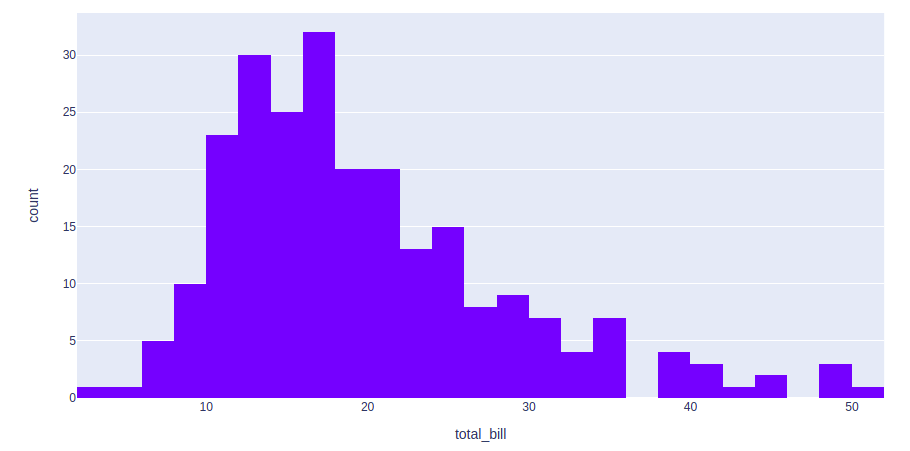
A histogram is used to represent data in the form of some groups. It is a type of bar plot where the X-axis represents the bin ranges while the Y-axis gives information about frequency. It can be created using the px.histogram() method.
**Syntax:
plotly.express.histogram(data_frame=None, x=None, y=None, color=None, nbins=None, histnorm=None, title=None, width=None, height=None)
**Parameters:
- **data_frame: Dataset to plot.
- **x: The column name for the X-axis (values to be binned).
- **color: Color the bars based on this column.
- **nbins: Set the number of bins.
- **histnorm: Normalize the histogram (e.g"percent", "density").
**Return: A plotly.express.Figure object.
**Example:
Python `
import plotly.express as px
df = px.data.tips()
fig = px.histogram(df, x="total_bill")
fig.show()
`
**Output:
Let's customize the above graph.
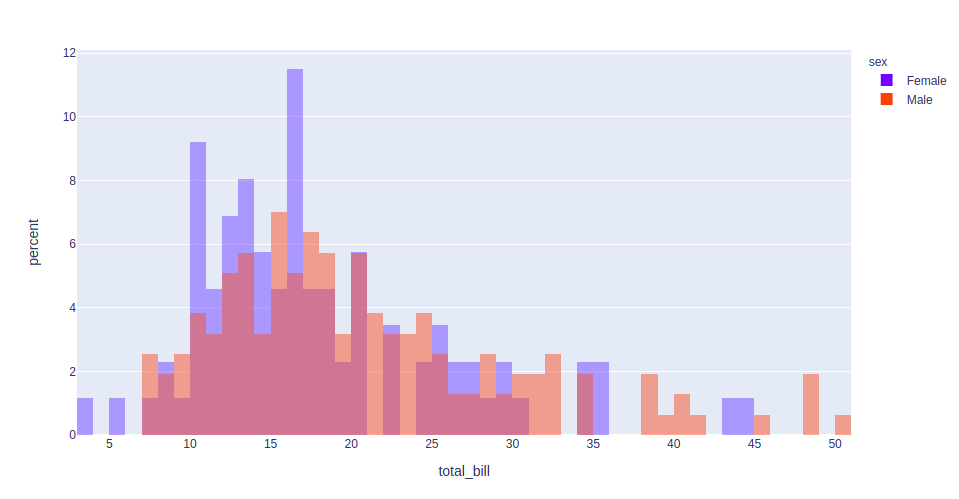
- **color: To color the bars
- **nbins: To set the number of bins
- **histnorm: Mode through which the bins are represented. Different values that can be passed using this argument.
Here **barmode can be either 'group', 'overlay' or 'relative'.
- **group: Bars are placed beside each other
- **overlay: Bars are drawn on the top of each other
- **relative: Bars are stacked above/below zero based on values Python `
import plotly.express as px
df = px.data.tips()
fig = px.histogram(df, x="total_bill", color='sex', nbins=50, histnorm='percent', barmode='overlay')
fig.show()
`
**Output:
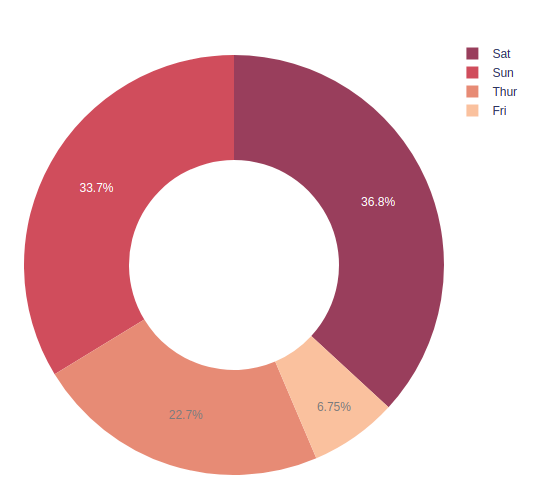
5. Pie Chart
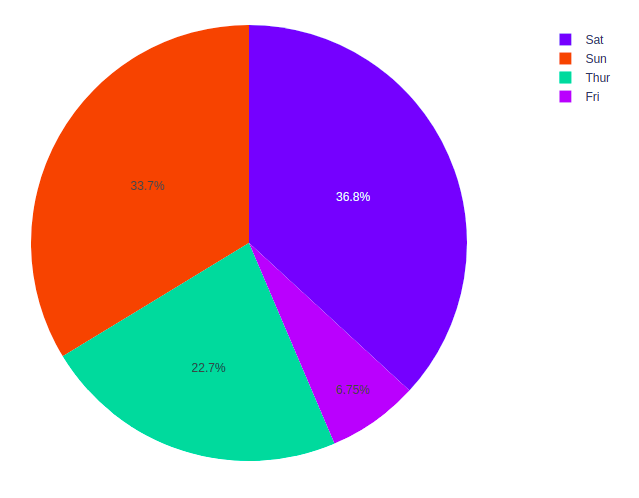
A pie chart is a circular statistical graphic which is divided into slices to show numerical proportions. It shows a special chart that uses “pie slices” where each sector shows the relative sizes of data. It can be created using the px.pie() method.
**Syntax:
plotly.express.pie(data_frame=None, names=None, values=None, color=None, hole=None, title=None, width=None, height=None)
**Parameters:
- **data_frame: Dataset to plot.
- **names: Column name for the pie chart labels.
- **values: Column name for the size of the slices.
- **hole: Creates a donut chart when set between 0 and 1.
**Return: A plotly.express.Figure object.
**Example:
Python `
import plotly.express as px
df = px.data.tips()
fig = px.pie(df, values="total_bill", names="day") fig.show()
`
**Output:
Let's customize the above graph.
- **color_discrete_sequence: Strings defining valid CSS colors
- **opacity: It finds how transparent or solid the markers (such as points on a scatter plot) appear. The value should be between 0 and 1
- **hole: Creates a hole in between to make it a donut chart. The value should be between 0 and 1 Python `
import plotly.express as px
df = px.data.tips()
fig = px.pie(df, values="total_bill", names="day", color_discrete_sequence=px.colors.sequential.RdBu, opacity=0.7, hole=0.5) fig.show()
`
**Output:
6. Box Plot
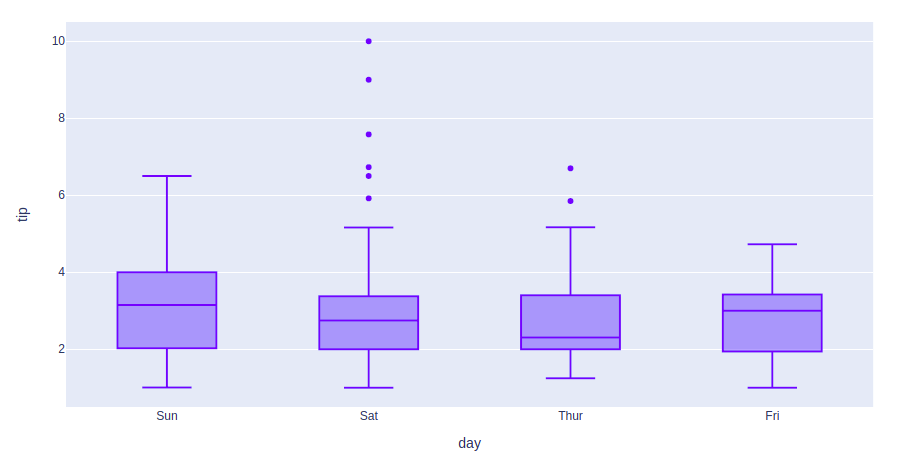
A Box Plot is also known as Whisker plot and in this a box is created from the first quartile to the third quartile, a vertical line is also there which goes through the box at the median. Here x-axis denotes the data to be plotted while the y-axis shows the frequency distribution. It can be created using the px.box() method
**Syntax:
plotly.express.box(data_frame=None, x=None, y=None, color=None, facet_row=None, facet_col=None, title=None, width=None, height=None)
**Parameters:
- **data_frame: Dataset to plot.
- **x: The column name for the X-axis.
- **y: The column name for the Y-axis.
- **color: Color the boxes based on this column.
**Return: A plotly.express.Figure object.
**Example:
Python `
import plotly.express as px
df = px.data.tips()
fig = px.box(df, x="day", y="tip")
fig.show()
`
**Output:
Let's customize the above graph.
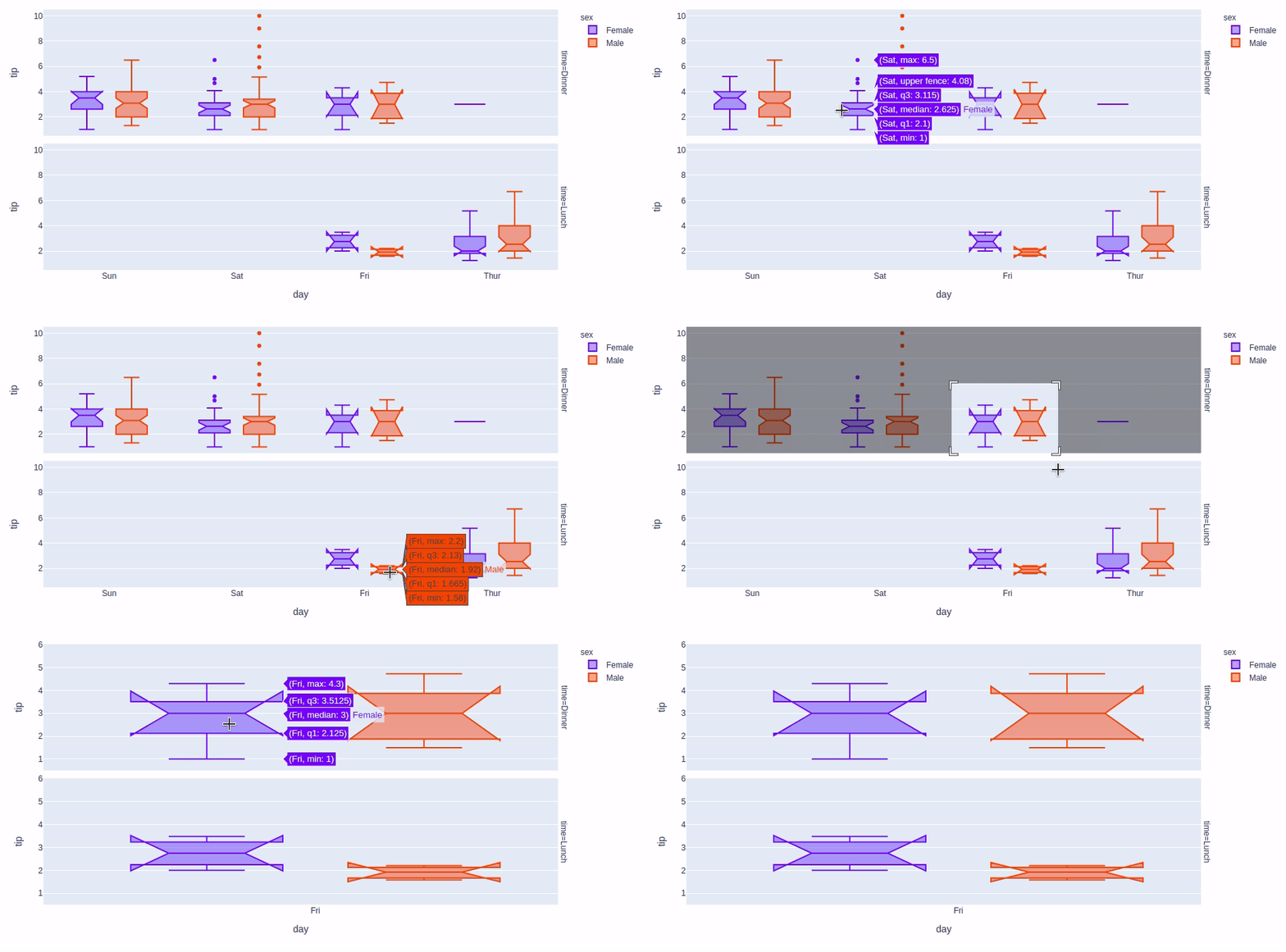
- **color: used to assign color to marks
- **facet_row: assign marks to facetted subplots in the vertical direction
- **facet_col: assign marks to facetted subplots in the horizontal direction
- **boxmode: One of ‘group’ or ‘overlay’ In ‘overlay’ mode, boxes are on drawn top of one another. In ‘group’ mode, boxes are placed beside each other.
- **notched: If True, boxes are drawn with notches Python `
import plotly.express as px
df = px.data.tips()
fig = px.box(df, x="day", y="tip", color='sex', facet_row='time', boxmode='group', notched=True)
fig.show()
`
**Output:
7. Violin Plot
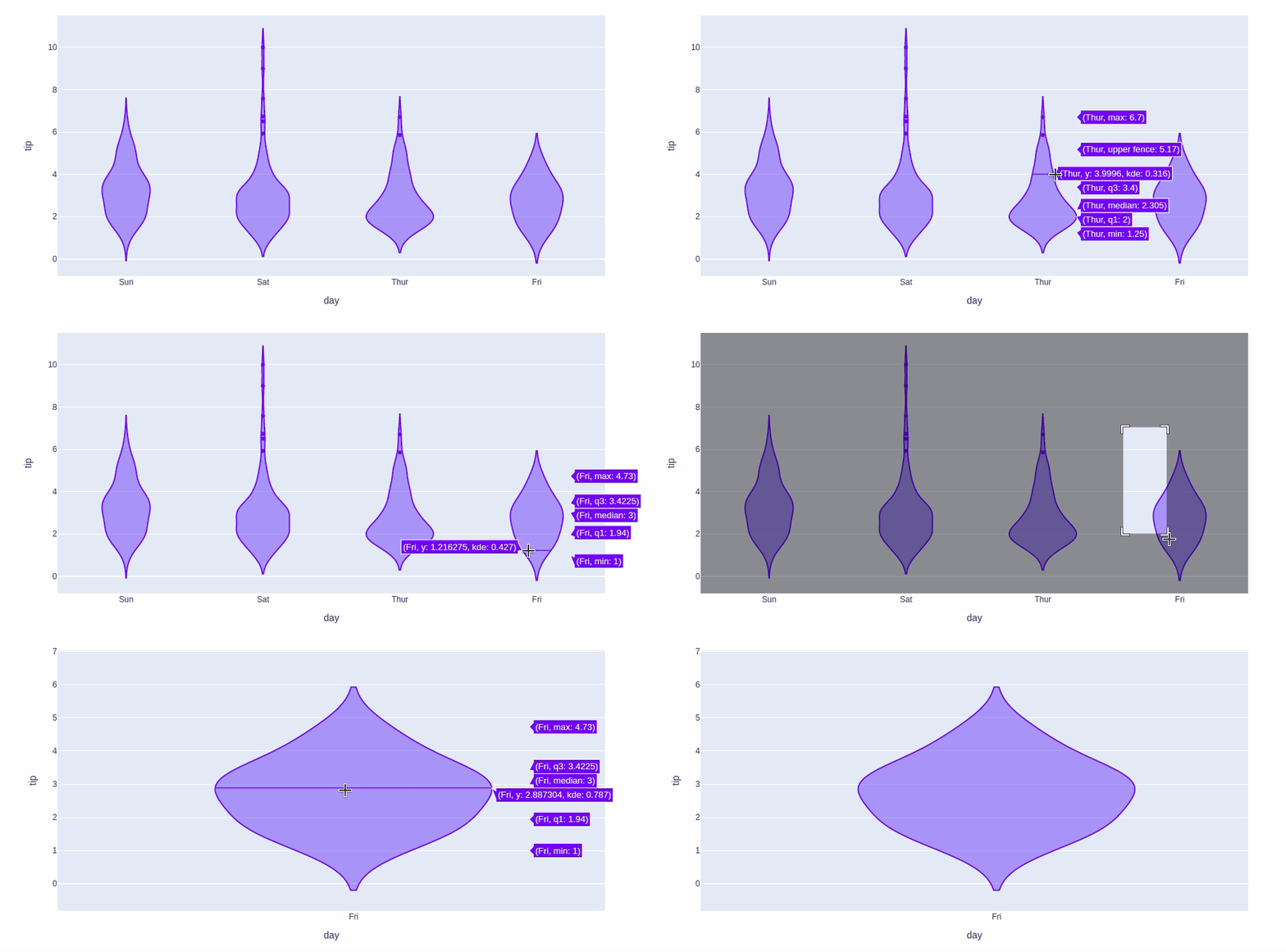
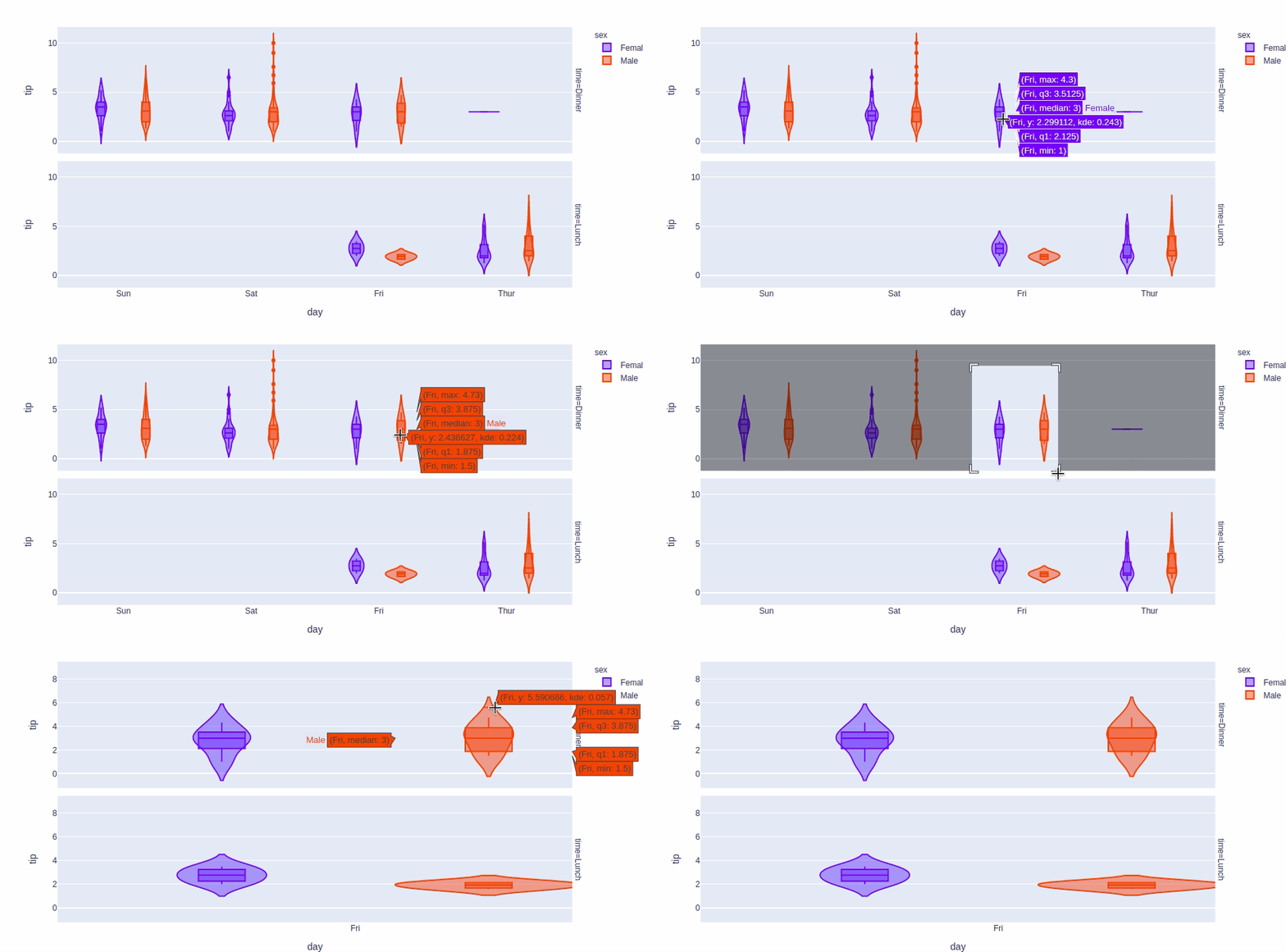
A Violin Plot shows the distribution of numerical data along with its density, combining features of a box plot and a density plot. It reveals patterns that box plots may miss, and in Plotly it can be created using px.violin().
**Syntax:
plotly.express.violin(data_frame=None, x=None, y=None, color=None, facet_row=None, facet_col=None, title=None, width=None, height=None)
**Parameters:
- **data_frame: Dataset to plot.
- **x: The column name for the X-axis.
- **y: The column name for the Y-axis.
- **color: Color the violins based on this column.
**Return: A plotly.express.Figure object.
**Example:
Python `
import plotly.express as px
df = px.data.tips()
fig = px.violin(df, x="day", y="tip")
fig.show()
`
**Output:
Let's customize the above graph.
**Example: For customizing the violin plot we will use the same customizations available for the box plot except the boxmode and notched which are not available for the violin plot Setting this parameter to True will show a box plot inside the violin plot.
Python `
import plotly.express as px
df = px.data.tips()
fig = px.violin(df, x="day", y="tip", color='sex', facet_row='time', box=True)
fig.show()
`
**Output:
8. 3D Scatter Plot
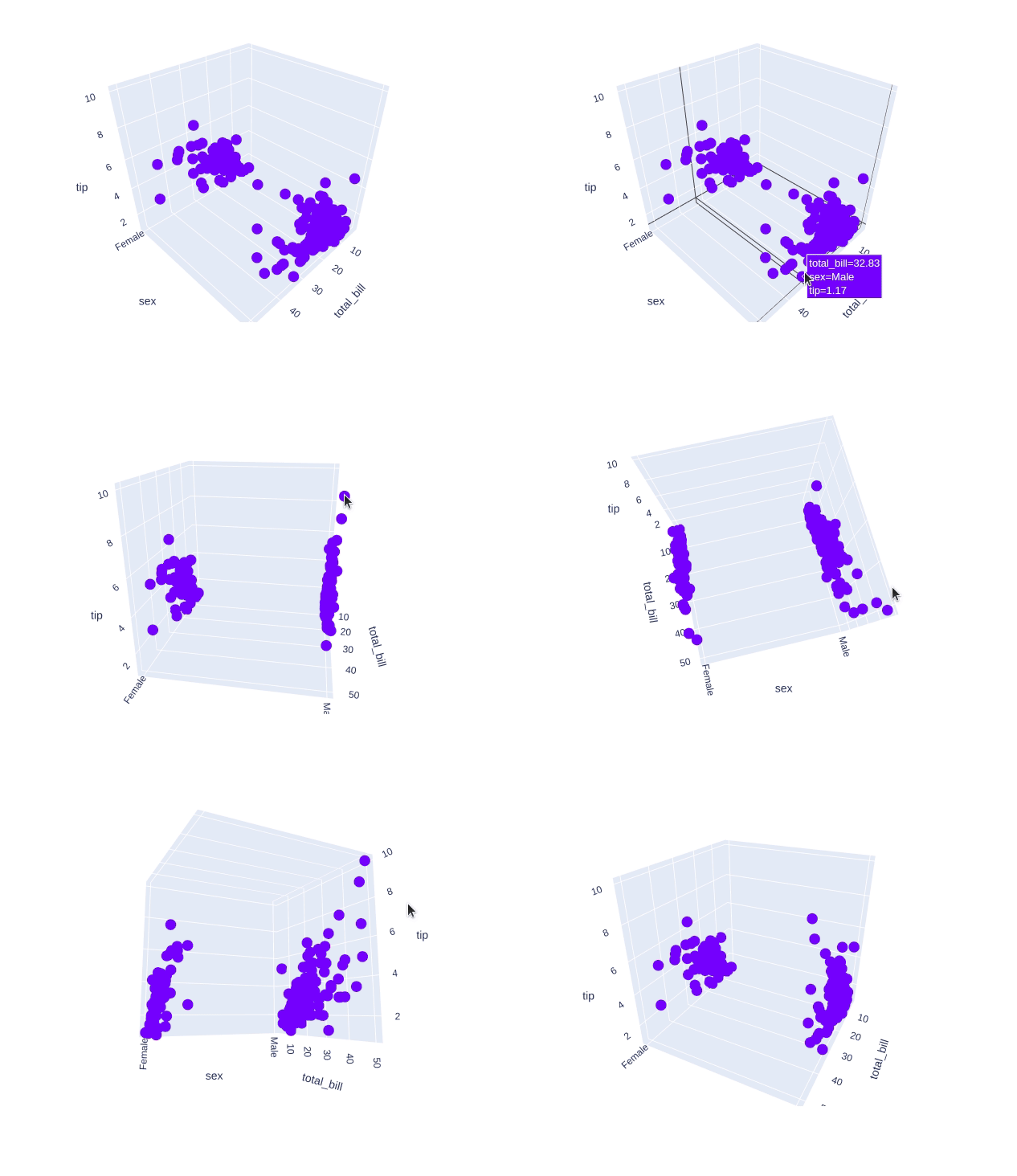
3D Scatter Plot shows data points in three dimensions, adding extra information by adjusting color, size and style of the points. These adjustments help make the plot clearer and easier to understand. You can create a 3D scatter plot using the scatter_3d function from the plotly.express class.
**Syntax:
plotly.express.scatter_3d(data_frame=None, x=None, y=None, z=None, color=None, symbol=None, size=None, title=None, width=None, height=None)
**Parameters:
- **data_frame: Dataset to plot.
- **x: The column name for the X-axis.
- **y: The column name for the Y-axis.
- **z: The column name for the Z-axis.
- **color: Color the points based on this column.
- **size: Size of the points.
**Return: A plotly.express.Figure object.
**Example:
Python `
import plotly.express as px
df = px.data.tips()
fig = px.scatter_3d(df, x="total_bill", y="sex", z="tip")
fig.show()
`
**Output:
Customizing the 3D scatter plot.
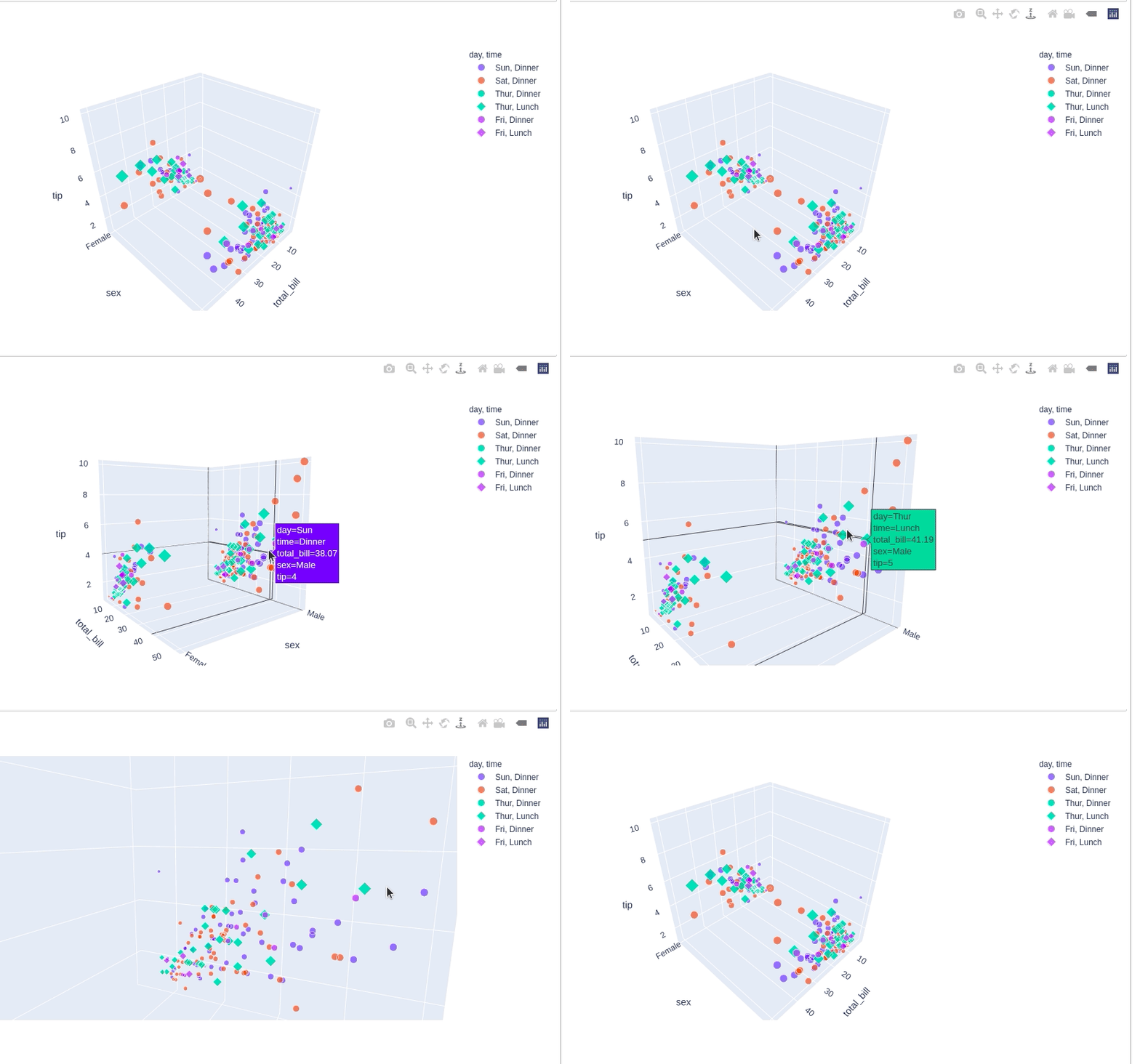
- **color: Set the color of the markers
- **size: Set the size of the marker
- **symbol: Set the symbol of the plot Python `
import plotly.express as px
df = px.data.tips()
fig = px.scatter_3d(df, x="total_bill", y="sex", z="tip", color='day', size='total_bill', symbol='time')
fig.show()
`
**Output:
Implementing Interactive Features in Plotly
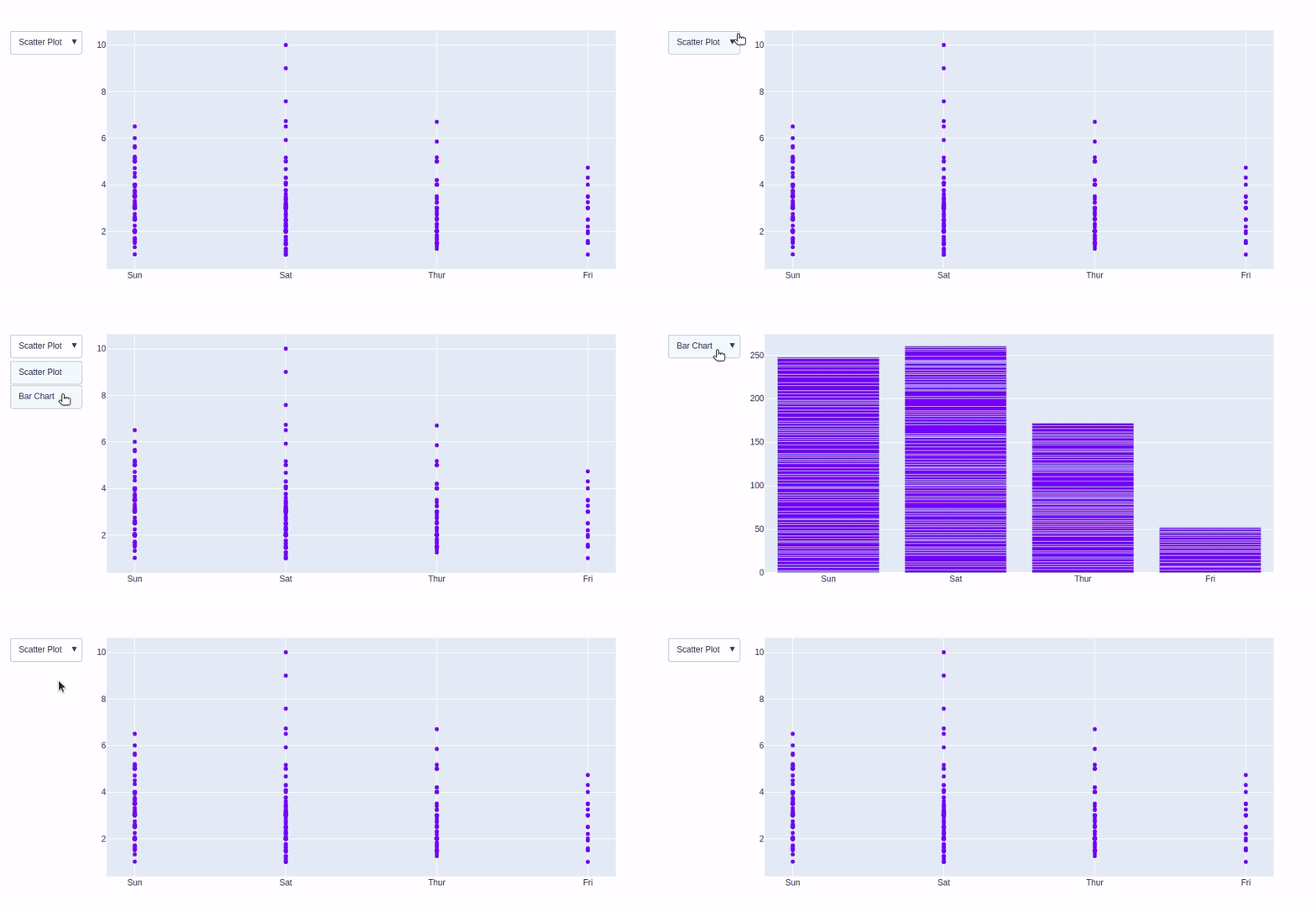
Plotly provides various interactive features which allows users to zoom, hover and click for deeper insights. Beyond these built-in interactions it allows customization with tools like dropdown menus, buttons and sliders. These can be added using the update menu attribute in the plot layout. Let’s explore these features:
A drop-down menu allows users to select different options to modify the chart. The update method is used to control the chart based on dropdown choices. In plotly there are 4 possible methods to modify the charts by using update menu method.
- **restyle: modify data or data attributes
- **relayout: modify layout attributes
- **update: modify data and layout attributes
- **animate: start or pause an animation
**Example: Here we will be using Tips dataset which contains 244 rows and 7 columns and with each row representing a single restaurant bill and associated information.
Python `
import plotly.graph_objects as go import plotly.express as px import numpy as np import pandas as pd
df = px.data.tips()
plot = go.Figure(data=[go.Scatter( x=df['day'], y=df['tip'], mode='markers',) ])
plot.update_layout( updatemenus=[ dict(buttons=list([ dict( args=["type", "scatter"], label="Scatter Plot", method="restyle" ), dict( args=["type", "bar"], label="Bar Chart", method="restyle" ) ]), direction="down", ), ] )
plot.show()
`
**Output:
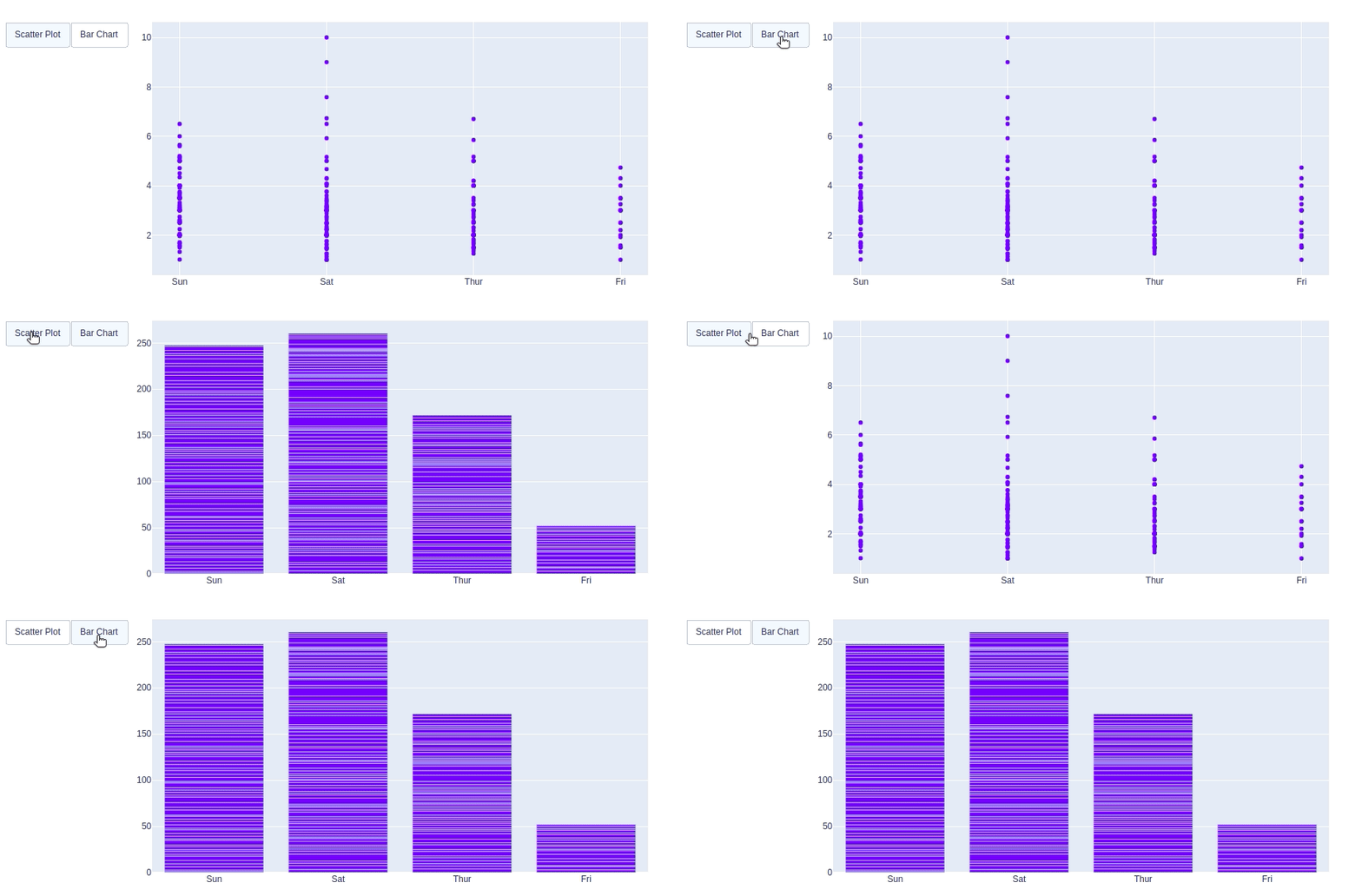
2. Adding Buttons
In plotly, adding custom Buttons are used to quickly make actions directly from a record. Custom Buttons can be added to page layouts in CRM, Marketing and Custom Apps. There are also 4 possible methods that can be applied in custom buttons:
- **restyle: modify data or data attributes
- **relayout: modify layout attributes
- **update: modify data and layout attributes
- **animate: start or pause an animation
**Example:
Python `
import plotly.graph_objects as go import plotly.express as px import pandas as pd
df = px.data.tips()
plot = go.Figure(data=[go.Scatter( x=df['day'], y=df['tip'], mode='markers',) ])
plot.update_layout( updatemenus=[ dict( type="buttons", direction="left", buttons=list([ dict( args=["type", "scatter"], label="Scatter Plot", method="restyle" ), dict( args=["type", "bar"], label="Bar Chart", method="restyle" ) ]), ), ] )
plot.show()
`
**Output:
3. Creating Sliders and Selectors to the Plot
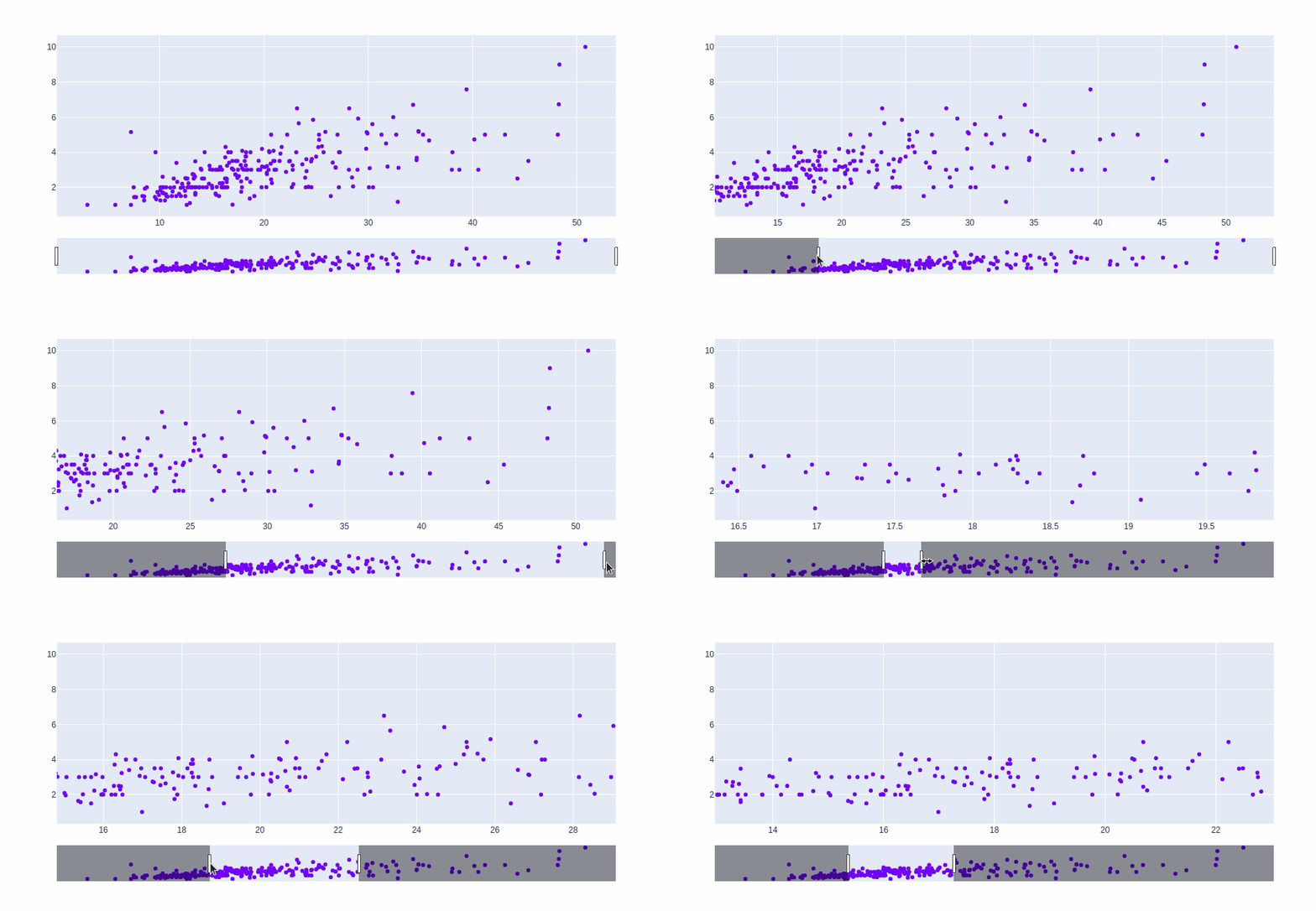
In Plotly, the range slider is an input control that allows users to select a value range between a specified minimum and maximum. It allows selecting pre-configured ranges and manually inputting minimum and maximum values or dates.
**Example:
Python `
import plotly.graph_objects as go import plotly.express as px
df = px.data.tips()
fig = go.Figure()
fig.add_trace(go.Scatter( x=df['total_bill'], y=df['tip'], mode='markers' ))
fig.update_layout( xaxis=dict( rangeslider=dict(visible=True), rangeselector=dict( buttons=list([ dict(count=1, step="day", stepmode="backward"), dict(step="all") ]) ) ) )
fig.show()
`
**Output:
Building Interactive Dashboards with Plotly Dash
Plotly Dash is a framework for building interactive web applications with Python. It allows us to create dynamic and visually appealing dashboards that can handle complex interactions and data visualizations. In this section, we will see the importance of building interactive dashboards using Plotly Dash.
**1. Install the necessary packages:
!pip install dash
!pip install --upgrade plotly
**2. Create and run the Dash app:
Python `
import dash from dash import dcc, html import plotly.express as px import pandas as pd
df = pd.DataFrame({ 'x': [1, 2, 3, 4, 5], 'y': [10, 15, 13, 17, 14] })
app = dash.Dash(name)
app.layout = html.Div([ dcc.Graph( id='example-graph', figure=px.scatter(df, x='x', y='y', title='Scatter Plot in Dash') ) ])
if name == 'main': app.run(debug=True, port=8050)
`
**Output:

Interactive Dashboards
With Plotly we can easily create interactive dashboards that make exploring and understanding data more engaging and insightful.
You can download source code from here.