Connecting an AWS EC2 Instance of a Private Subnet using Bastion Host (original) (raw)
Last Updated : 28 May, 2026
Connecting to an instance inside a private subnet is an important part of secure AWS networking. This is commonly done using a Bastion Host placed inside a public subnet, which acts as a secure entry point to private instances.
Before moving to the implementation section, let us first understand some important AWS networking terms.
Key Terminologies
- **EC2 Instance: A virtual server in AWS used to run operating system such as Linux and Windows.
- **AMI(Amazon Machine Image): A template that contains the operating system required to launch an EC2 instance.
- **Subnet: A smaller section of a network inside a VPC used to organize AWS resources.
- **Availability Zones: Separate locations inside an AWS region designed for high availability and fault isolation.
- **Public Subnet: A subnet connected to an Internet Gateway that allows internet access.
- **Private Subnet: A subnet without direct internet access, mainly used for internal resources.
- **Route Table: A set of rules that controls how network traffic moves inside a VPC.
- **VPC (Virtual Private Cloud): A private virtual network in AWS where resources such as EC2 instances and databases are deployed.
- **Internet Gateway: A component that allows communication between a VPC and the internet.
- **Security Groups: Virtual firewalls that control inbound and outbound traffic for EC2 instances.
- **Key Pair: A combination of public and private keys used to securely connect to EC2 instances.
- **Bastion Host: An EC2 instance placed in a public subnet that is used to securely access instances in a private subnet.
After understanding these key concepts, we can now move towards the implementation part of connecting a private instance using a Bastion Host.
Implementation
**Step 1: Create a VPC
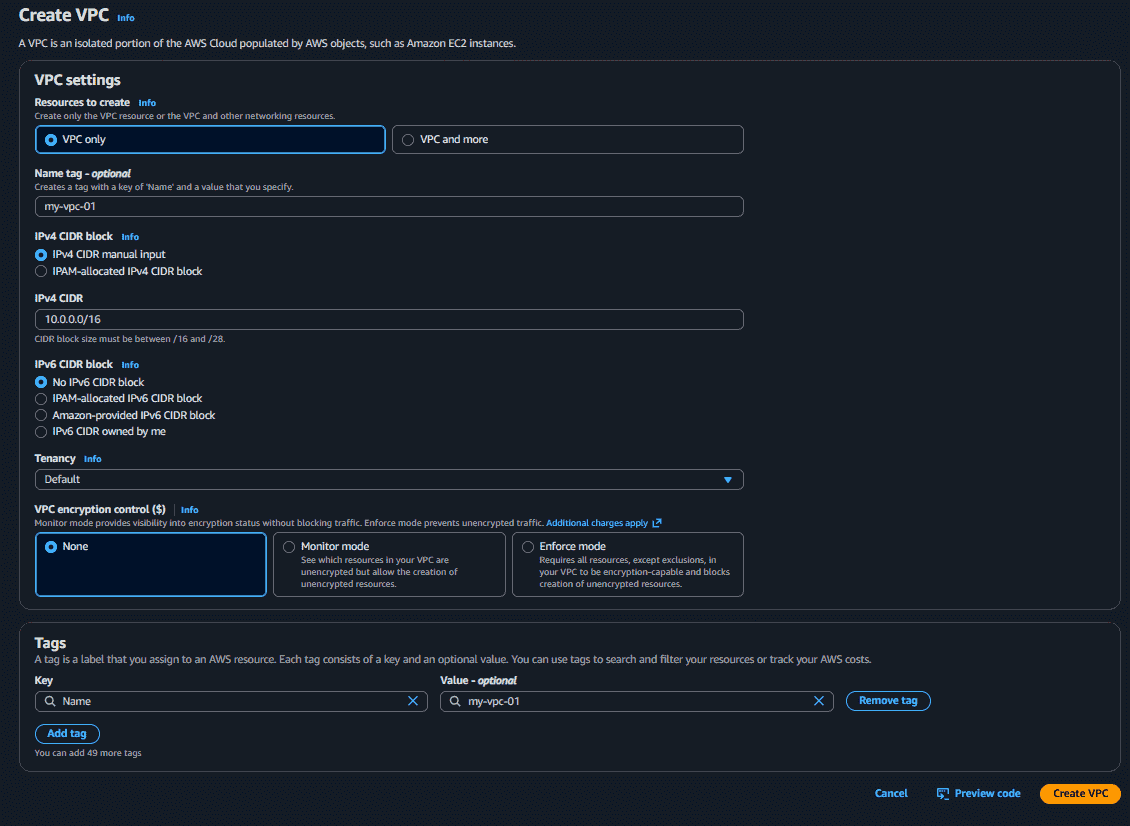
- Open VPC Dashboard
- Create VPC
- Choose name "My-VPC"
- Choose IPv4 CIDR "10.0.0.0/16"
- Choose Tenancy "Default"
- Click "Create VPC"
**Step 2: Create Public Subnet
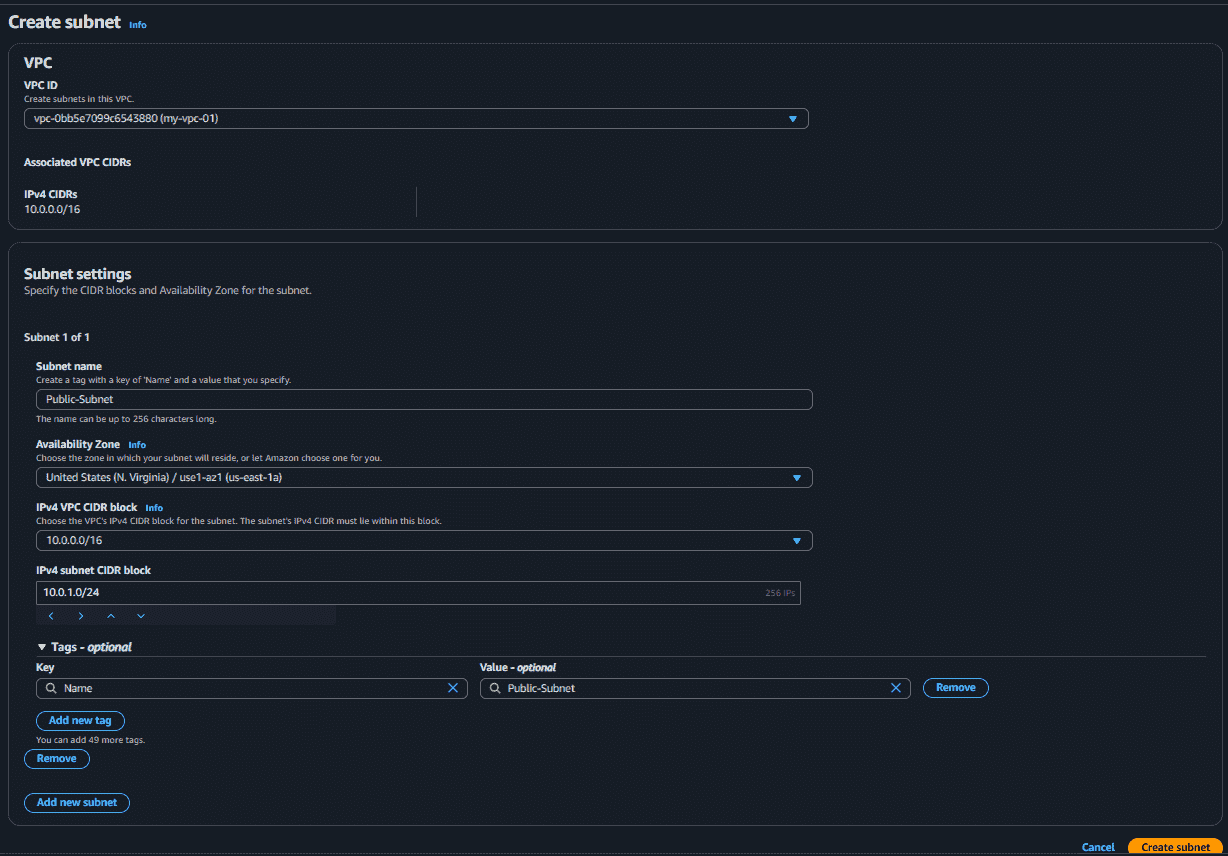
- Open Subnet Dashboard
- Create Subnet
- Choose VPC "My-VPC"
- Choose name "Public-Subnet"
- Choose AZ "ap-south-1a"
- Choose CIDR "10.0.1.0/24"
- Click "Create Subnet"
**Step 3: Create Private Subnet
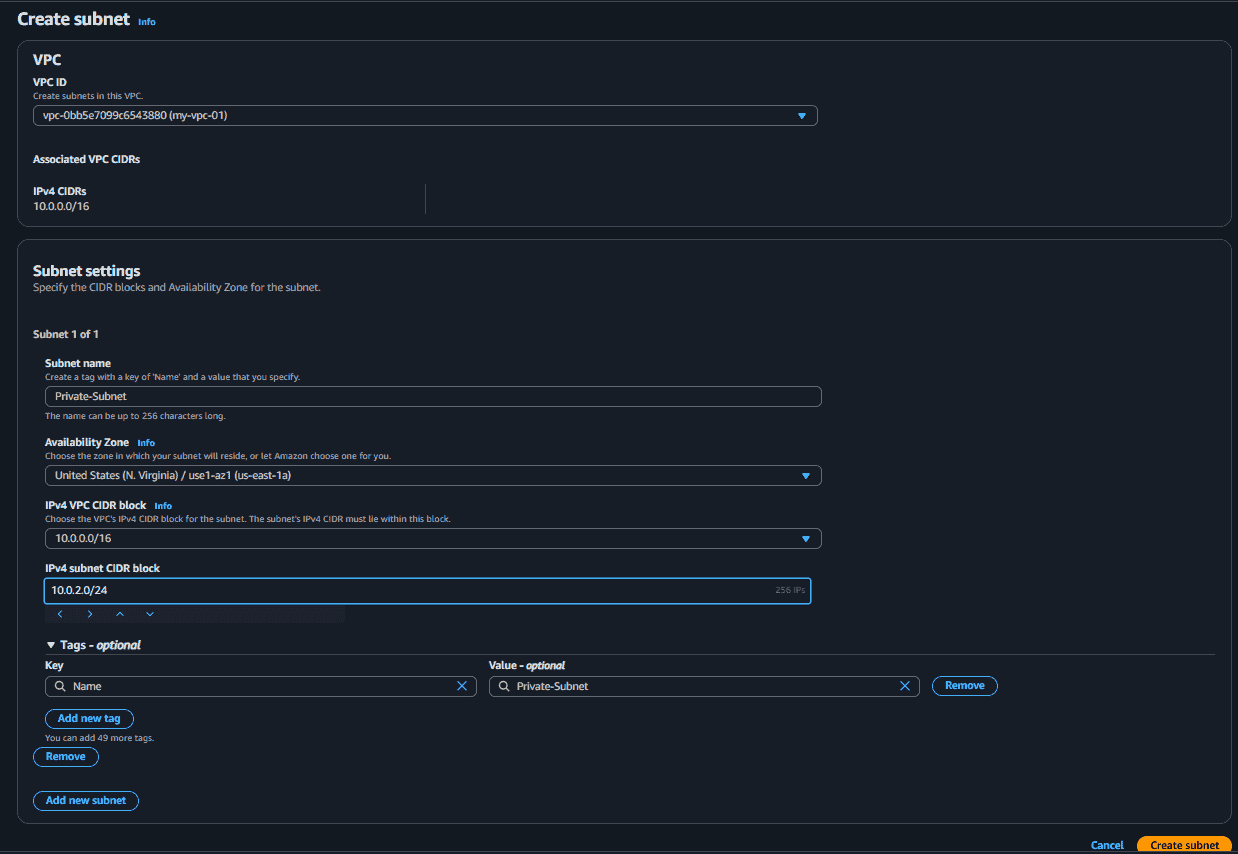
- Open Subnet Dashboard
- Create Subnet
- Choose VPC "My-VPC"
- Choose name "Private-Subnet"
- Choose AZ "ap-south-1a"
- Choose CIDR "10.0.2.0/24"
- Click "Create Subnet"
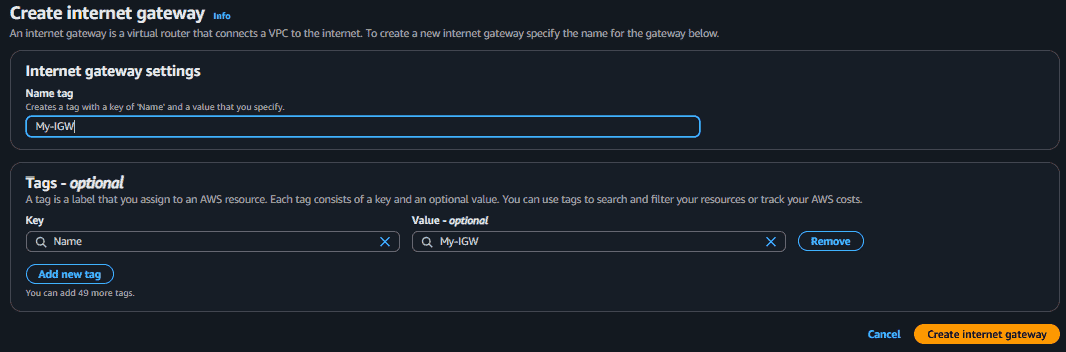
**Step 4: Create Internet Gateway
- Open Internet Gateway Dashboard
- Click "Create Internet Gateway"
- Choose name "My-IGW"
- Click "Create Internet Gateway"
**Step 5: Attach Internet Gateway to Virtual Private Cloud
- Select "My-IGW"
- Click "Actions"
- Click "Attach to VPC"
- Choose "My-VPC"
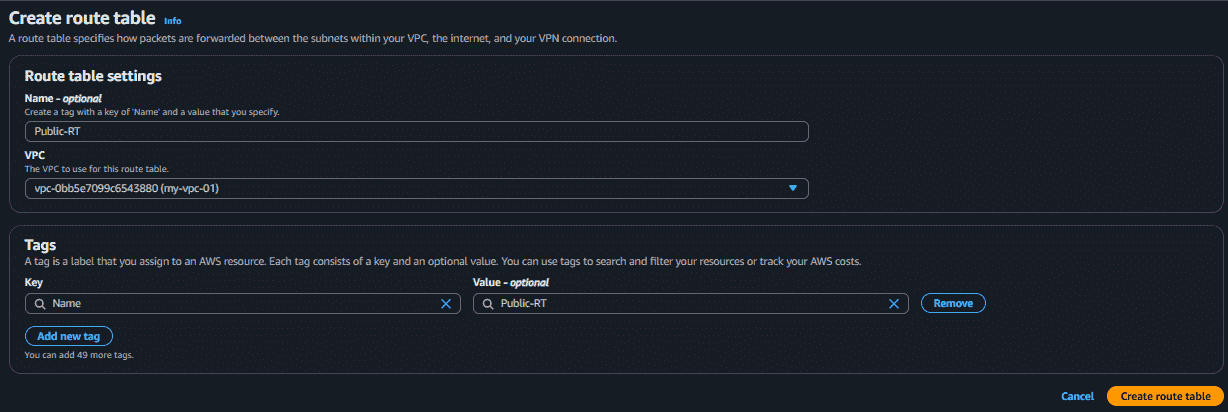
**Step 6: Create Public Route Table
- Open VPC Dashboard
- Click "Route Tables"
- Click "Create Route Table"
- Choose name "Public-RT"
- Choose VPC "My-VPC"
- Click " Create Route table"
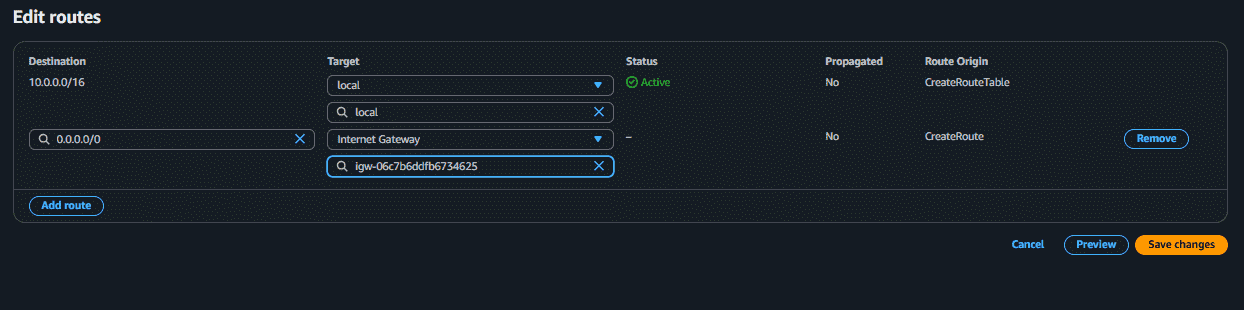
**Step 7: Add Internet Route
- Select "Public-RT"
- Go To "Routes"
- Edit "Route"
- Add Destination "0.0.0.0/0"
- Choose "IGW" as Internet Gateway
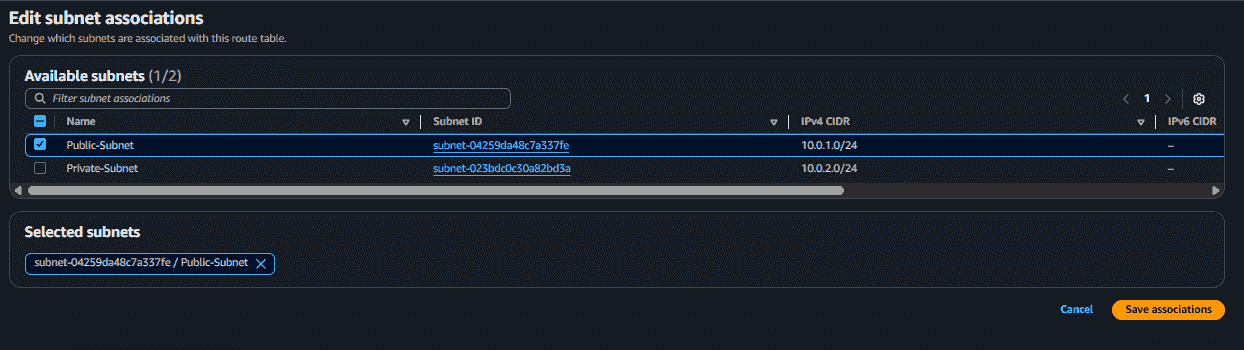
**Step 8: Associate Public Subnet
- Go to Subnet Associate
- Scroll down to "Subnet without explicit associations"
- Click "Edit subnet associations"
- Associate "Public-Subnet"
- Click "Save Associate"
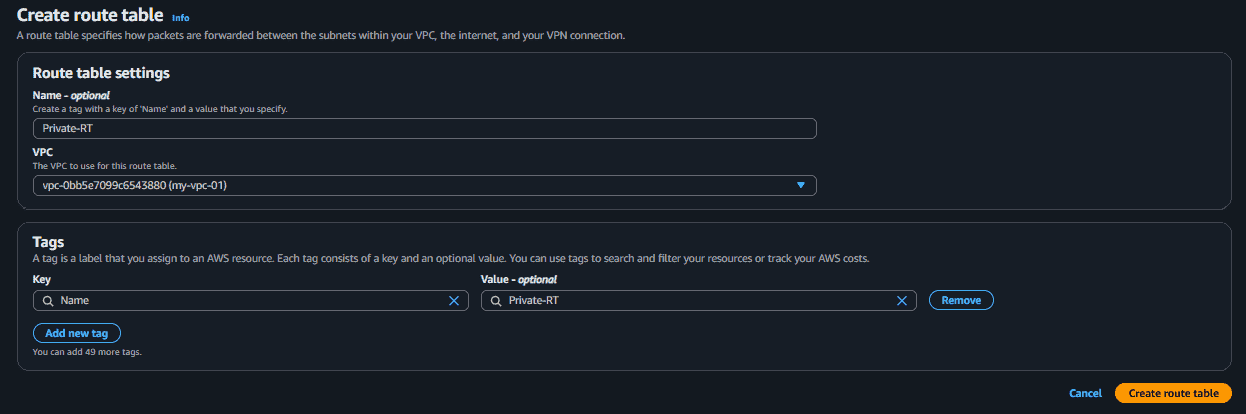
**Step 9: Create Private Route Table
- Create another route table
- Choose name "Private-RT"
- Choose VPC "My-VPC"
- Do Not add Internet Gateway Route
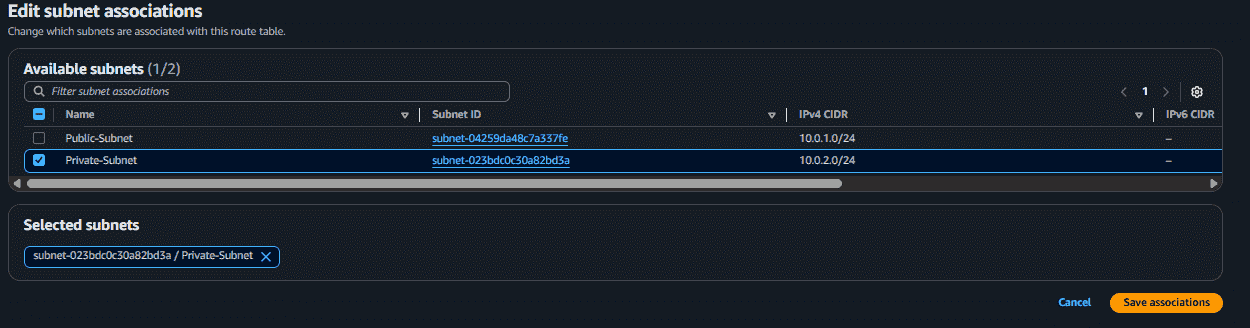
**Step 10: Associate Private Subnet
- Same steps that we follow for Public Route Table
- Here we choose "Private-Subnet"
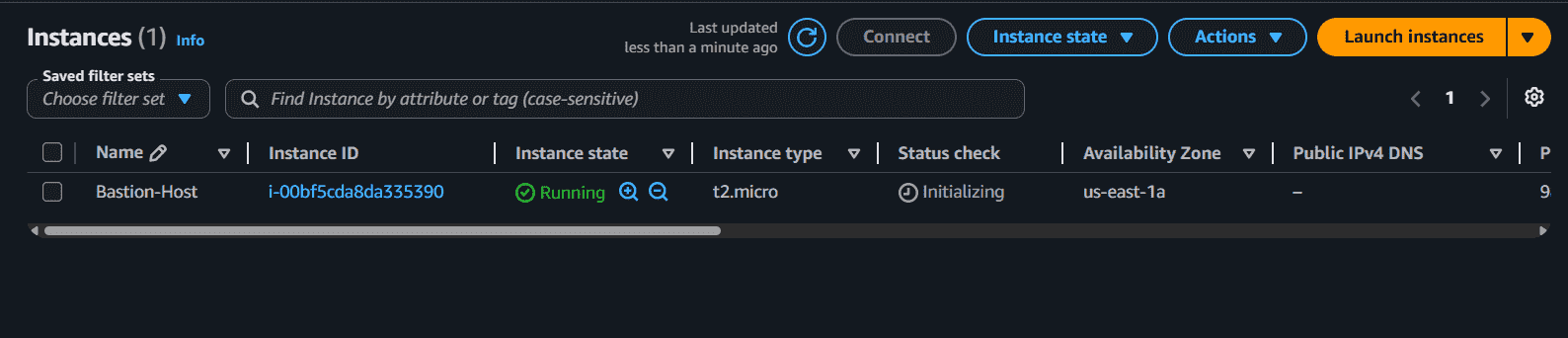
**Step 11: Launch Bastion HOST EC2
- Go to EC2 Dashboard
- Click "launch Instance"
- Name "Bastion-Host"
- Choose AMI "Amazon Linux 2023"
- Choose instance type "t2.micro"
- Create Key Pair
- Key pair type "RSA"
- Choose ".pem" as private key file format
- Download the pem file
- In Network Setting
- Choose VPC "My-VPC"
- Choose "Public-Subnet"
- Choose Auto Assign Public IP "Enable"
- Choose "Create Security Group"
- Type "ssh" Port "22"
- Click "Launch Instance"
**Step 12: Launch Private EC2
- Go to EC2 Dashboard
- Click "launch Instance"
- Name "Private-EC2"
- Choose AMI "Amazon Linux 2023"
- Choose instance type "t2.micro"
- Choose Existing Key Pair
- In Network Setting
- Choose VPC "My-VPC"
- Choose "Private-Subnet"
- Choose Auto Assign Public IP "Disable"
- Choose "Select existing security group"
- Select the "launch-wizard-1"
- Allow SSH ONLY from launch-wizard-1"
- Click "Launch Instance"
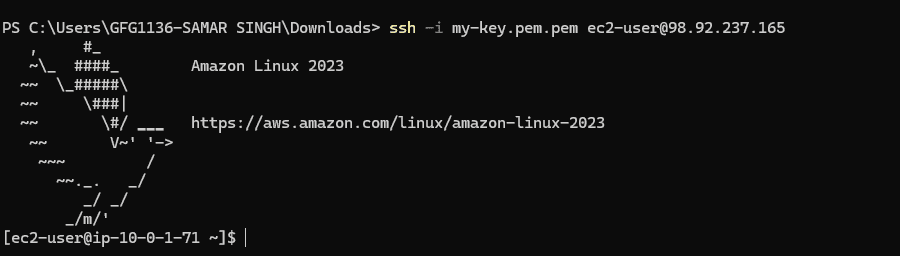
**Step 13: Connect to Bastion-Host
- Open Terminal on your system
- Move to the directory where you store the .pem file
- Run "chmod 400 my-key.pem"
- Run "ssh -i my-key.pem ec2-user@public-ip of your Bastion-Host"
**Step 14: Copy key to Bastion host
- From Local Machine Run "scp -i my-key.pem my-key.pem ec2-user@public-ip of your Bastion-Host:/home/ec2-user/"

**Step 15: SSH Into Private EC2
- Inside Bastion-Host run "chmod 400 my-key.pem"
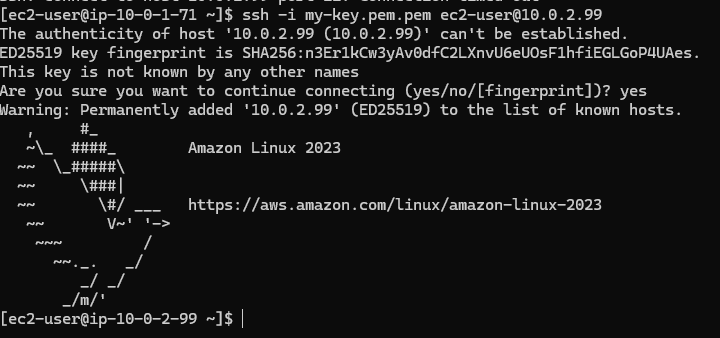
- Run "ssh -i my-key.pem ec2-user@PRIVATE-IP of the Private-EC2"