Automating Linux System Backups with Bash (original) (raw)
Last Updated : 23 Apr, 2026
A regular, automated backup is the single most important task for protecting your data. A simple Bash script can automate this entire process, saving you from manual work and protecting you from data loss.
This guide provides a complete, one-stop script to create a robust backup system. This script will:
- Back up multiple specified directories.
- Compress the backup into a timestamped .tar.gz file.
- Automatically delete old backups to save space.
- Be ready to automate with cron.
Bash Script for Backup Automation
Below is a simple guide to set up automated Linux backups using a Bash script:
Step 1: Set Up a Project Folder & Sample Data
Open your terminal and run:
Create a folder to hold your backup script and output
mkdir -p ~/backup-script/backups
Navigate into your project directory
cd ~/backup-script
Create a sample folder and file for testing
mkdir -p ~/backup-script/sample-data
echo "This is a test file." > ~/backup-script/sample-data/testfile.txt
Your folder structure now looks like:
~/backup-script/
├── backups/ # Backups go here
└── sample-data/ # Sample directory to back up
└── testfile.txt
Step 2: Create the Backup Script
Create and open the script:
nano backup.sh
Paste the following code:
#!/bin/bash
=== Configuration Section ===
Directories to back up (customize these)
SOURCE_DIRS="$HOME/backup-script/sample-data"
Destination for backups
BACKUP_DIR="$HOME/backup-script/backups"
Timestamp format
DATE=$(date +%Y-%m-%d_%H-%M-%S)
BACKUP_NAME="backup_$DATE.tar.gz"
Retention policy
RETENTION_DAYS=7
=== Start Backup ===
echo "Starting backup of: $SOURCE_DIRS"
mkdir -p "$BACKUP_DIR"
tar -czf "$BACKUP_DIR/$BACKUP_NAME" $SOURCE_DIRS
Check if tar was successful
if [ $? -eq 0 ]; then
echo "Backup saved to: BACKUPDIR/BACKUP_DIR/BACKUPDIR/BACKUP_NAME"
else
echo "Backup failed!"
exit 1
fi
=== Delete Old Backups ===
echo "Deleting backups older than $RETENTION_DAYS days..."
find "$BACKUP_DIR" -name "*.tar.gz" -type f -mtime +$RETENTION_DAYS -exec rm {} ;
echo "Cleanup done. Script finished!"
Step 3: Make the Script Executable
chmod +x backup.sh
Step 4: Run Your First Backup
Run the script:
./backup.sh
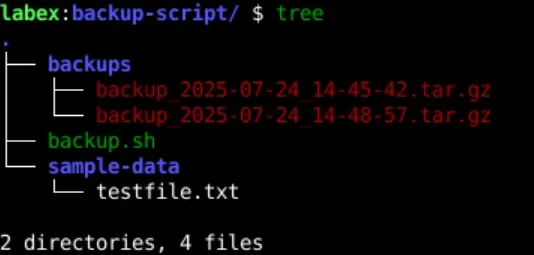
**Expected Output:
Starting backup of: /home/your-user/backup-script/sample-data
Backup saved to: /home/your-user/backup-script/backups/backup_2025-07-24_15-19-24.tar.gz
Deleting backups older than 7 days...
Cleanup done. Script finished!
**Output:

How the Script Works
This script is built on four key commands:
**1. The Array : SOURCE_DIRS=(...) By using a Bash array, you can list multiple directories. The syntax "${SOURCE_DIRS[@]}" ensures that even directories with spaces in their names (like "$HOME/My Documents") are handled correctly.
**2. The Timestamp : DATE=$(...) DATE=$(date +%Y-%m-%d_%H-%M-%S) runs the date command and stores its output (e.g., 2025-11-15_14-30-05) in the DATE variable. This guarantees every backup has a unique name.
**3. The Archive : tar -czf ... This is the engine of the script. tar is the command that creates the archive.
- -c: create a new archive.
- -z: Compress the archive with g**z**ip (which creates the .gz file).
- -f: Write the archive to a file (the "$BACKUP_FILE").
**4. The Cleanup : find ... -exec rm ... This command automatically manages your retention policy.
- find "$BACKUP_DIR": Searches in your backup directory.
- -name "backup_*.tar.gz": Finds only files that match the backup name.
- -mtime +$RETENTION_DAYS: This is the key. It finds files with a modified time that is more than (+) your RETENTION_DAYS (e.g., +7 means older than 7 days).
- -exec rm {} \;: For every file found ({}), execute the rm (remove) command.
Automation using cronjobs
A backup script is only useful if it runs automatically. The standard tool for this in Linux is cron. cron is a background service that runs scheduled tasks. You can edit its schedule by running:
crontab -e
Now, add a line to the bottom of this file to schedule your script. The syntax is:
Minute] [Hour] [Day of Month] [Month] [Day of Week] [Command to run]
**Example: Run the script every day at 2:00 AM Add this one line to your crontab -e file:
0 2 * * * /home/your-user/backup.sh > /home/your-user/backup.log 2>&1
**Breakdown of this line:
- **0 2 * * *: This means "At minute 0 of hour 2, on every day, of every month, on every day of the week."
- ****/home/your-user/backup.sh**: This must be the full, absolute path to your script.
- **> /home/your-user/backup.log 2>&1: This is a critical addition. It redirects all output (stdout and stderr) from your script to a log file. This lets you check in the next day to make sure the backup ran without any errors.
Real-World Use Cases
This script can be adapted to various use cases:
- **Personal backups: Safeguard your documents, photos, or notes
- **Project versioning: Keep time-stamped archives of your code/projects
- **Server maintenance: Regularly back up config files or logs
- **Sysadmin automation: Eliminate manual work and reduce errors
- **DevOps pipelines: Serve as a base for automated backup solutions