How to Enable MFA in AWS? (original) (raw)
Last Updated : 29 May, 2026
Enabling Multi-Factor Authentication (MFA) is one of the most effective step you can take to bolster the security of your Amazon Web Services (AWS) account.
- MFA combines something you know (your password) with something you have (like an authenticator app), making unauthorized access significantly harder even if your password is stolen.
- The AWS Root User has unrestricted access to all resources and billing; enabling MFA on it is the most important security action you must take.
- MFA prevents attackers from exploiting compromised IAM credentials by requiring a physical second factor during login.
- AWS supports virtual MFA apps, hardware TOTP tokens, and FIDO2/U2F security keys to suit different security needs.
Types of MFA Devices
| **MFA Type | **Description | **How it Works | **Example |
|---|---|---|---|
| Virtual MFA Device | A software app on your smartphone that generates 6-digit, time-based one-time passwords (TOTP). | You scan a QR code to link the app to your AWS account. | Google Authenticator, Microsoft Authenticator, Authy |
| U2F / FIDO2 Security Key | A hardware device that plugs into your computer's USB port or uses NFC. | You physically tap the device during login to authenticate. | YubiKey |
| Hardware MFA Device | A physical, keychain-sized device that generates TOTP codes. | The device is assigned to your account and you press a button to get a code. | Gemalto |
Securing the Root User
Securing your Root User should be the first thing you do after creating an AWS account.
**Step 1: Sign in to the AWS Management Console as the Root User.
**Step 2: Click on your account name in the top-right corner and select "Security credentials" from the dropdown menu.
**Step 3: On the "My security credentials" page, expand the Multi-factor authentication (MFA) accordion.
**Step 4: Click "Activate MFA". You will be prompted to choose an MFA device type. Select "Virtual MFA device" and continue.
**Step 5: AWS will display a QR code.
- Open your preferred authenticator app on your smartphone (e.g., Google Authenticator).
- Add a new account in the app and use your phone's camera to scan the QR code.
- Your app will now be linked and will start generating 6-digit codes that refresh every 30 seconds.
**Step 6: Enter two consecutive MFA codes from your app into the MFA code 1 and MFA code 2 fields in the AWS console. This verifies that the device is synced correctly.
**Step 7: Click "Assign MFA". MFA is now enabled for your Root User. The next time you log in, you will be required to provide a code from your virtual device after entering your password.
Enabling MFA for IAM Users
**Step 1. Sign In with an Administrative Account: Navigate to the AWS Management Console and log in with an account that has sufficient privileges to manage IAM settings.
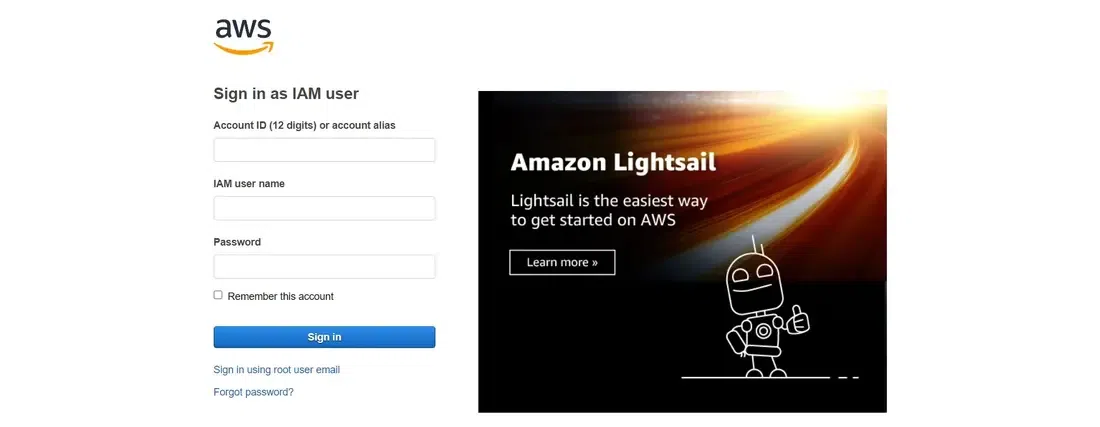
**Step 2. Access the IAM Dashboard: Locate the IAM service under Security, Identity, & Compliance. In the left navigation pane, click Users to see the list of IAM users.
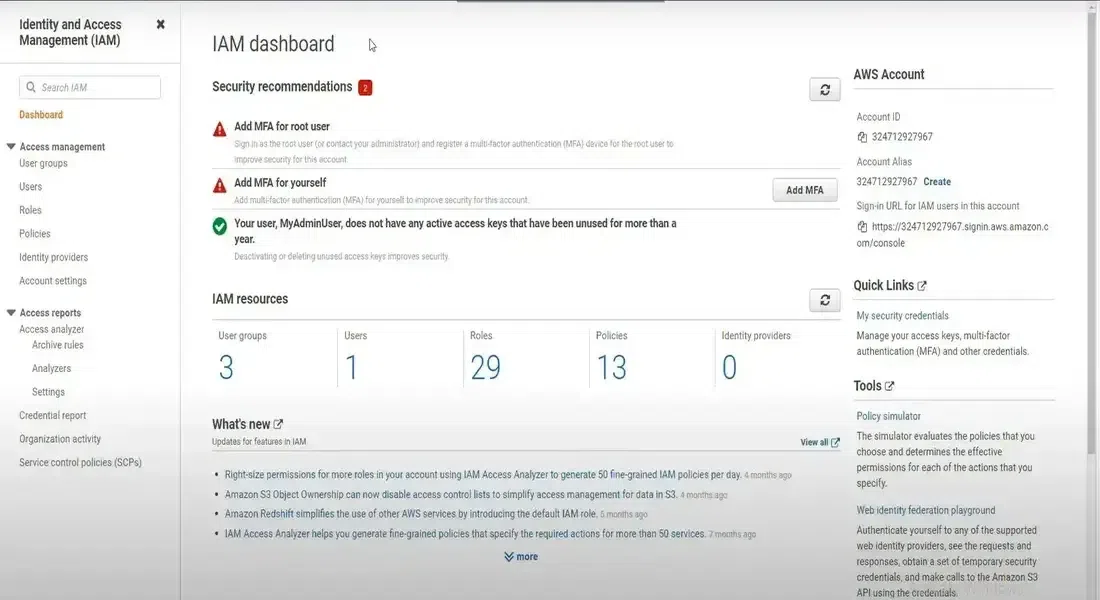
**Step 3. Select the Target User: Choose the specific user for whom you want to enable MFA. On the user summary page, click the Security credentials tab.
**Step 4. Manage the MFA Device: Under the Multi-Factor Authentication (MFA) section, click Manage. You will be prompted to choose between a virtual MFA device, U2F security key, or hardware MFA device.
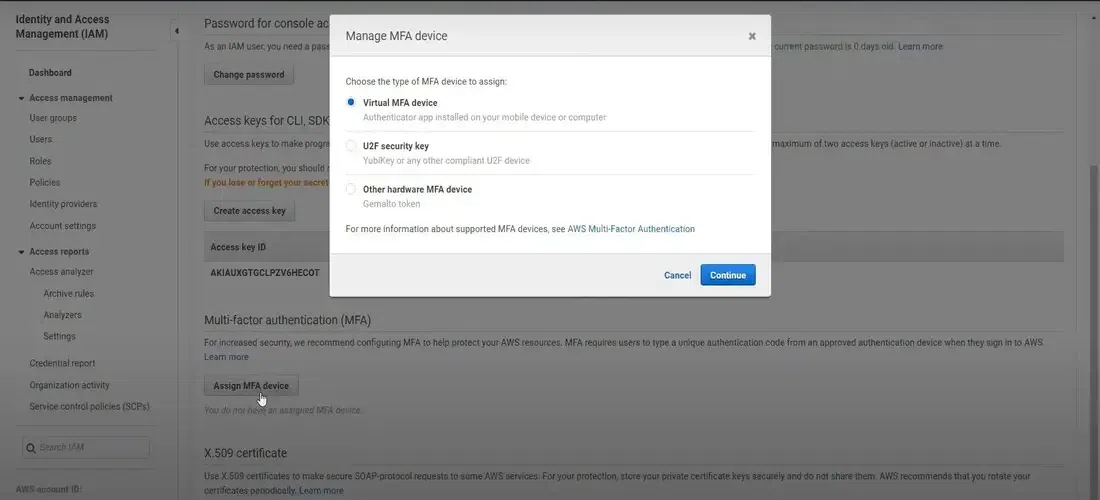
**Note: For most users, a virtual MFA device is recommended as it requires no special hardware.
**Step 5. Set Up the Virtual MFA Device
- **Install an MFA App: Install an app such as Google Authenticator, Microsoft Authenticator, or Authy on your smartphone.
- **Scan the QR Code: Open the app, add a new account, and scan the QR code displayed by AWS. Alternatively, manually enter the secret key shown on screen.
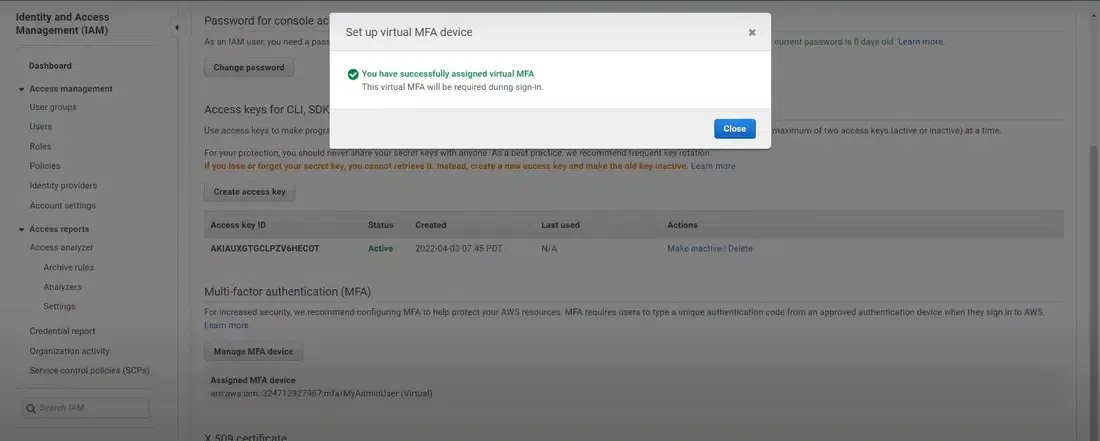
- **Validate: The app will start generating 6-digit TOTP codes. Enter two consecutive codes into the AWS console to validate the device.
- **Finish: Once validated, MFA is active for that user.
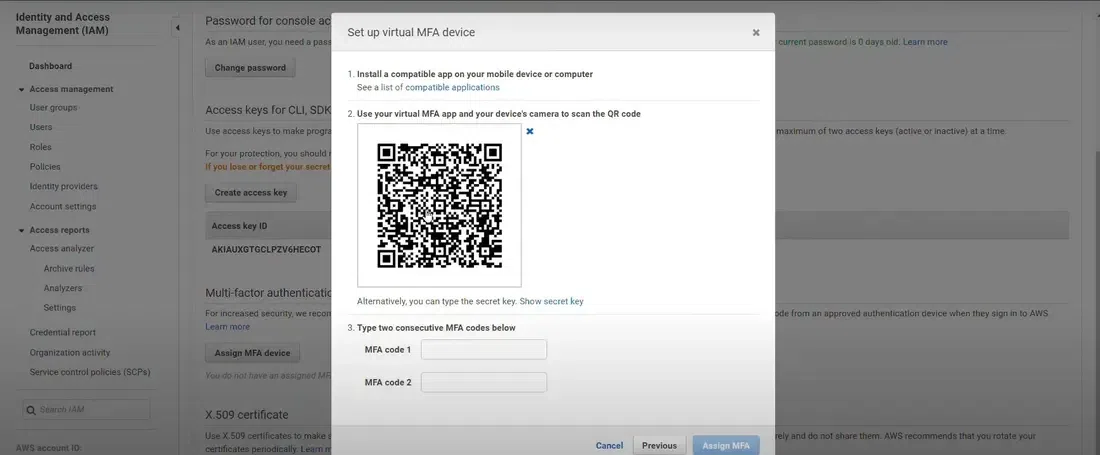

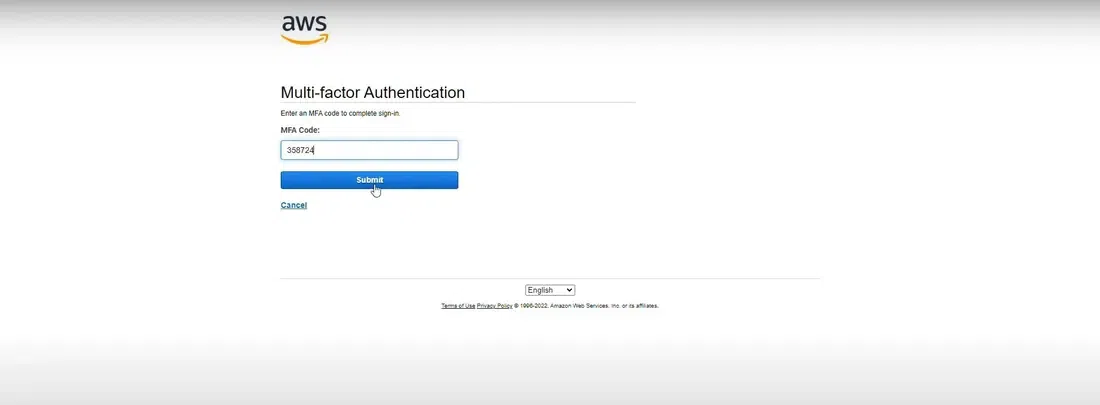
**Step 6. Confirm and Test: Sign out and log back in to confirm MFA is working. After entering your password, you will be prompted for the current MFA code from your authenticator app before access is granted.
What Happens If You Lose Your MFA Device
- **For an IAM User: An administrator can sign in, navigate to that user's Security credentials tab, and deactivate the lost MFA device. The user can then enroll a new device.
- **For the Root User: There is no higher authority to override access. You must go through AWS's identity verification process to prove account ownership before regaining access. This makes securing Root User credentials especially critical.
**Note: Always store Root User backup codes or recovery options in a secure location to avoid being permanently locked out.
Best Practices for MFA in AWS
- Always enable MFA on the Root User immediately after account creation.
- Enforce MFA for all IAM users via an IAM policy that denies actions unless MFA is present.
- Use hardware or FIDO2 keys for high-privilege accounts for stronger protection than virtual MFA.
- Regularly audit your IAM users to confirm MFA is enabled across all active