Connect Docker to Local Network (original) (raw)
One of the strong features in Docker is robust networking support that allows different containers to communicate with each other and also with external networks seamlessly. The key to using Docker containers in a local network is building distributed applications and microservices architectures; linking them can empower effective communication and resource sharing between them.
Primary Terminologies
- **Container: A fully isolated runtime environment in which applications and all the dependencies they require are packaged, so they can run consistently elsewhere.
- **Docker Network: A virtual network that allows intercommunication between Docker containers; communication with the host system or other external networks is optional.
- **Bridge Network: The default network set up by Docker to allow communication among the containers running on the same Docker daemon host. Every bridge network is like a subnet with an implicit barrier that does not allow communication between other bridge networks.
- **Host Network: A Docker network mode where the container shares the network namespace with the Docker host, basically using the Docker host's network stack, allowing a container to directly reach network services on the Docker host.
- **Overlay Network: A type of Docker network that is largely deployed in Docker Swarm mode or Kubernetes; it's used to achieve communication between containers at scale across several Docker hosts or nodes. VXLAN is used for encapsulation
- **Network Driver: A component implementing the Docker networking model, which has some set of features and performance characteristics. Some examples of network drivers are bridge, host, overlay, and macvlan.
- **Port Mapping (Publishing Ports): The mapping of ports from a container to the host system. This would allow access from external services to the containers via particular ports. This is typically done using the docker run -p or --publish option.
- **DNS Resolution: Docker features in-built DNS resolution for containers within the same Docker network. This means that containers can reference each other by their container names as DNS names.
- **Service Discovery: This is the process by which the location of services and containers in a Docker network is detected automatically. Container service discovery is provided by both Docker Swarm and Kubernetes, but the functionality is different within a cluster environment.
Step by Step Process
Method 1: Connecting via Bridge Network
- The default bridge network in Docker provides isolation but allows containers to communicate with each other and the host.
Step 1: Install docker on local machine
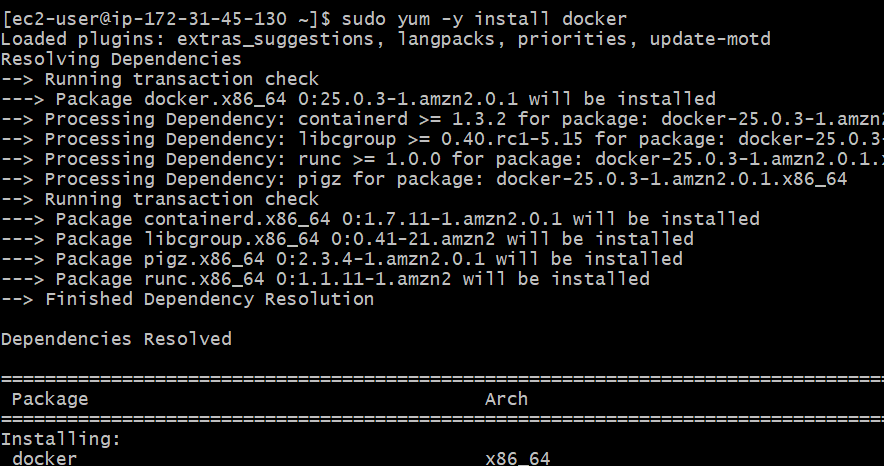
Now install docker on local machine by using following command
sudo yum -y install docker
Step 2: Start Docker Daemon
- Start and enable docker daemon by using following command
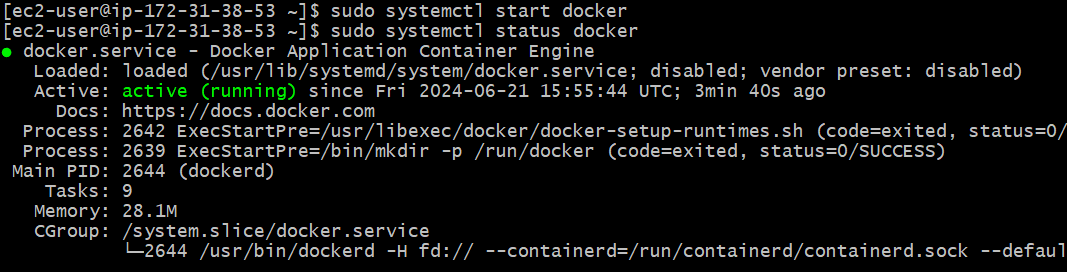
sudo systemctl start docker
sudo systemctl enable docker
sudo systemctl status docker
Step 3: Run a Container with Port Mapping
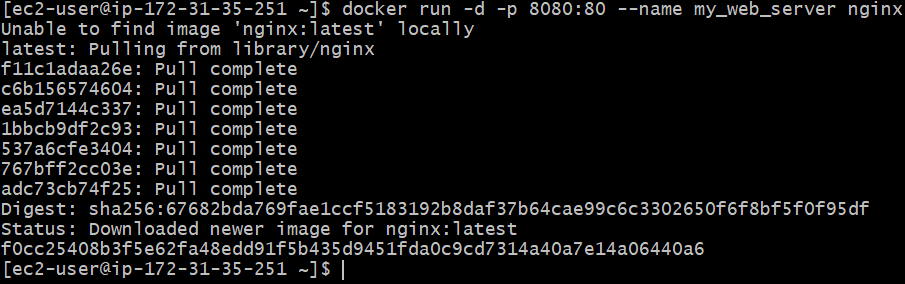
- Use the -p flag to map container ports to the host.
docker run -d -p 8080:80 --name my_web_server nginx
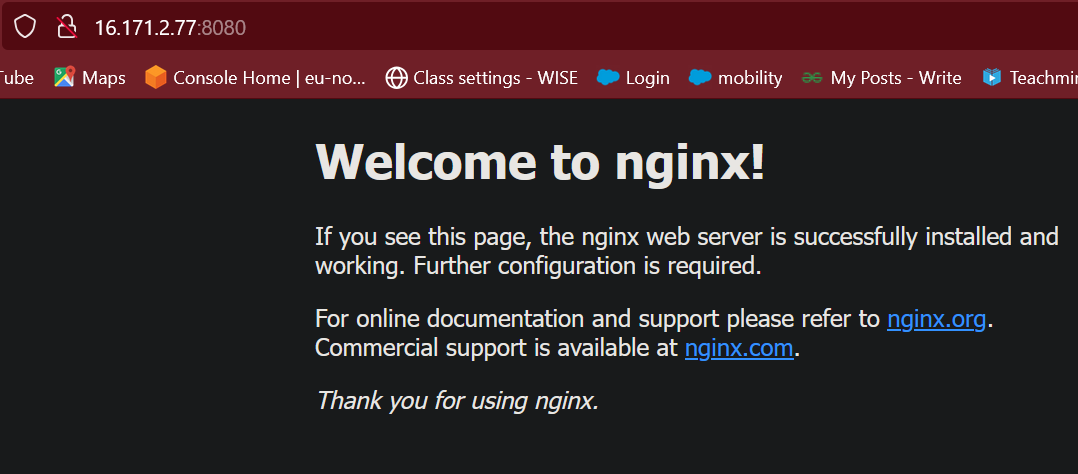
- This maps port 80 of the nginx container to port 8080 on the host.
Step 4: Accessing the Container from the Local Network
- Access the container’s service by navigating to http://<host_ip>:8080 in your web browser.
Method 2: Using the Host Network
- The host network driver allows containers to use the host's network directly.
Step 1: Run a Container on the Host Network
- Use the --network host flag.
docker run -d --network host --name my_server nginx
- The container shares the host's IP address and network interfaces.

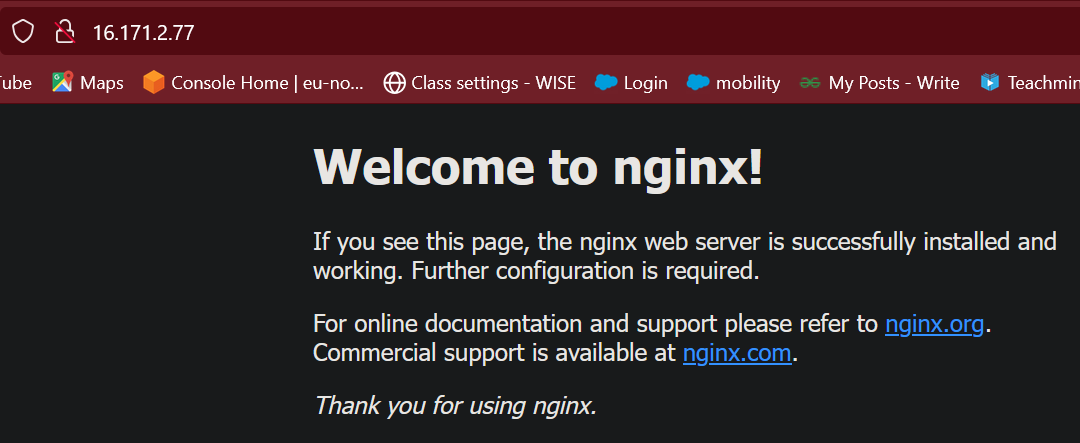
- In this figure we see that there is no port assign to the my_server but i can run directly in browser.
Step 2: Accessing the Container
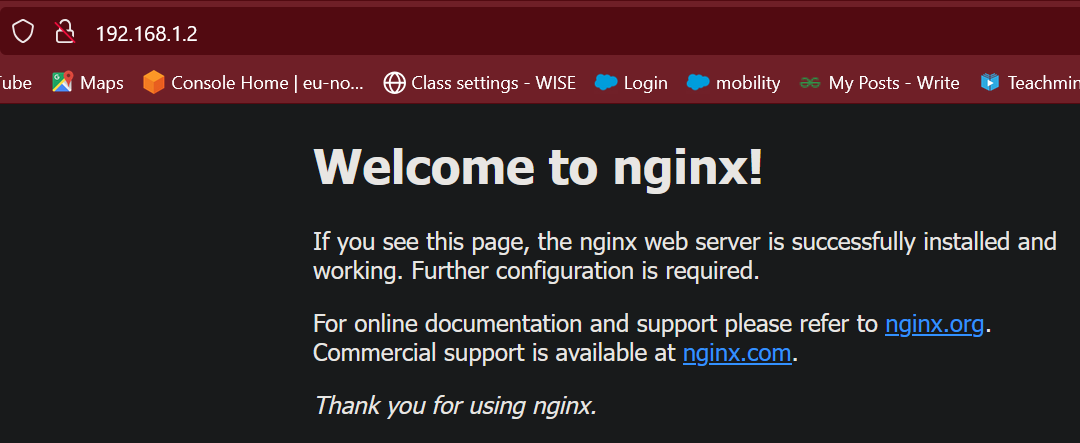
- Access the container’s service using the host's IP address.
- In below figure we can observe that we use only IP address and doesn't use any port numbers
Method 3: Creating and Using a macvlan Network
- A macvlan network assigns a unique MAC address to each container, making it appear as a physical device on the local network.
Step 1: Create a macvlan Network
- Determine the network interface and create the macvlan network.
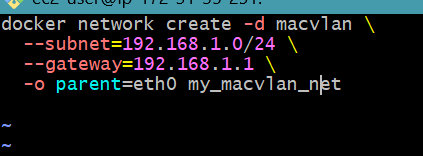
docker network create -d macvlan \
--subnet=192.168.1.0/24 \
--gateway=192.168.1.1 \
-o parent=eth0 my_macvlan_net
Step 2: Run a Container on the macvlan Network
- Use the --network flag to attach the container to the macvlan network.
docker run -d --network my_macvlan_net --name server nginx
- When we run this command it give own IP address to server
.png)
Step 3: Accessing the Container from the Local Network
- The container will have its own IP address within the specified subnet and can be accessed directly.
- In below figure we see that we directly accessed by the Own IP address