AWS CLI (Command Line Interface) (original) (raw)
Last Updated : 19 May, 2026
AWS CLI is a command-line tool that allows you to manage and interact with AWS services directly from your terminal. After configuring it with your AWS credentials, you can automate tasks and control cloud resources efficiently through scripts.
- Enables management of AWS services without using the web console, providing direct control from your command line.
- Allows repetitive tasks to be executed via scripts, reducing manual intervention and improving efficiency.
- Simplifies operations such as launching EC2 instances, managing EBS volumes, and handling S3 buckets from a single interface.
- Provides consistent commands across various AWS services for easier learning and consistent workflows.
- Supports JSON, text, and table output formats for easy parsing and readability.
Working of AWS CLI
AWS CLI provides a unified command structure that facilitates efficient management of AWS resources. Key aspects include:
- **Configuration: Users configure the CLI with AWS credentials (Access Key and Secret Key) and default region, enabling secure access to their AWS account.
- **Command Execution: Allows execution of commands for a wide range of operations, including launching instances, managing storage, and monitoring resources.
- **Scripting and Automation: Supports scripting for automating repetitive tasks and integrating with other tools and services.
Installing AWS CLI
Method 1: Using Package Managers (Recommended for Most Users)
AWS CLI is available through native package managers on most operating systems. These installations are quick and straightforward, though version availability may depend on your distribution.
**Linux (Debian-based)
sudo apt update
sudo apt install awscli
**Linux (RHEL-Based)
sudo dnf install awscli
or for older systems:
sudo yum install awscli
**mac OS (Homebrew)
brew install awscli
**Windows (Windows Package Manager)
winget install awscli
**Verify Installation
aws --version
**Note: While package manager versions are convenient, AWS recommends installing from official AWS distribution points for guaranteed latest features and updates. If you require the latest version, use Method 2 below.
Method 2: Using Official AWS Installer (Recommended for Latest Version)
For the most up-to-date version, download directly from AWS.
**Step 1: Download the Installer
For macOS
curl "https://awscli.amazonaws.com/AWSCLIV2.pkg" -o "AWSCLIV2.pkg"
For Linux
curl "https://awscli.amazonaws.com/awscli-exe-linux-x86_64.zip" -o "awscliv2.zip"
**Step 2: Run the Installer
For Linux
unzip awscliv2.zip
sudo ./aws/install
For macOS
sudo installer -pkg AWSCLIV2.pkg -target /
**Step 3: Verify Installation
aws --version
Method 3: Using pip (Python Package Manager)
If you have Python installed, you can use pip:
For Python 3
pip3 install awscli --upgrade --user
Verify installation
aws --version
**Step 4: Configure AWS CLI
Configure with your AWS credentials (Access Key and Secret Key) by running:
aws configure

You will be prompted to enter:
- AWS Access Key ID
- AWS Secret Access Key
- Default region (e.g., us-east-1, ap-south-1)
- Output format (e.g., json, text, table)
AWS Console Vs AWS CLI
The following are the differences between AWS Console and AWS CLI:
| Aspect | AWS Console | AWS CLI |
|---|---|---|
| Interface Type | Graphical User Interface | command line interface |
| Ease of Use | user-friendly with visual navigation | requires knowledge of command syntax |
| Speed | slower due to manual interventions | faster for batch operations. |
| Automation | It is limited, relies on manual interventions | Full support for scripting and automation |
| Accessibility | accessible via a web browser | accessible via terminal or command prompt |
AWS Shell Vs AWS CLI
The following are the differences between AWS Shell and AWS CLI:
| Aspect | AWS Shell | AWS CLI |
|---|---|---|
| Interface Type | interactive shell with autocomplete features | command line interface |
| Ease of Use | easier for beginners with suggestions | requires knowledge of command syntax |
| Learning Curve | lower with a guided experience | Higher, relies on familiarity with commands |
| Features | autocomplete and command documentation | comprehensive command set for the automation. |
| Installation | requires additional installations | standard installation on various OS platforms. |
AWS CLI Vs AWS SDK
The following are the differences between AWS Console, AWS CLI, and AWS SDK:
| Aspect | AWS CLI | AWS SDK |
|---|---|---|
| **Interface Type | Command Line Interface (CLI) | Software Development Kit (SDK) |
| **Primary Use | Managing AWS services via terminal commands | Integrating AWS services into applications |
| **Programming Required | No programming is needed | Requires programming knowledge |
| **Supported Languages | language-agnostic, uses standard commands | Supports multiple languages ( Java, Python, etc) |
| **Automation and Scripting | Ideal for scripting and automation tasks | Ideal for building and customizing applications |
Setting Up AWS CLI with AWS Services
Step 1: Create an IAM User
Log in to the AWS Console, search for IAM, and create a new IAM user with appropriate permissions:
- Navigate to Users and click Add user.
- Enter a username and select Access Key as the credential type.
- Assign Administrator Access permissions.
- Click Create user to complete the process.

AWS Console
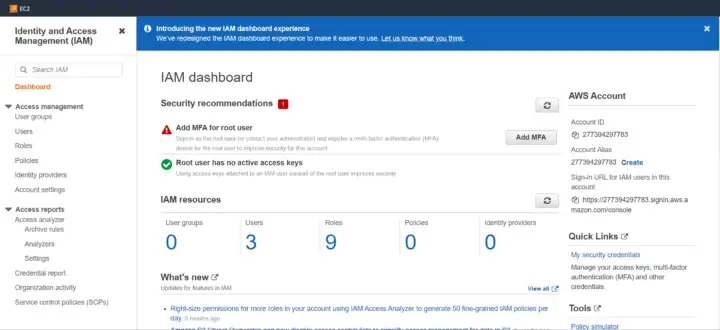
IAM Dashboard
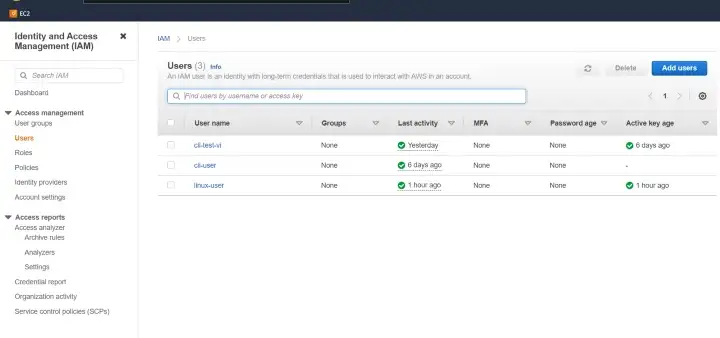
Adding IAM user

Setting Username and Password
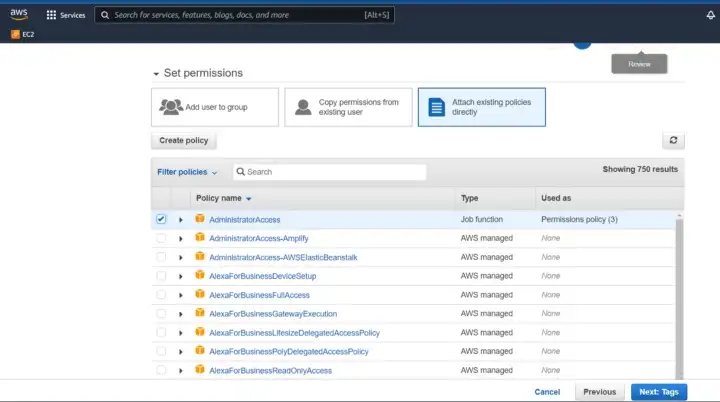
Assigning Administration Access
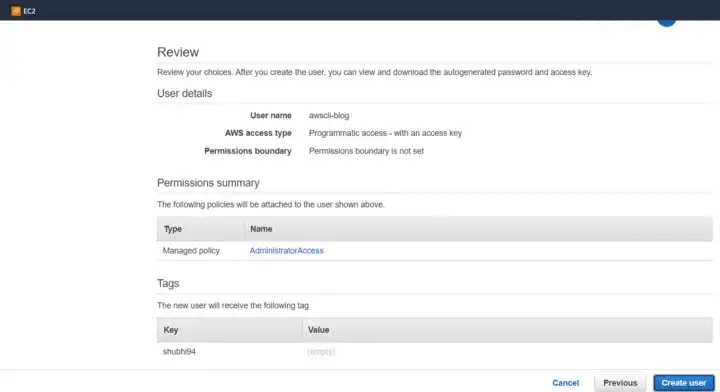
Creating user

Successful Creation
Step 2: Configure AWS CLI
Configure with your AWS credentials (Access Key and Secret Key) by running:
aws configure
You will be prompted to enter:
- AWS Access Key ID
- AWS Secret Access Key
- Default region (e.g., us-east-1, ap-south-1)
- Output format (e.g., json, text, table)

Using AWS CLI with EC2, EBS, and S3
Create an EC2 Instances
aws ec2 run-instances \
--image-id ami-xxxxxxxx \
--count 1 \
--instance-type t3.micro \
--key-name MyKeyPair \
--security-group-ids sg-xxxxx \
--subnet-id subnet-xxxxx
**Note: Replace
ami-xxxxxxxxwith your AMI ID,sg-xxxxxwith your security group ID,MyKeyPairwith your key pair name, andsubnet-xxxxxwith your subnet ID.
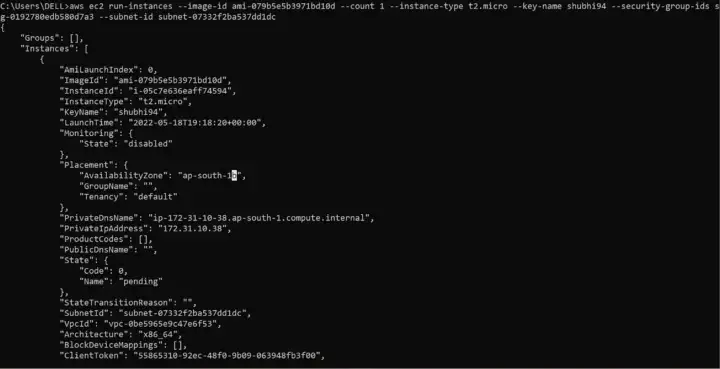
Creating EC2 Instance
Create a Key Pair
aws ec2 create-key-pair --key-name vivek1
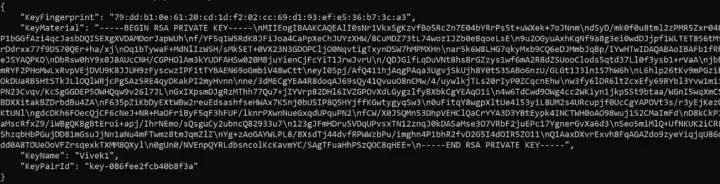
Key Pair Creation
Create an EBS Volume
aws ec2 create-volume \
--volume-type gp2 \
--size 8 \
--availability-zone ap-south-1a

EBS Volume
Attach EBS Volume to EC2 Instance
aws ec2 attach-volume
--volume-id vol-1234567890abcdef0
--instance-id i-01474ef662b89480
--device /dev/sdf

Attaching EBS Volume
Adding Security Groups Using AWS CLI
aws ec2 create-security-group \
--group-name my-sg \
--description "My security group" \
--vpc-id vpc-f0e73c9b
.png)
Adding Security Groups
Create an S3 Bucket and Upload Objects
Create bucket
aws s3 mb s3://mybucket
Upload file
aws s3 cp localfile.txt s3://mybucket/
Make object publicly readable
aws s3api put-object-acl \
--bucket mybucket \
--key localfile.txt \
--acl public-read
List buckets
aws s3 ls

Uploading File

Made the File Public
AWS CLI Commands Reference
Configuration
aws configure
List Amazon S3
List S3 buckets
aws s3 ls
Copy file to S3
aws s3 cp localfile.txt s3://bucketname/
Create S3 bucket
aws s3 mb s3://mybucket
Delete S3 bucket
aws s3 rb s3://mybucket --force
Amazon EC2
List EC2 instances
aws ec2 describe-instances
Start EC2 instance
aws ec2 start-instances --instance-ids i-1234567890abcdef0
Stop EC2 instance
aws ec2 stop-instances --instance-ids i-1234567890abcdef0
AWS Lambda
List Lambda functions
aws lambda list-functions
Invoke Lambda function
aws lambda invoke --function-name myfunction out.txt
Amazon DynamoDB
Create DynamoDB table
aws dynamodb create-table \
--table-name mytable \
--attribute-definitions AttributeName=Id,AttributeType=S \
--key-schema AttributeName=Id,KeyType=HASH \
--provisioned-throughput ReadCapacityUnits=1,WriteCapacityUnits=1
AWS CloudFormation
List CloudFormation stacks
aws cloudformation list-stacks
Deploy CloudFormation stack
aws cloudformation deploy \
--template-file template.yaml \
--stack-name my-stack \
--capabilities CAPABILITY_IAM
Amazon RDS
List RDS instances
aws rds describe-db-instances
Features of AWS CLI
- **Unified Interface: Provides a consistent command structure for managing various AWS services.
- **Automation: Allows scripting and automation of repetitive tasks, enhancing efficiency and consistency.
- **Cross-Platform Compatibility: Works seamlessly on Windows, macOS, and Linux, ensuring flexibility across different environments.
- **Configuration Management: Supports profiles and configuration settings for customizing environments and managing multiple AWS accounts.
- **Multiple Output Formats: Offers JSON, text, and table formats for easy parsing and readability.