Microsoft Azure Azure CLI Commands to Manage Azure VMs (original) (raw)
Last Updated : 30 Mar, 2023
Azure Command-line interface is used to manage or to create Azure resources. By using the simple AZ CLI command we can manage Azure VM quickly and at a Scale.
Let's get started by using a few important Azure CLI commands to manage Azure Virtual Machines.
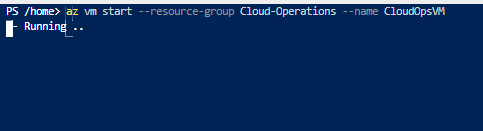
1. Start a Specific Stopped VM in a Select Resource Group
Use the below command to start a specific VM in a select Resource group that has been stopped:
az vm start --resource-group 'resource_group_name --name vm_name
Example:
az vm start --resource-group Cloud-Operations --name CloudOpsVM
Output:
Output Image 2:

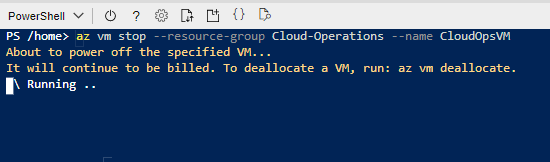
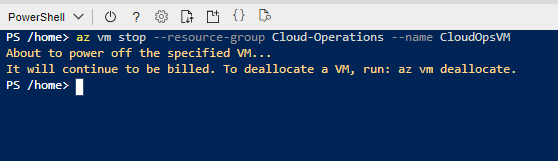
2. Stop a Specific Running VM in a Select Resource Group
Use the below command to stop a running VM in a select Resource group:
az vm stop --resource-group 'resource_group_name --name vm_name
Example:
az vm stop --resource-group Cloud-Operations --name CloudOpsVM
Output:
Output Image 2:
3. Deallocate a Specific VM in a Select Resource Group
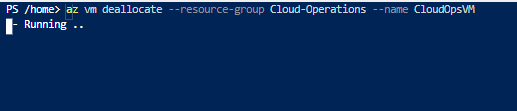
Use the below command to deallocate a specific VM in a select Resource group:
az vm deallocate --resource-group 'resource_group_name --name vm_name
Example:
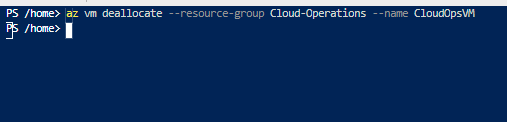
az vm deallocate --resource-group Cloud-Operations --name CloudOpsVM
Output:
Output Image 2:
4. Restart a Specific Select VM in a Select Resource Group
Use the below command to restart a specific VM in a select Resource group:
az vm restart --resource-group 'resource_group_name --name vm_name
Example:
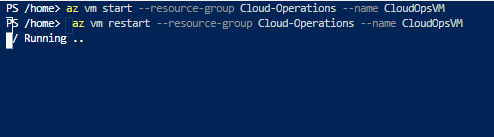
az vm restart --resource-group Cloud-Operations --name CloudOpsVM
Output:
Output Image 2:
