Microsoft Azure SQL Database | Complete Tutorial (original) (raw)
Last Updated : 23 Jul, 2025
**Azure SQL Database is a relational database (RDBMS) service provided by **Microsoft Azure that is widely used by developers when creating new applications in the cloud. It is managed completely by Microsoft and is a highly scalable platform-as-a-service (PaaS) designed especially for cloud applications. Here, we create a managed database server in the cloud and use the server to deploy our database. The server is a logical construct that acts as the central administration point for pooled databases or multiple logins, auditing rules, threat detection policy, and failover groups.
Table of Content
- Microsoft Azure SQL Database
- What is Microsoft Azure SQL Database?
- Azure SQL vs. SQL Server
- Why Azure SQL Database?
- SQL Azure Architecture
- Azure SQL Database Features
- Azure SQL Database Tiers
- Azure SQL Database Services
- Microsoft Azure SQL Database Hands-on
- Querying using Azure SQL Database
- Pricing Of Azure SQL Database
- Deleting Databases in AzureSQL
- Conclusion
- Azure SQL Database - FAQs
Microsoft Azure SQL Database
Azure SQL Database is a cloud-based service by Microsoft for storing and managing relational data. It offers a managed environment, handling tasks like backups and security. Users can create databases, organize data into tables, and run queries. It provides scalability and accessibility from anywhere with an internet connection.
What is Microsoft Azure SQL Database?
The Microsoft Azure SQL Database is like a digital storage unit for your data, but it's in the cloud. It's managed by Microsoft, so you don't have to worry about maintaining servers or backups. You can create databases, organize information into tables, and run queries to retrieve data. It's a convenient and scalable way to store and manage your data online.
The databases are available as Single databases and elastic pools.
**Single Database: This option helps the developers instantly get started with a single SQL Server database by creating and running it in the cloud and accessing this database through the server. It is a PaaS offering so everything is managed by Microsoft, so all we have to do is to configure the database, create the necessary tables required to carry out the operations, and fill in the required data. We can scale the database as per our requirements (if we need more storage, memory, and processing power). By default, Microsoft pre-allocates some resources and we are charged per hour based on the resources we are using.
We can also choose to have a server-less configuration. Here, Microsoft creates its own server for the database, which may get shared among other Azure subscribers but maintains the privacy of the database of its users. The database automatically scales and resources are allocated and unallocated as per the necessary requirements.
**Elastic Pool: It is similar to single databases that we have talked about above, except that by default multiple databases can share the same resources (memory, storage space, processing power) through multiple tenancies. Here the different resources are referred to as a pool. This model is very useful when we have databases with resource requirements varying with time as it helps allocate and deallocate the resources as per our needs thus reducing costs and helping us be quick and efficient. It enables us to use resources available in the created pool and then release them once processing is complete.
Azure SQL vs. SQL Server
| Feature | Azure SQL Database | SQL Server |
|---|---|---|
| Deployment | Cloud-based, managed by Microsoft | Typically on-premises or in private data centers |
| Management | Managed service, Microsoft handles maintenance | Requires self-management, updates, and backups |
| Scalability | Easily scalable, with options for auto-scaling | Scalability is limited by hardware and resources |
| Availability | High availability with built-in redundancy | Availability depends on local infrastructure |
| Cost | Pay-as-you-go pricing model | Requires upfront investment and ongoing costs |
| Maintenance | Microsoft handles updates, patches, and backups | Requires manual management and administration |
| Security | Built-in security features, compliance options | Security configuration managed by the user |
Why Azure SQL Database?
Azure SQL database gives us the best option for low-cost development with minimal administration required to get started with our cloud application design and development. It supports most of the core database-level capabilities of SQL servers. However, some of the features dependent on on-premises applications may not be available here.
The scalability feature ensures that we can increase the resources available to us at a given time to carry out our tasks without performing a costly manual upgrade instantly.
It has an availability of 99.995% as it supports point-in-time restore, enabling us to recover a database to the state it was in at any point in the past. It also replicates the databases to different regions to provide us with more resilience and disaster recovery. It provides us with fully automated backups, updates, and recovery to ensure that we are always running the latest and most secure version of the service.
It continuously monitors our database for suspicious activities and provides immediate security alerts on SQL injection attacks, potential vulnerabilities, and anomalous database access patterns. Threat Detection alerts provide details of the suspicious activity and recommend action on how to investigate and mitigate the threat.
Some of the Often Use Cases are as follows,:
- New cloud projects where any necessary modifications to our apps should be accommodated in the application design.
- When we want the most recent SQL Server functionality to be utilized by our cloud apps.
- When we require high availability for our cloud apps.
- When our cloud apps need to instantly adjust how resources are allocated in response to demand and requirements.
SQL Azure Architecture
There are four layers in Azure SQL Architecture:
- Client Layer
- Service Layer
- Platform Layer
- Infrastructure Layer

SQL Azure Architecture
**Client Layer: Applications connect to and communicate with the database service through the client layer of the Azure SQL Database. It comes with utilities like PHP extensions, ADO.NET, ODBC, and SQL Server Management Studio. The Tabular Data Stream (TDS) protocol is a useful tool for transferring data between SQL databases and applications.
**Service Layer: In Azure SQL Database, the service layer manages provisioning, billing, and connection routing in its capacity as a go-between for the client and platform layers. In order to ensure seamless communication and interaction, it is essential for validating requests, authenticating users, and creating secure connections between client applications and database servers. It also oversees the entire service delivery process, maximizing scalability and performance while guaranteeing compliance with security and regulatory requirements.
**Platform Layer: Within the data center, Azure SQL Server computers, sometimes referred to as data nodes, are hosted by the platform layer of Azure SQL Database. To provide redundancy, each SQL Database is housed on a node and replicated across many physical servers. In order to preserve consistency and dependability for stored data, this layer makes sure that data is synchronized across several copies within the Azure Cloud.
**Infrastructure Layer: The Azure SQL Database's infrastructure layer manages the hardware and operating system below it, making sure they are properly administered. It is in charge of overseeing the provisioning, upkeep, and distribution of resources for the hardware that supports Azure SQL Database. The foundation of the Azure SQL architecture, this layer offers crucial support for the platform and service layers to operate at their best.
Azure SQL Database Features
Azure SQL Database simplifies database management with features like scalable resources, built-in high availability, robust security measures, intelligent query processing, seamless compatibility with SQL Server, and flexible pricing options tailored to your workload needs.
Azure SQL Database Tiers
- **Basic Tier: Suitable for light workloads with minimal performance demands.
- **Standard Tier: Ideal for moderate workloads, providing better performance and storage options.
- **Premium Tier: Designed for high-performance, IO-intensive production workloads with high availability and zero downtime.
- **Serverless Compute Tier: Optimizes price-performance for databases with intermittent, unpredictable usage by auto-scaling compute and billing per second.
- **Hyperscale Tier: Combines compute auto-scaling with storage auto-scaling up to 100 TB, providing scalability and performance optimization for large databases.
- **General Purpose Tier: Offers balanced and predictable performance for various workloads, suitable for most applications.
- **Business Critical Tier: Provides high-performance and high-availability features for mission-critical workloads, ensuring minimal downtime and data loss.
**Azure SQL Database Services
- **Scalability: Easily adjust resources to match demand, ensuring optimal performance without downtime.
- **High Availability: Benefit from built-in redundancy and automated backups to minimize the risk of data loss.
- **Security: Utilize advanced security features like encryption, threat detection, and access control to safeguard your data.
- **Intelligence: Leverage intelligent query processing and automated tuning for improved performance and efficiency.
- **Compatibility: Seamlessly migrate existing SQL Server applications with minimal changes, ensuring smooth transition to the cloud.
- **Cost-Effectiveness: Choose from flexible pricing models to pay for only what you use, optimizing costs for varying workloads.
- **Advanced Analytics: Integrate with Azure services like Azure Machine Learning and Azure Data Lake Storage for advanced analytics and insights.
- **Developer Productivity: Enjoy features like built-in monitoring, diagnostics, and management tools to streamline database administration and development processes.
Microsoft Azure SQL Database Hands-on
After you have signed in to your account follow the simple steps to create your Azure SQL database.
**Step 1: Navigate to Azure Portal.

**Step 2: Once, in the Azure Portal click on **+ 'Create a resource' option from the upper left corner and search for Azure SQL.

**Step 3: Select create in the resulting Azure SQL page.
**Step 4: Review all the Azure SQL options that are available, and then in the **SQL databases title, ensure a single database is selected and select create.

**Step 5: A created SQL database page will be popped up. Fill in the necessary information as follows:
- **Subscription: Select your Azure subscription in which you wish to create the resource.
- **Resource group: Choose the resource group where you wish to create the resource or create a new one by clicking on create new option and entering the name of your choice.

- **Database name: Enter the name you wish to give to the database.
- **Server: Select create new option and create a new server with a unique name in any location. Use SQL authentication and specify your name as the server admin login and a suitably complex password (for security)
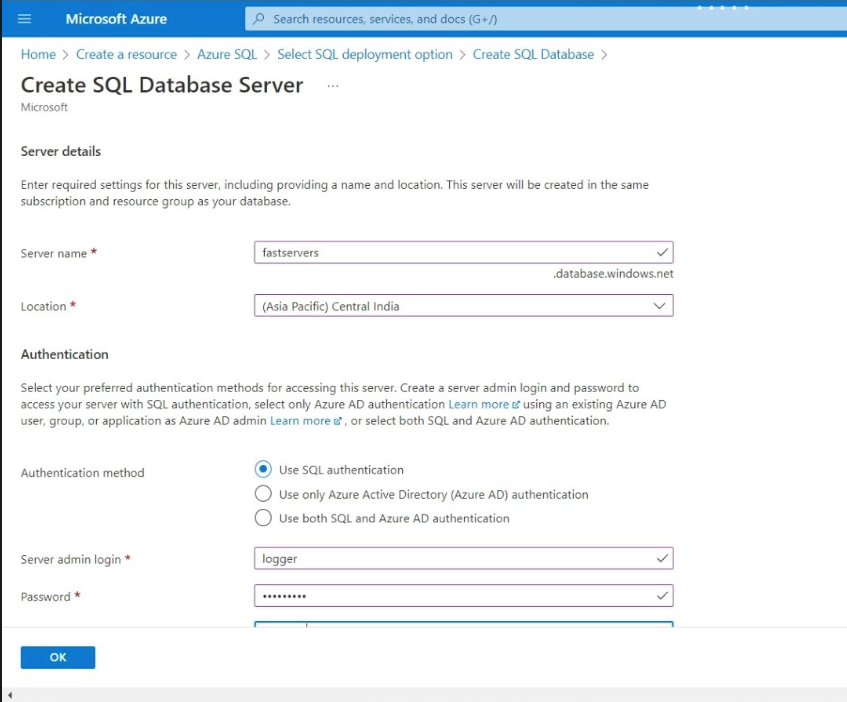
- **Want to use SQL elastic pool? : Choose whether you wish to use SQL elastic pool or not.
- **Compute + Storage: Choose or leave unchanged.
- **Backup storage redundancy: Choose locally-redundant backup storage.

**Step 6: Next click on ****'Next': Networking** and on the Networking page you can configure the networking settings. For now, in the Network connectivity section select Public endpoint. Then select Yes for both options in the Firewall rules section to allow access to the database server from Azure services and our current client IP address.

**Step 7: Next select ****'Next': Security** option to configure the security for the database. For now, set the Enable Microsoft Defender for SQL option to Not now.
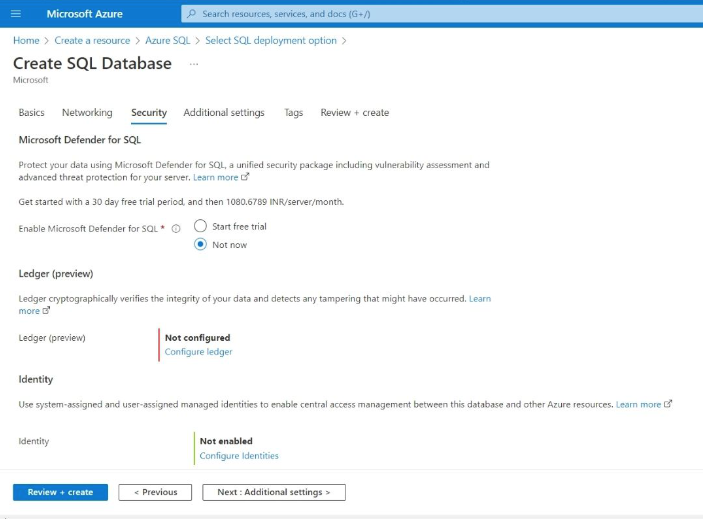
Step 8: Next select NextCreate**: Additional Settings option to configure some additional settings for the database. For now, set the use existing data option to Sample.
**Step 9: Finally, select **Review + Create and review the different configurations of the database.

**Step 10: If everything is fine select Create to create an Azure SQL database.
**Step 11: Wait for deployment to complete and go to the resource that was deployed.

Querying using Azure SQL Database
**Step 1: Go to the Azure SQL database resource that was deployed.

**Step 2: In the pane on the left side of the page, select the **Query editor and then sign in using the administrator login and password we had specified for our server.

**Note: If you receive an error message stating that the client IP address isn't allowed, select the Allow list IP link at the end of the message to allow access and try to sign in again.
**Step 3: Expand the Tables folder to see the tables in the database.
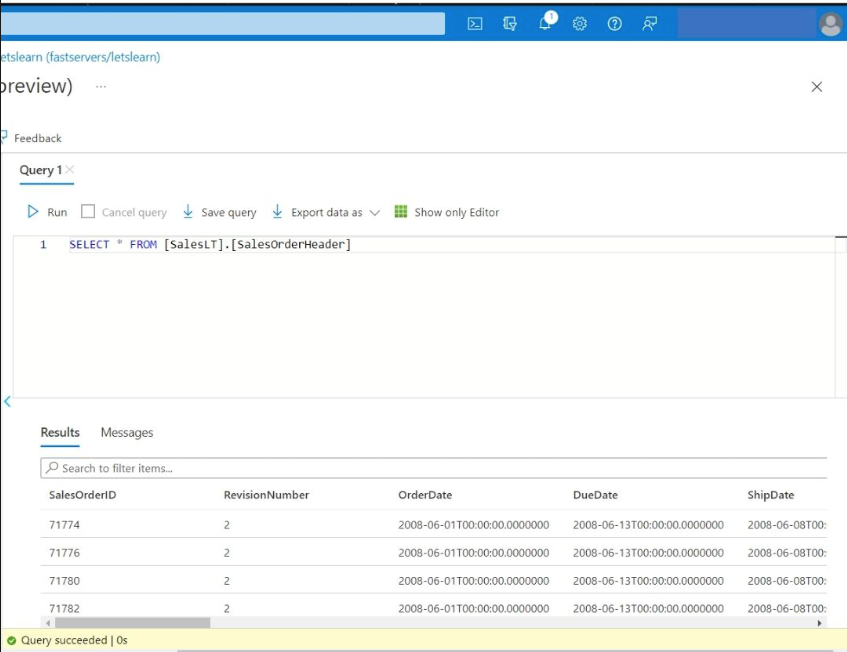
**Step 4: In the Query 1 pane that appears, enter the following SQL code:
SELECT * FROM [SalesLT].[SalesOrderHeader]
**Step 5: Select the **Run option above the query to run it and view the results, which will include all the columns for all rows in the table as shown below:
**Step 6: This way we can run all our SQL queries. Close the query editor pane which will discard our edits.
This is how we can create Azure SQL database resources and use them in our cloud applications.
Pricing Of Azure SQL Database
There are two types of purchase models available in the Azure database. They are:
- vCore ( virtual cores)
- DTU (Data Transaction Units)
1. vCore (virtual cores) Pricing
Serverless compute:
A better option for databases with erratic usage patterns is the Serverless Compute tier. It guarantees effective resource usage by automatically adjusting compute resources in accordance with demand. This tier offers flexibility for changing workloads and streamlines cost management with compute consumption invoicing computed per second.
- **Hyperscale: Optimizes cost performance for a range of workloads by combining compute and storage auto-scaling up to 100 TB. With storage fees determined by real allocation, scalability is possible without incurring excessive charges for underutilized resources.
- **Standard-series (Gen 5): Offers dependable performance with vCore usage-based pricing for the majority of relational database systems. The Hyperscale tier's dynamic storage cost allocation between 10 GB and 100 TB guarantees effective resource use. Redundancy choices influence backup storage costs, offering flexibility for data protection requirements.
2. DTU (Data Transaction Units)
Single database model:
with pricing based on Database Transaction Units (DTUs) and included storage. Offers a cost-effective option for smaller applications with basic performance requirements. There are few models like basic, standard, premium and extra storage models.
- **Basic: Azure's Basic tier offers 5 DTUs and includes 2 GB of storage, ideal for basic workloads, priced at $0.0068/hour.
**Deleting Databases in AzureSQL
Simple and Easy-to-Understand Examples:
There are different ways to delete a database in Azure SQL. In this article, we will discuss two methods:
**Method 1: Delete a Database using Azure Portal
**Step 1: Log in to the Azure Portal using your credentials.
**Step 2: Navigate to the Azure SQL instance that contains the database you want to delete.
**Step 3: Click on the "Databases" option on the left-hand side of the page.
**Step 4: Select the database you want to delete from the list of databases.
**Step 5: Click on the "Delete" button located at the top of the page.
**Step 6: Confirm the deletion by clicking on the "Yes" button.
**Method 2: Delete a Database using Azure CLI
**Step 1: Open Azure CLI on your computer.
**Step 2: Login to your Azure account using the command
"az login".
**Step 3: Select the subscription that contains the Azure SQL instance by using the command "az account set --subscription ".
az account set --subscription
**Step 4: Delete the database using the command "az sql db delete --resource-group --server --name ".
az sql db delete --resource-group --server --name
**Step 5: Confirm the deletion by typing "y" and pressing Enter.
**Conclusion
In conclusion, deleting a database in Azure SQL is a straightforward process that can be done using either the Azure portal or Azure CLI. Before you delete a database, make sure you have backed up the data and that you have the necessary permissions. Azure SQL is a powerful platform that allows users to manage their data in the cloud, and deleting a database is just one of the many tasks that can be performed using Azure SQL.