What is Docker Hub? (original) (raw)
Last Updated : 1 Sep, 2025
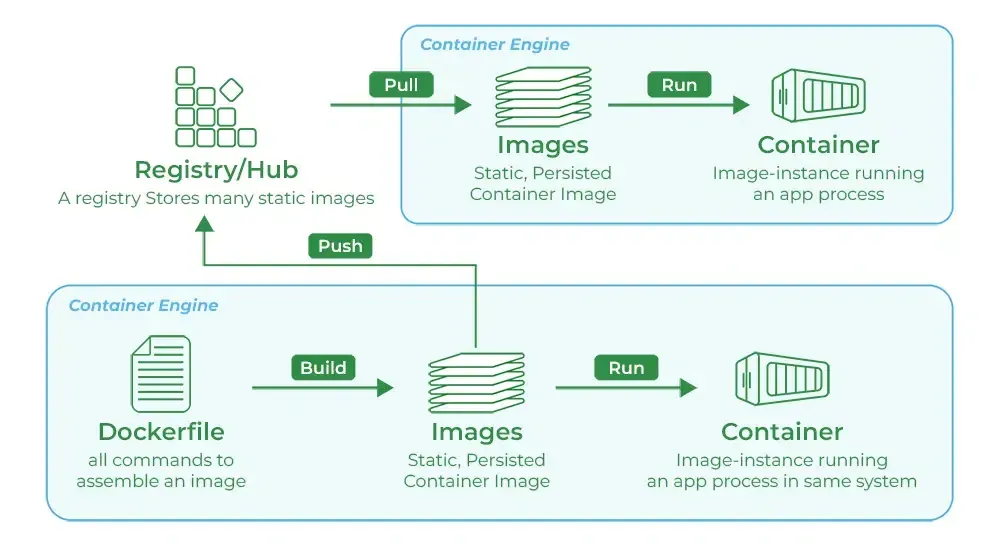
Docker Hub is a cloud-based repository service where developers and teams can push (upload) and pull (download) Docker container images anytime via the internet.
- It allows images to be stored as public or private, acting like centralized storage that ensures accessibility and version control.
- Developers can create Docker images with all dependencies included, push them to Docker Hub, and make them available for testing or deployment.
- The testing team can directly pull the same image, eliminating the need for additional files, software, or plugins, since the image already contains everything required to run.
- This workflow makes project sharing seamless, consistent, and efficient, which is why enterprises are rapidly adopting Docker as part of their development and deployment pipelines.
Creating Repository in Docker Hub
The following steps guide you in creating a first repository in Dockerhub using GUI:
**Step 1: Firstly navigate to the Dockerhub and sign in with your credentials and then select Create Repository.
-(1).webp)
**Step 2: After that, we will be taken to a screen for configuring the repository, where we must choose the namespace, repository name, and optional description.
- In the visibility area, as indicated in the picture, there are two options: Public and Private. We can choose any of them depending on the type of organization you are in.
- If you chose Public, everyone will be able to push-pull and use the image because it will be accessible to everyone. If you select the private option, only those with access to that image can view and utilize it. it.
.webp)
**Step 3: At finally repository is created with the help of the Docker Commands we can push or pull the image. The following command is used for pushing the docker image that exists in local to the Dockerhub.
docker push /my-testprivate-repo>.
.webp)
Push Docker Images to Docker Hub
The push command as the name suggests itself is used to pushing a docker image onto the docker hub.Try to Follow this example to get an idea of the push command:
**Step 1: Open Docker in your system. Locate the Images that you want to push using the below command:
docker images
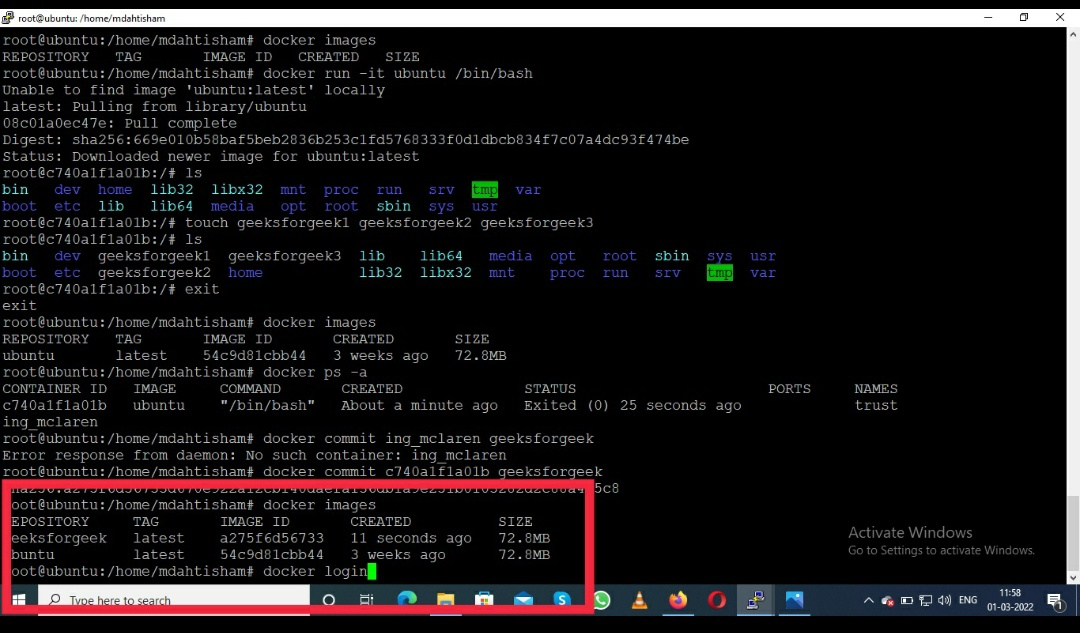
The above command will list all the images on your system.
**Step 2: Go to the browser and search _hub.docker.com.
**Step 3: Sign up on the docker hub if you do not have a docker hub account, after login on to docker hub.
**Step 4: Back to the docker terminal and execute the below command:
docker login
**Step 5: Then give your credential and type in your docker hub username or password.
- username
- password
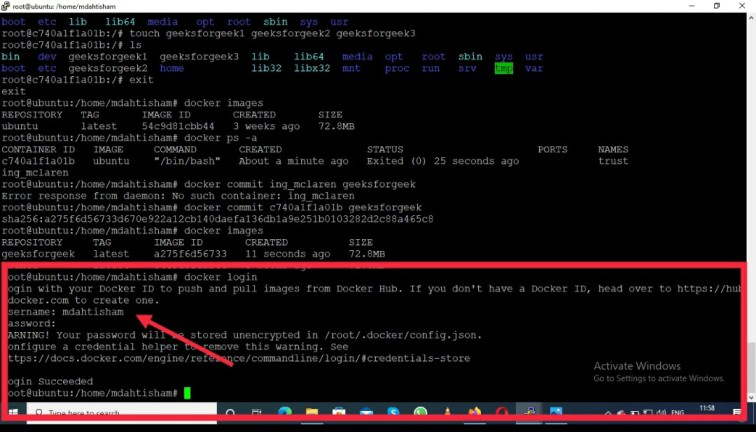
**Step 6: After that hit the Enter key you will see login success on your screen.
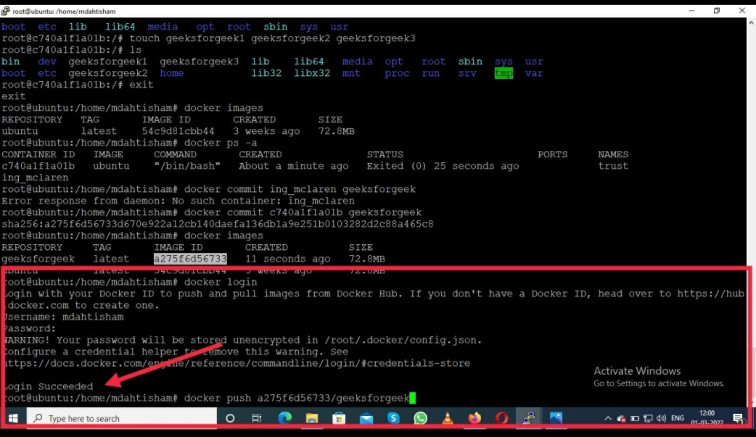
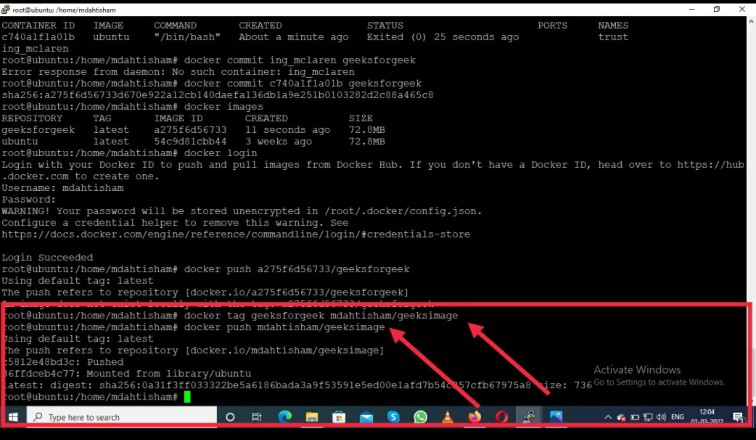
**Step 7: Then type the tag images name, docker hub username, and give the name it appears on the docker hub using the below command:
docker tag geeksforgeek mdahtisham/geeksimage
      geeksforgeek - Image name
      mdahtisham - Docker hub username
geeksimage - With this name Image will appear on the docker hub**Step 8: Now push your image using the below command:
docker push mdahtisham/geeksimage
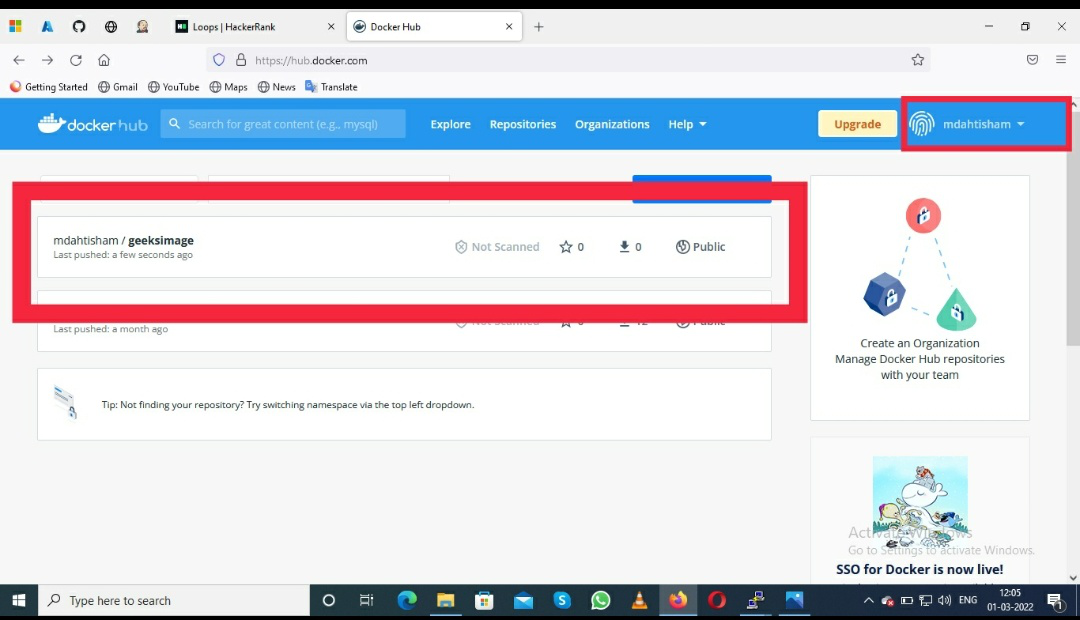
**Note: Below you can see the Docker Image successfully pushed on the docker hub: mdahtisham/geeksimage
Pull Docker Images From Docker Hub
The pull command is used to get an image from the Docker Hub to the local docker environment.Follow this example to get an overview of the pull command in Docker:
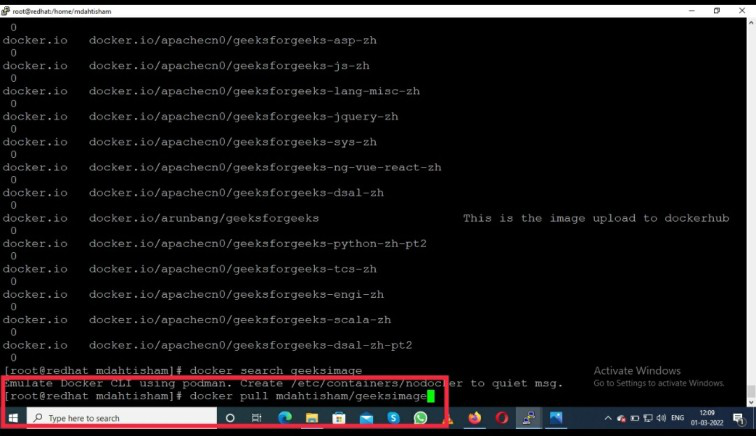
**Step 1: Now you can search the image using the below command in docker as follows:
docker search _imagename
One can see all images on your screen if available images with this name.One can also pull the images if one knows the exact name
**Step 2: Now pull the image see the below command.
docker pull mdahtisham/geeksimage
mdahtisham - Docker Hub username
geeksimage - With this name Image will appear on the docker hub
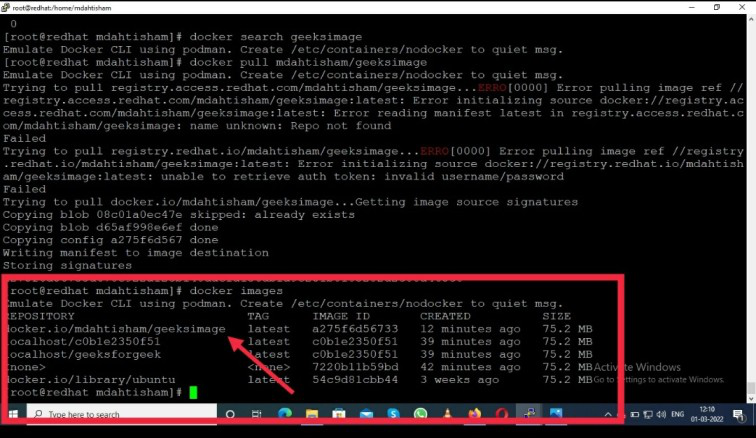
**Step 3: Now check for the pulled image in the local docker environment using the below command:
docker images
Docker Hub Web Services
Docker Hub offers a variety of web services designed to help developers manage, collaborate, and deploy container images effectively. These features make Docker Hub a useful platform for developers to store, manage, and collaborate on containerized applications throughout the development and deployment process. Here’s a look at what it provides:
- **Image Repositories: Docker Hub primarily serves as a registry where you can store and access container images. You have the option to create both public and private repositories, browse official images, and upload your custom images.
- **Automated Builds: Docker Hub can link directly to code repositories like GitHub or Bitbucket to build images automatically. When you update your code, Docker Hub can build new images to keep everything in sync, making continuous deployment easier.
- **Webhooks:Webhook integrations on Docker Hub allow you to trigger specific actions, such as deploying an image or sending notifications, whenever an image is updated. This can be useful for automating steps in CI/CD pipelines.
- **Image Scanning: Docker Hub offers security scanning (for Pro and Team accounts), which checks images for known vulnerabilities. This provides insights into any security risks within your images.
- **Team Collaboration: Docker Hub includes tools for managing users, teams, and permissions within an organization, making it easier for teams to share and control access to Docker images.
- **Official and Verified Publisher Images: Docker Hub hosts trusted images from software vendors and the community. These verified and official images are reliable starting points for building applications.
- **Activity Monitoring: Each repository on Docker Hub includes an activity log. It records when images are pushed, pulled, or updated, helping you keep track of who accessed or modified your images.
Difference Between Github and Docker Hub
The following are the difference between github and dockerhub:
| Feature | GitHub | Docker Hub |
|---|---|---|
| **Primary Purpose | Code Repository and Version Control | Docker Image Repository and Management |
| **Content | Source Code, Documentation | Docker Container Images |
| **Integration | Works with CI/CD tools like Jenkins, Travis CI | Integrates with CI/CD tools and Docker itself |
| **Visibility | Public and Private Repositories | Public and Private Repositories |
| **Security | Code scanning and vulnerability alerts | Image security scans and vulnerability reports |
Docker Hub Usage and Rate Limits
1. Understanding Docker Hub Usage
On Docker Hub, "usage" refers to both the data you store on the platform and the amount of data you transfer by pulling images. Regularly monitoring this usage can help you manage resources more effectively and avoid extra charges. Keeping an eye on usage is also a great way to ensure your CI/CD processes and development workflows run smoothly without interruptions.
2. Fair Use Policy
Docker Hub enforces a fair use policy to keep the platform running smoothly for everyone. This means if your account starts to use an unusually high amount of data, with excessive pull requests or storage, Docker Hub may temporarily slow down (throttle) your activity or impose restrictions. This is meant to prevent any single user from impacting the performance for others.
3. How to View and Track Usage?
Docker Hub makes it easy to keep tabs on your data usage:
- **Get Usage Reports: Sign in to Docker Hub and head to the Usage page, where you can download a report of your usage in CSV format. You’ll need to select the date range, and Docker Hub will send the report to your email.
- **Insights from Reports: Reviewing these reports regularly is a helpful way to see which repositories or accounts are using the most data, so you can make adjustments if necessary.
4. Tips for Optimizing Usage
To make the most of your Docker Hub account and manage data effectively:
- **Monitor usage regularly: Check frequently to see which images or accounts are consuming the most data.
- **Use local caching: To save bandwidth, consider caching images locally instead of repeatedly pulling the same image.
- **Set up automation in CI/CD: Configure your CI/CD pipelines to pull images only when necessary, which helps you stay within rate limits.
- **Perform regular clean-ups: Deleting outdated or unused images can free up storage and make your account easier to manage.
5. Pull Attribution
- **Private Repositories: Any pulls from private repositories are counted toward the owner’s account.
- **Public Repositories: Pulls for public repositories are attributed based on the user’s domain or organizational membership.
6. Docker Hub Rate Limits for Pulls
Depending on your account type, Docker Hub applies different pull limits:
| Account Type | Pull Limit (Every 6 Hours) | Daily Pull Limit | Additional Options |
|---|---|---|---|
| Anonymous Users | 100 pulls per IP | N/A | None |
| Authenticated Users | 200 pulls per IP | N/A | None |
| Paid Subscribers | Customizable | Up to 5,000 pulls | Add-ons available |
7. Checking Your Docker Hub Rate Limits
If you exceed your rate limits, Docker Hub will respond with a ****'429'** status code, meaning you’ve hit the cap. You can also use API response headers to check where you stand with your current pull limit in real time, which helps you adjust if you’re nearing the threshold.
Authenticate Docker Hub Pull Requests
To authenticate pull requests on Docker Hub, follow the instructions specific to your platform:
1. Docker Desktop
- Launch Docker Desktop.
- Click on **Sign in / Create Docker ID in the menu.
- Follow the prompts to log in.
2. Docker Engine
- Open your terminal.
- Enter the command 'docker login' to authenticate with Docker Hub. For details on using this command, check the Docker documentation.
3. Docker Swarm
If you're using Docker Swarm, add the ****'--with-registry-auth'** flag to your command for authentication with Docker Hub.
- For additional guidance, refer to the section on creating a service in Docker's documentation.
- If deploying an application with a Docker Compose file, look up the instructions for ****'docker stack deploy'.**
4. GitHub Actions
- When using GitHub Actions to build and push images, refer to the documentation for the ****"login action".**
- For other actions, make sure to include your username and access token to authenticate.
5. Kubernetes
- If you're in a Kubernetes setup, follow the guidelines on pulling images from a private registry for authentication steps.
6. Third-Party Platforms
For third-party services, check the specific instructions from your provider on how to authenticate with the Docker registry. Some examples include:
- Artifactory
- AWS CodeBuild
- AWS ECS/Fargate
- Azure Pipelines
- Chipper CI
- CircleCI
- Codefresh
- Drone.io
- GitLab
- LayerCI
- TeamCity
Difference Between Dockerhub and Docker Registry
The following are the differences between Dockerhub and Docker Registry:
| Feature | Docker Hub | Docker Registry |
|---|---|---|
| **Service Type | Cloud-based repository service | Self-hosted registry service |
| **Accessibility | Public and private image repositories | Primarily private, customizable |
| **Integration | Integrates with GitHub, Jenkins, and more | Can be integrated with various CI/CD tools |
| **Security | Built-in security scans and vulnerability reports | Security depends on implementation |
| **Automation | Supports webhooks for CI/CD automation | Requires manual setup for automation |
Best Practices For Docker Hub Security
To enhance security and mitigate risks associated with container images on Docker Hub, consider implementing the following best practices:
1. Select the appropriate base image
- **Source Trustworthiness: Opt for images from trusted sources. Docker Hub categorizes images by trust levels, with official images curated by Docker providing the highest assurance. Alternatively, use Docker Certified images, which have been validated against Docker’s standards, or Verified Publisher images.
- **Minimize Size: Choose the smallest base image that fulfills your project requirements. Smaller images offer advantages such as faster downloads, reduced storage, and a minimized attack surface by limiting dependencies that could introduce vulnerabilities.
2. Utilize multi-stage builds
- Multi-stage builds enable you to create a streamlined and manageable Dockerfile. Each stage can utilize a different base image tailored for specific development tasks.
- By employing multiple ****'FROM'** statements, you can copy necessary artifacts, like compiled binaries, from one stage to another. This approach helps reduce complexity and keeps development tools out of production images, thus minimizing potential vulnerabilities.
3. Scan images during development
- Regularly scanning your Docker images throughout the development lifecycle is crucial for identifying vulnerabilities early. As you create or rebuild images, new vulnerabilities may be introduced, so it’s important to incorporate scanning into your workflow.
- Set up automated scans during the build process before images are pushed to Docker Hub or other registries. This ensures vulnerabilities are addressed proactively before deployment.
4. Scan images in production
- Continuously monitor your container images to identify newly discovered vulnerabilities. Relying solely on past scans can leave your production environment at risk, as vulnerabilities may emerge after your last review.
- Maintain a Software Bill of Materials (SBOM) for each image to track dependencies. Be vigilant about alerts regarding new vulnerabilities affecting previously scanned images and take prompt action to remediate any issues before redeploying.