What is Docker Image (original) (raw)
Last Updated : 8 Apr, 2026
A Docker Image is a lightweight, standalone and executable software package that includes everything needed to run an application: the code, a runtime, system tools, libraries and settings.
- The docker image includes the following to run a piece of software.
- Docker images are specific to both the operating system (OS) and the CPU architecture for which they were built.
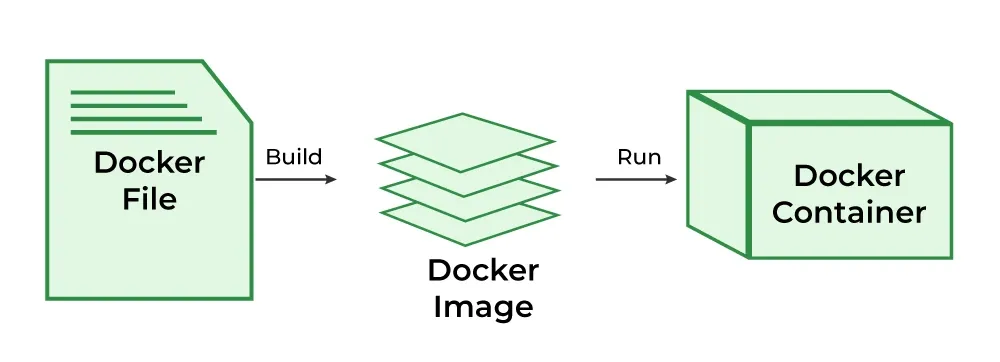
If a Dockerfile is the **recipe, then a Docker Image is the perfectly packaged, ready-to-use meal created from that recipe. This package is completely portable, meaning it will run the exact same way on your laptop, a teammate's computer, or a production server.
Components of a Docker Image
A Docker image isn't one large, monolithic file. It's cleverly constructed from a series of layers and stored in a registry.
Layers
An image is composed of a stack of read-only layers. Each instruction in a Dockerfile (like FROM, COPY, RUN) creates a new layer on top of the previous one.
- **Efficiency: When you change an instruction in your
Dockerfile, Docker only rebuilds that specific layer and the ones that follow it. This makes builds incredibly fast. - **Sharing: If multiple images share the same base layers (e.g., they all start with
FROM ubuntu:22.04), those layers are only stored once on your system.
Base Image
This is the foundational layer of your image, specified by the FROM instruction in a Dockerfile. It can be a minimal operating system like alpine, a programming language runtime like python:3.9-slim, or an application like nginx.
Docker Registries
A Docker Registry is a storage and distribution system for Docker images. It's a library where you can pull official images, find images shared by the community, and push your own.
- **Docker Hub: The default public registry and the largest library of container images.
- **Private Registries: Companies often use private registries (like Amazon ECR, Google Artifact Registry, or Docker Hub private repos) to store their proprietary application images securely.
Commands Related to Docker Image Operations
The following are the some of the commands that are used for Docker Images:
| Command | Description |
|---|---|
| docker image build | This command is used for building an image from the Dockerfile |
| docker image history | It is used for knowing the history of the docker image |
| docker image inspect | It is used for displaying the detailed information on one or more images |
| docker image prune | It used for removing unused images that are not associated with any containers |
| docker image save | This command helps in saving the docker images into a tar archived files |
| docker image tag | It helps in crating a tag to the target image that refers to the source image. |
Docker Image Prune
Docker image prune is a command used in the docker host to remove the images that are not used or Docker image prune command is used to remove the unused docker images.
docker image prune

All the unused images are also know as dangling images which re not associated with any containers
Docker Image Build
The Following is the command which is used to build the docker image.
docker build -t your_image_name:tag -f path/to/Dockerfile
- **Docker build: Initiates the build process.
- -t your_image_name:tag: Gives the image you're creating a name and, if desired, a tag.
- **path/to/Dockerfile . : Gives the location of the Dockerfile. Give the right path if it's not in the current directory. "(.) DOT" represents the current wordir.
Docker Image Tag
Docker tags are labels for container images, used to differentiate versions and variants of an image during development and deployment. Docker tags will help you identify the various versions of docker images and help distinguish between them. Docker image will help us to build continuous deployment very quickly
Docker Image Vs Docker Container
The following are the difference between Docker Image and Docker Container:
| Docker image | Docker container |
|---|---|
| The Docker image is the Docker container's source code. | The Docker container is the running instance of the Docker image. |
| Dockerfile is a prerequisite to Docker Image. | Docker Image is a pre-requisite to Docker Container. |
| Docker images can be shared between users with the help of the Docker Registry. | Docker containers can't be shared between the users. |
| To make changes in the docker image we need to make changes in Dockerfile. | We can directly interact with the container and can make the changes required. |
Structure Of Docker Image
The layers of software that make up a Docker image make it easier to configure the dependencies needed to execute the container.
- **Base Image: The basic image will be the starting point for the majority of Dockerfiles, and it can be made from scratch.
- **Parent Image: The parent image is the image that our image is based on. We can refer to the parent image in the Dockerfile using the FROM command, and each declaration after that affects the parent image.
- **Layers: Docker images have numerous layers. To create a sequence of intermediary images, each layer is created on top of the one before it.
**Create A Docker Image And Run It As Container
Follow the below steps to create a Docker Image and run a Container:
**Step 1: Create a Dockerfile.
**Step 2: Run the following command in the terminal and it will create a docker image of the application and download all the necessary dependencies needed for the application to run successfully.
docker build -t :
This will start building the image.
**Step 3: We have successfully created a Dockerfile and a respective Docker image for the same.
**Step 4: Run the following command in the terminal and it will create a running container with all the needed dependencies and start the application.
docker run -p 9000:80 :
The 9000 is the port we want to access our application on. 80 is the port the container is exposing for the host to access.
How to Build Docker Python Images
This is the complete process of building and running a Python application inside a Docker container
**Step 1: Create A Dockerfile
- Firstly write a dockerfile for supporting python applications and try to python application running instruction with the CMD options for the default run. The following is the sample dockerfile that we are using here:
Use the official Python image as a base
FROM python:3.9-slim
Set the working directory in the container
WORKDIR /app
Copy the current directory contents into the container at /app
COPY . /app
Install any needed dependencies specified in requirements.txt
RUN pip install --no-cache-dir -r requirements.txt
Make port 80 available to the world outside this container
EXPOSE 80
Define environment variable
ENV NAME World
Run app.py when the container launches
CMD ["python", "app.py"]

Dockerfile
**Step 2: Create requirements.txt and app.py Files
- Try on provide the requirements.txt with specifying the names of required software names and app.py file with writing the python application. The following are the sample code of those requirements.txt and app.py.
Filename: requirements.txt
Flask==2.1.0 Werkzeug==2.1.2 # Ensure this is compatible with Flask 2.1.0

requirements.txt
Filename: app.py
from flask import Flask
app = Flask(name)
@app.route('/') def hello_world(): return 'Hello, World!'
if name == 'main': app.run(debug=True, host='0.0.0.0', port=80)

app.py
**Step 3: Build a Docker Image
- The following command is used for building the docker python image from the Dockerfile:
docker image build -t mypython-app:v1 .
- The following shows it practically of building of python based docker image from the Dockerfile:

Build a Docker Image
**Step 4: Verify the Docker Image
- Use the following command to verify the success build of docker application:
docker images
- The following screenshot shows the success build of python based docker image.

Verify the Docker Image
**Step 5: Run a Python based Docker Container
- Run a container to that docker python image with the following command:
docker run -dit -p 80:80 --name mycontainer1 mypython-app:v1
- The following command is the successful run of that python based docker container:

Run a Python based Docker Container
Step 6: Access the Docker Container
- Now, try on access the docker container with public IP of the host system with the exposed port to see the successful run of the containerized python application. The following screenshot illustrates the successful accessing of it.

Access the Docker Container
**Docker Image commands
The following are the some of the Docker Image Commands that are widely used:
**List Docker Images
docker images
**Example
$ docker ls
REPOSITORY TAG IMAGE ID CREATED SIZE nginx latest 0d9c6c5575f5 4 days ago 126MB ubuntu 18.04 47b199b0cb85 2 weeks ago 64.2MB
**Pull an Docker Image From a Registry
docker image pull
**Example
$ docker pull alpine:3.11
3.11: Pulling from library/alpine Digest: sha256:9f11a34ef1c67e073069f13b09fb76dc8f1a16f7067eebafc68a5049bb0a072f Status: Downloaded newer image for alpine:3.11
Docker Images Prune
- The Docker Image Prune will remove the unused Docker Images that are not associated with any containers. The Command looks as follows:
docker image prune
Docker Images Filter
- When we want to filter some specific images we can filter out them using its labels or its meta information tags with the option --filter. The command looks as follows:
docker image ls -f "reference=mypython-app"
**Remove an Image from Docker
- The following command is used for removing the docker image from the local registry:
docker rmi
**Example
$ docker rmi
Untagged: Deleted: sha256:
**Searching for a specific image on Docker Hub
docker search ubuntu
**Example
$ docker search ubuntu
NAME DESCRIPTION STARS OFFICIAL AUTOMATED
ubuntu Ubuntu is a Debian-based Linux operating s... 4458 [OK]
ubuntu-upstart Upstart is an event-based replacement for ... 62 [OK]
tutum/ubuntu Simple Ubuntu docker images with ssh access 49 [OK]
ansible/ubuntu14.04-ansible
The following are the some of the troubleshooting common issues related to docker images:
- **Large Image Sizes: Use multi-stage builds and clean up unnecessary files to reduce image size.
- **Dependency Conflicts: Ensure compatibility by specifying exact versions of dependencies in the Dockerfile.
- **Build Failures: Check Dockerfile syntax and command correctness, and verify all required files are included.
- **Slow Performance: Optimize Dockerfile instructions order and leverage caching to improve build times.