What is Display Filter Macros in Wireshark? (original) (raw)
Last Updated : 19 Apr, 2025
**Display Filter Macros in Wireshark are a feature that allows you to create custom, reusable filter expressions. These macros simplify complex filtering tasks by letting you define a filter with a name, which can then be reused in multiple places. Instead of typing out long or complex filter expressions repeatedly, you can set them up as macros with specific names and values, making filtering more efficient and easier to manage.
For example, if you frequently filter packets by a specific IP address or protocol, you can create a macro with that filter expression, and simply call the macro each time, saving time and reducing errors.
You can save the results of your filter into a separate text file and open the file in an editor of your choice. For example, you could create an HTML report or export data into Excel for more complex analysis.
Steps to Capture with Filter Macros:
We have a macro called tcp_ses that is defined as:
"****(ip.addr eq 1andip.addreq1 and ip.addr eq 1andip.addreq2)** **and (tcp.port eq 3andtcp.porteq3 and tcp.port eq 3andtcp.porteq4)."
Typing ****"${tcp ses10.10.10.10, 10.0.0.1, 1234, 4567}"** into the display filter box would be equivalent to entering ****"(ip.addr eq 10.10.10.10 && ip.addr eq 10.0.0.1)**
****&& (tcp.port eq 1234 && tcp.port eq 4567)".**
**Step 1: Select Network Adapter in Wireshark
Open Wireshark and select the adapter to capture packets. If this example, we have to select Wi-Fi.

Wireshark Packets
**Step 2: Set Up Display Filter Macros in Wireshark
Go to **Analyze tab and then go to **Display Filter Macros. You'll see two columns, **Name and Text. In the name section, you can type any name for the filter, but it is recommended to keep a name related to what type of filter you want. In the next section, you can type what filter you want to set up as a macro.
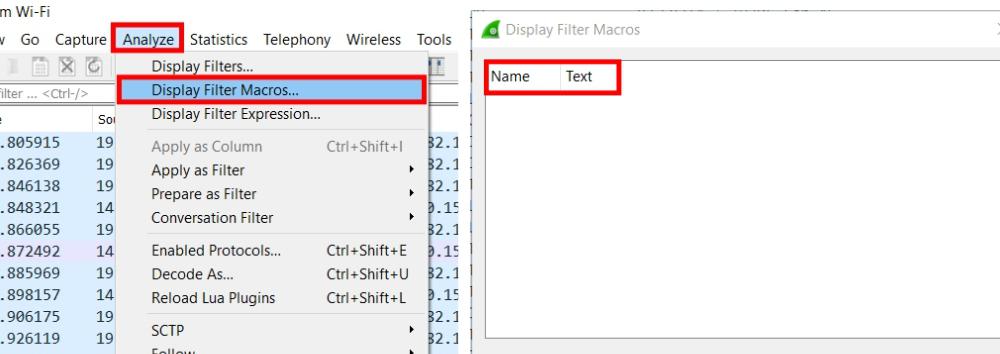
Analyze -> Display Filter Macros..
**Step 3: Add a Display Filter Macro
Click on + icon to add a macro display filter. Just to show how to make a macro, I've taken a very simple example of **ip.addr. In the name section, I have inputted **IPA and in the next section i.e., Text I have inputted **ip.addr==$1 and click on "OK”. Here ****$1 is a variable** which means this macro can store only one value.
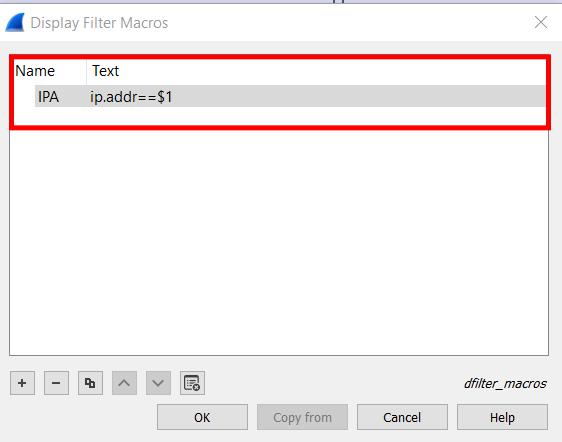
Syntax: NAME, FILTER
To call the macro, there is a syntax. So, given the syntax, we can call our macro with ****${IPA: 127.0.0.1}.**
Syntax:
${variable name: Value}
**Step 4: Confirm Macro Validation
As you can see, the background of the filter went green, which means it is a valid calling of a macro.
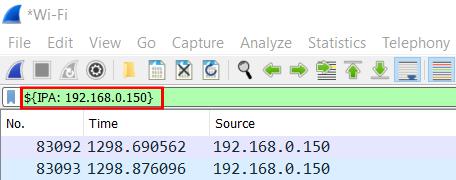

Macro Output
**Step 5: Explore Advanced Wireshark Filters with Macros
Let's try with more advanced Wireshark filters so that you can get to know why macros are very important for complex filters.
**Complex Filter Example 1:
http.request.method == " "

Request Method
It will filter all the requests for GET method. You can add any request method like GET, POST, PUT, DELETE, etc. Call the macro by inputting ****${request: GET}** into the Wireshark filter. In this case, the filter went green.

**Complex Filter Example 2:
string(frame.number) matches "[ ]$"

Example Filter Number 2
This filter will accept values like even numbers like “02468” or odd numbers like “13759”. Now call this filter macro by ****${frames: 02468}.** And this will arrange the Serial No having values in even numbers.

**Conclusion
**Display Filter Macros in Wireshark provide a powerful and efficient way to manage complex filter expressions. By allowing users to create reusable filters with specific names and values, macros simplify the filtering process and save valuable time. This feature is particularly useful for frequent or complex filtering tasks, reducing the chances of errors and increasing productivity. With the ability to store filters and apply them across different sessions, Wireshark macros make packet analysis more streamlined and organized. With advanced filters, users can further enhance their filtering capabilities, enabling more detailed and specific analysis.