Excel LEFT, RIGHT, MID, LEN, and FIND Functions (original) (raw)
Last Updated : 9 Jun, 2026
Excel text functions like LEFT, RIGHT, MID, LEN, and FIND help you extract specific parts of text, count characters, and locate positions within a string. They are useful for quickly cleaning, analyzing and managing large text-based datasets.
LEFT Function in Excel
The LEFT function returns a given text from the left of our text string based on the number of characters specified.
**Syntax:
LEFT(text, [num_chars])
**Parameters:
- **Text: The text we want to extract from.
- **Num_chars ****(Optional)**: The number of characters to extract. Default is 1. If set to 0, it returns an empty string.
Steps to Use LEFT Function in Excel
Here are the steps to use the LEFT function in Excel to extract a specified number of characters from the beginning of a text string.
Step 1: Format our Data
Now if we want to get the first "Geeks" from "Geeksforgeeks****"** in B2. Let us follow the next step.
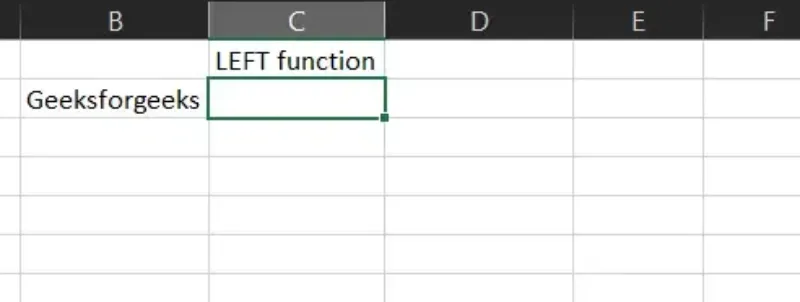
Format your data.
Step 2****:** Enter Formula
We will enter =LEFT(B2,5) in the B3 cell. Here we want Excel to extract the first 5 characters from the left side of our text in B2.
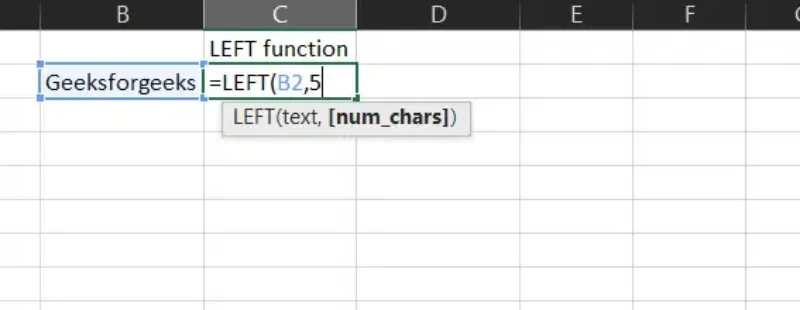
Enter =LEFT(B2,5)
Step 3: This will Return Geeks.
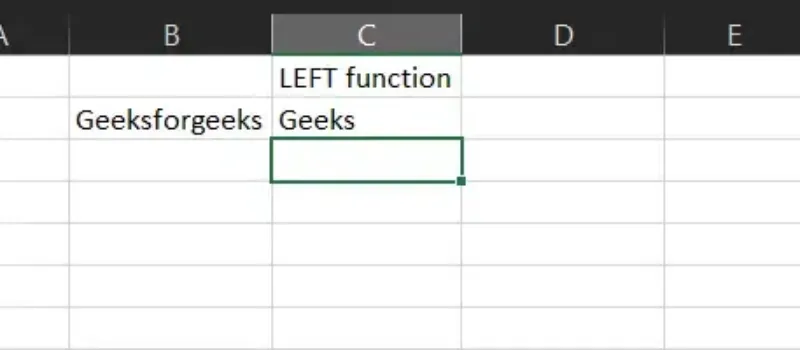
This will return "Geeks"
RIGHT Function in Excel
The RIGHT function returns a specified number of characters from the end (right side) of a text string.
**Syntax:
RIGHT(text, [num_chars])
**Parameters:
- **Text: The text we want to extract from.
- **Num_chars (Optional): The number of characters to extract. Default is 1. If set to 0, it returns an empty string.
Steps to Use RIGHT Function in Excel
Here are the steps to use the RIGHT function in Excel to extract a specified number of characters from the end of a text string.
Step 1****:** Format our Data
Now if we want to get the last geeks from "Geeksforgeeks" in B2. Let us follow the next step.
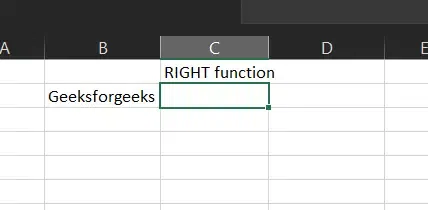
Format your data
Step 2: Enter Formula
We will enter =RIGHT(B2,5) in the B3 cell. Here we want Excel to extract the last 5 characters from the right side of our text in B2.
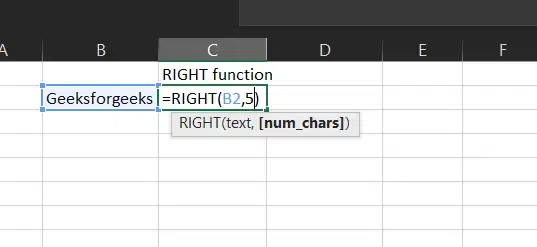
Enter Formula
Step 3: This will Return geeks.
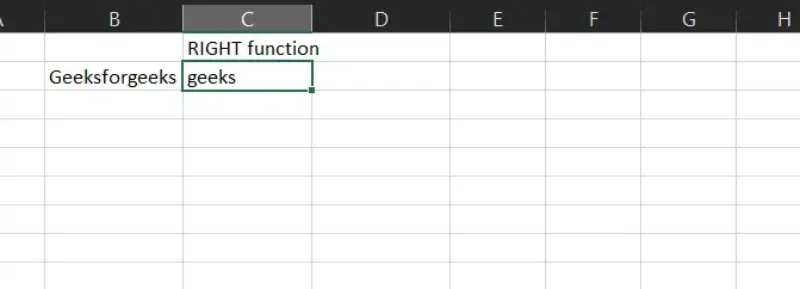
Geeks Returns
MID Function in Excel
The MID function returns the text from any middle part of our text string based on the starting position and number of characters specified.
**Syntax:
MID(text, start_num, num_chars)
**Parameters:
- **Text: The text we want to extract from.
- **start_num: The starting number of the first character from the text we want to extract.
- **Num_chars: The number of characters we want to extract.
Steps to Use MID Function in Excel
Here are the steps to use the MID function in Excel to extract a specific number of characters from a text string, starting at any position we choose.
Step 1: Format our Data
Now if we want to get the character "for" which is located in the middle of our text "Geeksforgeeks****"** in B2. Let us follow the next step.
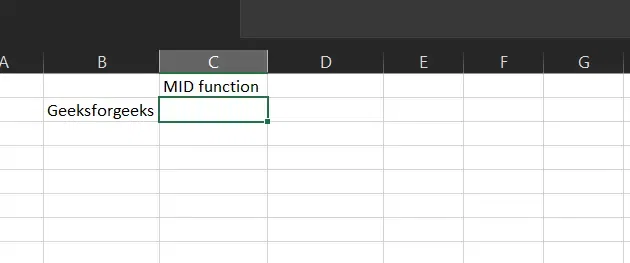
Format your Data
Step 2: Enter Formula
We will enter =MID(B2,6,3) in the B3 cell. Here we want Excel to extract the characters located in the middle of our text in B2.

Enter Formula
Step 3: This will Return for

This will return "for"
LEN Function in Excel
The LEN function returns the number of characters in the text strings.
**Syntax:
LEN(text)
**Parameters:
- **Text: The text we want to know the length
Steps to Use LEN Function in Excel
Here are the steps to use the LEN function in Excel to count the number of characters in a text string, including spaces.
Step 1****:** Format our Data.
Now if we want to know how many characters are in the text "Geeksforgeeks". Let us follow the next step.
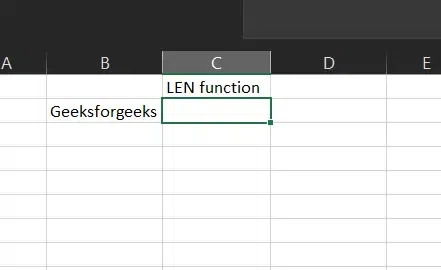
Format your data.
Step 2: Enter Formula
We will enter =LEN(B2) in the B3 cell. Excel will count how many characters are in the text.
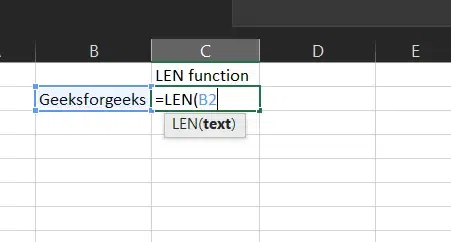
Enter Formula
Step 3: This will Return 13
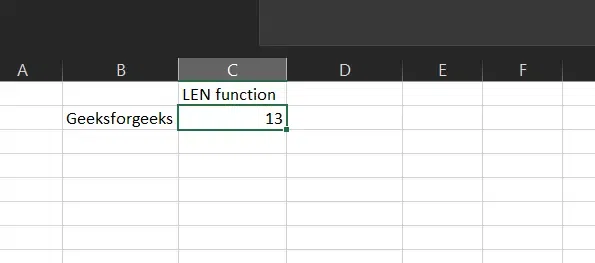
13 Returns
FIND Function in Excel
The FIND function returns the position of a given text within another text and is case-sensitive.
**Syntax:
FIND(find_text, within_text, [start_num])
**Parameters:
- **Find_text: The text we want to find.
- **Within_text: The text containing our find_text.
- **Start_num (Optional): The starting position of our find_text. Default is 1.
Steps to Use FIND Function in Excel
Here are the steps to use the FIND function in Excel to locate the position of a specific character or substring within a text string.
Step 1****:** Format our Data
Now if we want to find “for” in Geeksforgeeks in B2. Let us follow the next step.
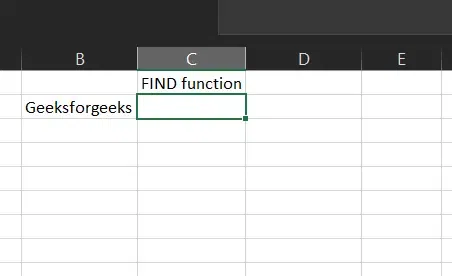
Format your Data
Step 2: Enter Formula
We will enter =FIND("for",B2) in B3 cell. Here we want Excel to find “for” in our text in B2.

Enter Formula
Step 3: This will Return 6 Because for is Located at Character Number 6 in our Text
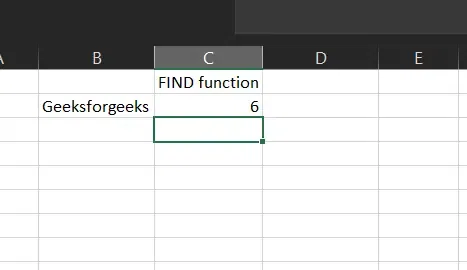
6 Returns