Excel Spreadsheet (original) (raw)
Last Updated : 12 Aug, 2025
An Excel spreadsheet, called a workbook, contains one or more worksheets, each a grid of **1,048,576 rows and **16,384 columns for data management. Workbooks organize related data across multiple worksheets in a single file.
1. Understanding Excel Workbooks and Worksheets
- **Workbook: A single Excel file containing one or more worksheets.
- **Worksheet: A grid with over 17 billion cells (1,048,576 rows × 16,384 columns) for entering and analyzing data.
- **Starting Point: Open a blank workbook or select a template via File > New.
2. Key Features of Excel Spreadsheets
**2.1. Rows and columns
- Rows (horizontal, numbered) and columns (vertical, lettered) intersect to form cells.
- Example: Row 3 and Column B create cell B3.
- Capacity: 1,048,576 rows and 16,384 columns per worksheet.
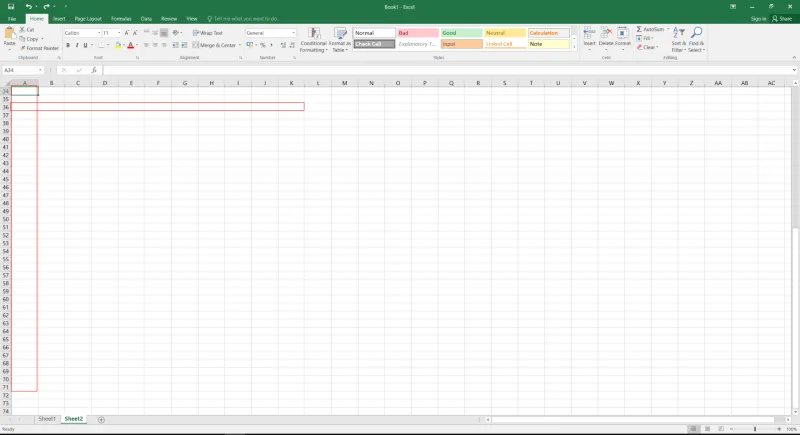
Excel Row and Columns
2.2. Cell Formatting
- Adjusts cell appearance (e.g., font, color, borders, alignment, number formats).
- Steps:
- Select a cell or range.
- Go to Home > Font, Alignment, or Number to customize.
**2.3. Formulas
Automate calculations using predefined functions.
- Syntax: =FormulaName(Arguments) (e.g., =SUM(A1:A10)).
Some of the commonly used formulas are:
| **Formula | **Purpose | **Example | **Description |
|---|---|---|---|
| SUM | Finds the sum of numeric data | =SUM(A1:A10) | Adds all numbers in the range A1 to A10 |
| COUNT | Counts cells with numeric data | =COUNT(B1:B10) | Counts the number of cells containing numbers in B1 to B10 |
| MAX | Finds the maximum number | =MAX(C1:C10) | Returns the largest number in the range C1 to C10 |
| MIN | Finds the minimum number | =MIN(D1:D10) | Returns the smallest number in the range D1 to D10 |
| TODAY | Returns the current date | =TODAY() | Displays today's date, updates automatically |
| SQRT | Finds the square root | =SQRT(E1) | Calculates the square root of the value in cell E1 |
For example, we can use the formula to find the average of the integers in column C from row 2 to row 7:
= AVERAGE(D2:D7)
The range of values on which we want to average is defined by D2:D6. The formula is located near the name field on the formula tab.
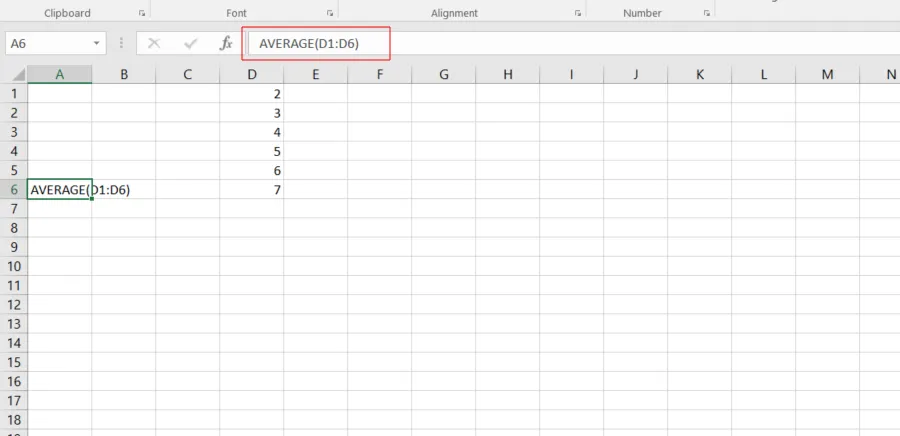
We wrote =AVERAGE(D2:D6) in cell D9, therefore the average becomes (2 + 3 + 4 + 5 + 6 + 7)/6 = 27/6 = 4.5. So we can quickly create a workbook, work on it, browse through it, and save it in this manner.
2.4. Pivot Tables
- Summarize and analyze large datasets dynamically.
- Steps:
- Select data.
- Go to Insert > PivotTable.
- Drag fields to Rows, Columns, Values, or Filters to organize data.
**2.5. Text Manipulation
- Commands to modify text (e.g., CONCATENATE, LEFT, RIGHT).
- Example: =CONCATENATE(A1, " ", B1) combines text from A1 and B1.
3. Uses of Spreadsheets
The use of Spreadsheets is endless. It is generally used with anything that contains numbers. Some of the common use of spreadsheets are:
- **Finance: Manage budgets, taxes, transactions, and billing.
- **Forms: Create templates for timesheets, surveys, or performance reviews.
- **Education: Track student attendance, grades, or schedules.
- **Lists: Organize to-do lists, grocery lists, or contact details.
- **Hospitality: Record customer data (e.g., room numbers, check-in/out dates).
4. Components of Excel Spreadsheets
The basic components of spreadsheets are:
- **Title Bar: Displays the workbook name and application.
- **Toolbar: Provides access to Excel commands (e.g., Home, Insert).
- **Name Box: Shows the active cell’s address (e.g., B3).
- **Formula Bar: Displays or edits data/formulas in the active cell.
- **Column Headings: Lettered (A–XFD) to identify columns.
- **Row Headings: Numbered (1–1,048,576) to identify rows.
- **Cell: Intersection of a row and column (e.g., A1).
- **Cell Reference: Identifies a cell (e.g., A1) for use in formulas.
- **Navigation Buttons: Move between worksheets in a workbook.
- **Sheet Tabs: List worksheets; add or rename via right-click.
5. Editing or Deleting Cell Contents
To delete cell content follow the following steps:
**Step 1: To alter or delete the text in a cell, first select it.
**Step 2: Press the Backspace key on our keyboard to delete and correct text. Alternatively, hit the Delete key to delete the whole contents of a cell. we can also edit and delete text using the formula bar. Simply select the cell and move the pointer to the formula bar.
6. Commonly Spreadsheet Applications
Below are some common spreadsheet application in excel
- **Microsoft Excel: Part of Microsoft Office/365, available on Windows, macOS, Android, iOS.
- **Google Sheets: Free, cloud-based, supports desktop and mobile platforms.
- **Apache OpenOffice Calc: Free, open-source, available on Windows, macOS, Linux.
- **LibreOffice Calc: Free, open-source, similar to OpenOffice, for multiple platforms.